AI apps and API keys
Connect Claude, ChatGPT, Grok, Claude Code, Codex or Cursor to your calendar0 account so they can read your events and free time, and create, move and delete events, or give another app an API key
Your AI app can use calendar0 to read your calendars and change events, across every Google, Outlook and iCloud account you connect. calendar0 has steps for Claude, ChatGPT, Grok, Claude Code, Codex and Cursor. It works on every calendar0 plan, the free one included. You approve each app once, on a calendar0 page, and can disconnect it at any time. Each app also has a page with its steps and what to ask: see AI apps.
Start from calendar0
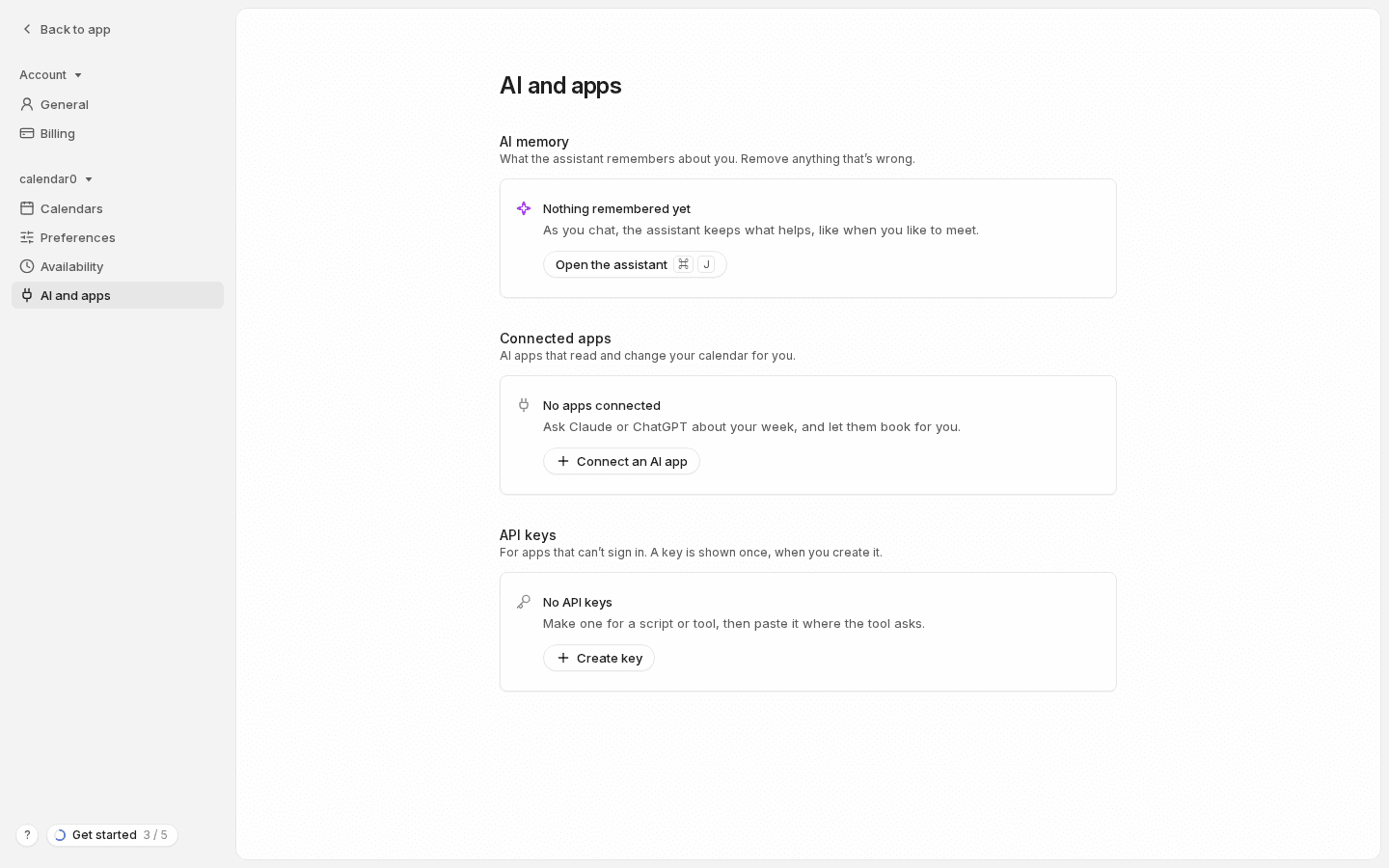
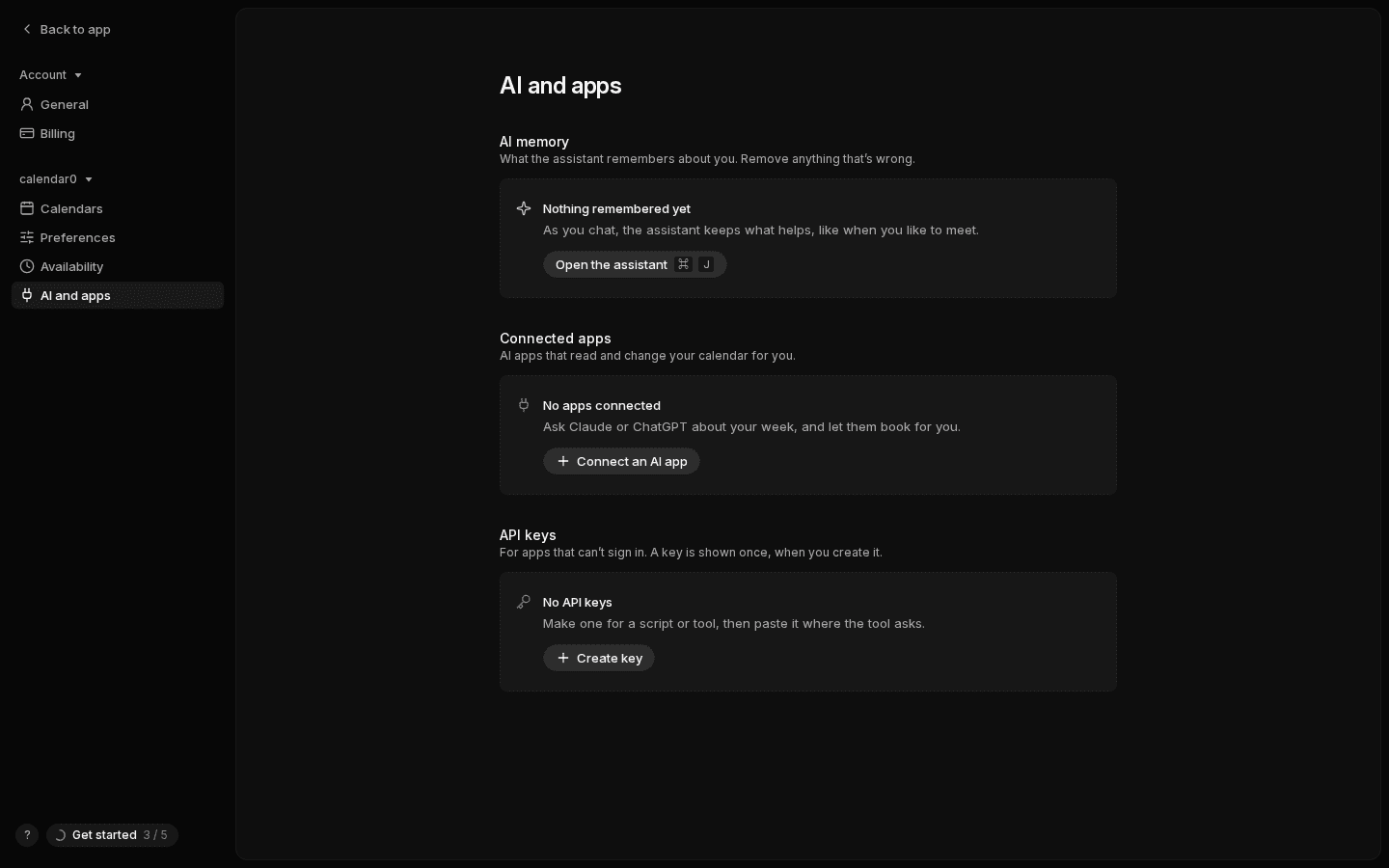
- Open Settings › AI and apps.
- Under Connected apps, choose Connect an app (or Connect an AI app before your first).
- Pick your app. calendar0 shows what's left to do there, with the address to copy where the app needs it.
- Finish in the app and approve calendar0. Back in calendar0, the dialog says the app is connected and gives you a first question to try.
Approve an app
Every app ends on the same calendar0 page, which says the app wants to use calendar0, as which account, and the address it returns to. Check them, then:
- Choose Approve to connect it, or Deny to stop.
- With no calendar connected yet, connect one there first: Approve turns on once you have one.
- The page shows the time zone the app will use. Choose Change if it's wrong.
The address
Every app adds calendar0 at this MCP server address:
https://www.calendar0.app/api/mcp
Claude
Open calendar0 in Claude's directory and choose Connect. calendar0 opens in your browser: sign in if asked, check the app's name and where it returns to, then choose Approve. The connector then works in Claude on the web, on desktop and on mobile; turn it on in a chat from + → Connectors.
If your company gives you Claude, your Claude admin may need to add it.
ChatGPT
Open calendar0 in ChatGPT's plugin directory and choose Install plugin. calendar0 opens in your browser: sign in if asked, check the app's name, then choose Approve. Then mention @calendar0 in a ChatGPT chat and ask.
If your company gives you ChatGPT, your ChatGPT admin may need to allow it.
Grok
At grok.com/connectors, choose New Connector → Custom and paste the address, then approve it on the calendar0 page that opens.
On a Grok Business or Enterprise plan, your Grok admin first adds calendar0 at console.x.ai (Grok Business → Connectors → Add Connector → Other, with the address); then you connect it at grok.com/connectors.
Claude Code
In your terminal, run:
claude mcp add --transport http calendar0 https://www.calendar0.app/api/mcp
Then, in Claude Code, run /mcp, choose calendar0 and sign in. It adds calendar0 to the project you're in; add --scope user to use it in every project.
Codex
In your terminal, run:
codex mcp add calendar0 --url https://www.calendar0.app/api/mcp
Codex opens calendar0 in your browser: sign in and approve it. If the browser doesn't open, run codex mcp login calendar0.
Cursor
Choose Add to Cursor on calendar0's Cursor page, or add the server to ~/.cursor/mcp.json yourself:
{
  "mcpServers": {
    "calendar0": {
      "url": "https://www.calendar0.app/api/mcp"
    }
  }
}
When Cursor asks you to sign in to calendar0, approve it on the calendar0 page that opens. Use Cursor's desktop app: its cloud agents sign in from cursor.com, which calendar0 can't connect to today.
Another app
An app on your computer that signs in through localhost, with OAuth and dynamic client registration over streamable HTTP, can use calendar0 too: paste the address where it adds a remote MCP server. In the picker, choose Other app.
An app that can't sign in but lets you add a header connects with an API key (below).
Any other app that signs in with OAuth has to be added on our side first: ask us.
API keys
An API key lets an app or a script use calendar0 without signing in.
- Open Settings › AI and apps.
- Under API keys, choose Create key.
- Give it the name of the app that will use it, then choose Create key.
- Copy the key. calendar0 shows it once: you won't see it again after you close the dialog.
- In your app, add the address and the header
X-API-Key: <your key>, orAuthorization: Bearer <your key>. The dialog shows both the address and the header ready to copy.
You can have up to 10 keys. Each row shows when you created it and when it was last used. Revoke removes a key at once, and the app's next request is refused.
A key works only for the address above. Keep it like a password: anyone who has it can read and change your calendar.
What an app can do
- See your events and free time across the calendars you show in calendar0 (a calendar you hide is not read), and search and read your meeting notes and transcripts.
- Suggest meeting times, and list your booking links with their public URLs.
- Create events, including repeating ones, and block focus time.
- Change, reschedule and delete events, and add guests. Guests get the provider's usual invitations and updates.
New events go to your default calendar, unless you name another one. Times are read in the time zone saved in Settings › Preferences. If you never saved one, the app is told so and asks you for yours; saving one fixes it.
Apps are asked to confirm with you before they change, move or delete an event, but whether they ask is up to the app. An app's requests don't count against the assistant's free chats.
Disconnect an app
Open Settings › AI and apps and choose Disconnect next to the app under Connected apps. It's disconnected at once, with no question, and its next request is refused. To connect it again, approve it again.
Last updated