Your Guide to zoom plugin outlook for Outlook
Master the zoom plugin outlook for Outlook: install, schedule meetings, and resolve common issues for seamless collaboration.

Calendar0 Team
November 21, 2025

Integrating the Zoom plugin for Outlook is one of those simple changes that has a massive impact on your daily grind. It’s all about embedding your meeting scheduling right where you live—your calendar. This means you can create, manage, and fire off Zoom meeting invites without ever having to hop over to another app. The result? Less admin hassle and a much cleaner, faster way to get things done.
Why Bother Connecting Zoom and Outlook?
Flicking between your calendar and the Zoom app to schedule a single meeting might seem like a tiny annoyance, but those seconds really do add up over the course of a week. Think about the usual song and dance: you block out time in Outlook, open Zoom, create a meeting, copy the link and password, then jump back to Outlook to paste it all into the invitation.
It’s not just tedious; it's a perfect opportunity to mess things up. Pasting the wrong link or forgetting a key detail is surprisingly easy when you’re rushing.
The Zoom add-in for Outlook just cuts out that entire sequence. It’s more than a simple button—it’s about getting back your focus and cutting down on the mental juggling act. When you connect these two essential tools, you create a single, reliable source for all your meeting details, ensuring every invite you send is accurate and consistent.
Here's a quick look at the major workflow improvements you'll gain by connecting Zoom directly to your Outlook calendar.
Benefits of the Zoom for Outlook Integration
| Benefit | Impact on Your Workflow |
|---|---|
| One-Click Scheduling | Instantly add a unique Zoom meeting to any calendar event without leaving Outlook. |
| Reduced Errors | Eliminates manual copy-pasting, preventing wrong links or outdated meeting details. |
| Increased Efficiency | Drastically cuts down the time spent setting up virtual meetings, especially for recurring ones. |
| Centralised Management | Update or cancel meetings directly from your Outlook calendar, and changes sync automatically to Zoom. |
| Improved Security | Easily generate unique meeting IDs and passcodes for each event, enhancing privacy. |
This integration turns a multi-step, error-prone task into a seamless, one-click action.
Streamline Your Day-to-Day Workflow
Let's imagine a real-world situation. A project manager needs to pull five team members into a last-minute sync. Without the integration, she's checking multiple calendars, finding a slot, then manually creating the Zoom details and pasting them in. It’s a pain.
With the Zoom add-in for Outlook, the whole process is unified. She finds the slot, clicks "Add a Zoom Meeting," and all the necessary info is instantly and correctly embedded in the invite. Done.
This kind of efficiency boost is huge in fast-paced environments. In fact, adoption of this simple integration is on the rise. We're seeing this trend particularly in Germany, where businesses have reported a 25% reduction in meeting setup time after getting their teams on board with the add-in. That’s a real, measurable impact.
The official integration page itself shows just how cleanly the Zoom options pop up right inside the Outlook calendar event window. It's a great visual reminder of how simple it is to add a secure, unique meeting link with a single click—no extra steps needed.
It's More Than Just Basic Scheduling
The perks go well beyond just creating new meetings. Managing a packed schedule often means coordinating with others, which gets messy fast when you're working across different platforms.
For teams that rely heavily on shared calendars in Outlook, this integration is a game-changer. It ensures everyone sees the correct meeting link right in the shared event, no questions asked.
Ultimately, integrating Zoom is about building a more connected and efficient communication setup. If you want to understand the bigger picture, it's worth exploring why tools like Zoom are now considered the best alternative to Skype for modern business. The deep, practical integration with daily-driver tools like Outlook is a major reason for that shift.
Choosing the Right Version for Your Setup
So you want to connect Zoom and Outlook. Easy enough, right? But once you start looking, you'll see there isn't just one "Zoom plugin for Outlook." You've got two main choices: the modern Microsoft Outlook Add-in and the older, legacy Desktop Plugin.
Picking the right one isn't just a small technical detail—it's crucial for keeping your setup stable, secure, and ready for the future.
The difference is pretty straightforward but has big implications. The modern Outlook Add-in is what both Zoom and Microsoft officially recommend. It’s built on a modern, cloud-based framework that lets it work flawlessly whether you're on a desktop, the web, or your phone.
Getting this right isn't just about convenience; it directly impacts how smoothly your day runs.
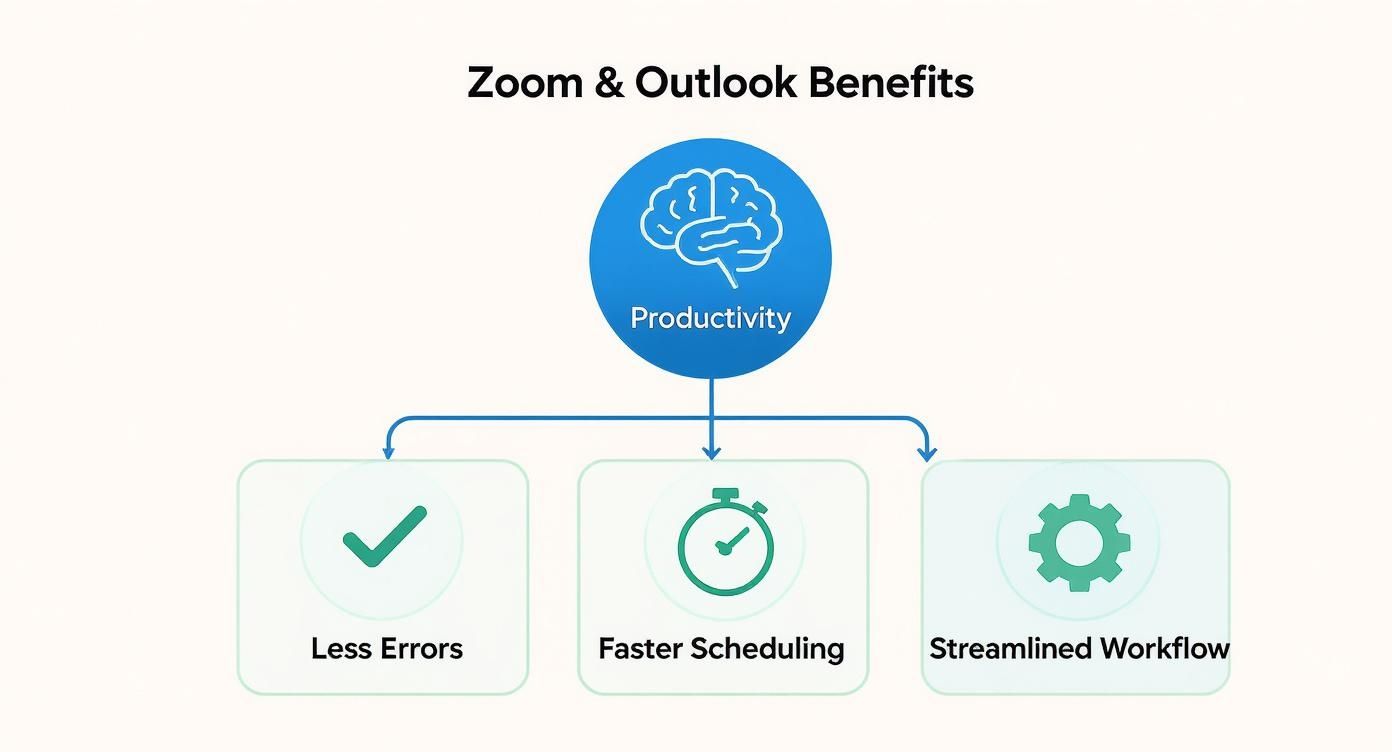
As you can see, the right integration means faster scheduling, fewer glitches, and a much cleaner workflow—all things that add up to better productivity.
Why the Modern Add-In Is Recommended
For almost everyone, the modern Outlook Add-in is the clear winner. Its biggest advantage? Universal compatibility.
It doesn't matter if you’re using the Outlook desktop app on Windows, a Mac, the web version at Outlook.com, or even the mobile app. The Add-in just works, consistently, everywhere.
This is a massive relief, especially for IT admins. They can roll out and manage a single add-in for the whole company, without worrying about what devices or operating systems people are using. Security is another huge plus. Because the Add-in is vetted through Microsoft AppSource, it benefits from a much more secure architecture that’s less likely to clash with other software.
The real magic of the Add-in is its central management. An admin can deploy it once from the Microsoft 365 admin centre, and it just shows up for users on their desktop, web, and mobile clients. No extra steps needed.
Think about it in a real-world scenario. A colleague who usually works on their Windows desktop needs to schedule a last-minute meeting while they're out, using just their phone. With the modern Add-in, the experience is exactly the same. No fumbling around for different tools.
The Limitations of the Legacy Desktop Plugin
The legacy Desktop Plugin, on the other hand, is old-school software that you have to install directly onto a computer. Its biggest weakness is its limited reach. It only works with the desktop version of Outlook on Windows and Mac—no web or mobile support at all.
This immediately creates a fragmented experience for users and a major headache for anyone trying to manage it.
Even worse, these types of plugins are notorious for breaking after an Outlook or operating system update because they’re tied so tightly to specific software versions. Zoom has been pushing users to move away from this older plugin for a while now. It’s a deprecated tool on its way out, and sticking with it means you'll miss out on important updates and security fixes.
For pretty much any modern workflow, the Outlook Add-in isn't just the better choice—it's the only one that makes sense.
Right, so you’ve decided to go with the modern Zoom add-in instead of the clunky old plugin. Smart move. Now, let's get it installed.
The good news is, it’s a painless process whether you’re just setting it up for yourself or you’re an IT admin tasked with rolling it out across the entire company. We’ll cover both scenarios for the Outlook desktop app and the web version.
The main difference really comes down to where you kick things off. If it's just for you, you'll grab it from Microsoft AppSource, their official marketplace. If you're deploying it for your whole team, you'll start from the Microsoft 365 admin centre to maintain central control.
Getting it for Yourself (Individual Installation)
If you're installing the zoom plugin outlook for your own use, you can get it done in a couple of minutes without needing to bother IT. The easiest way is to do it right from inside Outlook.
Fire up the Outlook desktop app (this works on both Windows and Mac). In the Home ribbon right at the top, you should see a button for "Get Add-ins". Clicking this opens up the Microsoft AppSource store. Just type "Zoom for Outlook" into the search bar.
Once you spot it, hit "Add". You’ll have to agree to the usual terms, and in a few seconds, the add-in will be installed. You might need to give Outlook a quick restart for the new Zoom icon to pop up in your ribbon.
The process is almost identical if you're using Outlook on the web:
- Head to your calendar and start creating a new event.
- Click the three-dots menu (...) in the event toolbar.
- Select "Get Add-ins", search for "Zoom for Outlook", and click "Add".
This self-service route is perfect for solo users or small teams where everyone manages their own setup.
My Favourite Part: The best thing about this modern add-in is its "install once, use everywhere" design. Once you add it from either the desktop or web version of Outlook, it automatically syncs and appears on every platform linked to your Microsoft 365 account. No repeat installations needed.
Rolling it Out as an Admin (Central Deployment)
For all the system admins out there, deploying the add-in centrally is the only way to go. It’s efficient, secure, and ensures everyone is on the same page. No one can claim they don't have it, and you prevent people from installing old or unapproved versions.
You’ll start in the Microsoft 365 admin centre. From your main dashboard, find your way to "Settings" and then click on "Integrated apps". Think of this as your command centre for all the third-party tools connected to your organisation's Microsoft environment.
From there, you’ll click "Get apps", which opens the same AppSource marketplace, but with admin controls. Search for "Zoom for Outlook" and select the option to deploy it.
Now for the important part. A configuration screen will pop up, letting you control exactly how the add-in gets rolled out:
- Assign Users: You can push it out to the entire organisation, specific groups (like only the sales department), or even just a few people for a pilot test.
- Deployment Method: You get two choices. "Fixed" means users get it automatically and can't remove it. "Available" means it shows up as an option for them to install themselves. Honestly, for a core tool like this, "Fixed" is almost always the right call.
Once you’ve made your choices and confirmed, the deployment starts. Be patient—it can sometimes take a few hours for the add-in to appear for all users. But once it does, the Zoom icon will just show up in their Outlook ribbon. No action needed from them. This approach is a game-changer for driving adoption and keeping things simple.
Scheduling Meetings Directly From Outlook
Once the Zoom add-in is installed, this is where you start to see the real payoff. You can now schedule your meetings right from your Outlook calendar, turning what used to be a clunky, multi-step copy-paste job into a quick, single-click action. The integration puts Zoom’s scheduling power right where you work, so you can stop jumping back and forth between apps.
Let’s walk through what this looks like in practice.
The next time you go to create a new appointment in Outlook, you’ll spot a new "Add a Zoom Meeting" button in your toolbar. One click is all it takes. The add-in instantly generates and drops unique meeting details—the link, ID, and passcode—straight into your calendar invitation.
This kind of seamless workflow is a huge reason why these tools have become so popular. In Germany, the adoption of the Zoom plugin for Outlook mirrors a much bigger trend. A recent survey showed that a staggering 68% of German companies now rely on video conferencing tools for their day-to-day operations, and slick integrations like this are a major draw.
Fine-Tuning Your Meeting Settings
Just dropping a link into the invite is only scratching the surface. The real magic is in the "Settings" panel, which you’ll find right next to the "Add a Zoom Meeting" button. Think of this as your command centre for tweaking all the important details before you even hit send.
From here, you can dial in all the crucial security and experience settings.
- Security Options: Need to control who gets in? Enable a Waiting Room or set a specific passcode.
- Video Preferences: You can decide whether the host's and participants' video should start on or off by default.
- Audio Choices: Specify if people can join using their phone, computer audio, or both.
For instance, if I’m scheduling a sensitive client call, I’ll always enable the Waiting Room and add a passcode directly from Outlook. But for a quick internal team huddle? I’ll probably leave things more open. Having that level of control without leaving my calendar is what makes this integration so useful.
Pro-Tip: The most overlooked feature here is choosing your meeting ID. You can have it "Generate automatically" for a unique ID—which is a best practice for any external calls. For recurring internal meetings, you can use your "Personal Meeting ID" (PMI) to keep things simple and consistent.
Handling Recurring and International Meetings
The add-in is also smart enough to handle more complex scheduling. Say you need to set up a weekly project sync every Monday morning. When you create that recurring event in Outlook, you get a couple of choices for the Zoom details.
- Use the Same Link: By default, the add-in will use the same Zoom meeting link for every single occurrence. This is perfect for regular team stand-ups where everyone knows what to expect.
- Generate Unique Links: If security is a bigger concern, you’ll need to create each event as a separate, one-off meeting. This ensures every session gets its own unique link.
This flexibility means you can set things up for pretty much any scenario. It also makes coordinating with colleagues across the globe a lot less painful. For those tricky international calls, you might want to check out our guide on using a meeting planner for time zones. It’s a lifesaver for making sure everyone gets the invite for the right local time and actually shows up.
Pro Tips for Making Zoom and Outlook Work for You
Using the Zoom add-in for Outlook is more than just a one-click trick to schedule meetings. To really master it, you need to build a few smart habits around how you manage your calendar and keep your meetings secure. This is what separates the pros from the amateurs, ensuring your schedule stays clean, professional, and locked down.
Here’s one of the most common mistakes I see people make: they schedule a meeting in Outlook, but then try to cancel it from the Zoom app. Don't do this. It creates a messy disconnect where the event still lives on everyone's Outlook calendar, but the meeting link is dead. Cue the confused emails and people showing up to a non-existent meeting.
The golden rule is simple: Where you create it is where you manage it. If you booked the meeting in Outlook, you must cancel it in Outlook. Deleting the calendar event is the only way to properly kill the Zoom meeting and retract the invitation.
Sticking to this simple discipline will save you—and everyone you invite—a lot of headaches. It prevents those "ghost meetings" that clutter up calendars and keeps your entire scheduling workflow reliable.
Don't Get Lazy with Meeting Security
Not all meetings are created equal, so your security settings shouldn't be one-size-fits-all. Think of your Personal Meeting ID (PMI) like your direct office line—it's fine for quick chats with trusted colleagues, but you wouldn't splash it all over a public flyer.
For any meeting with external folks—clients, vendors, interview candidates—always generate a unique meeting ID. It’s a tiny step that massively reduces the risk of someone uninvited gate-crashing your call.
While you're at it, get comfortable with these settings right inside the Outlook add-in:
- Always enable a Waiting Room. It puts you in the driver's seat, letting you control exactly who gets in and when.
- Require a Passcode. This is non-negotiable. It's a basic layer of security that stops most unauthorised access in its tracks.
- Set video defaults. For big webinars or formal presentations, set participant video to "off" by default. You can always let them turn it on later.
Taking a few seconds to configure these options before you hit "send" is a game-changer for maintaining control and looking professional.
Let Your Team Schedule with Confidence
If you're a busy executive or team lead, you know that your calendar can feel like a full-time job. Thankfully, the Zoom Outlook add-in fully supports delegate permissions, so an assistant or teammate can seamlessly schedule meetings on your behalf.
When you grant someone delegate access to your Outlook calendar, they automatically get the power to add and manage your Zoom meetings through the add-in. It's incredibly efficient, but you have to make sure they're trained on the same security best practices we just covered.
This kind of integrated scheduling is now a cornerstone of modern work, particularly in places embracing new work models. In Germany, for instance, the Zoom plugin for Outlook has been a key tool in the country’s shift to flexible work, with businesses reporting a 30% increase in meeting attendance and better punctuality. You can read more about how flexible work is being supported by this tech. By mastering these tips, you're not just improving your own workflow—you're making the whole team more effective.
Fixing Common Installation and Syncing Problems
Even the smoothest setup can hit a snag. It's just the nature of tech. If your Zoom plugin for Outlook starts acting up, don't immediately reach for the support ticket. Most of the common headaches are surprisingly easy to fix yourself.
The classic issue I hear about all the time is the "disappearing icon." One minute the "Add a Zoom Meeting" button is right there in your Outlook ribbon, and the next, it's gone. This usually happens after an Outlook update or if the add-in somehow gets disabled. Your first port of call should always be the add-in management settings inside Outlook—it’s often just been deactivated by mistake.
Another frequent problem is a sync failure. You create a meeting in Outlook, but it never shows up in your Zoom account, or the other way around. Nine times out of ten, this is an authentication or permissions issue between your Microsoft 365 and Zoom accounts.
Resolving Authentication and Sync Errors
When meetings aren't syncing, the first thing to try is a full sign-out and sign-in. It sounds simple, but it works wonders. Log completely out of the Zoom add-in within Outlook and sign out of your Zoom desktop client. Then, sign back into both, making absolutely sure you’re using the exact same email address.
If that doesn’t do the trick, it might be a permissions issue. IT admins often have security policies that can inadvertently interfere with third-party tools. It’s worth a quick check to see if your company has any specific rules blocking the connection.
Here’s a pro tip that solves a surprising number of glitches: clear your Outlook cache. Over time, this data can get corrupted and cause all sorts of weird behaviour with add-ins. A quick search for "how to clear Outlook cache" for your version will show you how.
This simple action forces the add-in to build a fresh, clean connection with both Outlook and Zoom’s servers. For teams that juggle multiple calendar systems, understanding how to diagnose these connection issues is crucial. If you’re also wrestling with other calendar protocols, looking into Outlook CalDAV sync problems can offer some helpful parallels for troubleshooting.
When Custom Settings Don't Stick
Ever spent time setting up the perfect meeting—waiting room on, video off by default—only to have it all reset the next time you create one? It’s incredibly frustrating, and it usually happens because of a conflict between the settings in your Outlook add-in and your main account settings on the Zoom web portal.
The fix is to get them in sync. Log into your account on the Zoom website and head straight to the "Settings" page. This is where your master configuration lives. You can even "lock" certain settings at the account level, which will override anything you try to change from the Outlook add-in.
Here's what to look for:
- Check Locked Settings: See that little padlock icon next to a setting? If it’s locked, you have to unlock it on the web portal before you can control it from Outlook.
- Verify Account-Level Defaults: Make sure your base settings on the web are what you actually want. The Outlook add-in will almost always pull from these defaults first.
- Re-authenticate the Add-In: After you make changes on the web, sign out and back into the Outlook add-in. This forces it to fetch the new configuration.
By getting your web portal and add-in settings to agree, you can be confident your preferences will stick, no matter where you schedule your next meeting.

