Master the Windows Task Manager Shortcut
Unlock the fastest Windows Task Manager shortcut (Ctrl+Shift+Esc), discover alternative methods, and learn expert tips to manage your PC like a pro.

Calendar0 Team
November 3, 2025

When your PC suddenly grinds to a halt or an app decides to freeze up, you don't have time to mess around. You need a fix, and you need it now.
The fastest, most direct way to get that fix is the Windows Task Manager shortcut: Ctrl+Shift+Esc. This one command is your golden ticket, instantly launching Task Manager without any annoying extra steps. It's the quickest way to regain control over your system's processes.
Why Ctrl+Shift+Esc Is Every Power User's Go-To
Picture this: you're minutes away from presenting a critical project, and your presentation software locks up. The mouse is crawling, the screen is frozen solid. Fumbling through menus is simply not an option.
This is exactly where Ctrl+Shift+Esc shines. It launches Task Manager immediately, letting you pinpoint and shut down the misbehaving program so you can get right back to business.
This keyboard combo is more than just a convenience; it's an essential tool for anyone who values their time. IT pros and seasoned Windows users swear by it because it completely bypasses the intermediate security screen you get with Ctrl+Alt+Del. When your user interface is struggling, a direct command like this is often the only thing that will get through.
Taking Back Control of Your PC
The beauty of this shortcut is its consistency. It works across different versions of Windows, making it a reliable tool you can build muscle memory for. And in a modern operating system, knowing these fundamentals is key—especially when you consider the benefits of upgrading to Windows 10 for better performance, where Task Manager remains a cornerstone.
It’s not just anecdotal, either. In Germany, for instance, a staggering 70% of Windows users prefer Ctrl+Shift+Esc for its sheer speed and simplicity. It just goes to show that when things go wrong, people want a direct, no-nonsense solution.
This quick decision tree shows you when to use which shortcut.
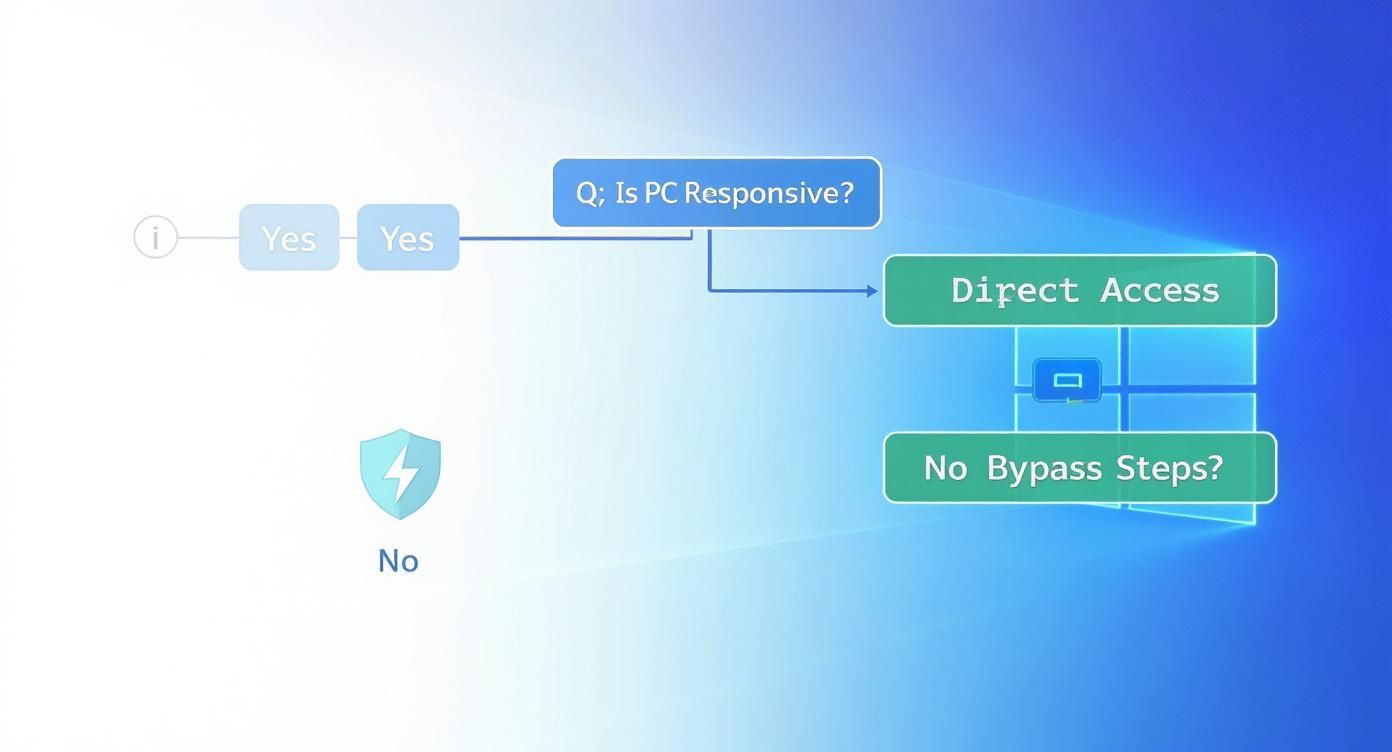
As the graphic shows, if your PC is still responsive, direct access is the way to go. If it's completely locked up, the Ctrl+Alt+Del screen might be your only recourse.
Pro Tip: Train yourself to hit
Ctrl+Shift+Escthe moment an application freezes. It’s the fastest route to diagnosing the problem and fixing it without having to restart your whole machine. Think of the time—and potential data loss—you'll save.
Whether you're a professional juggling a dozen apps or a gamer whose full-screen session just crashed, this shortcut is your lifeline. It gives you the power to take immediate action, manage your PC's resources, and keep your workflow smooth and uninterrupted.
Beyond the Shortcut: Other Ways to Open Task Manager
While the direct Ctrl+Shift+Esc shortcut is the fastest way to get there, it's not the only tool in the box. Sometimes, a misbehaving system or a frozen app calls for a different approach. Knowing these alternatives means you can always regain control, no matter what Windows throws at you.
The Classic: Ctrl+Alt+Del
This is the old-school, rock-solid method everyone knows. Unlike the direct shortcut, Ctrl+Alt+Del doesn't launch Task Manager right away. Instead, it pulls you out of your frozen desktop and into a secure options screen.
Think of it as a low-level interrupt—it’s designed to cut through the noise of a locked-up program. From the blue screen that appears, you just select "Task Manager."
This method is a favourite among IT pros, especially in Germany, who see it less as a shortcut and more as a powerful diagnostic entry point. Its reliability is essential for troubleshooting remote systems where other key combos might not get through. You can see how German system administrators approach this on PCWelt.de.
Here’s a quick look at the modern Task Manager interface you'll see in Windows 11.
The layout organises key system metrics and processes clearly, so you can see what’s going on at a glance.
The Power User Menu Method
For a quick, mouse-friendly option, the Power User Menu is your best friend.
Just press Windows Key + X or right-click the Start button. A context menu pops up with a whole list of handy system tools. Simply click "Task Manager" from the list. It’s perfect when you're already using your mouse and don't want to switch back to the keyboard.
The Command Line Approach
What if your taskbar or even your whole desktop shell goes haywire? This is where the Run dialog becomes a lifesaver.
Real-World Scenario: Imagine your taskbar has completely vanished due to a shell error, but your keyboard still works. You can't right-click anything, but you can still launch programs. The Run dialog bypasses the broken interface entirely.
Here's how to do it:
- Press
Windows Key + Rto pop open the Run dialog. - Type
taskmgrinto the box. - Hit Enter.
This command directly runs the taskmgr.exe application, making it an incredibly reliable way to get things done when the graphical interface lets you down.
Once you have these down, you'll be able to troubleshoot almost any situation. And while you're at it, mastering other valuable Windows shortcuts like the built-in screenshot crop tool can save you even more time every day.
Creating a Custom Task Manager Shortcut
The built-in shortcuts like Ctrl+Shift+Esc are fantastic, but personalising your workflow is where the real magic happens. By creating a custom desktop shortcut and tying it to your own hotkey, you put yourself in the driver's seat. It lets you launch Task Manager in a way that just feels right for you.
This is a game-changer if you want one-handed access or find the default key combinations a bit clumsy. It’s also the perfect workaround for potential conflicts—say, if you're a developer and your coding environment already hijacks Ctrl+Shift+Esc. A custom hotkey is your escape hatch.
Pinpointing the Task Manager Application
First things first, you can't create a shortcut without knowing what to point it to. The Task Manager is a humble executable file called taskmgr.exe, tucked away deep inside your Windows system folders.
Don’t worry, you don’t need to go digging around for it. All you need is its full system path, which is always the same:
C:\Windows\System32\taskmgr.exe
Memorising or copying this path is the key to creating a direct line to the application from anywhere.
Building Your Desktop Shortcut
Alright, let's get that shortcut made. This is a simple process that gives you a clickable icon right on your desktop, which we'll then supercharge with a keyboard command.
- Find an empty spot on your desktop and right-click.
- Go to New, and then choose Shortcut.
- In the location box that pops up, paste in the full path:
C:\Windows\System32\taskmgr.exe. - Click Next, name it something obvious like "Task Manager," and hit Finish.
And there you have it—a direct link to Task Manager right on your desktop. That's already pretty handy, but the real power move is giving it a hotkey.
Key Takeaway: A custom shortcut isn't just about convenience; it's about making your system bend to your will. By assigning a memorable hotkey, you reduce friction and make system management feel like muscle memory, saving you precious seconds every single time.
Assigning a Personal Hotkey
This is where you make the shortcut truly yours. By diving into the shortcut's properties, you can assign just about any key combination you can dream up.
Just right-click your new "Task Manager" shortcut on the desktop and select Properties. Inside the "Shortcut" tab, you'll spot a field labelled "Shortcut key." Click in that box.
Now, simply press the key combination you want to use. For instance, try pressing Ctrl + Alt + T.
Windows will automatically register this as Ctrl + Alt + T. A quick pro-tip: stick with combinations that start with Ctrl + Alt, as they're far less likely to be already claimed by another program you use daily.
Once you’ve picked your keys, click Apply, then OK. That’s it. Your unique Windows Task Manager shortcut is now live across your entire system. This kind of personal automation is incredibly powerful for streamlining your work on Windows. For those who juggle different operating systems, understanding how to automate tasks with tools like cron jobs can be just as impactful. You can learn more about scheduling tasks in our guide to macOS cron jobs.
Now, no matter what you're doing, just hit your custom hotkey, and Task Manager will snap open instantly.
Productivity Tips Inside Task Manager
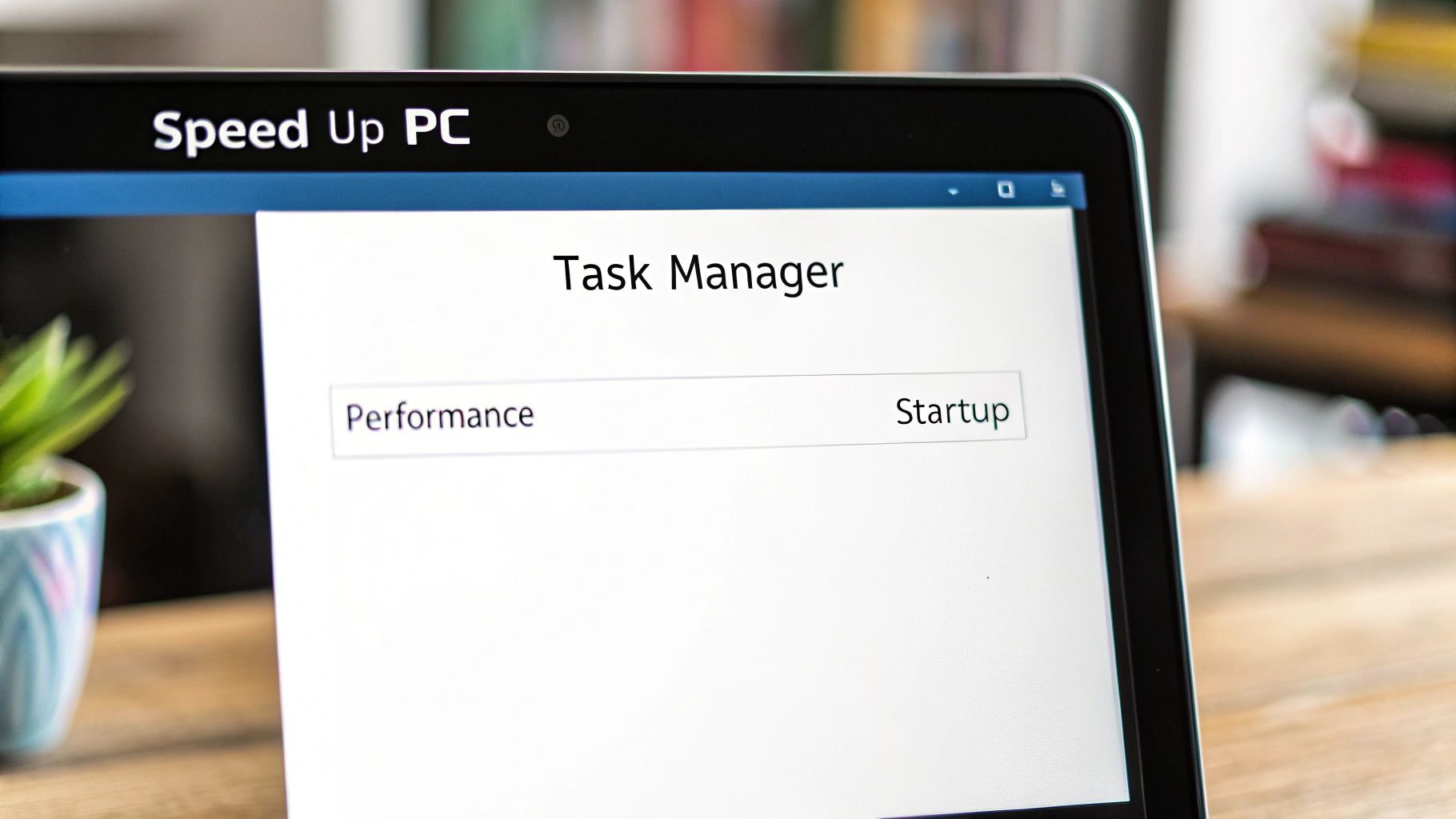
Getting Task Manager open with a quick shortcut is one thing, but the real magic happens when you know what to do once you're inside. This little utility is way more than just a tool for killing frozen apps; it’s a command centre for your PC’s performance. Learning to navigate it is the difference between a frustrating slowdown and a minor hiccup.
We’ve all been there—your computer suddenly feels like it’s wading through mud. The culprit is almost always a single rogue process chewing up way too many resources. Just pop open the 'Processes' tab, sort by CPU or Memory, and you’ll instantly spot the offender at the top of the list. Right-click, 'End task', and breathe a sigh of relief as your system returns to normal.
Slash Your Boot Time
Is there anything more annoying than a slow startup? This is usually caused by a swarm of applications launching themselves the moment you log in. Task Manager gives you the power to stop this.
- Head over to the 'Startup' tab (or 'Startup Apps' in Windows 11).
- You’ll get a full list of every program that wants to run on boot.
- Keep an eye on the 'Startup impact' column—this tells you which ones are the real resource hogs.
- Right-click any non-essential app (like software updaters or chat clients you don’t need right away) and hit 'Disable'.
Just disabling a couple of high-impact programs can make a huge difference in how fast your PC is ready to go.
This is one of my favourite tricks for making an older machine feel snappy again. You're not deleting the software, just telling it to wait until you actually need it. This frees up precious resources for the things you want to do now.
Dig Deeper for Performance Insights
Once you get past the basics, Task Manager has a ton of data for power users. The 'App history' tab, for instance, is brilliant for seeing which of your modern Windows apps are sipping the most network data. It’s a lifesaver if you're on a metered connection.
For even more control, the 'Details' tab is where the real action is. Let's say you're rendering a video. You can right-click that process and set its priority to 'High'. This tells Windows to give that specific task more processing power, which can seriously speed things up. You can even get granular and set its 'affinity' to control which processor cores it uses.
It’s worth noting that some of these metrics can be a bit quirky. For example, German IT experts have noted that Task Manager’s main CPU usage graph can be misleading on modern multi-core chips. It might show 100% usage when the logical processor load is only around 41%. This is a simplification for the average user, but a key detail for tech pros to remember. You can find a deep dive into these misleading CPU values on this German IT research blog.
Mastering these features turns the Windows Task Manager shortcut from a simple emergency button into a powerful optimisation tool. In the same way a daily planner app helps you manage your time, Task Manager helps you manage your computer's resources to keep everything running smoothly.
Troubleshooting a Non-Working Shortcut
https://www.youtube.com/embed/RWkKQVaHXIA
You hit Ctrl+Shift+Esc, expecting the familiar Task Manager to pop up, but… nothing happens. It’s a uniquely frustrating moment, especially when you’re trying to kill a frozen app that’s holding your system hostage.
Thankfully, the reason your shortcut has gone on strike is usually pretty simple to track down and fix.
Identifying the Conflict
More often than not, the problem isn't a fault with Windows itself. It's usually another program that has sneakily claimed that key combination for its own use. I’ve seen this happen countless times with screen recording software, graphics card utilities like NVIDIA GeForce Experience, or even some accessibility tools. These apps can override the default Windows behaviour, effectively hijacking the shortcut.
So, how do you find the culprit?
Start by closing any recently installed or running applications one by one. After closing each one, try the shortcut again. Pay close attention to the programs running in your system tray (the little icons down by the clock), as they're often the ones responsible.
Once the shortcut suddenly starts working after closing a specific program, you’ve found your conflict. From here, you have a couple of options:
- Reconfigure the conflicting software: Dive into that program’s settings and look for a "Hotkeys" or "Shortcuts" menu. You can either disable the hotkey that’s causing the trouble or just change it to something that doesn't clash.
- Keep the program closed: If it’s an application you don’t need running all the time, simply make sure it’s not active when you might need to summon the Task Manager.
When an Administrator Blocks Access
If you're in a professional environment, particularly in Germany, a non-working shortcut might be entirely intentional. Corporate IT departments often disable Task Manager access for standard users as a security measure to prevent unauthorised changes to the system.
This is typically done using Group Policy Objects (GPOs), a central management feature in Windows. An administrator can set a policy that tells the operating system to simply ignore any attempt to open Task Manager, including shortcuts.
In a corporate German setting, this is a common practice rooted in strict data protection standards (Datenschutz). A German cybersecurity report I read recently mentioned that admins often use a specific registry edit to disable Task Manager, preventing employees from terminating security software or snooping on system processes. You can find more details on these German IT security policies on Windowspro.de. If you suspect this is what’s happening, your only real option is to contact your IT support department.
There's one other potential cause, though it's a bit more alarming: malware. Some malicious software is specifically designed to block access to system tools like Task Manager. Why? To stop you from finding and terminating its processes.
If you've ruled out software conflicts and you aren't on a managed corporate network, running a full system scan with a reputable antivirus program should be your immediate next step.
And while you’re getting your troubleshooting workflow in order, it never hurts to organise your schedule too. Check out our guide on how to get the most out of Apple Calendar on Windows to keep everything in sync.
Got Questions? We’ve Got Answers
When you're trying to work faster in Windows, knowing the right shortcuts is half the battle. But sometimes, the why behind those shortcuts is just as important. Here are a few common questions that pop up, even for seasoned Windows users.
We've walked through a few ways to get to the Task Manager, from the direct Ctrl+Shift+Esc to the old-school Ctrl+Alt+Del. They all get you to the same place, but they take different routes for a reason.
Why So Many Shortcuts?
Having more than one way to open the Task Manager isn't an oversight—it’s smart system design. The direct windows task manager shortcut, Ctrl+Shift+Esc, was brought in specifically for speed. It's a no-fuss, one-shot command to get you straight into managing processes without any extra clicks.
Ctrl+Alt+Del, on the other hand, is a much older and more fundamental command. It operates at a lower level of the system, designed to interrupt nearly everything your PC is doing. This is precisely why it’s your go-to when your computer is frozen solid. It brings up a secure screen that gives you options beyond just the Task Manager, like signing out or locking your machine.
Here's the simple way to think about it:
Ctrl+Shift+Escis your everyday tool for a quick check-up or to shut down a misbehaving app.Ctrl+Alt+Delis the emergency brake you pull when the whole system feels like it's about to crash.
Can You Change The Default Shortcut?
You can't directly change the built-in Ctrl+Shift+Esc combo in Windows settings—it's hardwired. But what you can do is create your very own hotkey, which is almost as good.
Just like we covered earlier, you create a desktop shortcut that points to taskmgr.exe and then assign your preferred key combination in the shortcut's properties. This is a fantastic way to tailor your workflow. Maybe you want to set it to Ctrl+Alt+T for a memorable, easy-to-reach alternative. It’s a simple customisation that gives you back control.
A word of warning from experience: avoid picking a simple hotkey like
Ctrl+T. That's already the universal shortcut for opening a new tab in your web browser. To prevent these kinds of conflicts, always go for a three-key combination, especially one starting withCtrl+Alt, for any custom shortcuts you create.
Is The Task Manager The Same On All Versions Of Windows?
At its heart, yes. The Task Manager has been doing the same core job for decades: letting you see and manage what’s running on your system. But its look and feel have definitely evolved, especially since Windows 8 hit the scene.
Older versions, like the one in Windows 7, had a very bare-bones, utilitarian layout with simple tabs. With Windows 10 and 11, Microsoft gave it a major facelift. Now we have a much friendlier interface with helpful graphs, resource usage heat maps, and handy tabs like 'Startup Apps' and 'App history'. So while the primary windows task manager shortcut hasn't changed, the tool itself has become far more powerful and easier to understand.
Mastering shortcuts saves you time managing your PC, but what about managing your schedule? Calendar0 is an AI menubar calendar that eliminates calendar admin so you can schedule meetings at the speed of thought. By unifying all your calendars and understanding natural language, it saves busy professionals about 20 minutes every day. Reclaim your time at https://www.calendar0.app.

