Master the Task Manager Shortcut on Any System
Unlock system control with the Task Manager shortcut. Learn how to open, use, and troubleshoot this powerful tool on any OS for ultimate productivity.

Calendar0 Team
November 2, 2025

When an app freezes up and your mouse pointer is just a spinning circle of doom, you need a fix—right now. The quickest way to wrestle back control on a Windows PC is the direct Task Manager shortcut: Ctrl+Shift+Esc. Forget the classic Ctrl+Alt+Delete; this combo zaps you straight to the Task Manager, no extra screens or clicks needed.
Your Instant Access to System Control
We've all been there. A web browser gives up, or some background process decides to eat all your memory for breakfast. Having an immediate way to intervene isn't just nice; it's essential. The Task Manager is your command centre for everything running on your machine.
Knowing the direct shortcut is more than a party trick. It's a core skill for anyone who wants to use their computer efficiently. It lets you sidestep the frustration and get straight to fixing the problem.
Once you’re in, you can:
- Instantly kill unresponsive programmes.
- Monitor system performance to see exactly what’s hogging resources.
- Manage startup applications to make your computer boot up faster.
Why a Direct Shortcut Matters
Think of Ctrl+Alt+Delete as a lobby with different doors—one for the Task Manager, another to log out, and others for power options. Ctrl+Shift+Esc, on the other hand, is your private, direct entrance. It cuts out the middleman, saving precious seconds when you're dealing with a system that's on the brink.
This is especially true in a place like Germany, where Windows is a dominant force in the desktop market. As of October 2025, Windows commands around 42.4% of the desktop OS market share in Germany, making this shortcut a daily utility for millions of users. If you're curious, you can explore more data on German OS market share to see just how widespread it is. This prevalence highlights just how vital these commands are for day-to-day work and troubleshooting.
A task manager shortcut isn’t just about closing frozen apps. It’s about maintaining control, understanding your system’s behaviour, and optimising performance on the fly without breaking your workflow.
Mastering this simple command empowers you to solve common PC headaches in an instant. It’s the first step to making sure your technology works for you, not against you.
Going Beyond the Basics in Windows Task Manager
Getting the Task Manager open is just step one. The real power move is learning to navigate its features like a pro—without ever touching your mouse. The modern interface organises all that crucial system data into tabs like Processes, Performance, and Startup apps, and zipping between them with just your keyboard is the secret to faster troubleshooting.
Think about it: your web browser is getting sluggish. Instead of squinting at a long list of processes and grabbing your mouse, you can use a few quick key presses to find the problem and shut it down. This is what turns the Task Manager from a simple utility into a proper diagnostic dashboard.
Essential In-App Navigation Shortcuts
Once you’re in, stay on the keyboard. It’s way faster. Bouncing between the main tabs to check on different parts of your system’s health is simple.
- Tab Hopping: Use
Ctrl + Tabto jump forward through the main tabs (Processes, Performance, etc.). Need to go back?Ctrl + Shift + Tabis your friend. - Process Hunting: Over in the Processes tab, the Arrow Keys let you move up and down the list. If you’re looking for a specific app, just start typing its name—like "chr" for Chrome—and Windows will jump right to it.
- Ending a Task: Once you’ve highlighted the troublemaker, just hit the
Deletekey. A little confirmation box will pop up; hitEnterto send that process packing.
The real goal here is to build muscle memory. The moment something goes wrong, your fingers should already know the dance: open, navigate, and solve the problem in seconds. Your workflow stays completely uninterrupted.
Putting It into Practice
Let's walk through a common headache: a browser extension is going rogue and eating up all your memory. With these shortcuts, you can hit Ctrl + Shift + Esc, immediately type "chrome" to find the app, use the arrow keys to select the main process, and hit Shift + F10 (or the Menu key) to pop open the context menu. From there, you can arrow down to "End process tree" and shut down the browser and all its misbehaving children at once.
This kind of keyboard fluency is becoming more important every day. As our reliance on computers has deepened—just look at Germany, where the internet user base rocketed from 4.1 million in 1997 to over 67 million by 2022—so has the need to manage our systems efficiently. You can discover more about Germany's internet usage trends to see just how deep this digital dependency runs, making skills like mastering the task manager shortcut surprisingly valuable.
If you're not on Windows, don't worry—you aren't left in the dark when an app decides to stop working. While macOS and Linux don’t have something called a "Task Manager," they have their own powerful, built-in tools for killing rogue processes and checking up on your system's health. You just need to know where to look.
For Mac users, the quickest way to deal with a frozen app is the 'Force Quit Applications' window. The magic keyboard combination is Command + Option + Esc. Hit those keys, and you'll get a clean, simple list of every open application. From there, you can select the troublemaker and shut it down with a single click. It’s the go-to first-aid for an unresponsive program.
Deeper Dives with Activity Monitor
When a simple force quit isn't enough and you need to see what's really going on under the hood, you'll want to open up Activity Monitor. This is the true equivalent of the Windows Task Manager, giving you a detailed breakdown of your Mac’s CPU, Memory, Energy, Disk, and Network usage.
There’s no default shortcut to pop it open, but getting to it is still a breeze:
- Spotlight Search: The fastest way by far. Just press
Command + Spacebarand start typing "Activity Monitor." - Finder: If you prefer clicking, you can find it by navigating to
Applications > Utilities > Activity Monitor.
Here's a pro-tip for anyone who finds themselves using it often: keep the Activity Monitor in your Dock. Once it’s running, just right-click its icon, hover over 'Options', and select 'Keep in Dock'. Now it's always just one click away.
Taming Linux System Monitors
In the world of Linux, your go-to tool often depends on which desktop environment you're running. If you're on GNOME, for example, you'll be using the GNOME System Monitor. For those on KDE Plasma, the tool for the job is KSysGuard.
But the real beauty of Linux is how you can bend it to your will. It's incredibly easy to create your own custom task manager shortcut to feel right at home. Just dive into your system's keyboard settings, look for the custom shortcuts or keybindings area, and create a new entry. You can assign a command like gnome-system-monitor to a familiar key combo like Ctrl + Shift + Esc, giving you that same instant access you’d get on a Windows machine.
Troubleshooting a Non-Responsive Shortcut
There's a special kind of frustration when the one shortcut designed to fix your problems… doesn't work. If your go-to key command for Task Manager isn't responding, it could be anything from another program hijacking the input to a deeper system-level problem. Don't worry, you've got plenty of options to figure it out.
Sometimes, another application—especially gaming software or a utility running in the background—can "capture" your keyboard inputs. This means it intercepts the Ctrl+Shift+Esc command before Windows even gets a chance to see it. An easy way to test for this is to close your most recently opened apps one by one, trying the shortcut after you close each one.
This quick decision tree can help you instantly find the right system monitor for your operating system.
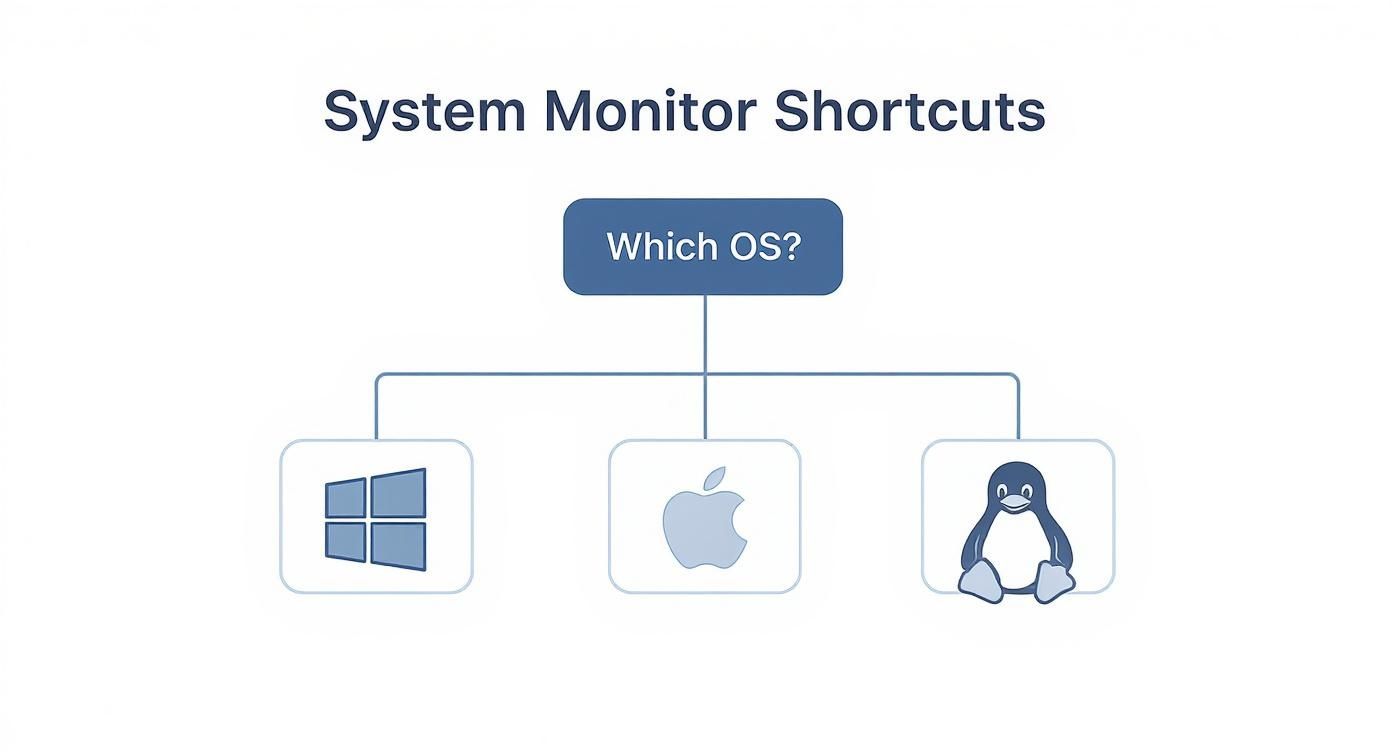
Whether you're on Windows, macOS, or Linux, this visual guide points you straight to your platform's primary tool.
Digging Deeper into System Issues
If closing apps didn't do the trick, the problem might be rooted in your system files or services. I’ve seen this happen with a corrupted user profile or when a critical service that Task Manager relies on has been disabled.
A solid first step is running the System File Checker (SFC). Just open Command Prompt as an administrator and type in sfc /scannow. This command is a lifesaver; it scans all your protected system files and swaps out any corrupted ones with clean, official Microsoft versions. It’s my go-to for all sorts of mysterious Windows issues.
Another, though less common, possibility is a faulty keyboard driver. A glitch in the driver can stop specific key combinations from registering properly. You can check on this by heading into Device Manager, finding your keyboard in the list, and seeing if there are any driver updates available.
Sometimes, the problem is bigger than a single file. System-wide instability can show up in weird ways, like a disabled shortcut. In these cases, rolling your system back to an earlier point can often fix complex issues without touching your personal files.
If the usual troubleshooting steps aren't cutting it, or if you're noticing more significant system instability, it's time to bring out the bigger Windows tools. For those really persistent problems, you might want to explore using System Restore in Windows for a more robust fix.
Boosting Productivity with Custom Shortcuts
Knowing the default Task Manager shortcut is a great start, but true mastery comes from making your computer work for you. Why stick to the built-in commands when you can craft your own shortcuts for practically anything? This is the move from just reacting to problems to proactively streamlining your entire day.
You can use powerful tools like AutoHotkey on Windows or even the native Keyboard settings in macOS to map complex sequences to a simple key press. Imagine launching your entire work setup—browser, email, and calendar—with a single, unique hotkey you created. That’s not just managing tasks; it's automating the setup.
Real-World Automation Examples
Take a tedious job like data entry. I know someone who automated a whole multi-step process: copying data from a spreadsheet, pasting it into a web form, and hitting submit. By scripting this and tying it to a shortcut, they clawed back hours of mind-numbing work every single week.
Adopting this keyboard-first mindset also cuts down your reliance on the mouse, which can reduce both mental clutter and physical strain. Your fingers just know what to do, no more hunting for icons. This thinking applies well beyond just the Task Manager; you can remap all sorts of system controls, like using volume keys for external display control.
Mapping custom shortcuts is about reclaiming your time. Every command you automate is a small victory against repetitive work, freeing up mental energy for more important challenges.
This level of customisation really pays off in professional settings. In the German IT market, for instance, the kind of efficiency you get from shortcuts is hugely valued. It drives the adoption of specific task and process management software built for local business needs, especially in fast-paced sectors like manufacturing and engineering.
Got Questions About Task Manager?
When it comes to built-in system tools, Task Manager seems to be one that everyone has questions about. It’s a powerful little utility, and people often wonder about the different ways to open it or what certain behaviours might mean for their computer’s health. Let's dig into some of the most common curiosities.
Ctrl+Shift+Esc vs. Ctrl+Alt+Delete: What's the Real Difference?
This is easily the most frequent question I hear. Think of it like this: Ctrl+Alt+Delete is the classic security screen that gives you a menu of options, like signing out or changing your password. The task manager shortcut is just one item on that menu.
On the other hand, Ctrl+Shift+Esc is your direct hotline. It skips the security screen entirely and pops the Task Manager right open. For quickly zapping a frozen app, it’s the clear winner.
Can Malware Actually Disable Task Manager?
Another big concern is whether a virus can lock you out of this crucial tool. The short answer? Absolutely, yes.
Some nasty bits of malware are specifically designed to disable core system utilities like Task Manager and the Registry Editor. Their goal is to stop you from killing their processes or cleaning up the infection. If your task manager shortcut suddenly stops working and the usual fixes don’t help, it could be a sign of something more sinister. You might even see a frustrating message like, “Task Manager has been disabled by your administrator,” even if it's your personal machine.
If you suspect malware is the culprit, don't wait. Run a full system scan with a reputable anti-virus program right away. Getting back control of your system tools is your first and most important step to kicking the threat out and securing your computer.
How to Find the Biggest Memory Hog (Without Touching Your Mouse)
Is your computer chugging along but you can't figure out why? You can quickly find the app that's eating up all your resources using just your keyboard.
- First, pop open Task Manager with
Ctrl+Shift+Esc. - Then, use
Ctrl+Tabto cycle over to the "Processes" tab. - Finally, hit
Alt+Mto sort everything by memory usage. This will bring the hungriest programs right to the top of the list.
It's a quick, mouse-free trick that lets you pinpoint exactly what's draining your system's power so you can shut it down.
Taming your system's performance is one thing, but for most of us, managing a packed schedule is an even bigger productivity drain. If you're tired of calendar admin, Calendar0 is an AI menubar calendar built to give you that time back. It lets you schedule meetings at the speed of thought. Just connect your Google and Microsoft calendars, type what you need to do, and let the AI handle the rest. Learn more about Calendar0 and start your free trial.

