Master Your task manager on iphone: Boost Your Productivity
Master the task manager on iphone: learn App Switcher usage, Reminders, and top apps to boost iPhone productivity.

Calendar0 Team
November 5, 2025

When someone talks about a "task manager" on an iPhone, they usually mean one of two very different things. The first is the built-in App Switcher for juggling open applications. The second, and what most of us are actually looking for, is a proper productivity app for organising our to-do lists.
Getting this distinction right is the first step to actually using your iPhone to its full potential.
Unpacking the Two Types of iPhone Task Managers
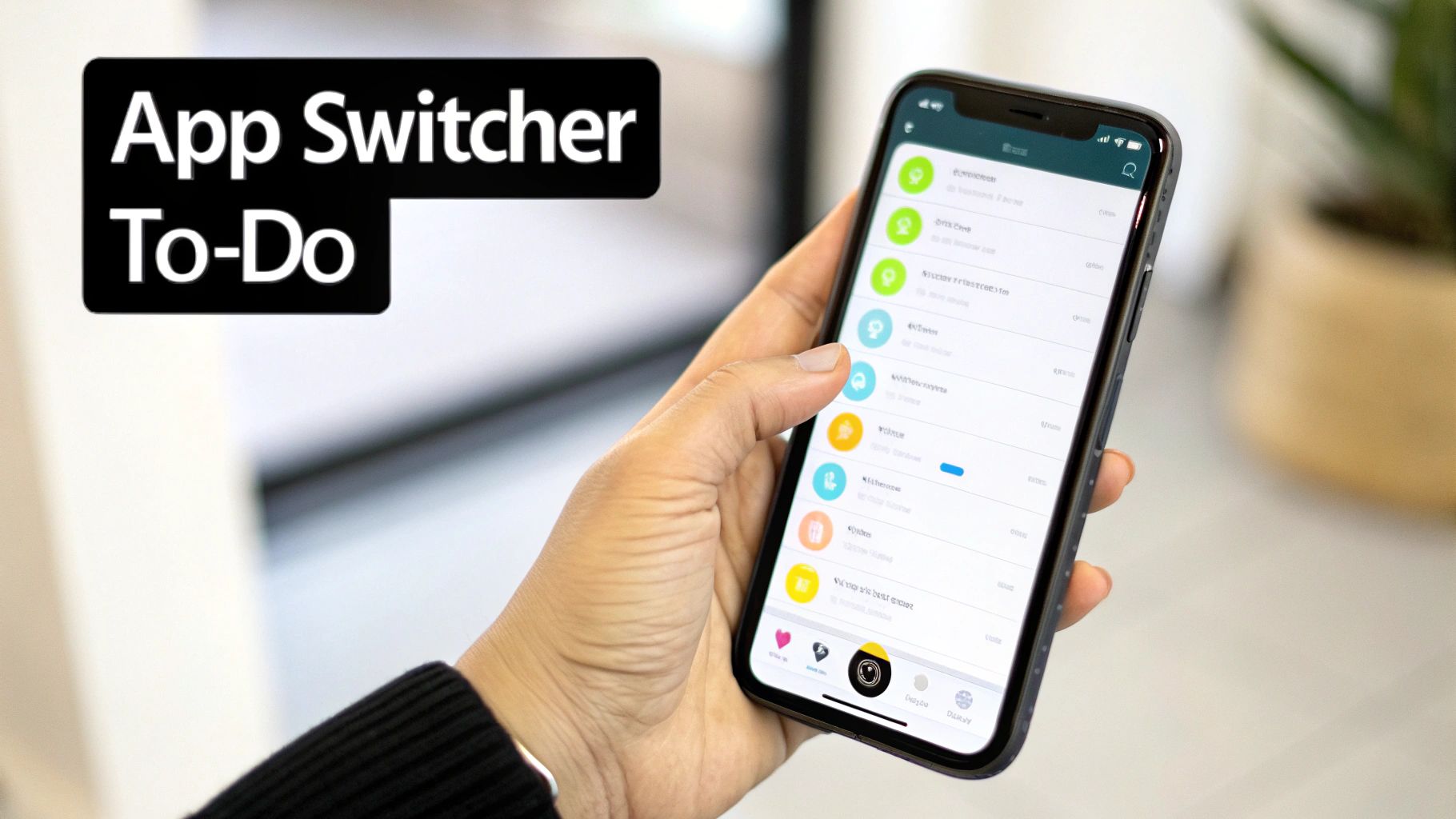
Let's clear up this common mix-up once and for all.
Think of your iPhone as a busy workshop. The App Switcher is like the foreman who keeps an eye on which tools are currently out on the workbench. It’s great for seeing what’s running, but it has no idea what projects you need to finish by Friday.
Then you have your actual project blueprint—your to-do list. This is your dedicated task management app, like Apple’s own Reminders. This is where you map out your personal and professional goals, set deadlines, and actually track what you've accomplished. One manages the tools, the other manages the work.
The System Manager vs. The Productivity Manager
So, you have the App Switcher, which is basically a temporary holding area for your recently used apps. You can swipe up to close them, but honestly, you almost never need to. Apple’s iOS is incredibly good at managing memory on its own, and constantly force-quitting apps can sometimes use more battery, not less.
A true productivity manager, on the other hand, is your command centre for life. It's built to answer the questions that actually matter:
- What are my top three priorities for today?
- Which client projects need my attention this week?
- Did I remember to add milk to the grocery list?
This is a big deal for the millions of people using an iPhone in Germany. As of January 2025, iOS devices accounted for a massive 37.4% of mobile internet usage in the country. That's a huge number of people relying on their phones for daily organisation, often starting with native tools like Reminders. You can dig into more of the data on German mobile OS usage over at Statista.com.
Here's a quick way to see the difference:
Two Types of iPhone Task Managers at a Glance
This table breaks down the core purpose of each tool.
| Feature | App Switcher (System Manager) | To-Do App (Productivity Manager) |
|---|---|---|
| Primary Goal | Manage currently running applications. | Organise and track personal or work tasks. |
| Main Action | Switch between apps or close them. | Create lists, set due dates, add notes. |
| Use Case | Quickly jump from your email to your calendar. | Plan your week, manage a project, build a shopping list. |
| Think of it as... | A desktop's dock or taskbar. | A digital notebook or planner. |
While the App Switcher is a handy system utility, it's the to-do app that will actually make you more productive.
Your iPhone isn't just a phone; it's a powerful pocket computer equipped with surprisingly robust tools. The key is knowing which tool to use for the right job, starting with the native Reminders app.
This guide is going to focus on that second category: turning your iPhone into a genuine productivity machine. We'll start by exploring the often-underestimated power of the built-in Reminders app and then figure out when it makes sense to upgrade to something more specialised.
Unlocking the Power of Apple Reminders
Before you go hunting through the App Store, it's worth taking a second look at the powerful, free tool already living on your iPhone. Apple Reminders has grown up a lot since its early days as a simple list-keeper. It's now a surprisingly capable task manager on iPhone that can handle some pretty complex workflows, all without costing you a penny.
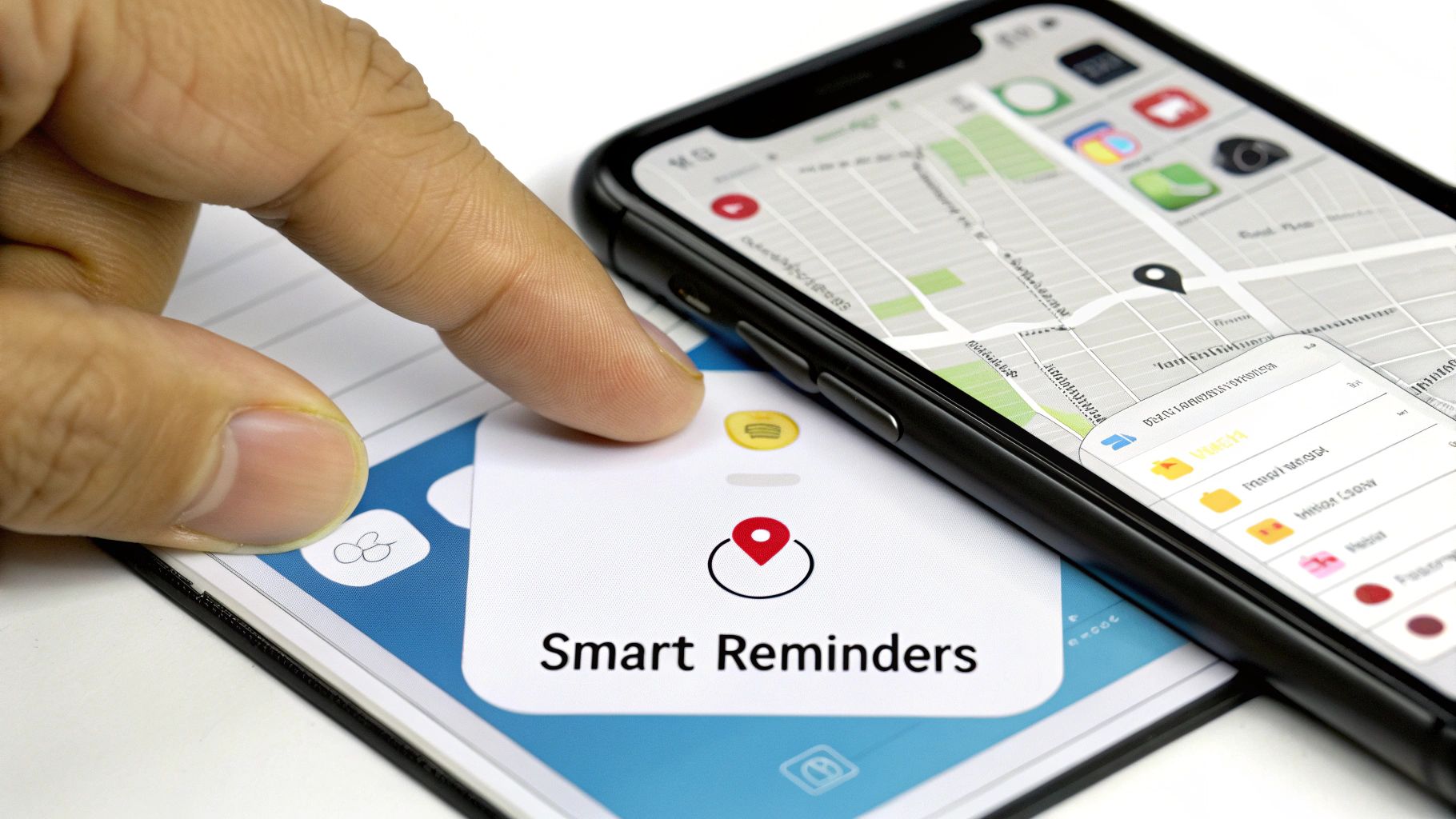
It’s easy to dismiss Reminders as something just for trivial to-dos, but recent updates have quietly turned it into a productivity engine. The app now packs in features that many third-party tools put behind a paywall, making it a fantastic starting point for anyone getting serious about organising their life.
Its biggest advantage is just how deeply it’s baked into the Apple ecosystem. You can tell Siri to capture a task hands-free, share a grocery list with your partner that updates in real-time, and get alerts that are way smarter than a simple alarm.
Going Beyond Basic Lists
To really see what Reminders can do, you have to think beyond a single, flat to-do list. The app is built with layers of organisation that can adapt to what you need.
Here are a few key features you can use right now:
- Smart Lists: These are a game-changer. You can create custom views that automatically pull tasks from all your other lists based on things like tags, due dates, or even your location. For example, a "High Priority" list could show you every task tagged
#urgentthat’s due this week. - Location-Based Reminders: This is just plain practical. Set a reminder to "Take out the bins" that only pings you when you arrive home, or one to "Pick up dry cleaning" that pops up as you're leaving the office.
- Tags and Subtasks: Organise your life with
#tagsfor quick filtering (think#work,#personal,#errands). You can also break bigger projects down into smaller, manageable subtasks, each with its own notes.
This kind of reliability is backed by the stability of iOS itself. In Germany, for example, OS fragmentation is incredibly low, which means a consistent experience for everyone. As of June 2025, 69.42% of all iPhones and iPads in the country were running iOS 18.5—a world away from the often-fragmented Android ecosystem. This means German users can count on the latest features, like shared lists and location-based alerts, to just work. You can dig into more regional mobile OS stats over at Statcounter.
A Practical Workflow Example
Let's say you're managing a small project, like organising a team offsite event.
In Reminders, you could create a shared list called "Team Offsite." Inside, you'd add the main tasks: "Book Venue," "Arrange Catering," and "Finalise Agenda." Each of these can then be broken down with subtasks, due dates, and even assigned to different people.
From there, you could add tags like #budget or #logistics to filter your view and focus on what matters at that moment. And if you’re browsing potential venues in Safari, you can just ask Siri to "Remind me about this website later," and it will create a task with a direct link back to the page. It's this kind of seamless integration that shows how Reminders can be more than enough for many people.
Choosing Your Ideal Third-Party Task App
When Apple's built-in Reminders app just doesn't cut it anymore, you’ll find the App Store is flooded with specialised tools. But let's be honest, wading through them to find the right task manager on iPhone can feel like another chore in itself. The real goal is to find an app that slots into your life, not one that adds another layer of complexity you have to manage.
Think of it like choosing a car. A simple bike (Reminders) is great for zipping around town. But if you're planning a cross-country road trip with a lot of gear, you'll want something with GPS, more storage, and maybe all-wheel drive. Your task manager is no different—its value depends entirely on the "journeys" you need it to handle.
Core Features That Truly Matter
Before you get distracted by slick animations and fancy widgets, let's zero in on the functional pillars that hold up any good productivity system. These are the non-negotiables that make sure your chosen app can actually keep up with you.
Here’s a simple checklist to get you started:
- Seamless Cross-Platform Syncing: This is the bedrock. Your to-dos have to be up-to-date whether you’re on your iPhone, iPad, or sitting at your desk. If the sync is flaky, the whole system falls apart.
- Deep Calendar Integration: The best apps don't just list your tasks; they help you make time for them. Look for the ability to see tasks right on your calendar or, even better, drag them into specific time blocks.
- Intelligent Notifications: Generic pings are just noise. You need an app with customisable alerts—reminders based on time, a specific location, or even when you start messaging a certain person. This stops you from burning out on notifications.
For anyone managing team projects or just needing more power than Reminders offers, it pays to look around. Checking out a detailed comparison of ClickUp alternatives is a solid way to see what more advanced project management tools bring to the table.
A great task manager doesn’t just store your to-dos; it actively helps you complete them by providing the right information at the right time, without getting in your way.
Privacy and Collaboration Considerations
Beyond just keeping your own life organised, two other factors are critical: collaboration and privacy. If you plan to manage projects with a team, look for features like task assignments, shared project boards, and in-app comments. These are essential for keeping everyone on the same page without drowning in email threads.
Just as important is the app's privacy policy. Your task list is a goldmine of personal and professional data, so make sure the developer is transparent and serious about securing your information. This is especially true in the German market, where people are happy to pay for quality apps that deliver on security and advanced features.
In 2025, the average global iPhone user downloaded 38 apps per year, with App Store revenue climbing steadily. This shows a clear willingness to invest in tools that genuinely add value. It's a trend that points to a strong market for premium apps that deliver on their promises—much like a well-designed daily planner app brings structure and clarity to your day.
Building a Modern Productivity Workflow
Having the right features is just one piece of the puzzle. The real magic happens when you turn those features into a reliable system that just works. A modern productivity workflow isn't about finding the most complicated app; it's about building a simple process to capture, organise, and prioritise your tasks without adding more friction to your day.
So, let's build a practical system from the ground up, using your task manager on iPhone as the foundation.
The very first step? Mastering instant task capture. Your whole system falls apart if adding a new task feels like a chore. Get in the habit of using tools like Siri or a quick-add widget to dump thoughts out of your head the second they pop up. Don't worry about organising them just yet. The goal is to get them into your digital inbox before you have a chance to forget. This simple act clears mental clutter and makes sure nothing ever slips through the cracks.
Organise with Context and Clarity
Once your tasks are captured, it’s time to give them some context. This is where tags and projects are your best friends. Instead of staring at one long, overwhelming list, you can slice and dice your tasks by area of responsibility (#work, #personal) or by a specific project (Project-Alpha, Q4-Report).
This simple sorting lets you filter your view and focus only on what's relevant right now, turning a chaotic mess into a clear plan of attack. For example, sitting down at your desk? Filter for #work. Heading out to run errands? Pull up your #errands list. This contextual separation is the secret to staying focused. Of course, while your iPhone is a beast, a truly solid system often includes broader strategies for staying organized at work.
Prioritise and Schedule Your Day
With everything neatly organised, it's time to decide what actually matters. A dead-simple but powerful way to do this is with the Eisenhower Matrix, which sorts tasks into four buckets: urgent/important, important/not urgent, urgent/not important, and neither. This framework helps you cut through the noise and identify what truly needs your attention. Most good task apps let you use flags or priority levels to mimic this system.
The infographic below breaks down the key things to look for in an app to support this kind of workflow, zeroing in on sync, calendar integration, and collaboration.
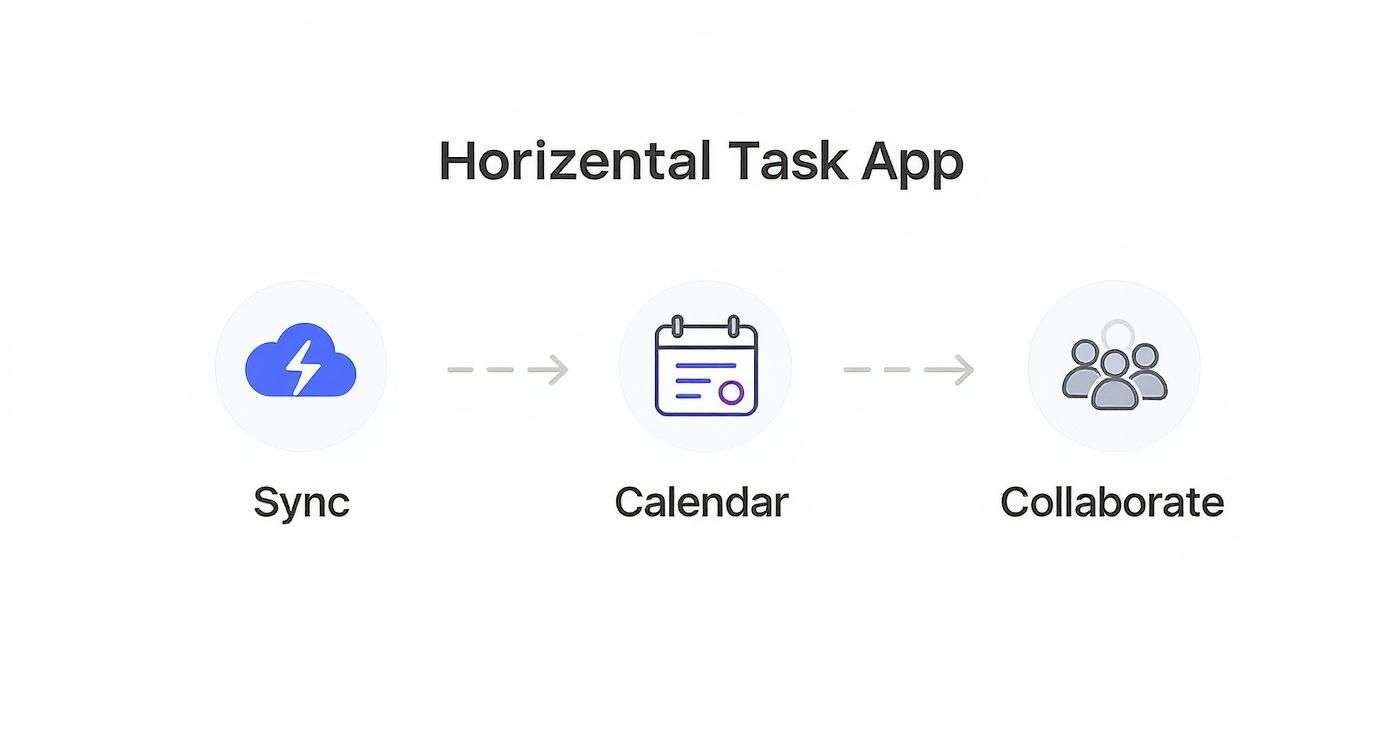
As you can see, a powerful workflow really hinges on how well your tools talk to each other and support your daily planning.
The final, crucial step is connecting your task manager to your calendar. A to-do list tells you what you need to do, but your calendar tells you when you have time to do it.
This is where time-blocking comes in. By dragging tasks from your list directly onto your calendar, you create a realistic, actionable plan for your day. This proactive scheduling ensures your most important work gets the dedicated time it deserves, moving you from just listing your tasks to actually completing them. As you get more advanced, you might even be interested in learning about the role of planning with artificial intelligence to take your scheduling to the next level.
Integrating iPhone Tasks with Your Calendar
A great productivity system can't live in a bubble. To really get a handle on your day, your iPhone and your desktop have to be on the same page. This is where calendar integration stops your task manager from being just another list and turns it into a genuine plan of attack.
Seeing your tasks and your meetings in one place is the secret to planning a day you can actually get through. It’s a reality check. It stops you from cramming five hours of work into a two-hour gap, forcing you to be honest about the time you really have.
Creating a Single Source of Truth
First things first, you need to get your tasks and calendar talking to each other. Most of the serious third-party task apps have built-in integrations with calendars like Google Calendar or Microsoft Outlook. The setup is usually painless—just head into the app’s settings and give it permission to access your calendar account.
Once you flip that switch, any task with a due date will pop up right on your calendar. If you’re juggling different systems—say, a personal Apple calendar and a work Outlook account—it might take an extra step. Our guide on connecting your iCloud Calendar to Outlook, for example, walks you through bridging that specific gap.
With everything connected, your calendar becomes the one place you look to see all your commitments, from meetings to project deadlines. No more app-switching, just clarity.
A task list tells you what you need to do. A calendar tells you when you'll do it. Putting them together is the fastest way to turn good intentions into finished work.
From a Passive List to an Active Plan
This is where the magic really happens. The integration gets powerful when you start time-blocking. Instead of letting tasks float on your calendar as vague all-day reminders, you physically drag them into specific time slots. It’s a simple move, but it turns a fuzzy "to-do" into a concrete appointment with yourself.
- Pick a time: Drag "Write project brief" and drop it into a slot at 10:00 AM on Tuesday.
- Be realistic: Block out a full two hours for it, not a wildly optimistic thirty minutes.
- Guard that time: Treat that block as seriously as you would a meeting with your boss. Don't let anything else sneak in.
This approach forces you to be honest about your schedule. It guarantees your most important work gets the focused time it needs, shifting you from just listing tasks to actually getting them done.
Common Productivity Mistakes You Can Avoid
Look, even the most powerful task manager on iPhone can't save you if your own habits are working against it. A slick app is only half the battle. Building a process you can actually stick with is what gets things done. Let's walk through a few common pitfalls so you can make sure your system is helping, not hurting you.
The first big one is over-organising. It’s so tempting to get lost in a labyrinth of projects, sub-projects, and an elaborate web of tags for every little thought. Structure is great, but too much of it just adds friction. If you’re spending more time tweaking your task manager than actually doing the work, your system has become the task itself.
The Endless List Trap
Another classic mistake is letting your to-do list become a digital graveyard. You know the one—an endless, ever-growing scroll of good intentions that never gets a proper clear-out. Before you know it, the list is so intimidating that you can’t even see what’s truly important anymore. It stops being useful and just becomes a source of stress.
A task manager should give you clarity, not anxiety. The goal isn't to archive everything you might do someday; it's to build a focused, actionable list for today and this week.
The fix is simple: a weekly review. Just set aside 15-20 minutes every Friday to triage your lists.
- Delete what's irrelevant: If an idea is no longer a priority, be ruthless. Get rid of it.
- Reschedule what’s left: Move important but non-urgent tasks to a future date. Punt it.
- Make vague tasks concrete: Turn "Look into marketing" into "Draft three headlines for the Q3 campaign." Actionable is the key.
Tuning Out the Noise
Finally, a trap we all fall into: ignoring notifications until they become meaningless background noise. When your phone pings you for every minor task, you start to tune out everything—including the reminders that actually matter.
Get selective with your alerts. Only set them for tasks that are genuinely time-sensitive. For everything else, get into the habit of checking your "Today" view once in the morning. This tiny change makes each notification count again, ensuring you pay attention when it really matters. By sidestepping these simple mistakes, you'll build a much healthier, and far more effective, relationship with your productivity tools.
Your Questions, Answered
Once you start getting serious about your productivity system, a few common questions always pop up. Let's tackle them head-on.
Is Force-Quitting Apps with the App Switcher a Bad Idea?
In short, yes. It's a habit many of us picked up, but it actually does more harm than good. Your iPhone is already incredibly smart about managing memory and suspending apps in the background so they don't drain your battery.
When you swipe an app away, you're telling iOS to completely shut it down. The next time you open it, your phone has to load everything from scratch, which ironically uses more processing power and battery life. Apple’s official advice is to only force-quit an app if it's frozen or misbehaving. Otherwise, just let iOS handle it.
Think of it like this: force-quitting apps is the digital equivalent of turning your car's engine off and on at every single red light. It's an unnecessary strain on a system that's designed to idle efficiently.
Can I Actually Run Complex Projects with Apple Reminders?
For a lot of things, you absolutely can. Apple has quietly turned Reminders into a surprisingly capable tool. With features like subtasks, tags, smart lists, and the ability to share lists with others, it's more than enough for organising a family holiday or a small-scale work project right from your phone.
But let's be realistic. If your project involves Gantt charts, detailed time tracking, or intricate dependencies between tasks, you'll hit a wall. That's when you need to reach for a dedicated project management tool like Asana or Trello. They're built from the ground up for those heavier professional workflows.
How Can I Sync My iPhone Tasks with a Windows PC?
This is the classic Apple-in-a-Microsoft-world problem, and it's a common one. The most straightforward solution is to use a third-party task manager that plays nicely with both. Apps like Todoist or TickTick offer fantastic apps for both iPhone and Windows, keeping everything in perfect, real-time sync without you having to lift a finger.
If you're committed to sticking with Apple Reminders, you're not out of luck. Just open a web browser on your Windows PC and log into your account at iCloud.com. You can view, add, and check off all your tasks right from there. It's a simple, effective workaround.
Ready to stop juggling calendars and start managing your time effortlessly? Calendar0 is an AI menubar calendar that brings all your schedules together, prevents double-booking, and lets you schedule meetings at the speed of thought. Professionals save an average of 20 minutes every day. Get started for free at Calendar0.

