Your Guide to Syncing Google Calendar with Outlook
Stop missing meetings. Learn every method for syncing Google Calendar with Outlook, from simple subscriptions to powerful tools that unify your entire schedule.

Calendar0 Team
January 13, 2026

If you've ever found yourself staring at two calendars—your personal Google Calendar and your work Outlook—wondering how you managed to book a dentist appointment and a critical client call for the exact same time, you're not alone. This is the classic calendar clash.
The root of the problem is simple: these two platforms don't want to talk to each other. They're built by competitors, and that digital divide creates a frustrating gap in your schedule. Bridging that gap isn't just a nice-to-have; it's essential for getting your time back.
Why Your Calendars Don't Talk to Each Other
Manually copying an appointment from one calendar to another feels like a task from a bygone era, but it’s a daily reality for many. This isn't a technical oversight. Google and Microsoft have built their own powerful ecosystems. Google Calendar integrates perfectly with Gmail and Meet, just as Outlook is the heart of Office 365 and Teams.
They’re designed to keep you within their world, not to play nice with the competition. It's a deliberate business strategy, and your schedule is caught in the crossfire.
The Real-World Consequences
For a freelance consultant, this disconnect is more than just an annoyance—it's chaos. You schedule a client kick-off through your personal Google Calendar, completely forgetting that a corporate client has blocked out that same afternoon in your Outlook for an internal workshop. The result? A double-booking that makes you look unprofessional and wastes everyone's time.
This isn't just about inconvenience; it's a productivity killer that can directly hit your reputation and your bank account. The lack of native two-way communication means you're constantly dealing with:
- No real-time updates: A change made in Google Calendar won't show up in Outlook for hours, if at all.
- Constant manual labour: You become the human sync tool, endlessly cross-checking and copying events.
- A high risk of mistakes: The more you manually enter, the more likely you are to get a time or date wrong.
This problem is especially sharp in places like Germany, with its massive freelance economy. One industry poll found that a staggering 64% of consultants run into availability mismatches every single week. This leads to no-shows and an average revenue loss of €1,200 per freelancer each month, all from botched scheduling.
A big part of the problem is that Outlook's built-in subscription method often updates from Google just once a day. Even worse, official sync tools can fail to sync over half of all shared events. You don't have to look far to find horror stories about this on Microsoft's own Q&A forums.
A calendar that isn't fully synchronised is a calendar you can't trust. The goal is to create a single source of truth for your time, eliminating the guesswork and the risk of double-booking yourself.
This is why syncing Google Calendar with Outlook is so important. It’s about taking two conflicting schedules and turning them into one system you can actually rely on. The methods range from basic, one-way subscriptions to powerful third-party tools.
If you're looking for alternatives beyond the standard iCal route, our guide on using CalDAV to sync Outlook might be just what you need. Finding the right solution is the key to finally getting a handle on your schedule.
The Standard Method: Subscribing via Calendar Link
The most common way to get your Google Calendar into Outlook is by subscribing to it with a special link. This is a built-in feature on both platforms, so you don't need any third-party tools, which is why most people try this first.
Essentially, you’re creating a read-only mirror of your Google events inside Outlook.
Think of it like following someone on social media—you can see their updates, but you can't edit their posts. This is strictly a one-way sync. You’ll see your Google appointments in Outlook, but you can’t change them, delete them, or create new Google events from there. It’s all about visibility.
Finding Your Google Calendar Link
First things first, you need to grab a specific link from your Google Calendar settings. This isn't the URL in your browser's address bar; it's a unique address meant for sharing.
Pop open Google Calendar in a desktop browser. On the left sidebar, find the calendar you want to sync, hover over its name, and click the three-dot menu that appears. From that menu, choose Settings and sharing.
Now, scroll down the page until you hit the "Integrate calendar" section. You’ll see a few different links here. The one you’re looking for is the Secret address in iCal format. This link is private for a reason—anyone who has it can see your calendar events, so treat it like a password. Go ahead and click the copy icon next to it.
Adding the Link to Outlook
With your secret link copied, the next steps depend on whether you’re using the Outlook desktop app or the web version, Outlook.com.
For Outlook.com (The Web Version)
- First, head over to your calendar view in Outlook.
- In the left-hand panel, click Add calendar.
- A new window will pop up. From the options, select Subscribe from web.
- Paste that "Secret address" you copied from Google into the URL field.
- Now, give your new calendar a recognisable name (like "Personal GCal"), pick a colour so it stands out, and finally, click Import.
After a moment or two, you should see your Google Calendar events appear right alongside your regular Outlook schedule. I've found this is usually the most reliable way to get the subscribed calendar to show up on your Outlook mobile app, too.
The biggest catch with this method? The refresh rate. Outlook decides how often it checks your Google Calendar for new updates, and frankly, it can be painfully slow. We're talking up to 24 hours before a new or changed event shows up.
The Reality of Slow Sync Speeds
That lag is, without a doubt, the single biggest deal-breaker for the iCal subscription method.
If a colleague drops a last-minute meeting into your Google Calendar, you probably won't see it in Outlook until it's too late. This makes it a pretty unreliable solution for anyone working in a fast-paced environment where schedules are constantly in flux. You're basically looking at a snapshot of your calendar from hours ago.
Here's a quick breakdown of what to expect.
Outlook Calendar Subscription Refresh Rates
A quick look at how often your subscribed Google Calendar actually updates in different Outlook versions, highlighting the major drawback of this method.
| Outlook Platform | Typical Update Frequency | User Control |
|---|---|---|
| Outlook.com (Web) | 3-24 hours | None |
| Outlook Desktop (Windows) | Up to 3 hours (variable) | Limited (via Send/Receive settings) |
| Outlook for Mac | Varies; often several hours | None |
| Outlook Mobile Apps | Depends on the sync from Outlook.com | None |
As you can see, you have almost no control over when the sync happens.
While this method is simple and free, it’s really only practical for viewing relatively static schedules—things like a public holiday calendar or a personal calendar you don't update often. For managing a dynamic professional life, it just doesn't cut it.
Moving to a True Two-Way Sync
Subscribing to a calendar is a decent start for just seeing what's on the docket, but for anyone with a dynamic schedule, it falls flat. Let's be real—creating an event in your Google Calendar and then waiting hours for it to pop up as a read-only block in Outlook just doesn't work. You need a system where a change in one calendar instantly shows up in the other. No lag, no excuses.
This is where a bidirectional, or two-way, sync comes in. Instead of just a one-way data feed, this method builds a proper bridge between your Google and Outlook accounts. An appointment you accept in your Outlook desktop app on Monday morning will actually appear on your Google Calendar moments later.
To get this level of real-time integration, you have to look beyond the built-in options and turn to third-party tools. These are dedicated utilities built specifically to solve the sync problem that Microsoft and Google haven't bothered to fix themselves.
What to Look For in a Sync Tool
Not all sync tools are created equal. When you're weighing your options, you need to think beyond a simple data transfer. The real goal is to create a seamless experience that feels completely native, no matter which calendar you have open.
Here are the key features I'd demand:
- Customisable Sync Frequency: You need to be in the driver's seat. Look for tools that let you control how often your calendars check for updates—ideally as frequently as every few minutes.
- Privacy Controls: You probably don't want the full details of a personal appointment splashed all over your work calendar. Good tools let you decide what gets shared, like showing an event simply as "Busy" instead of "Dentist Appointment."
- Conflict Resolution: What happens when you accidentally double-book yourself? A smart tool should be able to flag those conflicts or even help you resolve them automatically.
This flowchart maps out the decision-making process.
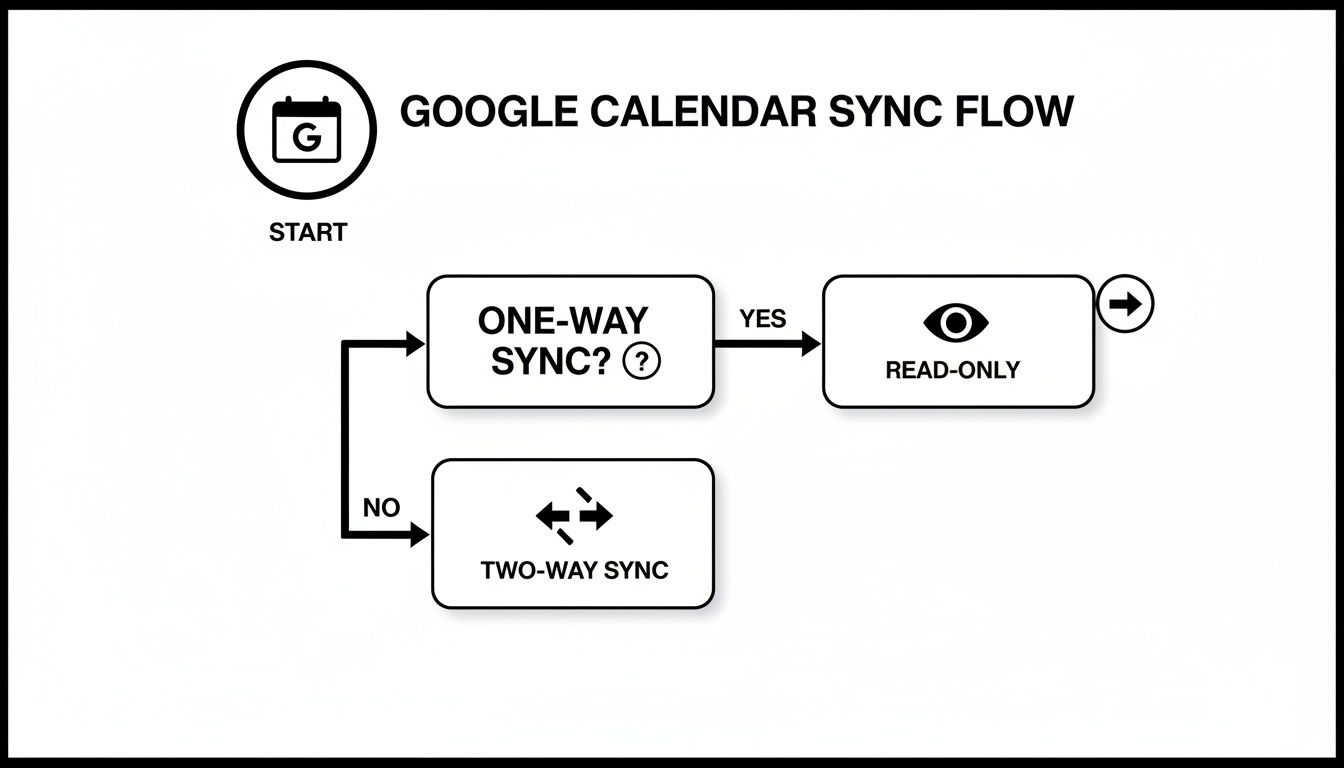 The bottom line? For genuine, interactive control over your schedule, a two-way sync is the only way to go.
The Real-World Need for Speed and Control
The demand for a bulletproof sync solution is more than just a convenience—it's a necessity. A 2024 survey in Germany found that 55% of software engineers juggle a personal Google Calendar and a work Outlook, with sync problems causing 31% of their meeting delays.
Think about that. With the native Outlook sync only updating a few times a day, over 40% of changes made in Google Calendar don't even show up until the next day. While third-party tools can close that gap to every 15 minutes, 23% of users still hit a wall with corporate firewalls, a common headache in German enterprises.
A true two-way sync transforms your calendars from two separate, conflicting sources of information into a single, unified system. It’s the difference between constantly checking two schedules and having one reliable source of truth.
But getting these tools up and running isn't always a walk in the park. Beyond just paying for a subscription, truly integrating your calendars means getting strategic about streamlining your software workflows. This often involves navigating tricky security policies or corporate network restrictions that can stop a sync tool in its tracks.
For a deep dive into the best options available, check out our guide on the best Outlook and Google Calendar sync software.
Troubleshooting Common Sync Problems
Even with the best intentions, syncing Google Calendar with Outlook can get a little messy. You add a crucial client meeting to your Google Cal, only to find it's nowhere to be seen in Outlook an hour later. Or maybe an old event you deleted weeks ago keeps popping back up like a ghost.
Don't panic. These headaches are almost always fixable with a bit of targeted troubleshooting.
Most sync issues boil down to a few usual suspects: an outdated iCal link, Outlook's aggressive caching, or a simple permissions hiccup. The trick is to walk through the possibilities step-by-step instead of just nuking the whole setup and starting over.
Events Not Showing Up at All
This is the big one. Your subscribed calendar is either totally blank or just isn't pulling in the new appointments you've added. When this happens, the first place to look is the source.
Head back into your Google Calendar settings and double-check the "Secret address in iCal format" you copied. It's surprisingly easy to grab the wrong link, or sometimes Google can reset it. If the link is definitely correct, the problem is likely on Outlook's end.
- Force a Refresh: In the Outlook desktop app, find the Send / Receive tab and click Send/Receive All Folders. This is the digital equivalent of giving it a good shake and often forces a stalled update to pull through.
- Check Visibility Settings: In Google Calendar's "Settings and sharing," look for "Access permissions for events." If it's set to "See only free/busy (hide details)," Outlook won't have anything to display. Make sure it's set to show all event details.
- Start Over: If all else fails, the most reliable fix is to remove the calendar subscription from Outlook completely. Then, go generate a fresh iCal link from Google Calendar and add it back in.
Outdated Information or Lagging Updates
Sometimes the sync works, but it's just… slow. A meeting you moved an hour ago still shows up at the old time, or a cancelled appointment is stubbornly hanging around.
This isn't a bug; it's a feature. Or rather, a limitation. The lag is almost always caused by Outlook's incredibly slow refresh cycle for subscribed internet calendars, which can be as long as 24 hours.
Remember, the standard iCal subscription is a one-way, read-only street. Outlook decides when to check Google for updates, and you have virtually no control over that schedule. This built-in delay is the single biggest drawback of this method.
If you need your calendars to be in lockstep in real-time, this is your cue that the basic subscription method just won't cut it. Your next move should be exploring a proper two-way sync tool or a unified calendar app designed to eliminate this lag. These tools bypass the slow pull-method and offer near-instant updates.
Our detailed comparison of Google Calendar sync methods digs into the best tools for the job if you've hit this wall.
By methodically checking your link, forcing a manual refresh, and understanding the built-in delays, you can solve most of the frustrating issues that crop up when trying to get Google Calendar and Outlook to play nicely.
Let's be honest: trying to force Google Calendar and Outlook to play nice often feels like a losing battle. After jumping through hoops with one-way subscriptions and clunky third-party tools, you start to wonder if there’s a better way.
What if you could sidestep the whole syncing problem altogether?
Instead of constantly pushing and pulling data between two calendars that were never designed to merge, a unified calendar simply sits on top of them. It doesn’t move your events or create duplicates; it just shows you everything in one place, in real-time.
This is a game-changer. You’re no longer waiting for a sync to catch up or trying to figure out why an event is missing. You're just looking at a single, clean schedule that accurately reflects everything you’ve got going on.
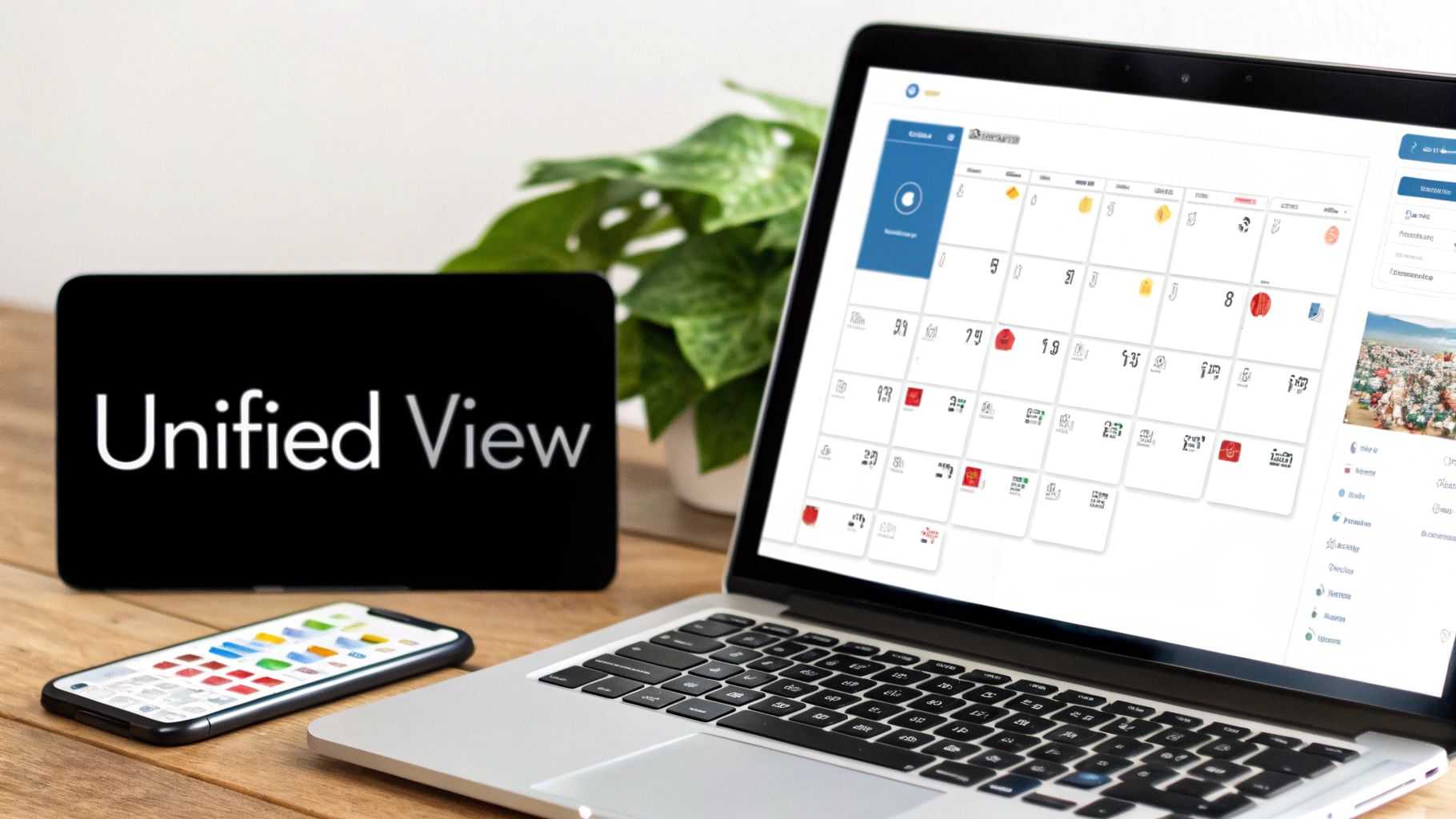
How a Unified View Fixes Everything
Tools like Calendar0 use modern, secure connections to your Google and Microsoft accounts. From there, they build a single interface where your work meetings and personal appointments live side-by-side. No more app-switching or tab-juggling.
This approach immediately solves the biggest headaches:
- No More Delays: Because there’s no "sync" happening, changes are instant. Add a meeting in Outlook, and it appears in your unified view the second you hit save.
- No More Double-Bookings: A unified view sees all your commitments at once. It knows your dentist appointment from your personal Google Calendar is at the same time as that big team meeting in Outlook, so you can't accidentally schedule a conflict.
- Smarter Scheduling: Modern tools use AI to make booking meetings effortless. You can just type things like, "find time with Klaus next week for a project review," and it checks everyone's availability across all their connected calendars to find the perfect slot.
The image from Calendar0 above shows this perfectly. By laying everything out on a single timeline, it gives you an immediate, at-a-glance understanding of your real availability.
Stop Managing Syncs, Start Managing Your Time
This isn't just a small technical tweak; it's a completely different way of working. In Germany, where Microsoft 365 dominates with a 42% market share, broken calendar syncs are a huge productivity drain. Bad syncing leads to an average of 18 double-bookings per employee every month, and native sync methods can lag by as much as 12 hours.
A tool like Calendar0 bypasses these problems entirely, giving back the 20 minutes a day that most professionals waste on manually checking and managing their calendars. You can see more about this productivity drain on YouTube.
When you switch to a unified view, you stop being a calendar admin. You can finally focus on what the appointments actually represent—your work, your projects, and your life.
Adopting a unified calendar is a key part of a smarter unified communications strategy, where your tools work together instead of against each other. It’s about more than just seeing your events; it’s about having intelligent features like one-click rescheduling that give you effortless control over your schedule.
Frequently Asked Questions
When you start digging into how to sync Google Calendar with Outlook, a few questions always seem to pop up. Let's get straight to the point and tackle the most common ones I hear, from security worries to getting things working on your phone.
Is It Safe to Share My Google Calendar with Outlook?
Handing over calendar access can feel a bit personal, so it's smart to ask about security. The standard way to do this, using an iCal link, is a one-way street. You're sharing a "secret" link that gives read-only access. It's generally safe for just viewing your schedule, but remember: anyone who gets their hands on that link can see your event details. Don't post it publicly.
If you're looking for a more robust and secure connection, especially with two-way sync tools, make sure the service uses modern authentication like OAuth2. This is the gold standard. It lets an app access your calendar without you ever having to share your password. You just grant specific permissions, and you can revoke them anytime from your Google account settings. It puts you in complete control.
Can I Get Two-Way Sync for Free?
Honestly, finding a true, automated two-way sync that costs nothing is a unicorn. It’s exceptionally rare. The built-in iCal method is strictly one-way, from Google to Outlook, and that's it.
You might find some open-source projects floating around, but they usually require a fair bit of technical know-how to set up and keep running. For most people, it's just not practical. The reliable, user-friendly tools that offer genuine back-and-forth syncing are almost always paid services.
The best "free" workaround often isn't a sync tool at all. A unified calendar viewer like Calendar0 solves the root problem—preventing double-bookings—by showing all your events in one place. You get the benefit without the cost or complexity of a full data sync.
Will My Google Calendar Colours Show Up in Outlook?
This is a classic "gotcha." Unfortunately, no. When you subscribe to a Google Calendar in Outlook via iCal, all your carefully organised colours get lost in translation. This isn't Outlook's fault; it's a limitation of the iCal format itself.
Outlook will just paint all the events from that Google Calendar in a single, default colour you pick during the setup. If keeping your colour-coding is a dealbreaker, you’ll need to look at a dedicated third-party sync tool or a unified calendar app. They're specifically built to understand and preserve those rich details from both Google and Microsoft.
Does This Syncing Work on Mobile Devices?
Yes, but how it works depends entirely on your setup.
If you subscribe to your Google Calendar through Outlook.com (the web version), you're in luck. That subscription is tied to your account, so it should show up automatically in the Outlook mobile app on your phone.
But here's the catch: if you only add the calendar subscription to your Outlook desktop app, it stays there. It's local to that computer and won't magically appear on your phone. For a truly seamless experience on the go, your best bet is to either use a service that syncs at the cloud level or just add both your Google and Outlook accounts directly to your phone's built-in calendar app.
Stop wasting time fighting with calendars and start managing your schedule at the speed of thought. Calendar0 unifies your Google and Microsoft calendars into a single, intelligent view, eliminating conflicts and making scheduling effortless. Try Calendar0 for free today.

