Synchronize Outlook with Google Calendar A Practical Guide
Learn how to synchronize Outlook with Google Calendar. This guide covers native methods, two-way sync tools, and common troubleshooting tips.

Calendar0 Team
December 3, 2025

Trying to get Outlook and Google Calendar to talk to each other often feels like a necessary, if slightly annoying, chore. The reality is you have two main paths: use the built-in sharing features for a simple read-only view, or bring in a third-party tool to get a true two-way sync that lets you edit events on both calendars.
Which one is right for you? It really just boils down to whether you need to see everything in one place or if you need to manage everything from one place.
Why Bother Synchronizing Your Calendars?
Let's be honest, juggling two different calendars is a fast track to scheduling chaos.
Maybe your entire professional life—client meetings, project deadlines, team stand-ups—is meticulously organised in Outlook. At the same time, your personal life, full of dentist appointments, school plays, and weekend plans, lives inside Google Calendar. Without a single, unified view, you're constantly flipping between apps, practically inviting a double-booking disaster.
This isn't just a minor inconvenience; it's a genuine productivity drain. All that mental energy you spend cross-referencing schedules is energy you could be putting into actual work. It's those tiny moments of friction, like manually blocking off time in your work calendar for a personal appointment, that add up and chip away at your focus throughout the day.
The Problem with Disconnected Schedules
The real issue here is the lack of a single source of truth for your time. When your availability is split across two different systems, you can never be 100% confident when you agree to a new meeting or event. This leads to some all-too-common frustrations:
- Accidental Double-Bookings: You accept a last-minute work meeting, completely forgetting it clashes with that doctor's appointment you put in your personal calendar weeks ago.
- Missed Personal Commitments: That important family dinner gets pushed out of your mind because it wasn't visible when you were planning out your week in Outlook.
- Inefficient Planning: The constant, tedious back-and-forth of checking one calendar before you dare commit to anything in the other.
The whole point of syncing your calendars is to create one seamless, holistic view of your day. It lets you manage your time proactively instead of just reacting to scheduling fires after they’ve already started.
To help you figure out the best approach, this quick decision tree can point you in the right direction.
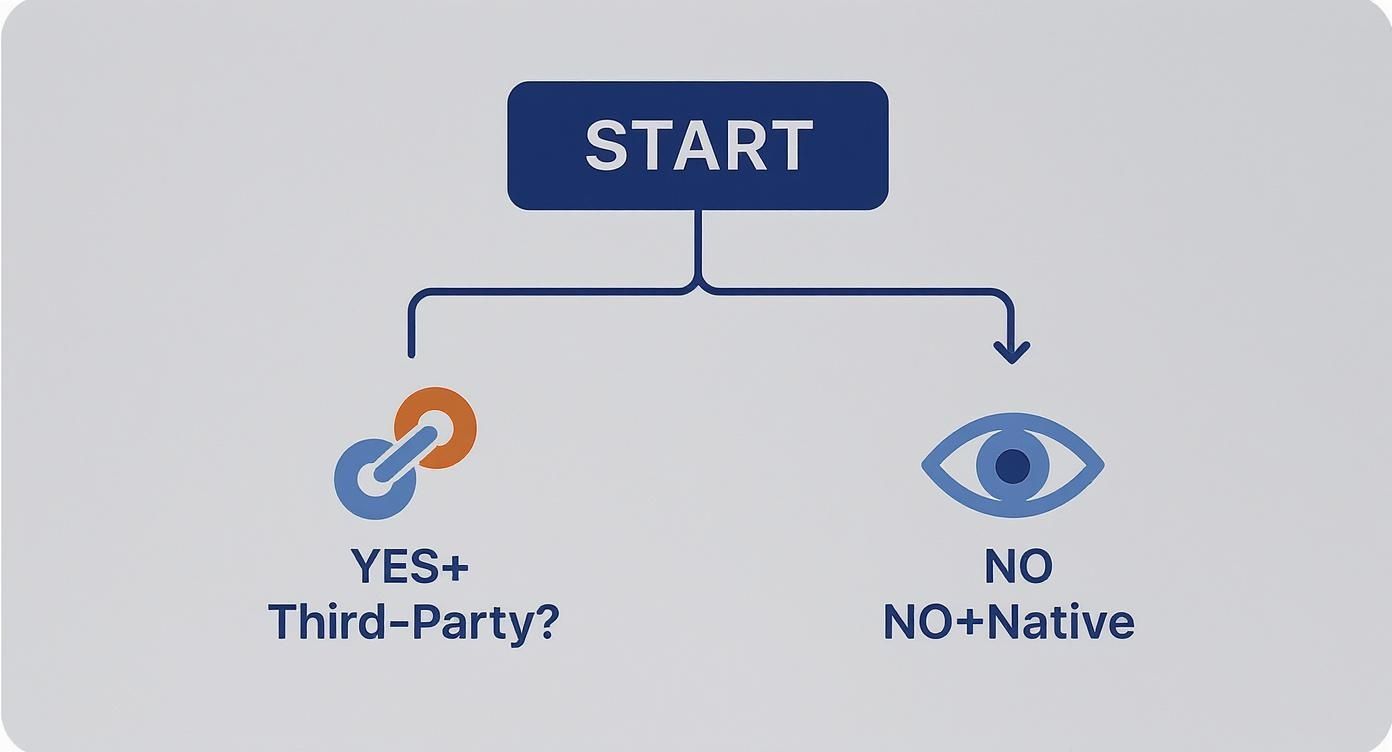
As the visual makes clear, if you absolutely need to edit events across both platforms (a true two-way sync), a third-party tool is your only real option. For simpler, view-only needs, the native solutions will get the job done.
This is also a good time to mention that properly managed shared calendars in Outlook can solve a lot of these headaches for teams, which is a related challenge many of us face.
Overview of Calendar Synchronization Methods
To make it even clearer, here’s a quick breakdown of the different methods.
| Method | Sync Direction | Best For | Complexity |
|---|---|---|---|
| Native Subscription (Outlook) | One-Way (Read-only) | Viewing Google events inside your Outlook calendar. | Low |
| Native Subscription (Google) | One-Way (Read-only) | Viewing Outlook events inside your Google Calendar. | Low |
| Third-Party Sync Tool | Two-Way (Editable) | Actively managing both calendars from either platform. | Medium |
| Calendar0 | All-in-One View | Professionals needing a fast, unified view without a full sync. | Very Low |
Ultimately, the native options are great for a quick glance, but for true integration where you can add, edit, and delete events from anywhere, you'll need to look at a dedicated tool.
Using Native Calendar Subscriptions
If you just need a quick, no-frills way to see what's on your other calendar, the built-in subscription features in both Outlook and Google are a decent first stop. It's a free, native solution.
But let's be clear about what this gets you. It's strictly a one-way, read-only connection.
Think of it as laying a transparent sheet with your Google events over your Outlook calendar, or vice-versa. You can see everything, which is great for spotting conflicts at a glance. But you can't touch anything. No creating new events, no editing details, no deleting appointments from the subscribed calendar. It's a "look, don't touch" setup.
Getting Your Outlook Calendar into Google
To make your Outlook events pop up in Google Calendar, you'll need to publish your Outlook calendar. This generates a special web link (an iCal or ICS link) that Google can "subscribe" to.
Here’s the game plan using the Outlook web app:
- First, head into your Outlook Calendar settings and find the Shared calendars area.
- Look for Publish a calendar and pick the one you want to share from the dropdown.
- Crucially, you have to set the permissions to Can view all details. If you don't, you'll just see a bunch of "Busy" blocks, which isn't very helpful.
- Click Publish. Outlook will spit out two links; the one you want is the ICS link. Copy it.
Now, jump over to your Google Calendar. On the left sidebar, click the little + button next to "Other calendars" and select From URL. Just paste that ICS link you snagged from Outlook, and you're set. Your Outlook appointments should now appear.
For those who are a bit more technical, a similar outcome can sometimes be achieved using CalDAV. We've got a whole guide on how to sync Outlook using CalDAV if you want to go down that rabbit hole.
Heads up: This is not an instant sync. Google and Microsoft both say updates can take up to 24 hours to show up. If you need real-time updates to avoid double-booking, this delay makes the native subscription method a non-starter.
Getting Your Google Calendar into Outlook
It works the other way around, too. If you live primarily in Outlook but need to keep an eye on your Google schedule, you can pull those events right into the Outlook interface.
You'll need to grab the secret iCal address from Google Calendar first.
- In Google Calendar, click the gear icon for Settings and choose the calendar you want to share from the menu on the left.
- Scroll down until you find the Integrate calendar section.
- You're looking for the Secret address in iCal format. Copy that entire link.
With the link on your clipboard, switch back to Outlook. Look for the option to Add Calendar or Subscribe from web, paste in your secret iCal link, and give your new calendar a name. Just like that, your Google events will be visible alongside all your Outlook appointments.
This method is fine for a basic overview. But the moment you need to actually manage events across both platforms, you'll feel the limitations immediately.
Achieving True Two-Way Sync with Third-Party Tools
When a simple read-only view of your calendar just won’t cut it, you need to bring in a specialist. Native calendar subscriptions are fine for passively checking your schedule, but they fall apart for anyone who actively manages their time across different platforms.
This is where you need to synchronize Outlook with Google Calendar using a dedicated third-party app.
These tools are built to do one thing and do it exceptionally well: create a seamless, editable, two-way connection between your calendars. It means you can create a meeting in Outlook on your work laptop, and it instantly shows up—and is fully editable—on your personal Google Calendar. The frustrating limits of one-way syncing simply vanish.
That real-time, bidirectional flow is what makes all the difference. You’re not just seeing your schedule; you’re managing it from anywhere, on any device, without ever worrying about which calendar is the “master” version.
Choosing a Reliable Sync Tool
Let’s be clear: not all sync tools are created equal. When you’re giving an app access to your calendar data, security and privacy have to be your top priorities. This is especially true if you’re operating in a region with strict data protection laws.
Since GDPR was introduced back in May 2018, the use of calendar sync tools in Germany has grown massively. German companies and individuals alike have been searching for ways to bridge their Outlook and Google Calendar worlds while staying compliant. In fact, industry reports show that around 68% of German corporate users who juggle multiple calendar systems now rely on third-party apps instead of clunky native integrations.
When you're weighing your options, here are the non-negotiables:
- Authentication Method: Stick to tools that use OAuth 2.0. It’s the industry standard that grants the app access without ever seeing or storing your password.
- Data Handling Policy: Actually read the privacy policy. Does the tool process your event data on its own servers, or does it run locally on your machine? Local processing is always a better bet for privacy.
- Granular Sync Controls: A good tool gives you control. You should be able to decide exactly what gets synced—event titles, descriptions, attendee lists—so you can keep confidential information where it belongs.
A trustworthy sync tool should feel like a secure bridge between your calendars, not a leaky pipeline. It should just work, automating everything silently in the background so you have one source of truth for your schedule.
The Benefits of Automated Background Syncing
The real magic of these tools is their "set it and forget it" nature. Once you have it configured, the app works tirelessly behind the scenes to keep everything perfectly aligned. This automation brings some serious advantages to your day-to-day workflow.
For example, many professionals now use dedicated meeting scheduler and calendar booking solutions that have this seamless two-way sync built right in as a core feature.
This automated approach gets rid of the manual effort and mental energy spent cross-checking schedules. If you’re a consultant managing client projects, you can add a meeting to your shared work calendar, and that time slot is immediately blocked on your private Google Calendar. No more embarrassing and unprofessional double-bookings.
If you want to dig deeper, you can find a comprehensive breakdown of the best Outlook Google Calendar sync software to help you choose the right one. This level of integration makes sure your availability is always accurate, making scheduling faster and way more reliable.
A Faster Alternative for Instant Sync
Let's be honest. While the methods we've covered work, they can feel a bit clunky. Native options often have a lag, and some third-party tools feel like overkill for what should be a simple task: seeing your entire schedule in one place, instantly.
If you’re tired of the setup headaches and sync delays, a more modern tool like Calendar0 can be a total game-changer.
These dedicated calendar apps aren’t just syncing your calendars; they’re built from the ground up to give you a single, unified view in real time. This approach cuts right to the heart of most scheduling screw-ups—that frustrating gap between when an event is created and when it actually shows up everywhere else.
For anyone juggling multiple roles, this kind of speed is essential. Picture a consultant managing client meetings in their work Outlook account while trying to keep personal appointments straight in Google Calendar. A dedicated tool means that when they block off an hour for a doctor's visit, that slot is instantly unavailable for a client call. No delays, no drama.
Unlocking Seamless Scheduling
The real magic of these modern apps is how they smooth out the friction in your daily workflow. They move past simple synchronisation to offer a smarter way to manage your time.
This translates into features that the old methods just can't match:
- Instant Two-Way Updates: Any change you make in one calendar reflects everywhere else immediately. Double-bookings become a thing of the past.
- Advanced Privacy Controls: You get to decide exactly what gets shared. You can show a personal event as just "Busy" on your work calendar, keeping the details of your "Dentist Appointment" private from colleagues.
- A Seriously Quick Setup: Forget complex configurations. Most of these apps connect to your accounts with a few secure clicks (using OAuth) and are ready to roll in minutes.
The core idea is simple but powerful: stop worrying about synchronising Outlook with Google Calendar and start operating from a single command centre for your entire schedule. You no longer have to think about which calendar an event is on—you just focus on managing your day.
A Practical Example in Action
Think about a freelance project manager. They're working with multiple clients, each with their own Outlook or Microsoft 365 setup, all while managing their personal life in Google Calendar.
Without an instant solution, they're one step away from scheduling a client demo right over a family dinner. It’s a constant, low-grade stress.
With a tool like Calendar0, they can connect every single account and get a complete, unified view. When a client suggests a meeting time, the tool checks availability across all connected calendars at once. This lets them confirm a time with confidence, knowing there are no hidden conflicts lurking on another calendar. It turns a chaotic scheduling task into a simple, two-second action.
Troubleshooting Common Sync Problems
Even the most organised setup can hit a snag. Calendar synchronisation sometimes just goes sideways—an event fails to show up, duplicates clutter your schedule, or updates lag, leaving you guessing if your availability is actually up-to-date. It's frustrating, but don't worry. Most of these glitches are common and totally fixable.
Before diving deep, start with the basics. A weak internet connection is a frequent culprit, as are authentication errors. Give the sync tool a quick refresh or restart the app. You'd be surprised how often that simple action gets things moving again.
Dealing with Duplicate Events
Seeing double is probably the most annoying sync problem of all. If your calendar suddenly has two or three copies of every single meeting, the cause is almost always having multiple sync methods running at the same time. You might have set up a native iCal subscription and then, months later, installed a third-party tool without switching the old one off.
To get things back to normal, you need to pick one connection and stick with it:
- Audit Your Accounts: Pop into both your Google Calendar and Outlook settings. Look for any subscribed calendars or connected apps you don’t recognise or no longer use.
- Choose One Method: Decide on a single, primary way to synchronise Outlook with Google Calendar—ideally a solid two-way tool—and disable everything else.
- Clean Up: After you’ve removed the extra connections, you'll probably have to manually delete the duplicate events. It’s a bit tedious, but it’s the only way to get a clean slate.
Mismatched Time Zone Fixes
Time zone errors can create absolute chaos, especially if you work with an international team. That meeting you scheduled for 3 PM in Berlin might show up at 9 AM for your colleague in New York if the time zones aren't aligned. This problem loves to pop up right after the clocks change for daylight saving.
Time zone conflicts aren't a small issue. German user forums, for example, reported that around 34,000 calendar synchronisation incidents were logged in the week following a recent daylight saving time change. That’s a massive 127% jump from the previous month. You can dig into more details about these Outlook and Google Calendar sync issues on Microsoft's support forum.
The fix is to make sure your time zone settings are identical in three places: your Google Calendar account, your Outlook account, and inside your third-party sync tool. A mismatch in any one of these can throw your entire schedule off. Standardising them creates a single source of truth for all your appointments, no matter where they came from.
Common Questions About Syncing Calendars
Even after picking a sync method, a few questions always seem to pop up. Let's clear the air on some of the most common worries people have when they decide to finally synchronise Outlook with Google Calendar.
Getting these details straight will give you the confidence to move forward without any second-guessing.
Are Third-Party Sync Tools Actually Safe to Use?
Absolutely, as long as you stick with a reputable tool that takes security seriously. The number one thing to look for is OAuth authentication. This is the industry standard that lets an app connect to your Google or Microsoft account without ever needing to see or store your password. It's a massive security win.
Beyond that, take a minute to scan their privacy policy. You're looking for clear answers on how they handle your data.
- Is your data processed on their servers, or does it all happen locally on your computer?
- Do they offer end-to-end encryption? That's the gold standard.
- For anyone operating in Europe, especially Germany, confirming GDPR compliance is an absolute must.
Can I Sync More Than One Outlook Calendar to a Single Google Calendar?
This is where the native methods really fall short. Using the built-in iCal subscription is a strict one-to-one deal—you get one Outlook calendar feed showing up in one spot on your Google Calendar. That's it.
This is a problem most good third-party tools were built to solve. They're designed for more complex setups, letting you map multiple calendars into a single destination. This gives you that clean, consolidated view of your entire schedule without creating a cluttered mess. You can usually set rules for how events from different sources appear, too.
A common fear is that syncing will spam all your meeting attendees with new invitations. A well-designed tool won't do this. It should quietly copy event data from one calendar to another without triggering any notifications. It's still smart to check the settings before your first sync, just in case.
Will Syncing My Calendar Send New Invites to Everyone?
This is probably the biggest—and most understandable—fear. Nobody wants to be that person who spams their entire department with duplicate meeting invites.
Thankfully, any decent sync tool is built specifically to avoid this nightmare. It works in the background, copying the raw event data from one calendar to the other without tripping the standard notification systems. It’s a discreet copy, not a new event creation.
That said, when you're setting up a new tool for the first time, it never hurts to poke around in the settings and see if there are any options related to notifications. Better safe than sorry.
And while you're getting your calendars in order, don't forget about your inbox. Properly mastering your Outlook Safe Senders list is another small step that can save you from missing important updates.
How Often Does the Built-In Method Actually Update?
The native iCal subscription method is painfully, notoriously slow. Both Google and Microsoft are pretty open about it, stating that it can take up to 24 hours for new or changed events to show up. Yes, a full day.
This massive delay makes it completely impractical for anyone who needs to know their real-time availability. If you want to avoid double-booking and have a calendar you can actually trust, a third-party tool that uses direct API connections is the only way to go.
Ready for a calendar that just works? Calendar0 unifies all your calendars into one seamless view, letting you schedule meetings and manage your day with AI-powered speed. Stop fighting with sync delays and see how much time you can save. Get started at https://www.calendar0.app.

