Sync Outlook Into Google Calendar the Right Way
Learn how to sync Outlook into Google Calendar with practical, real-world methods. Move beyond simple imports to create a truly unified schedule.

Calendar0 Team
November 11, 2025

Juggling a work calendar in Outlook and a personal one in Google? If that sounds familiar, you know the constant fear of double-booking yourself or missing something important. The only real fix is to sync your Outlook calendar directly into Google Calendar, giving you one unified schedule. I'll walk you through the best ways to do this, from simple, free methods to powerful, automated tools.
Why a Disconnected Calendar Is Sabotaging Your Productivity
Let’s be honest: when your work life runs on Outlook and your personal life is in Google Calendar, you’re basically asking for trouble. It forces you to constantly switch between two apps just to see if you’re free, which is a perfect recipe for mistakes.
We’ve all been there—missing a dentist appointment because a last-minute meeting popped up on your work calendar, or scheduling a client call right in the middle of a family dinner. This constant cross-checking isn't just annoying; it's a huge drain on your time and mental energy.
The True Cost of Calendar Chaos
The problem runs deeper than just the occasional double-booking. When your schedule is split in two, it's almost impossible to get a real sense of your availability. It complicates long-term planning and creates friction when you're trying to coordinate with colleagues or family. That constant app-switching just adds a layer of complexity you really don't need.
This isn't just a niche problem. In Germany, for example, research shows that around 67% of small-to-medium enterprises (SMEs) are juggling both Microsoft and Google services for their calendar needs. It’s a widespread headache. You can find more details in the full research on this dual-platform usage.
A unified calendar is more than just a nice-to-have; it's a productivity multiplier. When you bring all your commitments into a single view, you get back in control, reduce mental clutter, and make smarter decisions with your most valuable resource—your time.
Regaining Control with a Unified View
Once you finally sync Outlook into Google Calendar, you create a single source of truth for your entire schedule. The benefits are immediate and obvious:
- No More Double-Bookings: See work events, personal appointments, and shared family plans all in one place, so you can spot conflicts before they even happen.
- Planning Becomes Simple: Find an open slot for a new meeting or appointment without having to check multiple calendars first.
- Better Work-Life Balance: Clearly see how your work commitments are impacting your personal time, which makes it much easier to set and maintain healthy boundaries.
If your disconnected calendar is causing serious problems, you could always hire an Outlook Virtual Assistant to manage it all for you. But for most of us, a reliable sync is the best and most effective solution. Let's dive into the different ways to make that happen.
Finding the Right Calendar Sync Method for You
Before you dive in and sync your Outlook calendar to Google, it’s worth taking a moment to figure out which approach is right for you. The best method really boils down to your specific needs, how comfortable you are with a bit of tech, and how much control you want. Choosing the right path from the start will save you a world of headaches later on.
The first big decision is one-way versus two-way syncing.
A one-way sync is the simplest route. It basically makes your Outlook events visible inside your Google Calendar, but you can’t touch them from there. Think of it as a read-only window into your Outlook world—perfect if you just need to spot scheduling conflicts without constantly switching apps.
A two-way sync, on the other hand, builds a proper bridge between both calendars. Add an event in Outlook, and it pops up in Google. Reschedule that same meeting from your phone using Google Calendar, and the change instantly reflects back in Outlook. This is the go-to solution for anyone who needs to actively manage their schedule from either place.
This infographic lays out the simple decision you face when your schedule feels all over the place.
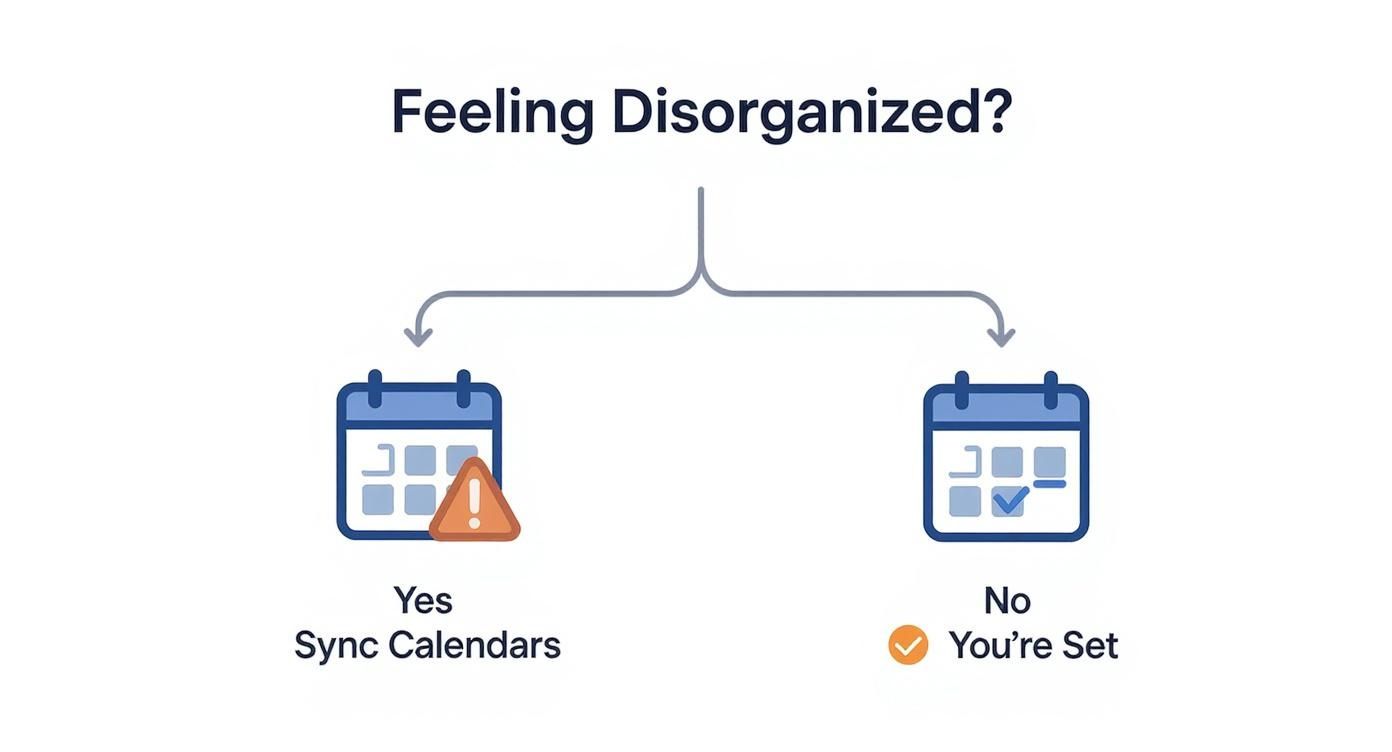
The takeaway is pretty clear: if you're drowning in calendar chaos, getting them synced up is the only logical next step.
Exploring Your Sync Options
You’ve got a few different tools at your disposal, each with its own pros and cons. To avoid the pain of juggling multiple digital calendars, it's crucial to understand how to seamlessly sync with Outlook Calendar using the right method for your situation.
Let's break down the most common paths:
- Calendar Publishing (ICS Subscription): This is the free, built-in method Outlook provides. You generate a special link (an ICS file) from Outlook and then "subscribe" to it in Google Calendar. It’s a great starting point for basic, one-way visibility. Simple and quick.
- Third-Party Automation Tools: These are dedicated apps built just for this job. They offer robust, real-time, two-way synchronisation and are often the most reliable "set it and forget it" solution.
- Microsoft Power Automate: For the more technically adventurous, you can build a custom workflow using Microsoft’s own automation platform. This gives you a ton of flexibility but comes with a much steeper learning curve.
Choosing the right method is all about balancing convenience with capability. A simple ICS subscription is quick but limited. A dedicated third-party tool offers powerful two-way syncing that just works, but might require a bit more setup.
Comparing Calendar Synchronization Methods
To help you decide, here’s a high-level look at how these methods stack up. Think about what matters most to you: are real-time updates a must-have? Is ease of use your top priority? Or do you need the power to customise everything?
| Method | Sync Direction | Update Speed | Best For | Key Limitation |
|---|---|---|---|---|
| ICS Publishing | One-Way | Delayed (up to 24 hrs) | Basic visibility | Read-only; very slow updates |
| Power Automate | Two-Way | Near Real-Time | Custom workflows & tech-savvy users | Complex to set up and maintain |
| Third-Party Tool | Two-Way | Real-Time | Reliability & ease of use | Often requires a paid subscription |
Ultimately, your day-to-day workflow will point you to the best fit. If you just need to see your work schedule on your personal phone to avoid double-booking dinner plans, publishing your calendar is probably all you need.
But if you’re actively managing appointments across both work and personal accounts, investing in a dedicated two-way sync tool will give you a much smoother, more reliable experience.
Getting a Read-Only View with Calendar Publishing
Sometimes, all you really need is a quick glance to see if you’re free. If you don't need to edit your work events from your personal calendar, the absolute simplest way to get Outlook into Google Calendar is by "publishing" it. This creates a one-way, read-only sync that's perfect for just seeing what's on your plate.
Here's how it works: Outlook generates a unique web link (an ICS link) that Google Calendar can check for updates. Think of it like subscribing to a podcast—you get new episodes (or calendar events, in this case) as they’re published, but you can’t change them from your end.
The best part? This approach is completely free, requires no extra software, and you can set it up in just a few minutes, whether you're using the Outlook desktop app or the web version.
Publishing from Outlook Web Access (Microsoft 365)
If you use Outlook in your browser (part of Microsoft 365), the process is pretty straightforward. First, log in and head over to your calendar view. Look for the Settings icon (it's usually a little cogwheel), then navigate to Calendar > Shared calendars.
Under the "Publish a calendar" section, you'll need to pick the calendar you want to share and, most importantly, choose the permission level. This bit is crucial for your privacy.
- Can view when I'm busy: This just shows blocks of time marked as "Busy" with zero details. Very private, but not very useful.
- Can view titles and locations: This is the sweet spot for most people. It shows what the event is and where it is, but keeps the nitty-gritty private.
- Can view all details: This shares absolutely everything—the event description, the attendee list, you name it.
Once you’ve made your choice, click Publish. Outlook will spit out two links. You want to copy the ICS link, as that's the one Google Calendar can understand.
I almost always recommend "Can view titles and locations." It strikes the perfect balance between giving you enough context to know what’s happening without accidentally exposing sensitive meeting notes or attendee lists on your personal calendar.
Subscribing in Google Calendar
With your ICS link copied, pop open Google Calendar in a new browser tab. Over on the left-hand side, look for "Other calendars" and click the little plus (+) sign next to it. From the menu that appears, just select From URL.
Now, paste that ICS link you copied from Outlook into the box and click Add calendar. After a few seconds, you should see your Outlook calendar pop up under the "Other calendars" list. From there, you can give it a new name and change its colour to keep things organised.
If you’re a power user juggling multiple calendars, checking out a dedicated Google Calendar app for desktop can seriously streamline your workflow.
A Word on Update Delays
Okay, here’s the catch. It's really important to set your expectations with this method. The biggest drawback is the update speed, or lack thereof.
Google Calendar might only check for changes on a subscribed calendar every 12 to 24 hours. Seriously. That means a meeting added to your Outlook this morning might not even show up in your Google view until tomorrow. This delay makes it a total non-starter for anyone who needs real-time updates to manage a dynamic schedule.
Going Two-Way With a Dedicated Sync Tool
When a simple read-only view of your Outlook calendar in Google just won't cut it, you need to bring in a specialist. For anyone who actually needs to create, edit, and move events around from either calendar and have those changes stick everywhere, a third-party sync tool is the only real answer. These tools build a proper, dynamic bridge between your digital worlds, leaving the limitations of basic calendar publishing far behind.
Unlike the one-way street of an ICS subscription, these dedicated apps talk directly to both Google and Microsoft using their official APIs. This is a game-changer. It means they can securely access and manage your events in real time. Add a meeting in Outlook, and boom—it appears in Google. Reschedule a client call on your phone using Google Calendar, and that change syncs back to Outlook in moments, not hours.
Why a Dedicated Tool Is Almost Always the Right Move
Sure, the built-in methods have their place, but a dedicated sync service is built from the ground up for reliability and control. I've seen it time and again: these tools are designed to handle the messy realities of modern scheduling, from a ridiculously complex recurring appointment to clashing time zone settings, ensuring nothing gets lost in translation. You set it up once, and it just works. That's a peace of mind the manual methods simply can't offer.
The real power, though, is in the fine-grained control they give you. You get to decide exactly what gets synced and how it shows up.
- Custom Sync Directions: Want a true two-way sync? You got it. Need a more controlled one-way push from Outlook to Google (or the other way around)? No problem.
- Privacy Controls: You can choose to sync every single event detail or just block out time as "Busy." This is perfect for protecting sensitive information while still showing your availability.
- Calendar Filtering: Got a bunch of calendars in Outlook? Just pick the specific ones you want to sync and leave the personal or irrelevant ones out of it.
This level of customisation is what lets you bend the sync to your exact workflow. If you want to dive deeper into why Outlook’s native options fall short, we cover it in our guide on how to achieve proper Outlook CalDAV sync.
Popular Tools That Get the Job Done
In the German software community, for example, there's a strong preference for free, open-source tools that respect user privacy. A standout example is Outlook Google Calendar Sync (OGCS). It's a hugely popular freeware tool that's been consistently updated since 2017 and works with every version of Outlook from 2003 right up to the latest Microsoft 365 releases. You can learn more about the user-verified OGCS tool and its features on their website.
This screenshot from their site gives you a sense of the detailed configuration you can expect, letting you dial in everything from sync direction and frequency to specific event details.
The interface clearly shows options for merging events, managing reminders, and setting privacy levels—all the little things that are crucial for a setup you can actually rely on.
Choosing a third-party tool is an investment in your own calendar sanity. The real value isn't just the tech; it's the time and mental energy you get back by ditching manual checks and avoiding embarrassing scheduling mistakes.
At the end of the day, these apps are lifesavers for busy professionals, teams, or anyone juggling a complex schedule across both the Microsoft and Google worlds. They provide the most powerful, hands-off solution for finally getting your digital calendars to play nice.
Solving Common Calendar Sync Problems
Even with a perfect setup, calendar syncs can, and do, go sideways. When you’re trying to get Outlook to play nice with Google Calendar, little glitches like delayed updates or events showing up at the wrong time can cause massive headaches. Thankfully, most of these problems are surprisingly easy to fix once you know where to look.
The number one complaint I hear, especially with the basic ICS subscription method, is the frustrating delay. New events just don't appear quickly enough. You have to remember that Google might only check for updates on a subscribed calendar every 12 to 24 hours. If a meeting gets added to your Outlook calendar last-minute, it simply won't show up in Google in time. There’s no official "force refresh" button, but I've found that sometimes removing and re-subscribing to the calendar can kickstart an update.
Another classic issue is seeing events appear at the wrong time. This is almost always a time zone mismatch between your Outlook account and your Google Calendar. It’s a subtle detail, but it's critical—get it wrong, and your whole schedule is thrown off.
Pinpointing and Fixing Sync Errors
So, how do we tackle this? When you spot an issue, the first thing to do is figure out where the breakdown is happening. Is it an Outlook sharing problem, or a setting buried inside Google Calendar?
Start on the Outlook side. Go back to where you originally published the calendar and double-check two things:
- Is the calendar still published, and is the link you used still active and correct?
- Are the permission levels set the way you want them (e.g., “Can view titles and locations”)?
If everything looks good in Outlook, the culprit is likely hiding in Google Calendar. Dive into your Google Calendar settings and check that the time zone for that specific subscribed calendar matches your primary calendar's time zone. This one simple check solves a shocking number of sync-related timing problems.
A sneaky cause for sync errors is Daylight Saving Time. When the clocks change, the sync logic can sometimes get confused, causing all your appointments to appear an hour off. It’s a classic, well-documented bugbear.
This isn't just an anecdotal thing. Data from Microsoft's German division showed that sync-related support tickets spiked by 21% during March and October, lining up perfectly with the scheduled time changes. You can dig into more of the technical details on how time zones impact calendar syncing on Microsoft's support forums.
When to Escalate to a Better Solution
If you're constantly fighting with sync delays and weird errors, it might be a sign that the free ICS method just isn't robust enough for what you need. This is especially true if you’re trying to pull in calendars from other places, too. For instance, if you're also trying to get events from Apple's world into your schedule, you might want to check out our guide on how to sync your iCloud calendar to Outlook.
Ultimately, if you need reliability and real-time updates—no excuses—it's time to upgrade to a dedicated third-party sync tool. These tools are built to bypass the inherent limitations of ICS subscriptions, giving you a stable, immediate connection that just works, saving you from all the guesswork and troubleshooting.
Common Questions About Syncing Calendars
Once you've got everything connected, a few practical questions always come up. Getting the hang of how the two calendars interact day-to-day is the final step to trusting your new setup. Here are some of the most common things people ask after syncing Outlook and Google Calendar.
Will My Outlook Event Colours Sync to Google?
This is a big one, and the short answer is no. Unfortunately, the custom category colours you've so carefully set up in Outlook will not transfer over to Google Calendar. When you sync, Google just assigns one single, default colour to every event coming from that Outlook calendar.
It’s not a total loss, though. You can still change that one colour. Just find your newly added Outlook calendar in the left-hand sidebar in Google, click the three-dot menu, and pick a colour that stands out. It helps you visually separate work from personal, but you won't get that granular, per-event colouring you're used to in Outlook.
How Do Recurring Events Work?
Recurring events used to be a nightmare, but most modern tools have gotten pretty good at handling them. If you’re using a proper two-way sync app, it understands the difference between a single instance and the entire series.
This means you can move just this Friday's team meeting in Google Calendar, and the sync tool is smart enough to only update that one occurrence in Outlook. The rest of the series stays put. And if you change the entire series on one calendar, it'll update the whole thing on the other.
A quick heads-up: the one-way ICS subscription method really struggles here. I’ve seen changes to a recurring series in Outlook take ages to show up in Google, and sometimes they just break completely.
What Happens if I Delete a Synced Event?
This is where your choice of sync method really matters. The outcome is completely different depending on how you've set things up.
- With a Two-Way Sync Tool: Deleting an event on one calendar deletes it from both. Simple. The tool's job is to keep them perfectly mirrored, and that includes deletions.
- With a One-Way ICS Subscription: This is where people get into trouble. If you delete an event from your subscribed Outlook calendar inside Google, you're just hiding it from your view. The original event is still sitting there in Outlook, untouched. The only way it disappears from Google is if someone deletes it from the source Outlook calendar first. Even then, you might be waiting up to 24 hours for it to vanish.
Understanding this is critical. It’s the difference between cancelling a meeting and just not showing up to it yourself. For peace of mind and a system that just works, a true two-way sync is the only way to go.
Tired of wrestling with sync delays and manual workarounds? Calendar0 uses AI to unify all your calendars in one spot. It stops double-bookings before they happen and lets you schedule meetings just by typing. Stop fighting your calendar and start saving 20 minutes a day. Get started with Calendar0 for free.

