How to Sync Outlook in Google Calendar A Unified Guide
Learn how to sync Outlook in Google Calendar with our guide to one-way and two-way methods. Stop double-booking and manage your schedule in one place.

Calendar0 Team
December 16, 2025

If you’ve ever double-booked yourself or missed a family dinner because of a last-minute work meeting, you know the pain of juggling two separate calendars. The real fix is to get them talking to each other. You can either subscribe to a read-only Outlook calendar inside Google for a quick glance, or use a proper tool for a true, editable two-way sync. We’ll walk through exactly how to do both.
Stop Juggling Calendars and Start Syncing
Keeping your work life in Outlook and your personal life in Google Calendar is a recipe for chaos. A client meeting pops up at the same time as a dentist appointment, and suddenly your day is a stressful mess. The goal here is simple: create one unified view of your entire schedule.
Getting this right doesn't just prevent embarrassing scheduling conflicts; it saves a surprising amount of time and mental energy. It’s a foundational step for improving workflow efficiency and boosting productivity because it removes a constant, low-level source of friction from your day.
Which Syncing Path Should You Take?
Before you start clicking around, you need to decide what you actually need this sync to do. This one decision—view versus edit—is the most important one you'll make.
Are you just trying to see your work appointments on your personal calendar so you don't book a haircut during a team meeting? Or do you need to create, edit, and delete events from either calendar and have the changes show up everywhere?
This decision tree breaks it down visually.
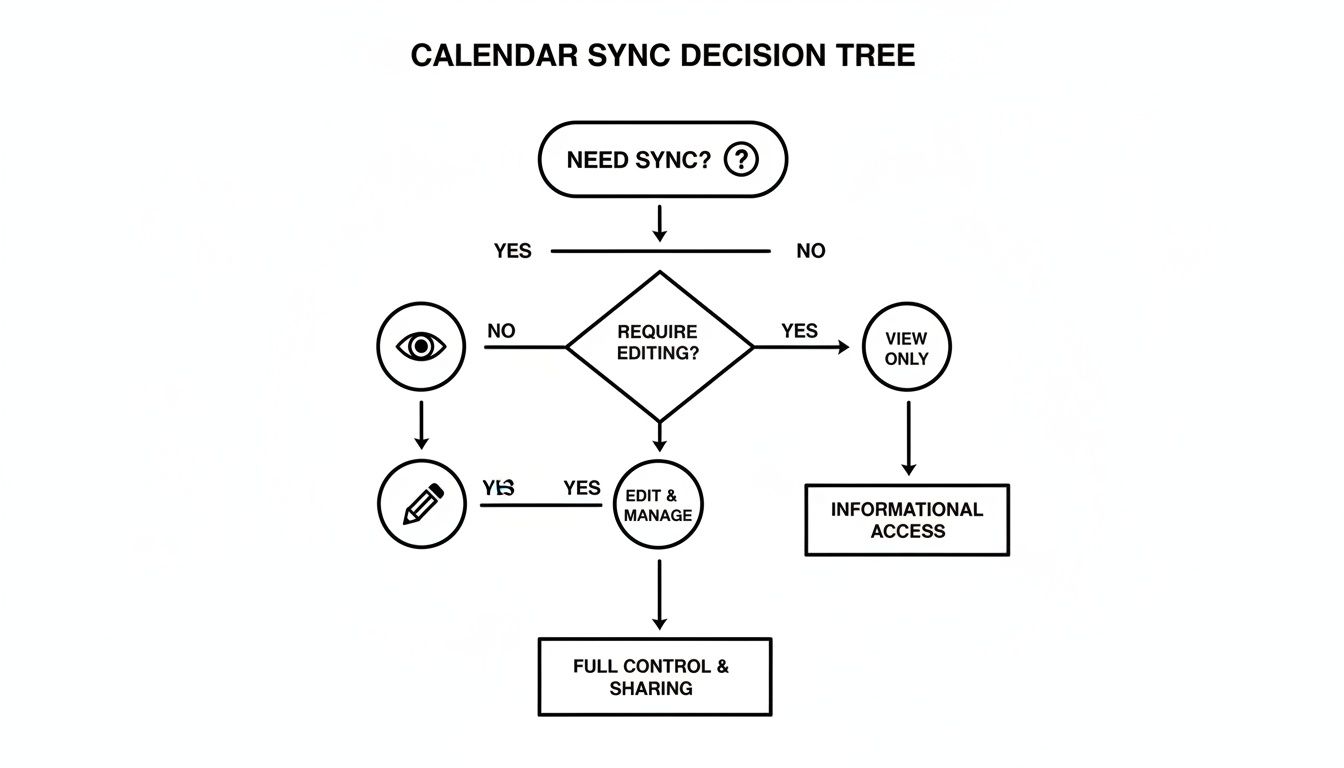
The takeaway is pretty clear: if you need to actively manage your schedule from both places, you'll need a dedicated tool. If you just need to see what's happening, the simple subscription method will work just fine.
The Two Core Methods Explained
There are really only two ways to tackle this, and they have very different outcomes.
-
One-Way Subscription (via ICS Link): This is the built-in, free method. You publish your Outlook calendar and then "subscribe" to it from your Google Calendar. It's easy to set up, but it's strictly read-only, and the updates can be frustratingly slow—sometimes taking up to 24 hours to refresh.
-
Two-Way Sync (Using Third-Party Tools): These are dedicated apps that create a genuine, bidirectional link between your calendars. When you add an event in Outlook, it appears in Google almost instantly, and vice-versa. You can edit an event in one, and the change reflects in the other. This is the only way to get true, real-time control.
Before you jump in, here's a quick comparison to help you decide which path makes sense for your situation.
Calendar Sync Methods at a Glance
| Method | Sync Type | Update Speed | Best For |
|---|---|---|---|
| One-Way (ICS) | Read-only | Slow (hours to a day) | Seeing work holidays or major appointments on your personal calendar. |
| Two-Way (Tool) | Read & Write | Fast (near real-time) | Actively managing a blended work/personal schedule from either app. |
Ultimately, choosing the right method from the get-go is critical. The one-way sync is perfect for passive visibility. But if you're a power user trying to manage a packed schedule, investing in a two-way tool is the only way you’ll avoid tearing your hair out.
The Simple One-Way Calendar Subscription
If you just need a quick-and-dirty way to see your Outlook appointments inside Google Calendar, the built-in subscription feature is your best bet. It’s a native function, so you don’t need any third-party tools, and it gives you a simple, read-only peek into your Outlook schedule right from the Google interface.
Think of it like adding a friend’s public calendar or subscribing to a list of public holidays. The events show up, you can see them, but you can’t touch them. This one-way street is perfect when all you need is visibility—like checking your work meetings on your personal phone to make sure you don't book a dentist appointment at the same time.
First, Publish Your Outlook Calendar
To get started, you need to generate a special link from Outlook. This is usually called an iCal or ICS link, and it essentially creates a feed of your calendar that other apps, like Google Calendar, can tune into.
You'll have to "publish" your calendar to get this link. Don't let the word scare you; it’s not like you’re putting your schedule on a public billboard. You're in complete control of who gets this link, and you can shut it down anytime.
- If you're using Outlook on the Web: Head to
Settings>Calendar>Shared calendars. Look for the "Publish a calendar" area, pick the calendar you want to sync, and set the permissions to "Can view all details". HitPublish, and Outlook will spit out two links. The one you want is the ICS link. Copy it. - For the Outlook Desktop App: The steps are pretty much the same. You’ll find the sharing options in the calendar view, publish it, and then copy that ICS link.
Once you have that link in your clipboard, the hard part is officially over.
Now, Add It to Google Calendar
With your ICS link ready, pop over to Google Calendar.
Look for the "Other calendars" section on the left sidebar and click the little plus (+) icon. A menu will appear—choose the "From URL" option.
A small window will open asking for the URL. Just paste your Outlook ICS link in there and click "Add calendar".
And that's it. After a moment, your Outlook events will start populating your Google Calendar. I recommend giving the new calendar a distinct name and colour in the settings so you can easily tell your work and personal events apart.
It’s a surprisingly painless way to get everything in one place. But there's a huge catch you need to know about.
The Big Problem: Update Delays
Here’s the deal-breaker for many: the sync is not instant. Not even close.
While this native method is used by around 41% of professionals, its slow refresh rate is a constant complaint. Microsoft itself admits that updates can take several hours to appear. In a fast-moving field like Germany's consulting sector, where 29% of professionals juggle mixed calendar systems, that kind of delay just doesn't fly. You can find more insights on these calendar sync trends on zeeg.me.
So, if a work meeting gets pushed back by an hour in Outlook, you might not see that change in Google Calendar until long after you've shown up to an empty conference room.
For static events like company holidays or weekly team meetings that never move, this method is fine. But if your schedule is constantly in flux, this lag will almost certainly cause the exact scheduling conflicts you were trying to prevent.
Achieving True Two-Way Calendar Sync
Let's be honest: the one-way subscription method is a bit of a plaster. It's okay for a quick glance, but if you're actively managing schedules across both Outlook and Google, that read-only view quickly becomes a bottleneck.
A genuine two-way sync isn’t just a nice-to-have; it's a necessity. This is where you bring in the specialists—third-party tools built to create a living, dynamic bridge between your calendars.
Unlike the passive ICS feed, these apps let you create an event in Google Calendar and watch it pop up in Outlook almost instantly. Delete an appointment from your work calendar? It disappears from your personal one. This is the gold standard for anyone who needs to sync Outlook in Google Calendar and actually trust the result.
Why a Dedicated Tool Is a Game-Changer
A proper sync tool completely changes how you manage your day. You stop thinking in terms of "which calendar am I in?" and start managing your time holistically. It’s about creating a single source of truth for your availability, no matter which app you have open.
Picture this: you're planning your week in Google Calendar when a last-minute client meeting comes through on Outlook. With a two-way sync, you accept the Outlook invite, and that time is immediately blocked out on your personal calendar. No more accidental double-bookings.
This isn't a niche problem, especially with today's work culture. In Germany, the rise of hybrid work has made this a massive headache. Fresh 2024 figures from the Federal Statistical Office (Destatis) show that 41% of Germany's 45 million employees are now hybrid. A whopping 67% of them are juggling Outlook for work and Google for their personal life, and it's causing chaos. In fact, 31% admit to frequent availability mismatches and scheduling conflicts. It’s a widespread issue that only a true two-way sync can fix.
Unlocking Powerful Sync Features
The real magic of these tools is in the details. They do much more than just copy and paste events. They’re designed for the messy reality of modern scheduling.
- Adjustable Sync Frequency: Instead of waiting hours for an ICS feed to refresh, you can set the tool to check for updates every few minutes. Your calendars are always in lockstep.
- Selective Syncing: Don't want to share sensitive meeting details with your personal calendar? No problem. You can choose to sync only the time and availability, keeping titles and attendee lists private.
- Handling Private Events: Many tools can automatically mark work appointments as just "Busy" on your personal calendar. Your time is blocked, but the details remain confidential.
- Directional Control: You can set up a true two-way sync, or a more powerful one-way push that's much faster and more reliable than the standard ICS method.
The core benefit here is reliability. You can finally trust that an open slot on your Google Calendar is actually an open slot in your professional life. The constant cross-checking and second-guessing is over.
Introducing Outlook Google Calendar Sync (OGCS)
One of the most popular and robust tools out there is the open-source Outlook Google Calendar Sync (OGCS). It's free, community-supported, and offers a level of granular control that many paid services can't match.
With OGCS, you can fine-tune everything—from how event descriptions are merged to how recurring appointments are handled. If you want total authority over your data flow without paying a subscription, it’s a brilliant place to start. You can learn more about Outlook and Google Calendar sync software to see how different tools stack up.
Ultimately, picking a third-party tool is an investment in a calmer, more organised life. It turns two separate, conflicting schedules into a single, cohesive system that just works.
Customising Your Sync and Protecting Privacy
Getting a reliable two-way sync running is just the start. The real magic happens when you start customising it. This is where you graduate from a simple calendar mirror to a truly intelligent system that respects your work-life boundaries. A generic setup is fine, but a tailored one is a productivity game-changer.
Let's be honest, the most common use case is syncing a work Outlook calendar to a personal Google Calendar. You absolutely need your work meetings to block out time in your personal life. What you don't need are sensitive meeting titles like "Q3 Performance Review with CEO" showing up on your phone for anyone to see.
This is where privacy controls are non-negotiable.
Fine-Tuning Your Privacy Settings
Most dedicated sync tools give you granular control over what information gets shared. Instead of just copying every event detail word-for-word, you can choose to mask or generalise what shows up on your personal calendar.
For instance, you can configure your sync to:
- Hide event subjects: Swap out the real meeting title for a generic placeholder like "Busy" or "Work Commitment".
- Obscure attendees: Keep the list of participants from ever appearing on your personal calendar.
- Mask descriptions: Ensure detailed meeting agendas and notes stay locked inside your work calendar.
This level of control is key. You get the main benefit—seeing your true availability—without putting confidential work details at risk. All you see is a blocked-out slot on your Google Calendar, which is exactly what you need to stop yourself from getting double-booked.
Syncing Specific Calendars and Categories
Not everything from your work life needs to bleed into your personal schedule. Your Outlook account might have multiple calendars: a team holiday calendar, a project-specific timeline, and your own personal work schedule. A good sync tool lets you pick and choose.
You can decide to sync only your main calendar, leaving the others behind to cut down on the noise. Some tools even let you sync based on Outlook categories. Imagine setting up a rule to only sync events categorised as "Client Meeting" or "Must Attend," while ignoring all those tentative appointments. This is how you create a focused, relevant view of your time.
The goal is to make your synced calendar a trusted source of truth for your availability, not a carbon copy of every single item. By filtering what gets synced, you create a more manageable and useful overview of your commitments.
Managing Recurring Events and Sync Schedules
One of the most common headaches when you sync Outlook in Google Calendar is how recurring appointments are handled. That weekly team meeting gets moved just once, and suddenly your whole schedule is a mess of conflicting duplicates. Advanced sync tools are built to handle these exceptions gracefully, correctly updating a single occurrence without breaking the entire series.
You can also set how often the sync actually runs. While instant updates sound great, you might prefer a sync that runs every 15 or 30 minutes to go easy on your system's resources. This automated, background process is what makes the whole system work. You set it up once, and it keeps your worlds aligned without you having to lift a finger.
If you're exploring different ways to connect these calendars, our guide on Outlook CalDAV Sync might offer some useful perspectives on alternative methods.
How to Fix Common Calendar Sync Issues
Even with a flawless setup, calendar syncs can hit a snag. And when your entire schedule depends on two different platforms playing nicely together, a tiny glitch can quickly turn into a massive headache. The good news is that most issues are pretty common, and knowing what to look for is half the battle.
One of the biggest complaints I hear is about delayed updates, especially with the one-way ICS subscription. You reschedule a meeting in Outlook, but the change doesn't show up in Google Calendar for hours. This isn't actually a bug—it’s just a built-in limitation of how ICS feeds work. Google decides when to pull for new data, and "immediately" isn't in its vocabulary.
If you absolutely need real-time updates, the only way forward is to ditch the one-way ICS method and use a dedicated two-way sync tool instead.
Tackling Duplicated Events
There's nothing quite as jarring as opening your calendar to find it littered with duplicate appointments. It’s a mess. This usually happens for one of two reasons:
- You've got overlapping sync methods. Maybe you set up an ICS subscription ages ago and forgot about it, then added a new two-way sync tool. The fix is simple: pop into your Google Calendar settings, look under "Other calendars," and unsubscribe from any old Outlook feeds you find.
- The sync tool was configured incorrectly. Some tools, when first set up, don't know how to handle events that already exist. They just create copies. During setup, look for an option like "merge existing events" or "match events" to stop this from happening.
Fixing duplicates usually involves a bit of manual clean-up, followed by a hard look at your setup to make sure only one sync method is active.
The golden rule of troubleshooting is to isolate the problem. Turn off all but one sync method, check if the issue is resolved, and then carefully reconfigure your main tool. This stops different systems from fighting over your calendar.
Resolving Authentication and Connection Errors
Sometimes, the sync just flat-out stops. More often than not, this is an authentication failure, which is especially common in corporate environments with tight security. If you’ve recently changed your work password, that’s your first suspect—you'll need to re-authenticate the sync tool.
If your account uses two-factor authentication (2FA), you might need to generate an app-specific password. This is a special, one-time password that gives the app access without you having to hand over your main account credentials.
In places like Germany, where data privacy laws are incredibly strict, people lean on tools like Outlook Google Calendar Sync (OGCS) because of how well they handle authentication and privacy. In fact, since a major update, the tool has seen over 150,000 downloads from German IPs alone. This trend picked up after EU regulations stopped Google from automatically syncing birthdays from Contacts back in 2021, a change that affected millions.
You can dive deeper into the various Google Calendar sync methods to make sure your own setup is both secure and reliable.
Beyond these common fixes, sometimes the problem is just sluggish performance. Interestingly, I've found that tips for addressing slow syncing on mobile with iCloud can sometimes offer clues for troubleshooting other calendar platforms, too.
Got Questions About Calendar Syncing?
Even with the clearest instructions, getting your Outlook and Google calendars to play nice can bring up a few tricky questions. I've been through this process countless times, so let's tackle some of the most common hurdles you might run into.
Can I Sync My Work Outlook Calendar Without Annoying IT?
This is probably the number one question I get. The short answer is: it depends on how you sync and your company's rules.
If you use the one-way ICS subscription method, you're usually in the clear. It's a standard calendar feature that doesn't require installing anything or handing over your password, so it typically flies under the IT radar. It's a low-risk move.
But if you're looking at a two-way sync tool, especially one that needs your login details, you absolutely need to check your company's IT security policy. A word of advice: locally installed apps are often a safer bet from a compliance standpoint than cloud services that store your credentials. When in doubt, a quick email to your IT department is always the smartest move.
Am I Going to End Up with a Mess of Duplicate Events?
It’s a totally valid fear. Nobody wants to see their schedule filled with clones of the same meeting. And yes, it can happen if you're not careful.
The most common culprit is having multiple sync methods running at the same time. Maybe you set up an ICS subscription ages ago and forgot about it, then installed a new two-way tool. That's a recipe for duplicates.
The best defence here is a well-built two-way sync tool. Look for one that explicitly says it can "match" or "merge" existing events based on their title and time. Before you start any new sync, do yourself a favour and comb through your Google Calendar settings to remove any old, lingering Outlook subscriptions.
How Fast Do the Calendars Actually Update?
This is where you see the biggest difference between the methods, and it’s a critical factor in deciding what’s right for you. Your choice here directly impacts how much you can trust your combined calendar.
- One-Way ICS Subscription: Honestly, it’s painfully slow. Google decides when to refresh, and that can mean waiting anywhere from a few hours to a full 24 hours to see changes. Not great when a meeting gets moved last minute.
- Two-Way Sync Tools: Here, you're in the driver's seat. Most let you set the update frequency yourself, often as fast as every few minutes. This gives you a near real-time view of your entire schedule.
If your days are dynamic and meetings shift around, the lag from an ICS subscription will just create confusion. For a single, reliable calendar you can actually depend on, a configurable two-way sync is the only way to go.
Ready to stop the calendar juggling act and finally see your whole schedule in one place? Calendar0 is an AI menubar calendar that brings your Google and Microsoft calendars together seamlessly, helping you schedule meetings at the speed of thought. Ditch the chaos and get your time back. Get started with Calendar0 for free.

