Sync Outlook Calendars With Google Calendar Seamlessly
Tired of juggling two calendars? Learn how to sync Outlook calendars with Google Calendar using one-way and two-way methods for a unified view.

Calendar0 Team
November 30, 2025

Let's be honest, juggling a work calendar in Outlook and a personal one in Google is a recipe for disaster. It's the classic setup for double-booking yourself or, even worse, completely forgetting a critical meeting because you only checked your phone's calendar.
The goal is to stop this chaos. By syncing your Outlook and Google calendars, you create a single, unified command centre for your entire life. No more frantic app-switching. Just one clear view of everything, from that 9 AM client call in Outlook to your kid's football practice in Google.
Why a Unified Calendar Is a Game-Changer
That constant mental load of remembering what's where? It drains your focus. You check your Google Calendar on the go and miss a deadline logged back on your desktop's Outlook. This isn't just inefficient; it's stressful. It creates friction and opens the door to embarrassing scheduling mistakes.
A single, synchronised view brings immediate clarity. It transforms two messy streams of information into one reliable source of truth. You can finally plan your day with confidence, seeing all your commitments in one place. This is especially vital if you're coordinating with people across different time zones—a task made much simpler with a good meeting planner for time zones.
First, Choose Your Sync Method
Before we get into the step-by-step, you need to decide how you want these calendars to talk to each other. There are really only two ways to go: one-way or two-way sync.
-
One-Way Sync: Think of this as a "look, don't touch" approach. It's perfect if you just want to see your work events inside your personal Google Calendar (or vice-versa). You can't edit the Outlook events from Google, but you can see them. It's simple and gets the job done for basic visibility.
-
Two-Way Sync: This is the real deal. It creates a seamless, active link between both calendars. Add an event in Outlook, and it appears in Google. Delete an appointment from your phone's Google Calendar, and it vanishes from Outlook. If you actively manage both calendars, this is the only method that will truly work for you.
To make this choice even easier, I've created a quick comparison table to help you find the right fit before you dive into the instructions.
Quick Guide to Choosing Your Sync Method
| Method Type | Best For | Sync Direction | Effort Level |
|---|---|---|---|
| One-Way ICS | Viewing one calendar's events inside another without editing. | Unidirectional | Low |
| Native Linking | Google users who need a simple, view-only look at their Outlook events. | Unidirectional | Low |
| Two-Way Sync | Actively managing and editing events across both platforms seamlessly. | Bidirectional | Medium |
This table should give you a good starting point. If you just need to prevent double-bookings, a one-way sync is probably enough. But if you need to edit events on the fly from either platform, you'll need a proper two-way solution.
This decision tree visualises the choice perfectly:
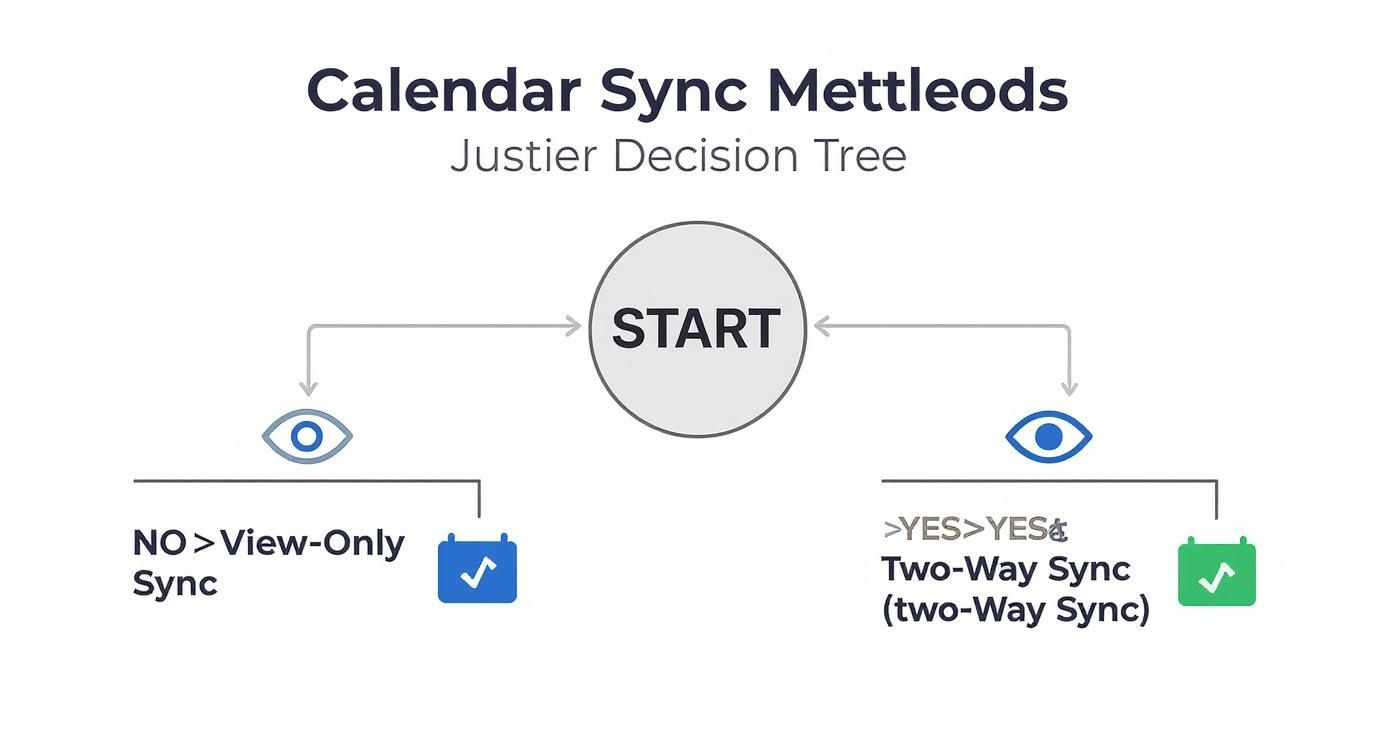
As you can see, the path is clear. If editing from both calendars is a must-have, then two-way sync is your only robust option.
Mastering One-Way Calendar Syncing
For a lot of us, the goal isn't to actively manage two different calendars. It's much simpler: just see your work appointments from Outlook inside your personal Google Calendar. This one-way street is perfect for avoiding double-bookings without the headache of a full two-way sync. Think of it as a "look, don't touch" method that gives you a complete picture of your day.
We'll walk through two solid ways to get this done. The first, subscribing with a calendar URL, creates a live (though sometimes delayed) feed of your Outlook schedule. The second, a manual file import, is your best bet for a one-time transfer of all your existing appointments.
Subscribing With a Calendar URL
This is easily the most popular way to get a view-only version of your Outlook calendar into Google. You generate a special private link—often called an iCal or ICS link—from Outlook, and then you simply add that link to Google. From then on, Google will periodically check that link for any updates and pull them into your view.
Getting that link is pretty straightforward in both the web and desktop versions of Outlook.
Finding Your ICS Link in Outlook Web
- Log into your Outlook account on the web.
- Head to Settings (the little gear icon), then navigate to Calendar > Shared calendars.
- Under the "Publish a calendar" section, pick the calendar you want to share from the dropdown.
- Choose the permission level. For this, "Can view all details" is almost always what you'll need.
- Click Publish. Outlook will generate two links. You want to copy the ICS link.
Finding Your ICS Link in Outlook Desktop
On the desktop app, the process is slightly different but gets you to the same place.
- In your Outlook Calendar view, find the calendar you want to share in the left-hand panel and right-click on it.
- Select Share > Publish This Calendar. This will usually pop open a browser window to finish the process, just like the web version above.
Once you’ve got that ICS link copied, the hard part is over. Now you just need to point Google Calendar to it.
Adding the Outlook URL to Google Calendar
With your ICS link ready to go, hop over to Google Calendar.
Look for the "Add calendar" option in the left-hand menu (you might need to click the '+' sign). From the choices that pop up, select "From URL". Paste your Outlook ICS link into the field and click "Add calendar".
Give it a few moments, and you should see your Outlook events start populating your Google Calendar. They'll show up in a new, colour-coded calendar that you can rename to something more helpful, like "Work Calendar".
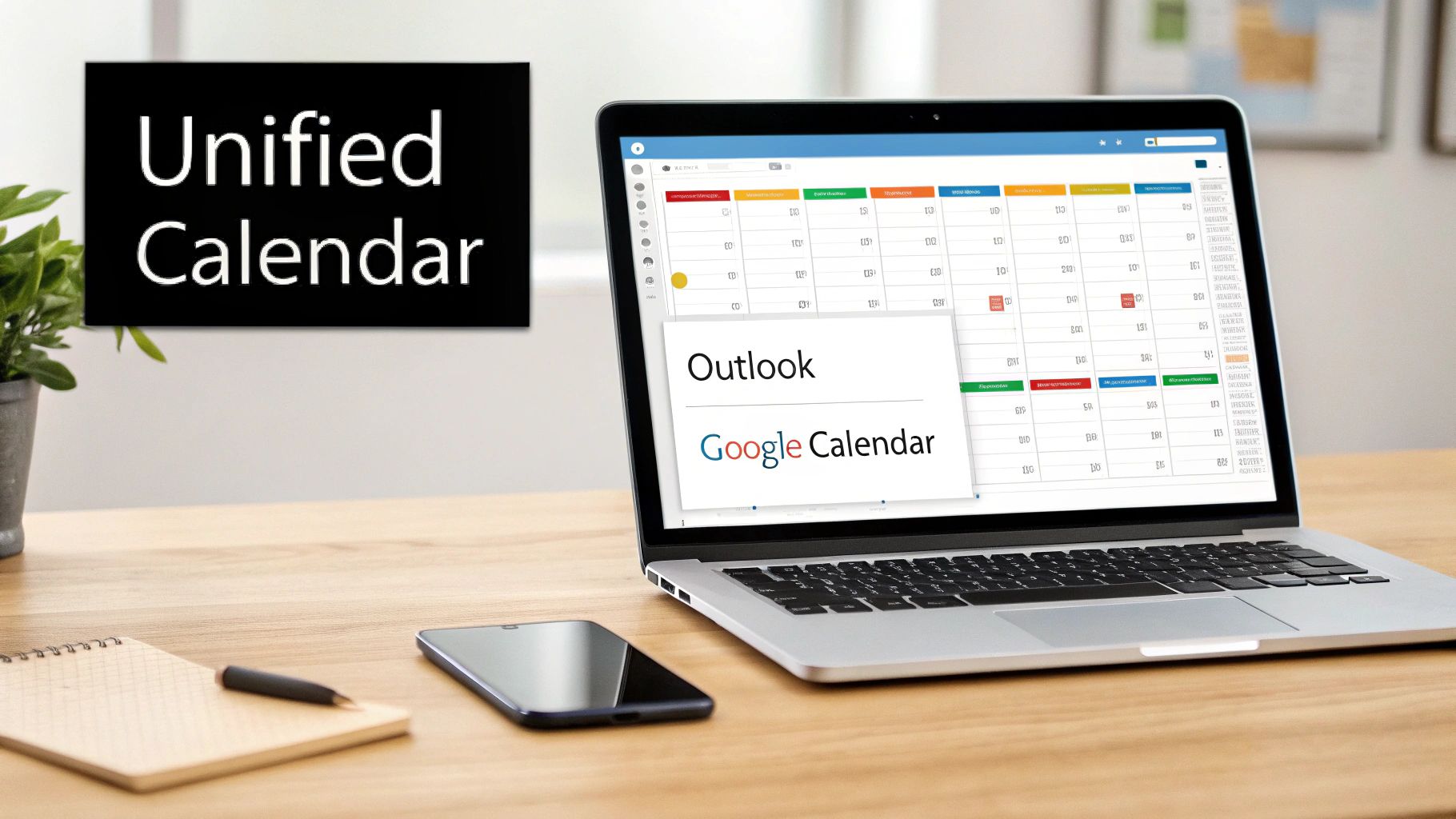
This screenshot shows exactly where you'll find the "Publish a calendar" feature in Outlook's settings – that's your gateway to generating the unique ICS link.
Here's the catch: The biggest downside to this URL method is the sync delay. Google itself says it can take up to 24 hours for new or updated Outlook events to appear. If your schedule changes on the fly, that lag can be a real problem.
Manual Export and Import With an ICS File
What if you just need a one-time snapshot? Maybe you're switching platforms entirely or just want to get a historical record of your work events into Google. In that case, a manual export is the way to go.
This process is dead simple: you save your Outlook calendar as an .ics file and then import that file directly into Google Calendar.
Just be aware, this is a static, one-and-done transfer. It won't keep anything updated. Any changes you make in Outlook after the export won't show up in Google.
To pull this off, you'll use the "Save Calendar" or "Export" function in Outlook, save the .ics file to your computer, and then use the "Import" function in Google Calendar's settings to upload it. It’s a simple way to sync outlook calendars with google calendar for archival purposes.
Achieving True Two-Way Synchronisation
When a simple view-only feed just doesn’t cut it, you need a true two-way sync. This is the gold standard for professionals who actively manage schedules in both Outlook and Google Calendar. Any change made in one—whether creating, rescheduling, or deleting an event—should instantly and accurately appear in the other.
This level of integration moves you from being a passive viewer of your schedule to an active manager with a single, unified system. The goal is to completely eliminate the need to second-guess which calendar is the "source of truth," because both are always perfectly aligned.
Exploring Native Integration Options
Before you start looking at third-party tools, it's always worth checking if a native solution can do the job. Sometimes, Google allows you to add other accounts directly within its settings, which can provide a basic level of integration. You might find an option in Google Calendar to add your Microsoft account, which could pull in your Outlook events.
But let's be realistic—these native options are often limited. They typically function more like a one-way subscription with slightly faster updates, rather than a genuine two-way sync. You almost certainly won't be able to edit an Outlook event from within Google Calendar, which is the entire point of this exercise.
True two-way synchronisation is less about viewing data and more about creating a single, interactive calendar system from two separate platforms. The moment you can edit an event in Google and see that change pop up in Outlook seconds later, you've achieved it.
This is exactly where dedicated third-party applications come into play. They are built from the ground up to solve this specific problem, offering robust, real-time synchronisation that native features simply can't match.
The Power of Dedicated Third-Party Sync Tools
For any professional who can't afford scheduling mistakes, a dedicated synchronisation tool is the only real answer. These applications act as a constant, intelligent bridge between your Outlook and Google accounts, ensuring information flows seamlessly in both directions. True two-way synchronisation relies on sophisticated connections. If you're curious about the mechanics behind it all, you can delve into the world of system integrations.
These tools bring features to the table that a simple calendar subscription can’t even touch:
- Real-Time Updates: Changes are usually pushed between calendars within minutes, if not seconds. This is absolutely critical in fast-paced environments where meeting times are constantly shifting.
- Granular Control: You can define exactly what information gets shared. For instance, sync a work meeting to your personal calendar but have it appear only as "Busy," hiding sensitive details like the meeting title or attendee list.
- Flawless Recurring Events: They expertly handle complex recurring meetings, ensuring that a change to one instance doesn't accidentally break the entire series in the other calendar.
The adoption of these tools is growing, especially as flexible work becomes the norm. In Germany, for example, syncing Outlook with Google Calendar has seen a huge uptick due to hybrid and remote work models. Data from German IT service providers shows that approximately 35-40% of medium and large enterprises have already integrated such tools, favouring their reliability.
Comparing Two-Way Sync Solutions
So, how do you decide between a basic native connection and a specialised tool? It all comes down to your need for speed, control, and powerful features. Here’s a quick breakdown to help you compare.
| Feature | Native Account Linking | Third-Party Sync Tools |
|---|---|---|
| Sync Speed | Often delayed (can take hours) | Near real-time (seconds or minutes) |
| Editing Capability | Typically view-only, no editing from the subscribed calendar | Full bidirectional editing (create, update, delete from either calendar) |
| Privacy Controls | Limited to none | Advanced options to mask event details (e.g., show as "Busy") |
| Setup Complexity | Simple, but limited | Moderate (requires authorising a third-party service) |
| Recurring Events | Can be unreliable, often breaks complex series | Robust and accurate handling |
| Best For | Casual, non-urgent use where you just need to see appointments | Professionals who demand absolute accuracy and real-time updates across both platforms |
For anyone serious about creating a truly unified calendar, the advantages of a specialised tool are pretty clear. This approach transforms calendar management from a daily chore into a seamless, invisible part of your workflow. For a deeper analysis of the top players, you might be interested in our guide on the best Outlook Google Calendar sync software, which compares the leading options.
Protecting Your Privacy During Calendar Sync
Let's be clear: connecting your calendars means giving another service a key to your schedule. When you authorise a third-party tool to sync Outlook calendars with Google Calendar, you're handing it a window into your professional and personal life. The first step to doing this safely is understanding exactly what permissions you're granting.
Most reputable tools use secure authentication like OAuth 2.0, which is good news—it means they never actually see your password. But they do get permission to read, create, and modify your calendar events. This is non-negotiable for the sync to work, but it also means you're placing a huge amount of trust in that service provider.
Controlling What Information You Share
The secret to maintaining privacy lies in granular control. You don't have to share every last detail of every appointment, and you probably shouldn't. If you handle sensitive client information, the last thing you want is a confidential meeting title popping up on your personal Google Calendar for all to see.
This is where you need to get smart with your sync settings. A common and highly effective strategy is to mask event details before they sync.
- Show as 'Busy': Instead of your personal calendar showing "Final Review Q3 Budget with Acme Corp," it just blocks out the time as "Busy." Simple and private.
- Limit Event Details: You can often configure the sync to copy only the time and date, leaving out the location, description, and attendee list.
This approach gives you the scheduling visibility you need—a blocked-out time slot—without ever compromising confidentiality. It's the perfect balance. For a broader look at data protection, it's always a good idea to brush up on ways to protect your online privacy across all your digital tools.
Data Security And GDPR Compliance
For anyone based in Europe, especially in Germany, things like data residency and GDPR compliance aren't just nice-to-haves; they're the law. When you're picking a sync tool, you absolutely have to know where your data is being processed and stored.
A 2023 study from a German data security consultancy really drives this home. It found that 68% of German companies using calendar sync solutions specifically seek out software that processes data locally or on German/EU servers to stay compliant. In fact, 54% of German IT managers said GDPR-compliant tools were a high or critical factor in their buying decisions.
This trend shows a clear demand for tools that put users back in control of their data. Always look for services that are upfront about their data policies and offer features like end-to-end encryption. A truly secure system ensures that not even the service provider can read your event details.
This principle of security goes beyond just calendars, of course. We talk more about finding a secure task manager that puts your data first in our other guides. By carefully choosing your tool and fine-tuning its settings, you can get a perfectly synchronised schedule without giving up an ounce of privacy.
What to Do When Your Calendar Sync Breaks
Even with the best setup, a sync can go sideways. You might see events showing up late, getting duplicated, or just not appearing at all. It's frustrating, but the fix is often simpler than you think.
Before you start digging into complex settings, cover the basics. Is your internet connection solid? Have you changed your Outlook or Google password recently? Sometimes, the most obvious answer is the right one.
If you're in a corporate environment, a firewall is a frequent culprit. Your company's network security might be blocking the connection to the sync service without you even knowing. If you suspect this is the case, you'll probably need to have a chat with your IT department to get the service approved or "allowlisted". It's also worth double-checking that both your Outlook and Google accounts have given the sync tool the permissions it needs to do its job.
Pinpointing the Exact Problem
When the simple checks don't work, it's time to play detective. The specific symptom you're seeing usually points directly to the cause.
-
Events are missing entirely. This is often just a delay. If you’re using a one-way URL subscription, a lag of up to 24 hours can be normal. For a proper two-way sync tool, try hitting the "refresh" or "manual sync" button. If that doesn't kickstart it, try disconnecting and reconnecting your account within the tool’s settings to re-establish a fresh connection.
-
You're seeing double appointments. This is almost always because you have more than one sync method running at the same time. A classic mistake is having an old calendar URL subscription still active after setting up a new two-way sync tool. Go into your Google Calendar, look under "Other calendars", and see if you can spot a redundant feed. Then, check your sync tool’s dashboard and shut down the extra connection.
-
Event details are wrong or outdated. An event showing the wrong time or an old title often signals a partial sync failure. This can happen when one of the platforms changes how it handles data behind the scenes. For instance, many Outlook users in Germany have noticed little hiccups since the switch to Azure-based synchronisation. While this backend change is meant to standardise how data is shared, it can cause temporary weirdness. For a deeper dive into these technical shifts, you can read more about the new Outlook synchronisation model.
Your First-Aid Checklist: Before you spend an hour searching forums or contacting support, always try these three things first. 1) Force a manual sync. 2) Disconnect and reconnect both your Outlook and Google accounts. 3) Clear your browser cache. You'd be surprised how often one of these simple steps solves the problem.
Got Questions? We’ve Got Answers.
Jumping into the world of calendar syncing can bring up a few specific questions. Let's tackle some of the most common ones we hear from people trying to sync outlook calendars with google calendar for the first time.
How Often Does A Subscribed Outlook Calendar Actually Update?
If you're using the subscription method with an iCal URL, don't expect instant updates. Google officially says it can take up to 24 hours for changes to show up, though in my experience, it's often a bit faster than that.
This lag is the biggest downside to just subscribing. If you need to know about a last-minute client cancellation or a rescheduled team meeting right away, this method will let you down. For changes that happen in real-time, you'll need a dedicated two-way sync tool that actively pushes updates between calendars in moments.
Will Syncing My Calendars Make My Private Events Public?
This all comes down to the method you choose and, more importantly, how you set it up. A basic one-way subscription will typically share all event details by default with whatever calendar you add it to.
Thankfully, most quality third-party tools are built with privacy in mind.
The best way to handle this is to configure your sync settings to only show events as "Busy" or "Private." This blocks out the time on your other calendar without ever revealing sensitive details like the meeting title, who you're meeting with, or the location. It's the perfect balance of privacy and availability.
Before committing to any tool, take a minute to check its privacy options. This simple step ensures you're only sharing what you're comfortable with and keeps confidential work details off your personal calendar.
Can I Sync More Than One Outlook Calendar to a Single Google Calendar?
Yes, absolutely. This is a common setup, and both one-way and two-way methods handle it just fine.
-
For Subscriptions: You just need to generate a unique iCal URL for each Outlook calendar you want to sync (e.g., one for "Work," one for "Team Projects"). Then, you add each of those URLs to Google Calendar one by one. They'll pop up as separate, colour-coded calendars in your Google view.
-
For Sync Tools: This is where dedicated sync tools really shine. They're designed for this kind of thing, often with "multi-calendar mapping" features. This lets you create specific rules for how each Outlook calendar syncs to your Google account, giving you precise control over your combined schedule.
Stop juggling calendars and start saving time. With Calendar0, you can unify your entire schedule, prevent double-bookings, and schedule meetings with simple, natural language. It's the AI-powered calendar that works as fast as you think. Try Calendar0 for free and reclaim your day.

