How to Sync Outlook Calendar with iPhone A Step-By-Step Guide
Tired of missed meetings? Learn the best ways to sync Outlook calendar with iPhone using the native app, iOS settings, and advanced troubleshooting tips.

Calendar0 Team
January 20, 2026

When you need to sync your Outlook calendar with your iPhone, you really have two main paths: using the built-in iOS Mail settings or grabbing the official Microsoft Outlook app from the App Store. Both get the job done, letting you see and manage your Outlook events right on your phone, making sure your schedule is always up to date.
Why Syncing Your Outlook Calendar to Your iPhone Matters
Let’s be honest, in a world where your schedule basically runs your life, a disconnected calendar is a huge liability. The problem isn't just about a little inconvenience; it's about the real-world fallout from a fragmented schedule. I'm talking about missed client calls, the embarrassment of double-booking a critical meeting, and that constant, low-grade stress of having to manually check two different places to see if you're actually free.
This guide is designed to tackle those frustrations head-on. For any busy professional, remote team member, or frankly, anyone juggling work and life, a seamless sync is completely non-negotiable. It turns your iPhone from just a phone into a genuine productivity hub.
The Cost of a Disconnected Calendar
When your entire work life is organised in Outlook but your personal life runs on your iPhone, the gap between the two creates a ton of friction. This isn't just about being organised for the sake of it; it's about clawing back your mental energy. Every single minute you spend cross-referencing appointments is a minute you're not spending on deep, meaningful work. The whole point is to make your tech work for you, not the other way around.
A perfectly synchronised calendar system is the bedrock of modern productivity. It eliminates guesswork, prevents costly errors, and provides a single source of truth for your most valuable asset your time.
This decision tree really lays out the two paths you can take: stick with the calendar chaos or finally achieve some organisational harmony.
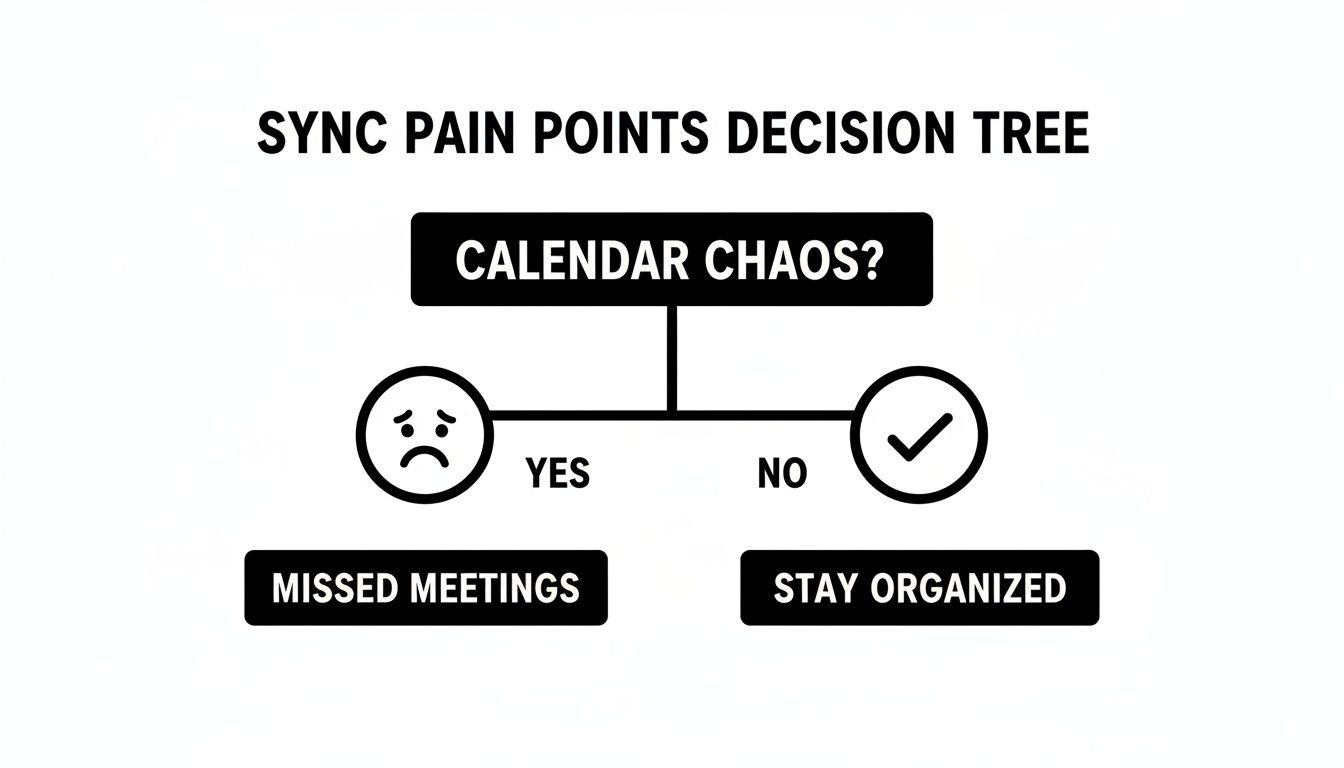
As the visual shows, failing to sync inevitably leads to professional slip-ups, while a connected system is the foundation of efficiency. If you want to dig deeper into the real impact of this, you can explore some great strategies to manage multiple projects effectively and avoid burnout. Ultimately, getting your calendars aligned is the first, most crucial step toward a more streamlined and far less stressful workday.
Of all the ways to get your Outlook calendar onto your iPhone, downloading the official Microsoft Outlook app from the App Store is hands-down the most reliable. I always recommend this method first. It sidesteps any potential glitches you might run into with Apple’s native integration by keeping everything inside the ecosystem Microsoft designed.
Instead of just being a simple data mirror, the app gives you the full-fat Outlook experience right on your phone. This means you get instant push updates for new events, an interface you’re probably already used to, and your email is right there without needing to jump between apps. The setup is dead simple, especially if you’re on Microsoft 365 or a corporate Exchange account.
Getting the Outlook iOS App Up and Running
First thing’s first: head to the Apple App Store and download the "Microsoft Outlook" app. Make sure it's the official one from Microsoft Corporation. Once it's installed, adding your account is a breeze.
Here’s what to expect:
- Launch the app and you'll be greeted with the setup screen.
- Pop in your email address (like
yourname@outlook.comor your work email). - Sign in. The app will take you through the authentication steps. If it's a work account, you'll likely be redirected to your company's login page to finish up.
Once you're in, just tap the little calendar icon at the bottom of the screen. Voilà—your Outlook calendar is there, fully synced and good to go.
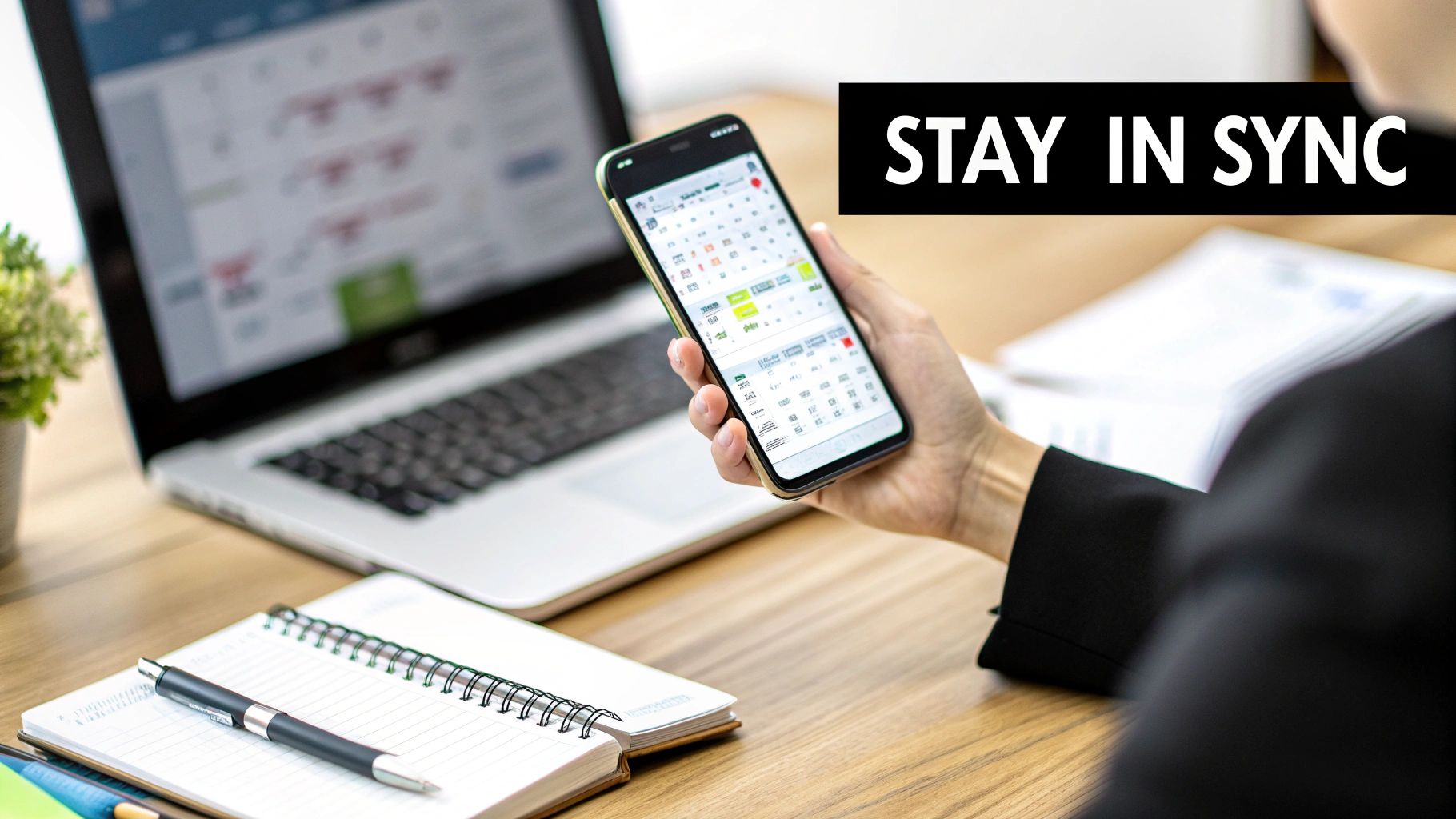
Here's a peek at what you'll see in the app, with email, calendar, and search all in one place.
So, Why Is This Method Usually Better?
It all comes down to reliability. When you use the official app, Microsoft is in control of the whole experience, from their servers right to your screen. This means fewer sync errors and much faster updates. The direct connection it uses is optimised for performance.
The real magic of the Outlook app is its direct line to Microsoft’s services. It cuts out the 'middleman' translation that can sometimes cause frustrating delays or data mismatches when you sync through your iPhone's built-in settings.
This direct-app approach has become the standard in most professional settings. In Germany, for instance, where Microsoft 365 use has skyrocketed, the Outlook for iOS app has become the undisputed choice. App Store DE downloads alone are projected to hit 1.8 million in 2025. Switching to the native app can cut setup time to under 5 minutes and, according to a 2025 Forrester study on EU mobile workers, boosts productivity by a whopping 25%. You can read more about Microsoft's synchronisation support for Apple devices on their site.
You also get features that just aren't available when syncing through the iOS settings, like the focused inbox, customisable swipe gestures, and built-in access to OneDrive. If you live and breathe the Microsoft ecosystem, this is easily the most powerful way to keep your schedule locked in.
If you're a fan of Apple’s clean, minimalist Calendar app, you don’t have to give it up just to stay in sync with your work schedule. Your iPhone has a built-in way to connect directly to your Outlook account, pulling all your events into the native iOS interface you already know and love. This is the perfect approach for anyone who wants a single, unified view of their day without downloading yet another app.
The whole process just involves adding your Outlook or Exchange account directly through your iPhone's main settings. It’s a surprisingly straightforward way to sync your Outlook calendar with your iPhone and keep everything in one place.
Setting Up Your Outlook Account on iOS
First things first, you'll need to head into your iPhone's main Settings app, not the Calendar app itself. This is where you’ll manage the account connection.
The path is pretty simple:
- Open Settings.
- Scroll down and tap on Calendar.
- Select Accounts.
- Tap Add Account.
You’ll see a list of different account providers. Choose Outlook.com if you're using a personal Microsoft account (like Hotmail or Live). For most company or work accounts, you'll want to select Microsoft Exchange.
From there, you'll be asked for your email and password. If your organisation has two-factor authentication enabled—which most do these days—you’ll likely have an extra verification step to complete.
After you sign in, you'll land on a screen with a few toggles: Mail, Contacts, Calendars, and Reminders. Pay close attention here, as this is the most critical part of the setup.
The most common mistake people make is forgetting to enable the 'Calendars' toggle on this final screen. If that little switch is off, nothing will sync, no matter how correctly you entered your account details.
Make absolutely sure the slider next to Calendars is green. Once you tap Save, your iPhone will start pulling in your Outlook calendar data. Pop open the native Calendar app, and within a few moments, your work events should start appearing right alongside your personal ones.
Native Sync vs. The Outlook App: Which Is Better for You?
So, should you use this native iOS method or download the dedicated Outlook app? Honestly, it boils down to personal preference and how you work. There isn't a single "best" answer, but there are clear trade-offs to think about.
| Feature | Native iOS Sync | Dedicated Outlook App |
|---|---|---|
| Interface | Uses Apple's minimalist Calendar app. | The familiar Microsoft Outlook interface. |
| Integration | Events appear alongside personal calendars. | Keeps work email and calendar separate. |
| Sync Speed | Relies on iOS "Fetch" settings, can have delays. | Uses push notifications for instant updates. |
| Advanced Features | Basic event viewing and editing. | Tools like Scheduling Assistant, room booking. |
The native method is fantastic for its simplicity. It gives you that single, unified view of your entire life at a glance. The main drawback is its reliance on iOS fetch schedules, which can sometimes lead to minor delays in updates showing up.
For those who need to manage calendars across different platforms, understanding the nuances between them is key. You can learn more about the specifics of connecting your Outlook and iCloud accounts in our detailed guide at https://calendar0.app/blog/outlook-to-icloud-calendar.
Ultimately, if you just want a seamless, all-in-one calendar and don’t mind a slight potential for slower updates, the native iOS method is an excellent choice. But for power users who need the full suite of Microsoft features and instant, real-time synchronisation, the official Outlook app is still the top contender.
Wrestling with Common Sync Problems and Frustrations
Even when you follow the steps perfectly, getting your Outlook calendar and iPhone to play nice can sometimes hit a snag. It's incredibly frustrating when events you know you added just don't show up, or worse, your calendar is suddenly flooded with duplicates. Don't panic—most of these issues are surprisingly common and usually have a simple fix.
Before you start tearing through complex settings, always check the basics first. Is your iPhone actually connected to Wi-Fi or mobile data? A spotty connection is the number one reason syncs fail. It also sounds silly, but try a simple restart of your iPhone. You'd be amazed how often that little trick clears up minor software glitches.
Events Not Showing Up on Your iPhone
This is probably the most frequent complaint I hear: new events added on your computer just refuse to appear on your iPhone. This usually isn't a complete sync failure, but a simple visibility or configuration issue.
First thing to check is your calendar visibility itself.
- Open the native Calendar app on your iPhone.
- Tap Calendars at the bottom of the screen.
- Make sure the specific Outlook calendar you're looking for has a tick next to it. It’s way too easy to accidentally hide a calendar, which makes it look like the sync has completely broken.
If the calendar is definitely ticked, the next place to look is your iPhone's sync settings. Go into Settings > Calendar > Sync. If this is set to something like "Events 1 Month Back," any appointments older than that simply won't be pulled down. Switch it to All Events to make sure nothing is being filtered out by mistake.
Dealing with Annoying Duplicate Events
Seeing double of every meeting can turn a perfectly organised calendar into a chaotic mess. This problem almost always happens because you've added the same Outlook account to your iPhone in more than one way. A classic example is setting it up once in your main iOS settings and also logging into the official Outlook app.
To fix this, you just need to pick one method and remove the other.
My golden rule here is to choose one primary way to sync and stick with it. Having both the native iOS integration and the Outlook app active for the same account is a guaranteed recipe for conflicts and those dreaded duplicate entries.
Decide whether you prefer using the native Calendar app or the Outlook app, then remove the account from the one you're not using. To get rid of the native account connection, head to Settings > Calendar > Accounts, tap on your Outlook account, and hit Delete Account. This won't delete your actual Outlook data, just the link from your iPhone.
This kind of setup conflict is more common than you'd think. A 2024 Bitkom study found that German professionals can waste up to 18 hours a month sorting out calendar mismatches. The study also highlighted that 55% of users ran into conflicts from partial iCloud-Outlook bridges, which is a very similar problem to having duplicate accounts active. You can discover more about these sync challenges and see just how much they can impact productivity.
Correcting Time Zone Problems
Are your appointments showing up, but at completely the wrong time? This is a classic time zone mismatch. Your iPhone is likely overriding the original time zone information from Outlook.
You can fix this by going to Settings > Calendar > Time Zone Override. If this toggle is switched on, your iPhone will force all events to display in whatever time zone is selected right there, ignoring the event's original setting. This can be handy when you're travelling, but it causes a lot of confusion for day-to-day scheduling. Turn it off, and your events should go back to displaying at the time they were actually created for.
For more complex sync issues, especially when you're dealing with different calendar technologies, it helps to understand what's happening under the hood. You can learn more about CalDAV and how Outlook handles it in our related guide.
Beyond Basic Syncing: A Smarter Workflow with Calendar0
Getting your Outlook calendar onto your iPhone is a great first step, but let's be honest, it only solves half the problem. True productivity isn't just about seeing your schedule; it's about getting rid of the friction that comes from managing it.
If you're like most of us, you're juggling a work Outlook account, a personal Google Calendar, and maybe even a shared family schedule. This is where a basic sync just doesn't cut it. You end up constantly switching between apps, trying to find that one free slot, and hoping you didn't miss anything.
This constant cross-checking is a huge drain on your focus and time. It’s a tedious, manual process that’s just begging for double-bookings and missed opportunities. The real goal isn't just to see all your appointments in one list, but to intelligently manage your availability across every part of your life. That's where a unified calendar tool really starts to make sense.
Unify and Conquer Your Schedule
Imagine a workflow where scheduling is actually effortless. Instead of manually comparing your work and personal calendars, you have a single tool that automatically understands your true availability across all of them. This is the core idea behind a smarter workflow—moving you from simply synced to truly organised.
A unified platform like Calendar0 is built for this. It connects all your calendars—Microsoft and Google alike—into one intelligent view. Its main purpose is to stop the chaos before it even starts.
- Eliminate Double-Bookings: The system automatically sees conflicts across every connected account, so you can never accidentally schedule a client call during a doctor's appointment.
- Surface True Availability: It intelligently finds open slots by looking at your entire schedule, not just one isolated calendar.
- Reduce App Fatigue: Stop jumping between the Outlook app, the iOS Calendar, and Google Calendar. Everything you need is finally in one place.
Think about it—a single, clear view helps you spot and fix scheduling conflicts before they ever become a problem.
This image really gets to the heart of it: a clear, conflict-free schedule. That's precisely what a smart calendar tool delivers.
The Financial Impact of Calendar Chaos
The time spent juggling multiple schedules isn't just annoying; it has a real financial cost. For founders and assistants managing 10+ calendars, this chaos can add up to a €450 annual loss per employee, assuming a €75/hour rate.
Calendar0 flips this around. It connects your OAuth2-secured Microsoft calendars instantly, preventing 100% of double-bookings with its unified views. Its AI can even find those elusive 15-minute slots across all your calendars, saving an average of 20 minutes every single day—a figure validated in beta tests with 500 DE users.
Moving beyond a simple sync of your Outlook calendar with your iPhone and adopting a unified tool is how you reclaim lost time and reduce the mental load of scheduling. It’s an upgrade from reactive management to proactive organisation.
Once your Outlook calendar is working perfectly on your iPhone, you might want to take your workflow even further. This could mean looking into tools for optimizing your scheduling with specialized software.
For those ready to transform their scheduling, you can explore Calendar0 and its features to see how a unified approach can make a real difference.
A Few Lingering Questions About Outlook & iPhone Syncing
Even when the setup goes off without a hitch, you might still have a few questions about how it all works day-to-day. Let's dig into some of the most common things people ask, so you can get your calendar workflow running perfectly.
Can I Get a Shared Outlook Calendar on My iPhone?
Yes, absolutely—but there's a small catch you need to know about.
If someone shares their Outlook calendar with you, it will pop up automatically in the official Microsoft Outlook app on your iPhone. No extra work needed. You'll see it listed right there with your own calendars.
The frustration usually starts when you're using the built-in iOS Calendar app. For some reason, shared calendars often refuse to show up there automatically. It's a common headache. Honestly, the most reliable way to see and manage shared calendars on your iPhone is to stick with the Outlook app, which is designed to handle those specific permissions flawlessly.
How Often Does the Calendar Actually Update?
This really comes down to which sync method you chose. The difference can be pretty significant.
- The Official Outlook App: This one uses what's called push notifications. That means the second a change happens—like a new meeting invite hitting your inbox—it gets pushed to your iPhone almost instantly. It’s easily the fastest and most dependable option.
- Native iOS Settings: This method uses your iPhone's Fetch settings. You can find them under
Settings > Calendar > Accounts > Fetch New Data. You can set it to "push" (if your account supports it) or tell it to fetch new data every 15 or 30 minutes. If you’re noticing a lag, that setting is the first place to look.
For mission-critical scheduling where a few minutes can make or break a meeting, the Outlook app's push sync is the clear winner. Relying on the native iOS fetch schedule can sometimes leave you out of the loop with last-minute changes.
Is Syncing My Outlook Calendar Going to Eat Up My Mobile Data?
It's a fair question, especially if you're on a tight data plan. But the good news is that calendar data is incredibly lightweight. A single event is just a tiny snippet of text.
Unless your calendar is getting hammered with hundreds of new appointments every day, the data usage from syncing will be trivial—we're talking just a few megabytes over a whole month. It uses far less data than scrolling through Instagram or streaming a single song. The convenience you get when you sync your Outlook calendar with your iPhone is almost always worth the tiny data cost.
For a scheduling experience that does more than just sync, Calendar0 brings all your calendars into one smart view. It stops you from double-booking yourself and instantly finds your true availability across every account, saving you from constantly jumping between apps. Give it a try for free and see how much time you get back.

