Sync Outlook Calendar to Google: How to sync outlook calendar to google
Consolidate your schedule in one view. Learn how to sync outlook calendar to google with easy, practical steps for seamless reminders.

Calendar0 Team
January 17, 2026

Juggling a work calendar in Outlook and a personal one in Google is a fast track to double-bookings and missed appointments. I've been there. We've all been there.
You have a few ways to get them talking to each other, ranging from a simple one-way "view only" link to powerful tools that create a true two-way sync. Let's walk through which approach actually makes sense for you.
Why Syncing Your Calendars Is No Longer Optional
Let's be honest, trying to keep two separate calendars in your head is a recipe for disaster. That constant mental gymnastics of "Can I book that dentist appointment? Let me check my work schedule first..." is an unnecessary source of friction.
We've all felt that sinking feeling of confirming a client meeting, only to realise later it clashes with a family dinner. The real problem is you don't have a single source of truth for your time. This forces you to manually cross-reference everything, a tedious process that's just begging for mistakes.
This isn't just a minor inconvenience; it's a huge productivity drain. For instance, German businesses report losing an average of 15-20 minutes per employee every single day just from fiddling with different calendar apps. With scheduling errors popping up in up to 45% of meeting coordination attempts, that wasted time adds up fast across a whole company. You can find more insights on this productivity drain over at calendar0.app.
The Benefits of a Unified Calendar View
When you finally get everything into a single, unified view, the chaos turns into clarity. Seeing all your commitments in one place gives you an instant, accurate picture of your real availability. It makes it so much easier to guard your personal time while making smarter commitments at work.
The goal here isn't to add another task to your to-do list; it's to make scheduling feel effortless. A synchronised calendar lets you say "yes" to things with confidence because you know you're seeing the full picture.
This consolidated view is the foundation of effective work-life planning. It cuts down the stress and gives you the control to balance everything without constantly worrying that you've missed something. You can finally stop reacting to conflicts after they happen and start proactively managing your time.
So, how do we get there? You have a few options:
- One-way subscriptions: Best if you just need to see your work events on your personal calendar.
- Manual export/import: A one-time deal, really only useful for migrating old calendar data.
- Two-way sync tools: This is for a truly dynamic, interactive calendar where changes on one side appear on the other.
Choosing the right method comes down to what you actually do day-to-day and how much control you really need.
Choosing the Right Calendar Sync Method
Figuring out the best way to get your calendars in sync really boils down to one question: what do you actually need to do? There's no single "best" method that works for everyone. The right choice for a project manager juggling multiple team schedules will be totally different from what a freelancer needs to keep their work and personal life from colliding.
Think of it like this: a one-way sync is like looking through a telescope. You can see what's happening from a distance, but you can't touch anything. A two-way sync is more like having a direct line—it’s a live, interactive connection.
One-Way vs. Two-Way Sync: What's the Difference?
A one-way sync is essentially a "look, don't touch" solution. You're subscribing to your Outlook calendar's feed from Google Calendar. This pushes your Outlook events into your Google view, but they're read-only.
This is perfect if all you need is a quick glance at your work availability while you're scheduling a dentist appointment on your personal calendar. It's a simple, effective way to avoid double-booking yourself.
The big catch? It's completely static. You can't edit, delete, or even RSVP to an Outlook meeting invitation from inside your Google Calendar. For that, you need something more robust.
A two-way sync, on the other hand, creates a truly dynamic link between your calendars. Add a meeting in Google, and it pops up in Outlook. Update an event in Outlook, and the change reflects instantly in Google. This is the only way to go if you actively manage both calendars and need them to be perfect mirror images of each other.
If that sounds like what you need, it's worth exploring a detailed comparison of popular Outlook and Google Calendar sync software. Native options from Google and Microsoft just don't offer this level of automated, two-way connection, so a third-party tool is usually required.
Manual Import vs. Automated Solutions
The other big decision is whether you need a one-time data dump or a continuous, hands-off connection.
A manual import is just a snapshot in time. You export your entire Outlook calendar as an ICS file and then import that file into Google. It's a great option if you're ditching Outlook for good and just need to move your history over. But that's where it ends—it's not a "sync." Any new events you add to Outlook after the import won't show up.
Automated solutions are the real set-it-and-forget-it option. They run quietly in the background, making sure your calendars stay perfectly aligned without you having to lift a finger. This is the best approach for anyone who needs a consistently unified view of their schedule day in and day out.
This little decision tree can help you visualise where you fit.
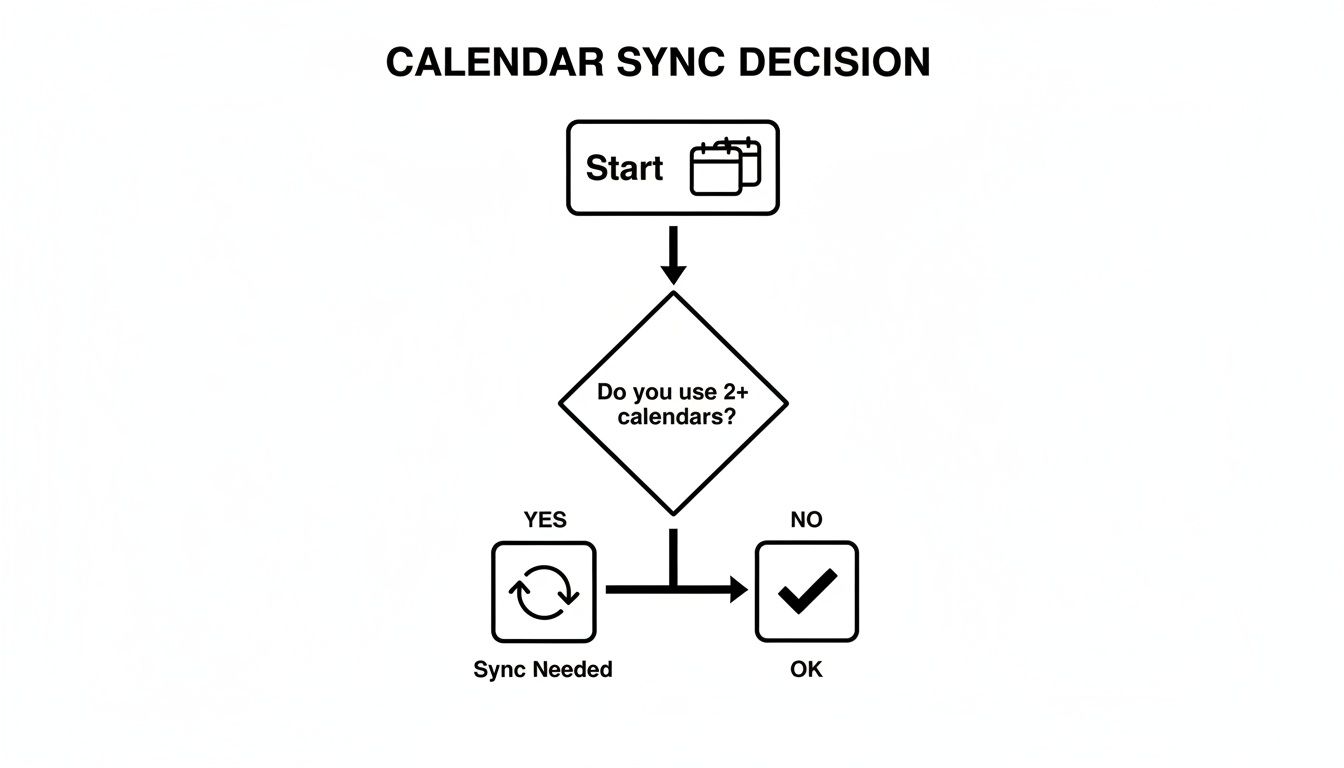
The logic is pretty clear: if you're wrangling more than one calendar, putting some kind of sync in place is the only sane way to regain control of your schedule.
Comparison of Outlook to Google Calendar Sync Methods
Here’s a quick comparison of the main methods to help you choose the best option for your needs, from simple viewing to full two-way synchronisation.
| Method | Sync Type | Best For | Key Limitation |
|---|---|---|---|
| ICS Subscription | One-Way (Read-Only) | Seeing work availability on your personal calendar to avoid conflicts. | Events can't be edited from the destination calendar; updates can be slow. |
| Manual Export/Import | One-Time Transfer | Migrating permanently from Outlook to Google or for archiving. | Not a continuous sync; new events won't appear after the import. |
| Third-Party App | Two-Way (Automatic) | Actively managing both calendars and needing a real-time, unified view. | Requires an external tool, some of which may have a subscription cost. |
Ultimately, the right tool depends entirely on your workflow. If you just need to prevent double-bookings, an ICS subscription is fine. For anyone needing a truly integrated system, a dedicated two-way sync tool is the only way to go.
How to Subscribe to Your Outlook Calendar in Google
If all you need is a simple, read-only view of your work schedule inside your personal calendar, subscribing is the most direct way to get it. Think of it as creating a one-way mirror. You can see everything happening in Outlook right from your Google Calendar, but you can't edit or add anything from the Google side.
This method is built right into both platforms, so you don't need any third-party tools. It’s a quick and easy setup to stop yourself from accidentally double-booking meetings or personal appointments. You'll generate a special web link (an ICS link) from Outlook and then simply add it to Google. It's an effective way to sync your Outlook calendar to Google for viewing purposes only.
Finding and Publishing Your Calendar Link in Outlook
First things first, you have to tell Outlook that you want to share your calendar. The steps are a little different depending on whether you're using Outlook on the web or the desktop app.
For Outlook on the Web (Microsoft 365):
- Head to your calendar view and click the Settings cogwheel, which is usually in the top-right corner.
- Navigate to Calendar > Shared calendars.
- In the "Publish a calendar" section, pick the calendar you want to share from the dropdown menu.
This next part is critical for privacy. You need to choose the permissions for the link. You can let anyone with the link see all your event details, or—the much safer option for most of us—just show when you're free or busy.
This image from Microsoft's own support page shows exactly what those publishing options look like.
The real takeaway here is the control you have. Selecting "Can view when I'm busy" is almost always the best choice for sharing a work calendar with a personal one. Once you've set your permissions, hit "Publish." Outlook will generate two links for you: an HTML link and an ICS link. You need to copy the ICS link.
Adding the ICS Link to Google Calendar
With your ICS link copied, jump over to your Google Calendar.
Look on the left-hand side for the "Other calendars" section and click the plus (+) icon next to it. A small menu will pop up; choose "From URL."
Now, just paste your ICS link into the field and click "Add calendar." That's it. Google will pull in your Outlook calendar, and it will show up as a new, separate entry in your list. You can even change its colour and notification settings, just like any other calendar you have.
Here's the one big catch: this connection is not instantaneous. Google decides how often it refreshes the feed from your Outlook calendar, and this can sometimes take up to 24 hours. Any new events you add in Outlook won't appear immediately in Google.
This delay is easily the biggest downside of the subscription method. If you rely on real-time updates—say, a client reschedules a meeting last-minute—this approach will probably let you down. It’s great for static planning but not for fast-paced, dynamic work environments. For that, you really need a true two-way sync solution.
Using a Manual Export for One-Time Syncs
Sometimes, you don't need a constant, live-wire connection between your calendars. Maybe you just need to move a chunk of events from Outlook to Google, and that's it. For these one-off situations, a manual export is your best friend.
This is the perfect move if you're making a permanent switch from the Microsoft world over to Google Workspace and want to bring your entire appointment history with you. It’s also incredibly useful for archival purposes—like saving a final snapshot of a completed project's schedule without cluttering up your current calendar.
Just remember what this process is: a static copy. It’s a "point-in-time" transfer. Any new meetings you add to Outlook after the export won't magically show up in Google.
Exporting Your Outlook Calendar to an ICS File
First things first, you need to get your calendar data out of Outlook in a language Google can understand. That language is a universal format called iCalendar, which uses the .ics file extension. Thankfully, getting this file is straightforward whether you're using the desktop app or the web version.
In the Outlook Desktop App:
- Open your Calendar and click on the specific one you want to export.
- Head up to File and then click Save Calendar.
- Choose where you want to save the file. But before you hit save, click on More Options. This is where you can dial in the date range and how much detail to include.
Here, you can choose to export your entire calendar history or just a specific window, like the last three months. You can also decide whether to include all the juicy details or just basic free/busy information. For a full migration, you'll want to select "Full details".
Pro-Tip: Before you even think about importing, do yourself a favour and create a brand new, empty calendar in Google. Name it something obvious, like "Archived Outlook Events." This keeps the imported stuff quarantined from your main calendar, which means no clutter and the ability to easily hide or delete it later.
Importing the ICS File into Google Calendar
Alright, you've got your .ics file saved and ready to go. The final piece of the puzzle is getting it into your Google Calendar.
Open up Google Calendar on your desktop. Look for the "Other calendars" section in the left sidebar and click that little plus (+) icon. A menu will pop up—from there, just select "Import".
On the next screen, you'll see an option to select the file from your computer. Grab the .ics file you just saved. Now, here's the crucial part: you'll see a dropdown menu asking which calendar you want to add the events to. This is where your smart prep work pays off. Select that "Archived Outlook Events" calendar you created, click "Import," and let Google do its thing.
All your old events will populate that separate calendar, leaving your main one clean and organised.
Achieving True Two-Way Sync with Modern Tools
When a simple, read-only view of your calendar just won’t cut it, you need a solution that creates a genuine, interactive connection. This is exactly where dedicated third-party tools come into play. They’re built specifically to solve the problem of making two separate calendar ecosystems act as one, creating the true two-way sync that native options simply can't deliver.
This approach is for professionals who don't just view their calendars but actively live in them. If you create an event in Google Calendar on your phone, you expect it to show up instantly in your work Outlook. It’s about more than just dodging scheduling conflicts; it's about having a single source of truth for your time, no matter which app you happen to have open. These tools work tirelessly in the background, making sure any change—a new meeting, a rescheduled appointment, or a cancellation—is reflected on both platforms in near real-time.
The Power of Real-Time, Bidirectional Updates
The real magic of a dedicated sync tool is its ability to handle bidirectional updates automatically. Forget the frustratingly slow refresh rates of an ICS subscription; these services are built for speed and reliability.
So what does this actually look like in practice?
- Edit from anywhere: Update a meeting's time in Google Calendar on your phone, and your colleagues checking your availability in Outlook will see that change almost immediately.
- Accept invites seamlessly: An invitation sent to your Outlook work account can be accepted from your personal Google Calendar, with the RSVP status updating everywhere.
- Keep all the details straight: Crucial information like attendee lists, meeting notes, and video conference links stays perfectly consistent across both platforms.
This level of integration completely changes how you manage your schedule. It removes that constant mental load of remembering which calendar is the "master" version because, in effect, they both are.
A Smarter Alternative to Traditional Syncing
However, managing another piece of software just to connect two other pieces of software can feel like adding an unnecessary link to an already complicated chain. You have to set it up, manage its permissions, and then cross your fingers and trust it to run flawlessly. For a lot of people, this just introduces a new layer of technical overhead they don't want.
This is where a different approach, like the one offered by Calendar0, can be a total game-changer. Instead of just syncing events between calendars, Calendar0 unifies them into a single, intelligent view right in your menubar. It doesn't just copy events back and forth; it solves the core problem at its source: preventing you from ever double-booking yourself again.
By giving you a unified, AI-powered interface, you get to sidestep the entire sync setup. You see all your availability from every connected account at once, making it physically impossible to schedule over an existing commitment. It streamlines your workflow by focusing on the outcome—effortless scheduling—rather than the tedious process of data synchronisation.
Honestly, it just tackles the root issue more efficiently. When you need to book a meeting, you don't have to wait for a sync to confirm your availability. You just glance at your unified Calendar0 view and find a slot that works across all your commitments, both personal and professional. It’s a more direct and modern way to regain control over your time without the complexities of old-school sync tools.
Common Questions About Syncing Calendars
Even with a perfect guide, you're bound to hit a few snags or have lingering questions when trying to get Outlook and Google to play nice. Let's tackle the most common ones I hear all the time.
How Often Does Google Calendar Update an Outlook Subscription?
This is the biggest "gotcha" with the one-way ICS subscription method. The short answer? Not very often.
The update frequency is entirely in Google's hands, and it's definitely not real-time. You could be waiting a few hours, or you might be waiting over 24 hours for new or changed Outlook events to finally show up in Google. If your schedule is constantly in flux, this lag is a massive headache and can quickly make the subscription method unusable.
Can I Edit Outlook Events From Inside Google?
Nope, you can't. When you subscribe to an Outlook calendar, you're essentially getting a "ghost" calendar in your Google account. It's read-only.
You can see all the event details—depending on the permission level you set back in Outlook—but that's it. You can't edit, delete, or even respond to invites from inside Google Calendar. Any changes have to be made in the original Outlook calendar. If you need to edit from both sides, a proper two-way sync tool is your only real option.
Is It Safe to Share My Outlook Calendar ICS Link?
You have to treat that private ICS link like a password. Seriously.
Anyone who gets their hands on that URL can see your calendar details based on the permissions you set—whether that's just "free/busy" or the "full details."
It's crucial to avoid posting this link in public places or sharing it with anyone you don't completely trust. If you ever think the link has been compromised, go straight back into your Outlook settings, kill the old link, and generate a brand new one.
For a deeper dive into keeping your calendar connections secure, our guide on Google Calendar sync methods has some more best practices.
What Is the Best Way to Get a Real-Time Two-Way Sync?
For a true, real-time sync where an edit on one calendar instantly appears on the other, a dedicated third-party tool is really the only way to go. The built-in methods like ICS subscriptions just don't have that capability.
The other route is to use a unified calendar app. Instead of copying events between platforms and worrying about sync delays, these tools give you a single, live view of everything. It solves the problem by sidestepping the need for syncing altogether.
If you're tired of fiddling with sync settings and just want to see all your calendars in one clean, intelligent view, check out Calendar0. It lives in your menubar, unifies your schedules, and stops you from getting double-booked in the first place. You can learn more at https://www.calendar0.app.

