Sync Outlook Calendar on Google Calendar A How-To Guide
Learn how to sync Outlook Calendar on Google Calendar with our complete guide. Explore one-way and two-way sync methods to unify your schedule seamlessly.

Calendar0 Team
January 6, 2026

Trying to get your Outlook and Google calendars to talk to each other can feel like a constant battle. For many of us, it’s not just a small annoyance—it’s a real drag on productivity and a source of daily stress.
If you're a consultant managing client meetings in a corporate Outlook account while trying to slot in family appointments on a personal Google Calendar, you know the pain. The endless switching between apps is exhausting and practically begging for a mistake to happen.
This split-brain approach to scheduling creates genuine problems that can damage your professional reputation and your sanity. The most common headaches I see are:
- Accidental Double-Bookings: You say yes to a personal event, completely forgetting it clashes with a work meeting buried in your other calendar.
- Missed Deadlines: That big project deadline logged in your work calendar gets completely overlooked while you're planning your personal week.
- Constant Context Switching: The mental gymnastics of repeatedly opening, checking, and comparing two different schedules just to find a free hour.
Calendar Chaos is the New Normal in Hybrid Work
This scheduling nightmare has only gotten worse in our modern, flexible work world. In Germany, the hybrid work revolution has turned the simple act of syncing Outlook and Google Calendars into a daily struggle for millions.
Data from the Federal Statistical Office (Destatis) shows that 41% of the country's workforce—that’s about 18.45 million people—now have hybrid schedules. A staggering 67% of these professionals are stuck juggling Microsoft Outlook for work and Google Calendar for their personal lives.
This has led to a perfect storm of scheduling chaos. In fact, that same data shows this disconnect is directly responsible for 31% of these workers reporting frequent availability errors and double-bookings.
This isn't just about convenience; it's about regaining control. When your calendars are siloed, you lose the ability to see your true availability, making it nearly impossible to protect your time or plan effectively.
A unified calendar isn’t a luxury anymore; it’s an essential tool for surviving the demands of a flexible professional life. Without a single source of truth for your time, you're always one forgotten appointment away from a scheduling disaster.
This problem gets even more complicated for those managing teams across different time zones—if that's you, our guide on using a timezone event planner offers some helpful strategies.
But for now, let’s get your two main calendars speaking the same language. Here’s how.
Alright, let's break down the sync methods. Before you dive in, you need to figure out what you actually need. This decision really comes down to two very different paths: a one-way sync, which is basically a "look, don't touch" feed, and a two-way sync, which acts like a proper bridge between your calendars.
Getting this choice right from the start will save you a world of headaches later.
A one-way sync is the simplest and most common free option. Think of it like subscribing to a podcast—you get new episodes, but you can’t talk back to the host. When you publish your Outlook calendar and subscribe to it in Google, you're getting a read-only copy. You’ll see your work meetings, but you can't edit, move, or delete them from Google Calendar. It’s fine for a quick "Am I free?" check, but it's not a real management tool.
Two-way sync is the real deal. It’s an interactive, living connection. Any change you make in one calendar—rescheduling a meeting in Outlook, adding a personal appointment in Google—shows up on the other one almost instantly. This is the only way to go for anyone who seriously manages their life across both platforms and needs one single source of truth to avoid chaos.
Comparing Your Sync Options
To make the right call, it helps to see how these two approaches stack up in the areas that actually matter for a busy person. The speed of updates and the ability to edit are the big ones.
The biggest mistake I see people make is setting up a one-way sync when they really need to manage everything from one place. A view-only calendar won't stop you from getting double-booked if you can't actually interact with the events in real-time.
Here’s a head-to-head comparison to help you match a method to your workflow.
One-Way vs Two-Way Calendar Sync Comparison
Choosing between a one-way or two-way sync fundamentally changes how you interact with your calendars. One is a passive view, while the other is an active management system. This table lays out the crucial differences.
| Feature | One-Way Sync (e.g., ICS Subscription) | Two-Way Sync (e.g., Third-Party Tools) |
|---|---|---|
| Editing Events | View-Only. You cannot create, edit, or delete Outlook events from Google Calendar. | Fully Editable. You can create, edit, reschedule, and delete events from either calendar. |
| Update Speed | Slow and Unpredictable. Can take hours, sometimes up to 24 hours, to refresh. | Real-Time. Changes typically appear within seconds or minutes, preventing conflicts. |
| Setup Complexity | Moderately Simple. Requires generating and pasting a specific ICS link. | Very Simple. Usually involves authorising both accounts through a secure, guided setup. |
| Privacy Control | Limited. You can often only choose between sharing all details or just free/busy status. | Granular. Advanced tools let you control exactly what details (title, attendees) sync. |
So, what's the bottom line?
If you just need to glance at your work schedule to make sure you don't book a dentist appointment during a team meeting, a one-way sync might be enough. But for any professional who needs to reliably manage a packed schedule, stop double-bookings for good, and actually save time, a two-way sync is the only practical solution.
How to Set Up a One-Way Calendar Sync Manually
If you just need a basic, view-only look at your work events on your personal calendar, a manual one-way sync is a decent place to start. It's a free, built-in feature that essentially creates a read-only copy of your Outlook schedule right inside Google Calendar.
Think of it as a "look, don't touch" setup. You won't be able to edit or create Outlook events from Google, but it’s a practical first step to get everything in one place. We'll walk through how to set it up using the web version of Outlook, since that's what most people use.
Publishing Your Outlook Calendar via a Web Link
First things first, you need to get a special link from your Outlook account. This is called an ICS link, and it’s what allows Google Calendar to peek at your schedule.
Start by logging into your Outlook account in a web browser. The interface is pretty clean, and finding the right setting only takes a moment.
- Click the gear icon in the top-right corner to open Settings.
- Go to Calendar, then find the Shared calendars option.
- Look for the "Publish a calendar" section and choose the specific calendar you want to share (most likely just called "Calendar").
- Now you have to set permissions. You'll see two main options: "Can view when I'm busy" and "Can view all details." For this to actually be useful, you’ll want to pick Can view all details.
- Hit the Publish button.
Once you do that, Outlook will generate two links for you: an HTML link and an ICS link. You need the ICS link. It's a universal calendar format that works just about everywhere. Copy that link to your clipboard—you’re going to need it for the next part.
This whole process creates a one-way street for your calendar data, which is fundamentally different from a true two-way sync.
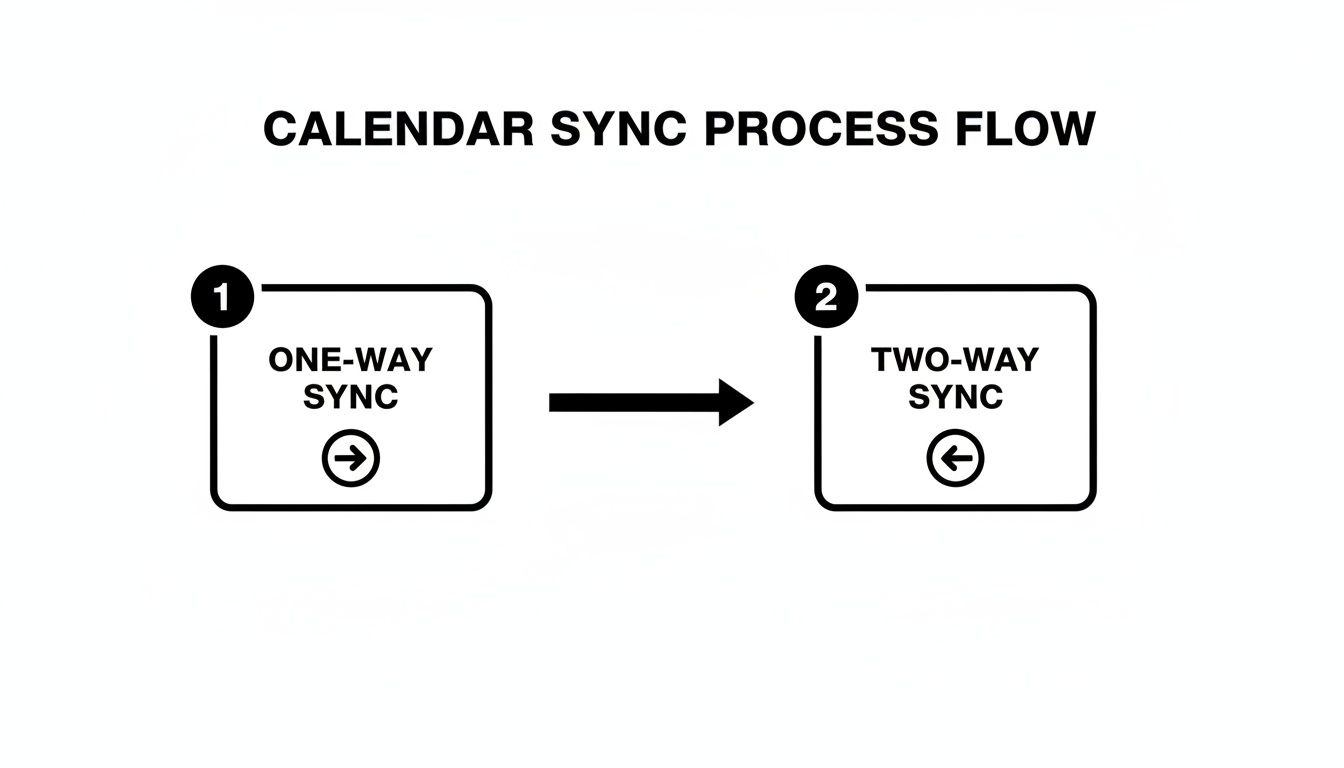
As the diagram shows, you're creating a simple, view-only feed. A two-way sync, on the other hand, allows for a dynamic, interactive connection where changes on one calendar affect the other.
Subscribing to Your Outlook Calendar in Google
Alright, you've got your unique ICS link. Time to jump over to Google Calendar and finish the job. This part is just as simple; you're just telling Google where to find your published Outlook schedule.
Open Google Calendar in a new browser tab. You're looking for the option to add a new calendar "from URL."
Pro Tip: Once you've added the calendar, do yourself a favour and rename it. By default, it might show up with a long, messy URL as its name. Giving it a clear label like "Work Calendar" or "Outlook Sync" will make your schedule much easier to read at a glance.
Here’s how to wrap it up:
- On the left side of your Google Calendar, find the "Other calendars" section.
- Click the plus sign (+) right next to it.
- From the menu that pops up, choose From URL.
- Paste that ICS link you copied from Outlook into the field.
- Click Add calendar.
And that’s it. Give it a few moments, and your Outlook events should start popping up in your Google Calendar view, probably in a different colour to help you tell them apart from your personal stuff.
For a deeper dive into different methods, check out our complete guide on how to sync with Google Calendar. It covers more advanced setups for those who need a bit more control. Just remember, the method we just covered has its limits—especially when it comes to how quickly it updates, which we'll get into next.
The Hidden Costs of Free Syncing Methods
At first glance, the built-in option to sync Outlook with Google Calendar seems like a win. You follow the steps, paste the ICS link, and for a moment, it feels like you've fixed the problem for free. But in the real world, this initial victory is often short-lived.
The truth is, free one-way sync methods come with some serious hidden costs, and they usually show up at the worst possible times.
The most glaring problem is the frustratingly unpredictable delay in updates. And I’m not talking about a minor lag. Changes can take hours—sometimes even a full 24 hours—to finally appear. That meeting you cancelled in Outlook this morning? It could still be blocking off your availability in Google Calendar well into the afternoon.
For anyone whose schedule is their productivity, that kind of delay is a recipe for disaster.
The Real-World Impact of Sync Lag
Imagine a project manager who has to rearrange her entire afternoon for an urgent client call. She quickly clears a two-hour slot in her Outlook calendar, but because of the sync delay, her shared Google Calendar still shows her as busy. It's a single point of failure that can lead to missed opportunities, scheduling chaos, and a total breakdown in team coordination.
Executive assistants managing calendars for multiple people face an even bigger nightmare. A slow sync can make them look unreliable, causing them to schedule meetings that clash with events that were moved hours ago.
The core problem with these free, one-way syncs is the false sense of security they create. You think your calendars are connected, but you're actually looking at outdated information that can, and often does, lead to costly mistakes.
Sync delays have become a massive headache for Germany's busy professionals, hitting hybrid workers the hardest. Even Microsoft acknowledges these delays can stretch for "several hours"—a critical failure in sectors like German consulting, where 29% of professionals are juggling dual calendar systems and need real-time accuracy.
It's no surprise that sync failures are pushing 67% of dual-calendar users toward more reliable third-party solutions.
Beyond Delays: Other Critical Limitations
The problems don't stop with the lag. These manual methods have other serious drawbacks that you’ll run into pretty quickly:
- You Can't Edit Anything: Sure, you can see your Outlook events in Google Calendar, but you can't touch them. Need to reschedule or delete something? You have to switch back to Outlook, which completely defeats the purpose of having a unified view.
- Poor Privacy Controls: When you publish your calendar, it's often all or nothing. There's no way to hide sensitive meeting details while still showing that you're busy.
- It's a One-Way Street: Any new events you add to your Google Calendar are completely invisible to your Outlook account. This leaves your work colleagues with an incomplete picture of when you're actually free.
Ultimately, these limitations turn what should be a productivity tool into a constant source of friction. It's exactly why so many professionals give up on the free methods and start looking for a dedicated solution that offers the real-time accuracy and two-way control they needed from the start.
Achieving a Flawless Two-Way Sync With Automation
Let's be honest, the manual methods are a pain. When your professional reputation is on the line, waiting hours for a calendar to maybe update just doesn’t cut it. The constant delays and one-way limitations are exactly why automated tools were created in the first place. They move beyond simple, static calendar feeds to offer a true, dynamic two-way synchronisation.
Platforms like Calendar0 are built to put an end to this scheduling chaos for good. Think of it as an intelligent bridge between your Outlook and Google calendars. Any change you make on one—whether it's creating, deleting, or rescheduling an event—is reflected on the other almost instantly. This completely eliminates the root cause of double-bookings.
You're no longer just viewing a static copy of another calendar. You get a single, unified view where you can actually interact with every event, no matter where it came from.
Go Beyond Just Basic Syncing
The real magic of modern calendar automation isn't just in preventing mistakes; it's about reclaiming the time you spend on tedious scheduling admin every single day.
For example, Calendar0 brings AI-powered scheduling into the mix. You can create events just by typing in plain English. Something as simple as "lunch with Sarah tomorrow at 1 pm" is all it takes for the tool to parse the details, find the right contact, check for conflicts across all your connected calendars, and fire off the invitation. That’s a world away from manually clicking through time slots and checking different apps.
The whole point of a true two-way sync is to make your tech work for you, not the other way around. It should create a single source of truth for your time, freeing you from the mental tax of constantly cross-checking everything.
This level of automation is a lifesaver for founders, freelancers, and anyone managing a packed schedule. For even more customisation, many professionals use third-party platforms that can connect their calendars to other business software, using tools like Zapier for CRM and calendar integration to build a completely connected workflow.
The Payoff of a Truly Unified Calendar
When you sync your Outlook calendar on Google Calendar with an automated tool, the benefits are immediate. That nagging worry about double-booking yourself? It just disappears. Your availability is always accurate, everywhere.
Here’s what you actually gain:
- Instant, Real-Time Updates: A change you make in Outlook shows up in Google (and vice versa) in moments, not hours.
- Intelligent Conflict Checking: The system automatically scans all your connected accounts before you confirm a new meeting, flagging any potential clashes.
- Effortless Scheduling: AI commands and smart suggestions cut down the time it takes to set up a meeting from minutes to seconds.
This approach transforms your calendars from a source of stress into a serious productivity tool. If you’re weighing your options, our detailed breakdown of the best Outlook and Google Calendar sync software can help you decide. Ultimately, automation gives you the confidence to manage a complex schedule without fear of error, saving you time and protecting your professional reliability.
Common Questions About Calendar Syncing Answered
Diving into the world of calendar syncing usually brings up a handful of important questions. Getting the right answers can save you from a lot of frustration and help you pick a method that actually works for your life.
Let’s get into the most common things people ask when trying to sync an Outlook calendar on a Google Calendar.
Probably the biggest concern is security. Is it actually safe to link your work and personal calendars, especially with a third-party app?
It’s a fair question, but reputable tools are built with security at their core. They use industry-standard protocols like OAuth2, which is a fancy way of saying you grant the app permission to see your calendars without ever handing over your passwords. Your data is accessed using encrypted tokens, keeping everything private and secure. A good rule of thumb? Only use services that are upfront about how they protect your information.
Understanding Sync Limitations
Another area that trips people up is figuring out what the free, manual sync method can (and can’t) do. It's crucial to know its limits before you rely on it.
The free ICS subscription method is notorious for its sluggish and unpredictable update schedule. Both Google and Microsoft admit it can take up to 24 hours for changes to show up. For any professional who depends on an up-to-date calendar, that kind of lag is a dealbreaker.
This delay is the number one cause of accidental double-bookings.
But that's not all. This method only creates a one-way, read-only view. You can see your Outlook events in your Google Calendar, but you can't touch them. You can’t edit, rename, or delete anything.
If you need to make a change—like rescheduling a meeting or updating an event title—you have to go all the way back to your original Outlook calendar. This completely defeats the purpose of having a single, unified view to manage your time. For a calendar that’s always accurate and interactive, only a true two-way sync will do the job.
Stop wasting time on manual scheduling and eliminate double-bookings for good. Calendar0 unifies your calendars with instant, two-way sync and AI-powered scheduling so you can focus on what matters. Start for free and reclaim your time at https://www.calendar0.app.

