Sync Outlook Calendar in Google The Definitive Guide
Stop double-booking for good. Learn how to sync Outlook Calendar in Google using one-way, two-way, and automated methods for a perfectly unified schedule.

Calendar0 Team
December 12, 2025

Let's be honest, trying to manage both an Outlook and a Google calendar is a recipe for chaos. It’s a constant, low-grade stressor for countless professionals who find themselves juggling two different versions of their life.
If you’ve ever double-booked a client call over a dentist's appointment or completely missed a crucial team huddle because it only existed on your work calendar, you know the feeling. It’s not just a minor slip-up; it chips away at your productivity and can even make you look disorganised.
Why a Single Calendar View Isn't Just a "Nice-to-Have" Anymore
The mental energy wasted constantly switching between apps, cross-referencing times, and just worrying that you’ve forgotten something is immense. This disjointed approach to scheduling creates friction you just don’t need in your day. Before we dive into the "how," it's worth taking a moment to gain a deeper understanding of Outlook calendar synchronization.
The Real-World Case for a Unified Calendar
Getting all your commitments into one single, unified view is more than just a clever productivity hack—it's a foundational strategy for taking back your time. Once you sync your Outlook calendar with Google, you instantly kill the risk of scheduling conflicts. This is a game-changer, especially if you’re working in a hybrid or remote setup where your availability needs to be crystal clear to everyone.
A properly synchronised calendar brings some immediate, tangible benefits:
- No More Double-Bookings: When your work and personal events live in the same space, you literally can't schedule two things at once.
- Less Mental Clutter: Stop wasting brainpower toggling between calendars and wondering what you might have missed.
- Smoother Collaboration: You can share your actual availability with colleagues, even if they're on a different platform.
- A More Professional Image: A well-managed schedule quietly signals reliability and organisation to clients and your team.
In the end, a unified calendar isn’t about the tech; it’s about regaining control. It transforms your schedule from a source of anxiety into a powerful tool for focus, giving you an accurate picture of your day at a glance. For modern professional sanity, this shift is non-negotiable.
Choosing the Right Sync Method for Your Needs
Before you start clicking around in settings, let's take a moment to figure out what you actually need. Choosing the right approach now will save you a ton of headaches later. The best way to sync your Outlook calendar with Google really boils down to one question: what's the goal?
Are you just trying to get a simple, read-only peek at your work schedule on your personal phone? Or do you need a living, breathing connection where you can create a meeting in Outlook and edit it from Google Calendar, knowing the change will stick everywhere?
These are two very different problems that require very different solutions.
This decision tree pretty much sums up the chaos that comes from trying to manage two separate calendars versus the sanity that a synced system brings.
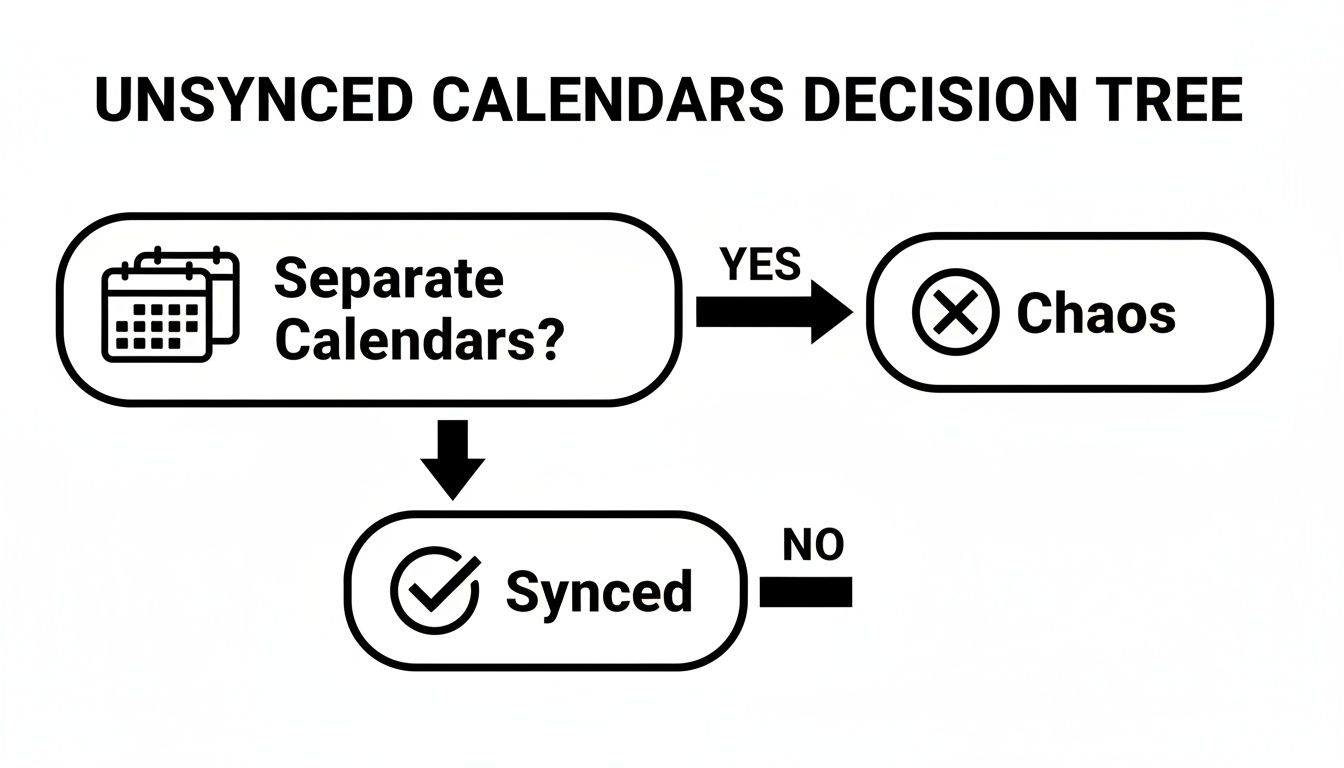
As you can see, leaving things separate is a direct path to double-bookings and missed appointments. A synced approach is the only way to get a true, single view of your time.
Comparing Your Main Sync Options
You’ve got three main ways to get these two calendars to talk to each other, and each comes with its own set of trade-offs.
-
One-Way Sync (The “Look, Don’t Touch” Method): This is the most basic option. You publish your Outlook calendar, which gives you a special link (an ICS link), and then you subscribe to that link in Google Calendar. Your Outlook events will show up, but you can’t edit or delete them from Google. It's purely for viewing.
-
Connecting Your Account (The “Layered” Method): Some calendar apps let you add your Microsoft 365 or Outlook.com account directly. This often just layers your calendars on top of each other, colour-coded, inside a single app. It’s better than nothing, but they're still two separate calendars that don't truly merge.
-
Two-Way Sync (The “True Sync” Method): This is the powerhouse option, always handled by a third-party tool. It creates a genuine, two-way street between your calendars. Create an event in Outlook, and it pops up in Google a moment later. Change the time in Google, and it updates in Outlook. This is a true, automated sync.
For any professional actively managing their availability, a two-way sync is the only real option. One-way methods are fine for a quick glance, but they won't stop you from getting double-booked when a client asks for a meeting and you forget to cross-reference both calendars.
To make it even clearer, here’s a quick comparison of how these methods stack up.
Outlook to Google Calendar Sync Methods at a Glance
This table breaks down the key differences between the sync options to help you pick the right one for your workflow.
| Method | Sync Type | Update Speed | Best For | Key Limitation |
|---|---|---|---|---|
| ICS Subscription | One-Way | Slow (up to 24 hrs) | Passively viewing one calendar inside another. | No editing, very slow updates. |
| Account Connection | Varies (often layered) | Near real-time | Viewing multiple calendars in one app interface. | Doesn't truly merge availability. |
| Third-Party Tool | True Two-Way | Instant / Near real-time | Actively managing both work and personal life from either calendar. | Usually requires a paid subscription. |
Ultimately, the best method depends on how much control and automation you need.
Making the Final Decision
So, what’s the verdict? It all comes down to functionality versus simplicity. If you only need to see your work meetings on your personal phone to avoid scheduling a dentist appointment during a big presentation, a one-way sync might be all you need.
But if you’re looking for a seamless, set-it-and-forget-it system where you can manage your entire life from a single calendar, a dedicated two-way tool is the clear winner. There are some great rundowns of Outlook and Google calendar sync software out there that can help you compare features.
At the end of the day, getting your calendar right is fundamental to productivity. And understanding how different tools connect is a big part of that. Thinking about broader software integration strategies can give you a better grasp of how all your digital tools can work together, not just your calendars.
Setting Up a One-Way Sync by Publishing Your Calendar
If you just need a simple, no-fuss way to see your Outlook events inside Google Calendar, publishing your calendar is a solid choice. This method sets up a one-way, view-only sync. Think of it as creating a read-only copy of your Outlook calendar that lives online, accessible via a private link that you then plug into Google Calendar.
This is the perfect solution when all you need is visibility. For instance, maybe you want to see your work meetings on your personal phone so you don't accidentally book a dentist appointment during a crucial client call. It's important to realise right from the start, though, that this isn't a true, two-way synchronisation. You won't be able to edit or create Outlook events from inside the Google interface.
Generating Your Calendar Link from Outlook
First things first, you need to grab a special link from Outlook, known as an ICS link. The steps are a little different depending on whether you're using the desktop app or the web version.
If you're using the Outlook web app:
- Head to Settings (the little gear icon), then navigate to Calendar and click on Shared calendars.
- Look for the "Publish a calendar" section and select the specific calendar you want to share.
- Next, you'll set the permissions. You can choose between Can view when I'm busy, which only shows generic blocks of time, or Can view all details. For personal use, seeing all the details is usually far more helpful.
- Click Publish. Outlook will spit out two links. The one you need is the ICS link. Go ahead and copy it.
You'll notice two distinct links for HTML and ICS. Make sure you copy the ICS one—that’s the key to getting this to work with other calendar apps.
Subscribing in Google Calendar
Okay, with your ICS link copied, the rest is pretty straightforward. Jump over to your Google Calendar.
On the left-hand sidebar, find the "Other calendars" section and click the plus (+) icon. A menu will pop up; choose From URL. Paste that ICS link you snagged from Outlook into the field and click Add calendar.
That’s it. Your Outlook calendar will now show up under "Other calendars," and its events will appear right alongside your regular Google ones. You can even give it a custom name and colour to keep things organised.
One key thing to remember here is the update delay. Google Calendar doesn't check for updates on subscribed calendars in real time. It can take several hours—sometimes up to 24—for new or changed events from Outlook to finally appear in Google.
This lag is a major drawback for anyone who needs up-to-the-minute accuracy. A user survey found that while tools offering true two-way sync had an 89% satisfaction rate in preventing double-bookings, native ICS methods lagged far behind at 47%, mostly because of these frustrating delays. You can read the full research about these findings to see just how different methods stack up in the real world.
This makes the publishing method best for passive viewing, not active schedule management where timing is everything.
How to Achieve Flawless Two-Way Calendar Sync
Let's be honest, view-only access just doesn't cut it. One-way sync is fine for a quick glance, but it breaks down the moment you need to act. You can't create, edit, or delete an event in one calendar and have it instantly reflect in the other. This is where things get frustrating and where dedicated third-party syncing tools become your best friend.
These apps are built for one purpose: to create a true, bidirectional bridge between Microsoft's and Google's worlds. They don't just show you a static copy of a calendar; they actively manage your schedule in both directions.
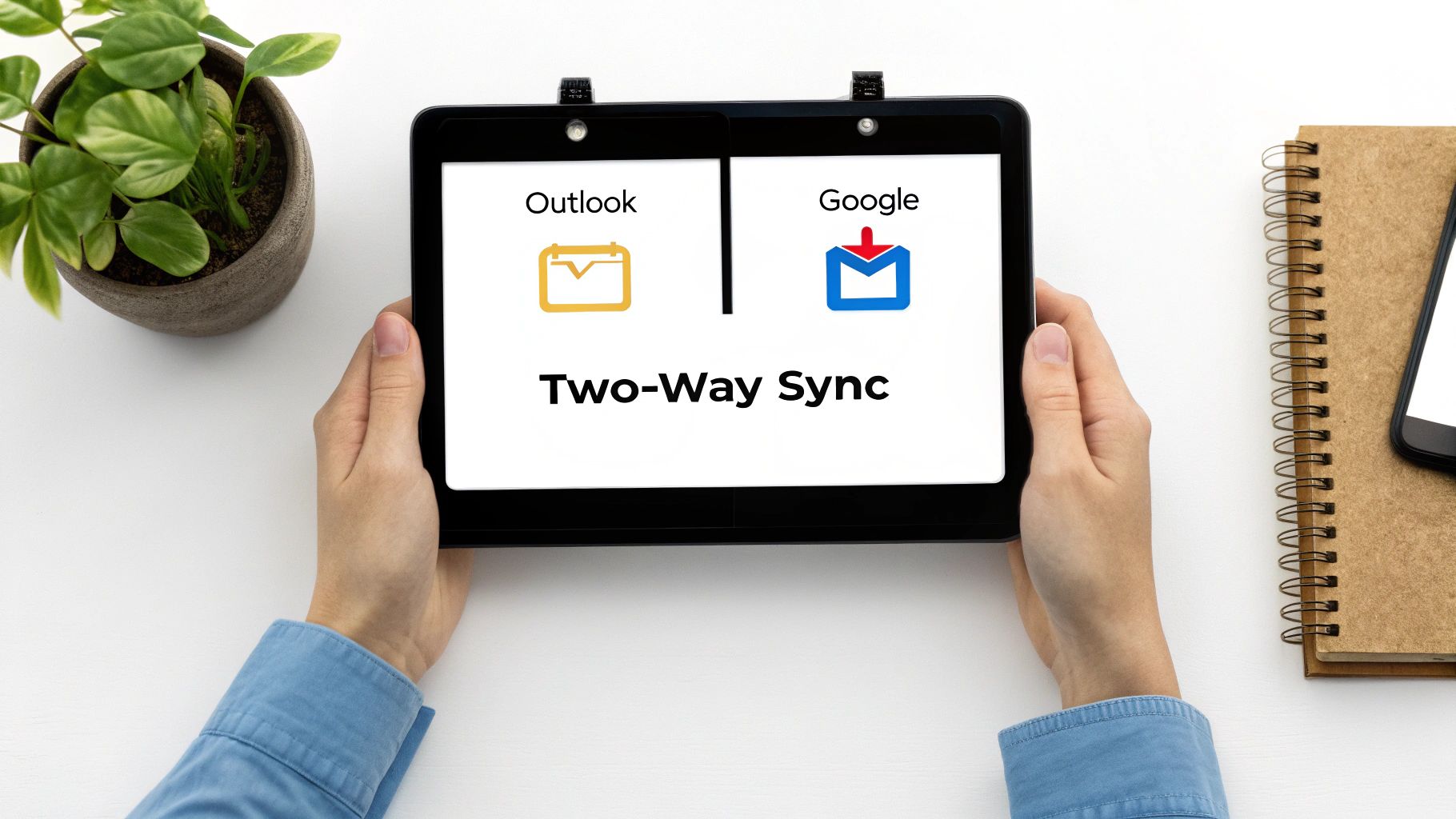
Imagine accepting a meeting invite in Outlook on your work laptop. With a proper two-way sync, that time slot is immediately blocked off in the Google Calendar on your phone. No more accidental double-bookings. It just works.
Why Third-Party Tools Are the Gold Standard
The real game-changer here is real-time, bidirectional synchronisation. It's the difference between looking at a screenshot of your day and interacting with a live, dynamic schedule. You get the freedom to manage everything from whichever calendar you happen to have open.
But it's not just about the basic sync. These tools pack in a ton of powerful features designed for professionals who need serious control over their time.
- Automated Sync Schedules: You can set the sync to run every few minutes, making sure your calendars are always perfect mirrors of each other. This beats the hours-long delays you often get with ICS subscriptions.
- Customisable Privacy Settings: This is a big one. You can sync work events to your personal calendar as just "Busy" or "Work Stuff," hiding the sensitive details while still blocking out the time.
- Conflict Resolution: The smarter tools can even handle situations where you've accidentally edited the same event in both calendars at once, preventing you from losing important information.
For anyone whose schedule dictates their productivity, a two-way sync isn't a luxury; it's a necessity. It’s the only way to get a single, reliable source of truth for your time without driving yourself crazy with manual updates.
A Quick Word on Security and Data Privacy
Handing over access to your calendars is a big deal, and it requires trust. The good news is that reputable sync tools take security seriously, typically using OAuth 2.0 for authentication. This is key because it lets you grant permission without ever sharing your actual password. The app gets a secure token instead.
If you're in a region with strict data protection laws, like the EU's GDPR, you also have to think about where your data is going. Many cloud-based services might process your calendar data on servers in other countries, which can be a compliance nightmare.
This has given rise to a different approach: locally-run applications that do all the syncing right on your own computer. These tools offer a massive security advantage because your calendar data never leaves your machine to be processed on some third-party server.
This local-first approach is especially popular in privacy-conscious markets. In Germany, for example, downloads for one such local tool surged 45% year-over-year, largely because it aligns so well with the country's stringent data protection rules. If you're interested, you can learn more about these locally-run sync solutions and how they handle privacy.
By choosing a tool that respects data sovereignty, you can confidently sync your Outlook calendar in Google without compromising on security. It’s a safe, reliable solution for individuals and entire companies alike.
Syncing Calendars? Don't Forget About Security and Privacy
Let's be clear: whenever you connect two digital tools, you're making a decision about who to trust with your data. To sync your Outlook calendar in Google the right way, you absolutely have to understand the security trade-offs you're making. You're giving a service the keys to your entire schedule.
The privacy gap between different methods is huge.
Take the public ICS link method. It's like pinning a copy of your daily schedule to a public noticeboard. Sure, it's view-only, but anyone who stumbles upon that URL can see it. If that link ever gets exposed, you have zero control over who sees what you're up to.
Modern third-party apps, on the other hand, almost always use a far more secure protocol called OAuth. It's the same technology behind all those "Sign in with Google" buttons you see online. It lets you grant very specific, limited permissions without ever sharing your actual password. The app gets a secure token, not your login details, and you can revoke its access anytime.
Keeping Your Digital Footprint Clean
It’s just good digital hygiene to periodically check which apps have access to your accounts. Both Google and Microsoft have security dashboards that show you every single service you’ve ever authorised. Spot a tool you haven’t used in years? You can boot it out with a single click.
Choosing a sync tool isn't just about cool features; it’s about transparency. Go for services that are upfront about how they handle your data, where it’s stored, and what their privacy policy actually says. Remember, your schedule is full of sensitive personal and professional information.
This is a massive deal, especially if you're working under strict data protection laws like GDPR. Data privacy concerns hit a fever pitch in Germany with the 'New Outlook' rollout, which involved syncing user data to Microsoft's cloud servers. The change caused a major backlash, with 82% of surveyed IT professionals worried about non-GDPR compliant data transfers.
Your Quick Data Sovereignty Checklist
When you're looking at any sync solution, especially one that's cloud-based, ask yourself these questions:
- Where is my data being processed? If you're in the EU, having your data processed on servers outside the EU can be a serious GDPR compliance headache.
- What permissions am I actually giving? Does this tool just need to read your calendar, or is it asking for permission to edit and delete events? Only grant the minimum access required for it to do its job.
- Is the connection itself secure? Look for tools that explicitly state they use modern security like OAuth 2.0 and encrypt your data, both when it's moving and when it's stored.
Making smart choices here is key to managing your digital life without putting your privacy at risk. For a more detailed look at this, our guide on choosing a secure task manager covers principles that are just as important for picking a safe calendar sync tool. By thinking about security first, you get all the productivity wins of a unified calendar without the privacy nightmares.
Troubleshooting Common Calendar Sync Issues
So you've set up the sync between Outlook and Google, but things aren't quite working. An event is missing, or updates are taking forever to show up. Don't sweat it. Most of these hiccups are pretty common and usually easy to fix.
The biggest complaint I hear is the delay. You add something in Outlook, and it takes ages to appear in Google. This is almost always due to using the one-way ICS subscription method. Google only checks for updates on these feeds periodically, and honestly, it can take up to 24 hours. If you need your changes to show up instantly, a proper two-way sync tool is your only real option.
Solving Delayed or Missing Events
First things first, check the source. Head back to your Outlook calendar's sharing settings. Is the ICS link still active? Does it have the right permissions? Sometimes, a company's IT department will change a policy and zap a shared link without telling you.
If the link looks good, you can try to force a refresh. You can't just tell Google to sync now, but you can often kickstart it. Just remove the calendar from your "Other calendars" list in Google and then add it back again using the same URL. It's a simple little reset that often clears out whatever was causing the logjam.
One of the most common mistakes? Adding the subscription to the wrong Google account. If you're logged into multiple accounts, it's incredibly easy to do. It sounds obvious, but it happens more often than you'd think.
If you’re using a dedicated two-way sync tool and things get stuck, it's almost always an authentication issue. The secure connection between the app and your accounts might have expired. Pop into the tool's dashboard and check for any error messages—you'll likely just need to re-authorise it with Google and Microsoft.
Addressing Permission Errors and Incomplete Details
Ever look at your synced calendar and just see a bunch of events marked "Busy" with no other info? That's not a bug; it’s a classic permissions problem.
This happens when the original Outlook calendar was published with the "Can view when I'm busy" setting. You need it to be "Can view all details." To fix this, you have to go back into Outlook, generate a new ICS link with the correct, more detailed permissions, and then swap out the old URL in your Google Calendar settings with the new one.
Sometimes, fighting with these issues just makes it clear that the basic, native methods have their limits. For a much deeper look at why these problems pop up and how different sync methods stack up against each other, our guide on everything you need to know about Google Calendar sync breaks it all down. It can help you figure out when it's time to ditch the basic subscription and move to a solid, two-way tool that sidesteps these headaches entirely.
If you’re tired of troubleshooting and want a calendar that just works, Calendar0 is for you. It connects all your calendars into one smart view, preventing double-bookings and letting you schedule meetings with natural language. Stop fighting with sync delays and reclaim your time. Try Calendar0 for free at https://www.calendar0.app.

