shortcut for windows task manager: Quick guide to shortcuts
shortcut for windows task manager: Learn to quickly end tasks, monitor performance, and boost PC speed.

Calendar0 Team
November 9, 2025

When your PC grinds to a halt and an app freezes solid, you don't have time to mess around. You need the Task Manager, and you need it now. The single best way to get there is with Ctrl+Shift+Esc.
This isn't just another keyboard shortcut; it's a direct lifeline. It bypasses any extra screens and instantly brings up the Task Manager, ready for action.
The Power of a Direct Shortcut
We've all been there: a program becomes unresponsive, and suddenly your cursor is spinning endlessly. The old-school Ctrl+Alt+Del method works, but it takes you to the Windows Security screen first. That’s an extra, unnecessary click when every second feels critical. Think of it as a security checkpoint you don't need to pass when you're just trying to put out a fire.
Ctrl+Shift+Esc cuts right through the noise. It’s the express lane straight to the tool you need to diagnose a problem or force-quit a misbehaving app. It's the emergency stop button for your software.
A Trick as Old as Windows Itself
This isn't some new-fangled secret. This shortcut has been a reliable staple for Windows power users since the days of Windows XP, and its longevity is proof of its simple, raw effectiveness.
It’s so fundamental that it’s become common knowledge in professional circles where managing system resources is part of the daily grind. In fact, a 2023 survey by BITKOM found that roughly 72% of Windows users in Germany already rely on this direct method. It’s a core skill for anyone who wants to keep their machine running smoothly.
This just goes to show that the most powerful tools are often the simplest ones.
The real magic of Ctrl+Shift+Esc is that it often works even when everything else—the Start Menu, the taskbar, your mouse—is completely frozen. It operates at a deeper system level, giving you back control when you've seemingly lost it.
Other Ways to Get There
Let’s be honest, the alternatives just don't stack up when speed is what you need. Right-clicking the taskbar involves fiddly mouse movements. Popping open the Run dialog to type taskmgr works, but it’s more effort.
Ctrl+Shift+Esc removes all that friction. It's the kind of command that becomes pure muscle memory for anyone who spends serious time on a PC.
To make it even clearer, here's a quick rundown of the most common methods and where they shine.
Comparing Ways to Open Task Manager
This table breaks down the main ways to launch the Task Manager, highlighting how fast they are and what situations they're best suited for.
| Method | Shortcut Combination | Speed | Best For |
|---|---|---|---|
| Direct Shortcut | Ctrl + Shift + Esc | Instant | Emergencies, frozen apps, and daily power users. |
| Security Screen | Ctrl + Alt + Del | Slow | When your entire system is unresponsive or you need other security options. |
| Power User Menu | Win + X | Fast | Keyboard-heavy users who prefer menu navigation. |
| Taskbar Right-Click | Mouse right-click | Moderate | Casual users who prefer using the mouse. |
While there are multiple paths to the same destination, Ctrl+Shift+Esc is almost always the fastest and most reliable, especially when you're in a pinch.
What Are the Other Ways to Open Task Manager?
While the direct shortcut for windows task manager is your quickest way in, it's not the only one. Having a few other methods up your sleeve is like knowing the backroads when the main highway is jammed. Different situations call for different approaches, and knowing them all means you're never stuck.
The most famous of these is the classic Ctrl + Alt + Del combo. On modern Windows systems, this doesn’t launch Task Manager straight away. Instead, you'll land on the Windows Security screen, which is a safe, high-priority hub for critical functions like locking your PC or signing out. From there, just click on Task Manager. It’s a deliberate two-step process, designed to work even when your main interface is completely frozen.
The Power User Menu and Other Tricks
For keyboard ninjas, another great option is the Power User Menu. Just hit Win + X, and a handy context menu pops up packed with administrative tools, including Task Manager. This is a real favourite among developers and IT pros who practically live on their keyboards and prefer zipping through menus over memorising a dozen different shortcuts.
If you're more of a mouse person, a simple right-click on your taskbar will usually give you a direct link to Task Manager. This is super convenient for quick, casual checks on what's going on without taking your hands off the mouse.
A few other solid options include:
- The Run Command (
taskmgr): PressWin+Rto pop open the Run dialog, typetaskmgr, and hit Enter. This is a lifesaver for automation scripts or when your mouse or taskbar is totally unresponsive. - Start Menu Search: You can always just open the Start menu and type "Task Manager." It's straightforward, but can be painfully slow if your system is already lagging—which, ironically, is often when you need the tool the most.
This quick decision tree can help you pick the best method when your PC starts acting up.
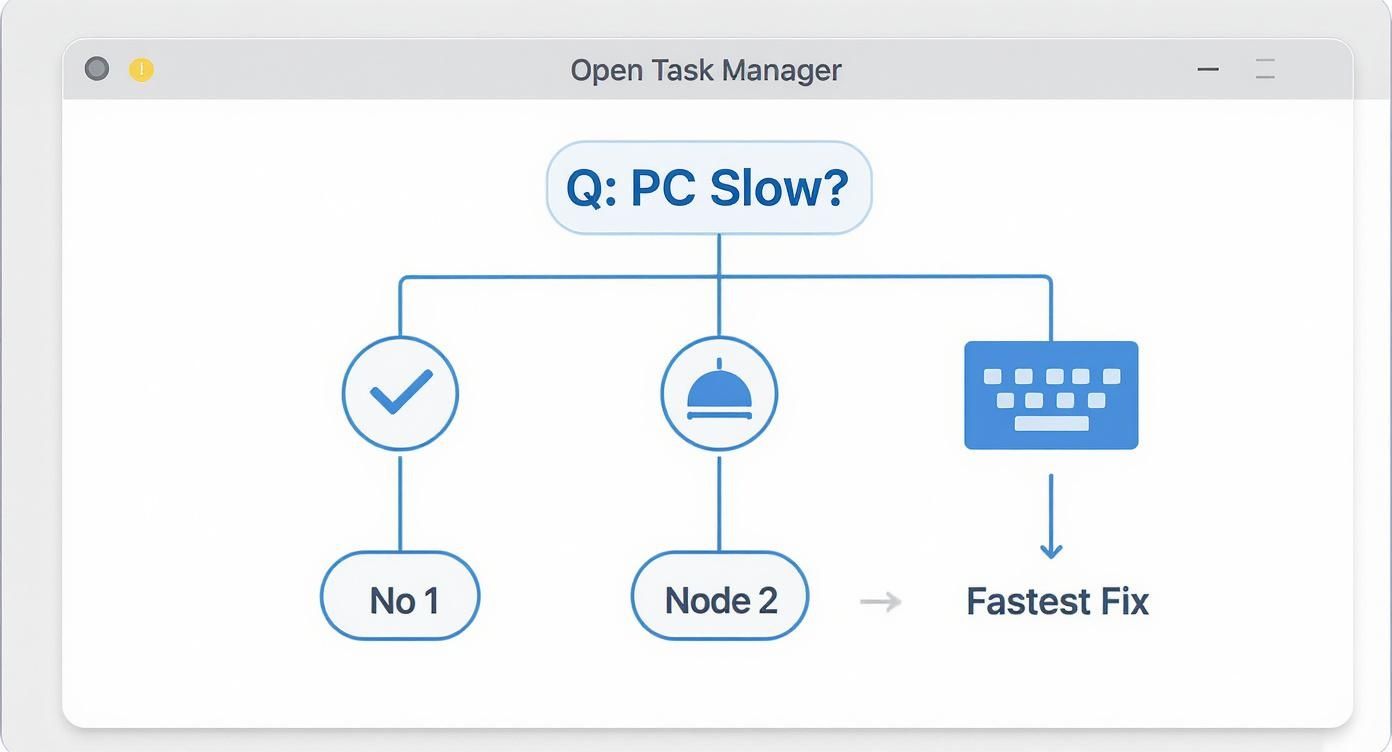
The visual really drives it home: when performance tanks, a direct keyboard shortcut is almost always your best first move.
Picking the Right Tool for the Job
Each method really has its own moment to shine. The Ctrl + Alt + Del screen is what you turn to when the entire system feels unstable, since it operates at a higher priority level than almost anything else. On the other hand, the Win + X menu is perfect for people who are already flying around Windows with keyboard commands and want a fast, menu-based option.
At the end of the day, mastering these alternatives isn’t just about showing off. It’s about practical problem-solving. When one method fails because of a specific system freeze, another might work perfectly, saving you from the frustration of a forced reboot.
For a deeper look into the specifics of each method, our complete guide on the Task Manager shortcut breaks down even more comparisons and tips. Knowing these tricks ensures you can get your computer back under control in seconds, no matter what it throws at you.
What to Do When Task Manager Won't Open
It’s a classic Catch-22: the one tool you need to fix a misbehaving computer is the one tool that won't open. You hit your trusty shortcut for Windows Task Manager—Ctrl + Shift + Esc—and get nothing. Or worse, an error message pops up.
When this happens, it’s frustrating but usually solvable. Nine times out of ten, the culprit is either a permissions block or a few corrupted system files.
Dealing With a Disabled Task Manager
If you see a message that reads, "Task Manager has been disabled by your administrator," the fix depends on where you are. On a work or school computer, this is likely an intentional security measure. IT departments often use Group Policy to lock down system tools, and you’ll need to contact them for access.
But if you’re on your own personal PC, that message is a major red flag. It’s a common tactic used by malware to hide its own processes and stop you from shutting it down. The very first thing you should do is run a deep, thorough scan with a reputable antivirus program.
Don't panic if Task Manager is blocked on your personal computer. While it can indicate malware, it's often a setting that can be reverted. A thorough security scan is the most critical first step to regain control.
Fixing a Task Manager That Just Won't Respond
So what if there’s no error message? You hit the shortcut, and… crickets. Task Manager just doesn't launch. This behaviour often points to a bit of underlying corruption in your Windows system files. It happens over time—a botched update or a wonky software installation can damage things behind the scenes.
Thankfully, Windows has a built-in repair tool for exactly this situation: the System File Checker (SFC). It’s designed to find and repair these broken files.
Here’s how to run it:
- Pop open your Start menu and just type
cmd. - You’ll see Command Prompt appear. Right-click it and choose "Run as administrator."
- In the black terminal window that opens, type
sfc /scannowand hit Enter.
The scan might take a little while to complete, so let it do its thing. More often than not, this simple command is all it takes to get Task Manager back up and running without resorting to a full system reinstall.
Using Task Manager to Boost PC Performance
 Getting Task Manager open is just the first step. The real magic happens when you know how to use it to keep your PC healthy. Think of it as your computer’s mission control, a live dashboard showing you everything happening under the hood. It’s where you stop passively putting up with slowdowns and start actively fixing them.
The Processes tab is your main battlefield. Here, you’ll find every active application and background service currently running. Just click the CPU or Memory column headers to instantly see which program is hogging the most resources. A classic culprit is a web browser eating up gigabytes of RAM—that’s your cue to close a few unnecessary tabs.
Beyond that, Task Manager is a surprisingly good tool to help you diagnose slow internet issues. The Network column reveals which apps are consuming bandwidth, helping you spot if a background update is secretly throttling your connection.
From Diagnosis to Action
Once you've identified a resource hog, you can select it and click End task. But this is more than just a reactive tool. This diagnostic power even extends to cybersecurity. German IT security firms have reported that around 40% of users who regularly check Task Manager can spot and terminate suspicious processes early on. The tool’s importance is clear, with German IT forums logging over 120,000 visits in 2023 for articles on using Task Manager.
Another key area is the Startup tab. This list shows every single program that launches when your computer boots up. Many applications add themselves here without asking, which can seriously slow down your startup time. Disabling non-essential programs here is one of the easiest ways to get a noticeable speed boost.
Don’t just look at the raw numbers. Pay attention to sudden spikes in the Performance tab's graphs. A sudden, sustained spike in CPU usage when your PC should be idle could indicate a background process that’s stuck or, in a worse case, malware activity.
For a comprehensive breakdown of what each tab offers, our guide on using the Task Manager on Windows 10 provides even more detail. Proactively managing these areas turns Task Manager from an emergency tool into a regular maintenance routine, keeping your system fast and responsive.
Advanced Tips for Power Users
Okay, so you've got the keyboard shortcuts down. Now it’s time to start using Task Manager like someone who really knows their way around a PC. It's more than just a tool for killing frozen apps; it’s a powerful diagnostic dashboard, if you know where to look.
The default Processes view is a good start, but it’s hiding some of the best information. Give this a try: right-click on any column header (like Name or CPU) and a list of hidden columns will pop up. I almost always add PID (Process ID), which is invaluable if you’re a developer or using command-line tools. Another great one is Publisher, which helps you spot a sketchy background process by instantly showing if it’s from a legitimate company like Microsoft or Google.
End Task vs. End Process Tree
When an app freezes, everyone’s first instinct is to select it and mash the “End task” button. But with modern software, especially browsers like Chrome, that’s not always the best move. One app can actually be running dozens of individual processes. Just killing one of them might not solve the problem—or even fully close the programme.
That’s where “End process tree” comes into play. If you right-click the main process, you’ll see this option. It’s the definitive way to shut things down. It kills the main process and every single child process it spawned. No more orphaned processes lingering in the background causing trouble. It’s a much cleaner, more forceful way to take back control.
Here’s a simple habit that pays off: pin Task Manager to your taskbar. The next time you have it open, just right-click its icon on the taskbar and select "Pin to taskbar." Done. Now you have one-click access for quick system checks, which is even faster than the fastest shortcut.
Don't overlook the App history tab, either. Most people ignore it, but it’s a goldmine. It tracks the CPU time and network data your apps have consumed over the last month. If you suspect something is quietly draining your battery or hogging your bandwidth over time, this is where you'll find the evidence. It’s a great way to decide which programmes are actually worth keeping installed.
Got Questions? We’ve Got Answers.
Even once you’ve got the shortcuts down, a few common questions tend to bubble up. Let's clear the air on some of the most frequent ones so you can handle Task Manager like a pro, especially when your system is acting up.
We’ve covered a few ways to pull up the tool, but there’s a good reason why one method stands out from the rest.
So, Why Is Ctrl+Shift+Esc So Much Better Than Ctrl+Alt+Del?
It all boils down to one word: speed.
The Ctrl+Shift+Esc shortcut is a direct line to the Task Manager. It’s a dedicated command built for one purpose, and it gets you there instantly. No detours, no extra clicks.
On the other hand, Ctrl+Alt+Del is more of a central hub. It takes you to the Windows Security screen, which is a high-priority menu with options to lock your PC, sign out, or change your password. From there, you still have to click on "Task Manager". When you’ve got a frozen app and your blood pressure is rising, that extra step can feel like an eternity.
Think of it like this: Ctrl+Shift+Esc is your express ticket straight to your destination. Ctrl+Alt+Del is the main station where you have to stop and choose your platform. For pure speed, the direct route always wins.
What Do I Do If Task Manager Is Disabled?
Seeing a message that says "Task Manager has been disabled by your administrator" is definitely jarring, but there’s usually a logical reason. If you’re using a computer at work or school, it’s most likely an IT policy to keep users from making unauthorised changes.
But if this happens on your personal PC, treat it as a major red flag. This is a classic move by malware to hide itself and stop you from shutting down its processes. Your first move should be to run a deep, comprehensive scan with a reputable antivirus and anti-malware tool to hunt down and get rid of the threat.
Can I Set Up My Own Custom Shortcut?
You absolutely can. Just right-click on your desktop, go to New > Shortcut, and point it to taskmgr.exe. After you’ve created it, you can right-click the icon, open Properties, and set your own key combination in the "Shortcut key" field.
But here’s the catch. This kind of shortcut is just a standard Windows shortcut. The built-in shortcut for Windows Task Manager, Ctrl+Shift+Esc, is a low-level system command. That means it will often work even when your desktop, taskbar, and everything else is completely frozen solid, making it far more dependable when you’re in a real jam.
Ready to stop wasting time on calendar admin? Calendar0 uses AI and powerful keyboard shortcuts to help you schedule meetings at the speed of thought, saving busy professionals around 20 minutes every day. Unify your calendars and reclaim your focus by visiting https://www.calendar0.app to get started for free.

