Mastering shared calendars outlook for Teams
Boost teamwork with shared calendars outlook for Teams: learn how to share, manage permissions, and troubleshoot issues in Outlook.

Calendar0 Team
November 20, 2025

Trying to juggle your team's schedules can feel like a losing battle. One minute you think you've found a free slot, the next you're dealing with a double booking or a missed deadline. Mastering shared calendars in Outlook is the fix. It cuts through the chaos and gives everyone a single, clear view of what’s happening and when. It’s the first real step toward a workflow that’s transparent, efficient, and actually collaborative.
Why Shared Calendars Are Your Team's Secret Weapon
A well-run shared calendar is more than just a place to track appointments; it becomes the central hub for your team's entire operation. It completely gets rid of the friction that comes with scheduling by giving everyone instant visibility into workloads, availability, and upcoming deadlines. This isn't just about dodging conflicts—it's about building a smarter, more synchronised team.
Foster True Transparency and Alignment
When everyone on the team can see key project milestones or who's out of office, alignment just happens. No more guessing games.
Imagine a marketing team seeing the product team’s launch deadlines right in their calendar. They can plan their campaign without sending a single "just checking in" email. That’s the kind of transparency that builds trust and cuts down on needless back-and-forth.
A shared calendar converts individual schedules into collective intelligence. It answers "When are you free?" before the question is even asked, saving countless hours lost to email chains.
This is especially critical in workplaces where Outlook is the standard. In Germany, for instance, Outlook is a dominant business tool. 49% of its users are medium-sized firms, with another 18% being large enterprises. For these organisations, getting shared calendars right is a direct line to better productivity. You can see more on Outlook usage trends in the full Enlyft report.
Drive Efficiency Across Workflows
Think about the practical, day-to-day benefits. You can use shared calendars for so much more than just meetings.
- Project Management: Map out major phases, deadlines, and dependencies in one central view that every stakeholder can access.
- Resource Scheduling: Book shared resources like conference rooms or company vehicles without ever worrying about an overlap.
- On-Call Rotations: Clearly display who’s responsible for after-hours support, which makes handoffs completely seamless.
- Global Team Coordination: For teams spread across the globe, a shared calendar is non-negotiable. If you're in that boat, you might also want to check out our guide on using a https://calendar0.app/blog/meeting-planner-for-time-zones to make it even easier.
Of course, a calendar is just one piece of the puzzle. There are lots of other actionable ways to improve workplace communication that will boost your team's cohesion. But by mastering Outlook’s shared calendars, you aren’t just organising time—you’re building a more connected and effective team from the ground up.
The Best Way to Share Your Outlook Calendar
Sharing your Outlook calendar should be simple, but how you do it depends on where you work. Let's walk through sharing from the desktop app, the web version, and your phone, so you can get it done no matter which one you're using.
Sharing from the Outlook Desktop App
For most of us, the desktop app is home base. Sharing from here is fast and gives you the most direct control over who sees what.
First, jump over to your Calendar view. Up in the ribbon menu at the top, click the Home tab and look for the Share Calendar button. Clicking it pops up an email invitation where you can add people and choose their permission levels right away.
This is your first key decision. You'll see options like "Availability only," "Limited details," and "Full details." We'll get into the nitty-gritty of these later, but the basic idea is to match the permission to the person. Your direct manager? "Full details" probably makes sense. A colleague from another department just trying to find a meeting slot? "Availability only" is perfect.
Kicking Off a Share from Outlook on the Web
If you live in your browser and use Outlook on the web, the process is just as easy, though the buttons are in a slightly different spot.
Head to your calendar and find the Share button, which is usually hanging out in the top-right corner. A new panel will slide out, asking you to type in the email address of the person you want to share with. As you type, Outlook will helpfully suggest contacts from your organisation.
Here’s a look at the sharing and permissions screen you'll see in both the web and desktop versions.
This little window is your command centre for privacy. Notice how you can give each person a different level of access? That granular control is exactly what you want.
Once you’ve picked a person and set their permission level from the dropdown, just hit Share. They’ll get an email with a link to add your calendar to their own view. It’s a clean and efficient way to manage access to shared calendars outlook.
Pro Tip: I've found that when sharing with a project team, it's much cleaner to create a brand-new, dedicated calendar for the project. Sharing your primary one can get messy fast, and nobody on the team needs to see your personal appointments.
Quick Sharing from the Outlook Mobile App
Being able to share your calendar on the fly is a must these days. Thankfully, the Outlook mobile app for iOS and Android has you covered.
Start by tapping the calendar icon at the bottom of the screen. In the top-left, tap the menu icon (the three horizontal lines), and then look for the little gear icon next to your calendar's name. Tap that.
Inside the settings, you'll see an Add people option. This lets you search for colleagues and give them viewing or editing rights straight from your phone. It's incredibly convenient for quick shares, but for more complex setups or when sharing with people outside your organisation, I still recommend using the desktop or web app. You just get more control and a clearer view of all the options.
Getting to Grips With Calendar Permissions
Sharing your calendar is easy. Sharing it correctly? That's a different ball game. The real magic of shared calendars in Outlook happens when you manage permissions with precision. Granting the wrong level of access can cause anything from a minor scheduling mix-up to a serious privacy issue, so it's a step you really want to get right.
Think of permissions as a set of keys to your schedule. You wouldn’t hand out the master key to just anyone, would you? The same logic applies here. Give a colleague too much control, and they might accidentally delete your client meeting. Give them too little, and they can’t see the crucial details they need to do their job. It’s all about finding that sweet spot.
Decoding Outlook’s Permission Levels
First things first, you need to understand what each permission level actually lets someone do. It’s the only way to share your calendar smartly.
-
Can view when I'm busy: This is the most basic, privacy-focused option. The other person sees your schedule as a series of solid blocks simply marked "Busy." No titles, no locations, no attendee lists. It's perfect for people in other departments who just need to find an open slot without knowing the nitty-gritty of your day.
-
Can view titles and locations: This offers a bit more context. Now, your team can see the meeting subject and where it's happening, which gives them a much better idea of your availability and workload. I find this is the ideal setting for most immediate teammates.
-
Can view all details: This is full transparency. The person can see absolutely everything you can see about an appointment—the description, any attachments, and the full attendee list. This is best reserved for a direct manager or a very close collaborator you work with on everything.
To make this crystal clear, here’s a quick breakdown of what each level allows.
Outlook Calendar Permission Levels Explained
| Permission Level | What They Can See | What They Can Do | Best Use Case |
|---|---|---|---|
| Can view when I'm busy | Only that you are "Busy" at certain times. No details. | View your free/busy status only. | Colleagues in other departments checking your availability. |
| Can view titles and locations | The subject and location of your calendar events. | See what and where your meetings are. | Most teammates who need context for your schedule. |
| Can view all details | Everything: title, location, attendees, description, attachments. | See all information about your appointments. | A direct manager or a very close project collaborator. |
| Editor | Everything in "Can view all details". | Create, edit, and delete their own and your calendar events. | A team lead or project manager scheduling on your behalf. |
| Delegate | Everything in "Can view all details". | All Editor permissions, plus accept/decline meeting invites. | An executive assistant managing your entire calendar. |
As you can see, the permissions build on each other, offering more and more control as you go up the list.
Editor vs. Delegate: The Ultimate Levels of Trust
When you need someone to do more than just look, you've got two heavy-duty options: Editor and Delegate. You should only give these permissions to people you trust completely, as they grant significant control over your schedule.
An Editor can create, edit, and even delete events directly on your calendar. This is incredibly useful for a project lead who needs to get team meetings on the books without having to go through you every single time.
Delegate access is the highest level of trust you can give. A delegate can do everything an editor can, but they can also accept or decline meeting invitations for you. This is the permission level typically reserved for an executive assistant who is responsible for managing a director's entire schedule.
Choosing the right permission is about matching access to responsibility. A delegate isn't just a viewer; they are a trusted steward of your time, acting on your behalf to manage your schedule and communications.
It's also crucial to remember that local regulations can play a huge role in how calendars are shared within an organisation. In Germany, for example, sharing employee Outlook calendars is heavily regulated to protect privacy under GDPR. A 2022 court ruling confirmed that while employers can request access, it is subject to strict oversight and must be on a need-to-know basis. You can learn more about these specific GDPR considerations and the court's findings. This just goes to show how important it is to be intentional and compliant when setting up shared access.
Accessing and Viewing Shared Calendars
So, someone's shared their Outlook calendar with you. You'll get an invitation right in your inbox—accepting it is the easy part. The real challenge is making that new calendar a useful part of your workflow without turning your screen into a chaotic mess of appointments.
Before anything else, you’ll need to log into your Outlook email to find that invitation. Once you've accepted it, the shared calendar should pop up automatically in your calendar list, typically under a "Shared Calendars" or "People's Calendars" heading. Now the fun begins.
Outlook’s default view places calendars side-by-side, each in its own column. This works well enough if you're just comparing your schedule with a colleague's to find a quick meeting slot. But add a third, fourth, or fifth calendar, and it becomes a visual nightmare.
Using Overlay Mode for a Unified View
This is where Outlook's Overlay Mode becomes a lifesaver. Instead of trying to scan across multiple columns, it stacks all the calendars into a single, colour-coded view. You can see at a glance who's busy, who's free, and where the real gaps are. It’s a game-changer.
Ready to try it?
- In the desktop app, find the tab for the shared calendar you want to merge. You'll see a small arrow on it.
- Just click that arrow. Outlook will layer it right on top of your main calendar.
- You can repeat this for as many calendars as you need, creating one master view of your team's schedule.
Each person's events keep their original colour, making it easy to tell schedules apart. For team leads or project managers who need a constant pulse on everyone's commitments, this consolidated view is indispensable.
A shared calendar is only useful if it's easy to interpret. Overlay Mode transforms multiple streams of data into a single, actionable picture of your team's time.
Getting access right from the start is just as important. This decision tree is a great way to visualise which permission level a colleague actually needs, so you don't over-share or under-share.
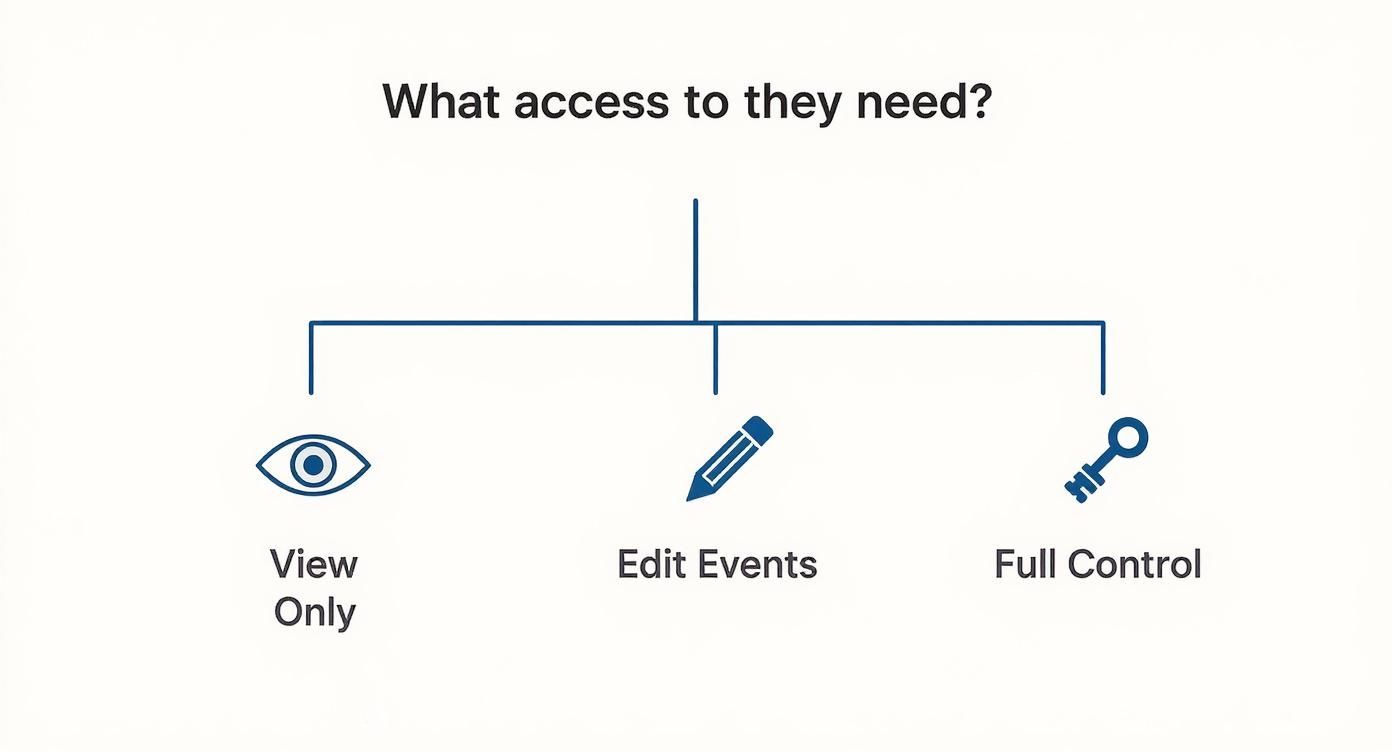
This simple guide cuts through the confusion of choosing between view-only, editing, or full delegate permissions, helping you share calendars securely and effectively. And if you're juggling calendars across different ecosystems, like with Apple devices, knowing how to sync your Outlook calendar using CalDAV is crucial. It keeps your view of shared schedules consistent, no matter which device you grab.
Pro Tips for Effective Team Calendar Management
A shared calendar is only as good as the habits your team builds around it. Without some clear rules of engagement, even the best-intentioned shared calendars in Outlook can turn into a mess of cryptic events and confusing availability.
The goal is to stop just sharing a calendar and start collectively managing it with a bit of intention. It all boils down to creating a reliable system that everyone trusts and actually uses.
Establish Clear Calendar Etiquette
First things first: agree on a set of ground rules. This isn't about creating bureaucracy; it’s about establishing clarity that saves everyone a headache later.
A great place to start is with your event naming conventions. Instead of a vague "Meeting," try something descriptive like "[Project Phoenix] - Q3 Planning Session." Anyone glancing at the calendar immediately knows what's up without having to click through for details.
Here are a few other simple standards to put in place:
- Colour-Coding: Assign specific colours to different project types, clients, or even internal activities. Think green for client meetings, blue for deep work blocks—whatever works for your team.
- Availability Status: Decide when to use "Busy" versus "Tentative." "Busy" should be a hard "no," meaning you're completely unavailable. "Tentative" can signal you might have some flexibility.
- Response Times: Set a loose expectation for how quickly people should accept or decline invitations. This helps keep planning from stalling out.
A well-managed shared calendar isn't just a schedule; it's a communication tool. Every event title, status, and colour is a piece of information that helps the team coordinate with less friction.
Getting this level of organisation dialled in is crucial, especially if you're trying to manage calendars across different platforms. For instance, making sure your team's schedule is accurate is a key first step before you even think about an Outlook and Google Calendar sync.
Balance Transparency with Personal Privacy
One of the biggest roadblocks to good calendar sharing is the fear of oversharing. Nobody wants their entire team to see the details of their doctor's appointment. This is exactly what Outlook’s "Private" feature is for.
You can mark any appointment as private, which hides the specifics from everyone except those with full Delegate permissions. For everyone else, the time slot just shows up as "Private Appointment" or "Busy." It’s the perfect way to block out personal time on a work calendar without sacrificing your privacy.
This balance is especially important in places with strong data protection laws. Germany’s strict privacy environment, for instance, directly impacts how shared calendars in Microsoft Outlook are used. Data protection authorities there have recently been scrutinising how newer versions of Outlook handle user data, including sharing information with third parties. You can read more about how Microsoft’s data collection practices are being reviewed under GDPR.
By encouraging your team to use the private setting, you build trust. It makes people more willing to keep their calendars fully up-to-date, which in turn makes the shared view a much more reliable source for figuring out who's actually available.
Got Questions? Here Are Some Common Outlook Shared Calendar Head-Scratchers
Even when you've got the hang of sharing, a few quirks can pop up. Let's tackle some of the most frequent questions people run into when managing shared calendars in Outlook. Getting these sorted quickly means less frustration and more time getting things done.
Why Can I Only See "Busy" on a Shared Calendar?
Ah, the classic "I see the block, but not the details" problem. This isn't a bug; it's a feature—specifically, a permissions feature.
If you’re only seeing generic “Busy” blocks without any event titles or details, it means the calendar’s owner has set your access level to ‘Can view when I’m busy’. It’s the most basic permission, designed just to show availability without revealing any sensitive information.
The fix is simple: you just need to ask the owner to bump up your permissions. They can do this by right-clicking their calendar, navigating to 'Sharing and Permissions', and changing your access to ‘Can view titles and locations’ or the more comprehensive ‘Can view all details’.
How Do I Get Rid of a Shared Calendar I Don't Need Anymore?
Keeping your calendar list tidy is just good digital hygiene. Once a project wraps up or you no longer need to see a colleague’s schedule, you can easily remove it from your view without causing any drama.
In either the desktop app or the web version of Outlook, just head over to your calendar pane. Look for the "Shared Calendars" or "People's Calendars" list, right-click the one you want to ditch, and hit ‘Delete Calendar’ or ‘Remove’. Don't worry—this only removes it from your view. The original calendar is safe and sound for the owner and anyone else it's shared with.
A cluttered calendar is a confusing calendar. Make it a habit to periodically prune old shared calendars. It helps you focus on what's actually relevant today.
What's the Real Difference: Shared Calendar vs. Group Calendar?
This one trips a lot of people up, but the distinction is pretty straightforward once you get it. It all comes down to ownership and who the calendar is for.
-
A Shared Calendar: Think of this as someone's personal calendar that they’ve given you a key to. The original owner is still in charge, deciding who gets to see what. It’s their calendar, and you just have viewing (or editing) privileges.
-
A Group Calendar: This is more like a public whiteboard for a specific team. It’s automatically created when you make a Microsoft 365 Group or a team in Microsoft Teams. It doesn’t belong to one person; it belongs to the whole group. Everyone in the group can usually see and add events, which makes it perfect for tracking team holidays, project deadlines, or department-wide meetings.
So, if you need to share your personal schedule, use a shared calendar. If your whole team needs a central place to track events, a group calendar is what you're after.
Tired of jumping between calendars just to find a time to meet? Calendar0 brings all your Google and Microsoft calendars into one clean, unified view. It lets you find the next open slot in seconds, not minutes, so you can stop wrestling with your schedule and get back to your real work. Ditch the calendar admin for good at https://www.calendar0.app.

