Sync Outlook to iCloud Calendar A Practical Guide
Tired of managing two calendars? Learn how to sync your Outlook to iCloud calendar with our practical guide, covering every method from Windows to Mac.

Calendar0 Team
December 2, 2025

If you're juggling a work calendar in Outlook and a personal one on your iPhone, you know the feeling. It's like trying to manage two completely separate lives, and the constant back-and-forth is a recipe for missed appointments and double-bookings.
The fix? Sync your Outlook calendar to iCloud. This one move creates a single, unified view of your entire schedule, finally putting an end to the chaos.
Why Sync Your Outlook and iCloud Calendars? It's About Clarity.
Trying to manually keep track of a professional schedule in Outlook while managing personal events in iCloud just doesn’t work. For a freelancer, that might mean accidentally booking a client meeting right over a doctor's appointment. For a manager, it could be scheduling a team call that clashes with a family dinner.
Bridging this digital divide is about more than just convenience—it’s about gaining control over your time.
Think of iCloud as the central hub for your personal life. When you sync your Outlook calendar, you’re simply bringing your professional commitments into this already organised space.
Unifying Your Digital Life
The goal here is to create one single source of truth for your time. By connecting these two platforms, you get a complete picture of your day, week, and month without constantly jumping between apps. This is especially vital in today's work environment where the line between professional and personal is always blurring.
The demand for this kind of integration is only growing. The public cloud market in Germany, for instance, generated USD 8,101.8 million in 2023 and is on track to hit USD 17,547.0 million by 2030. Calendar applications are a huge part of that growth. While Outlook dominates the business world, iCloud's hold on the personal sphere makes a combined view essential.
A unified calendar doesn't just show you where you need to be; it shows you where you have time to be. It turns your schedule from a list of obligations into a map of opportunities.
Getting your own schedule sorted is also the first step toward better team coordination. Once your personal and work calendars are in sync, it's much easier to create a shared calendar for team collaboration without conflicts. By tackling this initial sync, you’re setting yourself up for smarter scheduling in every part of your life.
Choosing the Right Syncing Method for You
Getting your Outlook and iCloud calendars to talk to each other isn't a one-size-fits-all problem. The "best" way to connect them really comes down to your specific needs. What works for a die-hard Windows user won't be the most elegant solution for someone living entirely in the Apple ecosystem.
Your choice boils down to a few key things: the devices you use daily, whether you need a constant, live connection, and how comfortable you are with a bit of technical setup. Some methods are great for a one-time calendar migration, while others create a permanent bridge between the two.
You've got four main paths to choose from: Apple's own iCloud for Windows app, a manual export/import using an .ics file, a direct account connection on your Mac or iPhone, or a third-party app to automate everything. Each has its place.
This little decision tree can help you picture which route makes the most sense for you.
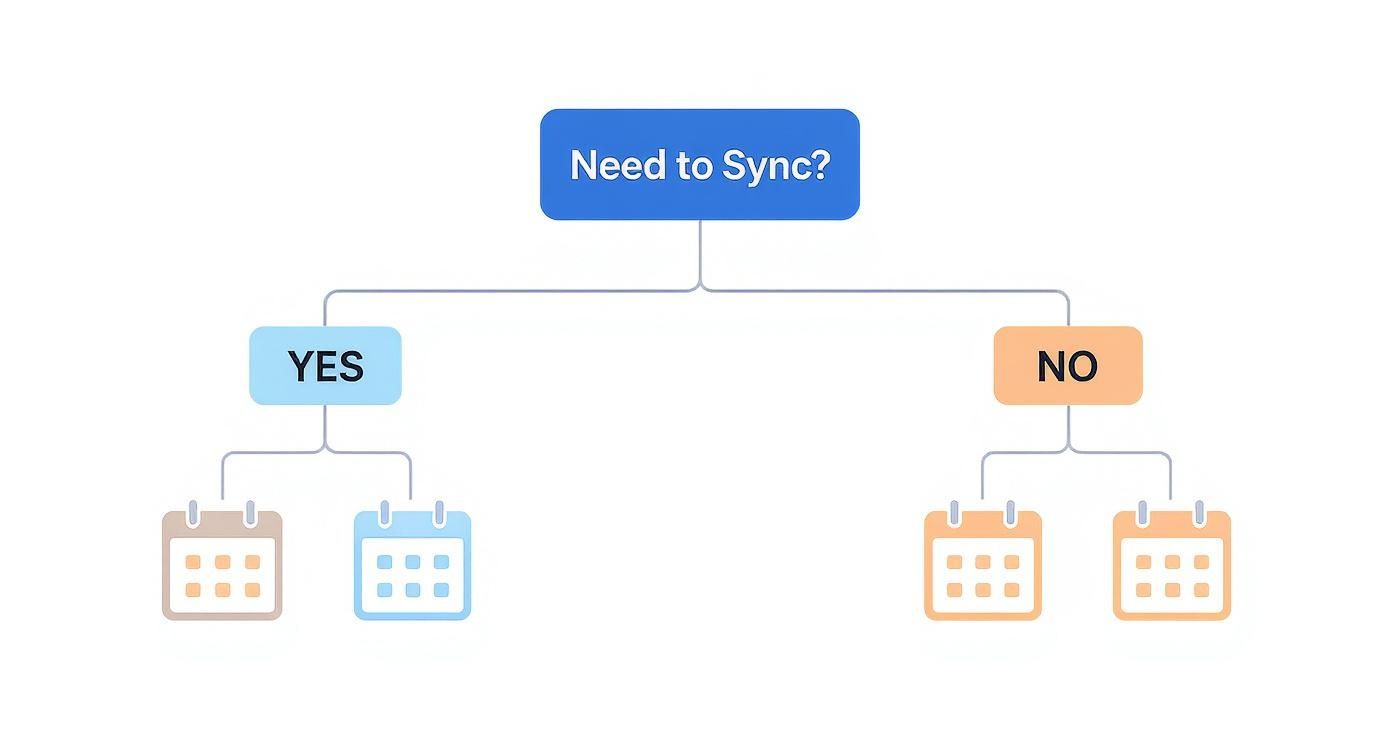
As you can see, the first big question is simple: do you need an ongoing, live sync, or are you just moving your data over once? Answering that one question cuts your options in half and points you straight to the most efficient fix.
One-Time Transfer vs. Live Syncing
A one-time transfer is perfect if you're ditching Outlook for iCloud and just need to bring your old appointments with you. Think of exporting an .ics file as taking a snapshot of your calendar. It's quick, painless, and great for archival purposes. The catch? Any new events you add to Outlook after the export won't show up in iCloud.
A live sync, on the other hand, is what most people are after. It creates a dynamic, continuous link between both calendars, keeping them updated in near real-time. If you add a meeting in Outlook, it appears in iCloud moments later, and vice-versa.
The go-to methods for a live sync are:
- iCloud for Windows: This is Apple’s official solution for PC users. It plugs directly into the Outlook desktop app and handles the connection for you.
- Native Account Integration: For Mac and iPhone users, this is the cleanest route. You simply add your Outlook account in your device's settings, and everything syncs automatically.
- Third-Party Tools: These specialised apps often use protocols like CalDAV to build a robust, two-way sync. If the native options don't cut it, this is a powerful alternative. To dig deeper into how this works, you can learn more about the mechanics of Outlook CalDAV sync and what it offers.
Comparing Outlook to iCloud Sync Methods
To help you decide, here’s a quick breakdown of the main options, what they're good for, and how much work is involved.
| Method | Best For | Sync Type | Effort Level | Platform |
|---|---|---|---|---|
| iCloud for Windows | PC users who want an official, set-it-and-forget-it solution. | Two-Way Live Sync | Low | Windows |
| Native Account Setup | Mac and iPhone users looking for the most seamless integration. | Two-Way Live Sync | Low | macOS, iOS/iPadOS |
| Export/Import (.ics) | One-time migration or archiving calendar data. | One-Way, Manual | Low | All Platforms |
| Third-Party App | Users needing advanced features or cross-platform flexibility. | Two-Way Live Sync | Medium | Varies by App |
Ultimately, the right choice depends on your daily workflow.
Platform and Convenience Considerations
Your primary computer is a massive factor here. If you're on a Windows machine, iCloud for Windows is the natural first stop. If you're all-in on Apple hardware, the native integration on macOS and iOS is so smooth you'll forget it's even there.
The best method is the one that slots into your life with the least amount of friction. You're looking for a "set it and forget it" solution, not another chore to manage.
Weigh the initial effort against the long-term payoff. A manual export is easy upfront but gives you a static, outdated calendar. A live sync takes a few more minutes to set up but delivers a reliable, always-current schedule without you ever having to think about it again. Choose the path that makes your daily life easier.
If your work life is plugged into a Windows PC but your personal life runs on an iPhone, you know the struggle. The best bridge between these two worlds is Apple’s own iCloud for Windows app. It’s the official, no-fuss way to get your calendars talking to each other automatically.
Think of it as a "set it and forget it" solution. Once it's running, you don't have to constantly fiddle with it.
First things first, you need to grab the app. It's available directly from the Microsoft Store on your PC. Once it’s installed, just sign in with the same Apple ID you use on your iPhone. That’s the magic key that connects your Outlook data straight to your iCloud account.
Configuring Your Sync Settings
After you sign in, the app brings up a simple control panel. This is command central for telling iCloud what you want to share between your PC and your Apple gear. The options are pretty clear.
You’ll see a few checkboxes:
- iCloud Drive: For your files and documents.
- Photos: To sync your photo library.
- Passwords: Gives you access to your iCloud Keychain on Windows.
- Mail, Contacts, and Calendars with Outlook: This is the one we’re here for.
To get your Outlook to iCloud calendar sync up and running, make sure that "Mail, Contacts, and Calendars" box is ticked. This single click tells the app to build a live connection with the Outlook program on your desktop.
This is the main screen where you'll make it all happen.
This simple interface is the heart of the setup; getting this checkbox right is the most important part of making sure your calendars start communicating.
Once you’ve made your selection, hit "Apply." The app will start working its magic in the background, kicking off the first sync. Give it a few moments, especially if you have a packed calendar with years of events.
The biggest advantage here is reliability. Since this is an official Apple app, it gets regular updates to keep it compatible with both Windows and Outlook. That means a much lower chance of your sync suddenly breaking after a software update.
Verifying the Connection
With the setup done, it's always a good idea to double-check that everything is working properly. The quickest way is to create a test event.
Just open Outlook on your PC and pop a new appointment into your calendar for sometime next week.
Now, grab your iPhone or log in to iCloud.com. Within a few moments, that new test event should appear right there in your iCloud calendar. This little test confirms the two-way sync is alive and well. From now on, any changes you make in Outlook will automatically show up in iCloud, and anything you add on your iPhone will appear in Outlook.
While this native integration is easily the simplest for direct syncing, it's not the only game in town. If you're curious about other methods, you can explore different ways of using an Apple Calendar on Windows.
The Manual Method: Exporting an ICS File
Sometimes you don't need a constant, live sync between your calendars. All you really need is a quick, one-time snapshot of your schedule. That’s where the good old manual export comes in, using a universal format called an iCalendar file (.ics).
Think of it this way: you're taking a digital photocopy of your Outlook calendar exactly as it is right now. It's the perfect move if you’re leaving a job and want to take your work schedule with you, or if you need to hand off a finalised project timeline to a colleague who lives in the Apple ecosystem. It’s simple, reliable, and it just works.
This way, you get a clean, static copy of all your important events without the hassle of setting up a permanent link between your accounts.
Getting Your Calendar Out of Outlook
First things first, you need to pull your calendar data from Outlook. Thankfully, the process is pretty straightforward, whether you're using the desktop app or the web version.
- On the Outlook Desktop App: Head to
File > Open & Export > Import/Export. From there, you'll want to choose "Export to a file" and then select the "iCalendar (.ics) format." Just pick the calendar you want to grab and save the file somewhere you'll remember. - On Outlook on the Web: Click the gear icon to get to your calendar settings. Find and select "Shared calendars," and then look for the "Publish a calendar" option. This will create a special link to an
.icsfile that you can download directly.
During the export, Outlook will ask how much detail you want to include. You'll see options like "Availability only," "Limited details," or "Full details." For a personal backup or a complete transfer, "Full details" is always the way to go. This makes sure every bit of information—locations, notes, attachments—comes along for the ride.
This control is also a neat privacy feature. For instance, you could share a project timeline with a contractor using "Limited details" to show them the schedule without exposing any sensitive internal meeting notes.
Bringing the ICS File into iCloud
Got your .ics file? Great. Now it's time to import it into iCloud. You'll need to do this on the web, so hop on a computer and head over to the iCloud website.
- Log in to
iCloud.comusing your Apple ID. - Open up the Calendar app.
- In the bottom-left corner, you'll spot a little gear icon. Click it and then choose
Import Calendar.... - Navigate to where you saved your
.icsfile and select it.
iCloud will then ask if you want to add these events to an existing calendar or create a brand new one. I find it’s often a good idea to create a new, temporary calendar for the import. It keeps things tidy and lets you double-check everything before merging it with your main schedule.
The most important thing to remember about the
.icsmethod is that it's a one-way, static transfer. Any new appointments added to Outlook after you export won't magically appear in iCloud. You're just moving a copy of your calendar as it existed at that exact moment.
This manual approach is becoming more relevant, especially as the calendar app market in Germany continues its major shift towards mobile-first solutions. With mobile apps now commanding over 65% of the platform market share, having a simple, reliable way to move your data between platforms is more important than ever. It ensures your schedule stays with you, no matter which device you're using. If you're interested, you can read more about these German calendar app market trends and projections to see where things are headed.
Native Integration on Your Mac and iPhone
If you’re already part of the Apple ecosystem, good news: you don't need any extra software to get this done. Both macOS and iOS have a powerful, built-in feature that plugs directly into your Outlook account, making the sync between your calendars as clean as it gets.
For most Apple users, this is hands-down the best approach because it works flawlessly with the tools you’re already using every single day.
When you add your Outlook or Microsoft 365 account directly into your device's settings, you're not just importing events. You’re giving your Outlook calendar first-class citizenship in Apple's world. That means it plays nicely with everything—native notifications, home screen widgets, and even Siri.
Connecting Your Outlook Account on macOS
Getting this set up on your Mac is surprisingly simple. Everything happens in the Internet Accounts section of System Settings, which is designed to be a central hub for all your online services.
First, pop open System Settings and find your way to Internet Accounts. You'll see a list of different services you can connect.
- From the list, look for and select either Microsoft Exchange or Outlook.com.
- It'll ask you to pop in your Outlook email and password.
- Here's the key part: on the next screen, you’ll see toggles for Mail, Contacts, and Calendars. Just make sure the Calendars switch is flipped on.
Once you authorise the connection, your Mac will start pulling in your calendar data right away. Open the native Apple Calendar app, and you should see your Outlook calendar pop up in the sidebar, totally synced and ready for action. Any event you add or change in one place will now update everywhere else.
Setting Up the Sync on Your iPhone or iPad
The process on an iPhone or iPad is just as easy and follows a nearly identical path through the Settings app. This keeps the outlook to icloud calendar connection consistent, whether you're at your desk or out and about.
Start by opening the Settings app on your iPhone.
- Scroll down a bit and tap on Mail, then choose Accounts.
- Tap Add Account and pick either Microsoft Exchange or Outlook.com from the list.
- Sign in with your details, and just like on your Mac, you'll see the same set of options for what to sync.
- Make sure the Calendars toggle is green before you hit save.
And that's it. Your Outlook calendar events will now show up right inside the native Calendar app on your iPhone. This direct link is far more reliable than messing with third-party apps because it uses the official integration points built by both Apple and Microsoft.
By using this native integration, you're not just looking at two separate calendars in one app. You're creating a genuinely unified schedule where your work and personal lives coexist seamlessly, all while using the full power of your Apple device's features.
It's also worth noting this has gotten much easier recently. Microsoft and Apple have streamlined the authentication, so you no longer need to generate those clunky "app-specific passwords" for iCloud. You can just sign in with your regular Apple ID and password, which makes the whole setup a lot smoother.
Troubleshooting Common Sync Problems
So, you’ve followed the steps, but your Outlook to iCloud calendar sync is still acting up. It happens. Whether you're seeing double-booked events cluttering your schedule or new appointments going completely MIA, these glitches are almost always fixable with a bit of detective work.
More often than not, the culprit is something surprisingly simple. It might just be a delayed refresh or a minor authentication hiccup that a quick app restart will sort out. Always try the easy stuff first before you start digging deeper.
Dealing with Duplicate Calendar Entries
This is easily one of the most common headaches: every single event is showing up twice. I've found this almost always points to one thing—you've got more than one sync method running at the same time. A classic example is having iCloud for Windows active on your PC and also having your Outlook account added directly to your iPhone's Mail settings.
To get things back to normal, you need to pick a lane and stick to it:
- Check Your iPhone Settings: Navigate over to
Settings > Mail > Accounts. If you spot both your iCloud account and your Outlook/Exchange account in the list, you’re almost certainly syncing the same calendar from two different directions. - Choose One Method: Decide which tool will be your main sync driver. If you're a heavy Windows user, iCloud for Windows is probably your best bet. In that case, you'd go into your iPhone's settings and simply toggle off calendar syncing for the Outlook account.
This creates a single, clear path for your calendar data to travel, which immediately puts a stop to those frustrating duplicates.
The key is to have a single source of truth. Two active sync methods will constantly fight each other, leading to duplicates and other unpredictable behaviour. Choose one and disable the other.
When Events Don't Appear
What if the problem is the opposite—new events just aren't showing up? This issue usually traces back to the default calendar setting on your device. When you create a new event on your iPhone, it might be saving it to a local "On My iPhone" calendar by default, which doesn't sync anywhere.
You can check and fix this easily. Just go to Settings > Calendar > Default Calendar and make sure your main synced calendar (iCloud or Outlook) is selected.
If the problem is specifically with events not syncing from iCloud to Outlook, our other guide on connecting your iCloud calendar to Outlook has some targeted advice for that exact scenario. For those really stubborn sync issues that just won't budge, sometimes the only way forward is a fresh start. Learning how to properly remove iCloud from your iPhone and then re-adding the account can often clear out whatever hidden glitch was causing the problem.
Common Questions About Syncing Outlook and iCloud
Once you've got everything linked up, a few common questions tend to pop up. Let's tackle them head-on so you know exactly what to expect.
Is a Two-Way Sync Always Possible?
It is, but only if you use the right method. Going with the iCloud for Windows app or linking your accounts directly on a Mac or iPhone creates a true, automatic two-way sync. Any event you add, edit, or delete in Outlook will show up in iCloud, and vice versa. It just works.
On the other hand, the manual .ics file export is a one-way street. Think of it as taking a snapshot of your calendar at one moment in time and moving it over. It won't update with any future changes.
A genuine two-way sync is the goal for most people. It means your schedule is always consistent everywhere, with zero manual effort to keep it that way.
Do I Still Need to Use App-Specific Passwords?
Thankfully, those days are over. You might remember having to generate special, one-time passwords from your Apple ID account just to let third-party apps like Outlook access your iCloud data.
Modern security has moved on. Now, you can just sign in directly with your normal Apple ID and password. It's a much simpler and more secure process.
Stop juggling multiple calendars and start managing your time with ease. Calendar0 unifies all your schedules into a single, intelligent view, helping you schedule meetings in seconds with natural language commands. Learn more and try Calendar0 for free.

