A Guide to Outlook to Google Calendar Sync
Stop missing meetings. Learn how to set up a flawless Outlook to Google Calendar sync with our practical, step-by-step guide for professionals.

Calendar0 Team
December 19, 2025

Let's face it: juggling a work calendar in Outlook and a personal one in Google is a recipe for disaster. Syncing them up isn't just a neat trick; it's about creating a single source of truth for your life. You get one unified view, which stops the endless back-and-forth between apps just to schedule a single meeting. It’s the simplest way to avoid double-booking yourself.
Why Syncing Your Calendars Is No Longer Optional
In our new world of hybrid work, trying to manage two separate calendars is more than just annoying—it's a massive productivity killer. The mental energy you burn trying to remember which calendar has that dentist appointment or that crucial client call is a real drain. Sooner or later, mistakes happen. You end up accepting a work meeting that clashes with a family event, or you completely miss a deadline because it was buried in the wrong app.
The fallout from this calendar chaos is more than just a headache. It has a real financial impact. In fact, double-bookings caused by unsynced calendars affect a staggering 45% of remote teams in the DE region. This chaos costs businesses an estimated €250 per employee every year, all from the lost time spent rescheduling and dealing with the confusion.
The Two Core Syncing Philosophies
When it comes to getting your calendars to talk to each other, you've really got two main options. Understanding the difference upfront will save you a lot of time and help you pick the right method for your specific needs.
- One-Way Sync (Publishing): Think of this as a simple, "look but don't touch" setup. You can see all your Outlook events right inside your Google Calendar, but you can't edit them or add new Outlook events from Google. It’s perfect if you just need to see your work schedule on your personal phone, for instance.
- Two-Way Sync (True Synchronisation): This is the real deal. It creates a live, interactive link between both calendars. When you create, edit, or delete an event in one calendar, the change is mirrored in the other, usually within minutes. This is absolutely essential for anyone who needs to actively manage their time from one central place.
For anyone in a scheduling-heavy role, like professional appointment setters, a perfect two-way sync isn't just a nice-to-have; it's a critical part of the job. It turns the calendar from a static record into an active tool for building client relationships. When every single call and meeting counts, a disconnected system simply won't cut it.
One-Way vs Two-Way Sync: A Quick Comparison
To make the choice even clearer, let's break down the key differences in a simple table.
| Feature | One-Way Sync (Publishing/Subscribing) | Two-Way Sync (Using a Tool) |
|---|---|---|
| Data Flow | Events from Calendar A appear in Calendar B. | Events are copied and updated in both directions. |
| Editing Events | Read-only. You must edit in the original calendar. | You can edit, create, or delete from either calendar. |
| Setup Complexity | Very simple. Usually involves sharing a URL. | More involved. Requires a third-party app and authentication. |
| Best For | Quickly seeing work availability on a personal device. | Creating a single, unified calendar to manage everything. |
| Key Limitation | No interactivity. Can't manage your schedule from one place. | Often requires a subscription and relies on a third-party service. |
Ultimately, the right choice boils down to what you need to accomplish. If you just need visibility, one-way is fine. But if you need control, two-way is the only way to go.
The real goal of a proper sync isn't just to see all your appointments in one place. It's to manage your entire schedule from a single interface, no matter where an event came from. That unified control is what unlocks genuine efficiency and gives you peace of mind.
The Free Method for One-Way Syncing
If all you need is a quick, no-frills way to see your Outlook calendar inside Google Calendar, this is your starting point. It's the simplest method available, and it's built right into both platforms.
Think of it like this: you're essentially creating a special, private web link (an ICS link) for your Outlook calendar. You then "subscribe" to that link from your Google Calendar. It's the digital equivalent of hanging a "view-only" copy of your work schedule on your home fridge. You can see what's happening, but you can't make any changes from the kitchen.
This is genuinely useful for avoiding scheduling conflicts. For example, you can publish your Outlook work calendar and view it on your personal phone's Google Calendar. When you're trying to book a dentist appointment, you can instantly see your work commitments without having to switch apps or log into a different account. Simple.
Step 1: Publishing Your Outlook Calendar
First things first, you need to generate that shareable link from your Outlook account. This works whether you're using the desktop app or Outlook on the web.
Here’s the process for Outlook on the web:
- Click the gear icon for Settings, then navigate to Calendar and find Shared calendars.
- Look for the "Publish a calendar" section and select the calendar you want to share from the dropdown.
- Now, set the permissions. You have a few options: Can view when I'm busy, Can view titles and locations, or Can view all details. To actually see what your meetings are about, you’ll almost always want to choose Can view all details.
- Click Publish. Outlook will spit out two links. The one you need is the ICS link. Copy it.
This ICS link is the key that enables the one-way Outlook to Google Calendar sync. Treat it like a password, because anyone who gets their hands on it can see your calendar details according to the permissions you just set.
Step 2: Subscribing from Google Calendar
With your ICS link copied, it's time to pop over to your Google Calendar.
Here's what to do:
- On the left sidebar, find "Other calendars" and click the little plus (+) icon next to it.
- A menu will appear. Choose From URL.
- Paste the ICS link you grabbed from Outlook into the URL field.
- Hit Add calendar.
Give it a moment. Your Outlook events will start to populate your Google Calendar, usually in a fresh, new colour. And just like that, you have a unified view.
The Key Takeaway: This free method is a one-way, read-only sync. It’s perfect for getting a quick overview of another schedule but won't let you manage everything from one place. You still have to go back to Outlook to make any changes.
But Be Aware of the Downsides
Free and easy often comes with a catch, and this method is no exception. There are some serious limitations you need to know about before you rely on it.
The biggest problem is the sync delay. Changes you make in Outlook can take hours—sometimes up to 24 hours—to show up in Google Calendar. This lag makes it completely unsuitable for anything time-sensitive.
It's also strictly a one-way street. You can't create a new meeting, edit an existing one, or delete an event from Outlook while you're in Google Calendar. It's a static picture, not an interactive tool.
Finally, while the ICS link is private, it's still a link. If it ever leaks, your calendar becomes public. For these reasons, this approach is best for casual, personal planning—not for mission-critical business scheduling.
Look, if your schedule is the lifeblood of your work, the basic one-way sync just isn't going to work. It's a stop-gap measure at best. You're left with frustrating delays and a read-only calendar on one end, which means you're still mentally juggling two different systems.
To really get your calendars talking to each other, you need a dynamic, real-time solution that syncs in both directions. This is where a specialised third-party tool comes in, creating a genuine two-way connection that you can actually rely on.
The benefit is straightforward but massive: create an event in Outlook, and it shows up in Google. Update it in Google, and the change is reflected in Outlook. Delete it from your phone, and it's gone from your desktop. This simple change turns your calendars from two disconnected silos into a single, trustworthy source of truth.
Choosing and Configuring a Sync Tool
When you start digging into third-party sync tools, the sheer number of options can feel a bit much. But honestly, only a few key features separate the solid, reliable tools from the ones that will give you a headache. Your goal is to find something that's both powerful and secure.
As you're setting things up, zero in on these settings:
- Sync Direction: This is the most important one. Make sure you select a "two-way" or "bidirectional" sync. Some tools actually default to one-way to prevent you from accidentally wiping out a calendar on the first go, so double-check this.
- Sync Frequency: How often does it check for changes? You want a tool that syncs every 5-15 minutes, or even faster. Anything less frequent, and you risk someone grabbing a slot that you just filled on your other calendar.
- Data Privacy Controls: This is non-negotiable. A quality tool will let you decide what information gets synced across. For example, you can push work meetings to your personal calendar but have the details show up simply as "Busy" or "Work Commitment," which keeps sensitive info private.
Here in Germany, data privacy is a huge deal thanks to GDPR, and we've seen a massive uptick in demand for these tools, especially with so many people working hybrid schedules. A recent analysis showed Outlook Calendar holds 18.62% of the market share, just behind Calendly, while Google Calendar is practically everywhere in small and medium-sized businesses. You can get more details on these scheduling app trends on outlookgooglecalendarsync.com.
Handling Complex Event Details
A basic sync that just moves the title and time isn't enough for a professional. Our schedules are packed with more than just a name and a time slot. A truly capable two-way sync tool has to be smart enough to handle all the extra details that come with an event.
Pay close attention to how any tool you're considering manages these things:
- Recurring Events: This is a classic failure point. If you update a single meeting in a recurring series in Outlook, does the tool correctly change just that one instance in Google Calendar? Or does it bungle the entire series? Test this one for sure.
- Attendees and Responses: When a colleague accepts your meeting invite, that "Accepted" status needs to be reflected everywhere. You shouldn't have to check two places to see who's coming.
- Rich Text and Attachments: Event descriptions often contain important links, formatting, and sometimes even file attachments. All of that context needs to travel seamlessly between platforms.
The real test of a two-way sync isn’t just seeing if an event shows up. It’s whether it shows up with all its context intact, making it impossible to tell which calendar it came from in the first place.
Why Third-Party Tools Are Worth It
I know, adding another tool to your setup can feel like a hassle. But for this specific problem, a dedicated sync tool is the only way to get a truly automated and reliable connection between Outlook and Google. These apps are purpose-built to navigate the API quirks and differences between the two ecosystems.
For anyone who simply can't afford scheduling mix-ups, it's a small investment that pays for itself the first time it prevents a double-booked client call or a missed meeting. If you're more technically inclined, you could also look into options using an intermediate protocol; our guide on using CalDAV to sync Outlook gets into the weeds on that alternative method.
Choosing the Right Sync Solution for Your Needs
Picking the right sync method isn’t about finding the single "best" tool, but the right tool for your specific setup. A one-size-fits-all approach just doesn't cut it when everyone's needs are so different. What works for a freelancer could be a security nightmare for a large company.
Let's break it down. A solo professional, for instance, just needs a reliable way to merge their work and personal calendars. The main goal is simple: avoid booking a client call at the same time as a dentist appointment. In that scenario, a basic two-way sync that gets the event titles and times right is usually all you need.
For Personal and Solo Use
If you're only managing your own schedule, your priorities are probably ease of use and affordability. You don’t need the heavy-duty administrative features or complex security protocols built for a corporate environment.
Here’s what you should actually be looking for:
- Reliability: How quickly and consistently do changes sync? A delay of even 15 minutes can cause a double-booking.
- Simplicity: Can you set it up in a few minutes without a technical manual?
- Privacy Controls: Does it let you sync only "busy/free" details? This keeps the specifics of your personal events private on your work calendar.
Plenty of great tools are designed specifically for this. They offer clean, focused interfaces without the corporate bloat. To help you sort through them, we’ve put together a detailed comparison of the top Outlook Google Calendar sync software on the market today.
For Teams and Enterprise Environments
Once you bring a team into the mix, the requirements shift dramatically. It's no longer just about one person's calendar; it's about collaboration, security, and centralised management.
For small teams, the focus is on features that make working together smoother. This means syncing shared calendars, making sure attendee statuses are accurate across platforms, and handling resource bookings like meeting rooms. The aim is to create a single source of truth, no matter which calendar app each person prefers.
In a large enterprise, the stakes get even higher. Security becomes paramount. You'll need features like:
- Centralised Management: An admin dashboard is a must-have for managing user licenses and sync rules across the entire company.
- Proxy Support: This is non-negotiable for operating securely behind strict corporate firewalls.
- Data Compliance: Adherence to regulations like GDPR is absolutely critical.
These robust features have driven a huge uptick in adoption. In Germany, for example, sync software usage grew by 28% between 2023 and 2025. This was largely fuelled by remote work mandates, where features like proxy support became essential overnight.
This decision tree gives you a clear visual of the logic behind picking an effective sync solution for professional use.
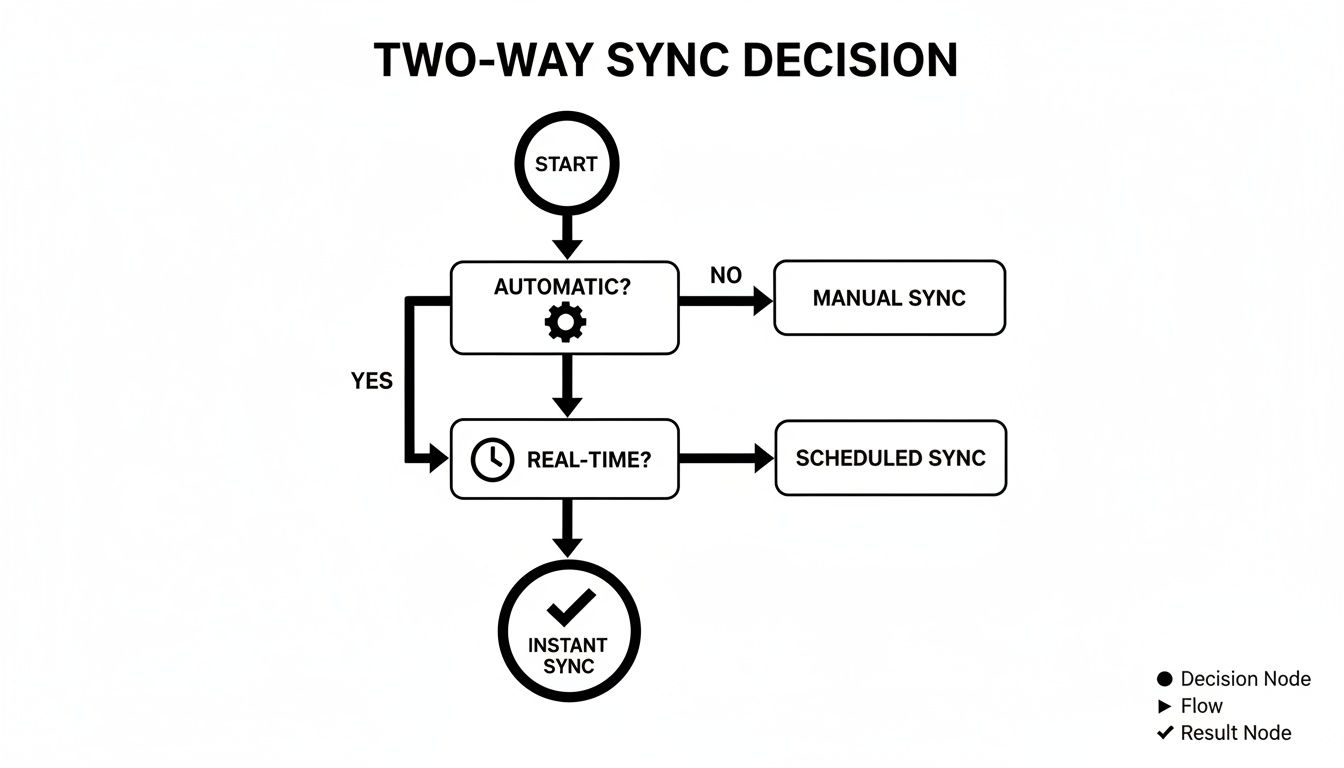
Ultimately, what this highlights is that for any serious professional use, automatic and real-time updates are the foundation of a worthwhile sync solution.
Sync Method Feature Breakdown by User Type
To make the choice even clearer, let's look at how the needs of different user types stack up against common sync features. This table should help you quickly identify which solution profile is the best fit for you.
| Feature/Need | Personal User | Small Team | Enterprise |
|---|---|---|---|
| Primary Goal | See all events in one place; avoid double-bookings. | Improve team scheduling and visibility. | Ensure security, compliance, and centralised control. |
| Sync Type | Two-way sync is ideal. One-way can work. | Two-way sync is essential for collaboration. | Two-way sync is mandatory. |
| Shared Calendars | Not usually required. | Highly beneficial for project and team calendars. | Critical for departmental, resource, and executive calendars. |
| Privacy Controls | Important for keeping personal event details private. | Useful for individual team members. | Essential for compliance and user privacy. |
| Centralised Management | Not needed. | A simple admin panel is helpful. | Non-negotiable; requires a full admin dashboard. |
| Security (e.g., Proxy) | Basic security is fine. | Standard security protocols are usually sufficient. | Advanced security features like proxy support are a must. |
| Cost Sensitivity | High; free or low-cost options are preferred. | Medium; willing to pay for features that save time. | Low; security and reliability are valued over cost. |
| Recommended Tool | Basic sync tool, potentially a free service. | Dedicated sync software with team features. | Enterprise-grade sync platform with full admin controls. |
As you can see, what works for an individual—like a simple, free connection—lacks the security and management features essential for a team or enterprise. Choosing the right tool from the start saves a lot of headaches down the road.
Solving Common Outlook and Google Sync Problems
Even with what seems like a perfect setup, your Outlook to Google Calendar sync can hit a snag. We’ve all been there: an event fails to show up, you suddenly see duplicate entries, or the connection just mysteriously drops. Don't panic—most of these frustrations have surprisingly simple fixes.
More often than not, the culprit is something as simple as connection credentials. The authentication tokens that let your sync tool talk to your calendars can expire or get revoked, especially if you've recently changed your Google or Microsoft password. A quick trip to your sync tool's settings to re-authorise the connection usually gets everything flowing again.
Diagnosing Duplicate Events
Seeing double on your calendar is a special kind of chaos. This almost always happens when you have more than one sync method running at the same time. A classic example is setting up a one-way ICS subscription from Outlook to Google, then later adding a proper two-way sync tool without disabling the original feed. You’ve essentially told your calendar to do the same job twice.
To fix this, you need to check your connections methodically:
- In Google Calendar: Head to the "Other calendars" section in the sidebar. Look for any subscribed Outlook calendars and hit unsubscribe.
- In your sync tool: Double-check that you only have one active sync profile connecting that specific Outlook and Google account pair.
Getting back to a clean slate is key. It's no surprise that German firms that properly implement a two-way sync report a 35% reduction in meeting overlaps—a massive win for team collaboration.
Pro Tip: Before you ever run your first sync with a new tool, always back up both your Outlook and Google calendars. It’s a simple step that gives you a safety net, making it painless to restore your schedule if something unexpected happens during that initial merge.
When Events Fail to Appear
What about when events just... don't show up? This could be a simple sync delay or a minor misconfiguration. First, dive into your tool’s settings and make sure the sync frequency is set to a short interval, like every five minutes. Next, confirm the sync direction is set to "two-way" and that you've ticked the correct calendars for synchronisation.
Even with a solid tool, strange things can happen. If events are consistently missing, you might need to dig a bit deeper and learn how to troubleshoot disappearing Google Calendar events. For a wider range of common issues and fixes, we have a whole guide dedicated to troubleshooting Google Calendar sync problems.
Your Top Questions About Outlook & Google Calendar Sync, Answered
Alright, so you've weighed your options, but a few questions are probably still nagging at you. It's totally normal. Getting into the nitty-gritty of data security, event details, and how to avoid a calendar meltdown during the first sync can feel a bit much.
Let's clear up the most common concerns people have when they decide to finally get their Outlook and Google calendars talking to each other.
"Is it actually safe to use a third-party tool for this?"
This is the big one, and for good reason. The last thing you want is your calendar data—or your credentials—ending up somewhere they shouldn't.
Reputable sync tools are built with this in mind. The best ones, especially those popular in places with strict data laws like Germany, run the entire synchronisation process locally on your own computer. This is a key detail: it means your calendar entries and account passwords are never uploaded to some random third-party cloud server.
Instead, the application acts as a direct bridge, connecting to Microsoft's and Google's services right from your device. Always look for tools that are transparent about how they handle your data. Features like OAuth 2.0 for authentication are non-negotiable—it's the industry standard for secure sign-ins. One long-time user I spoke with mentioned four years of flawless operation, syncing attendees and all, precisely because their tool kept everything local, eliminating cloud risks. You can find more real-world feedback on platforms like outlookgooglecalendarsync.com.
"Can I sync more than just the meeting title and time?"
Absolutely. The free, one-way subscription method is pretty bare-bones, but dedicated two-way sync tools give you a ton of control. You can usually pick and choose exactly what gets synced over.
This often includes:
- Descriptions and locations, so you have the full context for every meeting.
- Attendee lists and their RSVP status, so you know who’s actually showing up.
- Reminders and notifications to make sure you're never late.
- The event's privacy status (like public vs. private).
Many tools even let you set up clever rules. For instance, you could have work meetings show up on your personal calendar simply as "Busy" instead of broadcasting the full meeting title. This level of customisation is what separates a basic sync from a genuinely useful one.
The real magic of a good sync tool isn't just that it connects your calendars—it's that it gives you the flexibility to share as much, or as little, information as you're comfortable with.
"How do I stop it from creating a mess of duplicate events?"
This is a very real fear, but one the best tools have already solved. Good sync software comes with built-in logic to prevent duplicates from happening.
During the initial sync, the application scans both calendars and intelligently merges existing events by comparing things like the title and start time. It's smart enough to see that "Team Stand-up at 9 AM" is the same event in both places.
As a best practice, I always recommend backing up both your Outlook and Google calendars before you run the very first sync. It takes two minutes and gives you total peace of mind. Some apps also let you do a "one-way sync" for the initial run to create a clean baseline before you turn on the two-way flow.
Ready to stop the calendar chaos? Calendar0 unifies your Google and Microsoft calendars into a single, intelligent view on macOS and Windows. Schedule meetings with natural language, see your true availability instantly, and save an average of 20 minutes every day. Try Calendar0 for free and experience effortless scheduling.

