Master Outlook Schedule Email and Take Back Your Day
Learn how to use the Outlook schedule email feature to boost productivity. Our guide covers delay delivery, pro tips, and scheduling on any device.

Calendar0 Team
December 14, 2025

Scheduling an email in Outlook isn't just a neat party trick. It's a genuine strategy for getting your focus back and making your communication hit the mark every time.
Think about it. You can send messages across time zones without pulling a late night, drop critical announcements at the perfect moment, or make sure a report lands in your manager's inbox exactly when their day begins.
Why You Should Schedule Emails in Outlook
The "schedule send" feature is like having a personal communications assistant. It works behind the scenes to make you look professional, thoughtful, and organised, no matter when you actually hit "write". It’s all about taking control of your digital communication instead of letting it run your day.
This approach lets you batch all your email tasks into dedicated blocks, protecting your deep work from the constant ping of new messages. Instead of stopping a big project to send a quick update, you can write it when you have a spare moment and schedule it to land at the ideal time.
This simple icon is your gateway to a much more intentional and less reactive way of working.
Respecting Boundaries and Time Zones
We all work with people across the globe now. Firing off an email at 10 PM your time might mean buzzing a colleague's phone just as they're falling asleep. Scheduling those emails shows you respect their personal time and helps build a healthier team culture.
It's a tiny adjustment on your part that makes a huge difference in team collaboration and everyone's work-life planning.
When you schedule your messages, you switch from a reactive to a proactive mindset. You're the one deciding when your communication lands, ensuring it arrives with maximum impact and minimal disruption.
Staying Organised in a Crowded Inbox
The sheer volume of email is overwhelming. For instance, daily email traffic in Germany was projected to hit a staggering 8.5 billion in 2024. That's a lot of noise. Scheduling helps your messages cut through by arriving at less busy times, like first thing in the morning.
Ultimately, getting the hang of the outlook schedule email feature lets you:
- Work across time zones without wrecking your own schedule.
- Land important messages at the top of someone's inbox right when they start their day.
- Batch your work into focused sprints, which is a massive productivity booster.
- Avoid sending impulsive emails by giving yourself a built-in "cooling-off" period.
How to Schedule an Email on Any Version of Outlook
One of the best things about Outlook is that you can schedule an email no matter how you’re checking your inbox. Whether you're on a Windows PC at the office, a Mac at home, or your phone on the go, the option is always there.
The exact steps change a bit depending on your device, but the core idea is the same. Let's walk through how to do it on every platform.
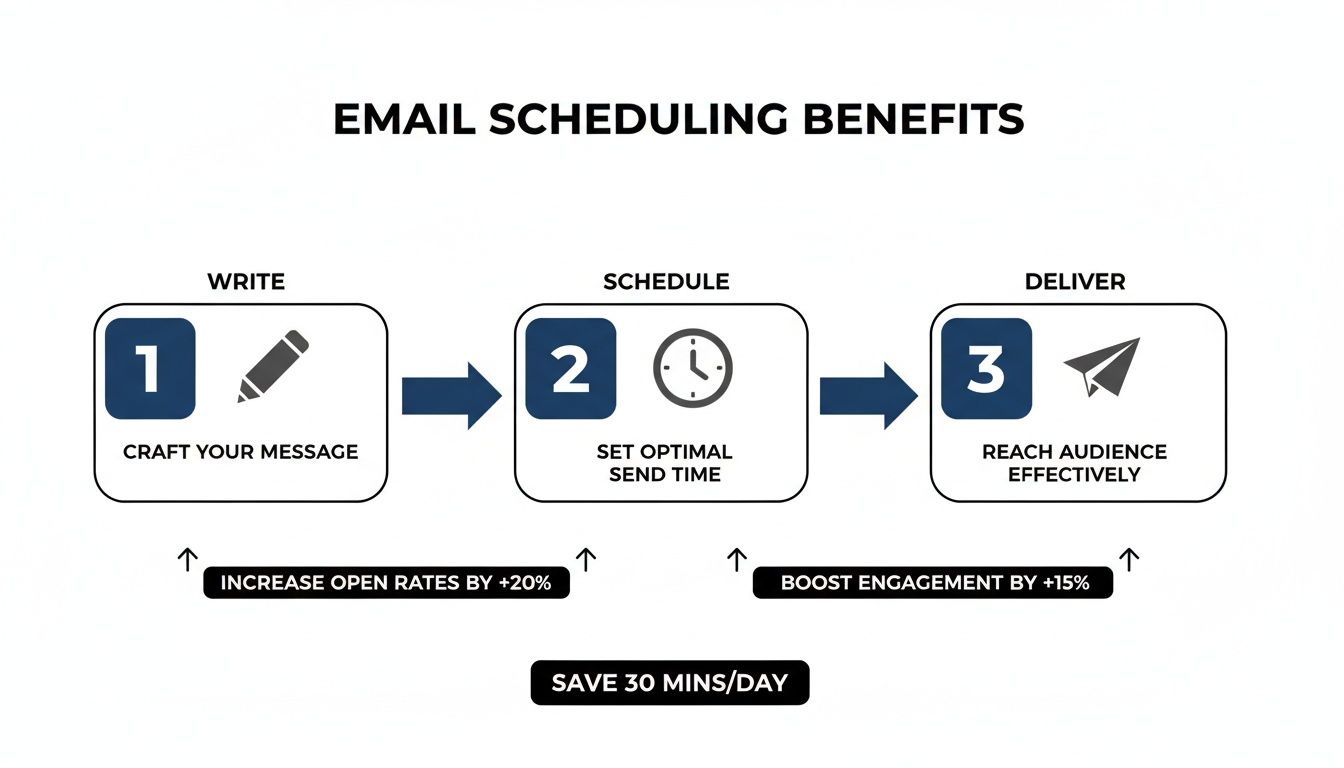
This simple three-part process—write, schedule, deliver—gives you total control over when your message lands, helping you make a much bigger impact.
Scheduling Emails in Outlook for Windows
If you’re a power user on the classic desktop app for Windows, you’ll be looking for a feature called Delay Delivery. It’s incredibly powerful, but I’ll admit, it’s a little tucked away if you don’t know where to look.
First, compose your email as you normally would. But before you hit Send, head over to the Options tab in the top ribbon of the message window. In the "More Options" group, you'll see the Delay Delivery button.
Clicking that pops open a Properties dialogue box. This is where you get granular control.
- Do not deliver before: Just check this box, then pick the exact date and time you want your email to go out.
- Expires after: This one is handy for time-sensitive announcements. You can set a date where the email becomes irrelevant and won't be sent if it hasn't gone out by then.
Once you’ve set your time, click "Close," then hit "Send" on your email. The message will sit safely in your Outbox folder, waiting for its moment.
One crucial thing for Windows desktop users: Outlook has to be running for the email to send at the scheduled time. If you close the application, your email stays in the Outbox and won't go anywhere until you launch Outlook again.
Quick Scheduling in Outlook for Mac
On a Mac, the process feels much more modern and intuitive—a great example of how a small design tweak makes a huge difference.
After you've written your message, find the small dropdown arrow right next to the "Send" button. A quick click on it reveals the Send Later option.
Selecting that brings up a simple calendar and time picker, letting you choose a future delivery slot in seconds. It’s fast, clean, and exactly where you'd expect to find it. For more on this, check out our guide on the Outlook app for Mac OS.
Using Send Later in Outlook on the Web
For those of us who live in the browser version of Outlook (Outlook.com or Outlook 365), the scheduling feature is just as straightforward as the Mac version. Even better, it all happens on the server.
Just click the dropdown arrow next to the blue Send button, and you’ll see Schedule send. You can pick one of the suggested times or hit Custom time to dial in the exact date and time yourself.
The biggest win here is reliability. Because the scheduling happens on Microsoft’s servers, you can close your browser tab, shut down your computer, and walk away. The email will still send right on time. It’s a true “set it and forget it” experience.
Scheduling on the Go with Outlook Mobile Apps
Thankfully, the Outlook mobile apps for iOS and Android haven't been left out. You can manage your outgoing messages from anywhere.
Once you’ve drafted your email, look for the three dots (the ellipsis menu) at the top or bottom of the screen. Tapping that menu opens up a list of actions, including Schedule Send. From there, you can choose a preset time or pick a custom one.
Just like the web version, your phone syncs the scheduled email to the server, so it will be sent at the correct time no matter what your phone is doing.
Alright, you've got the basics of scheduling an email down. Now, let's get into the good stuff—the pro-level tactics that turn this simple feature into a genuine productivity booster.
This is about more than just hitting "send later." It's about building smart systems for the communication you handle every single day. Think about those routine emails: weekly project updates, monthly report requests, client check-ins. Instead of hammering them out from scratch every time, you can use a few clever Outlook tools to put them on semi-autopilot.

Automating Repetitive Emails with Templates and Quick Parts
While Outlook doesn't have a big, shiny "schedule recurring email" button, we can create a fantastic workaround using Templates and Quick Parts. This combination saves a ton of time and mental energy.
-
Outlook Templates (.oft files): This is your secret weapon for full emails you send regularly. A template saves everything—the subject line, the body text, even file attachments. Just compose the email once, then head to File > Save As and pick "Outlook Template (*.oft)" from the file type dropdown. I like to save mine right on my desktop for quick access.
-
Quick Parts: These are perfect for smaller, reusable blocks of text. Think of your standard sign-off, a common answer to a question, or a brief project intro. Highlight the text you want to save inside an email, click the Insert tab, find Quick Parts, and hit "Save Selection to Quick Part Gallery." From then on, you can drop that block of text into any email with just a couple of clicks.
Combine these two, and you’ve got a seriously efficient system. Set a recurring reminder in your calendar to send the monthly report. When it pops up, just double-click your saved template, tweak a few details, schedule it to send, and you’re done in less than a minute.
Scheduled Email vs. Calendar Invite: Knowing Which to Use
This is a classic point of confusion I see all the time. When do you schedule an email, and when do you send a calendar invite? They seem similar, but they have completely different jobs. Picking the wrong one creates inbox clutter and missed meetings.
A scheduled email delivers information at a specific time. A calendar invite books a block of time in someone's schedule. One is about informing, the other is about committing.
An email is a notification. An invite is an actionable request that hooks directly into the recipient's calendar, asking them to accept or decline.
And if you really want to level up, check out these powerful follow-up email examples to see how timing can make all the difference.
Scheduled Email vs Calendar Invite: When to Use Each
So, how do you decide in the moment? Here’s a quick comparison to help you choose the right tool for the job.
| Feature | Scheduled Email | Calendar Invite |
|---|---|---|
| Primary Purpose | To deliver information at a precise time | To request and block out a specific time slot |
| Ideal Scenarios | Sending meeting follow-ups, reports, announcements, or reminders | Organising meetings, calls, appointments, or deadlines |
| Recipient Action | Reading and absorbing the information | Accepting, declining, or proposing a new time |
Let’s make this practical. Say you just finished a big project call. A scheduled email is perfect for sending the summary notes so they land in everyone's inbox first thing tomorrow morning. But if you need to book the next project call? That’s a job for a calendar invite, which actually reserves that time for all attendees.
Using the right tool for the right situation keeps things clear, your projects moving, and everyone's calendar sane.
Choosing the Right Send Time for Maximum Impact
Scheduling an email is easy. The real skill is knowing when it should land in someone’s inbox. That perfect send time can be the difference between getting an immediate reply and having your message buried in a digital avalanche. This isn't about guesswork; it's about being strategic.

Think about your recipient's daily rhythm. Firing off a critical request at 8 AM on a Monday is usually a bad move. That's precisely when people are digging out from their weekend backlog and figuring out what’s on fire. Your email is just one of dozens screaming for attention. The same goes for a Friday afternoon email—it's probably getting kicked to next week.
Analysing Your Audience and Time Zones
First things first: who are you emailing, and where are they? Sending a message to a colleague in Munich requires a totally different approach than one to a partner in Tokyo. You have to factor in their local business hours. It shows respect for their time and dramatically increases your chances of getting a response.
This is where a solid outlook schedule email strategy is non-negotiable for global teams. If you’re juggling multiple locations, you might want to use a dedicated timezone event planner to keep everything straight. It ensures your messages land at the most opportune moments, not in the middle of the night.
For instance, Germany has a massive 97.8% email deliverability rate, meaning most business emails go straight to the inbox. That high reliability means your timing matters even more, because your message is competing for attention, not just fighting to get delivered. You can find more insights like this on global email stats from platforms like Omnisend.
Finding the Sweet Spot for Engagement
So, when is the best time to send? It definitely varies by industry and role, but a few peak engagement windows pop up again and again in studies.
- Mid-Morning, Mid-Week: Tuesday, Wednesday, and Thursday between 9 AM and 11 AM local time are widely considered prime time. By then, people have had their coffee, cleared the initial clutter, and are actively working through their inbox.
- Early Afternoon: Another good slot is between 1 PM and 3 PM. Lunch is over, but the end-of-day scramble hasn't started yet.
- The Sunday Evening Preview: For important but non-urgent updates, scheduling an email for Sunday evening can be surprisingly effective. Lots of professionals scan their inboxes to prep for the week, and your message lands with far less competition.
The goal is to make your email a convenient part of their day, not another interruption. By scheduling it to arrive during their peak productivity hours, you position your message as a priority to be addressed, not an annoyance to be archived.
Ultimately, the best way to figure this out is to experiment. Pay attention to when you get the quickest and most thoughtful replies from your key contacts. Use that data to fine-tune your outlook schedule email habits. Over time, you’ll develop an instinct for the perfect moment to hit "Send"—or, even better, to schedule it.
Connecting Outlook Scheduling to Your Wider Workflow
Getting the hang of scheduling emails inside Outlook is a great first step. But the real magic happens when you connect that skill to the other tools you rely on every day.
Think of your workflow as an ecosystem. If your email, calendar, and project management apps are all siloed, you’re just creating friction for yourself. You end up wasting time on manual data entry and constantly switching between tabs. The goal is to build bridges between these platforms so they talk to each other.
A perfect example is the all-too-common pain of finding a meeting time. That endless email chain of "Does Tuesday at 2 PM work for you?" is a massive productivity killer. This is where connecting your Outlook Calendar to an external scheduling tool is a complete game-changer. By using a service that can read your availability, you can just share a single link that lets people book a free slot directly in your calendar.
That one simple integration can wipe out an entire category of tedious emails, freeing you up for work that actually matters.
Creating a Seamless Scheduling System
The key is to stop thinking about individual features and start thinking about how your tools can work together as a cohesive system. Thankfully, many modern applications offer direct integrations with Outlook, making this easier than ever.
- Scheduling Links: Tools like Calendly or Calendar0 can sync directly with your Outlook calendar to show your real-time availability. This is brilliant for client consultations or interviews because it puts the booking power in their hands without you having to expose your entire schedule.
- Project Management Integration: Hooking Outlook up to a platform like Asana or Trello lets you turn emails into actionable tasks instantly. You can forward an email straight to a specific project board, and it will automatically create a to-do item with a deadline.
- CRM Synchronisation: If you're in a sales or client management role, linking Outlook to your CRM is non-negotiable. It ensures every single communication is automatically logged, giving your entire team a complete history of all interactions.
When you're thinking about how dedicated email tools fit into your bigger productivity picture, looking at specific email management features can give you some great ideas for optimising your workflow.
Your goal should be to create a flow where information moves effortlessly between your applications. An email shouldn't be a dead end; it should be the starting point for a calendar event, a project task, or a client update.
Building this connected workflow doesn't just reduce manual effort; it dramatically minimises the chance of important things falling through the cracks. It transforms your inbox from a source of stress into a central hub for organised, effective action.
Outlook Email Scheduling FAQs
Even with a feature as handy as scheduling emails, a few common questions and quirks always seem to surface. Getting these sorted can save you a ton of headaches and make sure your messages land exactly when you want them to.
Let's clear up some of the most frequent issues I see.
Why Didn't My Scheduled Email Send?
This is, without a doubt, the number one problem for anyone using the classic "Delay Delivery" feature in the Outlook desktop app for Windows. It comes with one massive catch: the Outlook application has to be running and connected to the internet at the scheduled send time.
If your computer goes to sleep or you close the app, that email is just going to sit in your Outbox.
It will send the next time you fire up Outlook, but it won't hit that precise deadline you were aiming for. This is a huge difference compared to Outlook on the Web, Mac, or mobile. Those versions handle the send directly from the server, so you can schedule it, shut down your machine, and walk away.
How Can I Edit or Cancel a Scheduled Email?
Realised you made a typo or need to shift the send time? No problem, it's an easy fix. Every email you've scheduled just sits patiently in your Outbox folder until it's time to go.
All you have to do is navigate to your Outbox, find the email, and double-click to open it up. From there, you can tweak the content, add or remove recipients, or adjust the delivery options.
If you decide you don't want to send it at all, just delete the message from the Outbox. Easy. Just remember to hit "Send" again after you've made your changes to re-arm the schedule.
Think of your Outbox as a holding pen. As long as an email is in there, you're in complete control. You can edit, reschedule, or cancel it right up until the moment it's sent.
Can I Schedule a Recurring Email in Outlook?
Natively? No. Outlook doesn't have a simple, built-in button for sending the same email on a recurring schedule, like a weekly report reminder. But there's a pretty solid workaround using Outlook Templates.
Here’s how I do it: compose your standard email and save it as an Outlook Template (.oft file). Next, create a recurring task or calendar appointment that reminds you to send it.
When that reminder pops up, you just open the template, make any quick updates for that week, schedule the send, and you're good to go. For a truly automated, hands-off solution, you’d need to dive into something more powerful like Microsoft Power Automate.
Stop the endless back-and-forth and reclaim your day with Calendar0. It’s the smart menubar calendar that eliminates calendar admin so you can schedule meetings at the speed of thought. Get started for free.

