Best Outlook Google Calendar Sync Software Reviewed
Discover the top Outlook Google Calendar sync software. Our guide compares features, security, and pricing to help you find the best tool.

Calendar0 Team
November 18, 2025

The best outlook google calendar sync software is the one that works so well you forget it’s even there. It should provide real-time, two-way synchronisation that automatically blocks off time on both your calendars. The goal is simple: ensure anyone looking at either calendar sees your true availability, without you lifting a finger.
Why Syncing Calendars Is a Modern Necessity
If you're like most professionals, your calendar life is split. Your work life lives in Microsoft Outlook, but your personal appointments, side hustles, and family events are all in Google Calendar. Trying to keep these two worlds separate is more than just a hassle—it's a recipe for disaster.
Without a single, unified view of your day, the risk of double-booking yourself is enormous. A client meeting you accepted in Outlook can easily clash with a doctor's appointment you plugged into Google Calendar last week. The constant mental gymnastics of checking one against the other is exhausting, inefficient, and bound to fail eventually.
The Real Cost of Disconnected Calendars
A fragmented calendar setup causes friction that ripples through your entire workday. It’s easy to underestimate the damage, but the consequences are very real:
- Productivity Drain: The minutes you spend manually copying events from one calendar to another add up. It’s low-value work that pulls you away from what actually matters.
- Scheduling Errors: Double-bookings are almost guaranteed. When a colleague uses Google Calendar's "Find a Time" feature, your Outlook commitments are invisible, making you look available when you're not.
- Damaged Reputation: Constantly having to reschedule or, worse, missing meetings because your calendars weren't aligned just looks unprofessional.
- Poor Collaboration: It’s impossible for teams to coordinate effectively when no one has an accurate picture of each other's availability.
The Strategic Value of Automation
The demand for a solution is obvious when you look at the numbers. The global calendar software market was valued at USD 2.5 billion in 2023 and is expected to climb to USD 5.8 billion by 2032, with Europe being a major player. This isn’t just about new features; it’s about a fundamental need to make scheduling seamless. You can discover more about the calendar software market.
Dedicated sync software turns your calendars from isolated silos into a single source of truth. It handles the tedious, repetitive task of keeping your schedules aligned so you can focus on your actual job.
This isn’t just about convenience; it’s a strategic decision. Automation is a powerful tool, and there are many ways automation reduces operating costs simply by cutting down on time wasted on manual tasks. Choosing the right outlook google calendar sync software is a small investment that delivers a huge return in efficiency and peace of mind.
Understanding Your Calendar Sync Options
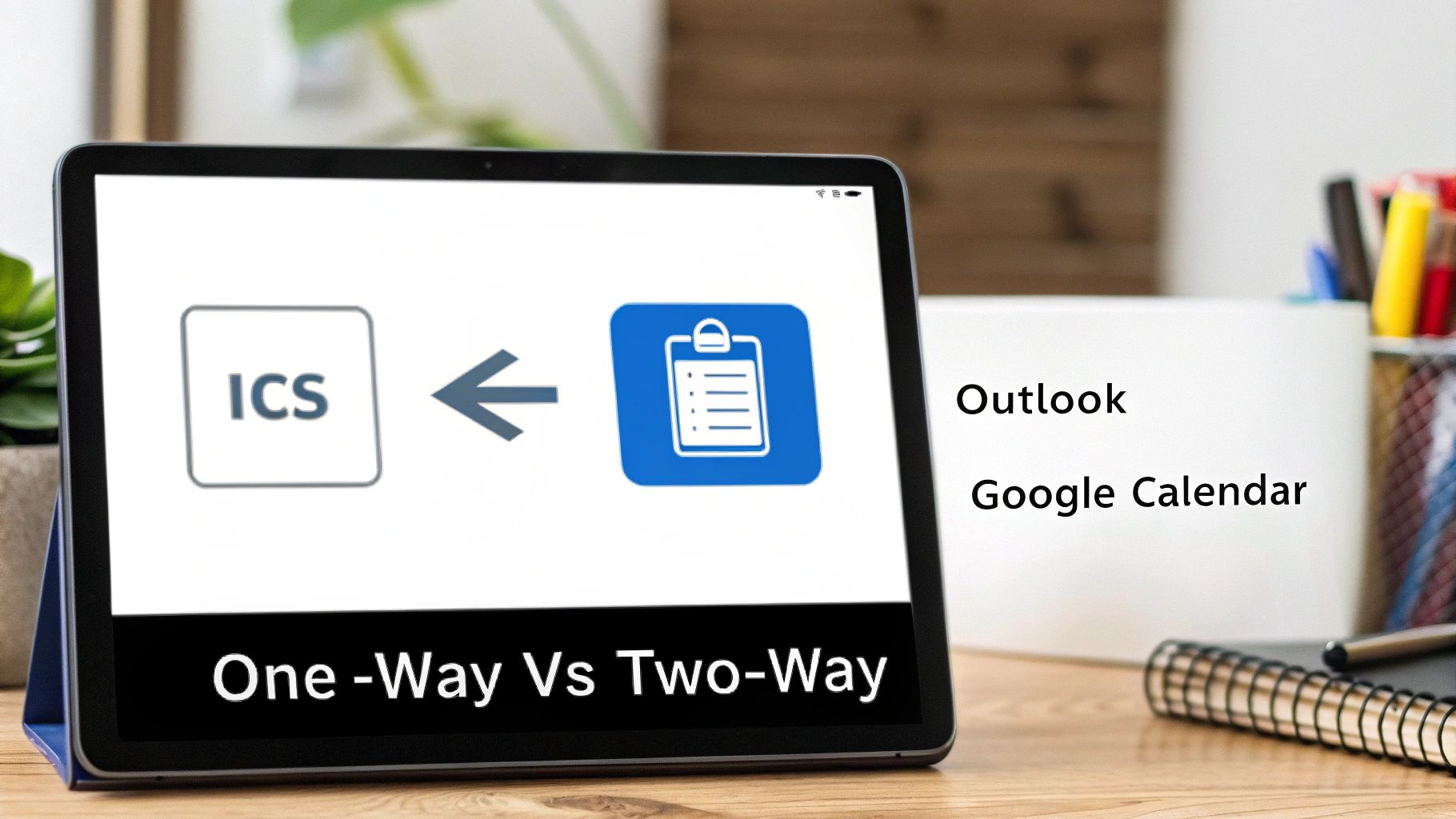
Before you pick any outlook google calendar sync software, you need to know what you’re actually choosing between. There are a few different ways to get these two calendars talking, and each one strikes a different balance between convenience, reliability, and privacy. Knowing the basics will help you find a solution that genuinely fits how you work.
The first and most important distinction is one-way vs. two-way syncing. Think of a one-way sync as a one-way street: data flows from a source (like Outlook) to a destination (like Google Calendar), but never back. This setup is perfect if you just want to see your work schedule on your personal calendar, but don't want your personal appointments cluttering up your work view.
A two-way sync, on the other hand, is a dynamic, live connection. Add, edit, or delete an event on one calendar, and it’s automatically updated on the other. This is the go-to for professionals who actively use both calendars and need them to be perfect mirrors of each other. It’s the only way to make sure your true availability is always visible.
Manual Methods and Why They Usually Fail
Most people start by trying the built-in, manual methods like publishing or exporting. They're free, which is tempting, but they come with some serious drawbacks that make them a non-starter for most professionals.
The most common approach is sharing a published calendar link—you might see it called an iCal or ICS feed. You can generate a "secret address" from your Google Calendar and subscribe to it in Outlook, or do the reverse.
Critical Drawback: This isn't a sync. It's just a subscription to a read-only snapshot of your calendar. Updates can take anywhere from a few hours to over 24 hours to show up, making it completely useless for real-time scheduling.
Another manual trick is to export your entire calendar to an .ics file and then import it. This gives you a one-time copy of your events, but that's it. There’s no ongoing connection, so any new events or changes you make after the import are completely missed. It’s obsolete the moment you use it. For a wider view on scheduling tools beyond these basic hacks, checking out different types of open-source scheduling software can provide useful context.
The Power of Dedicated Sync Software
This is where dedicated, third-party software comes in. These tools completely sidestep the problems of manual methods. Instead of relying on slow-updating public feeds, they use secure APIs to build a direct, reliable bridge between your Outlook and Google accounts.
This approach gives you a few massive advantages:
- Real-Time Updates: Changes sync within minutes, not hours. Double-bookings become a thing of the past.
- Privacy Control: You decide exactly what information gets shared. You can, for instance, block off time on your work calendar by showing a cloned event from your personal one that just says "Busy," without revealing any personal details.
- True Two-Way Sync: Both calendars stay perfectly aligned, reflecting your actual availability to colleagues and scheduling tools. No more guesswork.
- Automation: Set it up once, and you’re done. The software just works in the background without you ever having to manually refresh or re-import anything.
While Outlook does have protocols like CalDAV that can be used for syncing, they aren't exactly user-friendly to set up without some technical know-how. You can dive into the nitty-gritty of that in our guide on how Outlook CalDAV sync works. In the end, dedicated software is built to handle all that complexity for you, delivering a seamless experience so you can just get on with your day.
Choosing the right software to sync your Outlook and Google calendars isn't about finding the one with the longest feature list. It’s about finding a tool that fits so perfectly into your workflow you forget it’s even there—all while protecting your privacy and just plain working. To see past the marketing fluff, you need a solid way to judge what matters.
This means looking at every option through the same lens, focusing on a few core pillars that make or break a sync tool. Get these right, and you'll solve your scheduling headaches without causing new ones.
Data Privacy and Security Protocols
Before you let any app touch your calendars, you have to scrutinise its security. Your calendar is a log of your life—client meetings, personal appointments, company strategy sessions. A data breach isn't just an annoyance; it's a serious professional and personal risk.
When you're looking at a new tool, keep an eye out for these security must-haves:
- Secure Authentication: The tool absolutely must use an industry standard like OAuth 2.0. This protocol lets an app access your calendar without ever seeing or storing your Microsoft or Google password. If a tool asks for your password directly, run. That's a massive red flag.
- Data Handling Policy: A trustworthy service is transparent. Dig into their privacy policy and look for clear language on how they handle your event data. The best tools don't store event details (like titles, descriptions, or attendees) on their servers at all, which is the gold standard for confidentiality.
- Minimal Permissions: A calendar sync tool should only ask for permission to read and write to your calendar. Be skeptical of any app that wants broad access to your emails, contacts, or cloud files. That’s a classic case of overreach.
Sync Reliability and Performance
Let's be blunt: a sync tool that isn't reliable is worse than no tool at all. If updates are slow, or worse, if events get missed, you're left with a false sense of security that leads directly to double-bookings and chaos. Performance isn't a feature; it's the entire point.
A sync delay of just 15 minutes can be the difference between a smooth, professional day and a frantic scramble to reschedule conflicting appointments. For any busy professional, real-time or near-real-time performance is a non-negotiable.
So, how do you judge reliability? It comes down to the technology. Tools that use calendar publishing (sharing an ICS feed) are fundamentally flawed. Both Google and Microsoft’s own documentation warn that these feeds can take up to 24 hours to update. A proper sync tool uses direct API connections to push changes in minutes, not hours. Look for services that proudly state they offer real-time or near-real-time updates.
User Interface and Ease of Use
The best Outlook Google calendar sync software should be set-and-forget. A clunky interface or a confusing setup process completely defeats the purpose of automation. Simplicity and clarity should be at the top of your list.
The initial setup should be a one-time thing that takes just a few minutes, with clear, guided steps. After that, you shouldn't have to think about it. The software should just work quietly in the background, keeping your schedule straight without needing constant attention. A clean, simple dashboard that shows you the sync status at a glance is a great sign of thoughtful design.
Advanced Automation and Customisation
Basic syncing is one thing, but powerful customisation is what turns a simple utility into a true productivity machine. Your professional life has nuance, and your sync software should, too.
Look for granular controls that let you define exactly how your calendars talk to each other. Key features include:
- Privacy Placeholders: This is huge. You need the ability to block time on your work calendar without revealing the details of your personal life. A "Dentist Appointment" on your personal Google Calendar should show up as "Busy" or "Personal" on your work Outlook. No more, no less.
- Directional Syncing: Your workflow, your rules. You should be able to choose between a one-way sync (e.g., Outlook to Google only) or a true two-way sync where changes on either calendar are reflected on the other.
- Filtering Rules: The really great tools let you get even more specific. Imagine only syncing events that have a certain colour-coded category in Outlook or contain a specific keyword.
These aren't just bells and whistles; they give you the power to create a single, unified view of your time while maintaining a healthy and necessary boundary between your personal and professional worlds.
A Detailed Review of the Top Sync Tools
Finding the right Outlook Google calendar sync software can feel like a chore. So many tools promise a perfect sync, but the reality is often a mess of delayed updates, privacy headaches, and clunky interfaces. The best tools go way beyond basic calendar sharing—they offer real-time updates, solid privacy controls, and an experience that actually makes your life easier.
I'm going to break down the top contenders, looking at how they stack up in the real world. Forget the marketing fluff. We'll dive into how they actually perform when your schedule is packed and you just need things to work. The goal here is to give you a clear, honest perspective so you can pick the right tool and move on.
Calendar0: The Privacy-Focused Powerhouse
Calendar0’s entire philosophy is built around one core idea: your calendar data is sensitive and deserves maximum protection. It’s a premium tool designed for professionals who can't afford to take risks with their information. Instead of using flimsy public calendar links, Calendar0 relies on direct API connections with OAuth 2.0. This means it never sees or stores your passwords.
But where it really stands out is in how it handles your data. The platform is built to process syncs without permanently storing your event details on its servers. For anyone in legal, finance, or an executive role dealing with confidential information, this isn't just a feature—it's a necessity.
Here’s a quick look at the dashboard, which is as clean as it gets.
The interface is incredibly straightforward. You can set up your sync rules once and just let it run reliably in the background without a steep learning curve.
This focus on a clean user experience is particularly relevant as remote work drives the need for better collaboration tools. In markets like Germany, the calendar application space is growing fast as companies look for secure, efficient ways to keep teams aligned. If you want to dig deeper, you can read the full research on the calendar app market to see the trends.
OneCal: A Versatile Sync and Scheduling Hub
OneCal is another heavyweight in the Outlook Google calendar sync software ring. It offers a powerful set of features that go beyond just syncing. It handles real-time, multi-way syncs, which is a lifesaver for consultants, freelancers, or anyone juggling calendars across different clients and organisations.
The customisation options are its strong suit. You can set up one-way or multi-way syncs and get granular about what event details get copied over. For instance, you can choose to sync a vague placeholder like "Busy" to your work calendar to block the time without revealing the details of a personal appointment.
Key Differentiators for OneCal:
- Multi-way Sync: Don't just connect A to B. Create a full mesh sync between multiple calendars.
- Calendar View: See all your connected calendars in a single, unified dashboard to easily spot conflicts.
- Scheduling Links: It comes with a built-in scheduler, much like Calendly, so people can book time with you based on your true availability across all calendars.
OneCal’s real value is in its all-in-one approach. It’s not just a sync tool; it’s a central command centre for viewing and managing your entire schedule. For professionals juggling a lot of moving parts, that's a huge win.
Outlook Google Calendar Sync (OGCS): The Open-Source Option
For those who prefer to go the open-source route, Outlook Google Calendar Sync (or OGCS, as it's commonly known) is a fantastic choice. It's a free, community-driven tool that runs as a desktop app on your computer. It might not have the polished, cloud-based UI of its commercial rivals, but it offers a surprising amount of control.
Because it runs locally, none of your login details are stored on a third-party server. This is a big plus for security-conscious users or companies with strict data policies. The setup is definitely more technical than a service like Calendar0, but if you're willing to get your hands dirty, the payoff is deep customisation.
You can configure everything from sync direction and frequency to creating detailed rules. For example, you can tell it to only sync events that have a specific Outlook category or are marked as "Busy". This level of control is often on par with what you'd get from a paid tool. If you want a more detailed walkthrough on this, you can also learn how to sync your Outlook calendar into your Google Calendar in our dedicated guide.
Feature Comparison Table
To cut to the chase, here’s a direct comparison of how these tools stack up. This table should help you see at a glance which solution best fits what you're looking for, whether it's simplicity, control, or an all-in-one hub.
| Feature | Calendar0 | OneCal | OGCS (Open-Source) |
|---|---|---|---|
| Sync Type | Real-time, Two-way | Real-time, Multi-way | Local, configurable frequency |
| Platform | Cloud-based service | Cloud-based service | Desktop application (Windows) |
| Privacy Control | Excellent (placeholder events, no data storage) | Excellent (placeholder events, colour coding) | Excellent (runs locally, data stays on device) |
| Ease of Use | Very High (set-and-forget) | High (clean UI, guided setup) | Medium (requires more technical configuration) |
| Unique Feature | Privacy-first architecture | Unified calendar view & scheduling links | Deep, rule-based customisation |
| Best For | Professionals prioritising privacy & simplicity | Users with multiple calendars & scheduling needs | Tech-savvy users wanting maximum control for free |
So, what's the verdict? The best Outlook Google calendar sync software really comes down to your priorities. For busy professionals who need top-tier privacy and a "set it and forget it" tool, Calendar0 is the clear winner. If you're a power user managing a web of calendars and want a built-in scheduler, OneCal is your best bet. And for the tech-savvy user who wants total control without spending a dime, OGCS offers unbeatable customisation, as long as you're comfortable with a more hands-on setup.
Choosing the Right Sync Tool for Your Role
Finding the right Outlook-Google calendar sync software isn't about crowning a single "best" tool. It's about matching the software to your professional reality. A freelance consultant wrangling ten client calendars has completely different needs than a corporate executive trying to keep their work and personal lives from colliding.
The key is to look past a simple feature list and consider your day-to-day workflow. Are you in a large organisation with a strict IT security policy? Do you spend half your day booking meetings with external partners who all use different calendar platforms? Answering these questions first will lead you to a tool that actually solves problems instead of creating new ones.
This decision tree breaks it down by mapping common professional roles to the software features that matter most, like privacy, speed, and simplicity.
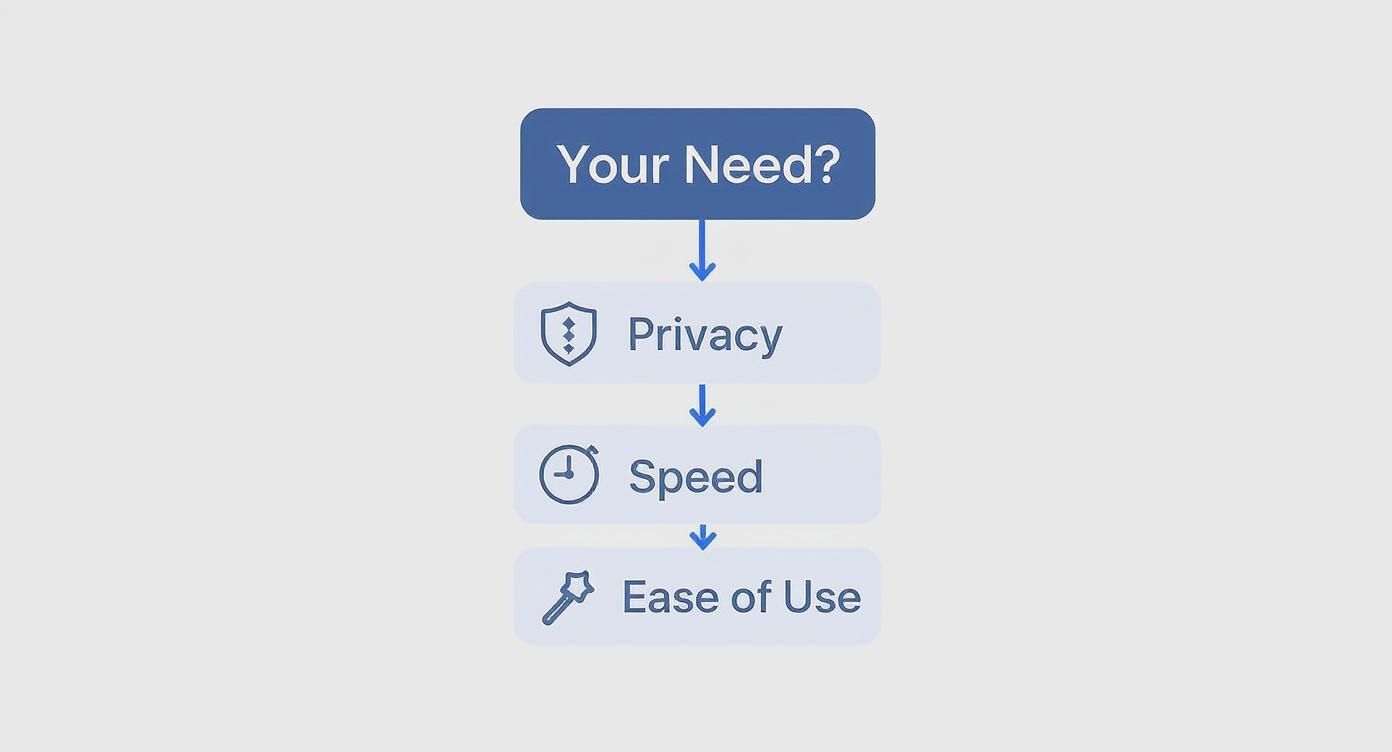
As the graphic shows, if you handle sensitive information, privacy-first tools should be at the top of your list. If you're in a fast-paced role, you need real-time sync speeds to stay ahead of booking conflicts.
For the Consultant Juggling Multiple Clients
As a consultant, your calendar is a mess of commitments spread across different ecosystems. One client lives in Google Workspace, another is all-in on Microsoft 365. Your real challenge is creating one unified view of your availability so you don't double-book yourself while keeping every client's business confidential.
Recommendation: A tool with multi-way sync is non-negotiable. Instead of building a dozen fragile one-way syncs, you need a mesh where adding an event to any calendar automatically blocks that time on all the others.
- Why it works: This kills the tedious, soul-crushing task of manual blocking. You accept a meeting from Client A on Outlook, and that slot is instantly reserved on your calendars for Client B and Client C on Google.
- Key Feature Needed: Look for granular privacy controls. You need the ability to sync events as generic "Busy" or "Client Meeting" placeholders. This protects confidential details while still showing you as unavailable.
For the Executive Balancing Work and Personal Life
An executive's problem is different but just as critical. You’ve got a primary corporate Outlook calendar and a personal Google Calendar for family events, doctor's appointments, and everything else. The goal is simple: let work colleagues see when you're busy, but not why. At the same time, you need your work commitments visible on your personal calendar so you don’t book a dentist appointment during a board meeting.
Recommendation: A privacy-first, two-way sync tool is the perfect fit. It needs to be simple to configure and then completely invisible in the background.
The best solution for this role is one that enforces a hard boundary. It should flawlessly clone time blocks from your personal to your work calendar—and vice versa—while stripping out all sensitive details like event titles, locations, and guest lists.
This setup ensures your assistant or colleagues see your true availability without ever peeking into your private life. A tool like Calendar0 is purpose-built for this exact scenario, focusing on confidentiality and set-and-forget reliability. And if you're managing your schedule on Apple devices, finding the right app is also key; check out our guide on the best Google Calendar app for Mac to complete your setup.
For the Team Coordinating Across Platforms
Collaboration grinds to a halt when your team is split between Microsoft and Google. A project manager using Outlook can't easily check the real-time availability of a developer who lives in Google Calendar. This kicks off endless email threads and scheduling friction that brings entire projects to a crawl.
Recommendation: The whole team needs to get on a single, unified calendar sync tool. This move standardises how availability is shared, creating a single source of truth that works across platforms.
- Why it works: It completely solves the "my calendar can't see your calendar" problem. The sync software acts as the central bridge, ensuring that when someone uses the "Find a Time" feature in either Outlook or Google, they see a complete and accurate picture of everyone's schedule.
- Key Feature Needed: The tool must be dead simple for everyone on the team to set up, no matter their technical skill. A quick, guided onboarding process is absolutely critical for getting everyone to actually use it.
Still Have Questions? Let’s Clear Things Up.
Jumping into the world of calendar syncing can feel a bit technical, and you probably have a few questions about how it all works, especially around security and functionality. Let's tackle some of the most common ones I hear from professionals trying to get this right.
Is It Actually Safe to Use a Third-Party Sync Tool?
That’s the big one, isn't it? Handing over access to your calendar feels risky, and you’re right to be cautious. The good news is that any reputable sync tool is built with security as its foundation. They use secure authentication methods like OAuth, which is a critical detail.
What OAuth means is that the software gets a token to access your calendars without ever asking for—or storing—your Microsoft or Google passwords. Your login details stay with you.
The best tools take it a step further. They're designed to process the sync data without actually holding onto your event details permanently. Before you commit, always give their privacy policy a quick scan to see how they handle your data. For example, a privacy-first tool like Calendar0 is architected specifically so your event content remains confidential.
What’s the Real Difference Between One-Way and Two-Way Sync?
Thinking about the direction of the sync is key to getting what you need. A one-way sync is exactly what it sounds like: a one-way street. It pushes events from a source (like your Outlook work calendar) to a destination (like your personal Google Calendar). Any changes you make on the destination calendar, however, won't reflect back. It’s perfect for just getting a "read-only" view of your work commitments on your personal device.
A two-way sync, on the other hand, creates a perfect mirror. Add, change, or delete an event on one calendar, and it instantly updates on the other. This is the setup for anyone who actively manages events on both platforms and needs them to be identical to show their true, up-to-the-minute availability.
Can I Sync Only Certain Events?
This is where you can separate the basic tools from the really powerful ones. Simple methods like publishing a calendar URL give you zero control—it's all or nothing. But more sophisticated software gives you the customisation you actually need.
You can set up rules to control exactly what gets copied over.
For example, you could tell the software to only sync appointments from a specific Outlook category, or only events you've marked as 'Busy', or maybe just meetings with a certain keyword in the title. This kind of granular control is absolutely essential if you want to block off your time without sharing sensitive details.
This is how you keep a clean line between your work and personal life. You can show you're unavailable on your work calendar without ever revealing the specifics of a doctor’s appointment or a family event. It gives you privacy and a conflict-free schedule.
Ready to stop double-booking and start saving time? Calendar0 uses AI to unify your calendars, prevent conflicts, and schedule meetings at the speed of thought. Get started for free at Calendar0.

