Seamless Outlook Calendar Syncing with Google Calendar A Practical Guide
Discover the best methods for Outlook calendar syncing with Google Calendar. This guide covers one-way, two-way, and troubleshooting tips for professionals.

Calendar0 Team
December 25, 2025

Trying to sync your Outlook and Google calendars can feel like a fool's errand. You've got a few ways to tackle it, from a simple one-way "subscribe" feature to powerful third-party tools that create a true, real-time sync. The right method really boils down to one question: do you just need to see your events in one place, or do you need to actively manage everything from either calendar?
The Hidden Costs of Unsynced Calendars
Juggling separate work and personal calendars isn't just a minor annoyance—it's a genuine productivity killer. For so many of us, this is the daily grind: our work life lives in Outlook, our personal life is in Google Calendar, and the two operate in completely separate, frustrating worlds.
Think about the software engineer trying to balance project sprints in Outlook with a dentist's appointment logged in their personal Google Calendar. Without a single, unified view, they're stuck constantly flipping between tabs, manually blocking out time on both calendars, and just hoping they didn't miss something. It’s a recipe for disaster, and it almost always leads to double-bookings or missed deadlines.
The Real Price of Disconnected Schedules
The cost of this calendar chaos adds up fast. It's not just the one-off scheduling mistake. It’s the constant mental load of remembering what's where, verifying your availability, and trying to keep it all straight. That low-level stress quietly eats away at your focus and energy all day long.
This problem has become especially acute in Germany, where hybrid and remote work has exploded. A recent Bitkom study found that Outlook Calendar syncing with Google Calendar is a major headache for a staggering 68% of professionals who manage multiple schedules. This isn't surprising when you consider that Microsoft 365 has a 42% market share in German enterprises, while Google Workspace is used by 31% of SMEs. People are constantly caught between the two.
In fact, a survey from the German Informatics Society revealed that 55% of tech team members had at least one double-booking incident every single week because of sync issues. On average, that led to a loss of 18 minutes per day just trying to coordinate schedules. You can dig into more of these findings over at outlookgooglecalendarsync.com.
The time you waste manually checking, re-checking, and apologising for scheduling conflicts is a direct hit to your productivity. It's a tax on your time that you pay every single day.
Why a Unified View Is No Longer Optional
In today's work environment, using multiple platforms is just the reality. Your project might be managed in Microsoft Teams (which dumps events into Outlook), while your client communication is all happening in Gmail (creating invites in Google Calendar). This makes a single, unified calendar view a business necessity, not just a nice-to-have.
Getting to a single source of truth for your time is the foundation of effective work-life planning and integration. When your calendars finally talk to each other automatically, you unlock some serious advantages:
- No More Double-Bookings: Your actual availability is always clear, preventing that dreaded overlap between a critical work meeting and a personal commitment.
- Less Mental Clutter: You can finally stop wasting brainpower trying to remember which calendar holds which event.
- More Productive Hours: All that time you save from manually wrangling your schedule can go straight back into deep, focused work.
Ultimately, solving the Outlook and Google Calendar sync problem isn't just about getting organised. It’s about reclaiming your time, cutting down on stress, and building a workflow that actually works for both your professional and personal life.
Choosing Your Sync Strategy: One-Way vs Two-Way
When you're trying to get your Outlook and Google calendars to play nicely, the first big decision is whether you need a one-way street or a two-way conversation between them. This isn't just a technicality; it's the foundation of your entire scheduling workflow. Get it right, and things feel seamless. Get it wrong, and you’ll create more work for yourself.
The core question is simple: do you just need to see events from one calendar on the other, or do you need to actively edit and manage events from either place? Choosing a one-way sync when you really need to adjust appointments on the fly is a recipe for frustration.
If you’re constantly dealing with double-bookings or just feel overwhelmed by calendar chaos, you’re not alone. It’s a classic problem for busy professionals, and a proper sync is often the only real solution.
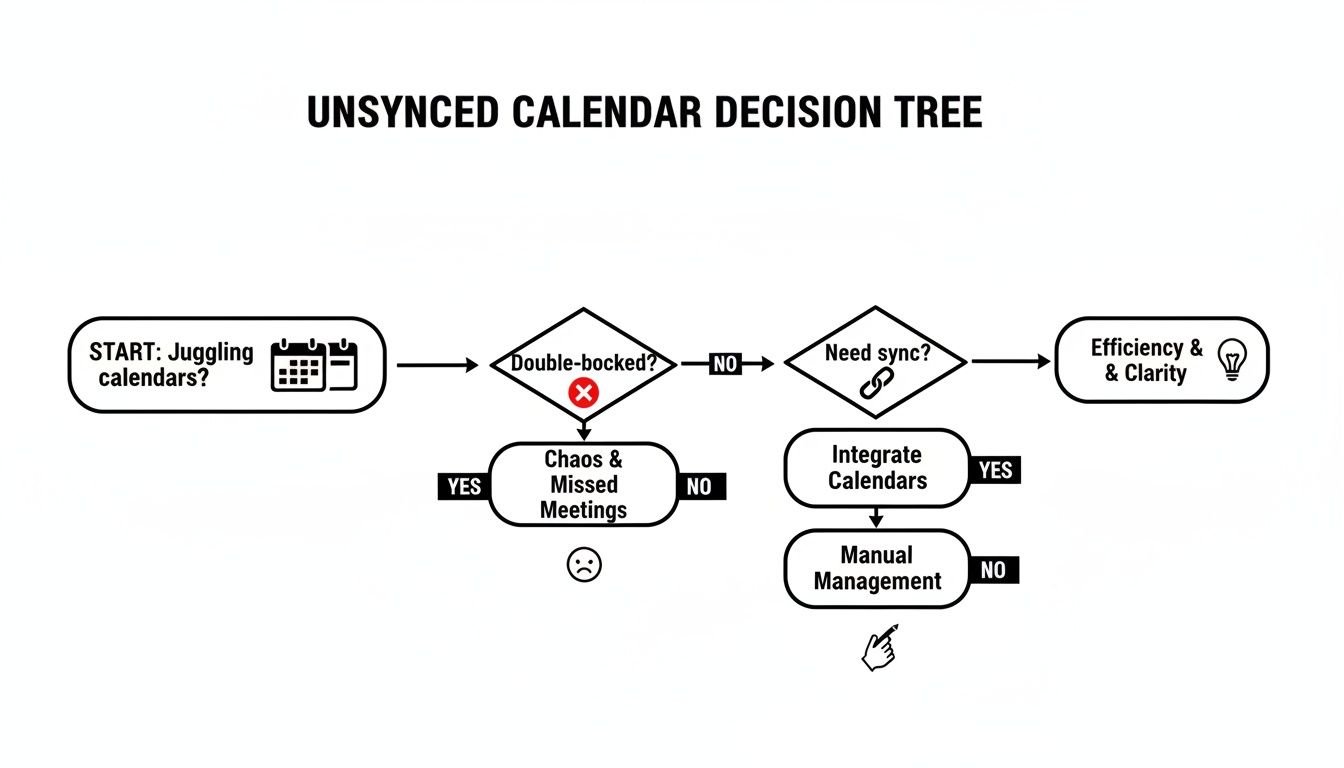
This flowchart nails the issue perfectly: juggling separate calendars almost always leads to scheduling headaches. Let's break down which approach will actually solve the problem for you.
Comparison of Calendar Syncing Methods
To make the choice clearer, here’s a quick breakdown of what each method actually delivers.
| Feature | One-Way Sync (Publish/Subscribe) | Two-Way Sync (Third-Party Tool) |
|---|---|---|
| Data Flow | Events move from a source calendar to a destination calendar only. | Changes (create, edit, delete) in either calendar are reflected in the other. |
| Editing Events | Edits are only possible in the original source calendar. | You can edit, reschedule, or delete events from either Outlook or Google Calendar. |
| Update Speed | Can be very slow. Native methods often take hours, sometimes up to 24 hours, to update. | Near-instantaneous. Changes typically appear within seconds or a few minutes. |
| Setup | Free and built-in to both Outlook and Google. | Requires a dedicated third-party service, often with a subscription fee. |
| Best For | Viewing a work schedule on a personal device. Sharing a static, read-only calendar like a team rota or project timeline. | Actively managing a busy schedule across work and personal accounts. Professionals who rely on real-time availability. |
| Key Limitation | You get visibility, but no control from the destination calendar. High potential for looking at outdated information. | Reliance on an external service and potential privacy considerations depending on the tool. |
Ultimately, the best method depends entirely on how actively you manage your schedule. One-way is for passive viewing; two-way is for active management.
The Simplicity of One-Way Syncing
Think of a one-way sync as a "view-only" window. You're basically publishing your Outlook calendar and then "subscribing" to it from Google Calendar. It pushes events from Outlook over to Google, but the conversation stops there. Nothing you do in Google Calendar will ever flow back to Outlook.
This approach is perfect for a few specific, no-fuss scenarios. It gives you a combined view, which is a massive improvement over flying blind, but it has very clear boundaries.
A one-way sync is probably all you need if you:
- Just want to see work meetings on your personal calendar. It’s great for quickly checking your Outlook schedule on your phone’s Google Calendar before saying yes to a dinner plan.
- Need to share a fixed schedule. A manager could publish a project timeline from Outlook so the team can see it in their own Google Calendars without being able to change it.
- Aren't worried about real-time updates. Be warned: the native sync can take ages to catch up, sometimes a full 24 hours. It’s not for time-sensitive scheduling.
A one-way sync gives you awareness, not control. You can see the appointment, but you can't touch it from the destination calendar.
For instance, a marketing manager who just wants the company-wide holiday calendar from Outlook to show up on their personal Google Calendar would be perfectly happy with this. They don’t need to edit those dates, just be aware of them.
The Power of True Two-Way Sync
Now, two-way sync is a different beast altogether. It's a dynamic, active connection between your calendars. When you create, edit, or delete an event in Outlook, the change is mirrored in Google almost instantly—and vice versa. This isn't something Outlook or Google offer out of the box; you'll need a dedicated third-party tool to make it happen.
This method effectively merges your two calendars into a single, cohesive system. It’s built for anyone who lives in their calendar and manages their schedule across different platforms and devices all day long. A two-way sync creates one source of truth for your time.
Picture a freelance consultant who uses Outlook for their business but gets meeting invites from clients who all use Google Calendar. With a proper two-way sync:
- A new client books a meeting using a Google Calendar invite.
- The event immediately pops up in the consultant's main Outlook calendar, blocking off that slot.
- If the consultant has to reschedule and moves the meeting in Outlook, the client’s Google Calendar event updates automatically.
This real-time, back-and-forth flow is what makes true Outlook calendar syncing with Google Calendar so valuable. It kills manual data entry, prevents embarrassing double-bookings, and ensures your availability is always correct, no matter which calendar you happen to be looking at. For anyone juggling a complex schedule, this isn't just a nice-to-have—it's essential.
How to Set Up a One-Way Sync from Outlook to Google
This is the simplest, most direct way to get your Outlook appointments showing up in your Google Calendar. Think of it as pushing a "read-only" version of your work life over to your personal calendar. It's a lifesaver for seeing all your commitments in one place without having to manage them in two.
The whole process has two main parts. First, you'll "publish" your Outlook calendar, which creates a special, shareable link. Then, you'll take that link and "subscribe" to it from your Google account. It's pretty straightforward, but the exact clicks change slightly depending on whether you use Outlook on the web or the desktop app. We’ll cover both.
Publishing Your Calendar from Outlook on the Web
If you use Outlook in a browser (like with Office 365 or Outlook.com), this is the fastest way to get your hands on that shareable link. It’s all tucked away in the settings menu.
Here’s how you get it done:
- Dive into Settings: Log in to your Outlook account online. Hit the gear icon (Settings) in the top-right corner, then click View all Outlook settings.
- Find Shared Calendars: From the settings menu that pops up, head to Calendar and then select the Shared calendars option.
- Publish Your Calendar: You’ll spot a "Publish a calendar" section. Use the dropdown to pick the calendar you want to share—most likely your main one, just named "Calendar".
- Choose Your Permissions: This part is critical, so pay attention. You’ll have a couple of options that control how much info gets shared.
- Grab the Link: Once you’ve picked your permission level, click the Publish button. Outlook will spit out two links. The one you need is the ICS link. Click it, then choose Copy link.
Understanding Your Privacy Permissions
The permission level you pick here dictates exactly what details about your Outlook events people (or in this case, Google Calendar) can see. It's a big decision, especially if you're dealing with a work calendar full of client meetings or internal strategy sessions.
These are your two choices:
- Can view when I'm busy: This is the high-privacy option. It just shows blocks of time on your Google Calendar marked as "Busy". No event titles, no locations, no notes. It’s perfect if you only want to block out your time without revealing what you're doing.
- Can view all details: This setting sends everything over—titles, locations, attendees, and the full event description. It’s handy for your own reference but be very careful if your work events have sensitive or confidential information.
For most professionals, "Can view when I'm busy" is the safest starting point. It solves the main problem—avoiding double-bookings—without accidentally leaking private info. You can always come back and change this later if you find you need more detail.
Publishing from the Outlook Desktop App
If you live in the Outlook desktop client on Windows or Mac, the path is a little different, but you end up in the same place.
- Switch to the Calendar view in your Outlook desktop app.
- In the "Home" tab at the top, find the "Share" group and click on Publish Online.
- You should see a sub-option that says Publish This Calendar...
- Clicking this will almost always bounce you over to a web browser, landing you on the exact same Outlook on the Web settings page we just discussed.
From there, just follow the steps above to set your permissions and copy that crucial ICS link. Microsoft does this to keep the process consistent, no matter where you start. Once you have that link copied to your clipboard, you're ready for the final step.
Subscribing to Your Calendar in Google
Alright, with your unique ICS link in hand, it's time to switch over to Google Calendar to finish the job. You're basically telling Google, "Hey, go fetch all the events from this address."
- Open your Google Calendar in a new browser tab.
- Look on the left-hand sidebar for the "Other calendars" section and click the little plus (+) icon.
- A menu will pop up. Choose From URL.
- Paste the ICS link you copied from Outlook into the field labelled "URL of calendar".
- Hit the Add calendar button.
That’s it! Google will add your Outlook calendar to the "Other calendars" list. I’d recommend renaming it to something obvious like "Work Calendar" and giving it a distinct colour so you can easily tell your work and personal events apart. Just click the three dots next to the new calendar's name to find its settings.
One last thing to remember: this is not an instant outlook calendar syncing with google calendar solution. The updates aren't real-time and can sometimes take a few hours to appear, which is one of the key trade-offs with this simple method.
Achieving Real-Time Sync with Dedicated Tools
Let’s be honest: when a one-way sync just won't cut it, and the risk of showing up to a double-booked meeting is all too real, it’s time to look past the built-in options. For any professional juggling a packed schedule, dedicated third-party tools are the only way to get a true, two-way outlook calendar syncing with google calendar. These services are built from the ground up to bridge the gap between the Microsoft and Google worlds, creating a seamless, bidirectional flow of your schedule.
Trying to make it work with manual methods or old scripts is often a fast track to frustration. You'll run into annoying data inconsistencies, like when event notes or titles don't quite make the jump. Recurring events are another classic weak point—they'll work perfectly until one small change breaks the whole series. Plus, many older scripts come with security holes, skipping modern, secure authentication like OAuth2.
The Advantages of Professional Sync Tools
A dedicated sync tool doesn't just give you a "view-only" peek into your other calendar; it creates a dynamic, two-way conversation between them. When you accept an invite in Outlook, it locks down that time in Google almost instantly. Same thing the other way around. This is the gold standard for anyone managing a busy, multi-platform life.
The benefits are pretty clear right from the start:
- Automatic, Near-Instant Updates: Forget the long delays of one-way subscriptions. Changes sync up in minutes, if not seconds.
- Full Event Detail Sync: These tools don't just sync the basics. They carry over everything—titles, descriptions, locations, attendees, and even your availability status (Busy/Free).
- Enhanced Security: Reputable tools use modern authentication, which means you never have to hand over your account passwords to a third-party service.
If you're curious about the tech that makes this work, understanding the principles of real-time database synchronization gives you a good idea of what's happening under the hood. It’s the engine powering the instant updates that busy schedules demand.
Why Real-Time Sync Is a Game-Changer
The need for reliable syncing isn't just a niche problem anymore, especially with hybrid work becoming the norm. In Germany alone, the calendar sync market has seen a 28% jump, largely because 76% of hybrid workers find themselves using both Outlook and Google Calendar. A whopping 44% of Exchange-to-Google migrations hit a wall on their first sync attempt, with critical details like availability status being lost in 62% of cases. This isn't just a minor tech headache; it's a major operational bottleneck.
This stuff adds up. Research shows that professionals can waste up to 25 minutes every single week just fixing sync errors and clarifying their availability. That’s lost productivity and a whole lot of unnecessary stress.
A dedicated sync tool isn’t just about convenience; it's a strategic investment in reclaiming your time. By automating your calendar management, you eliminate a constant source of administrative friction and prevent costly scheduling errors before they happen.
Unifying Your Calendars with a Dedicated Solution
Tools like Calendar0 aren’t just trying to copy events from one place to another; they’re designed to unify your entire scheduling workflow. The real goal is to create one single source of truth for your time, no matter which platform an invitation comes from. This is absolutely critical for anyone who gets meeting invites from different clients or has to balance separate work and personal calendars.
Picture this scenario: a project manager uses Outlook for all their internal team meetings but works with external clients who live in Google Calendar. With a proper two-way sync:
- A client shoots over a Google Calendar invite for a project review.
- That event instantly pops up in the manager's Outlook calendar, blocking off the time and showing all the meeting details.
- If the manager has a conflict and needs to propose a new time, they can just adjust it right in Outlook. That change is immediately sent back to the client's Google Calendar.
This kind of seamless back-and-forth gets rid of all the manual calendar entries and the endless email chains just to confirm a time. It ensures everyone is always looking at the most up-to-date schedule. If you want to see how different tools stack up, check out our guide on the best Outlook and Google Calendar sync software.
Ultimately, opting for a dedicated tool for outlook calendar syncing with google calendar is about upgrading from a passive, view-only setup to an active, fully integrated system. It’s the most effective way to guarantee accuracy, save time, and finally get a handle on your complex schedule.
Of course. Here is the rewritten section, crafted to sound like an experienced human expert.
Troubleshooting Common Calendar Sync Problems
So, you’ve set everything up, and for a while, it was perfect. Then one day, it isn’t. An event you added in Outlook is nowhere to be found in Google Calendar, appointments are suddenly duplicating, or a recurring meeting series has gone completely rogue.
Before you throw your laptop out the window, take a breath. These glitches are incredibly common, and most of them are surprisingly easy to fix once you know what to look for.
The real trick is diagnosing the problem. Is this just a classic delay with a one-way sync, or is a two-way tool having a permissions tantrum? Let's walk through the most frequent hiccups I see and get your schedule back on track.
Events Aren't Showing Up or Are Outdated
This is, without a doubt, the number one complaint I hear, especially from people using the one-way "publish and subscribe" method. You add a critical client meeting to your Outlook calendar, but hours later, your Google Calendar is still stubbornly blank.
Nine times out of ten, the culprit is the built-in delay. Google Calendar doesn't check for updates on subscribed calendars in real-time. It "polls" for changes every so often, and that window can be as long as 24 hours. Frustrating, I know.
Your first move is to try and force a refresh. Google doesn't give us a shiny "Sync Now" button, but you can sometimes nudge it along by:
- Toggling the calendar off and on. In your Google Calendar sidebar, just uncheck the box next to your Outlook calendar, wait a few seconds, and check it again.
- Clearing your browser cache. Sometimes a sticky cache is showing you an old version of the calendar. A quick clear can often solve it.
If you’re still not seeing updates, the original ICS link you got from Outlook might have expired or become corrupted. The best fix is to head back into your Outlook settings, generate a brand new link, and re-subscribe to it in Google Calendar.
A one-way sync is for visibility, not speed. If you absolutely need changes to show up in seconds, not hours, a dedicated two-way sync tool is your only real option.
Recurring Meetings Are Causing Duplicates or Errors
Ah, recurring events—the eternal weak spot of calendar syncing. You’ve probably seen it: you change a single instance of a weekly meeting, and suddenly you have a duplicate entry. Or maybe you adjust the entire series, and it just refuses to update correctly.
This happens because Outlook and Google have slightly different ways of handling the data for recurring events. When a sync tool tries to translate an exception (like moving just one Tuesday meeting to Wednesday), it can get confused and create a whole new event instead of just editing the original one.
The most reliable way to fix this is to just "reset" the series.
- Delete the entire recurring series from both your Outlook and Google calendars. Double-check that it’s gone from both.
- Give it a few minutes. Let the deletion sync completely through whatever service you're using.
- Re-create the event from scratch in your main calendar.
Starting with a clean slate wipes out any corrupted data from the old series and lets the sync tool process it cleanly from the beginning.
Permission Errors and Authentication Failures
If you’re using a third-party tool for a proper two-way outlook calendar syncing with google calendar, you might run into permission errors out of the blue. This is common after you change your Google or Microsoft password, or if your company’s IT department tightens up security policies.
Your sync tool needs explicit, ongoing permission to read and write to both calendars. If that permission gets revoked or expires, the sync breaks.
The fix is usually a simple re-authorisation. Log in to your sync tool’s dashboard, navigate to the account settings, and look for an option like "Reconnect" or "Re-authenticate." This will walk you through the login process for both Google and Microsoft again, restoring the connection. For a deeper dive into keeping your syncs healthy, check out our guide on Google Calendar sync issues.
These sync problems aren't just a minor annoyance; they're a significant productivity blocker in Germany's professional world. A recent Statista report found that 47% of German Microsoft 365 users struggle with persistent Google Calendar integration glitches. It gets worse: a Bitkom Digital Index survey of 1,200 German managers showed that for 61% of them, changes made in Outlook fail to appear in Google within 15 minutes, causing real project delays. You can read more about these calendar integration challenges.
By methodically working through these common issues, you can solve most sync headaches and get back to having a single, reliable view of your entire schedule.
Frequently Asked Questions About Calendar Syncing
Even with the best instructions, you're bound to have a few questions about getting your digital life properly organised. Let's tackle some of the most common things people ask when trying to get their Outlook calendar syncing with Google calendar.
Think of this as your quick-fire guide to get you unstuck and back to your day.
How Long Does a Sync Usually Take?
This is the big one, and the honest answer is: it completely depends on how you do it.
- One-Way Sync (The "Subscribe" Method): Get ready to wait. While you might get lucky and see an update in a few hours, Google officially says it can take up to 24 hours to refresh a subscribed calendar. This is absolutely not the way to go for anything time-sensitive.
- Two-Way Sync (Dedicated Tools): This is where you get real speed. Tools like Calendar0 are built for this exact problem, so updates are almost instant. Any change you make in one calendar usually shows up in the other within a few seconds, or a minute or two at most.
Can I Sync My Google Calendar to My Outlook Calendar?
Yes, you definitely can. That one-way "publish and subscribe" trick works in both directions. You can grab the ICS link from your Google Calendar and subscribe to it from Outlook. It's a decent way to get a view-only look at your personal appointments inside your work calendar.
But, and it's a big but, you run into the exact same limitations. You’ll still have those long delays, and you won't be able to edit or create Google events from inside Outlook. For actually managing both calendars from either place, a proper third-party tool is still the only real answer.
Key Takeaway: The native one-way sync lets you see events from one calendar in the other. A dedicated two-way sync tool lets you manage a single, unified schedule from both platforms. That’s the crucial difference between passive viewing and active scheduling.
What Happens to My Private Events?
A very fair question. Privacy is everything, and how your private events are handled comes down to your setup.
If you're using the one-way publish feature from Outlook, you have full control. You can tell it to only show your availability as "Busy" time, with none of the actual event details. This is the safest way to share a work calendar—it blocks out your time so you don't get double-booked, but it doesn't reveal who you're meeting with or what about.
With professional two-way sync tools, this is usually handled for you. Most are smart enough to see an event marked as "Private" in Outlook or Google and will automatically hide the details. Instead of syncing the event title and description, they’ll just create a generic "Busy" block on the other calendar. This protects your privacy while still keeping your schedule accurate. Always double-check the settings of whatever tool you choose to be sure.
If you have other technical questions about your IT setup, you can also check out our general IT support FAQs.
Ready to stop wasting time on calendar admin and finally unify your schedule? Calendar0 uses AI to schedule meetings, find availability, and prevent double-bookings across all your calendars in seconds. Reclaim up to 20 minutes every day by trying it free. Get Calendar0 now at https://www.calendar0.app.

