Seamless Outlook Calendar Sync With Google Calendar A Practical Guide
Stop juggling calendars. Learn how to set up a flawless Outlook calendar sync with Google Calendar using real-world methods for one-way and two-way sync.

Calendar0 Team
December 11, 2025

If you're juggling a work Outlook calendar and a personal Google Calendar, you know the pain. It feels like you're constantly fighting to avoid double-bookings and stop appointments from slipping through the cracks. The fix is to get your Outlook calendar sync with Google Calendar working, giving you one unified view of your entire life. This guide will walk you through the practical steps to finally stop switching between apps and get a real grip on your schedule.
Why Bother Syncing Outlook and Google Calendars?
Let's be honest: trying to mentally merge two different calendars is a recipe for disaster. That constant back-and-forth between your work life in Outlook and your personal commitments in Google Calendar leaves dangerous gaps.
It's all too easy to accept a work meeting that clashes with a dentist appointment or completely forget about a family dinner you put on your personal calendar while planning your work week. This isn't just a minor annoyance; it's a massive productivity killer.
When you get your calendars properly synced, you create a single source of truth for everything you've got going on. This unified view instantly makes life easier in a few key ways:
- No More Double-Bookings: See everything in one place. You'll immediately spot potential conflicts between your work and personal life before they happen.
- Less Mental Clutter: Stop wasting brainpower trying to remember what's on which calendar. A single view simplifies planning and cuts down on stress.
- Smarter Time Management: When you can see your entire week holistically, you can make better decisions about when to schedule deep work, personal time, and other commitments.
The Real-World Cost of a Disjointed Schedule
The time you lose manually checking and cross-referencing calendars really adds up. Think about it. A survey of 1,200 German knowledge workers found that a staggering 78% had scheduling conflicts before they started syncing their calendars.
On average, they were losing 15 minutes every single day just trying to keep their schedules straight. After they set up a sync, those conflicts dropped by 55%, saving them a ton of time. That small investment in setting up a sync pays off big time.
A unified calendar is more than just a convenience—it's a core tool for managing your time effectively. When you centralise your schedule, it stops being a simple list of appointments and becomes a strategic asset for planning your entire life.
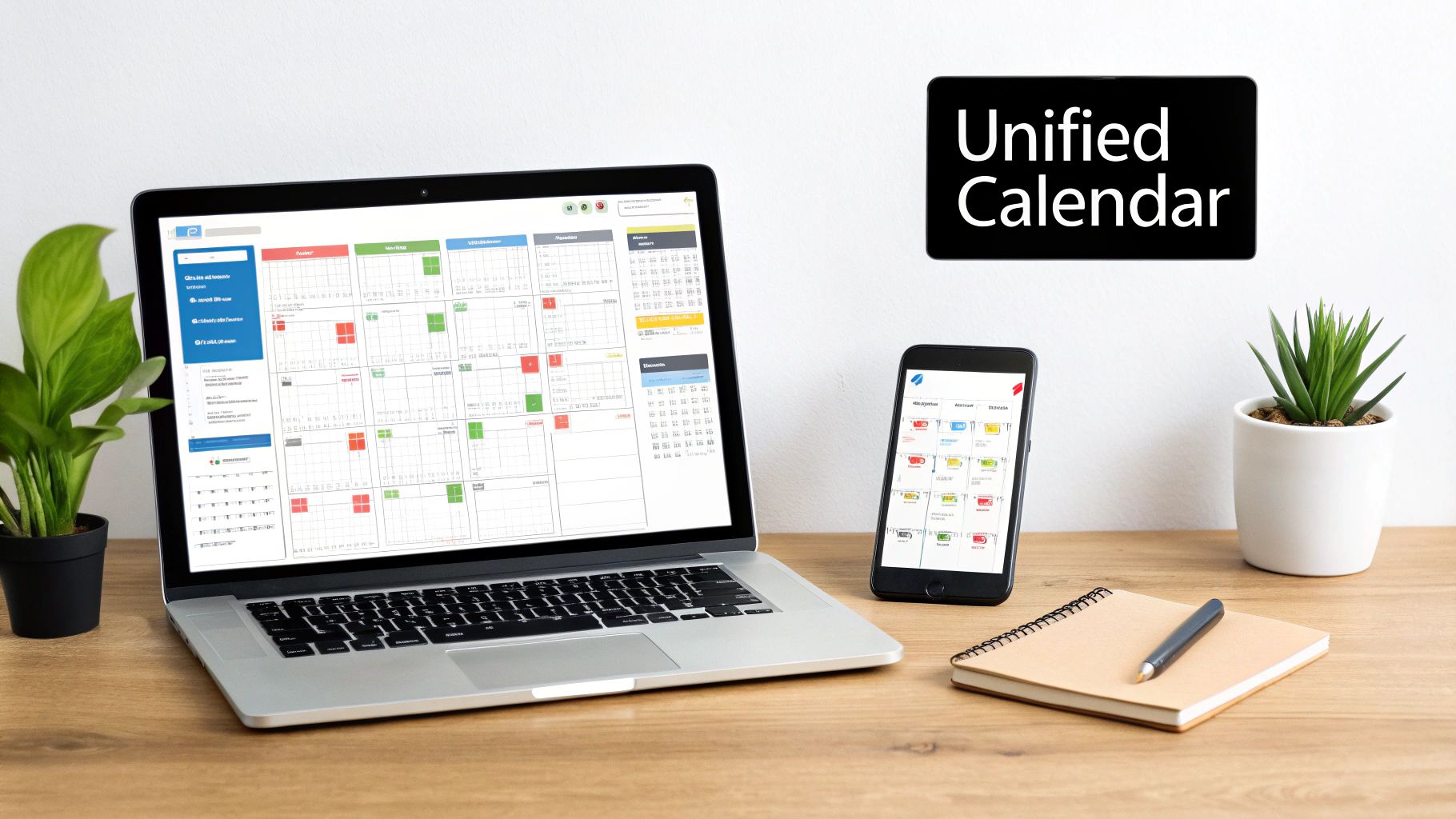
Ultimately, solving the outlook calendar sync with google calendar problem is about taking back control. It lets you be more present and efficient, whether you're in a critical meeting or just enjoying your downtime, because you can trust that your schedule is accurate and complete. Calendar tools are always evolving, and understanding the latest new calendar features helps highlight just how essential these syncing capabilities have become.
Effortless Viewing With One-Way Calendar Sharing
Sometimes, you don't need a complicated, two-way sync. All you really want is to see what’s on your personal Google Calendar while you're deep in Outlook planning your work week, or the other way around. For that, a simple one-way share is your best friend.
This method, often called "subscribing," is exactly what it sounds like. It creates a read-only copy of one calendar that lives inside another. Think of it like a podcast subscription—you get all the new episodes automatically, but you can’t change or delete them. It’s perfect for getting a quick, unified view of your commitments without the headache of a full synchronisation.
Adding Your Google Calendar to Outlook
The classic scenario: you live in Outlook for work, but your personal life, family events, and appointments are all in Google Calendar. Getting that personal calendar to show up in your work environment is surprisingly straightforward.
First thing you'll need to do is pop over to your Google Calendar settings in a web browser. Buried in the settings for the specific calendar you want to share, you’ll find an option to get a "secret address in iCal format." This .ics link is the golden ticket.
Once you have that link copied, the rest happens in Outlook:
- Find the right spot: In either the Outlook web app or the desktop version, look for an option like "Add Calendar" or "Subscribe from web."
- Paste the link: A little box will pop up asking for the URL. Just paste that
.icslink you grabbed from Google. - Name and save: Give your new calendar a memorable name (I use "Personal - Google") and pick a colour. That's it. Your Google events will now appear right alongside your work schedule, making it easy to spot conflicts.
Here's what that final step looks like inside Outlook on the web. As you can see, once you've got the link, it's a piece of cake.
Viewing Your Outlook Calendar in Google
Naturally, this works in reverse, too. Maybe you're a freelancer who uses Google Calendar as the central hub for everything, but you need to keep an eye on a client's project calendar from Office 365.
To do this, you'll need to "publish" your Outlook calendar. Head into your Outlook settings (usually under Shared calendars > Publish a calendar) and generate a public .ics link. Pay close attention to the permissions here. For privacy, you might only want to show your "free/busy" status instead of all the event details.
Copy that link, then jump over to Google Calendar. On the left-hand side, click the plus sign next to "Other calendars" and choose "From URL." Paste the link, and voila—your Outlook events will now populate your Google Calendar.
Just a Heads-Up: This one-way street is strictly for viewing. You can't edit, move, or delete an event from a subscribed calendar. Any changes have to be made in the original calendar (e.g., update the Google event in Google Calendar), and the changes will eventually trickle down to the subscribed view.
The Big Catch: Update Delays
While this method is beautifully simple, it has one major limitation you need to be aware of: the lag.
The platform you’re subscribing to (like Outlook) decides how often it checks for updates from the source calendar. This refresh interval isn't instant. It can take several hours, and in some well-documented cases, even up to 24 hours.
This means that last-minute meeting you just accepted on your Google Calendar might not show up in your Outlook view for a while. If you're not mindful of that delay, you could easily double-book yourself. It makes one-way sharing fantastic for general visibility but not reliable enough for minute-by-minute, real-time scheduling.
How to Get a True Two-Way Calendar Sync
Let’s be honest, one-way sharing is a temporary fix. It gives you a read-only peek into your other calendar, but that's it. For anyone seriously managing a packed schedule across both Outlook and Google, this just doesn't cut it. You need a dynamic, two-way sync.
This is where you go from just viewing events to having a single, unified calendar that updates itself. No matter where you add an event—your work Outlook or your personal Google Calendar—it appears everywhere else. Automatically.
This kind of real-time, bi-directional sync isn't something Outlook or Google offer out of the box. You’ll need a dedicated third-party tool that acts as a secure bridge between the two. Think of it as a translator, constantly listening for changes on both sides and making sure they match up.
An event created in your work Outlook calendar instantly appears in your personal Google Calendar. A family dinner added on your phone via Google Calendar immediately blocks out that time in Outlook so a colleague can't book you. It’s a "set-it-and-forget-it" system that finally ends the manual calendar shuffling.

The key is that the tool sits in the middle, ensuring every change on one calendar is perfectly reflected on the other.
Setting Up Your First Two-Way Sync
Getting started with a sync tool is usually pretty painless. Let’s walk through what a typical setup looks like.
First, you’ll need to authorise the tool to access both your Microsoft and Google accounts. This is always done using a secure process called OAuth. You’ll be redirected to the official Google and Microsoft login pages to grant permission. This is a critical security step—it means the sync tool never actually sees or stores your passwords.
Once your accounts are connected, you get to the fun part: the configuration. This is where you tell the tool exactly how you want your calendars to talk to each other.
You’ll typically define a few core settings:
- Sync Direction: You can often choose one-way, but for our goal, you'll select a true two-way sync.
- Calendar Pairing: This is where you match things up. You'll explicitly tell the tool which Outlook calendar should sync with which Google calendar. You can even set up multiple pairs, like a work calendar and a team calendar.
- Sync Frequency: How often should the tool check for updates? The best services can sync as often as every five minutes, so your calendars are always up to date.
Comparing One-Way and Two-Way Sync Methods
It's easy to get confused between simply sharing a calendar and using a dedicated sync tool. One is a passive view, while the other is an active, automated connection. This table breaks down the real-world differences.
| Feature | One-Way Sync (Sharing via Link) | Two-Way Sync (Third-Party Tool) |
|---|---|---|
| How it Works | Subscribing to a public or private iCal link (read-only) | A dedicated app connects to both calendars via API and actively manages event data |
| Event Creation | Can only view events; cannot create or edit them from the other calendar | Create, edit, and delete events in either calendar, and the changes appear in the other |
| Update Speed | Slow; can take up to 24 hours for changes to appear | Fast; typically syncs every 5-15 minutes, or even instantly |
| Privacy Control | Limited; you can only choose to share "free/busy" or full details | Granular control; can hide titles, descriptions, and attendees while still blocking the time |
| Setup Complexity | Simple; just copy and paste a URL | Slightly more involved; requires authorising accounts and configuring sync rules |
| Best For | Casually seeing when someone is busy (e.g., sharing with a partner) | Professionals needing a single source of truth for work and personal scheduling |
Ultimately, if your goal is to eliminate scheduling conflicts and stop checking multiple calendars, a two-way sync tool is the only reliable solution.
Customising Your Sync Rules for Privacy
The real power of these tools comes from customisation. You get to decide exactly what information gets shared, which is absolutely vital for keeping your work and personal lives separate.
For example, you can set rules to:
- Anonymise Event Details: Have your work meetings show up on your personal calendar simply as "Busy" or "Work Commitment." This blocks the time without exposing sensitive meeting titles or agendas.
- Control Data Transfer: Pick and choose which fields to sync. Maybe you want the title and location but not the long description or list of attendees. This keeps your personal calendar clean and private.
- Manage Reminders: Decide if you want to keep the reminders from the original calendar or have the tool set a default reminder on the destination calendar.
This level of control is what makes it work. You can ensure your time is accurately blocked across both platforms without accidentally leaking confidential client names or project details onto a personal Google Calendar that might be shared with your family.
The need for this is huge. In Germany alone, over 65% of mid-to-large companies rely on Microsoft Outlook, while 45% of professionals also use Google Calendar for their personal lives. This split reality has created a massive demand for reliable sync tools.
A solid two-way sync is an investment that pays for itself by giving you a single, accurate view of your entire life. It ends the double-bookings and frees you from the mind-numbing task of manually keeping two calendars in check.
For a detailed breakdown of the top options, check out our guide on the best Outlook and Google Calendar sync software.
Navigating Privacy And Security During Sync
Connecting your calendars means you're handing over the keys to a lot of personal and professional information. Whenever you're setting up an Outlook calendar sync with Google Calendar, especially with a third-party tool, pausing to think about security isn't just a good idea—it's critical. You are literally giving an app permission to read, and often write, data across your entire digital life.
Before you click "authorise" on any new service, you need to understand exactly what permissions you're granting. Good, reputable tools will use secure methods like OAuth 2.0. This is important because it means they never actually see or store your Google or Microsoft passwords. Instead, you grant them a specific token that allows access, which you can (and should) revoke at any time if you stop using the service.
What To Look For In A Privacy Policy
I know, nobody wants to read a privacy policy, but you don't need a law degree to spot the important parts. Just give it a quick scan. Look for clear, simple language about what data they access, how it's stored, and if they share it with anyone else. To get a feel for what a straightforward policy looks like, you can review examples like Chronoid's Privacy Policy.
The most secure tools out there offer what’s called a "local sync" option. This is the gold standard for privacy because it means the synchronisation happens directly on your own computer. Your calendar data never passes through or gets stored on the company's servers. If you handle sensitive client information or work under strict data protection rules like GDPR, this is the feature you want to look for.
You can also dig deeper into access controls with our guide on how shared calendars in Outlook work.
The main takeaway here is to favour tools that practice data minimisation. The service should only ask for the permissions it absolutely needs to do its job. If a simple calendar sync tool asks for access to your emails or contacts, that’s a massive red flag.
Privacy regulations like GDPR have also fundamentally changed how data is handled. Since it came into force, automatic syncing of details like contact birthdays has been restricted without explicit consent. This has led Google to limit this data for users in the EU, which can break tools that relied on that information. It just goes to show how important it is to choose tools that are upfront about their limitations and respect modern privacy standards.
Troubleshooting Common Calendar Sync Problems
Even the most carefully set up Outlook calendar sync with Google Calendar can hit a snag. It's frustrating when you're suddenly dealing with delayed updates, duplicate events, or random authentication errors that throw a wrench in your workflow. The good news? Most of these issues are surprisingly easy to fix without needing a degree in IT.
Often, the problem is simpler than you think. If events just aren't showing up, the very first thing to check is whether you're actually looking at the right calendar. It sounds obvious, but it’s incredibly easy to accidentally hide a subscribed calendar in the Outlook or Google interface, making it look like the sync has completely failed.
Solving Delayed Updates
Are new events taking hours, or even a full day, to appear? This is the number one complaint with the one-way iCal subscription method. The catch is that the refresh rate is controlled by the receiving platform (like Google), not by you. It can genuinely take up to 24 hours for a subscribed calendar to pull in the latest changes.
If you absolutely need a faster update right now, you can try removing and re-subscribing to the calendar link. This sometimes forces an immediate refresh, but it's just a temporary band-aid. For true, real-time updates, a dedicated two-way sync tool is the only way to go.
Dealing with Duplicate Events
Seeing double on your schedule? This almost always happens when you have more than one sync method running at the same time—like an iCal subscription and a third-party sync tool both trying to do the same job. The fix is to pick one horse and stick with it.
- Audit your setup: Take a look through both Outlook and Google Calendar. Hunt down any old subscribed calendars or connected accounts you might have forgotten about.
- Clean up: Once you've removed the extra sync connection, you’ll need to manually delete the duplicate events. Some of the better sync tools actually have a built-in feature to find and merge duplicates for you, which can be a lifesaver.
A very common culprit for sync errors is stale permissions. If your sync suddenly stops working out of the blue, the first thing you should always do is visit your Microsoft and Google account security settings. Find the tool, revoke its access, and then authorise it again from scratch. This simple "re-auth" trick resolves authentication issues a surprising amount of the time.
Fixing Authentication and Permission Errors
If your sync tool gives you an authentication failure error, it just means it can no longer access one of your accounts. This often happens if you've recently changed your password or if an account's security token has expired, which they do periodically for security reasons.
The solution is to simply re-establish that digital handshake. Go into your sync tool’s settings, disconnect both your Google and Microsoft accounts, and then connect them again by walking through the authorisation process. For trickier setups, especially if you're using a desktop client, it can help to understand the underlying protocols. Getting a grasp on how Outlook and CalDAV sync works, for instance, can give you a much better insight into what might be causing the connection problem.
Got Questions? We’ve Got Answers.
When you start digging into syncing your Outlook and Google calendars, a few common questions always pop up. Let's tackle them head-on so you can figure out the best way forward without any of the usual guesswork.
Can I Get a True Two-Way Sync Without a Third-Party App?
In short, no. This is the biggest misconception out there. Neither Google nor Microsoft offers a built-in feature for a true two-way sync.
What they do offer is a one-way, read-only subscription. It’s like getting a photocopy of your other calendar—you can see what’s there, but you can’t change it. If you want to create an event in Outlook and have it automatically pop up in Google (and vice versa), a dedicated synchronisation tool is the only way to make it happen.
How Often Will My Shared Calendar Actually Update?
This is where the native "sharing" method really falls short. When you share a calendar using a web link (iCal), you have zero control over the refresh rate. It's entirely up to the platform you're importing it into.
Google Calendar, for instance, can take anywhere from a few hours to over 24 hours to pull in new updates from a subscribed Outlook calendar. That kind of delay can be a deal-breaker for anyone with a busy schedule.
Proper two-way sync tools, on the other hand, put you in the driver's seat. Most let you set the sync frequency to as often as every few minutes, ensuring your calendars are always perfectly aligned.
Honestly, the unpredictable lag with iCal subscriptions is the single biggest reason professionals switch to a dedicated sync tool. A calendar that’s hours out of date is just a recipe for double-bookings and missed meetings.
Will Syncing Expose My Private Appointments to My Boss?
Not if you set it up correctly. You have complete control over what information gets shared.
If you use Outlook's built-in sharing feature, you can choose to only show your 'free/busy' status. This is a simple but effective way to block out time on your work calendar while keeping all the event details—like "Doctor's Appointment" or "Pick up kids"—completely private.
Good two-way sync tools give you even more sophisticated options. You can often configure them to sync the event time but automatically mark the appointment as "Private" or even strip out the titles and descriptions entirely. This way, the time is blocked, but your confidentiality is maintained.
What’s the Best Way to Deal With Duplicate Events?
Ah, the dreaded duplicates. They’re a common headache, especially when you’re first setting things up or if you accidentally have multiple sync methods running at once (like an old iCal subscription you forgot about and a new tool).
Most quality third-party tools are smart enough to handle this for you. They have built-in features that can spot and merge duplicate entries automatically, saving you a massive amount of manual clean-up.
If you’re stuck with a one-way sync and seeing double, the cleanest fix is usually to remove the subscribed calendar completely and re-add it from scratch. The only other option is the painful one: going through and deleting each duplicate by hand.
Stop wasting time on calendar admin and avoid double-bookings for good. Calendar0 unifies your Google and Microsoft calendars into a single, intelligent view, letting you schedule meetings with natural language and manage your day in seconds. Get started with Calendar0 for free.

