Outlook Calendar Sync to Google: outlook calendar sync to google, explained
Learn how to perform outlook calendar sync to google with easy, step-by-step instructions, benefits, and troubleshooting.

Calendar0 Team
January 18, 2026

Trying to get your Outlook calendar to sync with Google is a universal headache. It feels like it should be simple, but the reality is that these two systems were built to be rivals, not partners. Microsoft and Google haven't exactly rolled out the welcome mat for each other, leaving us stuck with clunky workarounds that are often slow, incomplete, or just plain broken.
If you’re juggling both, you know the chaos I'm talking about.
Why Isn't There Just a "Sync" Button?
At its core, this is a turf war. Microsoft and Google both want you locked into their ecosystem of products—Office 365 on one side, Google Workspace on the other. Building a seamless, native two-way sync would make it too easy for you to mix and match, and that’s just not in their business plan.
So, we get caught in the crossfire, trying to patch together a solution for a problem that was created by design.
The Real-World Cost of a Divided Calendar
This isn't just a minor tech annoyance; it's a massive productivity killer.
Picture this: you're a consultant using a client's corporate Outlook calendar for meetings, but your personal life and other projects run on Google Calendar. Without a reliable sync, you’re constantly flipping between apps, double-checking your availability, and living in fear of that dreaded "Oops, I'm double-booked" email. Sound familiar?
This exact scenario plays out everywhere. Here in Germany, where Microsoft 365 has a massive 42% market share, the problem is especially common. In fact, a recent study showed that 68% of German companies use a mix of both Microsoft and Google tools. The result? Scheduling conflicts that cost the average employee 15 hours a month in manual calendar wrangling.
Your frustration is completely valid. You aren't missing some obvious "sync" button—it was never built in the first place. You're trying to bridge two walled gardens that were never meant to connect.
The Technical Hurdles Behind the Scenes
It’s not just about business competition; the tech itself adds another layer of complexity.
Outlook calendars, particularly those running on a corporate Exchange server, work very differently from the CalDAV protocol that powers Google Calendar and many other services. If you're curious about the nitty-gritty, our guide on Outlook CalDAV Sync dives deeper into why these systems don't naturally speak the same language. This means any workaround you find is less of a direct link and more of a clumsy translation service.
Now that you know why your scheduling life is so complicated, let's get to the good part: the practical, effective ways to finally get these calendars in line and bring some order back to your day.
How to Subscribe to Your Outlook Calendar in Google
If all you need is a simple, read-only view of your Outlook schedule inside Google Calendar, this is your quickest route. Think of it as creating a one-way mirror: you can see everything happening in your Outlook world, but you can’t reach through and change anything from the Google side.
This is my go-to recommendation for situations where you just need visibility. It’s perfect for sharing a project timeline with stakeholders or letting your family see your work travel schedule without giving them the keys to the kingdom (a.k.a. editing rights).
The whole process hinges on publishing your Outlook calendar to get a special link—an iCalendar or ICS link. You then plug this link into Google Calendar, which will periodically peek at it for updates and show your Outlook events.
But let's be crystal clear about the limitations right from the start. "Subscribe" is the operative word here; this is not a true, real-time sync.
Understanding the Key Trade-Offs
Before we get into the nitty-gritty, let’s manage expectations. Knowing what this method can and can't do will save you a world of frustration down the line.
- It’s a One-Way Street: You’ll see your Outlook events in Google Calendar, sure. But you can't create, edit, or delete them from there. Any changes must be made back in Outlook.
- The Sync Lag is Real: This is the biggest catch. Google Calendar might only refresh the feed every few hours. I’ve seen some users report delays of up to 24 hours. If you need last-minute changes to show up instantly, this method is a non-starter.
- Mind Your Privacy: When you "publish" a calendar, you’re creating a public link. Now, the URL is a long, garbled string of characters, so it’s not easily guessable. But technically, anyone who gets their hands on that link can see your calendar. We’ll cover how to control what they see.
Even with these caveats, it’s a beautifully simple solution when a live, two-way connection is overkill.
Generating Your Outlook Calendar Link
First thing’s first: you need to grab that secret ICS link from Outlook. The steps are slightly different depending on whether you’re using the personal Outlook.com, a work account on Microsoft 365/Exchange, or the old-school Outlook desktop app.
If you’re on Outlook.com or Microsoft 365, you’ll start in the web version. Just head to your calendar settings, find the "Shared calendars" area, and look for the option to "Publish a calendar."
This is where you make the critical privacy choice: share everything ("Can view all details") or just your availability ("Can view when I'm busy"). Once you hit publish, Outlook will give you two links. The one you want is the ICS link. Copy it.
Adding the ICS Link to Google Calendar
Got the link? The rest is a piece of cake.
Open up your Google Calendar in a browser. Over on the left, find "Other calendars" and click the little plus (+) icon. A menu will pop up—choose "From URL."
A box will appear. Just paste your Outlook ICS link in there and click "Add calendar." Google will do its thing, and after a moment or two, your Outlook events will start populating your grid. You can then rename the new calendar and pick a different colour to keep things organised.
Quick Tip: This is a "pull" system. Google pulls data from that link on its own schedule, not when you tell it to. If a critical meeting gets added to Outlook, don't hold your breath waiting for it to appear in Google. For anything time-sensitive, this method will let you down.
When just viewing your Outlook calendar in Google isn't enough, it’s time to call in the specialists.
If you need to create, edit, or delete events from either calendar and see those changes instantly reflected on the other, you've hit the limits of a one-way subscription. The only real solution is a third-party sync tool. These apps act as a dedicated bridge, actively managing the connection to create a true, two-way flow of information between your Outlook and Google accounts.
Forget the one-way mirror approach of a calendar subscription. Think of these tools more like a real-time interpreter, ensuring both your calendars are always speaking the same language and showing the exact same schedule.
How Do Sync Tools Actually Work?
Most of these services start by asking for permission to access both your Microsoft and Google accounts, usually through a secure sign-in process called OAuth. You’re not handing over your password; you're just giving the app the green light to manage your calendar data.
Once connected, you get to be the boss. You can fine-tune the sync settings to match exactly what you need.
Typically, you can control:
- Sync Direction: Go for the full two-way sync, or stick to a more reliable one-way push from Outlook to Google (or the other way around).
- Sync Frequency: How often should it check for updates? You can set it to sync every few minutes for near-instant updates or just a few times a day.
- Content and Privacy: This is a big one. You can choose to sync every single event detail, or just block out time as "busy" to keep sensitive appointment information private.
This level of granular control is precisely why so many people turn to these tools for a dependable outlook calendar sync to google that just works.
Weighing the Pros and Cons
While powerful, this method has its trade-offs. The German calendar app market alone is expected to hit €450 million by Q4 2025, a clear sign that people are desperate for better solutions. Yet, native options fall short. Microsoft's own sync tool, for instance, only works with Exchange accounts, leaving anyone with a personal Outlook.com address out in the cold.
This is where the decision to use a dedicated tool comes down to one simple question.
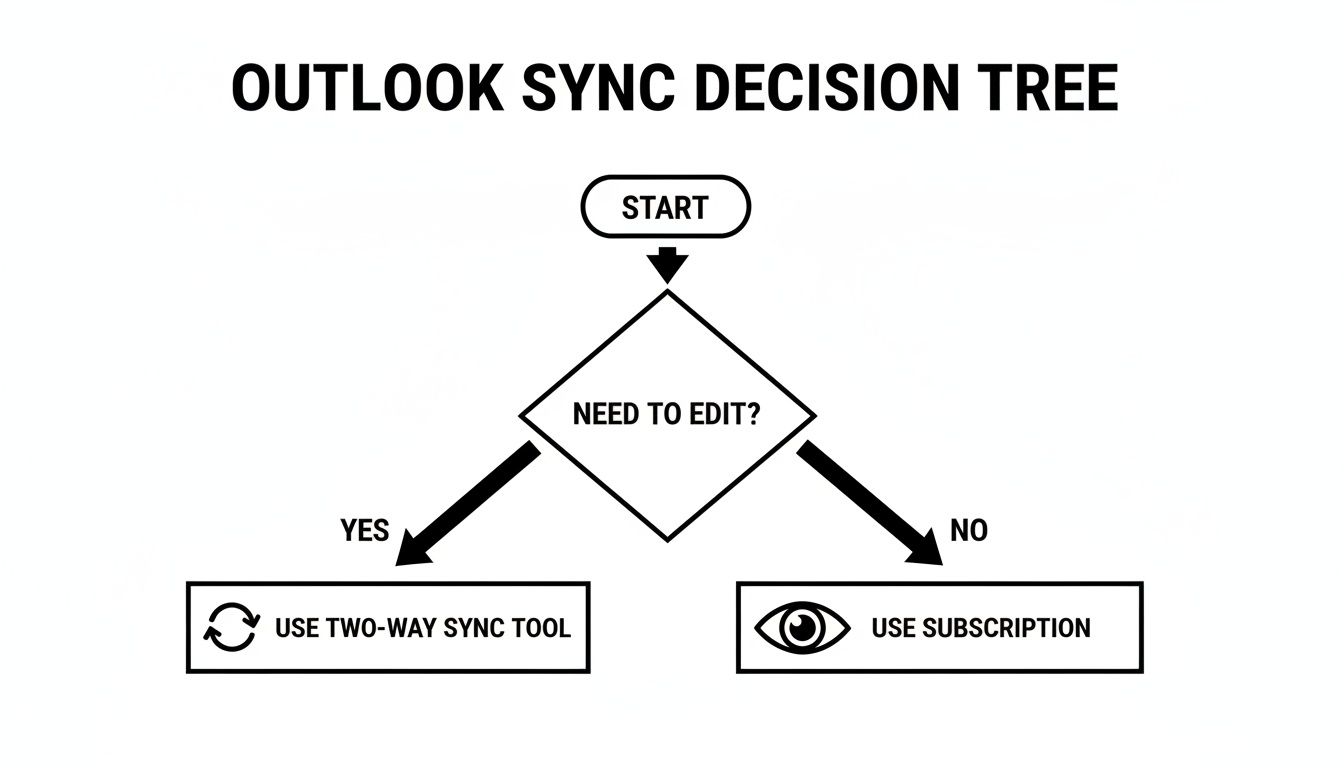
As the flowchart shows, if you absolutely must edit events from both calendars, a two-way sync tool is your only path forward.
For those who want to get even more sophisticated, exploring dedicated tools like Power Automate can unlock some seriously customised workflows between your calendars. And if you're ready to compare specific software, our detailed guide on the best Outlook to Google Calendar sync software is the perfect next step.
Comparison of Sync Methods
To help you decide, here’s a quick breakdown of the main methods we’ve discussed for getting your calendars to talk to each other.
| Method | Sync Direction | Setup Complexity | Cost | Best For |
|---|---|---|---|---|
| Calendar Subscription (One-Way) | One-Way (Read-only) | Low | Free | Simply viewing one calendar inside another without needing to edit events. |
| Third-Party Sync Tool (Two-Way) | Two-Way (Full edit) | Medium | Varies (Free to Paid) | Professionals needing to create, edit, and delete events from either calendar. |
| Unified Calendar View (e.g., Calendar0) | View-Only | Low | Varies | Seeing all calendars in one place to avoid double-booking, without a complex sync. |
Ultimately, the best method depends entirely on your workflow. If you just need to see your appointments, a simple subscription or a unified view tool is fine. But for true, interactive synchronisation, a third-party tool is the way to go.
Troubleshooting Common Sync Problems
Even when you follow the steps perfectly, the bridge between Outlook and Google can get a little shaky. It happens to the best of us. An outlook calendar sync to google can fail for all sorts of reasons, from expired permissions to simple network hiccups. Before you get too frustrated, just know that most of these issues are common and entirely fixable.
The biggest complaint I hear is that new or updated events just aren't showing up. If you're using the one-way subscription method, this is often just a patience game. Google can take several hours (sometimes up to 24) to refresh the calendar feed, so a delay is frustratingly normal. If you're using a third-party tool, your first and best move is to find the "force refresh" button in the app's settings.
Dealing with Duplicate Events
Seeing double is another major headache. Duplicate events usually pop up after you've re-established a broken connection or set up a new sync tool without first removing the old one. The sync service gets confused, thinks everything is new, and starts creating copies.
To fix this, you’ll need to do a bit of methodical clean-up:
- Pause the Sync: First thing's first, stop your sync tool from running. You need to stop the bleeding before it creates even more duplicates.
- Identify the Source: Figure out which calendar (Outlook or Google) is your "master" copy—the one with all the correct events.
- Clean the Clone: Now, carefully delete the duplicate entries from the other calendar. Many calendar apps have built-in tools to find and remove duplicates, which can save you a ton of time.
- Restart with Care: Once the clone calendar is clean, re-enable the sync. I'd recommend starting with a one-way sync from your master calendar to the other, just to make sure it populates correctly before you switch back to two-way.
This approach keeps the problem from spiralling out of control.
Authentication and Permission Errors
Sometimes the problem isn't the events themselves but the connection. You might see an error message about authentication or permissions. This usually just means the "token" your sync tool uses to access your account has expired, which is a normal security measure that happens every so often.
The solution here is straightforward: just head into your sync tool's settings and completely re-authorise its access to both your Google and Microsoft accounts. This generates a fresh, new token and almost always resolves the error instantly. Our detailed guide on various Google Calendar sync methods offers more insight into keeping these connections healthy.
A quick but critical note on troubleshooting: always manage your privacy settings correctly. When sharing your calendar, especially from a work account, double-check if you're sharing "full details" or just "free/busy" information. Choosing the latter is a simple way to prevent sensitive appointment details from becoming visible where they shouldn't be.
A Smarter Alternative to Syncing
After wrestling with one-way calendar subscriptions and clunky third-party tools, it becomes pretty clear that most methods for an outlook calendar sync to google are just a plaster on a bigger problem. They're all about copying, translating, and pushing data back and forth, which is a recipe for delays, errors, and privacy headaches. But what if you could skip the sync altogether?
This is where a more modern approach comes into play: unified calendar apps. Instead of trying to force Outlook and Google to merge their data, these tools simply show you everything in one clean, intelligent view. It’s a complete shift in thinking—from ‘syncing’ data to simply ‘viewing’ it all in one secure place.
The Power of a Unified View
Tools like our own, Calendar0, work on a simple but powerful idea. You securely connect your Google and Microsoft accounts using standard, safe authentication (OAuth), and the app reads your calendar data in real time. Crucially, nothing is copied from one calendar to another. Your work schedule stays on your work server, and your personal calendar stays on Google’s.
The magic happens in the app's interface, which layers all your events into one master schedule. This approach instantly solves the biggest problems with traditional syncing.
- No More Sync Delays: Changes show up immediately because the app is reading directly from the source.
- Zero Configuration Errors: There are no complex sync rules to set up or, more importantly, to break. You just connect your accounts and you're done.
- Keeps Your Privacy Intact: Details from your personal events are never copied onto your work calendar (and vice versa), which is a huge relief for anyone who values their privacy.
This method gives you a single source of truth for your time without all the technical baggage.
Beyond Viewing to Intelligent Scheduling
The real win here isn't just seeing everything at once—it's what you can do with that complete picture. A unified view is the foundation for smart scheduling features that a simple sync could never handle. Instead of battling sync issues, exploring integrated solutions like Pebb's new calendar feature could offer a much cleaner workflow.
For example, when you need to find a time to meet someone, a unified app knows your true availability across all your calendars. It sees the dentist appointment on your personal Google Calendar and the project deadline on your work Outlook calendar, stopping you from ever double-booking yourself again.
This shift from syncing to viewing is more than just a technical detail—it’s a genuine workflow upgrade. You move from passively managing copied event data to actively commanding your schedule with complete, real-time context.
This unified view in a tool like Calendar0 gives you a complete picture of your commitments across different accounts.
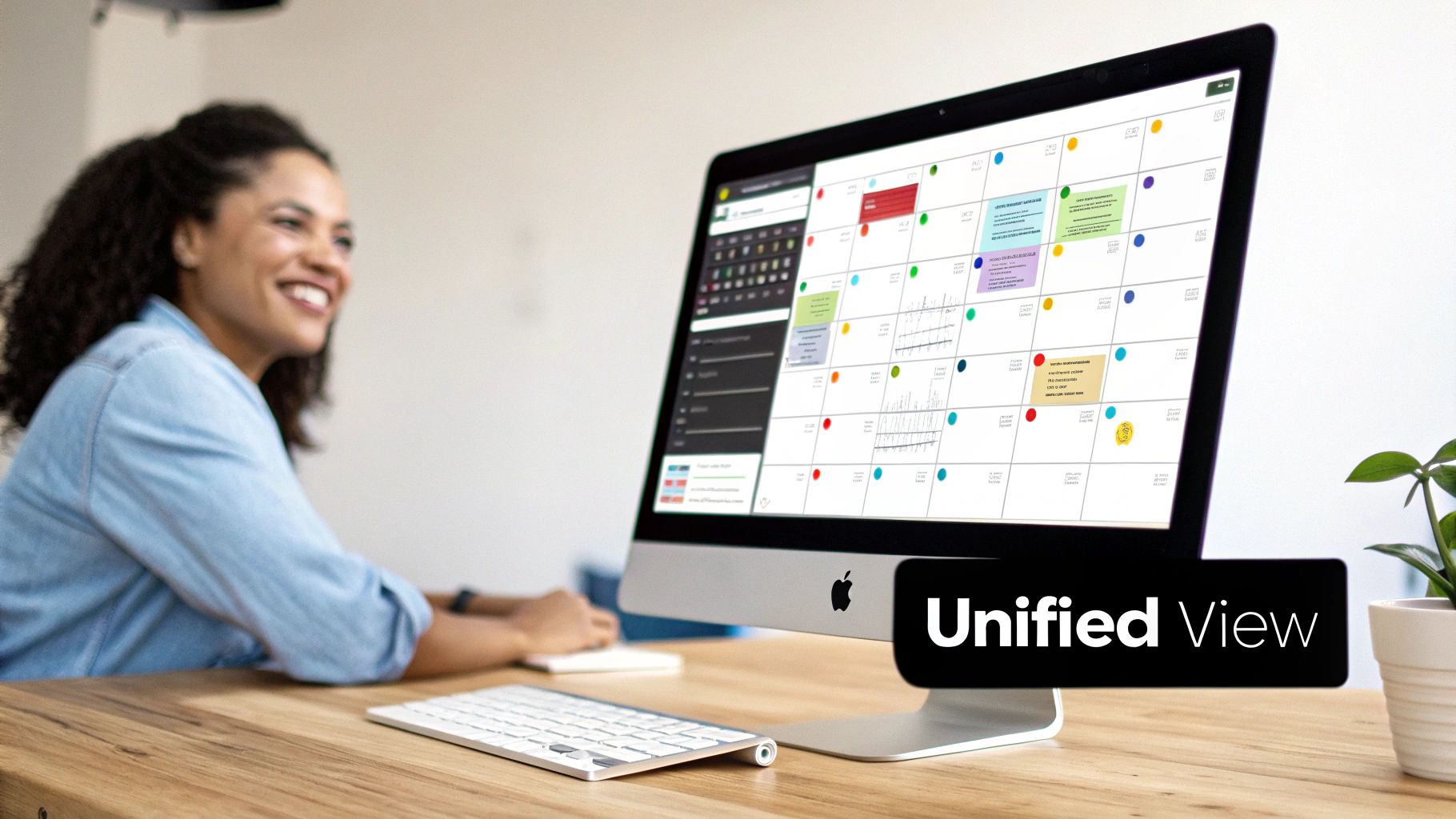
You can see how personal and work events from totally different calendars are seamlessly blended into a single timeline. For any professional who values speed, accuracy, and control over a packed schedule, this approach is fundamentally better.
A Few Common Questions
When you start digging into syncing Outlook with Google Calendar, a few questions always pop up. Getting these sorted out first can save you a ton of headaches and help you pick the right path from the get-go, especially when it comes to privacy and shared calendars.
Can I Get a True Real-Time, Two-Way Sync for Free?
Honestly, getting a perfect, instantaneous two-way sync without paying is nearly impossible.
You might find some open-source desktop apps that promise bidirectional syncing, but they aren't real-time. They refresh on a timer—say, every 15 or 30 minutes—and you usually have to keep the app running constantly for it to work at all.
The built-in calendar subscription method is free, sure, but it's notoriously slow. It's not unusual to wait hours for an event to show up, and sometimes it can take up to 24 hours. That's not practical for most people.
For a genuinely live experience where changes show up the second they're made, a unified view tool is your best bet. These apps don't "sync" in the traditional sense; they read directly from both calendars' APIs, so there’s no delay.
Will Syncing My Work Calendar Expose Private Details?
This is a huge—and valid—concern. The answer really boils down to the method you use.
If you publish your Outlook calendar using the subscription link, you get a critical choice. You can set it to share only your 'Free/Busy' status. This is the safest option by far, as it completely hides all meeting titles, attendees, and notes. No one sees the details, just that you're unavailable.
Third-party sync tools are usually secure if they use standard authentication like OAuth, but you are putting your data in their hands and trusting their privacy policy. A unified app is often a more secure alternative because it isn’t actually copying your event data from one account to another. It just displays everything in a private view on your device, keeping your work and personal calendars completely separate.
Do These Sync Methods Work with Shared Calendars?
This is a very common snag that catches a lot of people out. The simple, native subscription method is a no-go here. It typically only works for your main, primary calendar and won't pull in any shared or delegated calendars you have access to. For anyone working in a team, that’s a deal-breaker.
Some of the more advanced third-party tools might support shared calendars, but it often involves a complicated setup and can be a bit flaky. Unified calendar apps, on the other hand, are built for this. They're designed to connect to and display all the calendars you can access—primary, shared, and delegated—without any extra hassle.
Tired of fighting with sync delays and duplicate events? Calendar0 offers a smarter way. Instead of syncing, it unifies all your calendars into one view, giving you a perfect, real-time picture of your schedule. Schedule meetings, check availability, and manage your day without the headache. Get started for free at https://www.calendar0.app.

