Sync Your Outlook Calendar in iCloud Seamlessly
A practical guide to sync your Outlook calendar in iCloud. Learn proven methods for Windows, Mac, and iOS, with troubleshooting tips to keep you organized.

Calendar0 Team
December 1, 2025

Trying to manage your work life in Outlook and your personal life in iCloud can feel like spinning plates. The most straightforward way to get a single, clear view of everything you've got going on is to sync your Outlook calendar with iCloud. It stops you from double-booking yourself and just makes managing your time across all your devices a whole lot easier.
Why Bother Syncing Your Outlook Calendar to iCloud?
Juggling two separate calendars is practically asking for trouble. Missed appointments and scheduling mix-ups become the norm.
Picture this: a consultant manages their entire work schedule in Microsoft Outlook, but their personal life runs on their iPhone, which is completely tied to iCloud. Without a proper link between the two, they're constantly flipping between apps, copying events from one calendar to the other, or worse—completely forgetting a major client meeting because it wasn't visible next to their kid's football practice.
That separation just creates friction you don't need. When you get a unified view by pulling your Outlook calendar into iCloud, you get rid of the chaos. Suddenly, you have one place to see your entire day, week, and month.
The Real-World Benefits of a Unified Calendar
Connecting these two platforms brings some seriously practical wins:
- No More Double-Bookings: See all your work and personal commitments in one place. You’ll spot conflicts instantly, long before they become a problem.
- Simpler Time Management: Planning your personal time around work commitments becomes effortless when you aren't cross-referencing two different apps.
- Access Everything, Everywhere: Every important event, from a corporate webinar to a family dinner, is right there on any Apple device you pick up.
This quick breakdown shows if syncing is the right move for you.
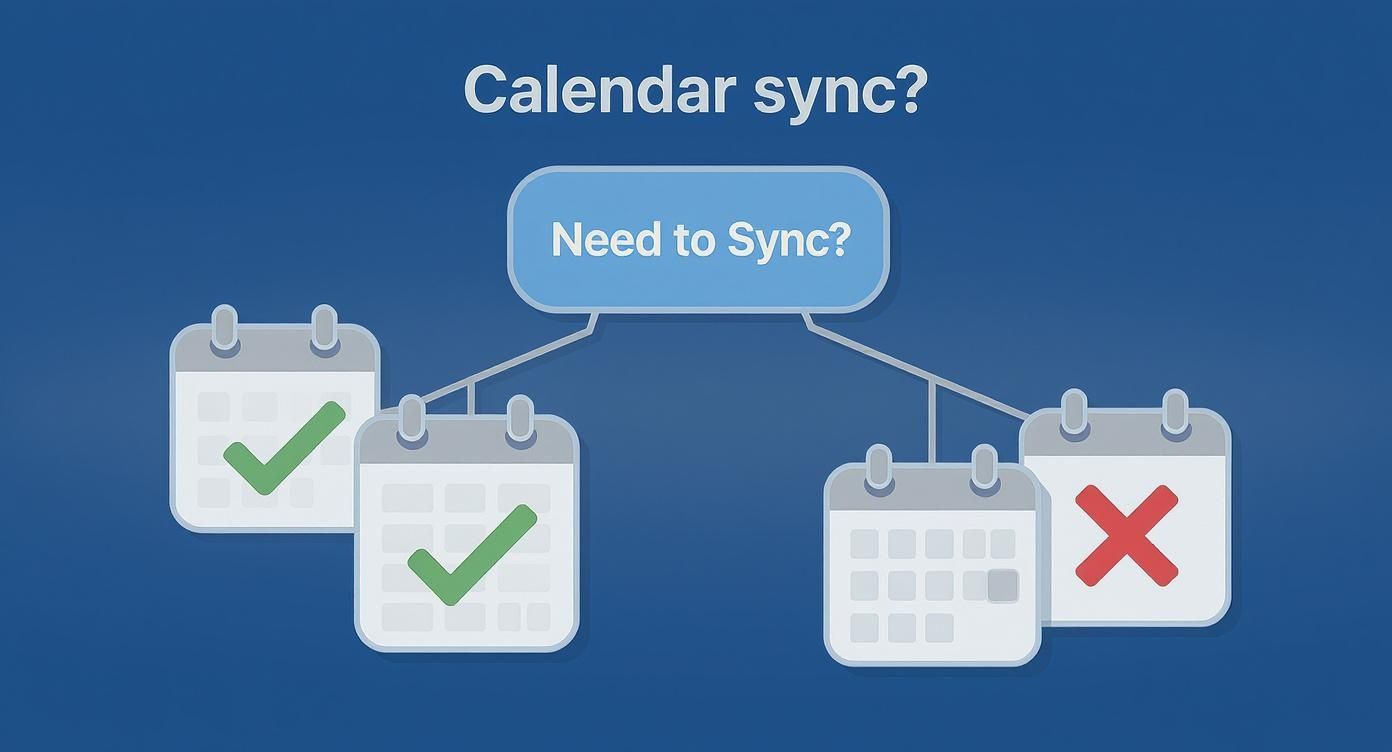
The visual makes it pretty clear: if you're using both platforms, syncing is the best way to avoid clashes.
The need for this kind of integration is only getting bigger, especially in the business world. In Germany, the cloud calendar market hit a value of around USD 299.9 million in 2024, and over 70% of businesses are using Outlook. Getting your calendar organised goes beyond just personal appointments; it can help with bigger company-wide efforts, like setting up a gifting calendar for employee milestones.
By syncing, you're essentially getting the dominant business tool to play nicely with your personal tech ecosystem.
Outlook and iCloud Calendar At a Glance
Before we dive into the "how-to," it's helpful to understand what each calendar does best. They were built with different primary goals in mind, which is why they don't always communicate seamlessly out of the box.
| Feature | Outlook Calendar | iCloud Calendar |
|---|---|---|
| Primary Use | Professional, corporate, and team collaboration. | Personal, family, and Apple ecosystem integration. |
| Best For | Scheduling complex meetings, resource management. | Simple event tracking, family sharing, device syncing. |
| Strengths | Deep integration with Microsoft 365, advanced features. | Seamless experience across iPhone, iPad, Mac, and Web. |
| Collaboration | Robust sharing and delegation for enterprise teams. | Basic calendar sharing with other iCloud users. |
| Platform | Strongest on Windows and Web, with good mobile apps. | Native to all Apple devices, with a functional web app. |
This table highlights the core differences. Outlook is a powerhouse for business, while iCloud is designed for the individual and family. Syncing them gives you the best of both worlds.
If you're a Windows user, the most direct and official way to get your Outlook and iCloud calendars to play nice is by using Apple's own tool: iCloud for Windows. It’s designed specifically to build that bridge, saving you from any manual syncing headaches. Honestly, it's the cleanest path to getting a unified calendar on your PC.
First things first, you'll need to grab the application from the Microsoft Store. Once it's installed, the app will ask you to sign in with your Apple ID. This is the key step that gives your Windows machine permission to connect with your Apple account, establishing a secure link for the sync to happen.
Dialling in the Sync Settings
After you sign in, iCloud for Windows opens up a control panel with a few different toggles. To get your calendars talking, you only need to focus on one of them.
You’ll see options for iCloud Photos, Drive, and Bookmarks. The one you’re looking for is Mail, Contacts, and Calendars. Make sure that box is checked. Clicking the "Apply" button tells the app to kick off the integration with Microsoft Outlook on your computer.
That one click is what tells iCloud to start sharing its data with Outlook and for Outlook to share back.
This method creates a true two-way sync. That means if you add a work meeting in your Outlook desktop app, it’ll pop up on your iPhone's calendar. And if you add a doctor's appointment on your iPhone, you'll see it in Outlook on your Windows PC. It just works.
Here’s what that interface looks like. You just need to make sure the right box is ticked before you proceed.

The trick is to ensure 'Mail, Contacts, and Calendars with Outlook' is selected. Then, hit Apply.
Getting the iCloud Add-in Fired Up in Outlook
Most of the time, after you click "Apply," Outlook figures things out on its own. But sometimes, the connection needs a little nudge. If you open Outlook and don’t see your iCloud calendar, it's probably because the iCloud Add-in didn't switch on automatically.
It’s an easy fix. You just need to dive into Outlook’s settings:
- In Outlook, head to File > Options.
- From the window that pops up, click the Add-ins tab on the left.
- Down at the bottom, make sure "COM Add-ins" is selected next to "Manage," and then click Go.
- A list of add-ins will appear. Find the "iCloud Outlook Add-in" and check the box next to it.
- Click OK, then give Outlook a quick restart.
This simple check usually solves any initial sync problems right away. Your iCloud calendar should now show up as a separate calendar within Outlook, ready for action. And if you're trying to do the opposite, our guide on getting your iCloud calendar into Outlook has more specific tips for that workflow.
This whole process does a great job of transferring all the important stuff—event titles, locations, times, and notes. Just be aware that some of the more complex, Outlook-specific features like custom categories or follow-up flags might not carry over perfectly to iCloud. But for 99% of day-to-day scheduling, this direct integration is a rock-solid solution for Windows users.
Connecting Outlook and iCloud Natively on a Mac
If you're a Mac user, you're in luck. Connecting your Outlook calendar to iCloud doesn't demand any third-party apps or complicated workarounds. macOS has a powerful, built-in feature that elegantly bridges the gap between your work and personal schedules, all within the native Apple Calendar app.
The whole process is refreshingly straightforward. You simply add your Microsoft Exchange or Outlook.com account directly into your Mac’s System Settings. Once that's done, your Outlook calendar events will pop up right alongside your iCloud appointments, giving you that unified view we're all after.
Adding Your Microsoft Account in System Settings
It all starts in your Mac's System Settings. This is the central hub where you manage all the online accounts linked to your computer—email, contacts, and, of course, calendars.
This is where you'll give your Mac permission to access your Microsoft account data. The great part is that the system handles the secure connection behind the scenes, so you don't have to fiddle with obscure server settings.
- First, open System Settings on your Mac (you might remember it as System Preferences).
- In the left-hand menu, scroll down and find Internet Accounts. Give that a click.
- From the list of providers, choose Microsoft Exchange. If you’re using a personal account like one from @outlook.com or @hotmail.com, you can often just select Outlook.com directly.
This screen is your command centre for linking external accounts to your Mac's native apps.
After picking your account type, you'll be asked for your email and password. If your company enforces two-factor authentication (2FA), don't worry—you'll just be guided through Microsoft’s standard sign-in and verification flow.
Ensuring Your Calendar Sync is Active
Once your account is successfully authenticated, macOS will show you a checklist of services you can sync: Mail, Contacts, Notes, and the one we care about, Calendars.
The crucial step to get your Outlook calendar in iCloud (or more accurately, visible next to it) is to make sure the 'Calendars' checkbox is ticked. This one simple action tells your Mac to start pulling in all your Outlook events and display them in the Apple Calendar app.
What's really powerful about this native integration is that it creates a true two-way sync.
An event added to your Outlook calendar on your work PC will automatically show up on your Mac and iPhone. And it works the other way, too. If you add a work meeting using the Calendar app on your Mac, it syncs right back to your official Outlook account. It's a clean, seamless way to manage everything without installing a single extra app.
How to Subscribe to an Outlook Calendar from iCloud
What happens when you just need to see an Outlook calendar inside your iCloud setup, but can't (or don't want to) add the full account? Maybe you're on a locked-down work computer or just want a clean, one-way view of a team's schedule.
This is where a calendar subscription comes in. It’s a surprisingly powerful and often overlooked trick. Essentially, you create a special web link for your Outlook calendar and "subscribe" to it from iCloud. This gives you a live, read-only version of the Outlook calendar that sits right alongside your personal events.
Think of it like getting a live feed of someone else's schedule without any complicated permissions or software installs.
First, Grab the Calendar Link from Outlook
Before you can do anything in iCloud, you need the special shareable link from your Outlook calendar. This all happens within your Outlook on the web account.
You’ll head into your calendar settings, find the sharing options, and tell Outlook to publish it. This generates a unique URL (an .ics link) that acts as a key for iCloud to access the calendar data.
- First, log in to your Outlook.com or Microsoft 365 account in a web browser.
- Click the Settings gear icon, then head to Calendar, and find the Shared calendars section.
- Look for "Publish a calendar," and from the dropdown, pick the specific calendar you want to share.
- Make sure you set the permissions to "Can view all details," then hit Publish.
Outlook will then generate two links. The one you need is the ICS link. Copy it carefully—this is what you’ll be pasting into iCloud.
Keep in mind this is a one-way sync. You'll see all the appointments from the Outlook calendar, but you can't create new ones, edit them, or delete anything from inside iCloud. It's built for passive viewing, which is perfect for things like tracking a project timeline or keeping an eye on a family member's schedule.
Next, Add the Subscription to iCloud
With your unique .ics link copied and ready to go, it's time to jump over to iCloud.com.
You're basically telling iCloud to "subscribe" to this URL. From now on, iCloud will periodically check that link for any new or updated events and pull them right into your calendar view. It’s a clean and simple way to merge schedules without any back-and-forth fuss.
Here’s how to finish the job:
- Log into iCloud.com and open the Calendar app.
- In the bottom-left of the sidebar, click the little calendar sharing icon (it looks a bit like a Wi-Fi signal).
- Choose New Subscription from the menu.
- A box will pop up. Paste the ICS link you copied from Outlook into the "Calendar URL" field and click Subscribe.
Once you've done that, iCloud will let you give the new calendar a custom name and even assign it a different colour. This is a huge help for visually separating your personal appointments from the subscribed Outlook calendar in iCloud.
This subscription method is one of the most straightforward ways to get view-only access. But if you're exploring other ways to connect different calendar systems, understanding the underlying protocols can be useful. For instance, you can learn more about how Outlook CalDAV sync works in our detailed guide.
Troubleshooting Common Calendar Sync Issues
Even with a perfect setup, technology has its moments. When your Outlook calendar and iCloud stop talking to each other, it can throw your whole day into chaos. Don't panic—most sync issues are fixable with a bit of methodical troubleshooting.
Instead of randomly clicking buttons, let's walk through a checklist to figure out what's gone wrong. More often than not, the fix is much simpler than you think. We'll cover everything from the dead-simple checks to more specific resets for those really stubborn errors.
The goal here is simple: get your unified calendar back online so you can get on with your day.
Start With the Sync Fundamentals
Before you start tearing apart your settings, always check the basics first. You’d be surprised how many "major" sync problems are solved by one of these simple steps.
- Stable Internet Connection: A spotty Wi-Fi or mobile connection is the number one culprit. Both Outlook and iCloud need a solid connection to trade information, so make sure all your devices are properly online.
- Software Updates Are Current: Old software can cause all sorts of weird compatibility glitches. Take a minute to check for and install the latest updates for iOS, macOS, Windows, your Outlook app, and iCloud for Windows.
- Correct Account Credentials: Did you change your Apple ID or Microsoft password recently? That will break the sync instantly. Double-check that you’re signed in correctly on every app and device involved.
Think of these three steps as your first line of defence. If that event you just added on your phone isn't showing up on your PC, run through this quick list first.
Resolving More Persistent Sync Glitches
If the basics don't do the trick, it's time to dig a little deeper. Sometimes, the digital handshake between the services just needs a manual refresh to clear out corrupted data or a faulty setting.
One of the most common hangups on Windows is a disabled or glitchy iCloud Add-in for Outlook. This little piece of software is the bridge that lets the two platforms communicate. If it gets turned off, the sync stops dead in its tracks.
To check on it, head into Outlook's File > Options > Add-ins. At the bottom, select "COM Add-ins" from the dropdown and click Go. Make sure the "iCloud Outlook Add-in" box is ticked. If it already is, try un-ticking it, restarting Outlook, and then ticking it again. This little toggle often forces a complete reset.
A classic sign of sync trouble is seeing duplicate calendar entries pop up. This usually happens when a device tries to re-sync events that are already there. The easiest fix is often to just disable the calendar sync, delete the duplicate calendar from one device, and then turn the sync back on to pull in a fresh, clean copy.
When to Force a Calendar Refresh
Sometimes the server has the right information, but your local app just hasn't gotten the memo. Forcing a refresh can nudge it along.
- On iPhone/iPad: Pop open the Calendar app and tap "Calendars" at the bottom. Simply pull down on the list to trigger a manual refresh.
- On Outlook Desktop: Go to the "Send / Receive" tab and click the big "Send/Receive All Folders" button. This kicks off a manual sync cycle for everything.
Authentication errors can also be a real headache, especially as security gets tighter. Microsoft has been shifting away from old-school app-specific passwords toward modern authentication (OAuth 2.0). If you keep getting pestered for a password, it might mean your version of Outlook needs an update to support this more secure sign-in method. For more on this, especially if you're wrangling calendars shared by colleagues, you can find great info in our detailed article about managing shared calendars in Outlook.
By working through these steps methodically, you can track down and fix the vast majority of issues keeping your Outlook calendar in iCloud from working seamlessly.
Got Questions About Syncing Your Calendars? We’ve Got Answers
Even with the best instructions, you can hit a few snags. It’s completely normal. Let’s walk through some of the most common questions and pain points that pop up when you’re trying to get your Outlook calendar and iCloud to play nicely together.
I'll give you straight, practical answers to help you figure out the limits of each method and pick the best route for your specific setup.
Can I Get a Two-Way Sync on Windows Without Extra Software?
Here’s the deal: for a genuine, automatic two-way sync between the Outlook desktop app and iCloud on a Windows PC, Apple's official 'iCloud for Windows' app is your best bet. It’s literally built by Apple to create that direct bridge.
Some third-party tools claim to do the job, but they can be a mixed bag, sometimes introducing security risks or locking you into a subscription. And the calendar subscription method we covered earlier? That’s only a one-way street—it gives you a read-only view, and that’s it.
To put it simply: if you need to create and edit events in the Outlook desktop program and have them show up in iCloud (and vice-versa) on a Windows computer, you really need the dedicated software from Apple.
Why Do My Outlook Meeting Invitations Look Weird in iCloud?
This is a classic problem, and it almost always comes down to a compatibility hiccup. Outlook and iCloud sometimes speak slightly different digital languages, causing invitations to get lost in translation.
The best first step is to dive into your Outlook settings. Make sure it's sending meeting requests in the universally recognised iCalendar (iCal) format. You should also check that the iCloud add-in for Outlook is fully updated, as old versions can cause all sorts of gremlins.
If you’re still having trouble, the most reliable workaround is to just accept the invitation directly within the Outlook app itself. Once you accept it there, the event should sync over to iCloud as a standard, confirmed appointment without any formatting weirdness.
How Often Does a Subscribed Calendar Actually Update?
This is a huge point of confusion for a lot of people. When you subscribe to an Outlook calendar in iCloud using the ICS link, the update frequency is controlled entirely by Apple, not by you or Outlook.
Apple doesn’t publish an exact refresh schedule, but from what I’ve seen, updates tend to happen every few hours. The key takeaway is that they are not instantaneous.
If you rely on your calendar for a fast-moving schedule where every minute counts, you’ll want a direct account integration instead. That means using methods like:
- The iCloud for Windows app for a true two-way sync.
- Adding your Exchange or Outlook.com account directly to your Mac or iPhone.
The subscription method is fantastic for less time-sensitive calendars—think team holiday schedules or long-term project timelines—but it just isn't built for minute-by-minute accuracy.
Managing multiple calendars doesn't have to be a chore. Calendar0 unifies your Google and Microsoft schedules into one intelligent view, using AI to schedule meetings with natural language. Stop the back-and-forth and reclaim your time. Get started with Calendar0 for free.

