Master Notion Time Tracking A Practical Guide
Unlock productivity with our guide to Notion time tracking. Build a powerful, automated system from scratch to manage projects and boost efficiency.

Calendar0 Team
November 28, 2025

Keeping your time tracking inside Notion isn’t just about convenience; it’s about creating a single source of truth. When your tasks, projects, and the hours you pour into them all live in the same space, you stop juggling apps and start connecting your work to your time in a meaningful way.
Why Track Time Directly in Notion
The single biggest win of building a Notion time tracking system is context. Standalone apps can tell you how long you worked, but Notion can tell you why.
Your time logs become just another database, ready to be linked to everything else—client projects, internal tasks, meeting notes, even your personal goals. This creates a powerful, interconnected web of data that a separate time tracker simply can't touch.
Picture this: you're a freelance designer. Instead of clocking hours in a separate tool and then trying to match them to deliverables later, you log time right on the task page in Notion. Instantly, that entry is tied to the client's project, the specific design brief, and all the related feedback. No more guesswork or painful manual reconciliation at the end of the month.
Unlocking Deeper Insights
When your time tracking lives inside your main workspace, you get an immediate, honest look at project health and your own productivity.
For an agency, a manager can glance at a project's main page and see a real-time rollup of hours, instantly checking budget consumption. For an individual, it’s about finally seeing how much time is really spent on deep work versus getting sucked into admin tasks.
This brings some very real benefits to the table:
- Less App-Hopping: Cutting out the constant shuffle between your project manager and a time tracker saves mental energy and removes friction. It just makes you more likely to actually track your time consistently.
- Real Cost Savings: By consolidating tools, you can often ditch a paid subscription for dedicated time tracking software. It simplifies your tech stack and your expenses.
- A Truly Holistic View: You can analyse not just where your time goes, but how that time directly impacts project progress, client profitability, and your team's overall capacity.
The real magic of Notion time tracking isn't just logging hours; it's about understanding the story your time tells. When you see exactly how many hours that 'quick fix' actually took, you start planning and estimating future work with a whole new level of accuracy.
Gaining Control Over Your Digital Habits
Ultimately, this kind of detailed tracking gives you a crystal-clear picture of your digital life. You’re not just guessing anymore.
By meticulously logging your hours in Notion, you gather invaluable data on your habits. This empowers you to implement effective strategies to reduce screen time and build healthier boundaries with your devices.
While many of the best planning apps have great scheduling features, integrating time tracking directly within Notion provides a unique layer of granular insight. It turns a simple log into a powerful tool for both self-improvement and smarter business operations.
Alright, let's get into the bones of this Notion time tracking system.
The magic isn't in some massive, all-in-one database. That just gets clunky. The real power comes from setting up two simple databases that talk to each other. This is the secret to getting clean reports and automated calculations without pulling your hair out.
We're going to build a Projects database and a Time Log database.
The Projects database is your command centre. Think of it as the file folder for each client or major initiative. It holds the big-picture stuff: budgets, deadlines, and overall status.
The Time Log is where the daily grind happens. Every entry is a specific chunk of time spent on a specific task. Simple as that.
This relational approach isn't just a neat trick; it's become the standard for a reason. It turns a simple workspace into a dynamic reporting tool. In fact, a 2024 study from the German Institute for Economic Research (DIW Berlin) found that Notion use for time tracking in German startups has jumped by 45% since 2020.
The real kicker? 59% of them are using this exact relational method to manage their resources, leading to a 23% improvement in hitting project deadlines. If you're curious, you can dig into the full DIW Berlin study on startup efficiency here.
Creating Your Projects Database
First things first, let's build your Projects database.
Just create a new full-page database and call it Projects. This is where you'll see everything at a 30,000-foot view. The properties you add here are the foundation for all the cool rollups we'll do later.
Start with just the essentials:
- Project Name (Title): The default property. Give your projects clear names like "Q3 Marketing Campaign" or "Website Redesign - Client X".
- Status (Select): This is for tracking the project's lifecycle. I use options like
Not Started,In Progress,On Hold, andCompleted. - Client (Text or Select): Super handy for filtering your dashboard, especially if you're juggling multiple clients.
- Deadline (Date): The final due date for the whole project.
That's it for now. This clean setup gives you a high-level overview. Later, we’ll come back here to add Rollup properties that automatically pull in your time data.
Setting Up the Time Log Database
Next up is your Time Log. Create another full-page database and name it Time Log. This is your digital timesheet, where every entry is a time-stamped record of work.
Here’s what you need to add:
- Task Name (Title): A short, punchy description of what you did. Think "Drafting social media copy" or "Fixing login bug".
- Date (Date): The day you did the work.
- Start Time (Date): Use the Date property, but make sure to flip the "Include time" toggle on. This is where you punch in.
- End Time (Date): Same deal as the start time, with the time included. This is you punching out.
- Project (Relation): This is the most critical piece. You need to create a Relation property and link it back to your
Projectsdatabase. This is what tells Notion, "Hey, this chunk of time belongs to that project."
Pro Tip: When you're setting up the
Relation, Notion will ask if you want to "Show on Projects". Absolutely say yes. This creates a backlink on yourProjectspage, letting you see every single time entry for that project in one click. It's a game-changer.
Single vs Relational Databases: Which Is Right for You?
So, why go to the trouble of two databases? While the relational model is incredibly powerful, I'll admit a single, all-in-one database can work if your needs are super basic.
Let's break down the difference so you can decide for yourself.
Time Tracking Setup Comparison: Single vs Relational Database
| Feature | Single Database (All-in-One) | Relational Databases (Projects + Time Log) |
|---|---|---|
| Simplicity | Very easy to set up. All projects and tasks live in one place. | Requires an extra step to link two databases, but it's far more organised long-term. |
| Scalability | Gets messy and slow fast. A nightmare to manage with lots of projects. | Highly scalable. Keeps projects and individual time entries neatly separated. |
| Reporting | Pretty limited. You can filter and sort, but good luck summing hours per project. | Unlocks powerful Rollup summaries for total hours, billable amounts, and more. |
| Best For | Solo users tracking personal tasks or maybe one simple project. | Freelancers, agencies, and teams managing multiple clients or complex workstreams. |
For anyone serious about building a proper Notion time tracking system, the relational setup is the only way to go. It gives you the solid foundation we need for the powerful formulas and automations we're about to build.
Automating Calculations with Formulas and Rollups
Alright, this is where the magic happens. With your databases connected, you can officially stop doing manual maths and let Notion do the heavy lifting. This is the whole reason we're building an integrated Notion time tracking system in the first place—to turn raw data into useful insights without you having to touch a calculator.
We’ll kick things off by creating a formula in the Time Log database that calculates the duration of each entry automatically. This one step will save you from the most tedious part of tracking your time.
After that, we'll jump over to the Projects database and set up a Rollup. Think of a Rollup as a special property that peeks into your Time Log, finds all the entries related to a specific project, and runs calculations on them, like adding up the total hours.
Calculating Duration with a Simple Formula
Let's start in your Time Log database. Add a new property, but this time, choose Formula from the list. Go ahead and name it something like “Duration (Mins)”.
This formula is designed to figure out the difference between the End Time and Start Time, giving you a clean result in minutes.
Click inside the formula box and pop this in:
dateBetween(prop("End Time"), prop("Start Time"), "minutes")
So, what’s going on here? The dateBetween() function is one of Notion’s most practical tools. It simply measures the time that has passed between two date properties. We're telling it to look at our End Time and Start Time and show the difference in minutes. Easy.
The diagram below shows exactly how this data flows. Your individual time entries are constantly feeding information back into your main projects database.
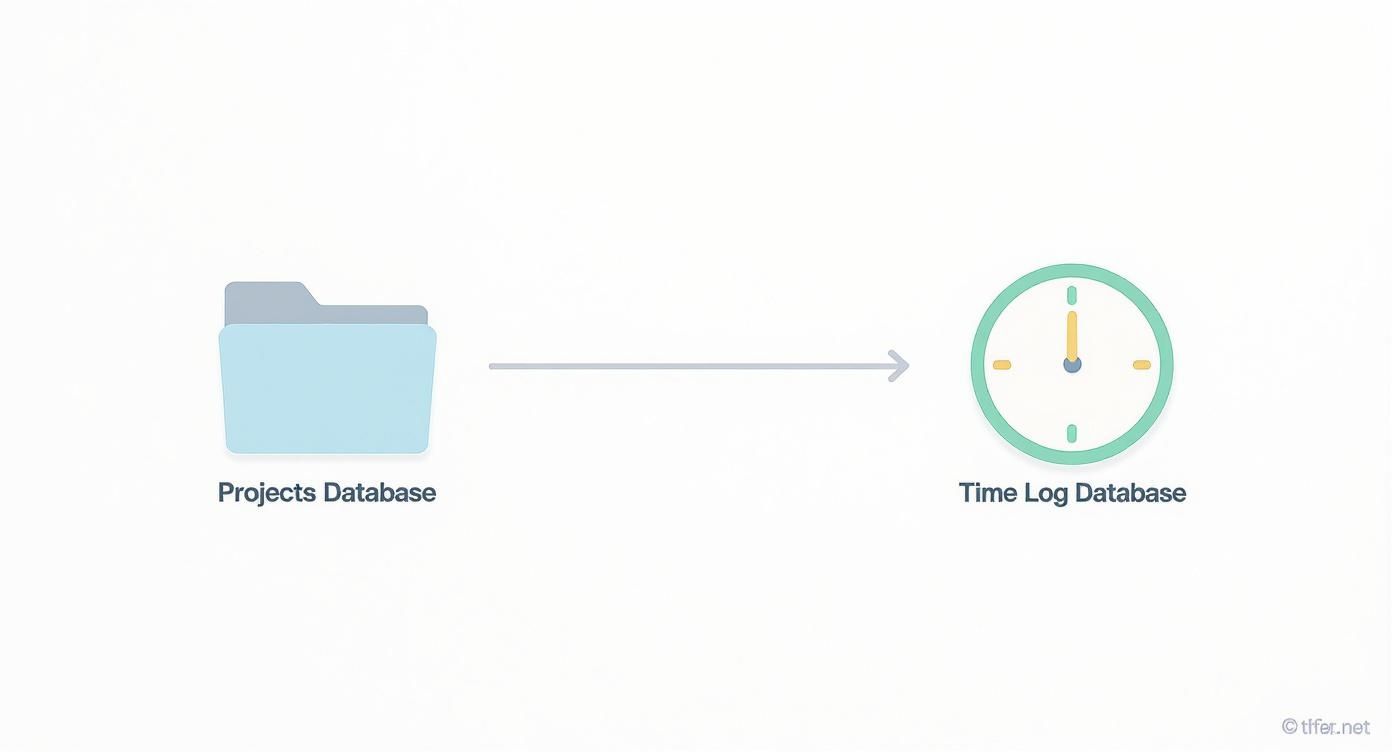
This relationship is what makes the powerful calculations possible. From now on, whenever you fill in a start and end time, the duration will calculate itself instantly.
Summing Total Hours with a Rollup
Now that every time log entry knows its own duration, let’s pull all of that information up into your Projects database. This is how you get that crucial bird's-eye view of where your time is actually going.
Head back over to your Projects database.
- Add a new property and select
Rollup. - Name this one "Total Hours".
- For the
Relationsetting, pick yourTime Logdatabase. - For
Property, find and select the “Duration (Mins)” formula we just created. - And for the final
Calculateoption, choose Sum.
Just like that, the Rollup will tally up the duration from every single time entry linked to that project. Since our result is still in minutes, we can clean it up later, but the core calculation is done.
The combination of
RelationandRollupproperties is the real engine behind any advanced Notion dashboard. It’s what allows separate databases to talk to each other and summarise information on the fly.
Calculating Billable Revenue
Why stop there? Let's turn this time tracker into a simple invoicing tool. First, in your Projects database, add a Number property called "Hourly Rate". Be sure to format it as your preferred currency.
Now, create one last Formula property and name it "Total Billable". In the formula editor, paste this little snippet:
prop("Total Hours") / 60 * prop("Hourly Rate")
This formula is straightforward: it takes the total minutes from our Rollup, divides by 60 to get the hours, and then multiplies that by the hourly rate you’ve set for the project.
And there you have it. Your project dashboard now shows you not just the total time spent, but also the real-time invoice amount. You've built a system that tracks your effort and calculates your revenue, all in one place.
Making Your Workflow Seamless with Buttons and Templates

Let's be honest: manual data entry is the biggest reason time tracking fails. A brilliant Notion time tracking system is useless if you don't actually use it. The key to consistency is making the process so easy it becomes second nature.
This is where Notion’s buttons and templates come in. They turn a tedious, multi-step chore into a single, satisfying click. Instead of building a new time log from scratch every time, a well-designed template does all the heavy lifting for you, ensuring your data is clean and consistent with zero friction.
Creating a Smart Time Log Template
Head into your Time Log database. See that little blue "New" button? Click the dropdown arrow next to it and select "+ New template". This gives you a blank canvas that will become the blueprint for every time entry from now on. Let's call it "New Time Entry".
Here’s where you can pre-load some properties to save yourself future clicks:
- Assignee: The simplest win. Set the "Person" property to automatically tag yourself. In a team setting, this is a lifesaver.
- Default Status: Got a status property like
In ProgressorCompleted? Set the default toIn Progressso it’s ready to go.
Now, every time you fire up this template, those fields are already sorted. It feels like a tiny change, but those seconds saved add up massively across a week. If you want to get a head start, checking out some quality free Notion templates can give you a solid foundation to build upon.
Building One-Click Start and End Buttons
The real magic happens when you bring Notion's Button feature into the mix. Buttons let you string together a series of actions, effectively creating a "Start Timer" and "End Timer" function right on your main dashboard.
Picture a button you’ve labelled "Start New Task". When you click it, you can set it up to do several things at once:
- Add a new page to your
Time Logdatabase. - Apply the template we just made ("New Time Entry").
- Set the
Start Timeproperty to "Now," instantly grabbing the current timestamp.
That’s it. You’ve just eliminated almost all the manual work. Click the button, and you can get straight to the task at hand. This kind of dead-simple automation is why so many people are switching to digital tools for time management.
It’s not just a hunch, either. A 2023 survey in Germany found that 42% of small and medium-sized businesses are now using cloud platforms for time management. Companies using Notion for time tracking have seen a 17% average jump in productivity, and 61% said automated features slashed their admin workload.
You can set up an "End Timer" button to work just as smoothly. This button would be configured to "Edit pages in..." your Time Log database. You’d simply add a filter to find the entry where the End Time is still empty and the Assignee is you. The button's one job? Edit that page and set the End Time property to "Now".
This button-driven approach transforms your Notion workspace from a static page into a living, breathing time tracker. It makes the whole process feel completely integrated into your day, not a chore you have to remember to do.
Bringing in Your Favourite Tools for Smarter Automation

While the native Notion system we've built is powerful, you don't have to ditch the external tools you already know and love. Let's be honest, dedicated time trackers like Toggl or Clockify have features that Notion just can't replicate. The good news? You can connect them to create a best-of-both-worlds setup.
This is where automation platforms like Zapier or Make.com really shine. Think of them as the glue between your apps, letting them talk to each other without you lifting a finger. It's the perfect way to centralise all your data in Notion without completely overhauling a workflow that already works for you.
A classic example is a simple rule: when a new time entry is logged in Toggl, it automatically creates a new row in your Notion Time Log database. The important details—task name, duration, project—are mapped over seamlessly. No more double-entry.
Bridging Your Calendar and Your Time Log
Another absolute game-changer is hooking up your calendar to Notion. For most of us, Google Calendar is the source of truth for our day. You can set up an automation that turns your scheduled events into draft time log entries.
This means that one-hour client call on your calendar can automatically show up as a one-hour entry in Notion, just waiting for you to confirm and add details. It's a brilliant way to get a head start on tracking your time, especially on those back-to-back meeting days.
By syncing your tools, you build a far more resilient and accurate Notion time tracking system. It guarantees that no matter where you log your time—a mobile app, a browser extension, or your calendar—it all finds its way back to your central dashboard for a complete picture.
This kind of connectivity isn't just a nice-to-have. A 2022 study by BITKOM, the German digital association, found that 68% of Notion users in Germany felt integrations improved their data accuracy and simplified their workflows. You can dive into more of the findings from the German digital association BITKOM here.
Setting Up a Simple Integration in a Few Clicks
Let's walk through a real-world example using Zapier to connect Toggl and Notion. It's surprisingly straightforward.
- Set Your Trigger: In Zapier, the trigger will be "New Time Entry in Toggl". This just tells Zapier to watch for when you finish tracking time in the Toggl app.
- Define the Action: The corresponding action will be "Create Database Item in Notion". Simple enough.
- Map Your Fields: This is where the magic happens. You’ll tell Zapier how to translate the data. Map the "Description" from Toggl to your "Task Name" property in Notion. Do the same for the "Start" and "End" times, connecting them to the right date properties in your Notion database.
- Flip the Switch: Once you’ve matched everything up, you can run a quick test and turn on your new "Zap".
That’s it. This small setup ensures every minute you track is automatically logged in Notion. And while we've focused on Google Calendar, the same logic applies if you need to sync Outlook into your Google Calendar first to get everything in one place.
Common Questions About Notion Time Tracking
As you start piecing together your own Notion time tracking system, you'll inevitably run into a few practical questions. Does this even work on my phone? Can my whole team use it? And is my time data actually safe?
Let's get those sorted out.
Can I Track Time on Mobile?
Yes, absolutely—though you'll want to be smart about it. The standard Notion mobile app gives you full access to your databases, so you can always tap in and manually enter start and end times. A simple checkbox to mark a timer as "running" works in a pinch, too.
But the real magic for mobile is using Notion's buttons. I recommend setting up a mobile-friendly dashboard page with your "Start Timer" and "End Timer" buttons front and centre. This gives you that satisfying one-tap experience without fumbling through tiny database views on your phone.
Is This System Suitable for Teams?
For small to mid-sized teams, a native Notion setup can work surprisingly well. The trick is to add a "Person" property to your Time Log database. This lets everyone assign entries to themselves, making it dead simple to filter and see who's worked on what.
It starts to creak at the seams with larger teams or more complex needs, though. Notion just doesn't have built-in approval workflows, granular permissions for time entries, or the kind of heavy-duty reporting you'd get from dedicated software.
If your team is hitting that point where you need budget tracking against payroll, automated reminders, and tight controls, you're better off integrating a tool like Toggl or Clockify. You can keep your data neatly centralised in Notion while leaning on a specialised platform for the heavy lifting.
How Secure Is My Time Tracking Data?
This is a big one, especially if you're logging hours for sensitive client work. The short answer is that your data in Notion is as secure as your account. Notion has solid security measures in place, but you have to do your part.
To keep your workspace locked down, make sure you're following these best practices:
- Use a strong, unique password. No reusing the one from your old MySpace account.
- Turn on two-factor authentication (2FA). It's a tiny bit of hassle for a huge security boost.
- Be picky with sharing permissions. Only give access to people you trust, and only to the pages they truly need.
By being diligent with your workspace hygiene, you can keep things plenty secure. For anyone with extra concerns about privacy, it's worth exploring what makes a truly secure task manager to ensure your tools align with your needs.
Ready to stop wasting time on calendar admin? Calendar0 is an AI menubar calendar that eliminates scheduling friction, finds meeting times instantly, and lets you manage your entire day with natural language commands. Professionals save an average of 20 minutes every day. Get started with Calendar0 for free.

