Mastering Microsoft 365 Planner for Team Productivity
Discover how to use Microsoft 365 Planner to organize tasks, improve team collaboration, and streamline your entire project workflow with this practical guide.

Calendar0 Team
December 10, 2025

Is your team's project work buried under mountains of email chains and a patchwork of spreadsheets? If that sounds familiar, you're not alone. This is exactly the kind of disorganisation Microsoft 365 Planner was built to solve. Think of it as a shared digital command centre for your projects, turning messy workflows into a crystal-clear visual system where every task has an owner and a deadline.
Bringing Order to Team Chaos with Microsoft 365 Planner
For so many teams, trying to manage a project feels like piecing together a puzzle with half the pieces missing. Crucial information is stuck in someone's inbox, action items are lost in meeting notes, and progress is tracked on three different spreadsheets. It's a fragmented approach that breeds confusion, kills momentum, and makes it impossible to know who’s doing what.
Microsoft 365 Planner steps in to bring all those scattered pieces together on one board. It becomes the single source of truth that organises teamwork in a way that’s visual and just makes sense.
Don't think of Planner as just another to-do list. It's a collaborative canvas. It gives teams a transparent way to build, manage, and track their work, wiping out the guesswork that so often leads to blown deadlines and duplicated effort.
The real magic is in how it fosters clarity and accountability. When you can assign tasks, set due dates, and attach all the relevant files right where they're needed, everyone on the team knows exactly what they're responsible for and can see the project's pulse at any given moment.
Visualising Your Workflow
This is what a typical Planner board looks like—simple columns, often representing different stages of a project, that let you see everything at a glance.

The visual layout is intuitive. You just drag and drop tasks from "To Do" to "In Progress" to "Done." No complex software, just simple, visible progress.
This kind of structured collaboration delivers real results. Research has shown that adopting Planner can save an employee 2% to 9% of their work time within just the first few years. As one product owner put it, the tool helps people manage their time far more effectively by having all their task statuses in one spot, which cuts down on context switching.
For small and medium businesses, tools like Planner are a fantastic starting point. If you're looking to go even further, it's worth exploring broader strategies for boosting SME productivity that can complement your new, organised workflow.
Navigating the Core Components of Planner
To really get a handle on how Microsoft 365 Planner cuts through project chaos, you need to understand its simple but surprisingly effective structure. It’s a lot like setting up a physical filing cabinet for a team project. You have the cabinet itself, the drawers for different project phases, and the individual folders for each specific task.
Planner follows this exact logic with its three main parts: Plans, Buckets, and Tasks. Each one builds on the other, creating a straightforward hierarchy that anyone can jump into and understand immediately. This is Planner's secret sauce—it sidesteps the steep learning curve you get with most project management tools.
Plans: The Project Foundation
A Plan is the big picture, the main container for your entire project. If you're launching a new marketing campaign, your Plan might be called "Q3 Marketing Launch". It’s the home base where all the related tasks, chats, and files will live, keeping everything neatly in one place.
What's really handy is that creating a new Plan automatically spins up a dedicated Microsoft 365 Group. This gives your project its own shared inbox, calendar, and file library right out of the box. So, your project isn't just a list of things to do; it’s a fully-equipped workspace from day one.
Buckets: Organising Your Workflow
Inside every Plan, you have Buckets. Think of these as columns on a board that you can customise to group your tasks. They essentially map out the stages of your workflow, letting you visually track a task's journey from start to finish. And you can name them whatever makes sense for your team's process.
For instance, a classic workflow might use Buckets like:
- To Do: All the tasks waiting to be picked up.
- In Progress: What everyone's actively working on right now.
- In Review: Work that’s done but needs a second pair of eyes.
- Completed: The finish line for all your tasks.
This Kanban-style setup gives you a bird's-eye view of the entire project. You can spot bottlenecks and see where things stand in seconds, which means fewer "just checking in" meetings.
Tasks: The Actionable Items
Finally, we get to the Tasks. These are the individual cards that live inside your Buckets. A task card is way more than just a title; it's a small hub packed with all the info needed to get the job done. You can assign tasks to one or more people, pop in start and due dates, and add detailed descriptions.
A task in Planner is designed to be a mini-hub of information. By including checklists, attachments, and comments directly on the card, you eliminate the need for team members to hunt through emails or chat logs for context.
You can also use colour-coded Labels to tag tasks by things like priority (High, Medium, Low) or type (Design, Copywriting, Admin). This visual system, combined with the built-in Charts view, turns Planner into a surprisingly powerful dashboard for monitoring your project's health and seeing who's working on what.
Choosing the Right Microsoft Task Management Tool
Navigating the Microsoft 365 ecosystem for the right task tool can feel like wandering through a massive hardware shop. You see a dozen tools that all look like they do the same thing. When it comes to managing your work, you’re mainly looking at three options: Microsoft Planner, Microsoft To Do, and Microsoft Project. Knowing the specific job each one was built for is the key to picking the right tool and avoiding frustration.
Think of Microsoft 365 Planner as your team's shared whiteboard. It’s built for projects where everyone needs to see the big picture and pitch in. The visual, card-based layout is perfect for managing workflows like a marketing campaign, an event plan, or a software development sprint. Everyone can see who’s doing what and where things stand, making it the central hub for team collaboration.
On the other hand, Microsoft To Do is your personal, no-fuss day planner. Its real magic lies in pulling all of your individual tasks into one clean list. It grabs tasks assigned to you in Planner, flagged emails from Outlook, and anything else you’ve jotted down, giving you a single, focused view of your day. It’s for your work, not the team's project.
When to Escalate to Microsoft Project
Sometimes, a project is just too big and complex for a simple whiteboard. That’s when you bring in the heavy machinery: Microsoft Project. This is the enterprise-grade tool for seasoned project managers who need to juggle complex dependencies, manage resource allocation, and track budgets down to the last penny. If your project has an intricate timeline with dozens of moving parts, Project is the powerhouse you need.
For most day-to-day team initiatives, the workflow in Planner is refreshingly straightforward.
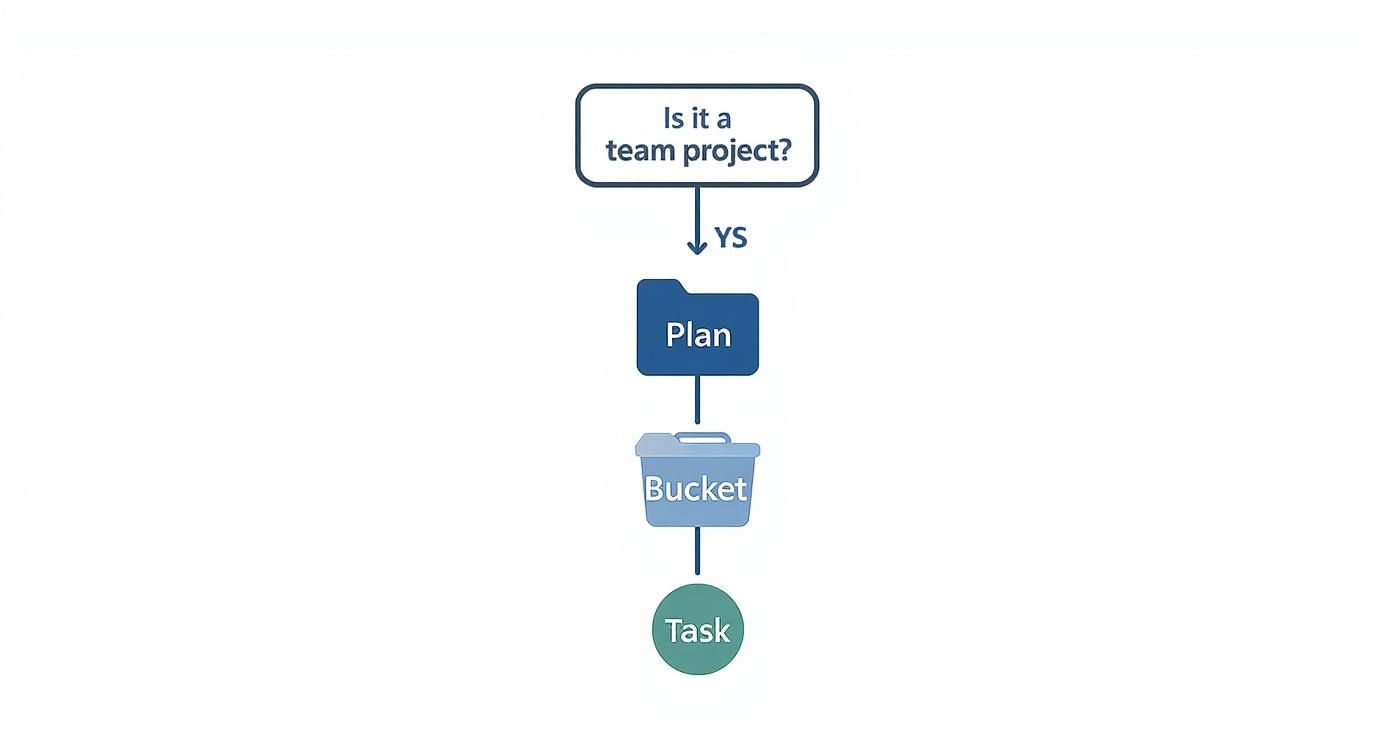
As you can see, Planner is intentionally designed to break a big team goal down into logical phases (Buckets) and then into clear, actionable steps for individuals (Tasks).
Microsoft Task Management Tool Comparison
To lay it all out, here’s a quick head-to-head comparison. Use this table to match the right tool to your immediate needs and the scale of your work.
| Feature | Microsoft 365 Planner | Microsoft To Do | Microsoft Project |
|---|---|---|---|
| Ideal User | Teams working together on projects | Individuals managing personal tasks | Professional project managers |
| Project Scope | Small to medium team initiatives | Daily to-do lists and reminders | Large, complex, formal projects |
| Core Feature | Visual Kanban boards | Centralised personal task list | Gantt charts & resource management |
| Collaboration Level | Designed for team transparency | Primarily for individual focus | Deep, multi-level team coordination |
Ultimately, choosing the right tool comes down to matching its purpose to your problem. For the vast majority of teams just trying to get organised without getting bogged down in complexity, Microsoft 365 Planner is the perfect fit.
Of course, once your work is organised, you also need to make sure it's protected. You can learn more about what to look for in a secure task manager that meets your team’s standards in our complete guide.
Putting Planner to Work: Three Real-World Scenarios
Theory is one thing, but seeing Microsoft 365 Planner in action is where it really clicks. It’s a simple tool on the surface, but its real power is how it adapts to all sorts of complex work. Let's walk through three common scenarios where teams use Planner to break down big goals into something they can actually manage.
This organised approach delivers results you can actually measure. For instance, after rolling out Microsoft 365 tools, Vodafone found employees saved an average of 3 hours per week. Their legal teams did even better, saving about 4 hours weekly per person. That kind of efficiency comes directly from the clarity that tools like Planner bring to task tracking and collaboration. You can see how these integrations make a difference in large organisations.
1. The Marketing Campaign Launch
Imagine a marketing team gearing up for a big product launch. Their Planner board becomes the mission control, with Buckets neatly organised by each stage of the campaign.
- Content Creation: This is where you'd find all the tasks for writing blog posts, designing social media graphics, and producing those crucial video ads.
- Ad Deployment: This bucket is all about execution—tasks for setting up and launching paid campaigns across different platforms.
- Performance Analysis: Once the campaign is live, this section fills up with tasks for monitoring metrics, pulling data, and compiling performance reports.
Each task card is a mini-hub, holding checklists for smaller steps, attachments with the latest creative files, and a running commentary for real-time feedback. It keeps everyone on the same page without needing endless status meetings. And if your team is spread across the globe, using a dedicated meeting planner for time zones alongside Planner keeps scheduling painless.
2. The HR Onboarding Process
An HR department can completely standardise its new hire process using a Planner template. The plan is structured around the key phases of onboarding, making sure nothing slips through the cracks.
For HR, Planner is a repeatable, transparent checklist. It guarantees every new employee gets a consistent and positive experience, turning a complicated administrative process into a smooth, trackable workflow.
You might see buckets like "Pre-Arrival Paperwork," "Day One IT Setup," and "First Week Training." Tasks like "Sign employment contract" or "Set up email account" are assigned to the right people in HR or IT with firm due dates, ensuring a welcoming and professional transition for the new team member.
3. The Agile Development Sprint
Now, picture a software development team running an agile sprint. They can set up Planner to visually manage their work over a two-week cycle, giving everyone a clear view of the sprint backlog and its progress.
- Product Backlog: This is the holding pen for all potential features and bug fixes.
- Current Sprint: Tasks pulled from the backlog for the current two-week cycle live here.
- Testing & QA: When a developer finishes their part, the task card shifts here for quality assurance.
- Done: Finally, completed and verified tasks land in the last bucket.
This setup gives the entire team—from developers to product owners—an instant, at-a-glance view of the sprint's health. It builds transparency and makes it easy to spot and resolve any blockers before they become major problems.
Integrating Planner with Your Microsoft 365 Workflow

Microsoft 365 Planner really hits its stride when you stop treating it like a standalone app. Its true power is unlocked when you weave it into the other tools your team already lives in every day. This creates a single, fluid system for getting work done, rather than constantly jumping between separate windows.
The goal is to bring your tasks directly into the context of your conversations and your schedule. When you get this right, you eliminate the friction that comes from having your information scattered all over the place.
Embedding Planner into Microsoft Teams
One of the most powerful moves you can make is bringing your entire Planner board directly into Microsoft Teams. Instead of forcing team members to leave a conversation to check on a project, you can add a Planner plan as a dedicated tab inside any Teams channel. This is a game-changer for project-based work.
Suddenly, your task board and your team discussions are sitting side-by-side. When a chat sparks a new action item, you can create the task right there in the Planner tab without breaking the flow. It’s a simple change that ensures your plans and conversations are always perfectly in sync.
By embedding Planner in Teams, you essentially create a project command centre. Every file, conversation, and task related to an initiative lives in one easily accessible place, providing a single source of truth for the entire team.
This contextual approach makes a huge difference. The time spent hunting for updates or asking for clarification drops dramatically because the project's real-time status is always just one click away from the main channel chat.
Unifying Your Tasks and Calendar
The next critical step is connecting Planner to your personal productivity tools so deadlines never sneak up on you. When tasks in Planner are assigned to you with due dates, they can pop up right in your Outlook calendar. This gives you a clear visual of upcoming deadlines alongside your meetings.
This calendar sync is a fundamental part of effective time management. If you need to get even more sophisticated with team availability, learning how to use shared calendars in Outlook can add another layer of coordination.
For a complete, personal overview of everything on your plate, Microsoft To Do is your best friend. Its "Assigned to me" list is brilliant—it automatically pulls in every single task assigned to you from all your different Planner boards. This creates a consolidated to-do list that cuts through the noise of multiple projects, letting you focus on exactly what you need to get done today.
Ready to move beyond the basics? Once you’ve got a handle on plans, buckets, and tasks, there are a few next-level features in Microsoft 365 Planner that can seriously upgrade your workflow. These aren't just fancy add-ons; they’re smart strategies for saving time, working better with outside partners, and getting ready for what's next in project management.
This is where you graduate from one-off projects to building real efficiency. Think about creating and reusing plan templates for recurring work, like onboarding a new client or closing out the monthly financials. It’s a game-changer. You standardise the process, ensure nothing gets missed, and let your team get straight to the work instead of wasting time on setup.
Standardise and Secure Your Projects
Speaking of clients, what happens when your project involves people outside your organisation? Planner’s guest access is brilliant for this. You can securely invite freelancers, clients, or partners into a specific plan without giving them the keys to your entire digital kingdom. They see only what they need to see—the tasks in that one plan. Collaboration stays focused, and your internal data stays secure.
Think of guest access as a temporary, controlled keycard. You grant access to the exact room (the plan) where collaboration needs to happen, and nowhere else, ensuring a secure boundary between your team and external contributors.
The Future of Planning with AI
The next big leap for Planner is happening with AI. Tools like Copilot are being woven in to help automate the grunt work of project setup. You can describe a project in plain English, and it will generate tasks, goals, and even a full plan structure. For managers who need to get complex initiatives off the ground quickly, this is a massive help.
And it’s not just for the younger, tech-savvy crowd. In Europe, users aged 56–64 and 65+ actually make up a combined 57% of Microsoft 365 users. Many are in leadership roles where sharp, efficient project planning is everything. AI tools are making complex software simpler, giving experienced leaders a faster way to manage their teams. You can dig into more of the data on Microsoft 365 user demographics over at SQ Magazine.
Of course. Here is the rewritten section, designed to sound like an experienced human expert.
Your Microsoft 365 Planner Questions, Answered
Once you start using Planner, you’ll naturally run into a few “how do I…” or “can it do…” moments. That’s a good sign—it means you’re digging into what makes it tick.
Let’s tackle a few of the most common questions I hear from teams getting their footing with the tool.
Can I Use Microsoft Planner for My Own To-Do List?
Technically, yes, you can create a private plan just for yourself. But honestly? You’d be missing the point. Planner’s real magic happens when a team shares a board, creating that single source of truth for who’s doing what.
For your personal tasks, you’re far better off using Microsoft To Do. The best part is that its "Assigned to me" list is your secret weapon—it automatically pulls in every single task assigned to you from every Planner board and Outlook, giving you one clean, personal dashboard to work from.
Does Planner Handle Task Dependencies?
It does now, in a basic but useful way. You can link tasks together with simple "predecessor" and "successor" relationships. This is great for straightforward workflows where you need to make sure Step A is done before Step B can kick off.
Think of it as a simple gatekeeper. It stops the team from jumping ahead to the next step before the previous one is marked complete. It’s perfect for keeping simple, linear projects on track.
But let’s be clear: if you’re managing a complex project with overlapping dependencies and critical path analysis, you’ll want to stick with the powerhouse, Microsoft Project.
Just How Secure Is Our Data in Microsoft Planner?
Your data is as secure as it gets. Planner is built right on top of the Microsoft 365 platform, which means it inherits the same bulletproof, enterprise-grade security and compliance features that protect your email in Outlook and your files in SharePoint.
Everything is encrypted, both when it's sitting on a server and when it's moving across the internet. For organisations in places with strict data laws like the EU, Microsoft has done the heavy lifting to ensure everything is GDPR-compliant, so you can plan without worrying about security.
Stop juggling multiple calendars and start scheduling at the speed of thought. Calendar0 unifies your calendars with an AI-powered interface, helping you find time and schedule meetings in seconds. Get started with Calendar0 for free.

