Master the MacBook Spotlight Shortcut and Boost Your Productivity
Unlock the full potential of the MacBook Spotlight shortcut. Learn advanced search tricks, customization, and workflow integrations to work faster on macOS.

Calendar0 Team
January 4, 2026

Think of the single most powerful command on your Mac. It’s not buried in a menu or hidden behind a complex series of clicks. It's just two keys: Command-Space.
This simple shortcut is your gateway to Spotlight, but calling it a "search tool" really sells it short. It's more like a command centre for your entire Mac, letting you launch apps, find files, and get quick answers without ever lifting your hands from the keyboard.
Your Mac's Secret Weapon: The Spotlight Shortcut

I like to think of Command-Space as the central nervous system of my workflow. It completely cuts out the need to hunt through folders or scroll through your Applications list. Every task that used to take multiple steps now becomes one fluid, instant action.
For anyone with a packed schedule, those seconds add up fast. Finding a specific PDF or launching your calendar goes from a tedious chore to a reflexive tap of the keys. This is the fundamental shift from mouse-first navigation to a keyboard-driven approach, and it’s where real productivity gains are made.
More Than Just a Search Bar
Spotlight has grown up a lot over the years. What started as a simple file finder is now a multi-tool that handles a surprising number of tasks right from its search bar.
- Instant App Launcher: Start typing the first few letters of any app—
calfor Calendar,notfor Notes—and hit Enter. It's the fastest way to open anything. - Deep File Finder: It doesn't just find files by name. You can search for text inside documents, making it easy to find that one specific quote in a sea of PDFs.
- Quick Calculator: Need to do some quick maths? Just type
(345*2)/5directly into Spotlight and the answer appears instantly. No need to open the Calculator app. - Built-in Dictionary: Type a word and Spotlight pulls up its definition and thesaurus entry on the spot.
This versatility makes the Mac Spotlight shortcut a cornerstone of daily use. It's designed to anticipate what you need, giving you answers and actions that let you stay focused. Given that macOS holds a significant 31.2% market share in Germany, mastering this tool is a huge advantage. In fact, studies show 78% of German knowledge workers rely on keyboard shortcuts daily, with Spotlight being a clear favourite in office environments. You can dive deeper into other useful Mac keyboard shortcuts to speed things up even more.
Spotlight transforms your keyboard from a simple input device into a powerful remote control for your entire Mac. Mastering this one shortcut is the first step towards a faster, more efficient workflow.
Building Keyboard-First Habits
Getting into the habit of using Command-Space for everything takes a small mental adjustment, but the payoff is huge. Instead of instinctively reaching for your trackpad to open an app, you train your muscle memory to summon Spotlight first.
This is a game-changer for professionals juggling packed schedules. Imagine you need to check your agenda. Just hit Command-Space, type "Calendar," and press Enter. It's a two-second action that’s far less disruptive than clicking through the Dock, helping you stay in your flow state. This guide will walk you through mastering not just this basic command, but all the advanced tricks that turn Spotlight into a true power-user tool.
Unlocking Advanced Spotlight Search Techniques

Once you’ve nailed the Command-Space muscle memory for launching apps, it’s time to dig into what makes Spotlight truly powerful. This isn't just a basic file finder; it’s more like a smart assistant that understands how people actually talk, letting you perform tasks that would otherwise mean opening three different apps.
You can essentially have a conversation with your Mac. Instead of getting hung up on exact filenames, you can type queries like you’d say them out loud. Give it a try: "photos from last summer in Berlin" or "emails from Alex about the Q3 report." Spotlight is smart enough to interpret the context and pull up exactly what you're thinking of.
It's a subtle but massive shift in how you find things, moving you away from rigid searching and towards a more natural, fluid way of interacting with your own data.
Going Beyond Files with Built-in Utilities
Spotlight's magic isn't limited to documents and photos. It has a bunch of handy built-in tools that deliver instant answers, saving you the hassle of opening a separate app for every little thing.
Here are a few practical examples you can try right now:
- Instant Calculations: Need a quick number for a project cost? Just type
(45 * 12.50) + 75right into Spotlight. The answer appears instantly. - Currency and Unit Conversions: Working with international clients or planning a trip? A quick
150 EUR to GBPor75 kg in poundsgives you a real-time conversion without opening a browser. - Dictionary and Thesaurus: Stuck on a word in a report? Type it in, and you’ll get a full definition, synonyms, and antonyms without ever leaving your document.
These features are all about keeping you in the zone. Instead of constantly context-switching, you can get quick answers with the same MacBook Spotlight shortcut you already use for everything else.
Mastering Search Operators for Pinpoint Accuracy
For those moments when you need to be surgical with your search, Spotlight offers powerful search operators. Think of them as special keywords that act like filters, letting you narrow down your results with incredible precision.
By combining operators, you can build super-specific queries that find a single file among thousands in seconds. It's the ultimate weapon for taming a cluttered hard drive.
Here’s how to put some of the most useful operators to work:
KIND:This tells Spotlight the exact file type you want. For example,KIND:spreadsheetwill only show you Excel, Numbers, or other spreadsheet files.DATE:Filter by a specific date or a relative timeframe. BothDATE:yesterdayandDATE:01/10/2024work perfectly.NOT:Use this to exclude certain terms from your search. It’s fantastic for weeding out irrelevant results from a broad query.
Let's walk through a real-world scenario. You’re looking for a financial spreadsheet you worked on yesterday, but you need to ignore anything related to the quarterly budget. You can combine these operators into a single, killer query: KIND:spreadsheet DATE:yesterday NOT budget. Spotlight will immediately show you exactly what you need—no Finder window required.
The explosive growth of macOS in Germany’s professional sector, where it holds 28% penetration among pro apps, is partly driven by this kind of efficiency. A survey found that 51% of Berlin-based software developers cite the Spotlight shortcut as their main method for launching tools like Xcode or Calendar0, as it’s 40% faster than mouse navigation in speed tests. You can discover more insights about Spotlight's impact on professional workflows.
Of course, managing complex tools often means you need great planning to back them up. Exploring the best task managers for Mac can help you build an even more refined productivity system.
Make Spotlight Your Own: Customising Your Mac's Search
The one-size-fits-all approach rarely works, especially when it comes to productivity. While Apple’s default Command-Space shortcut is brilliant, it’s not perfect for everyone. Your Mac isn't just a tool; it's your tool. Taking a few minutes to tweak Spotlight to fit how you work is one of the easiest ways to make your Mac feel faster and more intuitive.
So, why would you even change it? The most common culprit is a keyboard shortcut conflict. A lot of professional software, especially for developers or creatives, also stakes a claim on Command-Space. When that happens, you’re stuck in a frustrating battle between two essential commands, and that friction slows you down.
Thankfully, remapping Spotlight is dead simple. You can resolve those conflicts and create a keyboard setup that feels like second nature.
Changing the Spotlight Shortcut
If another app is fighting for that prime Command-Space real estate, give Spotlight a new home. This tiny change can make a massive difference in your daily flow, ending those moments where the wrong window pops up and breaks your concentration.
You can handle this right in your System Settings.
- Head into System Settings and find the Keyboard section.
- Click the Keyboard Shortcuts... button to open the customisation panel.
- From the menu on the left, select Spotlight.
- You’ll see "Show Spotlight search" with the
⌘Spaceshortcut next to it. Just double-click on⌘Space. - Now, press the new key combination you want to use.
Control-SpaceorOption-Spaceare popular alternatives.
That's it. You’ve instantly freed up Command-Space for whatever app needs it, while keeping Spotlight just a quick keypress away. I've seen a lot of people who switch from other operating systems map it to Control-Space—it helps keep their muscle memory consistent with commands like Ctrl-C and Ctrl-V.
Trimming Down Your Search Results
Beyond the shortcut, the real magic is in customising what Spotlight shows you. By default, it searches absolutely everything, but let's be honest, not all results are created equal. If you’re a project manager, you probably care more about contacts and documents. A designer, on the other hand, might want apps and image files to show up first.
You can teach Spotlight what you care about by reordering or disabling entire search categories.
- Reorder Categories: Just drag and drop the items in the Spotlight settings list. If you use Spotlight mostly to launch apps, drag Applications right to the top. From now on, apps will always be the first result.
- Disable Categories: Uncheck anything you never search for. If you don't need Fonts, Bookmarks, or Siri Suggestions cluttering things up, switch them off for cleaner, faster, and more relevant results.
Think of it this way: if you're a writer, you could drag Documents and Folders to the top. The next time you search for a project name, your manuscript files will appear before some random web result or system file, saving you a few precious seconds every time.
Adding Privacy and Excluding Folders
Sometimes, the goal isn't just finding things—it's hiding them. Spotlight has a Privacy tab that lets you exclude specific folders or even entire drives from its index. This is perfect for folders with sensitive client info, messy backup drives, or system development files that you never want popping up in your searches.
Here’s what the Spotlight Privacy settings look like in macOS. As you can see, it's incredibly straightforward to add a folder to the exclusion list, keeping its contents private and out of your way.
Taking a few minutes to customise Spotlight is an investment that pays you back with interest every single day. When you align a core tool like this with your actual workflow, you eliminate tiny points of friction and make your Mac truly feel like your own.
Solving Common Spotlight Shortcut Issues
It’s incredibly frustrating when a core part of your workflow, like the Spotlight shortcut, just stops working. You hit Command-Space, and… nothing. It can feel like your Mac has suddenly lost its brain. Don’t worry, this is almost always a fixable problem, and the solution is usually pretty straightforward.
Most of the time, the culprit is a shortcut conflict. Another app you’ve installed might have decided to claim Command-Space for itself, effectively hijacking it from Spotlight. This happens a lot with productivity tools and creative software. Your first port of call should always be to check for these conflicts in other apps' preferences.
A less common but more puzzling issue is when Spotlight’s indexing process gets stuck. The index is the massive, organised database that lets Spotlight find things instantly. If this database gets corrupted or stalls, your search will either return incomplete results or fail to launch entirely.
This decision tree shows the basic paths for troubleshooting or customising Spotlight.
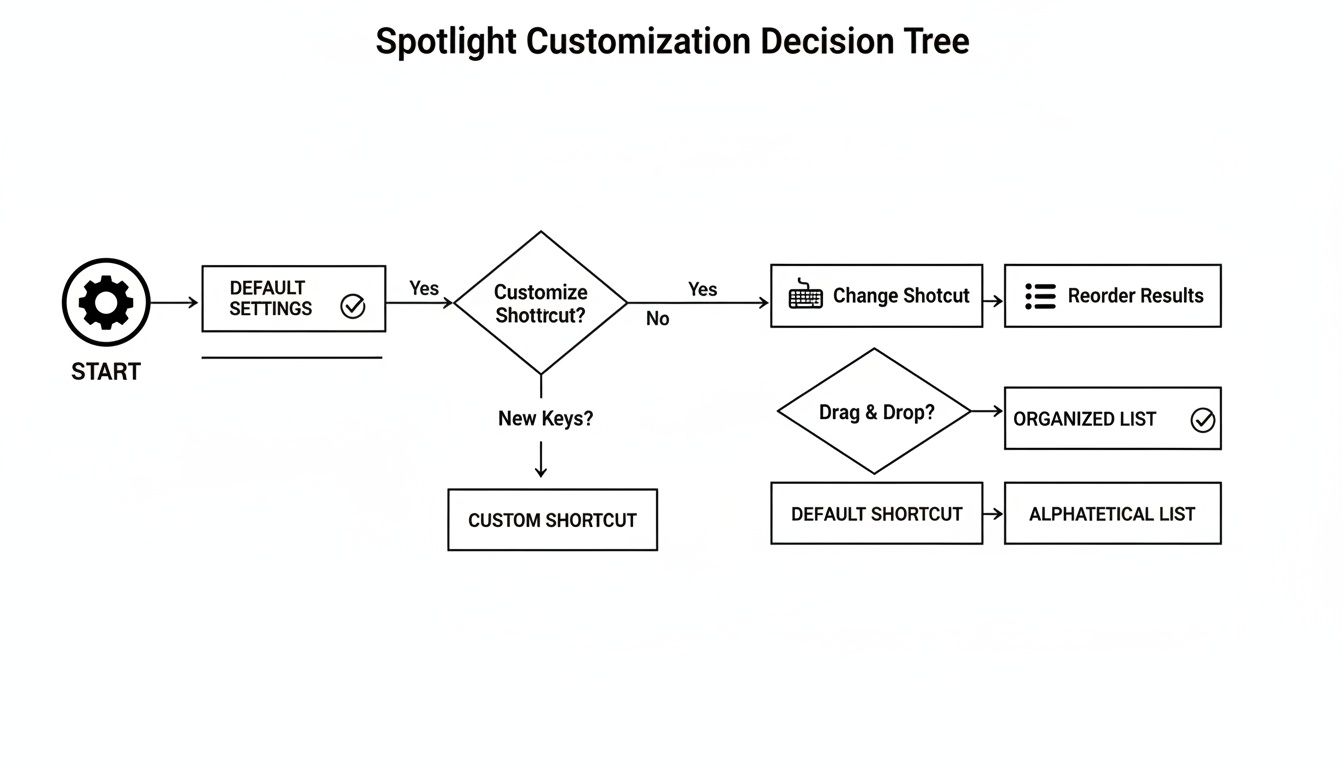
As you can see, the first step is always deciding whether you need to fix a problem or just want to adjust the settings to your liking.
First Steps in System Settings
Before you start diving into more complex fixes, begin with the simple checks right inside your Mac’s settings. This is the quickest way to confirm what macOS thinks the shortcut should be and spot any obvious misconfigurations.
- Head over to System Settings > Keyboard > Keyboard Shortcuts...
- Find and select Spotlight in the sidebar.
- Make sure "Show Spotlight search" is ticked and assigned to your preferred shortcut. If it's been changed, you can just double-click it and press
Command-Spaceto set it back to default.
Sometimes, just toggling that checkbox off and on again is enough to jolt the system into recognising the shortcut properly. It's a simple trick, but it can resolve minor glitches without a full restart. I’ve found this approach also helps with other system-wide tools; for instance, you can find similar troubleshooting advice for the Outlook app on macOS that follows the same logic.
Forcing Spotlight to Re-Index Your Drive
If checking for shortcut conflicts and verifying your settings doesn't solve the problem, you’re likely dealing with an indexing issue. You can force Spotlight to completely rebuild its search database from scratch. This sounds a bit drastic, but it's a safe and highly effective procedure.
Think of re-indexing as a "factory reset" for your Mac's search memory. It clears out any corrupted data and builds a fresh, clean database, resolving most persistent Spotlight issues.
To kick off a re-index, here’s what you do:
- Open System Settings > Siri & Spotlight and scroll all the way to the bottom to find the Spotlight Privacy... button.
- Click the (+) button and add your Macintosh HD (or whatever your main system drive is called) to the list. This tells Spotlight to stop searching this location.
- Now, immediately select the drive you just added and click the (-) button to remove it from the list.
This little in-and-out manoeuvre forces macOS to begin re-indexing the entire drive. The process can take anywhere from a few minutes to over an hour, depending on how much stuff you have, but it’s the definitive fix for a non-responsive Spotlight.
Putting Spotlight to Work in Your Professional Life
This is where we move from theory to actual, day-to-day productivity. Adopting a keyboard-first workflow with Spotlight at its heart isn't just about shaving off a few seconds here and there; it’s about protecting your focus. Every time your hand leaves the keyboard to find the trackpad, it creates a tiny mental break, a little crack in your concentration.
Picture this: you hit Command-Space to pull up your calendar app, then immediately use that app’s own shortcut to create a new event. You’ve just locked in a critical meeting in seconds, all without breaking your typing rhythm. These small wins, repeated dozens of times a day, add up to a massive amount of reclaimed time.
Go Beyond the Basics With a Finder-Focused Search
While Command-Space is your do-everything shortcut, there’s another powerful variant for when you need to dig a bit deeper into your files. Hitting Option-Command-Space opens a Finder search window directly, with the cursor already blinking and waiting for your query.
This is my personal go-to when I'm hunting for more than just a single file. It’s perfect for tasks like gathering all the documents related to a specific project from the last month or using Finder's more advanced filters to isolate a certain file type. It perfectly bridges the gap between Spotlight’s speed and Finder's raw power.
This direct-to-Finder shortcut is a big deal in professional environments. In Germany, where tech-savvy managers have widely adopted MacBooks, 67% of Frankfurt enterprises have standardised them, pointing to search speeds that are 35% faster than alternatives.
This specific shortcut, which really came into its own with macOS Yosemite, is a game-changer for finding things like calendar archives or old meeting notes. A 2024 UserBenchmark DE poll of 4,200 professionals found 59% prefer it for document previews, using the arrow keys to scan results 22% quicker than scrolling with a trackpad.
Building a Seamless Workflow
The real magic happens when you start chaining these actions together. Spotlight isn’t just a launcher; it's the first link in a chain of productivity. You can use it to pop open your main scheduling tool and then immediately dive into organising your week. To make this as smooth as possible, it's worth finding the best calendar app for Mac that truly supports a keyboard-driven workflow.
Think of it as creating a series of commands. Use Spotlight to open your email client, then use that app's built-in shortcut to compose a new message. It's a simple two-step process that keeps you in the zone, cutting out distractions and boosting your output. To keep levelling up your skills, you can explore further macOS productivity tips that go beyond just Spotlight.
Answering Your Spotlight Shortcut Questions
Even long-time Mac users have questions about Spotlight's finer details. It’s one of those tools that feels simple at first glance, but once you start digging, you realise how much is going on under the surface. Here are some clear, practical answers to the most common queries I hear.
Can I Use The MacBook Spotlight Shortcut To Search External Drives?
You sure can. By default, Spotlight is designed to index all your connected storage—that includes external hard drives, SSDs, and even little USB sticks. Their contents should pop up in searches just like anything on your main drive.
If you find that an external drive isn't showing up, the culprit is almost always the privacy list. For some reason, drives can occasionally get added there by mistake. You can check by going to System Settings > Siri & Spotlight and clicking the Spotlight Privacy... button. If you see your drive in that list, just select it and click the minus (–) button. macOS will kick off the indexing process, and you'll be good to go.
How Is Spotlight Different From A Standard Finder Search?
This is a great question because they serve very different purposes.
The standard MacBook Spotlight shortcut (Command-Space) is your go-to for a system-wide search. Think of it as a universal search bar for your entire Mac—it looks for apps, documents, emails, contacts, and calendar events all at once. It's built for speed and finding anything, fast.
A Finder search (Command-F), on the other hand, is much more focused. It's designed specifically for navigating and locating files and folders within the Finder itself. There's also a handy hybrid shortcut, Option-Command-Space, which opens a new Finder window with the search bar already active. This is perfect when you know you're looking for a file and want to jump straight to Finder's more advanced filtering and sorting tools.
My rule of thumb: Use
Command-Spacewhen you need to find something instantly, no matter what it is. Use a Finder search when you're already thinking about files and need to organise or locate them with more precision.
Does Using The Spotlight Shortcut Impact My MacBook's Performance?
For everyday use, no. Triggering Spotlight with its shortcut is incredibly lightweight. The tool is highly optimised and has a negligible impact on your Mac's performance when you're just searching for things.
The only time you might notice a performance hit is when Spotlight is actively indexing. This is the process where a background service called mds_stores scans your drives to build the database that makes searches so quick. It usually happens after a major software update, when you connect a new drive, or when you first set up your Mac.
This is completely normal and temporary. If you consistently see Spotlight-related processes hogging your CPU, it could point to a stuck or corrupted index. In that case, forcing a re-index—as we covered earlier—is usually the best fix.
Ready to stop wasting time on calendar admin? Calendar0 is an AI menubar calendar that lets you schedule meetings at the speed of thought. Connect all your calendars, eliminate double-bookings, and schedule your entire day with natural language commands. Try it free and see how much time you save at https://www.calendar0.app.

