Import iCal into Google Calendar A Practical Guide
Learn how to import iCal into Google Calendar. Our guide covers syncing .ics files and iCal URLs, plus troubleshooting common issues for a unified schedule.

Calendar0 Team
December 31, 2025

You've got two main ways to pull an iCal feed into Google Calendar: importing a static .ics file for a one-time upload, or subscribing to a live iCal URL for continuous, automatic updates. The right choice really just depends on one thing: will the events on that calendar ever change?
Your Quick Guide To Syncing iCal and Google Calendar
Getting an external calendar to show up in your Google Calendar can feel a bit clunky, but it really boils down to two simple methods. Figuring out which one to use from the start is the key to avoiding scheduling mix-ups down the road. One is basically a one-time data dump, while the other creates a live, hands-off connection.
Choosing Your Syncing Method
First up is importing a static .ics file. Think of this like taking a quick snapshot of a calendar at a single point in time. It’s perfect for schedules that are set in stone and won't be changing.
I use this all the time for things like a conference agenda, a university course list for the semester, or a flight itinerary I’ve downloaded. Once you import the file, those events are locked into your Google Calendar. Just remember, they won't update if the original source changes later.
The second option is subscribing to a calendar using its URL. This creates a live, read-only link between the source calendar and your Google Calendar. It’s the go-to method for any schedule that's dynamic and likely to change.
For instance, subscribing to a project management calendar ensures you always have the latest deadlines. A shared team holiday calendar automatically shows you who's out of the office without you having to ask. It just works.
This little decision tree can help you visualise which path to take.
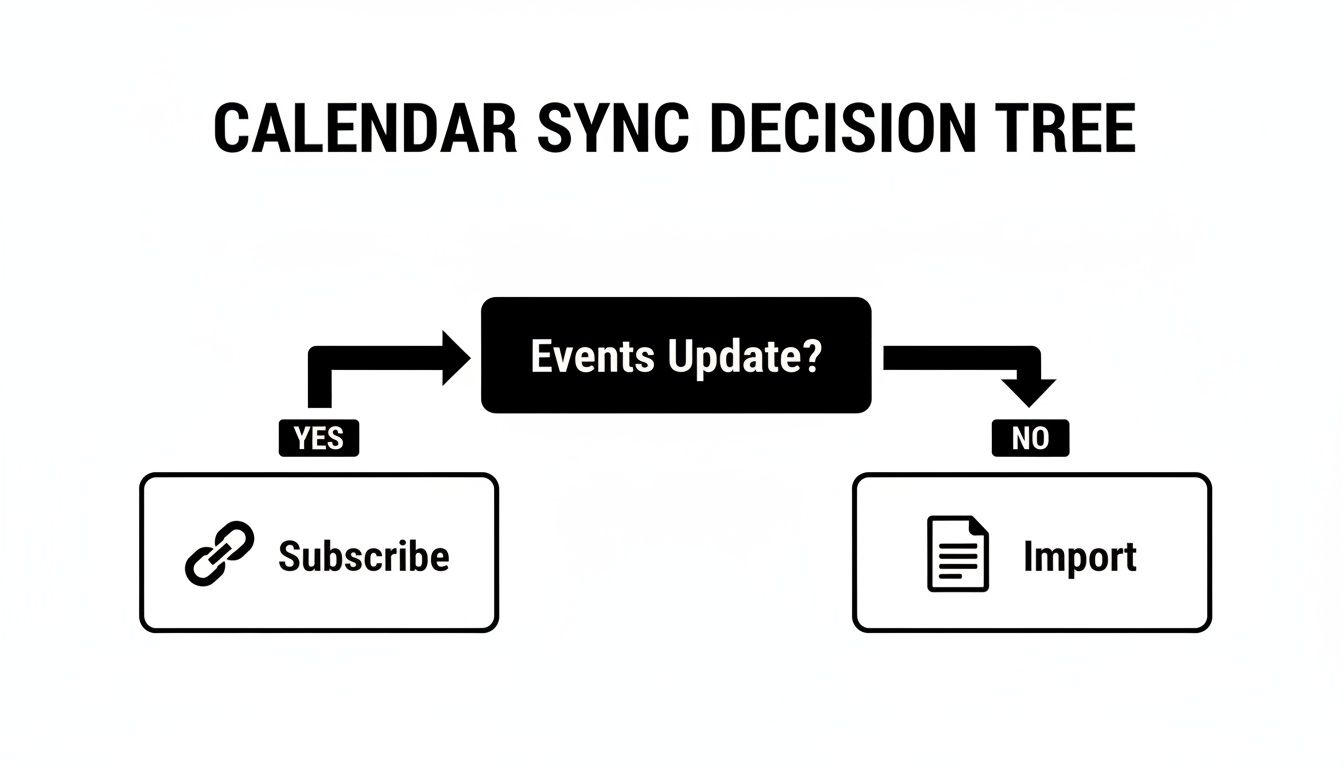
The key takeaway is simple: if the events are going to change, subscribing is the way to go. It keeps everything current without any extra work from you.
Pro Tip: Before you import any file, do this one thing: create a new, temporary Google Calendar. Import the .ics file into that calendar first. If something goes wrong or you grabbed the wrong file, you can just delete the whole temporary calendar in one click. It keeps your main schedule clean and avoids a massive headache.
Import File vs Subscribe by URL Which Method Should You Choose
Still on the fence? Here's a quick side-by-side comparison to help you decide which method is the best fit for your situation.
| Feature | Import .ics File | Subscribe by URL |
|---|---|---|
| Updates | No. It's a one-time static snapshot. | Yes. Automatically syncs changes from the source. |
| Best For | Fixed schedules: flight itineraries, conferences. | Dynamic schedules: team holidays, project deadlines. |
| Event Editing | Yes. Events become editable in Google Calendar. | No. The calendar is read-only. |
| Setup Process | Upload a downloaded file. | Paste a URL from the source calendar. |
| Clutter Risk | High, if you import frequently or make a mistake. | Low. It's a single, manageable calendar entry. |
| Common Use Case | Adding a fixed set of personal or work events. | Keeping up with a constantly changing external feed. |
Ultimately, importing is for capturing a moment in time, while subscribing is for staying connected to a living calendar.
Both methods are incredibly useful for centralising your schedule. If you're serious about mastering calendar consolidation, our guide on how to sync with Google Calendar offers some deeper insights for creating a truly unified system.
How To Import a Static iCal File (.ics) into Google Calendar
Got a fixed schedule you need to add to your calendar? Think flight itineraries, a university term timetable, or a conference agenda. For these one-off, static schedules, a direct import of an .ics file is your best bet. It’s a simple upload that adds all the events in one go.
Just a heads-up: this is a desktop-only affair. You'll need to be on your computer using the web version of Google Calendar, as the mobile app doesn't have an option for file imports. Once uploaded, the events are treated just like any you'd create yourself—meaning you can edit or delete them individually.
Getting to the Import Settings
First things first, let's find the import tool. Open up Google Calendar on your web browser. In the top right corner, you'll spot the familiar Settings gear icon. Give that a click and choose Settings from the menu that appears.
Now you're on the main settings page. On the left-hand menu, look for Import & export and click it. This is where the magic happens.
Choosing Your File and Where It Goes
In the main part of the screen, you’ll see an "Import" section. Click the Select file from your computer button and find the .ics file you saved. Maybe it’s something like "ManUtd-Schedule-2024.ics" that you grabbed from your favourite team's website.
Now for the most important part of this whole process: deciding where these new events will live. Below the file selector, there's a dropdown menu called Add to calendar. By default, it often points to your main calendar, but you almost never want to do that.
My Golden Rule: Never import directly into your primary calendar. I always create a new, separate calendar first. Call it "Man Utd Schedule" or "Conference Itinerary." This keeps everything tidy. If the schedule changes or you just want to get rid of it, you can delete the entire calendar in a single click without messing up your personal appointments.
Select your new, dedicated calendar from that dropdown. This neatly contains all the imported events, gives them their own colour, and stops your main schedule from becoming a chaotic mess.
Once you’ve selected the file and the right calendar, hit the blue Import button. Google will do its thing, and a little confirmation will pop up at the bottom telling you how many events were successfully added.
- File Selection: Click the button to upload your saved .ics file.
- Calendar Destination: Use the dropdown to pick the right calendar (ideally, a new one).
- Finalise: Click the Import button. Done.
Head back to your main calendar view. You should see all the new events, neatly coloured and organised. Because they're in their own calendar, you can hide or show them with a single click on the checkbox in the left-hand menu. It's a simple habit that makes managing a busy schedule so much easier.
Subscribing to a Live iCal Feed with a URL
A one-time import is great for static events, but what about calendars that are constantly in flux? Think about a project timeline in your PM tool, a team holiday roster, or your kid's ever-changing football practice schedule. For these, a one-time import just won't cut it.
This is where subscribing with a URL becomes your best friend. It creates a live, hands-off connection that automatically pulls in updates, ensuring you're never out of the loop.
Essentially, this process turns your Google Calendar into a 'viewer' for the source calendar. You can't edit the events yourself, but you’ll always see the most current version without lifting a finger. When a project deadline shifts or a meeting gets bumped, the change just appears.
How to Find and Add the Calendar URL
First things first, you need to grab the special calendar URL from the source application. This is often called an ‘iCal feed’ or ‘.ics link’. You’ll typically find it in the calendar’s sharing or export settings. Look for an option that says something like "Public URL to this calendar" or "Secret address in iCal format."
Once you've copied that link, hop over to the web version of Google Calendar.
- On the left-hand menu, find the “Other calendars” section.
- Click the little plus sign (+) right next to it.
- From the menu that pops up, choose From URL.
A new screen will appear with a field to paste the URL. Go ahead and paste it, then click the Add calendar button. You can ignore the "Make the calendar publicly accessible" checkbox—that's for sharing your own calendars, not for subscribing to someone else's.
After a moment, Google will take you back to your main calendar view. The new calendar will pop up under "Other calendars," complete with its own colour that you can change anytime.
Here's something crucial to know: Google's sync frequency isn't instant. It happens automatically, but the refresh interval can be anywhere from a few hours to over 24 hours. There's no "force sync" button, so if an event is added to the source calendar, don't panic if it doesn't show up immediately.
The Good and The Bad: Understanding the Trade-Offs
The biggest win here is automation. It's a true "set it and forget it" solution that guarantees you have up-to-date information without any manual work. For collaborative environments with constantly shifting schedules, this is a massive time-saver.
The main limitation, though, is that the calendar is read-only. You can't edit or delete events from a subscribed calendar directly within Google Calendar. Any changes have to be made in the original app. Think of it as a live data stream—you can watch it, but you can't alter what's flowing through.
This is a bit like how economic data on Germany's trade volumes gives you a read-only stream of information; you can analyse the figures, but you can't change them.
Ultimately, subscribing via URL is the best way to import an iCal into Google Calendar for any schedule that evolves. It keeps you synchronised with teams, tools, and outside groups, making sure your master calendar is always reflecting reality.
Taming Your New Calendars: Management Tips

Getting an external calendar to show up in your Google Calendar is a great first step, but the real magic is in the management. Without a bit of quick housekeeping, your beautifully organised schedule can devolve into a confusing, cluttered mess. Trust me, spending a few moments configuring each new calendar is a habit that pays off every single day.
One of the most common issues is the gibberish name that often accompanies a subscribed calendar URL. Don't just leave it as a long string of random characters. The first thing you should do is rename it to something that actually means something to you.
"Project Titan Launch Plan" is infinitely more helpful than the default URL. This simple tweak provides instant context when you're scanning your weeks ahead.
Customising for Clarity and Control
Your secret weapon for visual organisation? Colour-coding. Assigning a unique, bold colour to each new calendar—like a bright red for project deadlines or a calm blue for the team's holiday schedule—lets you distinguish different event types at a single glance.
This is a lifesaver when you're juggling multiple calendars. You can instantly see where your commitments overlap without having to click into every single event to see what it is.
You also have total control over notifications. A subscribed calendar might have default alerts that you absolutely do not need pinging you all day. Dive into the settings for that specific calendar and tweak them to your liking.
- For critical feeds like project due dates: You'll probably want to keep event notifications on.
- For informational feeds like a company-wide holiday calendar: Turn those notifications off to cut down on the noise.
Keeping your calendar organised isn't just about being efficient; it's about reducing your cognitive load. A well-managed calendar lets you focus on what actually matters, not on deciphering your own schedule. This is a core idea behind effective calendar sync strategies, making sure the tech serves you, not the other way around. You can find more tips in our guide to Google Calendar sync.
The Right Way to Say Goodbye to a Calendar
Eventually, you'll need to clean house and remove a calendar you no longer need. The process is different depending on how you added it in the first place.
For a subscribed calendar, you simply unsubscribe. Head into its settings, scroll to the bottom, and click the "Unsubscribe" button. Poof. The calendar and all its events will disappear without touching any of your other schedules.
It's a bit trickier for events from a one-time .ics import. There's no single "undo" button here. If you were smart and imported them into a brand-new, dedicated calendar, you can just delete that entire calendar. But if you mixed them in with your primary calendar, you’re stuck deleting each event one by one. It’s a tedious task, and a great reason to always import into a separate calendar first.
Unifying Your Schedules with Calendar0
Importing a single iCal feed is a great quick fix, but let's be honest, it's usually just a temporary patch. For most of us, the real headache is juggling a mix of personal Google accounts, a work calendar on Microsoft 365, and maybe a few shared project calendars on top of that. Constantly switching between tabs to spot conflicts isn't just a waste of time—it's how you end up double-booked for a dentist appointment and a critical client call.
This is exactly where the simple import-and-forget-it approach starts to break down. A dedicated tool isn't a luxury; it's a necessity.
While knowing how to import iCal into Google Calendar is a handy skill, it doesn't solve the core problem of a fragmented schedule. What you really need is one intelligent, consolidated view that pulls everything—every Google account, your work calendar, and all those iCal subscriptions—into a single, seamless dashboard.
Beyond Imports: A Single Source of Truth
This is precisely the problem we built https://calendar0.app to solve. It goes way beyond simple imports by actually connecting all your calendars into one unified hub. The platform pulls all your events together, giving you a complete, honest picture of your availability without you ever having to cross-reference multiple apps again.
This kind of consolidation just works, stopping the most common scheduling headaches in their tracks:
- Preventing Double-Bookings: It sees the 2 p.m. work meeting on your Outlook calendar and knows not to let you schedule a personal appointment from your Gmail at the same time.
- Finding Meeting Times Instantly: Forget manually comparing three different calendar tabs. You can see every genuinely free slot across all your schedules at a glance.
- Streamlining Scheduling: Its AI-powered features let you schedule meetings with plain English, automatically finding the best time that works for everyone involved.
The goal of modern calendar management isn’t just to cram all your events into one screen. It’s to have a system smart enough to manage the chaos for you. A unified calendar is the foundation for making better decisions about your most valuable asset: your time.
Getting your own schedule in order is a huge win, but this kind of clarity has a ripple effect. It dramatically contributes to a more focused and efficient work environment for everyone. For more on this, it's worth reading up on strategies to improve overall workplace productivity.
True Calendar Mastery
Think about it this way: a logistics company wouldn't dream of running its operations with its import and export data siloed in different, disconnected systems. It needs a unified view to see the full picture and make smart decisions. Your schedule, which is essentially the logistics of your life, deserves that same level of integrated oversight.
By connecting all your accounts, Calendar0 provides that comprehensive view, transforming your messy collection of calendars into a powerful, intelligent scheduling assistant. It’s the logical next step for anyone looking to move past basic imports and achieve true calendar mastery.
Common Questions About iCal and Google Calendar
Even with the clearest instructions, you can still hit a few snags when trying to get iCal working with Google Calendar. Let's walk through some of the most frequent frustrations and get your schedule sorted out.
Why Isn’t My Subscribed Calendar Updating?
This is easily the most common source of confusion. When you subscribe to an iCal feed using a URL, the updates are not instant. Google Calendar pulls in data from external feeds on its own schedule, and that can take anywhere from a few hours to sometimes over 24 hours.
Unfortunately, there's no manual "force sync" button to speed this up.
If you’re seeing a major delay, the first thing to check is the iCal URL itself. Just paste it into a web browser. If it downloads a file or shows a wall of text with calendar data, the link is working. That means the delay is on Google's end, and a bit of patience is usually the only fix.
Can I Import an iCal Feed on My Phone?
In short, no. You can't directly import a static .ics file or subscribe to a new iCal URL through the Google Calendar mobile app, whether you're on Android or iOS. This is one of those features that’s exclusively available on the desktop web version of Google Calendar.
But there’s a simple workaround. Once you add the calendar on your computer, it automatically syncs and appears on your mobile app. From there, you can manage its settings—like changing its colour or hiding it—just like any other calendar on your device.
A crucial best practice for any import is to first create a new, temporary calendar and add the .ics file there. If something is wrong with the file or you imported the wrong one, you can simply delete that entire calendar in one click without affecting your main schedule.
How Do I Undo an .ics File Import?
This is where that best practice really saves the day. When you import an .ics file, its events get dumped directly into the calendar you select. Unlike a subscription, there's no simple "undo" button to reverse the import in one go.
If you accidentally added the events to your main personal or work calendar, your only option is to manually delete each new event, one by one. For a packed schedule like a conference agenda, this can be an absolute nightmare.
This exact scenario is why the temporary calendar method is so valuable:
- Create a new calendar: Call it something obvious, like "Import Test."
- Import the file: Make sure to select "Import Test" as the destination.
- Check the events: See if everything looks right.
If it's all good, you can keep the new calendar. If it’s a mess, just head into that calendar's settings and delete the entire thing. It’s a clean, one-click solution that prevents a major headache and keeps your primary calendar pristine.
Tired of juggling multiple calendars and manually importing feeds? Calendar0 unifies all your Google and Microsoft schedules into one intelligent view, preventing double-bookings and finding meeting times instantly. Stop wrestling with iCal links and start scheduling at the speed of thought. https://www.calendar0.app

