Master the import google calendar: Import events from file, URL, or account
Learn how to import google calendar events from a file, URL, or another account with practical steps to streamline your schedule.

Calendar0 Team
January 21, 2026

Learning how to import Google Calendar events isn't just a tech trick; it's a genuine strategy for taking back control of your time. At its core, the process is simple: you're just pulling events from an outside source, like a file or a web link, and adding them right into your main calendar.
Why Bother Mastering Google Calendar Imports?
Let's be honest, juggling multiple calendars is a modern-day headache. We've all been there—missing a client call because it was on your work calendar while you were staring at your personal one. Or the classic double-booking blunder: a team meeting and a dentist appointment scheduled for the exact same time. These little slip-ups chip away at our productivity and add a layer of stress we just don't need.
The whole point is to create one single, trustworthy view of all your commitments.
Once you get the hang of importing events into Google Calendar, you stop reacting to your schedule and start owning it. Instead of constantly flicking between different apps and manually copying appointments, you build a unified system that has your back. This is a game-changer in a few common situations:
- Blending Work and Life: You can finally merge your professional schedule from, say, Microsoft Outlook with your personal life, giving you a complete picture of your day in one place.
- Working with Outside Teams: Need to keep an eye on a partner company's project timeline? You can easily add their schedule to your own calendar without needing special access.
- Switching to a New System: If you're changing jobs, importing your old calendar means you don't leave behind years of important dates and recurring events.
- Following Public Events: You can subscribe to public calendars for everything from national holidays and industry conferences to your favourite sports team’s match schedule.
By bringing all your schedules together, you cut out the mental energy wasted on switching between platforms and slash the risk of making a mistake. It’s the first real step toward getting your digital life properly organised.
Ultimately, smart calendar management is about doing less admin so you can focus on what actually matters. While Google’s own tools are a fantastic starting point, more advanced solutions like Calendar0 can put the entire process on autopilot, syncing your calendars in real-time and flagging conflicts before they even become a problem. This guide will take you through every method, from simple file imports to powerful automation.
Understanding the Core Import Methods in Google Calendar
Bringing external events into your schedule isn't a one-size-fits-all process. There are a few distinct ways to do it, and picking the right one from the start is the secret to building a calendar that actually helps you, rather than creating more clutter. Let's break down the main ways to pull events directly into your Google Calendar.
Think of these methods as different tools in your productivity toolkit. You wouldn't use a hammer to turn a screw; likewise, you shouldn't use a one-time file import when what you really need is a live, updating feed of events.
Importing a Static File (.ics)
The most direct approach is importing an .ics file. This is the universal file format for calendars, so it works across almost every platform you can think of. This method is perfect for a static, one-off list of events that you know won't be changing.
For instance, say you've just registered for a two-day virtual conference. The organisers will often email you the full agenda as an .ics file. You can import that file straight into your Google Calendar, and all the session times, speaker details, and meeting links will pop up instantly. It's a snapshot—a perfect copy of the events at that specific moment in time.
Subscribing to a Live Calendar URL
For a more dynamic and hands-off approach, you can subscribe to a calendar using its public URL. This creates a live link between your Google Calendar and an external one. Instead of just a one-time copy, your calendar will periodically check the source for any updates and automatically pull them in.
This is incredibly useful for schedules that are constantly evolving. Some common real-world examples include:
- Subscribing to your country's national holiday calendar.
- Adding your favourite football team's match schedule for the season.
- Following a shared project timeline from a partner company or client.
Just remember that events from a subscribed URL are typically read-only. You can see them, but you can’t change them from your calendar, which makes sense as it keeps the original source accurate for everyone.
Adding a Colleague's Calendar Directly
Finally, if you're collaborating with others, you can add another person's Google Calendar directly. This usually works best when you're in the same organisation, or if someone has explicitly shared their calendar with your email address. This method is all about team visibility and seamless collaboration.
Depending on the permissions they've set, you might only see when they are free or busy (which is great for finding meeting slots), or you might be able to see the full details of their appointments. This direct integration is a cornerstone of effective team scheduling.
This decision-making process is really about one thing: figuring out if you need a static snapshot of events or an automated, live connection to a calendar that changes.
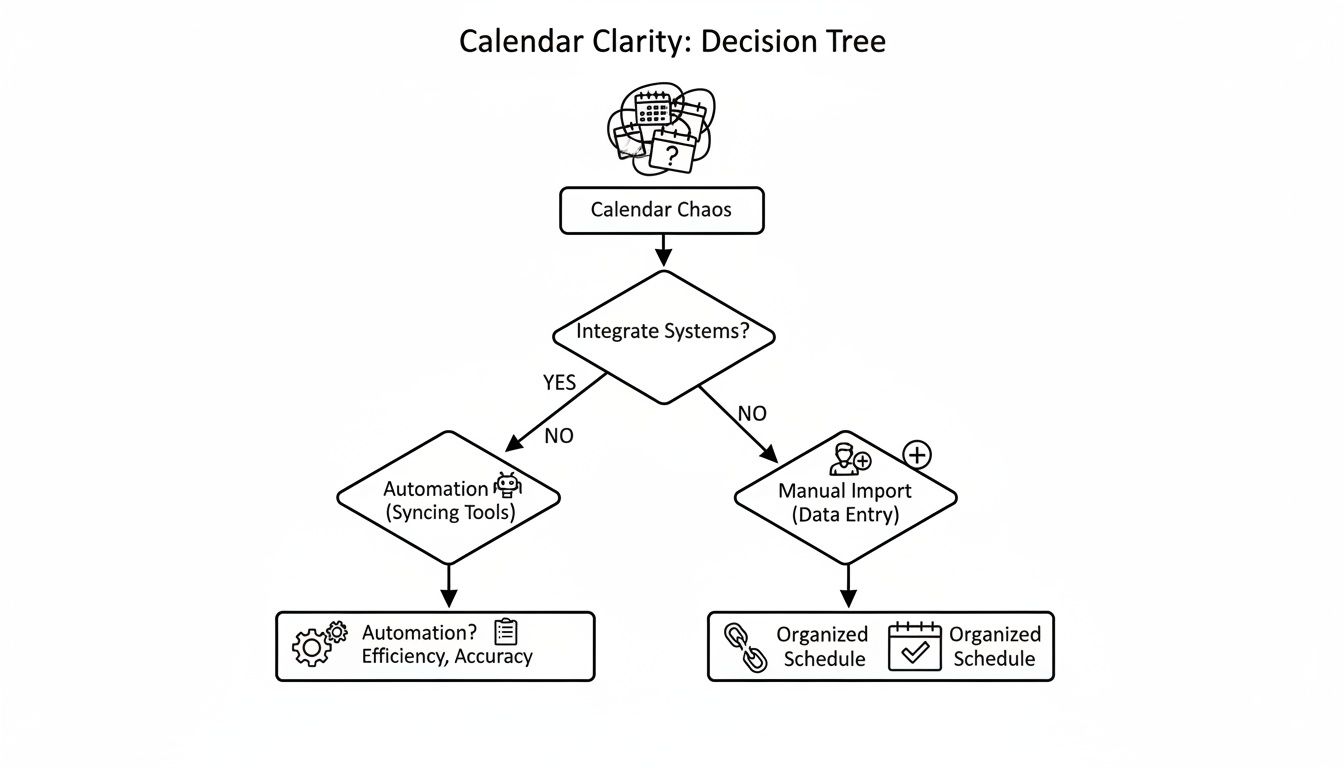
As the diagram shows, the path to an organised schedule starts with a simple choice between a manual, one-time import and a more automated, connected approach. Knowing how to manage these imports is a fundamental digital skill today.
Choosing Your Google Calendar Import Method
To make it even clearer, here’s a quick reference table to help you decide which method fits your specific scheduling needs.
| Import Method | Best For | Example Use Case | One-Time or Live Update? |
|---|---|---|---|
| Importing an .ics File | Fixed, un-changing events. | Adding a conference agenda or a flight itinerary. | One-Time |
| Subscribing to a URL | Dynamic, evolving schedules managed by others. | Following a public holiday calendar or a project timeline. | Live Update |
| Adding a Colleague's Calendar | Internal team collaboration and visibility. | Checking a teammate's availability to schedule a meeting. | Live Update |
Ultimately, the right choice depends entirely on how the event information is shared and whether you expect it to change over time.
Key Takeaway: Use file imports for fixed schedules like a conference agenda. Use URL subscriptions for dynamic schedules like public holidays. Add a colleague's calendar directly for internal team visibility.
While these built-in methods are powerful, they do have their limits—subscribed calendars, for example, can sometimes take up to 24 hours to refresh. For professionals who need instant and reliable two-way updates across multiple accounts, a dedicated tool is often the best solution. You can find out more about how to sync Google Calendar for real-time accuracy in our detailed guide.
Syncing Google Calendar with Outlook and Apple Calendar
Let's be realistic—most of us don't live in a single tech bubble. Your work computer probably runs on Microsoft 365, but your personal life is organised neatly in Google. This common digital split is a recipe for scheduling headaches, like when a dentist appointment you booked on your phone suddenly clashes with a critical work meeting.
Closing that gap is key to getting a real, unified view of your day. The aim is to see everything in one place. This stops the double-bookings and gives you a genuine handle on your time, no matter which app you happen to have open.
Connecting Google Calendar to Microsoft Outlook
For so many of us, Outlook is the command centre of the workday. Pulling your Google Calendar events into this space gives you that complete picture without constantly jumping between apps. The simplest way to do this is by subscribing to your Google Calendar's public URL.
What this does is create a read-only snapshot of your personal calendar right inside Outlook. It’s perfect for spotting conflicts. For instance, you can see your kid's football practice sitting right alongside a proposed client call, letting you make a smarter decision right away.
To get this going, you just need to find your Google Calendar's secret iCal address in the settings, then add it as a new internet calendar subscription in Outlook.
Just remember, this is a one-way street. You can see your Google events in Outlook, but you can't edit them or add new ones there. For a deeper dive and other methods, including two-way sync options, check out our guide on how to synchronize Outlook with Google Calendar.
This simple setup is often all you need to make sure a personal commitment never gets bulldozed by your work schedule.
Integrating Google Calendar with Apple Calendar
If you're in the Apple ecosystem with a Mac, iPhone, or iPad, you're in luck. Integrating Google Calendar into the native Apple Calendar app is incredibly smooth and, importantly, offers a full two-way sync. That’s a massive advantage.
Once you add your Google account via your System Settings (on a Mac) or the Settings app (on an iPhone/iPad), your Google events don't just show up—they become fully interactive.
- Create Events: Add a new event in Apple Calendar and simply choose to save it to your Google Calendar.
- Edit Details: Reschedule a meeting on your iPhone, and the change instantly reflects on Google's side.
- Handle Invites: Google Calendar invitations pop up in your Apple Calendar, letting you accept or decline from either place.
This seamless connection means you can use the app you prefer on whatever device is in your hand, knowing everything is perfectly aligned. It’s especially useful when you're scheduling on the go. Plenty of great resources are out there, like this guide on how to sync Google Calendar with your iPhone, to make the setup process a breeze. The integration is so well-done it practically feels like a native feature.
Unlocking Advanced Scheduling with Calendar0
Manually importing and subscribing to calendars is a good start, but it's fundamentally a reactive process. For professionals juggling multiple accounts, the real win is getting rid of calendar admin entirely. This is where dedicated tools step in, moving beyond simple connections to offer smart, automated syncing.
This is exactly the problem Calendar0 was built to solve. It’s designed for people whose days are run by their schedules, often spread across several Google and Microsoft accounts. It doesn’t just pull in your calendars; it actively syncs them into one unified view that sits right in your menubar. This creates a single source of truth for every meeting, whether it's in your personal Gmail, work Google Workspace, or a corporate Microsoft 365 account.
Go Beyond a Simple Import
The real magic here is the proactive conflict detection. Let's say you have a personal dentist appointment in your Google Calendar. A client then sends an invite to your work Outlook for the exact same time. Instead of you having to spot the clash, Calendar0 sees both events and automatically blocks that time across all your connected calendars. It prevents the double-booking before it can even happen.
That one feature alone removes the constant mental burden of cross-referencing your own schedules. It’s like a seamless safety net that ensures your availability is always accurate, no matter which calendar someone is looking at.
Scheduling at the Speed of Thought
The best modern scheduling tools are also embracing AI to make common tasks ridiculously fast. The calendar applications market has grown significantly because professionals and teams need smarter solutions. AI integration is no longer a gimmick; it's a core feature.
Calendar0 is a perfect example of this in action. You can just type what you want in plain English:
- Meeting with the design team Thursday at 2pm for 45 mins
- Lunch with David next Tuesday at The Corner Cafe
- Block out 90 minutes for deep work tomorrow morning
The tool instantly understands the request, finds the right people, checks everyone’s availability across all their calendars, and gets the invitation ready to go. What used to be a multi-step process becomes a single, quick command.
Calendar0 is built for speed. It’s not just about seeing all your calendars; it's about acting on them instantly with features designed for power users who hate wasting time.
This philosophy is baked into its entire design. With things like global keyboard shortcuts, you can pull up your schedule and create an event from literally any application without clicking away from what you’re doing. Need to reschedule? Just drag and drop the event. It’s that simple.
For anyone who has hit the limits of the standard import Google Calendar process, a truly unified system is the next logical step. It’s about turning your calendar from a passive record of appointments into a proactive assistant that actually saves you time. You can learn more about how Calendar0 creates a single, streamlined view of your schedule.
Solving Common Import Problems and Privacy Settings
 Even when you follow the steps perfectly, importing a calendar can sometimes throw you a curveball. You might upload a file only to find the events are nowhere to be seen, or maybe you get a cryptic error message that doesn't really explain the problem. These little frustrations are common, but thankfully, they're almost always fixable.
Most of the time, the trouble boils down to a few core areas: an incorrect file format, a permissions issue, or just a simple sync delay with a subscribed calendar. Knowing what to look for can turn a frustrating half-hour into a quick, two-minute fix.
Troubleshooting Your Calendar Imports
Let’s run through some of the most frequent import headaches. If you’ve just tried to import Google Calendar events and hit a snag, one of these solutions will likely get you sorted.
- Events Not Showing Up: First, double-check that the
.icsfile you imported wasn't empty. It happens! For subscribed calendars, it’s worth remembering that Google can take up to 12 hours to refresh, so a bit of patience is often all that's needed. - Import Errors: Google Calendar is quite particular about the
.icsformat. If you see an error, the file itself is probably corrupted or improperly formatted. The quickest solution is usually to go back to the source calendar and try exporting it again. - Subscribed Calendar Not Updating: If it’s been well over 24 hours and your subscribed calendar still hasn’t pulled in new events, the most common culprit is a changed URL. Head back to the source and verify that the public URL for the calendar is still correct and active.
The golden rule of troubleshooting is to isolate the problem. Is it the file, the URL, or a permission setting? Start with the source, and you'll almost always find the answer.
Managing Privacy and Sharing Permissions
Whenever you connect calendars, you're making choices about your privacy. Google gives you granular control over who can see your schedule and exactly what they can see, which is absolutely crucial for maintaining a healthy boundary between your work and personal life.
Getting these settings right isn't just a "nice-to-have"—it's essential. For example, when you share your calendar with a colleague, you have several options that completely change their level of access.
These different permission levels are designed for specific real-world scenarios:
- See only free/busy (hide details): This is perfect for colleagues who just need to know when you're available to book a meeting, without seeing what those meetings are actually about.
- See all event details: This setting lets others see the titles and descriptions of your events but stops them from making any changes.
- Make changes to events: Think of this as giving someone the keys. They get full administrative rights to add, edit, and delete events. This should be reserved for trusted assistants or very close collaborators.
Advanced tools like Calendar0 build privacy in from the ground up, using secure methods like OAuth2 authentication. This means the app gets permission to access your data without ever handling your password directly. Germany exemplifies the high digital literacy and smartphone penetration rates that characterise North America and Europe as dominant regions in the calendar app market. The shared calendar app segment demonstrates particularly robust growth. The regulatory environment in Germany, with its emphasis on data protection and privacy compliance, creates a competitive advantage for calendar applications that implement robust security measures such as OAuth2 authentication and encrypted token management. You can discover more about trends in the calendar app market and see why security is becoming such a key factor for users.
Taking a moment to configure your privacy settings correctly ensures you can share your availability without oversharing your life.
Got Questions About Importing Calendars? We’ve Got Answers.
When you start moving events into Google Calendar, a few common questions almost always pop up. Let's tackle the most frequent ones head-on to help you sidestep any potential headaches.
How Different Event Types Behave During an Import
One of the biggest worries I hear is about losing important details, especially for those repeating events that keep our weeks on track.
So, can you import recurring events into Google Calendar?
Yes, you absolutely can. If you import an .ics file with a recurring event—say, your weekly team sync—Google Calendar is clever enough to recognise the pattern. It'll automatically add the whole series to your schedule, saving you from a ton of manual data entry.
The same goes for when you subscribe to a calendar using its URL. The system is built to handle these ongoing schedules seamlessly.
The Bottom Line: Both
.icsfile imports and URL subscriptions fully support recurring events. Your weekly meetings, monthly reminders, and annual appointments will all carry over with their repeating patterns intact.
What’s the real difference between importing a file and subscribing with a URL?
This is a crucial distinction to make. Think of an .ics file import as a one-time snapshot. It copies all the events into your calendar exactly as they are at that moment, but it won’t pull in any future updates.
Subscribing via a URL, on the other hand, creates a live, dynamic link. Your calendar will periodically check for updates, meaning any new or changed events from the source calendar will appear automatically. Use file imports for static schedules (like a past conference agenda) and URL subscriptions for anything that's likely to change.
Understanding Update Times and Permissions
Once you've subscribed to a calendar, you'll naturally wonder how it stays current and what you can actually do with the events that show up.
How often does a subscribed Google Calendar update?
This is a common point of confusion. When you subscribe to a calendar by its URL, the refresh isn't instant. In fact, Google can take up to 12 hours to show changes made in the original calendar. For time-sensitive work, that delay can be a real problem. If you need up-to-the-minute accuracy, a dedicated tool that offers near real-time synchronisation is a much better bet.
Can I edit events on a calendar I’ve subscribed to?
Nope, and that’s intentional. Calendars you add via a URL are strictly read-only. You can see all the details, but you can't change, delete, or move events from your end. This is a core permission feature designed to protect the original calendar's integrity. If you need to make edits, the calendar’s owner will have to grant you direct permissions themselves.
Stop juggling calendars and start owning your time. Calendar0 unifies all your Google and Microsoft calendars into a single, intelligent view, automatically preventing double-bookings and letting you schedule meetings with simple commands. Try Calendar0 for free and see how much time you can save.

