How to Schedule Email Outlook: A Simple Guide for Any Device
how to schedule email outlook: Learn across desktop, web, and mobile with a simple step-by-step guide to sending emails at the right time.

Calendar0 Team
November 16, 2025

Sending an email at the right moment can make all the difference, but that moment isn’t always between 9 and 5. That’s where scheduling emails in Outlook comes in. It’s a simple feature that, when you get the hang of it, becomes a powerful tool for getting work done on your own terms.
It's how you can land a critical report in your manager's inbox at 9 AM Monday morning while you're still enjoying your weekend.
Why Scheduling Emails in Outlook Is a Productivity Superpower
Learning to schedule an email in Outlook is really about taking back control of your communication and professional image. It lets you work when you're most productive without flooding your team's inboxes at odd hours. Think of it as your digital assistant, making sure every message gets delivered with perfect timing, no matter what your own schedule looks like.
This is a game-changer for anyone working across different time zones. I’ve found that coordinating with international teams becomes so much smoother when you can time your messages to arrive during their business hours, not yours. No more 3 AM notifications for them, and no more waiting until morning for you to hit "send".
The Strategic Advantage of Timed Communication
Scheduling isn't just about hitting 'send later'; it's about making an impact. The right timing can mean the difference between your email being read immediately or getting buried in the morning inbox rush.
Here are a few ways I see this play out all the time:
- Respecting Work-Life Balance: You can write up non-urgent requests when they're on your mind but schedule them to arrive on your colleague's next working day. It's a small gesture that shows you value their personal time.
- Maximising Visibility: Need to send an important proposal? Make sure it's sitting at the top of the recipient's inbox when they start their day, not lost under a dozen overnight emails.
- Maintaining Professionalism: You can avoid giving the impression you’re working at all hours by scheduling any late-night emails to send during the next business day. It helps set clear boundaries.
When you start thoughtfully timing your communications, you shift from being reactive to proactive. You get to dictate the flow of information, ensuring your messages are seen when they have the best chance of getting the attention they deserve. This can be a huge deal for project success and client relationships.
Here in Germany, Microsoft Outlook is a cornerstone of professional life. It has over 400 million active users globally, and its adoption in German corporate environments is especially strong, largely thanks to its deep integration with Microsoft 365 and its reputation for data privacy.
To get a feel for how Outlook stacks up against the competition, it’s worth checking out the broader comparison of Gmail vs. Outlook. And if you're like me and juggle multiple calendars, learning how to sync Outlook with Google Calendar can be a massive productivity win. You can find our complete guide for that here: https://calendar0.app/blog/outlook-google-calendar-sync.
For most of us, the desktop version of Outlook is command central. It’s where the real work happens, so knowing how to schedule an email right from the app is a game-changer. Let's walk through how to use the 'Delay Delivery' feature, whether you're on Windows or a Mac.
The whole process is pretty simple once you know where to look. After you've written your email, instead of smashing that 'Send' button, head up to the Options tab in the top ribbon. Find the Delay Delivery command. Clicking it pops up a properties window where you can dial in the exact date and time you want your message to land in their inbox.
This isn't just a neat trick; it's a strategic tool. Imagine finishing a big project update on a Friday afternoon. You can schedule it to hit everyone's inbox first thing Monday morning, guaranteeing it's at the top of their list when they start the week.
The Critical Difference: Exchange vs. POP/IMAP Accounts
Here’s where things can get a bit confusing. One of the most common snags people hit is when a scheduled email gets stuck in their Outbox, never to be seen again. The reason almost always comes down to your email account type: are you using an Exchange account or a standard POP/IMAP account?
This distinction is crucial because it dictates where your scheduled email actually waits before it's sent.
- Microsoft Exchange Accounts: If you're on a corporate network, you're likely using a Microsoft Exchange server. When you schedule an email, the instruction goes directly to the server. This is the 'set it and forget it' method—your email will send at the scheduled time, even if you shut down Outlook or turn off your computer.
- POP/IMAP Accounts: For most personal email accounts (like the ones from your internet provider), scheduling is handled locally, or 'client-side'. This means the email just sits in your Outlook Outbox folder. For it to actually send, your computer must be on, with Outlook open and connected to the internet at the scheduled time.
That one detail makes all the difference. If you're scheduling client follow-ups from your laptop with a personal IMAP account, you have to remember to leave your machine on and Outlook running. Otherwise, those important emails are going nowhere.
The single most important thing to know for reliable desktop scheduling is your account type. Exchange gives you server-side peace of mind, while POP/IMAP requires your machine to be on and connected. Pop into your account settings to confirm what you're using.
Deciding whether to send now or schedule for later often just boils down to impact and timing.
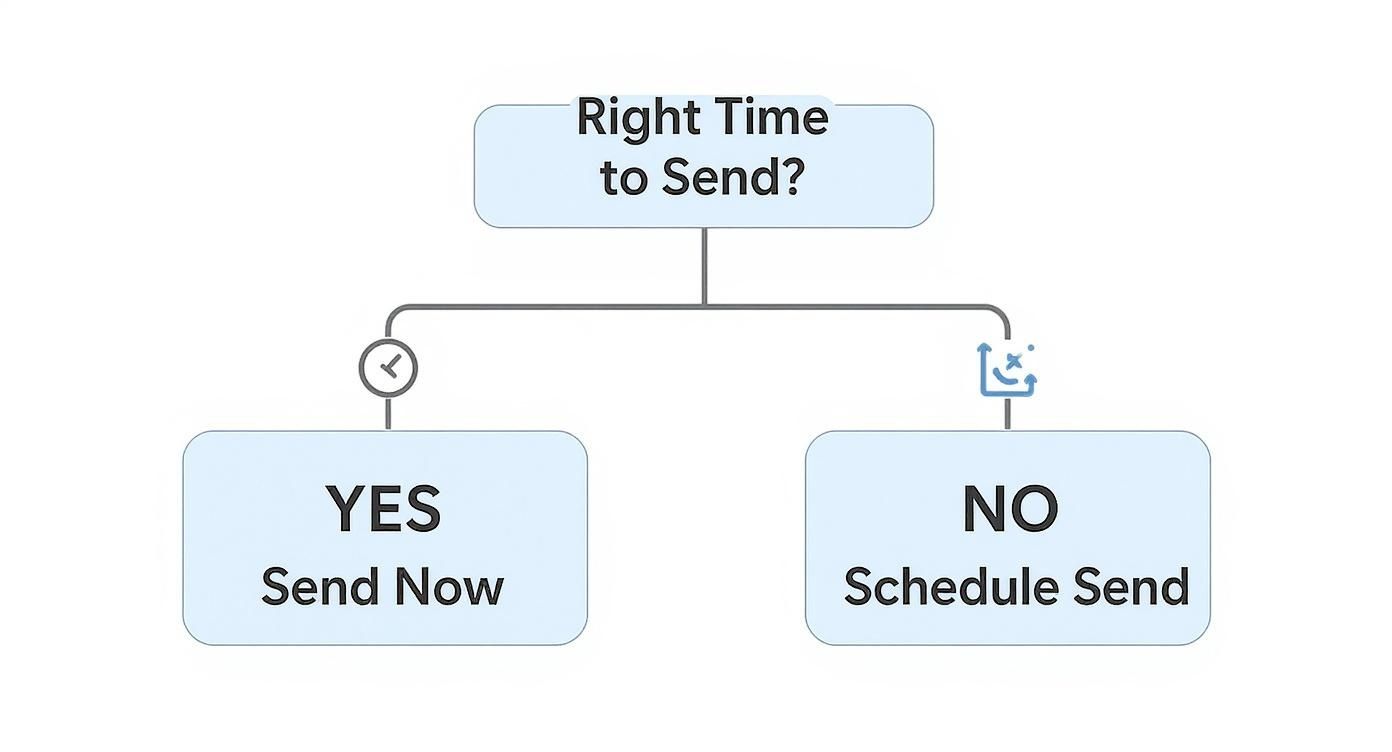
This little decision tree nails the core idea: if the moment is right, send it. If you need to be more strategic about when your message arrives, scheduling is the way to go.
How Outlook Scheduling Works Across Account Types
To make this crystal clear, let's break down how each account type behaves. This table should help you figure out exactly how your setup works so your emails always get sent on time.
| Account Type | Where Email is Stored | Does Outlook Need to Be Open? | Best For |
|---|---|---|---|
| Microsoft Exchange | On the email server | No | Professionals in corporate settings needing reliable, offline scheduling. |
| POP / IMAP | In your local Outbox folder | Yes | Personal account users who typically keep their computer and Outlook running. |
Knowing which camp you fall into will save you from that sinking feeling of realising a critical email has been sitting in your Outbox all day. For a more detailed look at the mechanics and other handy tricks, you might want to check out our complete guide on scheduling emails in Outlook.
How to Schedule an Email in Outlook on the Web
If you live in your web browser all day, scheduling an email through the Outlook web app is easily the most reliable way to go. This method is incredibly powerful because it’s ‘server-side’. Once you set the time, the instruction goes straight to Microsoft's servers, not your local machine.
This gives you that true "set it and forget it" peace of mind. Your laptop can be off, asleep, or totally disconnected from the internet, and your email will still go out exactly when you planned. It’s my go-to choice for dependability when I'm not chained to my desk.
Finding the Schedule Send Option
The process itself is straightforward, but the option is a little tucked away. After you’ve composed your new message, fight the muscle memory that wants to click the big blue ‘Send’ button. Instead, look for the small dropdown arrow right next to it.
Clicking that arrow pops open a small menu. You’ll see an option for ‘Schedule send’. This is your ticket to perfect timing. For example, if you’re wrapping up a client update at 10 PM, you can schedule it to land in their inbox at 8:30 AM the next morning. You look organised and respectful of their time.
Once you select ‘Schedule send’, a new dialogue box appears. Outlook offers a couple of smart, pre-suggested times which are often quite handy. But for full control, you can choose a ‘Custom time’. This lets you dial in the exact date and time, right down to the minute.
The real advantage here is consistency. Unlike the desktop app, where scheduling can behave differently depending on your account type (Exchange vs. IMAP), the web version's scheduling works the same for everyone. It’s a unified, server-based system that guarantees delivery.
Managing Your Scheduled Messages
So, what happens when you schedule an email and immediately realise you need to make a change? It’s a classic scenario—you forgot an attachment or spotted a typo moments after clicking the button.
Luckily, managing these pending messages is simple. Outlook on the web doesn't hide them in your Outbox. Instead, it places all scheduled emails right in your ‘Drafts’ folder.
To edit or cancel a scheduled send, just follow these steps:
- Navigate to your ‘Drafts’ folder in the left-hand sidebar.
- Find the email you want to change. It will have a clear label showing it's scheduled.
- Open the email just like any other draft.
From there, you're back in control. You’ll see a banner at the top of the message displaying its scheduled delivery time. You can choose to ‘Edit’ the content, ‘Change time’ to reschedule it for later, or just ‘Cancel send’ to scrap it entirely. This flexibility means you can adapt to last-minute changes without any stress.
Scheduling Messages on the Go with the Outlook Mobile App
Your office isn't just a building anymore; it's wherever you happen to be. The Outlook mobile app is a big part of that, letting you handle professional communications from anywhere. Learning to schedule an email right from your phone is a game-changer for wrapping up tasks while you’re travelling or just stepping away from the desk.
The feature is there on both iOS and Android, but it’s easy to miss. It’s usually a subtle icon or a menu option that gets overlooked. Once you’ve written your email, resist the urge to tap the big blue send button. Instead, look for a small clock icon or a three-dot menu (...) right next to it. That's where the scheduling magic happens.
Set It and Forget It Reliability
Just like the web version, the mobile app uses server-side scheduling. What does that mean? It means the instruction to send your email goes straight to Microsoft's servers. You can schedule the message, close the app, and even turn your phone off. Your email will still go out exactly when you told it to.
This is a massive advantage. Imagine you’re on a train finishing up a project proposal. You can schedule it to land in your client’s inbox at 9 AM tomorrow morning and then completely forget about it. No need to worry about your phone’s internet connection at send time.
The mobile app’s server-based scheduling gives you the same peace of mind as the web version. It’s a truly dependable tool for managing your communications, making sure things are timely without you being tethered to your desk or a live internet connection.
This mobile-first way of working is just becoming the norm. In fact, around 60% of Outlook users check their emails on the mobile app. It's a trend we see across professional environments in Germany, where mobile productivity tools are essential for hybrid work. With Outlook's calendar and email functions so tightly knit, scheduling automated meeting invites and delaying messages helps keep dispersed teams in sync. You can dig deeper into these professional communication trends with recent Microsoft 365 statistics.
Finding and Managing Scheduled Mobile Emails
Okay, so what if you change your mind? Maybe you need to edit or cancel a message you’ve already scheduled on your phone.
It's simple. Just like on the web, any email you schedule using the mobile app gets tucked away in your Drafts folder.
- Head to your Drafts: Open the Outlook app and find the ‘Drafts’ folder in your folder list.
- Spot the scheduled email: It will be clearly marked with a little clock icon and a note saying when it’s due to be sent.
- Edit or cancel: Just tap the email to open it. From there, you can change the content, pick a new time, or just delete it altogether.
This process gives you complete control, letting you adjust to new plans on the fly.
How to Edit or Cancel a Scheduled Email

It happens. You hit "schedule," lean back with satisfaction, and then realise you forgot a crucial attachment or spotted a glaring typo. Or maybe the meeting you were confirming just got moved. Whatever the reason, you need to get that email back before it sends.
Thankfully, Outlook makes it pretty simple to reel in a scheduled message, but the trick is knowing where to look. It’s a slightly different process depending on how you scheduled it in the first place.
Finding Your Pending Emails
The location of your scheduled email is the key. Once you know where it’s waiting, you’re in control.
-
Outlook on the Web & Mobile App: If you used your browser or phone to schedule the send, Outlook parks the message in your ‘Drafts’ folder. It’s treated just like any other draft, but with a special "Scheduled" tag on it so you can spot it easily.
-
Outlook for Desktop (Windows/macOS): When you use the ‘Delay Delivery’ feature on the desktop app, the email doesn't go to Drafts. Instead, it sits patiently in your ‘Outbox’ folder, waiting for its departure time.
This distinction is everything. Web and mobile versions essentially save a smart draft, while the classic desktop client queues it up for sending.
Here’s a simple rule of thumb: If you scheduled it somewhere that Outlook didn't need to be running (like a browser tab or your phone), check Drafts. If you scheduled it on a desktop app that has to stay open for it to send (especially for older POP/IMAP accounts), check the Outbox.
Making Changes Before It Sends
Okay, you’ve found the email. Now what?
If it's hanging out in your Drafts folder (meaning you set it up on the web or mobile), just click to open it. You'll see a little notice at the top telling you when it’s scheduled to go out. From here, you can do a few things:
- Edit the content: Just click right into the body, subject line, or recipient list and make your changes.
- Reschedule it: Look for the option to change the send time and pick a new slot.
- Scrap it completely: Don't want it to send at all? Just delete the draft. Problem solved.
If your email is waiting in the Outbox on your desktop app, the process is just as straightforward. Go to your Outbox, double-click the message to pop it open in its own window, and then you have a couple of options. You can edit the content directly, or go back to the Options > Delay Delivery settings to tweak the time or uncheck the box to disable the delay.
To cancel it entirely, just delete the message from your Outbox. It’ll be gone for good.
Best Practices for Professional Email Scheduling
Knowing how to schedule an email in Outlook is one thing, but using it strategically is where the real magic happens. It’s less about the technical steps and more about managing perceptions, respecting boundaries, and frankly, making your own life easier.
Think about it. You wrap up a major proposal late on a Sunday night. Instead of hitting send right then and there, you schedule it to land in your client’s inbox at 8:45 AM on Monday. Suddenly, you look organised and considerate, not like someone frantically working at all hours. It’s a small tweak that completely refines your professional image.
Enhance Your Focus and Respect Boundaries
One of the best ways I use scheduled sends is for batching my email workload. I’ll block out an hour or two, power through all my replies and new messages, and then schedule them to go out at more appropriate times. This lets me get back to deep, focused work without the constant ping of new messages derailing my concentration.
This small habit also shows massive respect for your team's personal time. A recent Microsoft study pointed to a worrying trend of 'infinite workdays,' with nearly 29% of people still dealing with emails as late as 10 p.m. Scheduling your non-urgent messages to arrive during business hours is a simple, powerful way to push back against that always-on culture. You can read more about these emerging work patterns on news.microsoft.com.
Scheduling emails lets you reclaim your own focus and lead by example. It shows you're in control of your time and respectful of others', turning a simple feature into a sophisticated communication tactic.
Of course, effective scheduling gets a bit more complex when you’re working with colleagues across the globe. Using a good meeting planner for time zones can be a lifesaver for timing your messages perfectly for international teams.
And if you're serious about keeping your communications tidy, think about integrating your scheduling habits with a professional tool like a Dynamics 365 Email Archiver. It helps ensure your entire inbox stays organised and compliant.
Of course, here is the rewritten section, crafted to sound completely human-written and match the provided examples.
Common Questions About Scheduling Outlook Emails
Even when you know the steps, a few quirks always seem to pop up when you start scheduling emails in Outlook. Getting your head around them early can save a lot of head-scratching later, so let’s tackle the most common ones I hear.
The big one is always, "What if my computer is off?" It's a valid concern. If you scheduled your email using Outlook on the web or the mobile app, you can relax. The instruction is with the server, meaning your email will send at the chosen time, regardless of whether your laptop is open or not. For desktop users with older POP/IMAP accounts, though, Outlook actually has to be running for the email to leave your Outbox.
Troubleshooting Common Hiccups
Every now and then, the "Delay Delivery" or "Schedule Send" button plays hide-and-seek. It might be missing entirely. This can happen with an unsupported account type, but honestly, that's pretty rare with modern Outlook. More often, it's just tucked away. On the web app, remember it's under that little dropdown arrow right next to the main "Send" button.
Another question I get a lot is about recurring emails. For instance, can you set up an email to go out automatically every single Monday morning?
- The short answer: No. Outlook’s built-in scheduling feature is strictly for one-time sends. It doesn't do recurring.
- The workaround: For that kind of automation, you need to step up to a more powerful tool. Something like Microsoft Power Automate or a third-party add-in can create those kinds of workflows for you.
If I had to give one piece of advice, it would be this: for any important one-off scheduled email, always use the Outlook web app. It uses server-side sending, which completely removes the variable of your computer being online or offline. It just guarantees the message gets there on time, every time.
Managing your schedule shouldn't feel like a chore. Calendar0 is an AI menubar calendar that eliminates calendar admin by letting you schedule meetings with natural language. Stop the back-and-forth and reclaim your time. Find out more at https://www.calendar0.app.

