Your Guide to Google Tasks PC Desktop Use
Unlock your productivity with this complete guide to Google Tasks PC desktop. Learn to access, sync, and master your to-do list on Windows and Mac.

Calendar0 Team
November 8, 2025

Let's be honest, Google Tasks doesn't have a dedicated desktop app, and at first, that might seem like a drawback. But once you dig in, you realise the way it’s built is actually its biggest strength. You can get to it right from the sidebar in Gmail and Google Calendar, or you can create a clean, app-like shortcut for a more focused view.
Both get the job done, giving you full access to your to-do lists without needing to install another programme.
Your Options for Google Tasks on PC and Mac
The magic of Google Tasks is how it slides right into the tools you’re already using every single day. Instead of a separate, standalone app you have to remember to open, you get two really practical ways to manage your to-dos from your computer. The trick is just picking the one that gels with your personal workflow.
This integrated approach makes perfect sense, especially in places like Germany, where Google’s desktop search engine market share is a massive 73.11%. People are already deep in the Google ecosystem. Since Tasks syncs flawlessly with the rest of the Workspace suite—which sees an 80.63% overall usage rate in the country—it just feels natural to manage tasks there too. You can explore more of these stats and see how they influence digital habits.
Method 1: The Integrated Sidebar
For most people, the simplest and best way to use Google Tasks on a computer is right from the sidebar in Gmail or Google Calendar. This puts your tasks right next to your emails and schedule, creating a single command centre for your entire day.
- If you live in your inbox: Having Tasks pinned next to your emails is a total game-changer. You can literally drag and drop an email into your task list, and bam—it instantly becomes a to-do item with a link back to the original message.
- If your calendar runs your life: Seeing your task list next to your calendar gives you instant context. You can glance over, see your appointments and your to-dos together, and make smarter decisions about how to block out your time.
Here’s what it looks like—that little checkmark icon in the Google Calendar sidebar is your gateway.
This setup means your to-do list is never more than a click away, sitting right where you need it for effortless planning.
Method 2: The Dedicated App Shortcut
Find the sidebar a bit too cluttered or distracting? I get it. If you need a clean space to focus, creating a Progressive Web App (PWA) is the way to go.
This clever trick pops Google Tasks out into its own dedicated window, completely free from browser tabs and other noise. It even lets you pin an icon to your taskbar or dock, so it looks and feels just like a native google tasks pc desktop app. It’s perfect for when you need a quiet, focused environment to just crank through your projects.
Comparing Google Tasks Desktop Access Methods
So, which one is right for you? It really comes down to your work style. Here’s a quick breakdown to help you decide.
| Method | Best For | Setup Time | Experience |
|---|---|---|---|
| Integrated Sidebar | Multitaskers who want tasks visible alongside emails and events. | < 1 minute | Convenient, contextual, and great for quick-fire task management. |
| PWA Shortcut | Users who prefer a dedicated, distraction-free window for their tasks. | 2-3 minutes | Feels like a native app, offering a focused and clean workspace. |
Ultimately, there's no wrong choice here. The sidebar is fantastic for on-the-fly planning, while the PWA gives you that dedicated app experience many of us crave.
Creating a Dedicated Google Tasks App
Let’s be honest, the integrated sidebar in Gmail or Calendar is useful, but it can also be a little… noisy. If you want a distraction-free zone for your to-do list, creating a dedicated app is the way to go.
This little trick uses a modern browser feature called a Progressive Web App (PWA) to basically “install” the Google Tasks website right onto your computer. The result is a clean, standalone window that looks and feels just like a native application. It’s perfect for separating your task management from the constant pull of your inbox.
Pin the app icon to your Windows taskbar or macOS Dock, and you’ve got one-click access. It transforms the whole google tasks pc desktop experience into something far more intentional and focused.
How to Create Your Google Tasks PWA
The whole process is surprisingly simple and only takes a minute if you’re using a browser like Google Chrome or Microsoft Edge. The key is using the right link—the direct, full-screen URL for Google Tasks, not the one embedded in Gmail.
You'll want to head straight to the dedicated Tasks canvas. This is the clean, full-page version of your list.
Here’s the exact URL you need: https://mail.google.com/tasks/canvas
This infographic shows the two main paths for getting Tasks on your desktop: sticking with the integrated sidebar or creating a dedicated PWA.
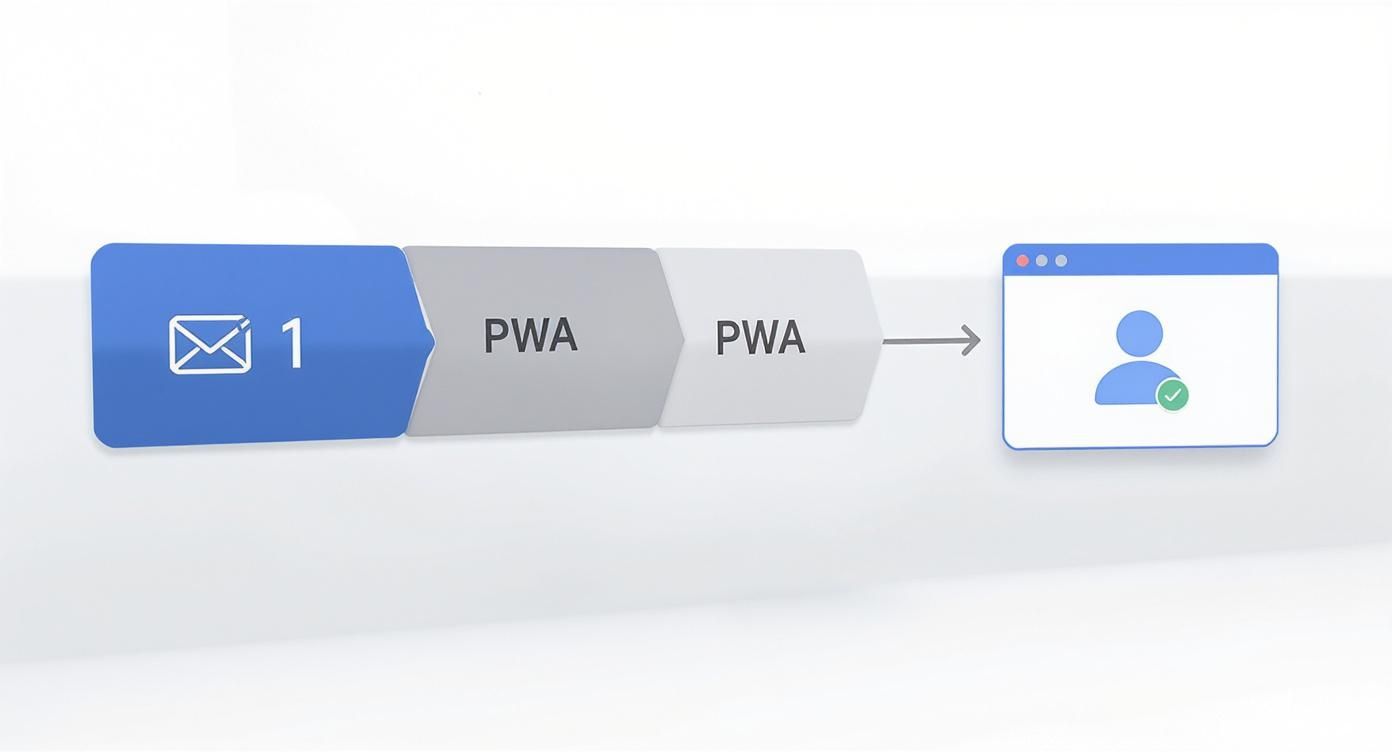
As you can see, the PWA method gives you a focused, single-purpose window, which can be a game-changer for productivity.
Installing the App from Your Browser
Once you have the Tasks canvas open at that URL, the final step is to "install" it. The icon for this looks slightly different depending on your browser, but the idea is the same. Just look up at the address bar for an icon that signals the site is installable.
Pro Tip: A PWA is more than just a glorified bookmark. It runs in its own process, making it feel snappier and more stable than a regular browser tab. Plus, it remembers its window size and position, which really adds to that native app feel.
If you're in Google Chrome:
- Look for a small computer icon with a downward arrow on the right side of the address bar.
- Click it, and a prompt will pop up asking if you want to "Install app?"
- Just click Install.
For Microsoft Edge users, the steps are pretty much identical.
Once you confirm, the app will launch in its own window, and an icon will be automatically added to your desktop and Start Menu (or Applications folder on a Mac). From there, you can pin it to your taskbar or Dock for easy access whenever you need it.
Managing Tasks Inside Gmail and Calendar
The real magic of Google Tasks on your PC isn't in some standalone app—it's how it weaves itself directly into the tools you’re already using all day, every day. It’s designed to be part of your workflow, turning emails and calendar events into clear, actionable items without ever needing to switch screens.
This is where you'll feel the biggest impact. Say an email lands in your inbox with a critical client request. Instead of the old copy-paste routine into another app, you can literally just drag that email from your inbox and drop it onto the Google Tasks sidebar.
Instantly, Tasks creates a new to-do for you. Better yet, it automatically includes a direct link back to that original email, so all the context you need is always just a click away. It’s a simple move that closes the loop between communication and action, making sure nothing slips through the cracks.
Building Your Productivity System
Good task management is about more than just making a list. It’s about organising your commitments in a way that actually makes sense for you, and this is where Google Tasks really starts to shine with its simple but powerful features.
When you assign a due date to a task, it does more than just set a deadline. That task automatically pops up on your Google Calendar for that specific day. This gives you a single, unified view of your appointments and your responsibilities, which is a game-changer for realistic planning. You can get even more out of your schedule by exploring our guide on the best Google Calendar app for desktop.
For example, seeing the task "Prepare Q3 report" due on Friday sitting on your calendar is a visual nudge to block out time on Wednesday and Thursday to actually get it done.
Organising Complex Projects and Routines
Most projects aren’t just one-and-done items. For bigger, more complex goals, subtasks are your best friend.
Think of a main task like "Launch new marketing campaign." That can feel overwhelming, but you can break it down into smaller, manageable chunks:
- Write blog post copy
- Design social media graphics
- Schedule email announcement
- Review performance analytics
Suddenly, that massive project becomes a clear, step-by-step checklist. You can also create entirely separate lists to keep different parts of your life organised, like ‘Work Projects,’ ‘Personal Errands,’ or ‘Home Maintenance.’
A key to reducing mental clutter is automating your recurring responsibilities. Use the ‘Repeat’ function for tasks like "Submit weekly timesheet" or "Pay monthly rent" to set them up once and let Google Tasks remind you automatically.
This kind of routine automation is a huge reason for its popularity. In Germany, for instance, around 68% of office workers prefer using a desktop for organising complex workflows. Features like repeating tasks are essential for managing the routine work that makes up so much of our professional lives. By mastering these features, your google tasks pc desktop setup transforms from a simple list into a powerful organisational tool. You can find more details in this study on global mobile vs desktop usage trends.
Advanced Tips And Keyboard Shortcuts
Alright, once you've got the basics down, it’s time to really make your Google Tasks PC desktop setup work for you. This is where you move beyond just making lists and start turning Tasks into a serious productivity engine. It's all about using a few simple frameworks and shortcuts to manage your workload with less friction and more focus.
Here’s a small change that makes a huge difference: start every task name with an action verb. Instead of a vague entry like "Q3 Report," rephrase it as "Finalise Q3 Report." It's a subtle shift, but it gives you instant clarity on what you actually need to do when you're scanning your list. No more decoding your own notes.
And don't sleep on the "Details" section for each task. It's the perfect spot to drop key links, add quick notes, or paste in contact info. This keeps all the relevant context tied directly to the task itself, saving you the headache of digging through old emails or documents later on.
Essential Google Tasks Keyboard Shortcuts
If you really want to get efficient, nothing beats keeping your hands on the keyboard. Learning just a few key shortcuts will dramatically speed up how you manage your to-do list, letting you add, edit, and organise tasks without ever reaching for the mouse.
This little reference table covers the most useful shortcuts that work when you have Google Tasks open, either in the sidebar or as its own PWA.
| Action | Shortcut |
|---|---|
| New Task | Enter |
| Complete Task | Alt + Shift + Enter (Windows) / Cmd + Shift + Enter (Mac) |
| Indent Task (Create Subtask) | Ctrl + ] (Windows) / Cmd + ] (Mac) |
| Outdent Task | Ctrl + [ (Windows) / Cmd + [ (Mac) |
| Move Task Up/Down | Alt + Up/Down Arrow (Windows) / Cmd + Up/Down Arrow (Mac) |
| Edit Task Details | Shift + Enter |
Honestly, just committing two or three of these to memory—like creating and completing tasks—can cut down your admin time significantly over a week. Start there and build the habit.
Organising Your Lists For Maximum Impact
Think of your lists as more than just folders; they can be powerful tools to support proven productivity methods. Why not structure them to mirror a system that already resonates with you?
- GTD (Getting Things Done): A classic for a reason. Create lists for "Next Actions," "Projects," "Waiting For," and "Someday/Maybe."
- Kanban Style: Keep it simple with lists like "To Do," "In Progress," and "Done." This gives you a great visual of your workflow as you drag tasks from one stage to the next.
This kind of deliberate organisation is what keeps you on top of your priorities. A well-designed system, even a simple one, helps you focus on what really matters. For anyone juggling a packed schedule, finding the right https://calendar0.app/blog/daily-planner-app can be a fantastic way to complement your task management setup.
And remember, good productivity habits often apply across different tools. Discover more task management insights on the taskignite blog for fresh ideas that can help you refine your approach, no matter what platform you use. The goal is always to find a system that feels natural and helps you consistently make progress on your goals.
Syncing Google Tasks with Other Apps
Let's be realistic. While Google Tasks fits perfectly into the Gmail and Calendar workflow, most of us don't live exclusively in the Google ecosystem. Maybe you use Outlook for work and Google for your personal life. Trying to keep two separate to-do lists in sync is a recipe for disaster.
The good news is you don’t have to manually copy-paste tasks between apps. There’s a whole world of third-party tools designed to create a seamless, two-way sync. Add a task in Outlook, and it pops up in Google Tasks. Check something off in Google Tasks, and it updates in Microsoft To Do. It just works.
Choosing the Right Integration Tool
Diving into third-party connectors can feel a bit overwhelming, but they usually break down into two main types.
- Dedicated Sync Tools: These are specialised apps built for one purpose: connecting two specific platforms, like Outlook and Google. They tend to be more reliable and focused, offering a polished sync experience for your tasks and calendar events.
- Automation Platforms: Think of services like Zapier or Make. They let you build your own custom workflows. You could set up a rule that says, "Every time I create a new task in Microsoft To Do, create that same task in Google Tasks."
For most people, a dedicated sync tool is the simplest, most direct route. If you're also trying to get your calendars to play nicely, our guide on Outlook Google Calendar sync options is a great place to start.
I’ve seen this countless times with clients: they manage their workday in Microsoft Outlook but rely on Google Calendar for family appointments. A two-way sync is a game-changer, letting them see work deadlines alongside personal commitments. It’s the only way to get a true picture of your day and avoid double-booking yourself.
Understanding the Sync Process
Setting up one of these tools is usually straightforward. You’ll need to grant it access to both your Google and Microsoft accounts, then tweak the settings. You can typically choose which task lists to sync and whether the data flows one-way or two-ways.
Keep in mind that while some basic connectors are free, the more powerful services usually come with a subscription fee, so be sure to factor that into your decision.
The value of a solid google tasks pc desktop setup can't be overstated. In Germany, for example, Google Tasks is a key productivity driver for professionals who are already deep in the Google ecosystem. It’s completely free and integrates directly with Calendar, Gmail, and Docs, which means you can manage everything without constantly switching apps. This kind of synergy is what makes task management on a PC so effective.
Finally, don't forget how Tasks and Calendar work together. Getting a handle on choosing your Google Calendar sync options will ensure your tasks with due dates show up right where you expect them—on your calendar. The end goal is an accurate to-do list that’s always accessible, no matter which app you have open at the moment.
Answering Your Top Google Tasks Questions
Even a simple tool like Google Tasks can leave you scratching your head about a few things. Let's tackle the most common questions I hear, so you can get back to being productive without the guesswork.
Most people start by looking for a download button. Let's clear that up first.
Is There an Official Google Tasks Desktop App?
Short answer: no. Google never built a standalone google tasks pc desktop app you can download and install like you would with Microsoft Office or Slack.
That was a deliberate choice. Instead of making another separate programme to manage, Google wove Tasks directly into the places you already work:
- The sidebar in Gmail and Google Calendar.
- A Progressive Web App (PWA) that you can create yourself.
The whole idea is to keep your to-dos connected to your main work hubs—your inbox and your schedule—not siloed off in another application.
Can I Share My Google Tasks Lists with Others?
This is probably the biggest sticking point for newcomers. Unlike a lot of other project tools, Google Tasks does not let you directly share a list with another person's individual Google account. It was built from the ground up to be a personal task manager.
For any kind of teamwork, Google pushes you towards Google Chat Spaces. Inside a Space, you can create a shared task list and assign items to different members of the group. This keeps your team projects neatly separated from your personal to-do list.
It helps to think of Google Tasks as your personal command centre and Google Chat Spaces as the team's project board. That separation stops your private list from getting swamped with group assignments.
How Do I Sync Tasks Between My PC and Phone?
This is one of the best parts of Google Tasks—the sync is completely automatic and seamless. As long as you're logged into the same Google account on your computer and your phone, everything just works.
All you need to do is download the official "Google Tasks" app from the Google Play Store or the Apple App Store. The moment you add, edit, or check off a task on your PC, it updates on your phone in seconds (and vice versa). No settings to fiddle with, no sync buttons to press.
What's the Difference Between Google Tasks and Google Keep?
It's easy to get these two mixed up, since they both handle notes and lists. The clearest way to separate them is by thinking about their core purpose.
- Google Tasks is for structured, actionable items. It’s built for creating proper to-do lists with due dates, subtasks, and that all-important calendar integration. Use it for things you actually need to do.
- Google Keep is more like a digital corkboard or a pile of sticky notes. It’s perfect for capturing quick ideas, saving links, making a simple shopping list, or jotting down a phone number. Use it for things you need to remember.
Ready to stop juggling calendars and start saving time? Calendar0 is an AI menubar calendar that unifies your schedules, prevents double-booking, and lets you schedule meetings with natural language. Professionals save about 20 minutes every day. Get started for free at https://www.calendar0.app.

