A Practical Guide to Google Calendar Sync on All Your Devices
Tired of missed meetings? This guide solves your Google Calendar sync issues across all devices. Get actionable steps for a perfectly unified schedule.

Calendar0 Team
January 19, 2026

Having your Google calendar sync flawlessly means every meeting, appointment, and reminder shows up everywhere you need it—from your laptop to your phone. It’s about creating a single source of truth for your schedule, putting an end to double-bookings and missed events for good.
Why Your Calendar Sync Is Non-Negotiable
We've all been there. You add a crucial client call on your phone, only to find it completely missing from your laptop's calendar an hour later. In a world of back-to-back meetings, a calendar that isn't perfectly in sync isn't just an annoyance; it's a recipe for disaster. This small glitch can snowball into major professional headaches.
The Real Cost of a Broken Sync
When your calendars aren't talking to each other, you’re left trying to manage different versions of your own day. This disjointed approach is more than an inconvenience—it actively sabotages your productivity and chips away at your professional reputation.
This is what you're up against:
- Embarrassing Double-Bookings: You confidently agree to two meetings at the same time because one calendar simply didn't get the memo from the other.
- Missed Appointments: An event you added on your work computer never materialises on your phone, so you blow right past the appointment without a notification.
- Wasted Mental Energy: The constant, nagging need to cross-reference calendars just to confirm your availability drains focus you should be spending on actual work.
For people in roles like professional appointment setters, where scheduling is the job, a reliable sync is the absolute foundation of their success and client satisfaction.
A disconnected calendar doesn't just create scheduling conflicts; it introduces unnecessary stress and erodes trust. Mastering your Google Calendar sync is a foundational strategy for reclaiming control and projecting reliability.
The shift towards digital-first scheduling is undeniable. The global calendar software market was valued at a hefty USD 2.5 billion in 2023 and is on track to hit USD 5.8 billion by 2032, with Europe being a significant driver of this growth. This surge just goes to show how critical seamless scheduling has become for any modern professional trying to stay on top of their game.
Syncing Google Calendar with Your Desktop
Let's start with the heart of your workday: your desktop. Getting your Google Calendar synced up here is the first real step towards an organised life. Whether you're on a Mac or a Windows machine, integrating your calendar directly into the OS means you can see your day at a glance without having to keep another browser tab open.
This whole process is about bridging the gap between Google's cloud and your main computer, making your schedule feel like a core part of your desktop, not just a website you visit. For a lot of us, a dedicated desktop app just feels more solid and accessible. If you're after something a bit more powerful than the built-in options, a dedicated Google Calendar app for your desktop can offer some serious feature upgrades.
Setting Up Sync on macOS
If you're a Mac user, good news: connecting your Google account to the native Calendar app is incredibly straightforward. It's not just for viewing, either. This integration gives you full control to create, edit, and delete appointments right from the macOS interface.
The magic happens when you add your Google account directly in your Mac's System Settings.
- Head over to System Settings and find Internet Accounts.
- Click Add Account and pick Google from the list.
- Just follow the on-screen prompts to sign in and give it the necessary permissions.
Once you’re in, you'll see a small panel asking which Google services you want to sync.
Make sure the Calendars box is ticked. That's the switch that tells your Mac to start pulling in all your event data from Google and displaying it right alongside your iCloud calendars.
A little pro tip from my own setup: dive into the Calendar app's preferences and check the refresh settings. By default, it might only fetch new data every 15 minutes. If your schedule is packed and time-sensitive, I highly recommend changing this to "Every 5 minutes" or even "Push" to get updates almost instantly.
Connecting Google Calendar on Windows
Windows folks, you're not left out. You can get a similarly seamless experience using the built-in Calendar app. The setup is just as simple and pulls all your Google events into one clean, unified view right on your desktop. This is all about creating a single source of truth for your schedule.
To get going, just open the Windows Calendar app.
- Click the little Settings cog in the bottom-left corner.
- Go to Manage Accounts and then hit Add account.
- Choose Google from the options.
- Pop in your Google details and authorise the connection.
That's it. Your Google Calendar will start populating the Windows app automatically. Now you have a native, at-a-glance view of your day accessible right from your taskbar. It's a small tweak, but it makes a massive difference to your daily workflow by keeping you out of the browser.
Keeping Your Mobile Calendar Perfectly Aligned
Let's be honest, your calendar’s real test happens when you’re out and about. An out-of-sync schedule in your pocket can torpedo your day in a hurry, which makes a rock-solid mobile Google Calendar sync an absolute must. Whether you're all-in on iPhone or a die-hard Android user, getting your phone to mirror your desktop calendar is thankfully pretty straightforward.
For most of us, our phone is mission control for the day. It’s where you accept meeting invites on the go, reschedule appointments from the back of a taxi, and get that crucial ten-minute warning before a call. When the sync breaks down here, it’s not just a minor hiccup—it's a direct hit to your productivity and punctuality.
Syncing with Your iPhone
If you’re using an iPhone, the best move is to pull your Google Calendar directly into the native Apple Calendar app. This setup gives you one unified view of everything—your personal iCloud events and your professional Google schedule—without having to bounce between different apps. It’s a clean, elegant solution that just works.
Getting it all connected is a quick detour into your iPhone’s settings.
- Pop open the Settings app.
- Scroll down and tap on Calendar, then head into Accounts.
- Select Add Account and pick Google from the list.
- From there, just sign in with your Google details and give it the A-OK on permissions.
Once you’re authenticated, double-check that the "Calendars" toggle is switched on. That’s the final step that tells your iPhone to start pulling in all your Google Calendar events. Now, any change you make in the Apple Calendar app will zap right back to Google, and vice versa.
Managing Sync on Android Devices
On Android, things are usually simpler since the Google Calendar app is often the default. Your main Google account is synced right out of the box. The real challenge pops up when you're juggling multiple Google accounts, like one for work and another for personal stuff, and need to be sure everything is updating correctly.
Every now and then, you might notice a new event is slow to appear. It happens. Forcing a manual refresh is easy.
Just open the Google Calendar app, tap the three-line menu in the top-left corner, and hit Refresh. This little nudge prompts the app to immediately fetch the latest data from Google's servers, often clearing up minor sync delays in seconds.
If an entire calendar from a secondary account is missing in action, you'll need to dive into the app's settings. In that same menu, scroll down to Settings, tap the name of the calendar that's playing hide-and-seek, and make sure the "Sync" toggle is enabled. This simple check ensures the app has the green light to continuously update that specific calendar, keeping every piece of your schedule perfectly aligned, no matter which account it lives in.
How to Integrate Google Calendar with Outlook
For so many of us, our work life is split between two different worlds: Google’s ecosystem for personal events or team projects, and Microsoft Outlook as the corporate standard. This digital split often turns your calendar into a minefield of scheduling conflicts. Getting a proper Google Calendar sync with Outlook isn't just a nice-to-have; it's the only way to get a single, trustworthy view of your entire day.
Bridging this gap comes down to two very different approaches. Your choice depends entirely on what you actually need to do with your calendars. Are you just trying to see your Google appointments inside Outlook to avoid double-booking? Or do you need to actively manage events across both platforms as if they were one?
Choosing Your Sync Method
You’ve got two main paths: a simple, view-only subscription or a fully interactive two-way sync. The first is quick and dirty but has major limitations. The second gives you complete control but relies on an external service to do the heavy lifting.
A good way to think about this choice is to look at how we handle calendars on our phones. This decision tree breaks down the simple choices for getting your calendar aligned on mobile.
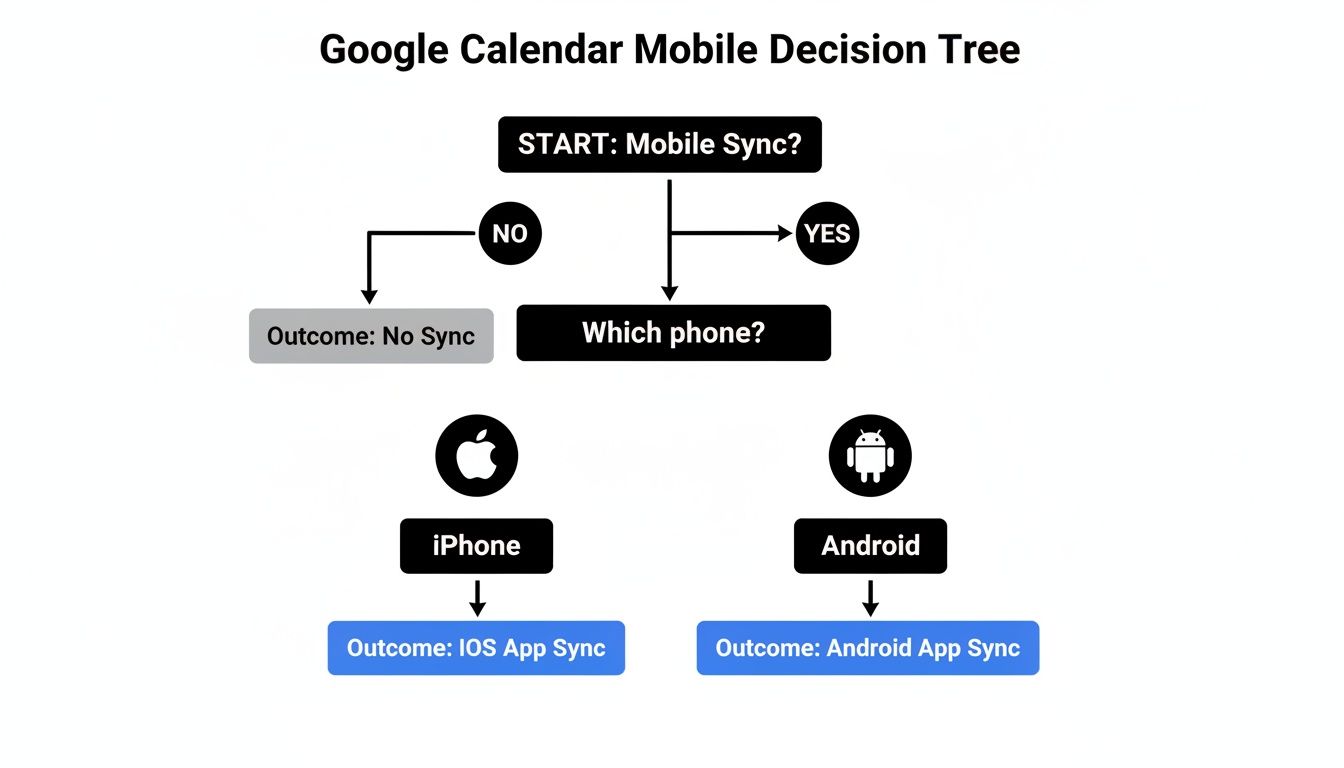
Just as the infographic presents a clear choice based on your device, your Outlook sync method boils down to your workflow needs.
The One-Way Subscription Method
The easiest way to see your Google events in Outlook is to subscribe to it using a public iCal link. Think of this as a "read-only" solution. It's perfect if your only goal is to see your Google schedule as a transparent layer inside your main Outlook calendar to stop yourself from getting double-booked.
- How it works: You generate a secret iCal URL from your Google Calendar settings and then add it to Outlook as an "Internet Calendar."
- The catch: You can't create, edit, or delete Google events from within Outlook. Any changes have to be made directly in Google Calendar, and you might notice a delay before those updates appear in Outlook.
This method is ideal for anyone who lives in Outlook but needs a quick reference to a personal or secondary Google Calendar. It keeps things dead simple.
The Two-Way Sync Solution
If you need to treat Outlook and Google Calendar as true equals, a one-way subscription just won't cut it. For full, seamless interactivity—like creating an event in Outlook and seeing it pop up in Google instantly—you’ll need a proper two-way sync. This requires a third-party tool that acts as a bridge between the two platforms.
These tools constantly watch both of your calendars for changes. Add a meeting in Outlook, and the service instantly creates the same event in your Google Calendar. Delete a personal appointment from Google Calendar on your phone, and it vanishes from Outlook. It’s the only way to get a truly unified schedule.
To help you decide which path is right for you, here’s a quick comparison of the two methods.
Outlook and Google Calendar Sync Methods Compared
| Feature | One-Way Sync (iCal Subscription) | Two-Way Sync (Third-Party Tool) |
|---|---|---|
| Functionality | View-only. Events from Google appear in Outlook. | Fully interactive. Create, edit, and delete events on either platform. |
| Setup Complexity | Simple. Copy a URL from Google and paste it into Outlook. | Moderate. Requires authorising a third-party app to access both accounts. |
| Update Speed | Delayed. Updates can take hours to appear. | Near-instant. Changes sync within minutes, often seconds. |
| Editing Events | Not possible from Outlook. Must be done in Google Calendar. | Yes. Edit an event in one calendar, and the change syncs to the other. |
| Best For | Quickly viewing a secondary calendar to avoid conflicts. | Professionals who actively use both Google and Outlook and need a single source of truth. |
| Cost | Free. | Usually requires a paid subscription for the third-party service. |
For most professionals who actively use both ecosystems, a robust two-way sync is the gold standard.
If you're ready to create a single, actionable view of your time, our guide on how to get your Outlook and Google calendars to sync takes a deeper dive into the tools and steps needed to make it happen.
Solving Common Google Calendar Sync Problems
Even the most organised setup can hit a snag. A failed google calendar sync is instantly frustrating—an event you add on your laptop vanishes into the digital ether instead of appearing on your phone. The good news? Most sync problems come from a handful of common issues that are surprisingly easy to fix.
Before you start digging into complex settings, check the basics. Is your device actually connected to the internet? It sounds obvious, but calendar apps need a stable connection to talk to Google's servers. A quick toggle of your Wi-Fi or mobile data can sometimes be all it takes to get things moving again.
If your connection is solid, the next place to look is inside the app itself.
Verifying App Settings and Permissions
More often than not, a sync issue isn't a total system failure. It's usually just a misconfigured setting for a single calendar or account. This happens a lot on mobile, where aggressive battery-saving modes can restrict background data and stop apps like Google Calendar from updating properly.
First, make sure the specific calendar you're having trouble with is actually set to sync.
- On Android: Pop open the Google Calendar app, tap the menu icon, and head to Settings. Find the calendar that’s misbehaving and make sure the Sync toggle is switched on.
- On iOS: Go to your device’s Settings > Calendar > Accounts. Tap your Google account and check that the Calendars toggle is enabled.
Another classic culprit is app permissions. If you’ve recently changed your Google password or your phone just went through a major OS update, the app might need you to sign in again. This re-establishes the secure connection, giving the app permission to access your calendar data once more.
Think of a sync error as your calendar’s way of saying it has lost its secure handshake with Google's servers. Re-authorising the account is like re-introducing them so information can flow again.
This brings up a crucial point about data security. Companies in Europe, for example, are increasingly looking for calendar solutions that meet strict regulations like GDPR. This focus on privacy is why understanding permission models like OAuth is so important when connecting your accounts. You can find more details on how European data regulations are shaping the calendar space by reading these insights on Google Calendar alternatives.
Forcing a Refresh and Clearing the Cache
Sometimes, your calendar app just needs a little nudge. Manually forcing a refresh is the quickest way to trigger a google calendar sync and see if your missing events finally show up. On your phone, you can usually just pull down on the screen to do this.
If a simple refresh doesn't cut it, clearing the app’s cache is the next best move. The cache stores temporary data to help the app load faster, but this data can get corrupted and cause all sorts of strange issues, including sync failures.
Clearing the cache on an Android device is straightforward:
- Open your phone’s main Settings menu and navigate to Apps.
- Scroll through the list to find and select the Calendar app.
- Tap on Storage & cache.
- Finally, hit the Clear cache button.
Don’t worry—this only removes temporary files, not your actual events or settings. Once you’ve cleared it, reopen the Calendar app and pull to refresh. This forces it to download a completely fresh copy of your schedule from Google’s servers, which often resolves even the most stubborn sync problems.
Unifying Your Calendars with a Single View
Let’s be honest: juggling multiple calendars is a recipe for disaster. The constant tab-switching between your work and personal schedules isn't just inefficient; it's a mental drain that makes a solid google calendar sync absolutely non-negotiable. You're just asking for double-bookings and missed appointments.
The only sane approach is to centralise. This is where tools like Calendar0 come in, acting like a command centre that pulls all your Google and Microsoft calendars into one clean view, right from your menu bar.
From Chaos to Cohesion
Instead of defensively checking four different apps before committing to a coffee meeting, a unified view gives you a single source of truth for your entire life. It’s the difference between calendar chaos and scheduling sanity.
When you can see everything at once—work deadlines, personal appointments, team project timelines—you instantly spot conflicts and find open slots. No more cross-referencing tabs like a detective.
But this isn't just about looking at a pretty, combined calendar. It's about taking action.
- Kill double-bookings for good: A smart tool sees you're busy on one calendar and automatically blocks that time on all your others.
- Schedule like a human: Just type "Meeting with the dev team tomorrow at 2 pm," and the app does the heavy lifting of sending invites.
- See your actual availability: Get an instant, honest look at when you're free across every single account.
This idea of pulling everything together is a major driver behind modern business software. If you're curious about the bigger picture, understanding how things like unified communications as a service (UCaaS) integrate calendars can unlock even bigger workflow improvements. But for a deep dive specifically on merging your schedules, checking out some dedicated Outlook and Google Calendar sync software is a great place to start.
Got a Sync Problem? Quick Fixes for Common Questions
Let's cut to the chase and tackle some of the most frequent headaches people run into when syncing Google Calendar. These are the quick answers you're probably looking for.
Can I Get My Google Calendar to Show Up in Apple Calendar?
You absolutely can, and it's pretty seamless once you've set it up. All you need to do is add your Google account directly within your Mac or iPhone's system settings.
Once authorised, all your Google events pop right into the native Apple Calendar app. You can create, edit, and manage everything from there, and any changes you make will sync back to Google automatically. No more switching between apps.
My Google Calendar Events Aren't Showing Up on My Phone. What Gives?
This is the classic google calendar sync bugbear, but it's usually an easy fix. More often than not, it's one of a few simple culprits.
First, the obvious one: check your internet connection. A weak Wi-Fi or mobile signal can stall a sync. Next, dive into the Google Calendar app's settings on your phone and make sure the specific calendar you're missing is actually ticked to be synced. It's an easy setting to miss.
Sometimes, the app's cache just gets gummed up. Clearing the cache for the Google Calendar app in your phone's settings can force a fresh download of all your events, and that often kicks things back into gear.
A common tripwire is a recent password change. If you've updated your Google password, you'll likely need to sign out of your Google account on your phone and sign back in to re-authorise the connection.
How Fast Does Google Calendar Actually Sync?
It really depends on where you're looking. If you're using the official Google Calendar app on your phone or in a web browser, the sync is practically instant. As long as you're online, any change you make is reflected everywhere else in seconds.
When you're dealing with third-party apps like Apple Calendar or Outlook, it's a different story. The update speed can vary. Some apps let you set this yourself, offering options from "Push" (which is instant) to fetching new data every 15, 30, or 60 minutes.
Is It a Pain to Sync Multiple Google Calendars?
Not at all. You can sync as many Google Calendars as you want across your devices. In the official apps, you just need to pop into the settings and ensure each calendar you care about is selected and set to "visible."
For other platforms like Outlook, it might involve an extra step. You may have to add each calendar's unique subscription link one by one. Or, if you're managing a lot of them, a dedicated tool can make handling multiple calendars much less of a chore.
Tired of jumping between calendars and accidentally double-booking yourself? Calendar0 pulls all your Google and Microsoft calendars into one smart view. It stops scheduling conflicts before they happen and even lets you create events just by typing. Give the free trial a spin at Calendar0 today.

