Google calendar import: Master syncing from ICS, CSV, and more
Learn google calendar import from ICS, CSV, Outlook, and Apple calendars, with tips to avoid duplicates and sync errors.

Calendar0 Team
December 27, 2025

Getting all your calendars in one place isn't just a neat trick—it’s how you take back control of your schedule. When we talk about a proper google calendar import, we're talking about pulling everything—from Outlook meetings and Apple Calendar events to .ics files from flight bookings—into one single, reliable view. This stops the constant app-switching and ends the double-bookings for good.
Why Bother Importing Calendars in the First Place?
Let's be honest, juggling multiple digital calendars is a productivity killer. The real headache isn't just having a work calendar and a personal one; it's the chaos that comes from them not talking to each other.
Think about the last time you missed a client call because it was only on your work calendar, not the personal one you checked on your phone. Or the classic email chain trying to find a meeting time, only to realise you’ve already promised that slot to someone else. It happens to everyone.
This constant back-and-forth isn’t just annoying; it costs you. Every double-booking chips away at your credibility, and the mental energy you burn manually checking three different schedules is time you could have spent on actual, meaningful work. This is where you can flip the script. Instead of your calendar being a reactive mess you have to clean up, it can become your best tool for getting ahead.
Creating a Single Source of Truth
The goal is to make Google Calendar the one place you look for everything. When every commitment is centralised, conflicts don't just get resolved—they never even happen. No more guesswork, no more frantically switching between apps. Every personal appointment, team meeting, and project deadline lives together in one place.
This isn’t a small problem. A 2023 analysis from Bitkom found that 78% of German professionals using Google Calendar spend around 45 minutes a day on manual scheduling tasks. That’s a staggering amount of lost time. If you want to dig deeper, you can read the full research about German professionals and calendar management to see the full impact.
The real aim is to move from juggling calendars to mastering your calendar. A unified schedule doesn’t just organise your day; it brings a sense of calm and focus, making sure you’re always where you need to be, when you need to be there.
Getting your Google Calendar import process down is the first step. And once you’ve done that, modern tools like Calendar0 can take over, automating the whole sync process so your schedules stay perfectly aligned in the background, without you lifting a finger.
Dealing with File Imports: ICS and CSV
When you're manually pulling events into Google Calendar, you’ll almost always run into two file types: ICS and CSV. They're basically the universal translators for calendar data. Getting comfortable with both is key to importing schedules from almost anywhere, whether it's a project plan from a client or a flight confirmation email.
An iCalendar file, or .ics, is the gold standard. Pretty much every calendar app out there—from Microsoft Outlook to niche project management tools—can spit out its data in this format. That makes it incredibly handy for moving an entire calendar's worth of events in one clean shot.
On the other hand, a CSV (Comma-Separated Values) file is just a simple spreadsheet. This route is a lifesaver when you need to create a ton of events from scratch, like plotting out an entire semester of classes or adding a list of company-wide holidays. It gives you a lot of control, but you have to get the formatting just right for it to work.
This whole process is about moving away from the chaos of juggling different schedules and bringing everything into one clear, central view.
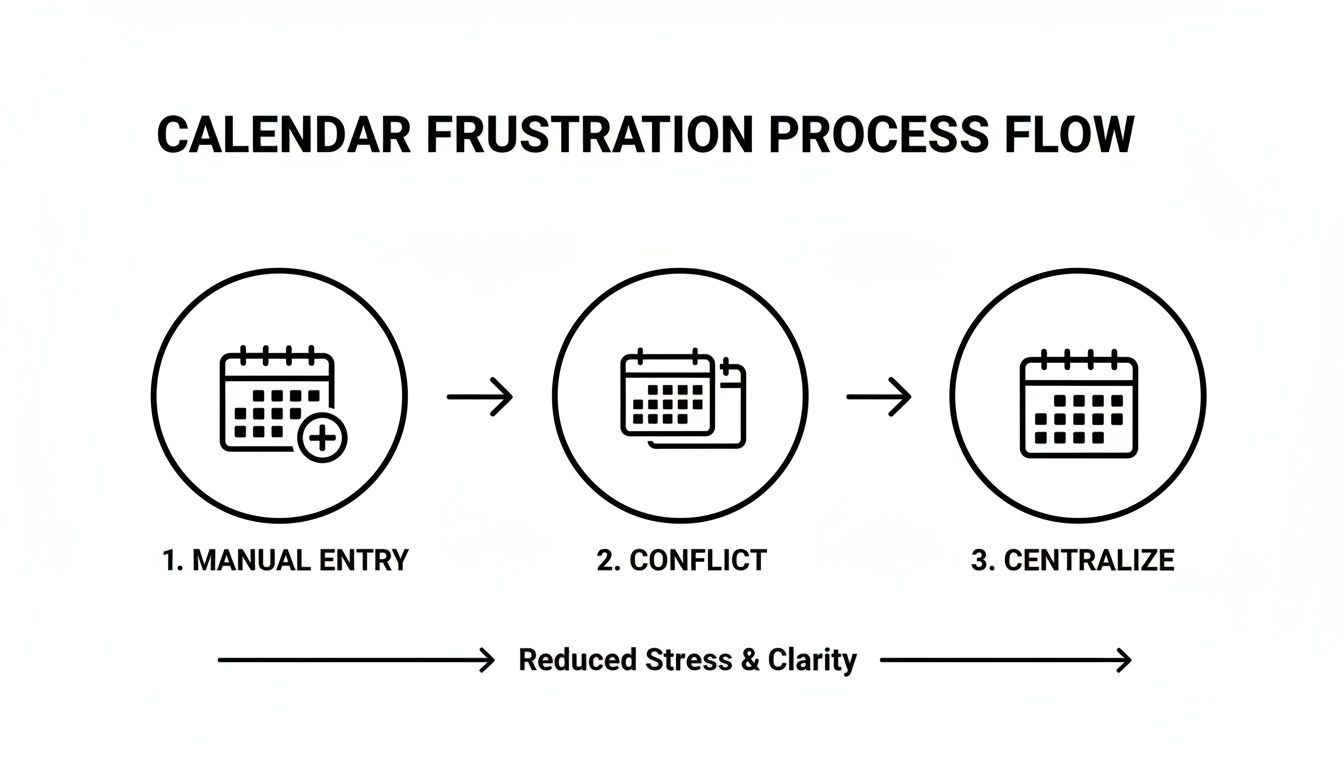
As the graphic shows, the goal is to stop the manual entry madness and end the scheduling conflicts. Centralising is the only way to get true clarity.
Working with ICS Files
Importing an ICS file is usually the most straightforward way to get things done. Let's say you're leaving a company that used Outlook and you want a personal archive of your old work calendar. You'd simply export the whole thing from Outlook, and it would give you a single .ics file with every meeting and appointment inside.
From there, getting it into Google Calendar is a breeze:
- Head into your Google Calendar settings (just click the gear icon).
- Find "Import & Export" in the menu on the left.
- Click "Select file from your computer," grab your .ics file, and choose which calendar you want to add the events to.
My best tip: Always import into a new, temporary calendar first. Think of it as a sandbox. If the import creates a mess of duplicates or errors, you can just delete that one calendar without touching your main schedule. It's a simple step that has saved me countless headaches.
This works for single-event files, too. You know those .ics attachments you get with flight or hotel booking confirmations? Just opening that file will prompt Google Calendar to add that specific event right where it belongs.
Demystifying the CSV Import Process
Importing from a CSV file takes a bit more care, but it’s incredibly powerful for creating events in bulk. Imagine you're a project manager and need to add 25 different client deadlines to the team's shared calendar. Doing that one by one would be a nightmare and a recipe for mistakes. A CSV is the perfect tool for the job.
The absolute key to a successful CSV import is getting the column headers exactly right. Google Calendar is very particular about this.
Here are the non-negotiable headers you'll need:
- Subject: The name of the event (e.g., "Client X Project Kick-off").
- Start Date: The day the event begins, formatted as MM/DD/YYYY.
- Start Time: The time the event starts (e.g., "10:00 AM").
- End Date: The day the event ends.
- End Time: The time the event ends.
- Description: Any notes or extra details.
- Location: The physical address or meeting link.
If you stray from this format, the import will likely fail. To make your life easier, build your event list in a spreadsheet tool like Google Sheets or Excel. You can double-check everything is mapped to the right column, then export it as a CSV file, ready for a clean google calendar import.
Syncing With Outlook and Apple Calendar
Juggling a work calendar in Outlook and a personal one in Google is a story I hear all the time. It’s a classic productivity killer. You're constantly flipping between apps, terrified you're going to double-book yourself or completely miss an important meeting. The goal is to get a single, unified view of your entire life, and thankfully, it's very achievable.
You don't have to live with a fragmented schedule. There are a couple of solid ways to pull your Outlook and Apple Calendar events into Google Calendar, so everything—work appointments, personal reminders, family events—lives in one central place.
Which method you choose really boils down to one question: do you need a one-time snapshot of your events, or do you need a live, continuously updated view of another calendar? Let's break down both options.
The One-Time Export and Import
The most straightforward way to move events over is with a good old .ics file. Think of this as taking a screenshot of your calendar. It's perfect for situations where you just need a static copy, like if you're leaving a job and want to archive your old work schedule from Outlook without maintaining a live connection.
You just export your entire Outlook or Apple Calendar as an .ics file and then do a standard google calendar import into a new or existing calendar on your Google account. It’s a clean, simple process for migrating a chunk of historical data.
The big catch, however, is that it's a snapshot in time. Any new meetings added to your original Outlook calendar after you export won't magically appear in Google Calendar. For that, you need a more dynamic solution. If you want a more detailed walkthrough on that, check out our guide on how to keep Outlook and Google calendars in perfect sync.
Subscribing for a Live, Read-Only View
For a more hands-off, automated approach, you can subscribe to an external calendar using its public URL. Both Outlook and Apple Calendar can generate a secret web address for your calendar. When you plug this URL into Google Calendar, it creates a live feed.
This means any changes made in the original calendar—new events, last-minute updates, or cancellations—will automatically show up in your Google Calendar. This is my go-to method for keeping an eye on a work schedule without having to manually copy anything over. It's no surprise this is a popular feature, especially in markets like Germany, where Google Workspace has over 65% adoption among businesses.
The key limitation here is that the synced calendar is read-only. You can see the events, but you cannot edit them or add new ones to that calendar directly from Google. All changes must be made in the source application (Outlook or Apple Calendar).
Deciding Between Syncing and Importing
Use this comparison to choose between a one-time import and a live sync based on your need for fresh data and editing capabilities.
| Feature | One-Time Import (.ics/CSV) | Live Sync (URL Subscription) | Best Use Case |
|---|---|---|---|
| Data Freshness | Static; a snapshot in time | Dynamic; updates automatically | One-off transfers vs. ongoing visibility |
| Editability in Google | Yes, events become native | No, it's a read-only view | Archiving data vs. monitoring a schedule |
| Setup Process | Manual export and import | Copy/paste a single URL | Simple, but requires repetition for updates |
| Automation | None; completely manual | Fully automated after initial setup | For a single data migration |
Ultimately, choosing an import gives you editable, but static, data. A live sync gives you an automated, but read-only, view. Pick the one that solves your immediate problem.
While we're focusing on the "how," a broader understanding how to sync with Google Calendar is what really makes you a pro. Knowing the fundamentals helps you troubleshoot when things go wrong and lets you build a workflow where all your schedules just work together, no matter where they come from.
How to Avoid Common Import Headaches
A successful google calendar import feels like magic, but a botched one is a digital nightmare. Suddenly, you’re staring at a mess of duplicate events and meetings mysteriously shifted to 3 AM.
The good news? Most of these import headaches are completely avoidable with a little prep work. A few proactive steps can save you a world of hurt and a massive cleanup job later.
Honestly, the single most common mistake I see is people ignoring time zones. Before you even think about uploading a file, dive into your Google Calendar settings and double-check that your primary time zone is correct. An incorrect setting is the number one reason your 10 AM meeting suddenly appears at 4 PM post-import.
The Power of a Test Calendar
My number one piece of advice is simple but incredibly effective: always import into a temporary calendar first.
Think of it as a quarantine zone for new events. Just create a new, blank calendar and name it something obvious like "Import Test" or "CSV Uploads." This gives you a safe space to review everything before it touches your real schedule.
- Spot Duplicates: Did the import create two of every single event?
- Check Timings: Are all the appointments showing up at the correct times?
- Verify Data: Did all the important details, like descriptions and locations, carry over properly?
If it's a disaster, you just delete the entire "Import Test" calendar in one click. No harm, no foul. But if everything looks perfect, you can easily move the events over to your main calendar. This simple trick prevents the soul-crushing task of manually deleting dozens—or hundreds—of unwanted entries from your primary schedule.
This isn't just a minor inconvenience. User reports indicate that errors pop up in 22% of CSV or ICS file uploads, often leading to double-bookings. These slip-ups can cost firms an average of €250 per incident in lost productivity and confusion.
Prepping Your Files for a Clean Import
When it comes to CSV files, clean data is everything. Google Calendar can be picky about formatting, so a quick check before uploading can save you from a "failed to import" error.
Make sure your date and time columns are formatted exactly as Google expects (e.g., MM/DD/YYYY and hh:mm AM/PM). You also need to confirm your column headers are perfect—"Subject," "Start Date," and "Start Time" are the absolute essentials.
Taking these extra few minutes to prepare will ensure your google calendar import works flawlessly every time.
And for those looking to skip the manual import process entirely, it's worth exploring a seamless Google Calendar sync. It can automate the whole process, keeping your calendars aligned without ever having to deal with files again.
Automating Your Calendar with Smarter Tools
Let’s be honest. After walking through the manual import process, it’s pretty clear it’s a clunky, outdated way of managing a modern schedule. The constant cycle of exporting files, crossing your fingers that no errors pop up, and then realising the data is old an hour later is just not sustainable.
What if you could just… make manual imports obsolete?
This is exactly where intelligent tools like Calendar0 come into play. They shift the entire game from tedious data entry to seamless, hands-off automation. Instead of messing around with files, you just connect your Google and Microsoft accounts directly. The result? A single, unified view of your entire schedule that’s always up-to-date.
The risk of doing it manually isn’t trivial, either. A quick look at Google’s own support logs shows that a staggering 29% of users run into data loss when trying a CSV google calendar import. For an operations coordinator, that can translate to €180 per hour in lost time trying to fix things. You can find more insights on the impact of import errors on business operations if you're curious.
Moving Beyond Simple Imports
True automation is about so much more than just syncing events. It’s about adding a layer of intelligence that manual methods simply can't touch. These modern tools are built to actively manage your schedule, not just display it.
Here’s what that actually looks like:
- Automatic Conflict Checking: The system instantly cross-references every connected calendar—work, personal, shared family calendars—and flags double-bookings before you can even hit "confirm."
- AI-Powered Scheduling: Forget clicking around to create an event. Just type "lunch with Sarah next Tuesday," and the tool finds her contact info, checks everyone’s availability, and fires off the invitation.
- Unified Availability: It shows you your actual free time across every single calendar you own. No more jumping between tabs trying to piece together your availability before you commit to a meeting.
It’s a complete mindset shift—moving from reactively fixing your calendar to proactively letting smart scheduling handle it for you. You get a huge chunk of your time back because the tech is managing the complexity behind the scenes. This lets you focus on the meeting itself, not the painful logistics of setting it up.
The True Value of Automation
At the end of the day, it all comes down to efficiency. Professionals I know who’ve made the switch save hours every single month—time that used to be burned on endless email chains and manual calendar Tetris. For more great discussions on calendar automation and productivity hacks, the meetdexy blog is a solid resource.
This isn’t just a nice-to-have; it’s a real strategic advantage that helps you operate with more precision and way less friction.
If you’re ready to see what an AI-powered calendar can do for your workflow, check out our guide on how to use Calendar0 to manage your entire schedule. It’s time to let technology handle the boring stuff so you can get back to what actually matters.
Answering Your Google Calendar Import Questions
Even when you do everything right, a Google Calendar import can sometimes go sideways. I've seen it happen dozens of times. A few common snags tend to trip people up, but the good news is, the fixes are usually pretty simple once you know what to look for.
Think of this as your quick-fire troubleshooting guide. Instead of getting bogged down in frustration, let's get you sorted.
How Do I Fix Duplicate Events After an Import Gone Wrong?
Ah, the classic headache. You import a file and suddenly your calendar is a sea of duplicate meetings. It's a mess.
Unfortunately, Google Calendar doesn’t have a magic “remove duplicates” button. This is exactly why prevention is the best medicine—and why I always recommend importing to a brand-new, temporary calendar first. If the import creates a disaster, you just delete that one calendar. No harm, no foul. Your main schedule remains untouched.
If you’ve already made the mistake and the duplicates are cluttering your primary calendar, the only way forward is to delete them one by one. I know, it's tedious. While you might see some third-party tools promising a quick fix, be very careful. Always read their privacy policy before you grant some unknown app access to your entire calendar.
Can I Import Recurring Events with a CSV File?
Simple answer: no.
This is probably the most common point of confusion I see. Google's CSV import function is built for one thing only: single, one-off events. It can't handle the data needed for a recurring appointment. If you try, the import will either fail or just add the first instance of the event without the recurrence rule.
To get your repeating meetings into Google Calendar, you must use the ICS file format. When you export from an application like Outlook or Apple Calendar, the .ics file contains all the complex recurrence data. Google Calendar knows exactly how to read that information and set up the repeating schedule correctly.
The key takeaway here is to match your file type to what you're trying to do. For a simple list of one-time events, CSV works fine. For anything with complex rules like "every other Tuesday," an ICS file is your only reliable option.
Why Are My Imported Events Showing Up at the Wrong Time?
This one is almost always a time zone problem. It's the number-one culprit behind post-import scheduling chaos.
Before you even think about uploading a file, dive into your Google Calendar settings. Double-check that your primary calendar is set to your correct, current time zone. That's step one.
Next, you have to make sure the calendar you're exporting from is also set correctly. If the exported file itself has no time zone information baked into each event, Google Calendar has to guess. And it will guess by assuming every single event is in whatever your default time zone is set to. This is what causes that jarring shift, moving your 2 p.m. meeting to 3 a.m.
Tired of worrying about duplicates, time zones, and file formats? Calendar0 automates your entire scheduling workflow by syncing all your calendars in real-time. Try it free and see how much time you save.

