Google calendar download mac: Your Ultimate Guide
Discover the google calendar download mac on Mac: install as a desktop app, sync with macOS, and explore top alternatives.

Calendar0 Team
December 21, 2025

Looking for a Google Calendar download for your Mac? You're not going to find one in the App Store, and that's okay. The truth is, the fastest and most integrated way to get it on your desktop is by creating what's called a Progressive Web App (PWA) right from your browser. It gives you a dedicated icon in your Dock and feels just like a native app, minus the installation hassle.
Understanding Your Options for Google Calendar on Mac
Even without a traditional download, getting a smooth Google Calendar experience on your Mac is surprisingly easy. You've really got two main paths: creating that PWA we just mentioned or syncing Google's data with the built-in macOS Calendar app. Each one is tailored for a different kind of workflow.
This isn't just a niche trick, either. This approach is popular everywhere, especially in places where Google's ecosystem is king. In Germany, for example, Google Calendar is the go-to for Mac users in professional settings. Nearly 60% of German professionals on macOS rely on it for team collaboration, thanks to its deep ties with Google Workspace and its solid data protection reputation. You can actually see more about these trends on calendar0.app.
Choosing the Right Method
So, which way should you go? It really comes down to how you work day-to-day.
- Progressive Web App (PWA): This is for you if you want a dedicated, app-like experience. You get notifications, a separate window, and you can finally free your calendar from the chaos of a dozen browser tabs.
- macOS Calendar Sync: This route is perfect if you're an "all-in-one" person. It pulls all your appointments into Apple’s familiar interface, giving you deep system-level integration with notifications and widgets.
Both options work brilliantly and don't require installing a third-party application. To get a better sense of how these methods stack up against a true standalone program, take a look at our guide on finding a great Google Calendar app for your desktop.
Now, let's walk through setting up each of these.
Comparing Access Methods for Google Calendar on Mac
To help you decide at a glance, here’s a quick breakdown of the main ways to get Google Calendar running on your Mac. Each has its own strengths, depending on what you value most—speed, integration, or a dedicated interface.
| Method | Best For | Setup Time | Offline Access |
|---|---|---|---|
| PWA (Chrome/Edge) | Users wanting a dedicated, app-like window and dock icon. | ~1 minute | Limited (view-only) |
| macOS Calendar Sync | Those who prefer Apple's native interface and deep OS integration. | ~2-3 minutes | Yes (cached events) |
| Native 3rd-Party App | Power users needing advanced features like menu bar access or shortcuts. | ~5 minutes | Yes (full access) |
Ultimately, the PWA is the fastest way to get a dedicated icon, while syncing with the macOS Calendar is best for a unified, native feel. If neither quite fits, a dedicated third-party app might be your answer.
Turning Google Calendar into a Mac Desktop App
Let's be honest, Google has never given us a dedicated Google Calendar download for Mac, and that’s a real pain point for anyone who lives in their calendar. The best workaround? Turn the website into a standalone app using your browser.
This little trick, known as a Progressive Web App (PWA), pulls Google Calendar out of your messy sea of browser tabs and gives it its own icon in your Dock. It feels and behaves just like a native app—it gets its own window, sends notifications, and is always a click away. For me, this separation is a game-changer for staying focused.
How to Install Google Calendar as a PWA
This whole process takes less than a minute, whether you're using Chrome or Edge. The steps are practically identical.
For Google Chrome Users:
- First, head over to calendar.google.com and make sure you're signed in.
- In the address bar, look to the far right for a little icon of a computer screen with a downward arrow.
- Click that icon. A small box will pop up asking to "Install app?".
- Hit Install, and you're done.
Just like that, Google Calendar will launch in its own window. Its icon will pop up in your Applications folder and, most importantly, in your Dock.
For Microsoft Edge Users:
- Open calendar.google.com and log in.
- Click the three-dot menu (...) in the top-right corner of the browser window.
- Hover over the Apps menu, then choose Install this site as an app.
- Edge even lets you give it a custom name, like "Work Calendar" or "Family Schedule," before you click Install.
This process is one of the main ways to get Google Calendar running like a native app on your Mac. You're either creating a PWA like this, syncing with Apple's built-in Calendar, or using a third-party tool.
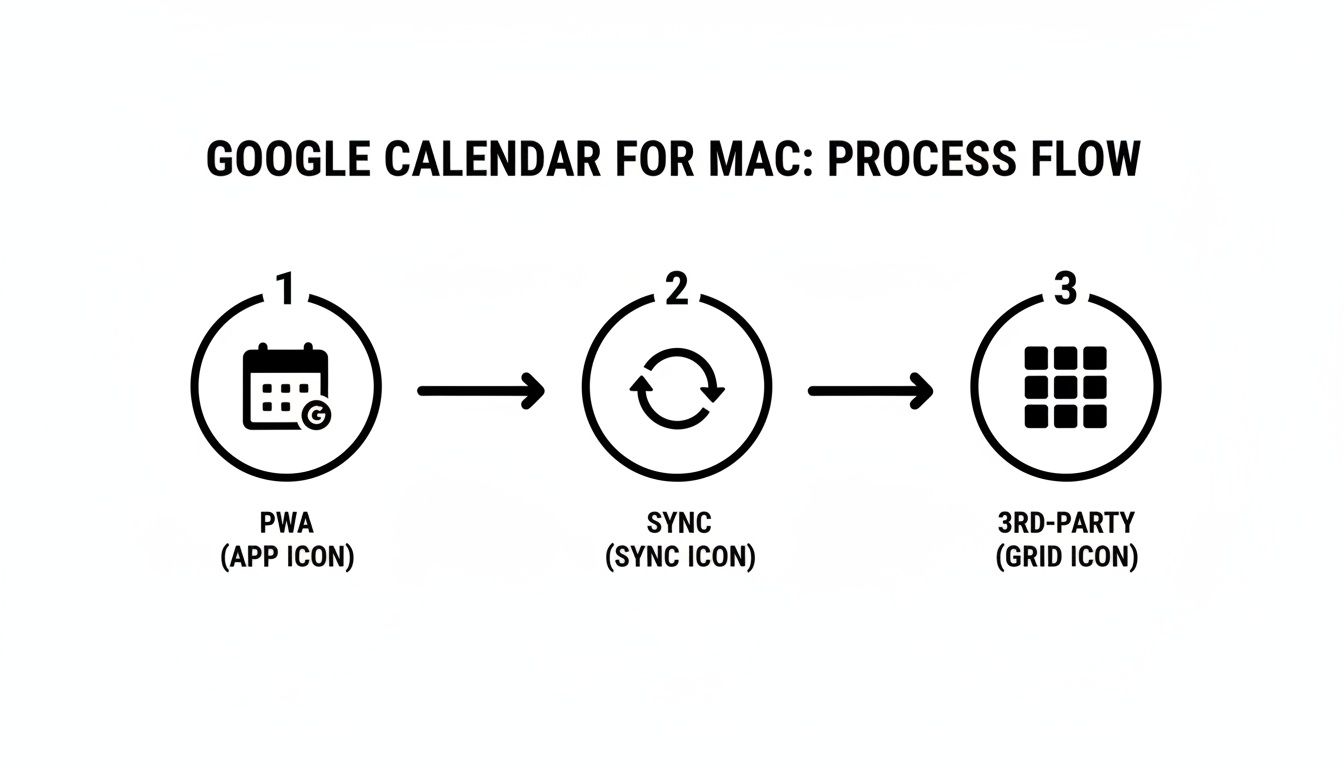
As you can see, making a PWA is the most direct route. It keeps the pure Google Calendar experience without any extra software or syncing headaches.
Pro Tip: Once the new icon appears in your Dock, right-click it and go to "Options" > "Keep in Dock." This is a simple but crucial step. It transforms the PWA from a temporary bookmark into a permanent part of your daily workflow, making it as accessible as any other app you rely on.
Syncing Google Calendar with Your Native macOS Calendar
If you're already comfortable in Apple’s world, you don’t need another app cluttering your Dock. The slickest solution is often the simplest: integrate Google Calendar directly into the native macOS Calendar app.
This approach neatly unifies your schedules into one familiar interface. It’s perfect for getting a consolidated view of your work and personal lives without installing anything new. Forget a dedicated Google Calendar download for Mac; you’re simply authorising your Mac to pull in your Google events. The connection is handled right within System Settings, creating a reliable two-way sync.
Setting Up the Sync
Getting this up and running is surprisingly quick. Just head over to System Settings on your Mac and find the Internet Accounts section. This is where you connect all your cloud services to macOS.
- Look for the Google option and click it. You’ll be prompted to sign in with your usual Google account details.
- Once you’ve authenticated, your Mac will ask which services you want to sync.
- Make sure the checkbox next to Calendars is ticked. You can also pull in your Mail, Contacts, and Notes while you're here.
That’s it. Now, open the native Calendar app. You should see all your Google Calendar events populating alongside any existing iCloud calendars. Any change you make here—whether it's creating a new meeting or dragging an appointment to a new time—will instantly update in your Google Calendar everywhere else.
This native integration is a powerhouse. You get system-level notifications, handy widget support, and great offline access, since your events are cached locally on your machine. It feels like a genuine part of the operating system, because it is.
Fine-Tuning Your Calendar View
One common snag after syncing is calendar overload. Suddenly, you might see everything from work meetings and personal appointments to shared team schedules all at once. It can get messy.
To clean this up, open the Calendar app and click the Calendars button in the top-left corner. This slides out a list of all your synced accounts and the individual calendars within them.
From here, you can simply untick the calendars you don’t want to see at the moment. This keeps your view focused and relevant without actually deleting anything. It’s a crucial little feature for managing a busy schedule without losing your mind. If you’re looking for even more advanced integration tricks, our guide on how to sync with Google Calendar covers other strategies for a fully connected workflow.
Right, so you've tried the Progressive Web App and syncing with Apple's native Calendar, but your schedule still feels... chaotic. If you're a power user juggling multiple projects, clients, and time zones, the standard options often fall short. This is where dedicated, third-party calendar apps for Mac truly shine. They're not just a prettier skin for Google Calendar; they’re purpose-built to streamline complex workflows.
You're not alone in looking for something more robust. In Germany, for example, calendar apps have a massive 30% affinity within the Tools category for Mac users. It's clear that many professionals start with the basics but quickly realise they need specialised tools to manage their time effectively. These native apps offer that deeper integration and advanced functionality that a simple web app just can't match.
A Few Native Apps That Are Genuinely Worth Your Time
When you start digging into the Mac App Store, a few names pop up again and again, and for good reason. They integrate flawlessly with Google Calendar but bring their own unique superpowers to the table. The "best" one really depends on what part of scheduling gives you the biggest headache.
- Fantastical: This one is legendary for its natural language input. You can literally type, "Team sync tomorrow at 2 pm with the marketing crew /zoom" and it parses everything perfectly—title, time, attendees, and even the meeting link. It’s for people who want to get events on the calendar instantly without navigating a single dropdown menu.
- Cron: Now part of the Notion family, Cron is a master of collaborative scheduling. Its killer feature is the ability to share your availability by just dragging blocks of time on your calendar to create a one-time booking link. It’s an absolute game-changer for consultants or anyone who constantly sets up meetings with people outside their organisation.
- BusyCal: If you need a true command centre for your schedule, this is it. BusyCal is for the professional who needs to see everything at once. It offers incredibly customisable views (think week, month, year, and list all at once), integrates to-do lists that sync with Apple Reminders, and even pulls in weather forecasts.
A quick but important note on privacy: when you hand over access to your calendar, you're sharing a lot of sensitive information. Before you install anything, take two minutes to check the app's privacy policy. Make sure they use secure OAuth2 for logging in and explicitly state that they don't sell or analyse your personal data. This isn't a step to skip.
Feature Showdown Top 3 Native Calendar Apps for Mac
To help you decide, here’s a quick breakdown of how these top contenders stack up for professionals.
| App Name | Key Feature | Pricing Model | Best For |
|---|---|---|---|
| Fantastical | Best-in-class natural language input | Subscription | Quickly adding events without clicking through menus |
| Cron | Effortless availability sharing for booking | Free (currently) | Professionals who schedule many external meetings |
| BusyCal | Highly customisable views & integrated to-do lists | One-time purchase or Setapp | Users needing a detailed, all-in-one command centre |
Ultimately, the best choice comes down to your personal workflow. Do you loathe the tedious process of creating new events? Fantastical will feel like magic. Spend half your day in back-and-forth emails trying to find a meeting time? Cron will solve that instantly. Need to see your tasks, weather, and multiple calendars in one hyper-organised view? BusyCal is your new best friend.
Most of these offer free trials, so take them for a spin. See which one clicks with the way you work. For a more comprehensive look at your options, don't forget to check out our full guide to finding a dedicated Google Calendar app for Mac. The right tool can genuinely give you back hours in your week.
Mastering Your Calendar with Real Productivity Tricks
Getting Google Calendar running on your Mac is just the first step. The real win is turning it into a tool that actively works for you, not just a passive schedule. We can move past the basic setup and start talking about genuine productivity.
It often starts with simple habits. Take colour-coding, for example. I assign blue to all client meetings, green for personal appointments, and a bright orange for deep work blocks. This simple visual system lets me understand the shape of my day in a single glance, without having to read a single event title. It's a tiny change that has a massive impact on how I plan my focus.
Streamline Your Day-to-Day Workflow
Another game-changer is getting your notifications under control. Instead of letting every single event ping you ten minutes before it starts, customise your alerts based on what actually matters. A 30-minute warning for a major client call makes sense, but a pop-up for your scheduled lunch break is just digital noise.
A well-managed calendar shouldn't just track your time; it should actively protect it. Use features like 'Focus time' to automatically decline new meetings during crucial work periods. This sends a clear, automated signal to colleagues that you're unavailable without you lifting a finger.
You can also dig into some of Google Calendar’s less obvious but powerful features:
- Appointment Slots: This is perfect if you need to set office hours or offer client consultations. Just share a link and let people book a time that works for everyone. It completely eliminates all that back-and-forth "what time works for you?" emailing.
- Keyboard Shortcuts: If you're using the PWA, learning a few shortcuts pays off huge dividends. Tapping 'C' to create a new event or 'T' to jump back to today's date are small efficiencies that genuinely add up over a busy week.
And when you're in those meetings, you can take your efficiency a step further. Learning how to record and transcribe meetings for maximum productivity helps you capture every detail and action item without having to furiously type notes the entire time.
Common Questions About Google Calendar on Mac
When you're trying to get Google Calendar running smoothly on a Mac, a few common questions always pop up. Sorting these out from the start saves a lot of headaches and ensures you pick the right method for how you actually work.
Let's clear up the most frequent ones.
Is There an Official Google Calendar App for Mac?
The short answer is no. Google has never actually released a dedicated, standalone Google Calendar app for macOS. You won't find one in the App Store, and that's often the first place people look.
The closest you can get to an "official" app is by installing the web version as a Progressive Web App (PWA) using a browser like Chrome. It feels and behaves almost exactly like a native app, right down to its own icon in your Dock.
Can I Get Notifications Without My Browser Open?
Absolutely, and this is a game-changer. If you install Google Calendar as a PWA, it hooks directly into the macOS Notification Centre. This means you’ll see alerts for your meetings and events pop up even if Chrome is completely closed.
The same goes for syncing with the native macOS Calendar app. All your notifications are handled by the operating system itself, so you'll never miss a beat.
Key Takeaway: Both the PWA and native sync methods give you reliable, system-level notifications. You don't have to keep a browser tab open just to stay on top of your schedule.
Will My Events Be Available Offline?
This really depends on which path you take.
If you sync your Google account with the built-in macOS Calendar app, you get fantastic offline access. The app keeps a local copy of all your event data right on your Mac, so you can check your schedule from anywhere.
The PWA, on the other hand, is a bit more limited. It usually caches the calendars you viewed while you were online, but you won't be able to add new events or make changes until you reconnect to the internet.
For a truly streamlined day, Calendar0 integrates all your calendars into one AI-powered hub. Schedule meetings, check availability, and manage your entire schedule in seconds right from your menubar. Find out more at https://www.calendar0.app.

