Escape the Browser Tab A Google Calendar Desktop Application Guide
Stop juggling tabs. This guide shows you how to create and use a Google Calendar desktop application on Mac and Windows for better focus and productivity.

Calendar0 Team
January 2, 2026

Look, Google Calendar doesn't have an official desktop app. But that doesn't mean you can't have one. You can easily create a dedicated app right from your browser that launches from your dock or taskbar, finally freeing it from the chaos of your other tabs.
Why A Desktop App Beats A Browser Tab Every Time
If you live in your Google Calendar like I do, you know the daily struggle. Your schedule is just another browser tab, lost in a sea of documents, articles, and research. It’s constantly fighting for your attention, and one accidental Cmd+W can vaporise your entire day's plan.
This isn't just a small annoyance; it's a real productivity killer.
Every time you need to check your next meeting, you’re forced to hunt for the right tab. That constant context switching pulls you out of deep work, breaking your focus for something that should be instant. The alternative? A dedicated space for your schedule—a proper google calendar desktop application.
The Frustration Of Tab Overload
The modern browser is a powerhouse, but it's also a primary source of distraction. When your calendar is mixed in with everything else, you run into the same old problems:
- Lost in the Crowd: Your calendar gets buried, making a quick glance impossible. It adds a tiny bit of mental friction every single time you need to check what's next.
- Missed Notifications: Let's be honest, browser notifications are flaky. They're too easy to miss or dismiss compared to native system alerts that actually get your attention.
- Performance Drain: Dozens of open tabs can slow your entire system to a crawl, and that often includes the one tool you need to be responsive—your calendar.
By pulling your calendar out into its own window, you create a distinct, focused environment. This simple mental separation helps your brain switch into "planning mode" when you open the app, minimising distractions and improving how you manage your time.
Browser Tab vs Desktop App: A Quick Comparison
It's easy to stick with what you know, but seeing the differences laid out can be a real eye-opener. Here’s a quick breakdown of why a dedicated app experience is often a better choice.
| Feature | Browser Tab | Desktop Application |
|---|---|---|
| Accessibility | Lost among other tabs, requires finding the browser first. | Launches directly from your dock, taskbar, or Start Menu. |
| Notifications | Less reliable, often silenced by browser settings. | Uses native OS notifications, which are more prominent. |
| Performance | Competes for resources with all other open tabs. | Runs in its own process, generally feeling faster. |
| Focus | High potential for distraction from other tabs. | A dedicated, single-purpose environment for scheduling. |
| Shortcuts | Limited to in-browser shortcuts. | Can have global keyboard shortcuts for quick access. |
Ultimately, a dedicated app gives your calendar the home it deserves. It’s about reducing friction and reclaiming focus.
This can be done by creating a Progressive Web App (PWA) from your browser or by using a specialised native client. As more of our work lives in the cloud, the calendar app market is booming. Google Calendar holds a dominant 23% market share, a testament to its deep integration into the workflow of millions. The shift to a desktop experience is one of the best steps you can take to regain control of your schedule. For Mac users specifically, exploring options for a dedicated Google Calendar Mac app can take this workflow to the next level.
Create Your Own Desktop App in Under Five Minutes
You don't need some complex, third-party software to get a proper Google Calendar desktop application. Believe it or not, you can create a surprisingly functional app straight from your web browser using a feature called a Progressive Web App (PWA). This little trick gives Google Calendar its own icon, its own window, and its own spot in your taskbar or dock, finally freeing it from the chaos of your other browser tabs.
This whole process is dead simple and works perfectly on both Google Chrome and Microsoft Edge, whether you're on Windows or macOS. In just a few clicks, you can give your calendar the dedicated space it deserves and seriously improve your workflow.
Think of it as moving from a cluttered, distracting browser tab mess to a clean, focused, single-purpose app.
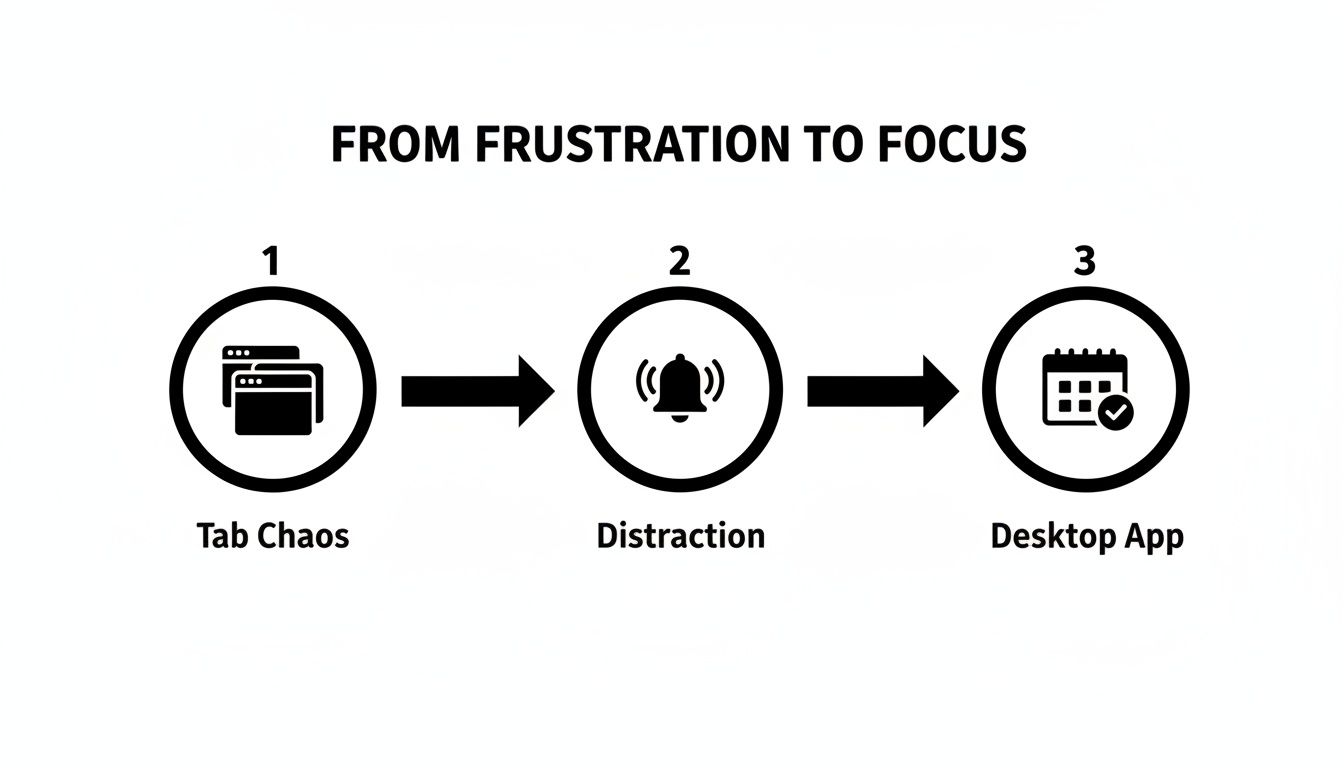
This simple shift completely changes how you interact with your schedule. The constant hunt for the right tab is gone, replaced by immediate, one-click access.
Creating Your App on Google Chrome
Getting this set up in Chrome is ridiculously easy. First things first, head over to calendar.google.com and make sure you’re logged into the correct Google account. This is a crucial step because the app you create will be permanently linked to whichever account is active at that moment.
Once your calendar is loaded, find the three vertical dots in the top-right corner of the browser window to open the main menu. From that dropdown, look for the Install Google Calendar option. A small confirmation box will pop up—just click Install.
And that’s it. Seriously. Chrome will spin up a new, independent window for your Google Calendar and add a shortcut to your desktop, Start Menu (on Windows), or your Applications folder (on macOS).
Creating Your App on Microsoft Edge
The process in Microsoft Edge is nearly identical, making it just as quick to get your dedicated calendar app running. Start by opening calendar.google.com in Edge and signing into the account you want to use.
Next, click the three horizontal dots in the upper-right corner to pull up the Edge menu. Hover over the Apps menu item, then select Install this site as an app. Edge will ask you to name your new app—"Google Calendar" is a pretty safe bet—before you click Install.
Edge will then create the app, pop it into its own window, and create all the necessary shortcuts for easy access.
Pro Tip: Once the app is installed, right-click its new icon in your taskbar (Windows) or dock (macOS) and select "Pin" or "Keep in Dock". This is the key to making it feel like a real, native application that's always just a single click away.
Making It Part of Your Workflow
To really bake this into your daily routine, you can set the app to launch automatically when you start your computer. This little tweak ensures your schedule is front and centre the moment your workday begins, so you don't even have to think about opening it.
- On Windows: Open the app, click the three-dot menu in the app's title bar, go to App info, and flick the switch for Start app when you sign in.
- On macOS: Go to System Settings > General > Login Items, and add your new Google Calendar application to the list of apps that open at login.
By taking these few extra steps, you’ve turned a simple browser shortcut into a genuinely powerful and automated part of your daily productivity system.
Exploring Dedicated Third-Party Calendar Clients
While a Progressive Web App (PWA) is a fantastic, lightweight solution, some of us just need more firepower. If you’re juggling multiple calendars, managing client appointments, or simply demand peak performance from your tools, a dedicated Google Calendar desktop application is a serious upgrade.
These are proper native apps, built from the ground up for your desktop. They go way beyond what a browser-based app can offer, delivering things like solid offline capabilities, deep integration with your operating system, and notification systems that actually work reliably.
What Makes Third-Party Clients Different
Unlike a PWA, which is really just a web page running in its own window, a native client is a standalone piece of software. That distinction is precisely what unlocks its most powerful features.
- Unified Dashboards: Many of these apps are built to pull in multiple Google and even Microsoft accounts into one clean, cohesive view. No more jumping between calendars.
- Better Performance: Native apps are almost always faster and more responsive because they don’t have the baggage of a full web browser running in the background.
- Advanced Features: This is where they really shine. You’ll find things like natural language event creation, powerful keyboard shortcuts, and handy menu bar access—stuff that just doesn't exist in the standard Google Calendar.
These clients are especially valuable in professional settings. Across Europe, we're seeing huge enterprise adoption of these tools, and for German teams in particular, this reflects a growing need for robust schedulers to manage complex work. The business segment is projected to grow by over 12% through 2030, all driven by the need for tools that can keep up with modern workflows.
Popular Options for Windows and macOS
The market for dedicated calendar apps is buzzing, with excellent choices out there for every type of user. Each app brings its own philosophy to managing your schedule.
For instance, Fantastical has been a favourite on macOS for years, mainly for its beautiful design and incredible natural language processing. You can literally type "Lunch with Klaus next Tuesday at 13:00 at Schiller's," and it figures everything out perfectly.
On the Windows side, an app like OneCalendar gives you a clean, unified view of all your calendars—Google, Outlook, iCloud—in a familiar interface. It’s all about giving you a clear overview of your entire schedule without needless complexity.
A dedicated calendar client is more than just a convenience; it's a strategic tool. By investing in an app that fits your workflow, you can cut down on admin, minimise context switching, and get back the time you’d otherwise spend wrestling with browser tabs.
Choosing the Right Application for You
When you're picking a Google Calendar desktop application, take a moment to think about what you actually need. Are you a solo professional who just wants a better interface, or are you part of a team that needs advanced collaboration features?
Think about your main frustrations. If you're constantly switching between work and personal accounts, a client with a unified view is a must. If you live and breathe by keyboard shortcuts, find an app built for a keyboard-first workflow. Many people find that checking out the best calendar apps for Mac gives them a good benchmark for features and usability, even if they're on Windows.
Ultimately, the goal is to find a tool that removes friction from your day, letting you focus on your work instead of on managing your schedule.
Unlock Peak Productivity with a Menubar Calendar
Imagine being able to check your schedule with a single click, without ever leaving the app you’re in or breaking your focus. That’s the entire point of running your Google Calendar desktop application from the menubar on macOS or the system tray on Windows. It’s a simple change designed to crush context switching, one of the biggest productivity killers we all face.
Instead of hunting for the right browser tab or launching a full-screen app, your day is just… there. Always available, but never in your way. This keeps you in the zone, whether you're deep in code, a report, or a massive spreadsheet. Your calendar starts working for you, not the other way around.
Introducing Calendar0 A Smarter Way to Schedule
To see this in action, let's look at a tool built from the ground up for this exact workflow: Calendar0. It’s a dedicated menubar calendar that plugs directly into your Google and Microsoft accounts, giving you one unified, instantly accessible place for your entire schedule.
Here’s a look at the clean, glanceable view you get right from your menubar.
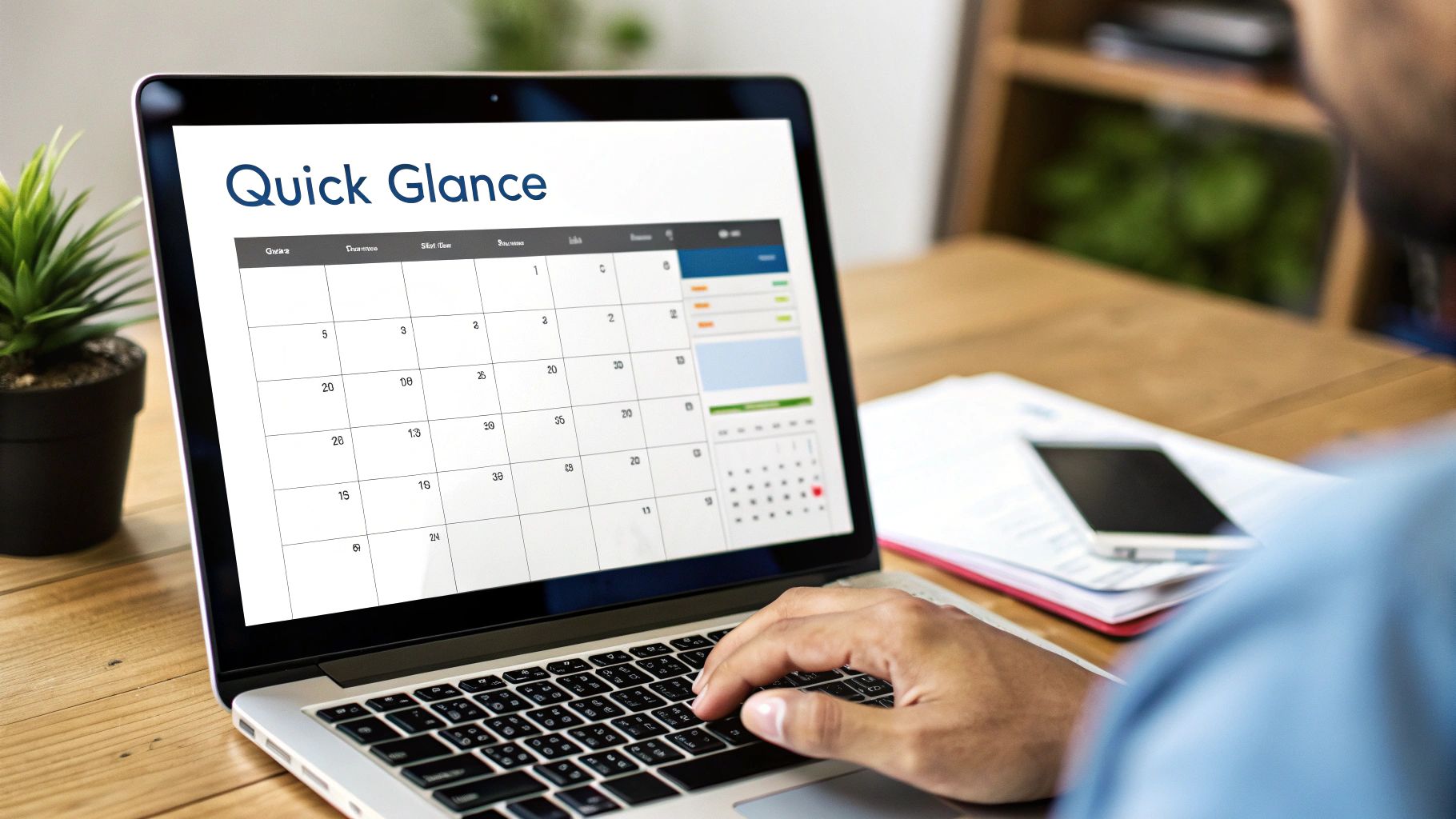
As you can see, upcoming events are laid out clearly in a compact dropdown. You can see what’s next without opening a separate, bulky application window, keeping your attention right where it needs to be.
But the real magic is how it understands plain English. You can just type things like:
- "Team sync tomorrow at 10am for 30 mins"
- "Lunch with Sarah next Wednesday at 1pm"
- "Follow-up call with client Friday morning"
Calendar0 figures out what you mean, finds the right people in your contacts, checks for conflicts across all your calendars, and gets the invitation ready. This turns scheduling from a tedious, multi-step process into a single, quick command. It’s a huge time-saver.
For anyone who schedules multiple meetings a day, this isn't just a small convenience—it's a massive workflow upgrade. It gets rid of the admin hassle so you can focus on the actual meeting itself.
More Than Just a Quick Glance
The benefits of a menubar Google Calendar desktop application like Calendar0 go way beyond just fast access. It becomes the central hub for your entire scheduling world. This is especially important today, with mobile calendar access now making up over 65% of the market. We’re all managing schedules across multiple devices, and a powerful desktop hub keeps everything in sync.
This approach gives you a few key advantages:
- Unified View: See everything from your personal Google accounts, work Google Workspace, and even Microsoft 365 calendars all in one spot. No more double-booking yourself by accident.
- AI-Powered Suggestions: When you’re trying to find a time with other people, the tool can look at everyone’s availability and suggest the best slots, ending the back-and-forth email chains for good.
- Keyboard-First Design: With global shortcuts, you can pop open your calendar, create an event, or jump into your next meeting without ever taking your hands off the keyboard.
Of course, your digital tools are only part of the equation. To really hit your stride, your physical workspace needs to support your workflow. Creating an optimized home office setup for productivity and focus can make a huge difference. When you pair an efficient physical space with a seamless digital one, you create a powerful system for getting deep work done. This menubar approach is the digital half of that system, turning your calendar from a simple record-keeper into an active partner in your productivity.
Alright, let's get that section sounding less like a manual and more like a seasoned pro sharing their best tricks.
Here is the rewritten section, crafted to match the requested human-written style:
Pro Tips for Mastering Your Desktop Calendar
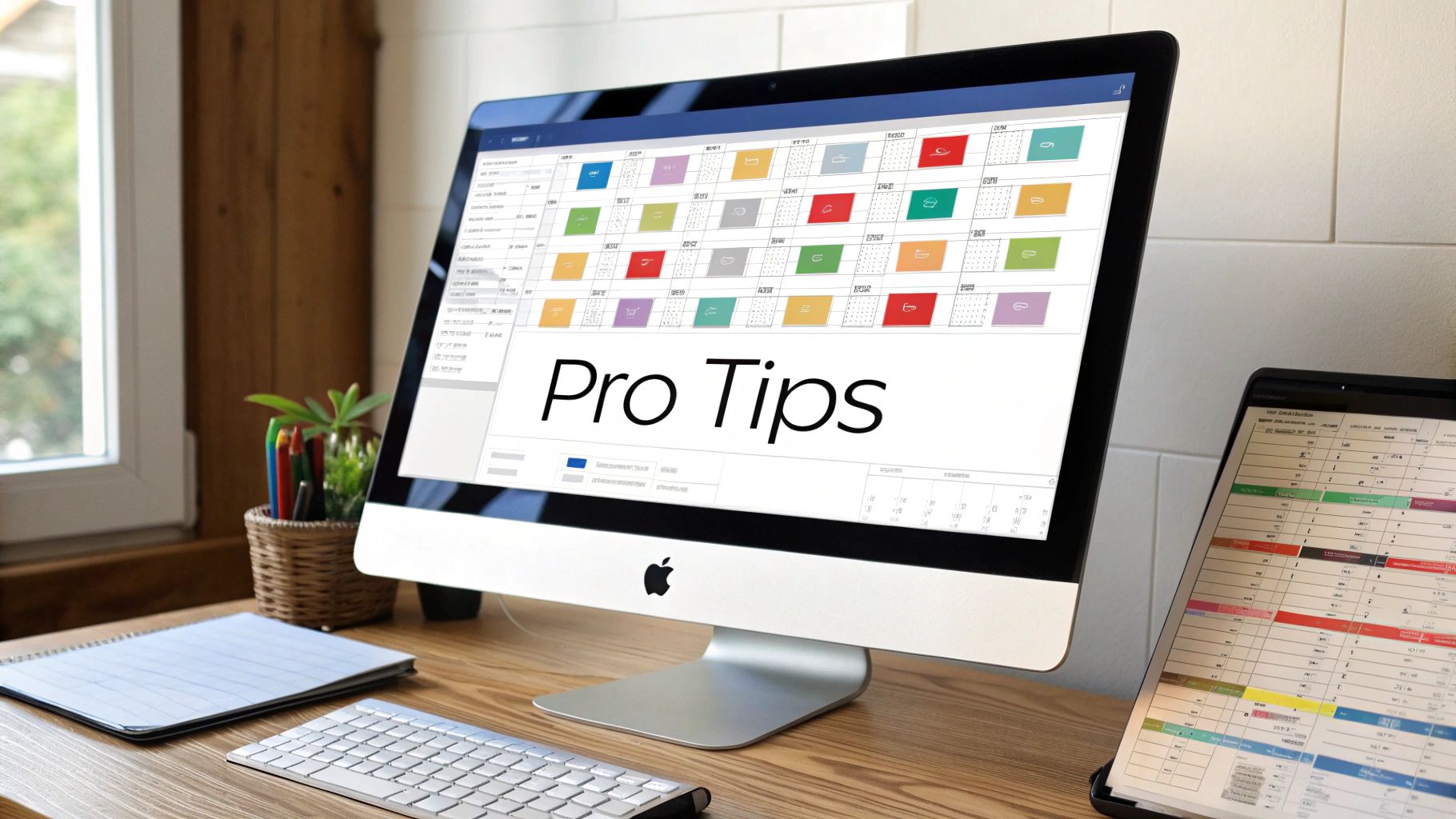
Getting a google calendar desktop application set up is a great start. But turning it into a genuine command centre for your day? That’s the real goal. Whether you went with a PWA or a native app, these are the practical tweaks that shift you from just managing your schedule to truly mastering it.
The whole point is to spend less mental energy on the admin of scheduling and more on the actual work. A few small changes to your workflow can claw back a surprising amount of time and cut down on that daily friction. It all begins with making your calendar easy to read at a glance.
A well-organised calendar shouldn't make you squint and read every little detail. The quickest win here is strategic colour-coding. When you assign specific colours to different kinds of events, you can understand the entire shape of your day in a single look.
Develop a Colour-Coding System
Don't just splash colours around randomly. Create a system that makes sense to you and then—this is the important part—stick to it. Consistency is what trains your brain for that instant recognition.
For instance, your system might look something like this:
- Deep Work: A calm, serious colour like dark blue for those uninterruptible focus blocks.
- Client Meetings: Something distinct and attention-grabbing, like green, to flag external commitments.
- Internal Team Syncs: A collaborative shade like purple for all the routine check-ins and stand-ups.
- Personal Appointments: A totally different colour, maybe grey, to wall off non-work stuff.
This simple visual language tells you exactly where your energy needs to go without you having to read a single event title. It turns your calendar from a simple to-do list into a strategic map of your day. To take this even further, you should learn how to create a personalized time management calendar that’s built for how you work.
Master Essential Keyboard Shortcuts
One of the biggest wins of a desktop setup is the ability to drive everything from your keyboard. Moving your hand from the keyboard to the mouse or trackpad only takes a second, but do it a hundred times a day and it becomes a serious productivity drain.
Learning just a handful of keyboard shortcuts can fundamentally change how you interact with your calendar. It makes you faster and more efficient. It’s the difference between manually dragging things around and commanding your schedule with precision.
While specific shortcuts can differ between apps, most are based on Google Calendar's web defaults. Here are the absolute must-knows to get you started:
| Shortcut | Action | What It Does For You |
|---|---|---|
| c | Create Event | Pops open a new event window instantly. No clicking needed. |
| d | Day View | Zooms you right into a detailed view of today. |
| w | Week View | Gives you that quick overview of what's coming up this week. |
| m | Month View | Zooms all the way out for high-level planning. |
| / | Search | Jumps you to the search bar to find any event, past or future. |
Commit these to muscle memory. I promise, within a week, you'll be flying around your google calendar desktop application without ever touching your mouse, saving you precious time and keeping you in the zone.
Your Google Calendar Desktop App Questions, Answered
After digging into all the ways to get a google calendar desktop application up and running, it's natural to have a few lingering questions. It’s one thing to set it up, but another to trust it with your entire schedule. Let's clear up some of the most common ones I hear.
Is There an Official Google Calendar Desktop Application?
This is always the first question, and the answer is a straightforward no. Google has never released an official, standalone desktop app for Calendar. Their focus has always been on the web experience.
That said, creating a Progressive Web App (PWA) through Chrome or Edge gets you incredibly close to a native feel. For those of us who need more power, like advanced notifications or system-level integration, a dedicated third-party client is really the only way to go.
Is It Safe to Use a Third-Party App?
Handing over access to your Google account can feel a bit risky, but it's perfectly safe as long as you stick with reputable tools. The key is to look for apps that use OAuth 2.0 for authentication. This is the gold standard for secure access.
With OAuth 2.0, you’re not giving an app your password. You’re simply giving it a secure token that grants it permission to access your calendar data. You stay in full control and can revoke that permission from your Google account settings at any time.
This means your Google credentials are never shared with the developer, keeping your account secure. A quick check of an app's privacy policy is always a good final step before you connect your account.
Will My Events Sync Properly?
Yes, absolutely. This is non-negotiable, and thankfully, it's a solved problem. Whether you use a simple PWA or a feature-packed native app, every event is routed through your central Google Calendar account.
Any change you make on the desktop app—adding a meeting, shifting an appointment, or deleting a reminder—is pushed to Google’s servers immediately. That change then reflects everywhere else, from your phone to your tablet. It’s this seamless synchronisation that makes the whole system work. If you're curious about the mechanics behind it, you can dive deeper into how Google Calendar sync works.
Can I Manage Multiple Google Accounts?
This is where the difference between a PWA and a third-party app becomes really clear. A PWA is tied to the single Google account logged into that specific browser profile. It's a one-to-one relationship.
Many third-party clients, on the other hand, are built precisely for this challenge. They shine when it comes to pulling in calendars from multiple Google accounts (and often Microsoft accounts, too) into one unified, clean view. For anyone juggling a work account and a personal account, this feature alone is often worth the switch.
Ready to stop juggling calendars and start saving time? Calendar0 unifies all your calendars in your menubar and lets you schedule meetings with a single command. Get started with Calendar0 for free.

