The Best Google Calendar Desktop App for Deep Work
Stop juggling browser tabs. Discover the best Google Calendar desktop app options for Mac and Windows to reclaim your focus and master your schedule.

Calendar0 Team
January 7, 2026

Look, Google doesn't offer an official standalone desktop app for its calendar. But that doesn't mean you're stuck. You can absolutely create a dedicated, focused experience on your computer, and it's easier than you think. The whole point is to rescue your schedule from the absolute chaos of your browser tabs.
Escaping the Browser Tab Trap
For millions of us, Google Calendar is the command centre for our entire lives, both professional and personal. So why is this mission-critical tool usually buried under a dozen other open tabs? It’s a huge source of digital friction and a real focus killer.
Every single time you need to check your schedule, you're forced back into the most distracting environment possible—your web browser. Your email, social media, and a hundred other tasks are just a click away, waiting to pull you off track.
This constant tab-shuffling is death by a thousand cuts for your workflow. Imagine you're deep in thought, working on a complex spreadsheet, and you have to jump over to a noisy browser just to confirm your next meeting. That context switch completely shatters your concentration and adds a layer of mental baggage you just don't need. This is a massive pain point for anyone working remotely or in a hybrid setup who literally lives by their calendar.
The problems are always the same:
- Notification Overload: Your calendar alerts just get lost in the sea of pings and pop-ups from every other website you have open.
- Workflow Interruption: Having to stop what you're doing to hunt down the right browser tab is a guaranteed way to break your flow state.
- The Distraction Rabbit Hole: A quick glance at your calendar can instantly turn into 15 minutes of scrolling through something totally unrelated.
Why a Dedicated App Actually Matters
Having a dedicated Google Calendar desktop app isn't just a nice-to-have; it's a productivity game-changer. It carves out a protected space just for your schedule, insulating it from all the distractions of the open web.
In places like Germany, where remote work has made shared calendars more critical than ever, relying on browser-based tools creates a major efficiency gap for busy managers. This market is expected to grow at a CAGR of 12.4% through 2031, yet the fundamental problem of being tied to a browser tab hasn't been solved. You can dig deeper into the shared calendar market trends over at Market Report Analytics.
By pulling your calendar out of the browser, you take back control of your focus. It's the first real step toward a more organised, less chaotic workday, especially if you need a dedicated Google Calendar app for your Mac. The goal is to make scheduling a seamless, background task, not the main distraction.
Comparing Your Desktop Calendar Options
When you decide to free your schedule from the browser, you really have three paths you can take. Each one offers a different balance of simplicity, performance, and features, so figuring out which fits your workflow is key to getting the right Google Calendar desktop experience. Let's break them down.
The Instant Fix: Progressive Web Apps
First up are Progressive Web Apps (PWAs). This is the quickest and most straightforward way to get started. Think of a PWA as giving the Google Calendar website its own private apartment on your desktop, complete with a dedicated icon in your dock or taskbar.
It’s the same web interface you already know, just living in its own window, finally free from the distracting chaos of your other browser tabs. The best part? This approach requires no third-party software—just a few clicks in a browser like Google Chrome. While it's a huge step up from tab-shuffling, it doesn't add any new features or offline capabilities.
A PWA is all about focus. It isolates your calendar so you can get in and get out, but it doesn't fundamentally change how it works or what it can do.
Simple Wrapper Applications
Next, we have what are often called "wrapper" apps. These are simple, third-party applications that essentially put a basic frame around the Google Calendar website. In practice, they feel very similar to PWAs, presenting the web version of your calendar in a standalone window.
The main difference is that you install them like a traditional program. Some might offer tiny additions like customised notifications, but for the most part, they’re lightweight and don’t really change the core experience. They basically act as a dedicated, single-purpose browser just for your calendar.
True Third-Party Native Apps
Finally, we get to the real powerhouses: true third-party native apps. These are custom-built programs designed from the ground up to connect to your Google Calendar data (via its API) and present it in a completely new, often more powerful, interface. This is where you find the serious upgrades.
These apps often include features Google Calendar on its own just doesn't have, like:
- Unified Calendar Views: Pulling multiple Google and Microsoft accounts into a single, seamless schedule. No more switching between accounts.
- Natural Language Input: Creating events just by typing something like, "Team sync Friday at 3pm for 45 mins." The app does the rest.
- Global Keyboard Shortcuts: Managing your schedule from anywhere on your desktop without even having the app window open.
These are tools for people who don't just want to view their calendar—they want to command it. If you're looking for the most capable option, checking out the best calendar app for Mac can give you a much deeper look into what these powerful tools can do.
To help you decide which path is right for you, here’s a quick comparison of the three methods.
Desktop Calendar Methods at a Glance
This table gives you a quick rundown of how these different approaches stack up against each other.
| Method | Setup Effort | Native Features | Performance | Best For |
|---|---|---|---|---|
| PWA | Very Low | None | Web-based | Users who just want to isolate their calendar from browser tabs. |
| Wrapper App | Low | Minimal | Web-based | Those who prefer a traditional app install but need basic functionality. |
| Native App | Low-Medium | Extensive | Fast & Optimised | Power users who need speed, shortcuts, and advanced features. |
As you can see, the choice really boils down to whether you're looking for a simple change of scenery (PWA/Wrapper) or a fundamental upgrade in functionality (Native App).
This decision tree often visualises the thought process people go through. It all starts with distraction.
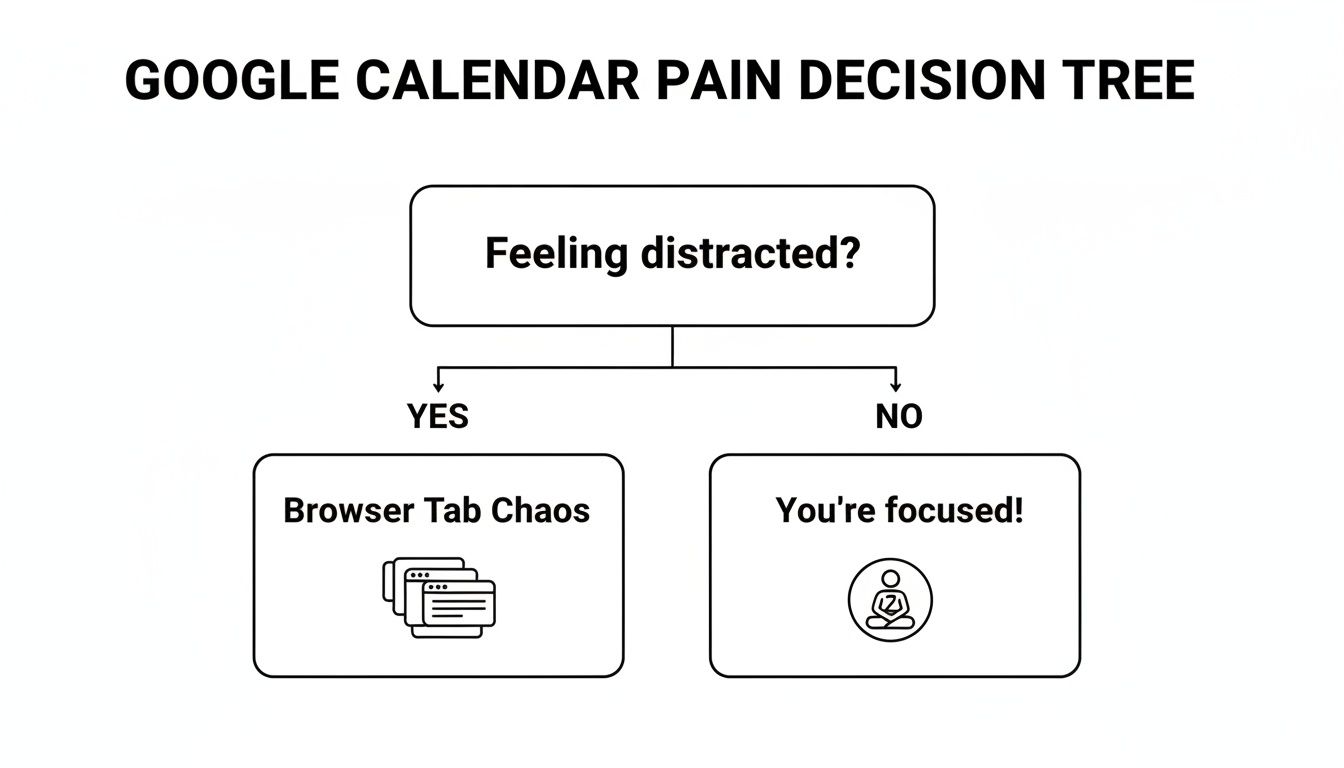
The flowchart makes it pretty clear: the main reason people start looking for a desktop solution is to escape the chaos of the browser and get their focus back.
Step-by-Step Setup for Each Calendar Type
Choosing a path is one thing; walking it is another. Let’s get practical and walk through exactly how to set up your chosen Google Calendar desktop app. The goal is to make these steps feel effortless, getting you from browser tab chaos to a focused calendar experience in just a few minutes.
We'll cover creating a Progressive Web App (PWA), installing a simple wrapper, and connecting a powerful third-party native app. Each one is straightforward, so you can get up and running fast.
Creating a Google Calendar PWA
The Progressive Web App is easily the quickest way to give your Google Calendar a proper home on your desktop. It essentially packages the website into a standalone icon you can click from your taskbar or dock. It's a small change, but it makes a huge difference to your focus.
Here’s how to create one using Google Chrome, which works almost identically on both Windows and macOS.
- Open Google Calendar: Fire up Chrome and head to calendar.google.com. Make sure you’re logged into the right Google account.
- Find the Install Icon: Look at the address bar. On the far right, you'll see an icon that looks like a small screen with a downward arrow. If you hover over it, it'll say "Install Google Calendar."
- Click and Confirm: Click that icon. A small pop-up will ask, "Install app?" Just hit the Install button.
And that’s it. A new window pops open with your calendar, and a new icon gets added to your desktop and Start Menu (on Windows) or your Applications folder (on macOS). Now you can pin it to your taskbar or dock for instant, one-click access—completely separate from your browser.
Creating a PWA isn’t just adding a shortcut; it’s building a psychological barrier. It tells your brain, "This is a tool, not a website," which helps you resist the urge to open another distracting tab.
Installing Wrapper and Third-Party Apps
If a PWA feels a bit too basic, your next move is to explore dedicated applications. Both wrapper apps and true third-party native apps follow a familiar installation process, just like any other software you’ve downloaded. The main difference is how they connect to your Google account.
For either type, the process looks something like this:
- Download and Install: Go to the official website for the app you’ve chosen and grab the installer for your operating system (Windows or macOS). Run it and follow the on-screen prompts.
- Connect Your Google Account: When you launch the app for the first time, it will prompt you to connect your Google Calendar. This is where security is absolutely critical.
- Authorise via Google (OAuth): Any reputable app will use Google’s secure sign-in system, known as OAuth 2.0. You’ll be sent to a standard Google sign-in page in your browser. This is crucial: you should never enter your Google password directly into the third-party app itself.
- Grant Permissions: Google will then show you exactly what the app is asking to do (for example, "View and edit events on all your calendars"). Give these a quick review and click Allow to finish the connection.
This method is secure and ensures the app only gets the access it needs. You can also revoke its access anytime from your Google account settings. Once authorised, the app will sync your events, and your new, more powerful desktop calendar is ready to go.
The True Cost of Inefficient Scheduling
It’s easy to write off those little scheduling headaches as just part of the workday. But those small frictions add up, and they have a real business cost. Clunky calendar management isn't just about getting frustrated; it’s about lost productivity, missed opportunities, and a constant tax on your focus.
Think about it from a real-world perspective. An executive assistant juggling calendars for a whole leadership team spends hours flipping between browser tabs, trying to spot an open slot, and then manually sending out invites. Every single meeting booked through a long email chain eats up 10-15 minutes of their time. Or consider a consultant trying not to double-book themselves across different clients. One slip-up can lead to an embarrassing scheduling conflict that damages their professional reputation.
The Hidden Drain on Your Focus
The mental cost of all that context switching is huge. Every time you have to leave what you're doing to hunt down your calendar tab, your brain disengages. Getting back into that state of deep focus is a real struggle. This creates a cycle of shallow work, stopping you from ever hitting your stride on complex problems.
This problem gets even worse with web-based calendars. In Germany, where Google Calendar is an essential tool, the online calendar market was valued at USD 1.5 billion globally in 2023. On average, users spend 6 minutes and 25 seconds per session, clicking through 5.53 pages just to get their schedule sorted. For keyboard-heavy users like software engineers or EAs, this reliance on a browser tab is just pure friction—the exact problem a dedicated Google Calendar desktop app is built to solve.
The real cost of a bad scheduling system isn't the time you lose; it's the momentum you never build. It's the great idea that vanishes while you're trying to find a 30-minute slot for a follow-up call.
From Friction to Financial Impact
These daily inefficiencies hit the bottom line, plain and simple. Those lost hours pile up into lost days over the course of a year, representing thousands of pounds in wasted payroll and missed revenue. When your team is stuck in scheduling admin, they aren't innovating, they aren't selling, and they aren't building. They’re just managing clicks.
When you connect these daily frustrations to real business outcomes, the need for a smarter, more direct system becomes obvious. If you want to dig deeper into this, Parakeet AI's blog offers further insights on scheduling efficiency. Getting the right tools isn’t an expense; it’s an investment in getting your time back.
Unlocking Effortless Scheduling with Calendar0
The daily friction from bad scheduling isn't just a minor annoyance—it's a silent killer of productivity and focus. You start to see it when you add up all the tiny delays and constant context-switching. The cost becomes obvious, and you realise you need a smarter system.
This is where a real Google Calendar desktop app stops being a nice-to-have and becomes an essential tool for anyone who takes their time seriously.
Instead of just slapping a frame around the same old web interface, a proper desktop app should actively solve the core headaches of modern scheduling. It needs to be less of a passive calendar viewer and more of an intelligent partner, built from the ground up to eliminate the admin busywork that eats up your day.
Reclaim Your Time and Focus
The whole point is to turn scheduling from a manual chore into something that just happens in the background. Imagine managing your entire day without ever leaving the document you're writing or the code you're working on. That’s the real power of getting out of the browser.
Calendar0 is designed to be your intelligent scheduling assistant. It doesn't just show you what's next; it helps you manage your time at the speed of thought, saving the average professional around 20 minutes every single day.
This isn't about shaving off a few clicks here and there. The true cost of clunky scheduling is lost time and a heavier workload. Putting an effective system in place can have a massive impact, with some platforms even cutting entrepreneurs' workload by 50%. It’s about getting your focus and energy back for the work that actually moves the needle.
Features That Solve Real Problems
A modern desktop calendar should be built around features that directly attack the most common scheduling pain points. It’s about turning complicated actions into simple commands.
- Unified Calendar View: Finally see every single event from all your Google and Microsoft accounts in one clean, simple interface. This single source of truth ends the tab-shuffling and instantly prevents you from double-booking yourself.
- Natural Language Commands: Stop clicking through menus to create an event. Just type "Project sync with David for Thursday at 3pm," and let the app do the work—it parses the details, finds the right contact, and sends the invite.
- Global Keyboard Shortcuts: Access your schedule, create a new event, or jump into your next meeting with a simple keyboard command, no matter what you're doing on your computer. You never have to break your flow again.
In a country like Germany, over 50% of professionals rely on Google Calendar. Yet, its browser-based design frustrates executives who need native desktop speed for simple things like drag-and-drop rescheduling. This is a big reason why unified AI calendars are quickly becoming indispensable for Germany's busy founders and consultants.
By bringing these powerful features together, a tool like Calendar0 gives you a direct path to effortless scheduling. You can check out more about how to get your workflow in order with https://calendar0.app.
Your Questions About Desktop Calendars, Answered
Deciding to pull your schedule out of a browser tab and into its own dedicated app is a solid move towards a more focused workday. But it's natural to have a few questions about security, features, and whether it's actually worth the switch. Let's tackle the most common ones.
My goal here is to give you clear, straight answers and clear up any doubts you might have about finding a proper Google Calendar desktop app.
Is a Google Calendar PWA a Real Desktop App?
A Progressive Web App (PWA) is a great first step, for sure. It gives your calendar its own icon and its own window, just like a native app you'd install. Think of it as giving your calendar a private room, away from the chaos of your other browser tabs.
But at its core, it’s still just the Google Calendar website running in a dedicated Chrome shell. It's a fantastic, free way to isolate your calendar, but it won't unlock any new features, give you advanced offline access, or offer deep system integrations like global keyboard shortcuts. It’s a focused web experience, not a souped-up native application.
Are Third-Party Google Calendar Apps Secure?
Yes, any reputable third-party app is built with security as its absolute foundation. They use a rock-solid industry standard called OAuth 2.0 to connect to your calendar.
This means you never give the app your Google password. Instead, you grant it specific, revocable permissions directly through Google's own sign-in screen. It's the same secure handshake method used by thousands of trusted applications you probably use every day.
This whole process keeps your login details private and only gives the app the bare minimum access it needs to work. The best part? You can revoke that access anytime from your Google account settings.
Can I Unify My Work and Personal Calendars in One App?
Absolutely. In fact, this is one of the biggest reasons people switch to a dedicated third-party app. Juggling multiple calendars often means constantly switching accounts and living in fear of the dreaded double-booking.
This is the exact problem tools like Calendar0 were built to solve. They pull everything into a single, unified view of your availability across all your accounts, including:
- Google Workspace for your 9-to-5.
- A personal Gmail account for your life outside work.
- Even a Microsoft 365 calendar for freelance gigs or side projects.
This consolidation is the key to seeing the whole picture of your day without the digital gymnastics of logging in and out of different services.
What’s the Main Advantage of an AI Calendar App?
The real advantage is moving from managing your calendar to commanding it. A standard calendar app just shows you what's on your schedule. An AI-powered calendar app helps you shape that schedule at the speed of thought.
Instead of clicking through a bunch of menus and pop-ups just to create an event, you can type a natural command like, "Book a project sync with Maria for Thursday at 2pm." The AI does the heavy lifting—finding a free slot, creating the event, and sending the invite. It's all about saving time, cutting down on mental friction, and making your calendar actually work for you.
Ready to stop managing your calendar and start commanding it? Calendar0 transforms your schedule into an intelligent assistant, saving you 20 minutes every day. Unify your accounts, schedule with natural language, and reclaim your focus. Try Calendar0 for free today.

