A Practical Guide to Google Calendar Dark Mode
Tired of a bright screen? Learn how to enable Google Calendar dark mode on web, Android, and iOS. Get practical tips and fix common issues with our guide.

Calendar0 Team
December 8, 2025

Let's face it—checking your schedule first thing in the morning or last thing at night on a blindingly white screen is just plain uncomfortable. That jarring blast of light is exactly why so many of us are making the switch to Google Calendar dark mode. This isn't just about making your calendar look cool; it's about practical, everyday benefits that genuinely make managing your schedule easier.
Why Dark Mode Is More Than Just a Style Choice
The move to darker interfaces isn't some fleeting design trend. It’s a direct response to how we live with our screens. For many people, a calendar is the very first thing they look at when they wake up and the last thing they check before bed. In those low-light moments, a bright white interface can feel like a spotlight pointed right at your eyes.
The Practical Benefits of a Darker Theme
Flipping the switch to a dark theme in Google Calendar offers some real, tangible advantages. The biggest win is the reduced blue light exposure. This means less eye strain, especially when you're deep in a planning session or just trying to sort out tomorrow's schedule late at night. It makes calendar management feel less like a chore.
A darker background also brings a surprising amount of visual clarity. I've found that my colour-coded events and reminders seem to pop more vividly against the dark backdrop. This improved contrast makes it much faster to tell the difference between my work appointments, personal reminders, and shared family events with just a quick glance.
Here’s why you might want to make the switch:
- Reduced Eye Strain: A dark interface is so much gentler on the eyes in low light, saving you from that harsh screen glare.
- Improved Focus: With less glare competing for your attention, your event colours and text become the main event, helping you process your schedule faster.
- Consistent User Experience: If you’re already using dark mode across your phone or other apps, this creates a seamless, uninterrupted visual flow for your entire digital workspace.
- Potential Battery Savings: If you're on a device with an OLED or AMOLED screen, dark mode can actually help your battery last a bit longer, since black pixels are simply turned off.
Ultimately, choosing Google Calendar dark mode is about fine-tuning your digital space for comfort and efficiency. It’s about making sure your schedule works for you, no matter the time of day.
How to Enable Dark Mode on Google Calendar for Web
For those of us who spend most of our day staring at schedules in a browser, switching on Google Calendar’s dark mode is a huge relief for the eyes. Thankfully, Google finally baked this feature directly into the settings, so we no longer have to rely on clunky workarounds.
Getting it set up is dead simple. Just open your Google Calendar and find the Settings gear icon, which usually lives in the top-right corner. Give that a click.
Navigating to Appearance Settings
A little dropdown menu will appear. From there, choose "Settings" to get to the main configuration panel. On the left, look under the "General" section for an option called "Appearance". This is where the magic happens.
Clicking "Appearance" gives you three choices to control your calendar's look:
- Light: The classic, bright white interface we've all known for years.
- Dark: This flips the switch to the high-contrast dark theme. It’s a lifesaver in low-light settings.
- Auto: This is my personal favourite. It smartly syncs your calendar's theme with your computer's system-wide setting. If you have your Mac or Windows OS set to go dark at night, your calendar will automatically follow along.
Don't panic if you don't see the "Appearance" option. Google has a habit of rolling out features gradually. The first thing to try is clearing your browser's cache and cookies, or just signing out and back into your Google account.
Once you pick an option, the change happens instantly—no "save" button required. The native integration gives it a polished, consistent feel that's miles ahead of the old methods.
Many of us who manage packed schedules find that a dedicated Google Calendar app for desktop takes things a step further, offering a focused experience without all the browser tab distractions.
Activating Dark Mode on Your Android or iPhone
Managing your schedule on the go is a given, but getting Google Calendar into dark mode works a bit differently depending on whether you’re on Android or iOS. It really boils down to this: Android gives you an in-app toggle, while iPhone users have to go through the main system settings.
Don't worry, both are dead simple once you know where to look.
Enabling Dark Mode on Android
If you’re on an Android phone, you get granular control right inside the Google Calendar app itself. This is great if you want your calendar dark but prefer to keep other apps light.
Just open the Calendar app and tap the hamburger menu (the three horizontal lines) in the top-left corner. Scroll all the way down and hit "Settings," then tap into "General." This is where you'll find the "Theme" option you're looking for.
Tapping on "Theme" gives you three choices:
- Light: The classic, bright white look.
- Dark: The eye-friendly, high-contrast dark theme.
- System default: This is my personal recommendation. It’s a true set-it-and-forget-it option that automatically matches your phone’s system-wide theme. When your phone goes dark, so does your calendar.
A Simpler Path for iPhone and iPad Users
For anyone using an iPhone or iPad, the process is even more straightforward. Google Calendar doesn't have its own theme switch; instead, it's designed to simply mirror your device's appearance settings.
To switch it on, you’ll need to head into your main iOS "Settings" app. From there, navigate to "Display & Brightness." Right at the top, you'll see the "Appearance" options. Just tap "Dark," and your entire system—including Google Calendar—will flip over to the dark side.
This system-level approach is actually quite slick. It creates a consistent look and feel across all your compatible apps. When your phone goes dark, your calendar follows suit without you having to dig into individual app settings. It just works.
What to Do When Dark Mode Isn't Working
It’s always frustrating when a feature doesn’t cooperate. If you’ve followed the steps but your Google Calendar dark mode is still AWOL, don’t worry. I’ve run into this a few times, and it’s usually one of a few common culprits.
For anyone using the web version, the most frequent issue I see is the dark mode option simply being missing from the Appearance settings. Nine times out of ten, this is your browser’s cache holding onto an old version of the calendar. A quick fix is to clear your cache and cookies, then give the page a reload. Also, just double-check that your browser is fully updated.
Common Mobile App Issues
On mobile, the typical problem is the Google Calendar app completely ignoring your phone’s system-wide theme. An out-of-date app is almost always the cause. Just head to your device's app store and see if there’s a pending update for Google Calendar waiting for you.
Sometimes, a simple device restart is all it takes to jolt the app into recognising the system theme change. These minor glitches were a lot more common before the native feature was widely rolled out.
For a feature with such high demand, Google's official rollout was surprisingly slow. It wasn't until late 2023 that a native dark theme for Google Calendar on web and mobile became standard, finally playing nice with system-wide settings. This update was a huge win for users, especially in markets like Germany, where dark mode is now a basic expectation.
This quick decision tree shows how to approach enabling dark mode based on your phone's operating system.
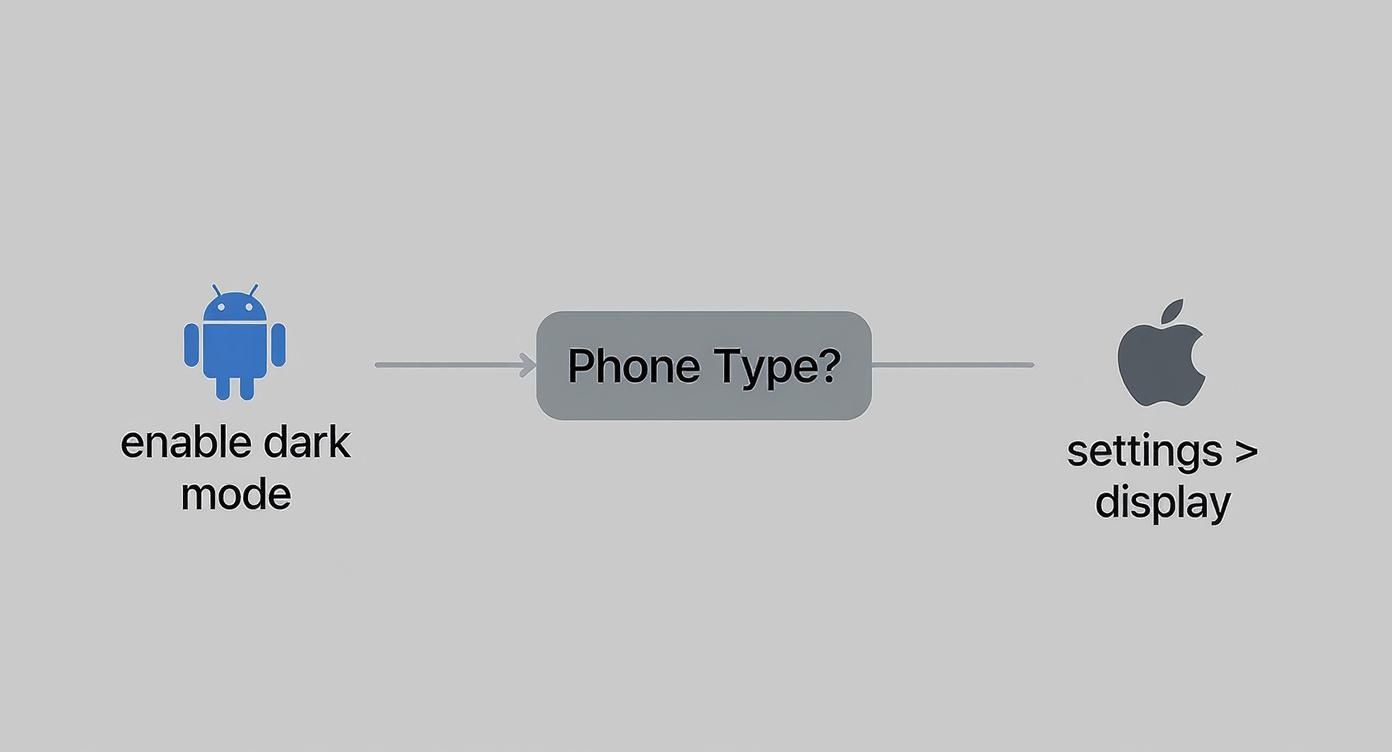
As you can see, the process is quite different between Android, which gives you in-app controls, and iOS, which relies entirely on the main system settings.
For those of us managing multiple accounts, these troubleshooting steps are even more important. It’s a real headache when you’re trying to sync an Outlook calendar with Google and can’t get a consistent look across both platforms.
Beyond the Basics: Customising Your Dark Theme
While Google’s built-in dark mode is a decent starting point, it’s really just a one-size-fits-all solution. If you're like me and want to get things just right, you’ll need to look beyond the native settings. This is where browser extensions come in, offering an impressive level of control over your Google Calendar dark mode.
One of the most trusted names out there is Dark Reader. It’s far more than a simple on/off switch. With it, you can adjust brightness, dial up the contrast, and even apply sepia filters or greyscale tones. It lets you create a theme that’s perfectly suited to your eyes and your work environment.
Fine-Tuning with Extensions
Using an extension like Dark Reader means you can dial in the exact level of darkness you prefer. Maybe Google's default dark grey feels a bit too washed out, or you want to tone down the contrast to make your event colours less jarring. This kind of granular control is something the native theme just doesn’t offer.
The real power of an extension is turning a generic dark theme into your own personalised workspace. You can craft a look that not only reduces eye strain but also matches your aesthetic and actually helps you focus.
It's worth keeping in mind that extensions do add another layer of software to your browser. This can sometimes lead to minor performance hiccups or compatibility issues when Google pushes a calendar update. For those looking for an even cleaner setup, a dedicated Google Calendar app for Mac can offer a more seamless and controlled experience without browser clutter.
Native Dark Mode vs Browser Extensions
So, should you stick with the simple native theme or install an extension? It really comes down to what you value most: simplicity or customisation. The native dark mode is quick and officially supported, but extensions unlock a whole new level of control.
Here’s a quick breakdown to help you decide.
Native Dark Mode vs Browser Extensions
| Feature | Native Dark Mode | Browser Extensions (e.g., Dark Reader) |
|---|---|---|
| Simplicity | Extremely simple, just one click to enable. | Requires installation and a little initial setup. |
| Customisation | Limited to Light, Dark, or Auto. No adjustments. | Extensive control over colours, contrast, brightness, and more. |
| Stability | Guaranteed to work. It’s an official feature. | Can sometimes break with Google Calendar updates. |
| Performance | No impact on browser speed. | Can have a minor performance footprint. |
Ultimately, the native option is perfect for a "set it and forget it" approach. But if you're a power user who wants to fine-tune every pixel, an extension is the way to go.
Your Google Calendar Dark Mode Questions, Answered
Flipping the switch to dark mode is usually straightforward, but you might notice a few quirks in your day-to-day workflow. That's totally normal. The feature has to play nice with your device's settings and Google's own design logic. Let's clear up a few of the most common questions I hear.
A big one is scheduling: can you make dark mode turn on and off automatically? Yes, but the trick is to do it through your operating system, not the calendar app itself.
Both Windows and macOS, as well as Android and iOS, have built-in settings that let you schedule a system-wide theme change. You can set it to a specific time or, my personal favourite, have it switch automatically at sunset and sunrise.
So, Why Do My Event Colours Look Different?
This is probably the most frequent question. You've set up your perfect colour-coded system, and suddenly all your events look… softer. This isn't a bug; it's a deliberate choice by Google to keep things readable and easy on the eyes.
Google’s system automatically mutes bright, saturated event colours, shifting them to more pastel shades. This prevents them from being jarring against the dark background. The app handles this adjustment for you—you can't set separate colours for light and dark modes.
Finally, the big question: does dark mode actually save battery life? The answer is a classic "it depends"—specifically, on your screen.
- OLED/AMOLED Screens: Absolutely. These screens create black by turning individual pixels completely off, which saves a noticeable amount of power.
- LCD Screens: Not really. LCDs rely on a backlight that's always on, so displaying a black pixel uses almost as much energy as a white one. The benefit here is purely aesthetic.
Knowing these little details helps you make the most of your new dark theme setup and understand why things work the way they do.
Ready to stop juggling calendars and start saving time? Calendar0 unifies your Google and Microsoft calendars into one intelligent view, using AI to schedule meetings in seconds. Get started for free at calendar0.app.

