Seamless Google Calendar Apple Calendar Sync A Complete Guide
Tired of missed appointments? Learn the best methods for a flawless Google Calendar Apple Calendar sync on Mac and iPhone. Get troubleshooting tips and more.

Calendar0 Team
January 5, 2026

Finally getting your Google Calendar and Apple Calendar to sync properly is about more than just convenience. It's about creating a single, reliable view of your entire life, accessible everywhere. This guide is your blueprint for connecting your accounts so that a meeting added on your Mac instantly shows up on your work phone, and vice-versa. It’s time to end the scheduling chaos for good.
Why a Unified Calendar Is a Game Changer for Professionals
If you’re like most professionals, your work life probably revolves around Google's ecosystem, but your personal life is managed on Apple devices. This split often leads to a fractured, frustrating schedule. The problem isn't just a minor annoyance—it’s a genuine productivity killer that adds a layer of mental friction to your day.
When your work and personal calendars live in separate worlds, the risk of conflicts and missed appointments skyrockets. You confirm a high-stakes client meeting for Tuesday afternoon, completely forgetting about that dentist's appointment you plugged into your iPhone last week. Or worse, you miss a critical project update because the alert only pinged on Google Calendar, an app you barely open on your personal time.
The Real Cost of a Disconnected Schedule
This constant digital context-switching forces you to hold multiple schedules in your head, increasing your cognitive load and making mistakes all but inevitable. Instead of working from a single, trusted source of information, you’re stuck constantly cross-referencing and second-guessing. This reactive approach to managing your time leads directly to painful outcomes:
- Double-Bookings: Accidentally scheduling professional and personal events at the same time, forcing you into awkward cancellations and last-minute reshuffles.
- Missed Appointments: Simply not seeing an important event because you were looking at the wrong calendar app at the wrong time.
- Lost Productivity: Wasting valuable time and mental energy manually checking multiple calendars before you can commit to anything new.
Getting your Google Calendar and Apple Calendar to sync seamlessly creates a single source of truth for your entire schedule. It transforms your workflow from reactive and disorganised to proactive and controlled, letting you manage your time with confidence and precision.
This guide provides the definitive solution to this all-too-common professional headache. We’ll walk through the exact methods to integrate your calendars correctly, ensuring every meeting, appointment, and reminder is visible everywhere. You'll learn the crucial difference between a simple read-only subscription and a powerful two-way sync, giving you the tools to build a system that finally puts you in complete command of your schedule.
Choosing Your Sync Method: CalDAV vs. Subscribing
Before we dive into the nuts and bolts of syncing, you need to make one crucial decision. How you connect your Google and Apple calendars will determine whether they work together seamlessly or become a source of daily frustration. You've got two main routes: connecting your account directly (using a protocol called CalDAV) or subscribing to a public calendar link.
It all boils down to a single question: do you need to edit events on both platforms, or just view them?
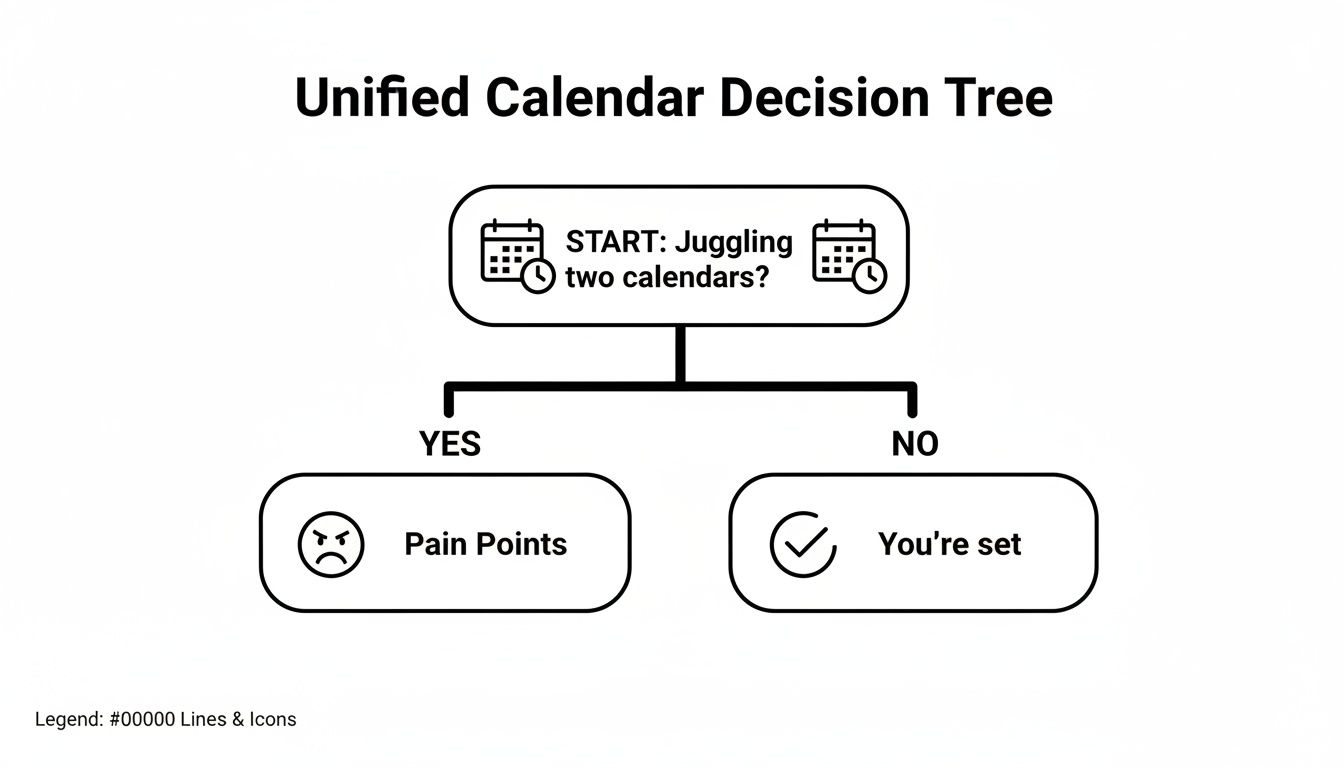
As you can see, trying to keep two separate calendars in your head is a recipe for missed appointments and double bookings. For any busy professional, getting them unified is the only real way forward.
The Power of Two-Way Sync with CalDAV
For 99% of us, the goal is a true, dynamic sync. You want to add something on your iPhone and see it on your work PC, or move a meeting on your Mac and have it update everywhere. This is where CalDAV comes in.
By adding your Google Account directly to your Mac, iPhone, or iPad, you're using CalDAV to create a live, two-way conversation between your calendars.
It's beautifully simple in practice:
- Add a client meeting in Google Calendar on your desktop, and it pops up instantly in the Apple Calendar on your iPhone.
- Reschedule a dentist appointment from your iPad on the train, and the change is immediately reflected in your Google Calendar for your assistant to see.
- Delete a cancelled event on one device, and it vanishes from all of them. No more confusion.
This is the gold standard. It creates a single source of truth for your schedule, which is exactly what you need when you're managing commitments across both Apple and Google ecosystems.
For anyone who actively manages their schedule, CalDAV is the only way to go. It’s the only method that lets you add, edit, and delete events from either calendar and have the changes reflected everywhere.
When a Read-Only Subscription Makes Sense
Your other option is to subscribe to a calendar using its public iCal link. This is a totally different beast because it’s a one-way, read-only connection. Think of it like following a news feed—you get the updates, but you can’t post anything back.
This is perfect for passive, informational calendars. You might subscribe to a company-wide holiday schedule, a team’s project timeline, or a public calendar of industry conferences. You need to see these events layered with your own schedule, but you have no reason to edit them.
If you try to manage your primary work or personal calendar this way, you'll hit a wall fast. You’ll see your appointments on your iPhone, but you won't be able to change or delete a single one without logging into Google Calendar on a web browser. It completely defeats the purpose of a unified view.
For a deeper look at all the ways you can connect your calendars, check out our complete guide to how you can sync with Google Calendar.
CalDAV Sync vs. Calendar Subscription At A Glance
Still not sure? This quick comparison should make it crystal clear which method is right for your needs.
| Feature | CalDAV (Native Sync) | iCal Subscription (Read-Only) |
|---|---|---|
| Edit Events | Yes, from any device | No, view-only |
| Add New Events | Yes, from any device | No |
| Delete Events | Yes, from any device | No |
| Sync Speed | Near-instant | Can be delayed (updates periodically) |
| Best For | Your primary work & personal calendars | Public, team, or informational calendars |
| Setup | Add Google Account to your device | Paste a specific URL into Apple Calendar |
Ultimately, for a truly integrated schedule you can manage on the fly, CalDAV is the clear winner. The subscription method is a useful tool, but only for those specific, view-only scenarios.
How to Sync Your Calendars on a Mac
Getting your Google Calendar to play nicely with Apple Calendar on your Mac is actually one of the smoother integrations in the Apple ecosystem. Forget third-party apps or complicated workarounds; the whole setup happens right inside your Mac's System Settings. It only takes a couple of minutes to create a proper two-way sync.
The secret is adding your Google account directly at the system level. When you do this, you’re not just syncing your calendar; you're giving Apple’s native apps (like Mail and Contacts, too) secure permission to access your Google data. It’s hands-down the most reliable way to get a single, unified view of your entire schedule.
First, Head to Internet Accounts
Let's get this done. Pop open System Settings on your Mac—you can find it in your Dock, or just click the Apple icon in the top-left corner of your screen. Once it's open, look for Internet Accounts in the left-hand sidebar. This little section is the command centre for all the third-party accounts connected to your machine.
You’ll see a list of any accounts you’ve already linked. From here, click the Add Account button, and then pick Google from the list of options. A window will pop up asking for your Google email and password. Just follow the prompts to sign in and grant macOS the necessary permissions.
Don't Miss This Crucial Checkbox
After you've successfully logged in, macOS presents you with a small window showing which apps can use this Google account—Mail, Contacts, Calendars, Notes, and so on. This is the one step people mess up all the time, especially if they’ve already added their Google account for Gmail.
You absolutely have to make sure the Calendars checkbox is ticked. If it's not, your calendars simply won't appear, even though your account is technically connected.
I see this all the time: people assume that adding a Google account for Mail automatically syncs their calendar. It doesn't. You have to explicitly tell your Mac to sync calendars, so always double-check that this box is ticked.
Once you've made sure Calendars is enabled, click Done. Your Mac will immediately start pulling in your calendar data from Google's servers. The first sync might take a minute or two, especially if you have a packed schedule with years of history.
While you're streamlining your digital life, it's always good to know your hardware inside and out. If you're curious about how your machine stacks up, you can find some interesting MacBook Air performance reviews that dig into its capabilities.
Fine-Tuning What You See
Now for the fun part. Open the Calendar app on your Mac. Over in the sidebar on the left, you should now see all your Google Calendars neatly listed, probably under a "Gmail" or similar heading.
This is where you get to control the chaos. Most of us have multiple calendars in our Google account—one for work, one for personal stuff, maybe a shared family or team calendar. You can decide exactly which ones show up in Apple Calendar by ticking or unticking the box next to each one.
It's a fantastic way to declutter your view. For instance, you probably want your main 'Work' and 'Personal' calendars visible at all times, but you can hide that shared 'Team Vacation' calendar you only need to check once a month.
- To show a calendar: Make sure its checkbox is ticked. Events will appear instantly.
- To hide a calendar: Untick the box. The events vanish from your view but are still safe and sound in your Google account.
This level of control lets you build a clean, focused calendar that shows you only what you need to see, right when you need to see it. Of course, if you're a power user who wants more than the native app offers, looking into a dedicated Google Calendar app for Mac can open up a whole new world of features.
Getting Your iPhone and iPad in Sync
With your Mac squared away, the next piece of the puzzle is getting your mobile devices on board for a true Google Calendar Apple Calendar sync. The good news is that setting this up on an iPhone or iPad is just as simple as it was on the Mac, though the settings are tucked away in a different spot.
This step is non-negotiable for any professional who’s constantly on the move. The whole point is to have one central place—your native Apple Calendar app—to see everything, so you’re not hopping between apps just to figure out what’s next on your agenda.
Adding Your Google Account on iOS
First things first, grab your iPhone or iPad and head into the Settings app.
Give it a scroll and tap on Calendar, then find and select Accounts. This screen is your command centre, showing every account that's currently feeding events into your Apple Calendar.
Now, tap Add Account and pick Google from the list. You’ll be asked for your Google email and password. Just follow the prompts to get signed in—if you’ve got two-factor authentication on (which you should!), you’ll need to complete that step here.
Once you’re in, you'll see toggles for Mail, Contacts, Calendars, and Notes. The crucial one here is Calendars. Make sure that switch is flicked on and showing green. This is what gives Apple permission to pull in your Google events. Hit Save, and that’s it—the connection is made.
Fine-Tuning Your Mobile Sync Settings
Account added, but we're not quite done. There’s one more setting worth a look: how often your device checks for new events. This is a classic trade-off between instant updates and battery life.
To get there, go back to Settings > Calendar > Accounts and tap on Fetch New Data.
You’ll see a choice for your Google account that really matters:
- Push: This is the real-time option. The moment an event is added or changed in Google Calendar, Google’s servers “push” it to your iPhone instantly. It’s perfect for fast-paced schedules but does use a bit more battery.
- Fetch: This tells your device to check for updates on a schedule—every 15 or 30 minutes, for example. It’s gentler on your battery, but you might have a slight delay before a new meeting shows up.
For most of us, Push is the way to go. The minor battery cost is a small price to pay for the peace of mind that your calendar is always 100% current. It’s the best way to avoid a dreaded double-booking caused by a sync lag.
This level of control lets you tailor the Google Calendar Apple Calendar sync to how you work. It’s also worth noting that while syncing is great, Apple Calendar has a clear edge when you're offline. Its ability to store data locally gives it about 94% reliability offline, a stark contrast to Google Calendar’s 67% when you’re not using its own app. It’s one of those little details that can make a big difference when you’re dealing with spotty Wi-Fi. You can find out more about how these calendars compare in different environments.
Troubleshooting Common Sync Issues
Even with a perfect setup, the delicate dance between Google and Apple's servers can occasionally miss a step. You add an event on your Mac, but it never shows up on your iPhone. Or maybe you notice a frustrating delay in updates. Before you get too annoyed, rest assured that most of these sync issues are minor and can be fixed in just a few minutes.
The most common culprit is usually a simple communication breakdown. Your devices are set to sync, but for some reason, one of them hasn’t “checked in” recently for new information. This can be caused by a temporary network glitch or an app that hasn't refreshed itself in the background.
Forcing a Manual Refresh
Your first move should always be the simplest one. On the device that isn't showing the right info—your iPhone, iPad, or Mac—pop open the Apple Calendar app.
Find the "Calendars" list (it's at the bottom of the screen on iOS, or in the sidebar on macOS). On your iPhone or iPad, just pull down on this screen. You'll see a little loading spinner appear as the app reaches out to Google’s servers to pull down the latest data. This one move solves the vast majority of minor sync delays.
When a Deeper Fix Is Needed
If a manual refresh doesn't do the trick, it's time to check the connection itself. Sometimes, the authentication token linking your accounts expires, or a setting gets accidentally changed.
-
Check Your Calendar Visibility: Head over to your Google Calendar settings in a web browser and look for "Settings for my calendars." Select the calendar that’s giving you trouble and make sure it’s properly configured for sharing and access.
-
Verify Google Sync Settings: Google has a special Sync Select page. This page shows exactly which of your calendars are enabled for CalDAV syncing with other apps. Make sure the problematic calendar has its box ticked.
-
The Classic "Turn It Off and On Again": The final resort is to remove and re-add your Google account from your Apple device. Go to Settings > Calendar > Accounts, tap your Google account, delete it, and then add it back. This forces a complete re-authentication and re-sync of all your data from scratch. For a more detailed walkthrough, see our guide on resolving specific Google Cal sync issues.
Synchronisation glitches are an unfortunate reality, especially when you’re bridging two different ecosystems. Google Calendar's strong cross-platform support is a key reason for its market dominance, yet issues persist. In fact, roughly 42% of professionals report sync problems when trying to collaborate between Apple and Google Calendars.
Following these steps should resolve pretty much any sync problem you run into. By starting with the simplest fix and only escalating when you need to, you can keep your unified schedule running smoothly without a ton of hassle.
Getting Your Calendars to Play Nicely: Common Questions
Once you’ve got everything connected, a few practical questions almost always come up. It's one thing to get the sync working; it's another to make it seamless. Let's tackle the most common hurdles people face.
How Long Does It Take for an Event to Sync?
This is probably the first thing everyone asks. A delay can mean a missed meeting, so it’s a fair question.
When you connect your Google account using the CalDAV method (the one we recommend), Apple Calendar uses Google’s “push” service. Think of it like an instant notification—any change you make gets pushed to your other devices almost immediately.
However, on an iPhone or iPad, you have the option to switch to "fetch" mode to save a bit of battery. If you do this, your calendar will only update at the interval you set, like every 15 minutes, 30 minutes, or even just when you manually open the app. For anyone juggling a busy schedule, my advice is to stick with push. It’s the only way to get a true, real-time view of your day.
Can I See Calendars Shared with Me by Colleagues?
Yes, you definitely can, but there's a small, easy-to-miss step that trips a lot of people up.
When someone shares a new Google Calendar with you, you have to accept the invitation in your browser on the Google Calendar website first. After that, it won't magically appear on your iPhone or Mac just yet.
You need to tell Google which calendars to make available to other apps. To do this, head over to Google's dedicated Sync Select page. You'll see a list of all your calendars—just tick the box for the new shared one, and it’ll show up in Apple Calendar shortly after.
A heads-up on something that won't sync: event colours. Your appointments will be there, but they’ll look different. Google and Apple use their own separate colour palettes.
Why Are My Google Calendar Event Colours Different in Apple Calendar?
This is a classic point of confusion. The short answer is: event colours don't sync between Google and Apple. It’s just not a feature they support.
When your calendars appear in the Apple Calendar app, they'll be assigned new, default colours. Your green "Work" calendar from Google might suddenly be blue, and your personal one might switch from purple to red.
The good news is that this is an easy fix. You can go into the Apple Calendar app on your Mac or iPhone and manually change the colour of each synced calendar. It’s a one-time setup that lets you match your original scheme or create a completely new one that makes sense to you.
Ready to stop juggling calendars and start saving time? Calendar0 is an AI menubar calendar that brings all your schedules into one view, letting you schedule meetings with natural language. Stop the back-and-forth and reclaim 20 minutes every day. Get started with Calendar0 for free at https://www.calendar0.app

