Fix Your Google Cal Sync Across All Devices
Tired of missed appointments? Our guide fixes Google Cal sync issues on any device. Get actionable advice for Outlook, iOS, and Android calendars today.

Calendar0 Team
November 23, 2025

When a Google Calendar sync breaks down, it’s usually for one of three reasons: funky permissions, a spotty network connection, or an app that’s not playing nice with others. That event you just tapped into your phone? If it’s not showing up on your laptop, one of those culprits is likely to blame.
Why Your Google Cal Sync Fails
Your entire schedule lives in the cloud, so when the sync breaks, it feels like you've been cut off from your own day. One minute you're slotting in a client meeting on your Mac, and the next you’re staring at a blank space on your phone, wondering where it went.
This isn't just a small hiccup. It's the kind of thing that leads to missed appointments, embarrassing double-bookings, and a complete breakdown of trust in the tools you rely on. The good news? Most sync problems come from a handful of common, and thankfully, fixable issues.
The first step is figuring out the root cause. More often than not, it's not some catastrophic system failure but a simple miscommunication between your devices and Google's servers.
Getting to the Bottom of the Problem
Before you start tearing through complex settings, do a quick diagnostic. Is the issue isolated to one device? If an event you added on your phone shows up on the web version of Google Calendar but not your desktop app, you know the problem is with the desktop client—not your Google account itself. That one check can save you a ton of guesswork.
Another prime suspect is app permissions. Every time you connect a new calendar app, you give it permission to read and write events. If those permissions get accidentally revoked or simply expire, the sync will grind to a halt. A quick look at which apps have access to your Google account can often point you straight to the offender.
"The best calendar is the one you don't have to think about. When a sync fails, that trust is shattered. The goal is to rebuild it by finding the weak link in the chain—whether it’s a third-party app, a network setting, or a simple permission toggle that got flipped."
It’s no surprise that calendar syncing has become central to how we work. In Germany, the adoption of tools like Google Calendar is part of a larger trend across Europe. The global online calendar market hit around USD 1.5 billion in 2023, and Europe holds a major piece of that pie, driven by a culture that values efficient time management. German businesses, in particular, lean heavily on these tools to keep teams coordinated. You can dig deeper into these trends over at Dataintelo.
Native Sync vs. Third-Party Tools
How you sync your calendar matters. Native integrations, like adding your Google account directly into Apple Calendar or the Windows Mail app, are usually pretty reliable. The catch is they can be slow to update, sometimes fetching new data on a timed schedule instead of instantly.
On the other hand, dedicated third-party tools often provide a much more robust, real-time sync. They're a lifesaver for complex setups, like keeping a true two-way sync going between Google Calendar and Microsoft Outlook. If you're constantly fighting with a native connection, a specialised tool might be exactly what you need.
For anyone wrestling with that specific duo, our guide on the Outlook Google Calendar sync is packed with tips.
To help you choose the right path, let's break down the different approaches.
Comparing Sync Methods Across Platforms
Here’s a quick look at how native sync stacks up against third-party apps for the most popular platforms.
| Platform | Native Sync Method | Third-Party App Method | Best For |
|---|---|---|---|
| Outlook | One-way iCal subscription | Dedicated sync software | Two-way sync for professional use |
| Apple Calendar | Add Google account in Settings | Using the official Google Calendar app | Users deep in the Apple ecosystem |
| Windows | Add Google account in Mail app | Specialised desktop clients | Basic integration for personal use |
Ultimately, the best method depends entirely on your workflow. For simple, personal use, native sync often gets the job done. But for anyone in a professional setting who can't afford a missed meeting, a dedicated third-party tool offers peace of mind and reliability that’s hard to beat.
Syncing Google Calendar on Your Desktop
A desktop calendar that’s out of sync is more than an annoyance; it's a productivity black hole. When you book an appointment on your phone, you expect it to show up instantly on your main work machine, whether it's a Mac or a PC. Getting that seamless Google Cal sync right is the bedrock of an organised day, but how you get there depends on your operating system and the apps you use.
For most of us, the simplest path is to plug Google Calendar directly into the native calendar apps that came with our computers. It keeps your setup clean and avoids adding yet another piece of software to your daily grind.
Integrating with macOS and Windows Calendars
On a Mac, this is refreshingly simple. Head into your System Settings, find Internet Accounts, and add your Google account. Just like that, you've given macOS permission to pull all your calendar data straight into the native Calendar app. This creates a direct pipeline, ensuring events pop up across all your Apple devices with almost zero effort.
Windows follows a similar playbook with its built-in Mail and Calendar app. Add your Google account there, and the system will start fetching your events. While it’s generally reliable for just viewing your schedule, I've seen it lag a bit. The sync sometimes runs on a "fetch" schedule rather than an instant "push," so updates aren't always immediate. For a deeper dive into desktop options, our guide on the best Google Calendar app for desktop has some great strategies.
If you hit a snag and your calendar isn't syncing, this quick flowchart can help you track down the culprit.
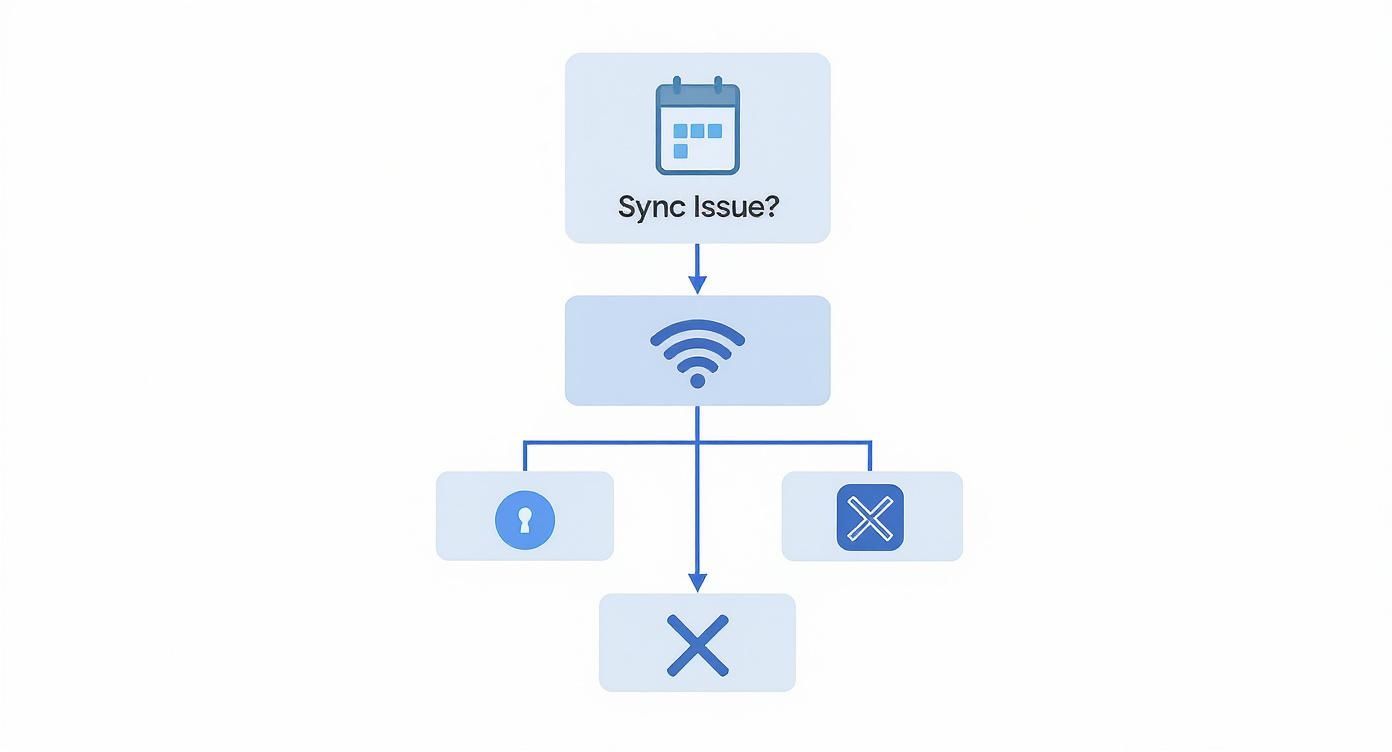
As you can see, most sync failures boil down to the basics—connectivity or permissions—before you need to start worrying about more complex app conflicts.
The Special Challenge of Microsoft Outlook
This is where things get tricky. Many of us live in Microsoft Outlook for work but rely on Google for our personal lives. Getting these two worlds to talk to each other properly is a common headache. The most frequent solution—subscribing to your Google Calendar's iCal link—is, frankly, a bit of a letdown.
Sure, it works, but it creates a one-way, read-only view of your Google events inside Outlook. You can see your appointments, but you can't edit them, move them, or add new ones from your Outlook interface. If you need to actively manage your time from both places, this method just doesn't cut it.
A one-way sync is like having a map without being able to draw your own route. You can see where you're supposed to be, but you can't make any changes on the fly. True productivity requires a two-way street where changes made in one calendar are immediately reflected in the other.
This is where dedicated two-way sync tools become a lifesaver. These apps act as a bridge, creating a true bidirectional flow of information. An event you create in Outlook appears on your Google Calendar, and an update on your phone is reflected in Outlook moments later. This is the only way to reliably avoid the dreaded double-booking that happens when your work and personal calendars aren't really talking to each other.
The market for these tools is growing, especially in regions with strict data privacy laws. In the German calendar software market in 2025, for instance, you'll find not just Google and Microsoft, but also a host of GDPR-compliant solutions for users who put security first. This demand for secure synchronisation has pushed the development of specialised tools that handle data flow between platforms safely and effectively.
So, choosing the right method for your desktop Google Cal sync really comes down to what you actually need:
- For macOS users: The native integration through System Settings is solid and usually all you'll need.
- For Windows users: The built-in Mail and Calendar app gives you a basic, functional view of your day.
- For Outlook power users: A proper two-way sync tool is non-negotiable. It's the only way to manage a hybrid schedule without creating chaos.
Pick the right strategy, and you can make sure your desktop is the reliable command centre for your entire schedule.
Keeping Your Mobile Calendars in Sync
For most of us, our phone is ground zero for our entire day. If an event isn't on your mobile calendar, does it even exist? This is why a flawless Google Cal sync on your iOS and Android devices isn't just a nice-to-have; it's absolutely essential.
When your phone's calendar is out of sync with your desktop, you're flying blind. You risk double-booking yourself or, even worse, missing critical appointments. The fix often isn't as simple as checking your Wi-Fi; it usually means diving into some device-specific settings that control how and when your apps are allowed to talk to the internet.
Optimising Sync on Android Devices
You'd think since Google Calendar is a core part of Android, the sync would be bulletproof. And most of the time, it is. But when things go wrong, it's almost always because of some overzealous battery-saving feature or a misconfigured app setting.
If you’re noticing a frustrating delay before new events show up, it’s time to dig a little deeper. A common culprit I see is a background data restriction on the Calendar app itself. Buried deep in your phone's settings, this feature can effectively stop your calendar from updating unless you have the app open, leaving your schedule perpetually out of date.
Here’s a quick checklist if your Android sync feels off:
- App Permissions: Pop into the app settings and make sure Calendar has all the permissions it needs. This is especially true for contacts (for birthdays and invitees) and the ability to run in the background.
- Battery Optimisation: This is the big one. Go to your phone’s battery settings, find Google Calendar, and set it to "Unrestricted" or "Not optimised." This tells your phone’s operating system to leave it alone and let it sync freely.
- Clear the Cache: Sometimes, old, corrupted data can gum up the works. Head to the app’s storage settings and clear the cache. Don't worry, this won't delete your events—it just forces a fresh sync with Google's servers.
Making these small tweaks can be the difference between a laggy, unreliable calendar and one that updates in real-time.
Syncing with iPhone and iPad
On an iPhone or iPad, you've got two main ways to get your Google Calendar synced up: use the built-in Apple Calendar app or download the official Google Calendar app from the App Store. Both are great options, but they work a bit differently.
Adding your Google account directly to your device is the most straightforward route. You just head to Settings > Calendar > Accounts > Add Account, pick Google, and sign in. This pipes all your Google events right into the native Apple Calendar app. It’s perfect if you love Apple's clean look and want to see your iCloud and Google calendars all in one place.
The catch? This native integration relies on "Fetch" settings, which means your phone only checks for updates on a set schedule (like every 15 or 30 minutes).
For a truly instant, up-to-the-second sync on iOS, the official Google Calendar app is almost always the better bet. Because it’s made by Google, it uses push technology to update events the moment they’re changed—no waiting for the next "Fetch" cycle.
Here's a quick breakdown of how they stack up:
| Feature | Native Apple Calendar Sync | Official Google Calendar App |
|---|---|---|
| Sync Speed | Relies on Fetch settings (e.g., every 15 mins) | Instant (Push notifications) |
| Interface | Standard Apple UI | Google's Material Design UI |
| Integration | Seamless with other iCloud calendars | Best for Google-specific features |
| Setup | Via iOS Settings | Download from App Store |
One final tip that applies to both methods: check your Background App Refresh settings. If this is toggled off for either the Apple or Google Calendar app, it will only sync when you physically open it. Making sure this is enabled is crucial for a calendar that stays current without you having to think about it.
Solving Common Google Calendar Sync Errors
Nothing throws a wrench in your day quite like a Google Cal sync failure. One minute you're organised, the next you're staring at a schedule you can't trust. Did that client meeting you added on your phone actually save? Is it on your desktop calendar?
These sync errors are more than just a tech hiccup; they're a direct threat to your productivity and professional image. The good news is, most of the time, the fix is surprisingly simple and doesn't require a total tech overhaul.
Let's walk through the most common sync problems and get you back on track without the headache.
Dealing With Duplicated Events
Seeing double? This is a classic symptom of a confused sync connection. It usually happens when you’ve connected your Google Calendar to another service—like Outlook or Apple Calendar—in more than one way. For example, you might have the native macOS integration switched on while also using a third-party sync tool. The result is two systems pulling in the exact same event, creating a cluttered, confusing mess.
The solution is to pick one lane.
- Audit Your Accounts: Pop open the account settings on your device (look for "Internet Accounts" on a Mac or "Accounts" in Outlook) and check how many times your Google account is connected.
- Choose One Method: Decide on a single, primary sync method and get rid of the rest. If you're using a dedicated Outlook sync tool, for instance, remove your Google account from the default Windows Mail app to stop the conflict.
Just by trimming down these redundant connections, most people solve the duplicate event problem for good.
When Events Refuse to Appear
One of the most stressful sync glitches is the "ghost event"—you know you created it, but it simply fails to show up on another device. This is almost always caused by a communication breakdown between your device and Google's servers. The data is just stuck in transit.
Before you panic, run through this quick checklist:
- Force a Manual Refresh: In the mobile app, just pull down to refresh. On your browser, hit the refresh button. This simple kickstart often gets things moving again.
- Clear the Cache: On your phone or tablet, dive into the app settings for Google Calendar and clear its cache. This gets rid of old temporary files that might be corrupted, forcing a fresh connection without deleting your actual data.
- Check Google's Status: Sometimes, the problem isn't on your end at all. Take a quick look at the Google Workspace Status Dashboard to see if Google Calendar is having a known issue.
When an event goes missing, the first question to ask is, "Where is the source of truth?" Always check the web version of Google Calendar first. If the event is there, the problem is with your client app; if it's not there, the event was never successfully saved in the first place.
Sync issues can also be surprisingly local. For instance, recent regulatory changes in Germany and the EU have created some unique challenges. As of September 2025, Google changed how contact data interacts with Google Calendar to comply with stricter privacy laws. For many German users, this change broke the automatic syncing of birthdays from their contact lists—a feature that used to be seamless. You can find more on these regional sync issues on Google's support forums.
Fixing Persistent Permission Errors
If you're constantly being asked to re-authorise your account or getting slapped with "access denied" messages, it's a dead giveaway that your app's permission token has expired or been revoked. This is a security feature, not a bug, but it can definitely be disruptive.
The most effective fix is a clean slate.
- Revoke Access: Head over to your Google Account's security settings and find the section for "Third-party apps with account access."
- Remove the Problem App: Find the calendar app that’s giving you grief (like your desktop mail client) and remove its access completely.
- Re-authorise: Go back to the app and add your Google account from scratch. This generates a fresh, valid permission token and re-establishes a secure connection.
By methodically tackling these common errors, you can restore a reliable Google Cal sync and get back to trusting your schedule.
Advanced Sync Settings and Security
https://www.youtube.com/embed/I3RlirZzx-o
Once your basic Google Calendar sync is up and running, it's time to fine-tune the settings to work smarter and keep your data secure. Digging into sharing permissions and security options isn't just for power users—it's essential for anyone juggling personal and professional schedules.
These controls are what keep your private appointments private while still letting your team know when you're busy.
Mastering Calendar Permissions
The most important thing to get right is the difference in sharing permissions. Granting someone access to "Make changes to events" is a world away from letting them "See only free/busy." The first is for a trusted assistant who helps manage your schedule. The second is perfect for colleagues who just need to find a meeting slot without seeing the details of your doctor's appointment.
Imagine you’re sharing a family calendar with your partner. You both need full control to add, edit, and delete events. In this case, granting "Make changes AND manage sharing" permissions makes perfect sense, giving you both equal control.
Now, think about your work calendar. Your team doesn't need to know the specifics of every meeting, just when you're unavailable.
- See only free/busy (hide details): This is your go-to for broad sharing. It blocks off your time on other people's calendars without revealing anything sensitive.
- See all event details: This lets others see what your events are called and who's attending, but they can't make changes. It’s useful for a manager who needs a quick overview of their team's activities.
Mixing these up is a common cause of privacy blunders, where personal appointments get accidentally exposed to an entire organisation. Take a moment to set these correctly—it provides both clarity and confidentiality.
The goal of a well-configured calendar isn't just to sync events; it's to sync expectations. Clear permissions ensure everyone sees exactly what they need to—and nothing more. This builds a foundation of trust and efficiency for any team.
Bolstering Your Sync Security
Every third-party tool you connect to your calendar creates a new potential vulnerability. That's why managing which apps have access is a critical security practice. Regularly auditing these connections ensures an old, unused app can't become a backdoor to your data.
A great place to start is your Google Account's security page. It lists every single application you’ve ever granted access to. If you spot an app you don't use anymore, revoke its access immediately.
When considering new tools, it's worth looking into how they handle authentication. For instance, understanding Google Single Sign-On features for third-party apps can shed light on how secure connections are established and maintained.
For older apps that don't support modern authentication, I always recommend using app-specific passwords. This is a unique, 16-digit passcode that gives an app permission to access your Google Account without you ever sharing your actual password. If that app's security is ever compromised, you can just revoke that one password without affecting your main account. It’s a simple extra layer of protection.
For those managing more complex setups, like connecting Google Calendar with Microsoft's ecosystem, using the right tools is paramount. You can find more on this in our detailed guide on Outlook Google Calendar sync software.
By combining smart permission settings with proactive security audits, you can create a powerful and secure calendar sync that works for you, not against you.
Your Google Cal Sync Questions Answered
Even with all the connections set up, some nagging questions about your Google Calendar sync can stick around. Let's tackle some of the most common ones I hear.
How Often Does Google Calendar Actually Sync?
The real answer? It depends entirely on what tool you're using.
If you’re working directly on the official Google Calendar website or its mobile app, changes are basically instant. Add an event on your phone, and it’s on your desktop before you can even look up.
Things get a little different when you bring third-party apps like Apple Calendar or Outlook into the mix. These apps usually rely on one of two methods:
- Push Sync: This is the gold standard. The server "pushes" updates to your device the second they happen. The official Google Calendar app uses this, which is why it feels so immediate.
- Fetch Sync: This is more common for native integrations, like when you add a Google account directly to your iPhone. To save battery, the app "fetches" for new updates on a schedule—every 15, 30, or 60 minutes. You can usually tweak this interval in your device's account settings if you need faster updates.
Can I Sync a Shared Google Calendar to Outlook?
Yes, you can, but it comes with a pretty big string attached. The standard way to do this is by grabbing the shared calendar's "Secret address in iCal format." You copy that link and then add it to Outlook as an Internet Calendar Subscription.
The catch is that this creates a one-way, read-only feed. You’ll see all the events from the shared calendar right inside Outlook, which is handy for checking availability. But that's all you can do. You won't be able to edit anything or add new events from Outlook. For a true two-way sync, you'd need to look into a dedicated third-party tool.
Why Are My Recurring Events Messing Up the Sync?
Ah, the classic recurring event headache. These are a notorious weak point for calendar syncing, and the trouble usually starts when you edit just one event in a series.
Say you move next Tuesday's weekly meeting to a different time. That one change creates an "exception" to the recurring rule. Some calendar apps, especially older ones, just don't know how to handle these exceptions. This can cause all sorts of bizarre behaviour, like the single edited event not appearing at all, or worse, the entire series disappearing from one of your devices.
The most reliable fix, while it feels a bit like overkill, is often to just delete the entire problematic series from your main Google Calendar. Make a note of the details, nuke it, and then recreate it from scratch. This sends a clean, consistent series to all your devices without any confusing exceptions attached.
Will Syncing My Work Calendar Expose My Personal Events?
This is a totally valid privacy concern, but the short answer is no—as long as you set it up correctly. The golden rule is to never give your work account full, detailed access to your personal calendar.
The best and safest way to handle this is to share your personal calendar with your work account using the "See only free/busy (hide details)" permission. This is a brilliant bit of calendar management. It blocks off your personal time on your work calendar so colleagues see you're unavailable, but it keeps the actual event details—like "Dentist Appointment"—completely private.
Once your Google Calendar is perfectly synced, learning to master meeting management can take your scheduling and productivity to the next level.
Stop wasting time on calendar admin. Calendar0 connects all your Google and Microsoft calendars into one unified view, preventing double-bookings and letting you schedule meetings with natural language. Get back 20 minutes every day by downloading it for free at https://www.calendar0.app.

