The Ultimate Google Cal App for Mac Guide
Searching for a Google Cal app for Mac? This guide details how to use Google Calendar with PWAs, macOS Calendar, and dedicated menu bar apps.

Calendar0 Team
December 26, 2025

If you’ve ever gone hunting in the Mac App Store for an official Google Cal app for Mac, you already know how it ends: you find nothing. It's a common point of frustration, but the reason is pretty simple—Google never made one.
So, Why No Official Google Calendar App?
It’s not an oversight; it’s a strategy. Google has always been a web-first company. By keeping Google Calendar as a powerful, browser-based tool, they ensure everyone gets the exact same experience and updates instantly, whether you're on a Mac, a Windows PC, or a Linux machine. It saves them the headache of building and maintaining separate apps for each platform.
But let's be honest, that approach leaves Mac users who love the polish and integration of native apps out in the cold. Keeping a browser tab pinned just for your calendar feels clumsy and inefficient.
The good news? The lack of an "official" app doesn't mean you're stuck. There are several fantastic ways to get a native-like Google Calendar experience on your Mac, each with its own vibe.
Finding the Right Calendar Workflow for You
Which method is best really comes down to how you work. Do you need every single feature Google offers, or do you just need to see your next meeting at a glance?
To help you figure it out, we’ll walk through the three best solutions:
- The Progressive Web App (PWA): This is for anyone who wants the full-featured web experience, but neatly packaged as a standalone app in your Dock.
- macOS Calendar Sync: Perfect if you're already embedded in the Apple ecosystem and just want your Google events to show up in the native Calendar app.
- Menu Bar Apps: My personal favourite for power users. These give you lightning-fast, keyboard-driven access to your schedule without ever leaving what you're doing.
Think of it like this—your main goal points you directly to the best solution.
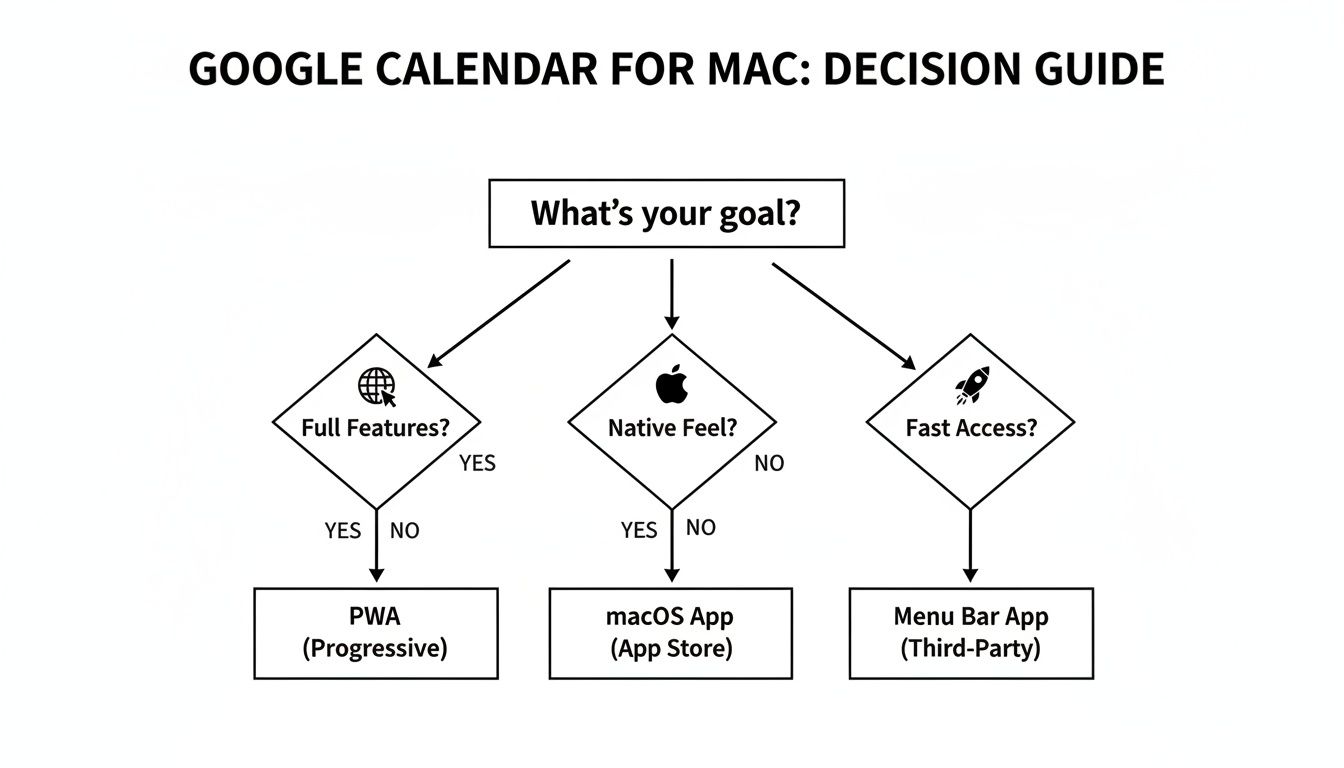
As you can see, what you value most—be it having every feature, seamless integration, or pure speed—makes the choice pretty clear.
To make it even simpler, here's a quick breakdown of how these methods stack up against each other.
Comparing Google Calendar Methods on Mac
Here’s a quick look at the three main ways to use Google Calendar on a Mac, highlighting their best use cases and key features.
| Method | Best For | Key Feature | Setup Effort |
|---|---|---|---|
| PWA (Web App) | Full-feature parity with the web version | Standalone app experience in the Dock | Low |
| macOS Calendar Sync | Deep integration with Apple's ecosystem | Native notifications & widgets | Low |
| Menu Bar Apps | Quick-glance access and speed | Instant access via keyboard shortcuts | Low to Medium |
Ultimately, whether you choose the PWA for its completeness, the native sync for its integration, or a menu bar app for its speed, you can absolutely get a great Google Cal app for Mac experience. It's just a matter of picking the workflow that fits you best.
A Desktop-Like Experience with a Google Calendar PWA
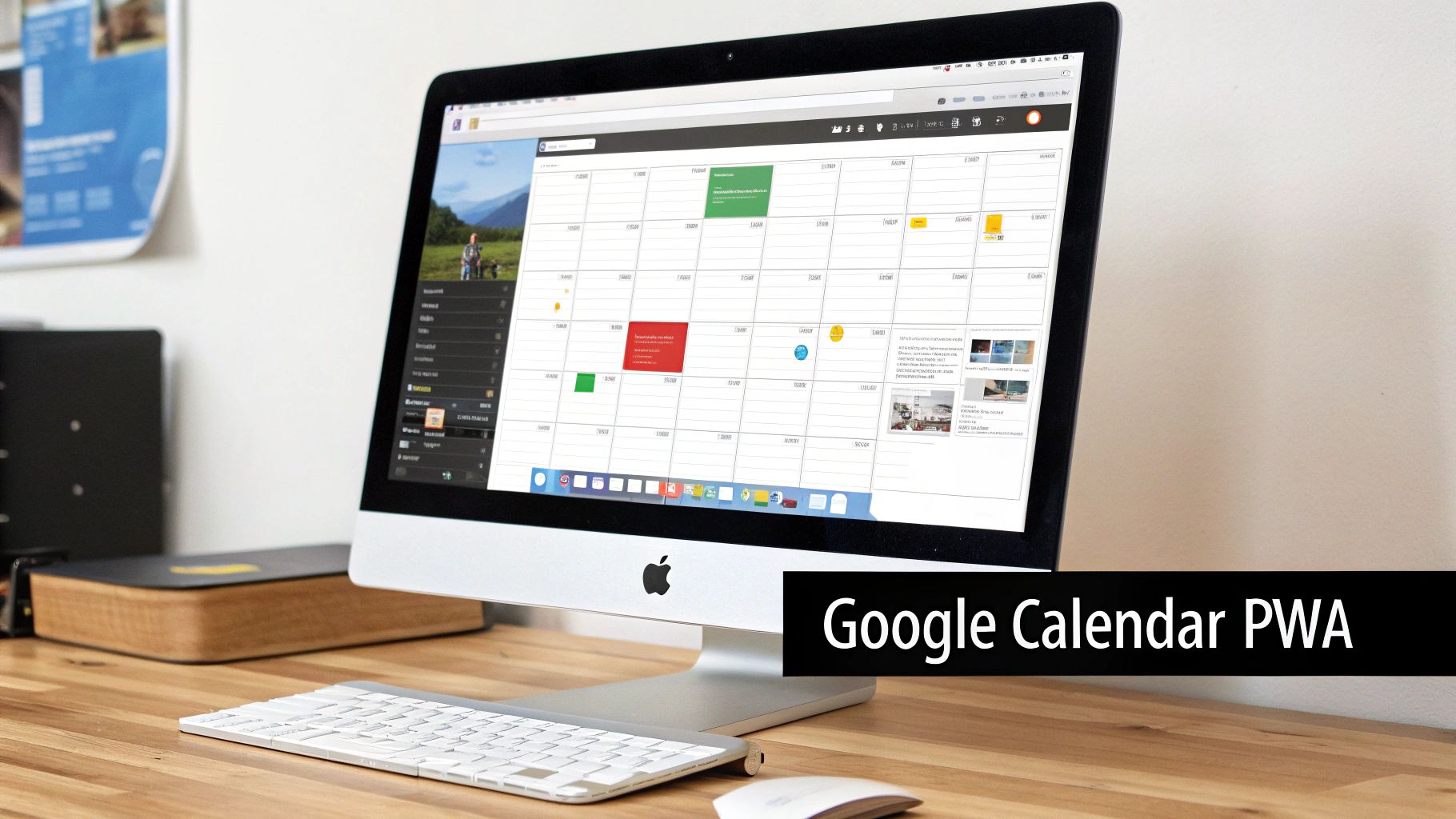
Since Google hasn't given us an official desktop client for Mac, the next best thing is a Progressive Web App (or PWA). It's a clever workaround that takes the Google Calendar website and packages it into a standalone app that lives right in your Mac's Dock.
What's great about this is that it runs in its own window, totally separate from your browser. No more accidentally closing your calendar tab or losing it in a sea of open pages. For all practical purposes, it looks and feels just like a dedicated app.
How to Set Up Your Google Calendar PWA
Creating a PWA is surprisingly simple and only takes a moment if you're using a Chromium-based browser like Google Chrome or Microsoft Edge.
First, just head over to calendar.google.com in your browser.
Once the page is loaded, keep an eye on the address bar. You should see a small icon that looks like a computer screen with a downward arrow. That’s the "Install app" button.
Here's what that little "Install" prompt looks like in action:
Just give that icon a click. A prompt will pop up asking you to install Google Calendar. Once you approve it, the new app will show up in your Applications folder and pin itself to your Dock for quick access.
This simple move transforms the web interface into something that feels much more integrated with your desktop. It’s a pretty elegant solution that gives you the full power of Google Calendar without all the browser clutter.
The Good and The Bad of the PWA Method
The biggest win for the PWA is feature parity. You get every single function from the website—creating detailed events, setting focus time, managing shared calendars, you name it. Nothing gets left behind.
Another key advantage? It's completely free and even supports offline access. Just enable it in the settings, and you can view your calendar even without an internet connection, which is a lifesaver when you're on the move.
My Takeaway: The PWA is perfect if you rely on the complete Google Calendar feature set and want a dedicated app experience without browser distractions. It's easily the most comprehensive free option out there.
But it isn't perfect. The PWA's main drawback is its weak integration with macOS. Notifications are piped through the browser, so they don't look or feel as native as the ones you get from Apple's own Calendar app. You also miss out on any menu bar integration for quick glances at your schedule.
The demand for better-integrated tools is clearly growing. In Germany, for example, the shared calendar app market is expanding fast, driven by a highly digital workforce. Projections show this segment is set to grow at a compound annual rate of 12.4% through 2031, which really highlights how much we need seamless collaboration tools like Google Calendar. You can dig into more insights on the shared calendar app market trends here.
If you're already deep in the Apple ecosystem, why not bring Google Calendar into the fold? Instead of hunting for a separate Google Cal app for Mac, you can pipe all your Google events directly into the native macOS Calendar app. It’s a clean, elegant way to get a single, unified view of everything—from your personal iCloud appointments to your work schedule in Google.
This approach uses macOS's own plumbing to make your Google Calendar events feel right at home on your Mac, complete with native notifications and a familiar interface.
Getting Your Google Account Connected
The setup is surprisingly simple and happens entirely within your Mac’s settings. No extra software needed—you just need to give macOS the green light to talk to your Google account.
Here’s how you do it:
- First, open up System Settings on your Mac.
- Find and click on Internet Accounts in the sidebar.
- Hit Add Account and pick Google from the list of providers.
- From there, just follow the on-screen prompts to sign in with your Google email and password, and grant macOS permission.
After you've signed in, your Mac will ask which services you want to sync. Make sure the "Calendars" checkbox is ticked. Almost instantly, your Mac will start pulling in your Google Calendar events, and they'll pop up right alongside your iCloud events in the Calendar app.
The Perks of Full Native Integration
The biggest win here is the deep system integration. Your Google Calendar events will now trigger proper macOS notifications, which are far more reliable and look much better than the ones that pop up from a browser tab.
But there are other powerful benefits, too:
- Siri at Your Service: You can now ask Siri to manage your Google Calendar. Just say something like, "Hey Siri, schedule a project meeting for tomorrow at 2 PM," and it'll get added.
- One Calendar to Rule Them All: See all your calendars—work, personal, shared—in one clean, colour-coded interface. This makes it so much easier to spot conflicts and avoid double-booking yourself.
- Widget-Friendly: Your Google events will show up in the native macOS Calendar widgets, perfect for a quick glance at your day from the desktop or Notification Centre.
This method is hands-down the best choice for anyone who values simplicity and a cohesive Apple experience. If you just want to merge your digital life into one app without any fuss, this is the most direct path.
What You're Giving Up
Of course, this convenience comes with a few trade-offs. The most noticeable is that you lose all the Google-specific features. Things like creating 'Focus Time' blocks, setting 'Out of office' replies, or using Google Meet's slick scheduling tools are nowhere to be found in the Apple Calendar app. You're basically getting a solid viewer and basic editor for your Google events, nothing more.
Another common pain point can be sync delays. While it's usually pretty solid, the connection between Google's servers and Apple's app isn't always instantaneous. You might create an event on your phone and notice a slight lag before it appears on your Mac. If you need real-time updates for a fast-paced schedule, this is something to keep in mind. For a deeper look at fixing these kinds of hiccups, our guide on how to sync your Google Calendar has some helpful tips.
Unlock Peak Productivity with Menu Bar Calendar Apps
For anyone who lives and breathes efficiency, even opening a separate calendar app can feel like a speed bump. When every second really does count, the best google cal app for mac isn't a traditional app at all—it's a lightning-fast tool that lives right in your menu bar.
These lightweight apps are built for one thing: giving you immediate access to your schedule without derailing your workflow. You don't have to switch windows, open your browser, or even glance at your Dock. A single click or a quick keyboard shortcut is all it takes to see what's on your plate.
It’s an approach practically designed for busy professionals who need to cut out the small administrative tasks and stay completely focused. The goal is to make your calendar a tool that serves you instantly, not a destination you have to travel to.
Experience Speed with Calendar0
A perfect example of this philosophy is Calendar0. It’s been built from the ground up to eliminate the tedious parts of managing your day. After a quick setup, it securely connects to your Google and Microsoft accounts, creating a single, unified view of your entire schedule.
And it’s all right there in your menu bar.
This is where the real magic happens. It’s not just about viewing your calendar; it's about interacting with it at the speed of thought.
Here’s a look at the clean, focused interface that puts your schedule just a click away.
As you can tell, the design puts clarity first, showing you exactly what’s next without a lot of visual noise.
Power Features for the Modern Professional
What really sets menu bar apps like Calendar0 apart are the power-user features designed to reclaim your time. The focus shifts from clicking through menus to just… telling it what you need.
- Natural Language Scheduling: Forget filling out forms. Just type "lunch with Sarah tomorrow at 1 pm" and the app does the heavy lifting—finding the right contact, checking for conflicts, and sending the invite.
- Instant Conflict Checking: Because it sees all your connected accounts (work, personal, shared), it instantly flags any double-bookings before they become a problem.
- Global Keyboard Shortcuts: This is a total game-changer. You can set up a shortcut to pop open your calendar from anywhere in macOS, add an event, or join your next meeting without ever touching your mouse.
These features turn calendar management from a chore into something that just happens in the background. For a deeper look at how different tools compare, check out our guide on the best calendar app for Mac.
My personal take? The biggest win here is cutting down on context switching. Not having to leave my code editor or a document just to check my availability for a meeting request saves a surprising amount of mental energy throughout the day.
The market for these kinds of efficient tools is growing, which says a lot about how we work now. Germany's calendar app sector alone is a significant part of a global market valued at USD 257.7 million in 2024. Projections show it could reach USD 576.85 million by 2033, with Europe leading the way thanks to high digital literacy and cloud adoption.
Beyond the calendar app itself, many people are integrating Google Calendar with Slack for enhanced team coordination and automated workflows. This creates a powerful ecosystem where your schedule actively supports your team's communication, turning your calendar into more than just a personal planner.
Troubleshooting Common Sync Issues and Pro Tips
Even the most organised setup can hit a snag. You might find an event you added on your phone just won't show up on your desktop, or maybe a notification pops up five minutes late. These sync issues with Google Calendar are pretty common, but don't worry—they're usually easy to sort out.
The most frequent culprit, especially when you're using the native macOS Calendar app, is a simple delay. Before you start digging through settings, try forcing a refresh. Just open the Calendar app and hit Command + R. That one simple action tells the app to ping Google's servers immediately and pull in any changes. You'd be surprised how often this does the trick.
Resolving Persistent Authentication Errors
If a manual refresh doesn't fix it, the problem likely lies with the account's authentication. Over time, or after you change your password, macOS can lose its secure handshake with your Google account. The best way forward is to re-establish that connection.
Head over to System Settings > Internet Accounts. Find your Google account in the list, click on it, and just toggle the "Calendars" switch off. Give it a few seconds, then flick it back on.
For a really stubborn issue, you might need to go a step further. Click the "Delete Account" button to remove it completely, and then add it back from scratch. It sounds drastic, but this forces a brand-new authentication with Google and almost always clears up lingering connection problems.
Pro Tips for Power Users
Once your sync is running smoothly, a few small tweaks can make a world of difference, especially if you're juggling multiple calendars.
Here are a couple of my go-to strategies:
- Consistent Colour-Coding: Take a minute to assign specific colours to different parts of your life directly in Google Calendar's web interface. For instance, I use blue for work, green for personal stuff, and red for anything urgent. These colours sync everywhere, including the macOS Calendar app, giving you a quick visual rundown of your day.
- Managing Shared Calendars: This one trips people up all the time. When someone shares a calendar with you, it doesn't just appear. You have to click the link in the invitation email to accept it. After that, make sure it’s actually visible on your Mac by ticking the box next to its name in the Calendar app's sidebar.
A common mistake is assuming a shared calendar will just show up. You must actively accept the share invitation first. Neglecting this step is the primary reason shared events seem to be "missing" on a Mac.
If you find that sync problems keep coming back, it might be time to look into more robust solutions. For those consistently hitting delays or errors, you can learn more about optimising your Google Cal sync for a more reliable, bulletproof connection. A little fine-tuning can go a long way in building a scheduling system you can truly depend on.
Got Questions About Google Calendar on Your Mac?
Choosing the right way to manage your Google Calendar on a Mac usually brings up a few questions. Let's run through the most common ones I hear to help you get your setup dialled in perfectly.
A big one is security. Is it safe to connect third-party apps? Absolutely, as long as you stick to reputable tools. When you connect an app like the native macOS Calendar or a menu bar helper, it uses Google's own secure sign-in pop-up. The app never actually sees or stores your password; it just gets a special token from Google that grants it permission to access your calendar.
And what about performance? Will syncing your calendar slow your Mac to a crawl? Not at all. Modern sync services and well-built menu bar apps are incredibly lightweight. They're designed to run quietly in the background, only fetching data when something changes, so you won’t even notice they’re there.
How to Handle Multiple Google Accounts
This is a huge one for anyone juggling a work account and a personal one. The last thing you want is to double-book yourself. Can you see everything in one place?
Yes, and this is where both the built-in macOS Calendar and dedicated menu bar apps really shine.
- For the macOS Calendar: Just head into your Mac's System Settings, find "Internet Accounts," and add each of your Google accounts there. Every calendar will pop up in the sidebar, and you can easily check or uncheck them to show or hide events.
- For Menu Bar Apps: These tools were made for this. You just connect each Google account once during setup. They then give you a single, unified view of your entire day, usually with handy colour-coding to see which event belongs to which account.
This completely eliminates the need to hop between different browser tabs or Google profiles. It's a massive time-saver.
The real power comes from seeing all your commitments in a single, consolidated view. It’s the fastest way to spot scheduling conflicts and protect your time before you agree to a new meeting.
What About Offline Access and Syncing?
What happens when your Wi-Fi drops out? Your access really depends on which method you've chosen. The Google Calendar PWA has a specific offline mode you can switch on in its settings, which lets you see your existing schedule without a connection. The native macOS Calendar app does this automatically by caching your events, so your schedule is always available.
The need for reliable calendar access isn't just a personal preference; it's a major trend. In Germany, for example, the market for shared calendar tools like Google's is exploding. Some forecasts predict a 15% CAGR through 2033, with businesses of all sizes relying on them. It just goes to show how essential a solid calendar workflow has become. You can discover more insights about calendar app growth in Germany here.
Ready to stop juggling calendars and start saving time? Calendar0 unifies your Google and Microsoft accounts into a single, lightning-fast menu bar app. Schedule meetings with natural language, check for conflicts instantly, and manage your entire day with keyboard shortcuts. Try it free and see why professionals save 20 minutes every day at https://www.calendar0.app.

