caldav sync outlook: Master Your Calendar in Minutes
caldav sync outlook: Learn setup steps and troubleshooting tips to unify your calendar across apps and stay on schedule.

Calendar0 Team
November 12, 2025

If you’ve ever tried to get your Nextcloud, Google, or Fastmail calendar to show up in Outlook, you've probably hit a brick wall. The simple, frustrating truth is that Outlook doesn't support CalDAV out of the box.
Why Is Syncing CalDAV with Outlook So Difficult?
That feeling of banging your head against the desk? It’s completely valid, and you’re not alone. The problem boils down to calendars speaking different languages. Outlook is built to live and breathe inside the Microsoft ecosystem, using proprietary protocols like Exchange ActiveSync (EAS) and the Microsoft Graph API. They’re designed for a perfect, seamless handshake with Microsoft 365 and Exchange Server.
Meanwhile, a huge chunk of the internet—from Google Calendar to self-hosted tools like Nextcloud—runs on CalDAV. It's an open internet standard, a universal translator built specifically for calendar sync.
A Tale of Two Protocols
It’s like trying to plug a European appliance into a North American socket. They just don’t fit. Outlook is listening for an Exchange signal, but your CalDAV calendar is sending something else entirely. This basic incompatibility makes a direct CalDAV sync with Outlook impossible without some help.
This is where workarounds come into play. You need a third-party tool to act as an intermediary, bridging the technical gap.
Let's break down the technical mismatch a bit further.
Outlook Native Protocols vs The CalDAV Standard
| Feature | Outlook Native Support (Exchange/Microsoft 365) | CalDAV Standard |
|---|---|---|
| Protocol Type | Proprietary (EAS, MAPI, Graph API) | Open Standard (IETF RFC 4791) |
| Data Format | Primarily MAPI objects, JSON via Graph API | iCalendar (.ics) format over HTTP |
| Authentication | Integrated Windows Auth, OAuth2 (Microsoft Identity) | Basic, Digest, OAuth2 (generic) |
| Server Discovery | Autodiscover service (specific to Exchange) | Well-known URI, DNS SRV records |
As you can see, they're fundamentally different in how they handle everything from authentication to finding the server in the first place.
The bottom line is this isn't a bug or a user error. It's a deliberate design choice. Microsoft prioritises its own ecosystem, leaving the rest of us to find our own ways to connect to open standards like CalDAV.
This is especially relevant for people who value privacy and data ownership. In places like Germany, there’s a massive push for open-source and self-hosted solutions to avoid vendor lock-in and comply with tough data protection laws. The demand for tools that support open standards is booming; the data marketplace platform sector, which includes tools that support open standards like CalDAV, generated USD 90.2 million in revenue in Germany in 2024. This trend is all about users wanting more control, and you can explore the market trends driving this shift.
This technical divide is exactly why we're here. In the next few sections, I'll walk you through the practical, effective solutions that work—from simple plugins to server-side setups—that act as the adapter you need to finally get a smooth CalDAV sync with Outlook.
Right, so you need a reliable way to get your CalDAV calendar to play nice with Outlook. The most straightforward approach, and the one I almost always recommend, is grabbing a dedicated plugin. For this, the free, open-source Outlook CalDav Synchronizer is the absolute go-to.
Think of it as the universal translator your calendar has been missing. It directly tackles Outlook's native shortcomings by adding a new layer of functionality right into the app. Once installed, it lives in the Outlook ribbon, giving you a dedicated control panel to manage the caldav sync outlook process. This means you can skip the headaches of server-side tinkering and handle everything right where you do your work.
Getting Started with Installation and Setup
First thing's first, you need to download the plugin from its official home. A quick search for "Outlook CalDav Synchronizer" will pop up its SourceForge page. Make sure you grab the latest stable release. Crucially, close Outlook completely before you run the installer. The setup itself is a breeze and takes less than a minute.
Fire up Outlook again, and you'll spot a new "CalDav Synchronizer" tab in the top ribbon. This is your new command centre. Clicking on "Synchronization Profiles" will open the main configuration window, which is where the magic happens.
This is where you'll be adding and managing all your calendar connections.
As you can see, the "Synchronization Profiles" dialogue is the heart of the plugin. From here, you can add, edit, and manually trigger syncs for all your CalDAV and CardDAV accounts.
Configuring Your First Synchronization Profile
Okay, let's get you connected. In the "Synchronization Profiles" window, hit the green "+" icon to add a new profile. The plugin is smart and gives you a list of pre-configured profiles for common services like Google, Nextcloud, or Fastmail, which can save you some time.
If you're using a different service or prefer a manual setup, just choose a generic profile. You'll need to fill in a few key details:
- Profile Name: Give it a sensible name you'll recognise, like "Nextcloud Work Calendar."
- Outlook Folder: This is a big one. You need to create a brand new, completely empty calendar folder inside Outlook first. Select that new folder here. Whatever you do, don't try to sync directly to your main Outlook calendar, as it can lead to a messy mix-up of events and potential data loss.
- DAV URL: This is the direct link to your calendar on the server. The format varies quite a bit between services. For a Nextcloud calendar, for instance, it usually looks something like
https://your.domain.com/remote.php/dav/calendars/username/calendar-name/. - Username and Password: Pop your login credentials in here. A heads-up for anyone using two-factor authentication: you'll almost certainly need to generate and use an app-specific password instead of your regular one.
Once those details are in, click the "Test or discover settings" button. The plugin will reach out to your server and try to find the correct calendar path and email for you. If you get a success message, you're pretty much ready to roll.
There's a reason this plugin is so popular, especially in Europe. It was developed by German engineers, and its reliability and open-source foundation have made it a trusted tool. In Germany alone, the Outlook CalDAV Synchronizer has been downloaded more than 500,000 times. It's known for robust two-way sync, task support, and even respecting Outlook categories—a huge plus for anyone focused on data privacy and GDPR compliance. The Nextcloud community is a big fan.
The last step is to quickly check the synchronization settings. Under the "Sync settings" tab, you can set how often you want it to sync—from every few minutes to only when you click the button. You can also define the direction: two-way, Outlook to server, or server to Outlook. For most people, the default two-way sync every 30 minutes is the perfect starting point for a seamless caldav sync outlook setup.
Going Beyond Plugins: Server-Side and Bridge Solutions
While a client-side plugin is a fantastic fix for many, it's not the only way to get a solid CalDAV sync with Outlook. If you're after a more 'set it and forget it' approach that doesn’t mean installing extra software on your computer, server-side and bridge solutions are a powerful alternative.
These methods do the heavy lifting in the background, handling the sync process before the data even touches your Outlook app. The beauty of this is that the setup is usually a one-time thing, giving you a seamless experience across every device, from your desktop to your mobile.
This decision tree maps out the most common routes people take when trying to get their calendars in sync.
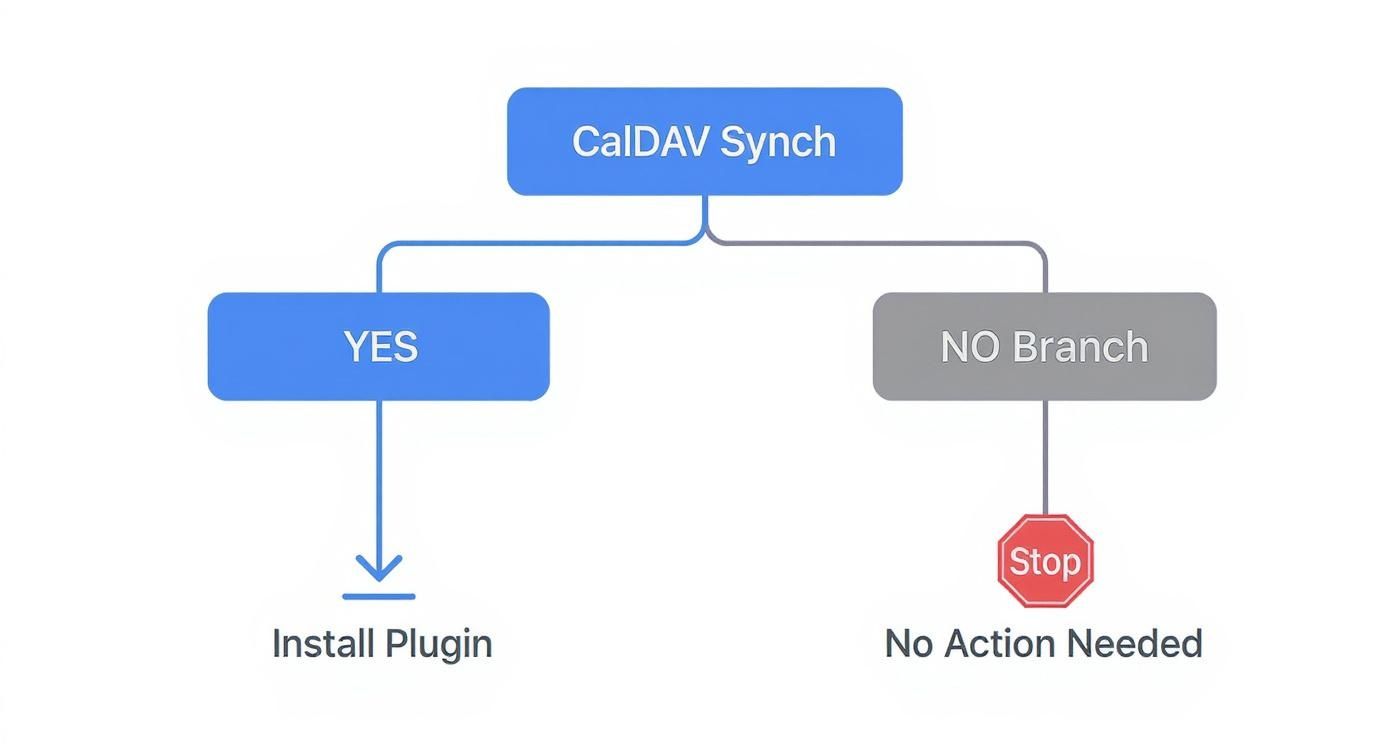
As you can see, the direct plugin route is the go-to for most desktop Outlook users, but other paths definitely exist for different setups and needs.
How Server-Side Sync Works
Some platforms, especially those built for business, have built-in features to push calendar data straight to a Microsoft 365 or Outlook.com account. Instead of your Outlook client pulling data from the CalDAV server, the CalDAV server itself kicks off the connection and keeps your Microsoft calendar updated.
This is the dream scenario for anyone who hates tinkering. Once you've configured it on the server, any device linked to your Microsoft account—your Outlook desktop app, your phone, or Outlook on the web—will see the synced calendar without any extra steps. It’s an elegant solution, but you won't find it on every CalDAV platform.
Using a CalDAV to EAS Bridge
A more accessible alternative is to use a "bridge" service. Think of it as a professional translator sitting between your CalDAV server and Outlook. This service grabs the calendar data from your CalDAV source and converts it into Exchange ActiveSync (EAS), a language Outlook speaks fluently.
You just add the calendar to Outlook as if it were a standard Exchange account. This method has some serious perks:
- Universal Compatibility: It works wherever your Exchange account does, including Outlook for Mac, iOS, and Android.
- No Client Software: There's nothing to install or keep updated on your local machine.
- Centralised Management: The whole sync process is managed from the bridge service's dashboard.
But, this convenience usually comes with a price tag, as most reliable bridge services are paid subscription products. The initial setup can also be a bit more fiddly than configuring a simple plugin.
The real win with both server-side and bridge solutions is that they fix the problem at the source. By translating the data into a format Outlook prefers, they create a much more native and stable connection that works across your entire device ecosystem.
Ultimately, picking between a plugin and a server-side solution boils down to your priorities. If you just need a free, quick fix for your desktop, a plugin is perfect. But if you need flawless synchronisation across all your devices and don't mind investing in a more robust setup, a bridge service is well worth a look.
And for those of you juggling multiple calendar types, you might find it useful to learn how to sync your Outlook calendar into Google Calendar, which can simplify your workflow even further.
The Simpler Alternative with Calendar0
Let's be honest. While plugins and bridges get the job done for CalDAV sync Outlook issues, they’re really just workarounds. You’re still stuck finding server URLs, generating app-specific passwords, and playing tech support when things inevitably break.
But what if you could just skip all that technical heavy lifting?
That’s where a more modern tool like Calendar0 comes in. It takes a completely different approach. Instead of trying to translate protocols, it was built from the ground up to unify your entire scheduling life—connecting Outlook, Google, and other calendars into one clean, smart view.
A Unified View Without the Hassle
The beauty of Calendar0 is its simplicity. You don’t need to know what CalDAV is or hunt down a server address. You just connect your accounts—say, Microsoft 365 and Google Workspace—and the platform handles all the sync work in the background. It just works.
Suddenly, you have a single, consolidated calendar. No more jumping between your personal Google Calendar and your work Outlook to spot a conflict before booking your next meeting. Everything is right there.
- Effortless Connection: Authenticate your accounts once, and that’s it. Calendar0 manages the rest.
- Automatic Conflict Checking: See your true availability across all calendars instantly.
- A Single Source of Truth: Stop mentally juggling schedules just to figure out when you’re actually free.
This approach saves a ton of time and spares you the headache of manual setup and maintenance.
More Than Just a Sync Tool
Calendar0 does more than just show you all your events in one place. It turns your unified schedule into a powerful, practical tool. Once your calendars are linked, you can create personalised booking links that automatically reflect your real-time availability across every single one of them.
When someone books a time, the event lands on the right calendar, and that slot is instantly blocked off everywhere else. This completely eliminates double-bookings without you having to lift a finger.
The real power isn't just fixing a technical glitch. It's about moving past basic sync to a system that actively manages your time, prevents scheduling mistakes, and simplifies how you share your availability with the world.
For anyone who values their time and just wants a solution that works, this is a much more compelling option than tinkering with plugins. It solves the root problem—calendar fragmentation—without forcing you to become a tech expert.
If you want to see how this simplified workflow feels, you can download Calendar0 for free and connect your accounts in minutes. It’s a clean, efficient way to end the calendar chaos for good.
Troubleshooting Common CalDAV Sync Errors
So, you’ve set up your plugin and are ready to go, but the sync just isn't working. It happens. A successful CalDAV sync with Outlook can hit a snag, from frustrating error messages to silent failures.
Don't worry, most of these issues are surprisingly easy to fix once you know where to look. Let's walk through the most common problems I've run into.
Authentication Failures (401 Errors)
One of the most frequent culprits is the dreaded 'Authentication Failed' or '401 Unauthorized' error. Your first instinct might be to re-type your password, but nine times out of ten, that's not the problem.
If your account uses Two-Factor Authentication (2FA), your main password simply won't work with third-party tools. Services like Google and Fastmail require you to generate a special app-specific password. It’s an extra security step, but it’s essential for getting the connection to work.
Finding the Right DAV URL
Another classic stumbling block is an incorrect DAV URL. This isn't your standard web address; it's a specific server endpoint that tells the synchroniser exactly where to find your calendar data. Get this wrong by even a single character, and the connection will fail instantly.
Here’s where to look for a few popular services:
- Nextcloud/ownCloud: The URL you need often includes
/remote.php/dav/. The easiest way to find it is to log into your Nextcloud web interface, go to the calendar, and look for a "Copy private link" or similar option. That's your golden ticket. - Google Calendar: This one is a bit different. You have to dive into your calendar settings and find the "Secret address in iCal format." But honestly, a direct CalDAV sync with Outlook for Google Calendars can be a real headache. You might find our guide on the Outlook and Google Calendar sync offers a much more straightforward path.
- Other Services: When in doubt, check the official documentation. A quick search for "[Your Service Name] CalDAV URL" will almost always point you in the right direction.
Dealing With Sync Conflicts
Sync conflicts pop up when an event is changed in two different places before the synchroniser has a chance to update. Picture this: you move a meeting in Outlook on your laptop while a colleague updates the same event from their phone. When the sync runs, it has no idea which version is the correct one.
Most sync tools have a built-in conflict resolution setting. You can usually choose a default winner (e.g., "server always wins" or "client always wins") or have the tool prompt you to resolve the conflict manually. Setting a clear default is a great way to prevent duplicate entries and keep your calendar from becoming a mess.
To make things even easier, I've put together a quick reference table for the most common issues you'll encounter.
Common Sync Errors and Their Solutions
| Error Message / Symptom | Common Cause | How to Fix It |
|---|---|---|
| '401 Unauthorized' or 'Authentication Failed' | Two-Factor Authentication (2FA) is enabled, but you're using your main password. | Generate and use an app-specific password from your calendar provider's security settings. |
| '404 Not Found' or Connection Error | The DAV URL is incorrect or has a typo. | Double-check the URL against your provider’s documentation. Copy and paste it directly if possible. |
| Events are missing or not updating | The sync interval is set too long, or the sync direction is misconfigured. | Shorten the sync interval in the plugin settings and ensure two-way sync is enabled. |
| Duplicate calendar entries appear | A sync conflict occurred and was resolved by creating a new event. | Check the conflict resolution settings in your sync tool. Set a default like "server wins" to avoid duplicates. |
| Sync works once, then fails | The server is temporarily unavailable or network issues are blocking the connection. | Check your internet connection and the status page for your calendar provider. Try syncing again later. |
This table should help you quickly diagnose and fix the vast majority of problems without having to dig through forums.
A final pro tip from my own experience: always check the log files. Tools like the Outlook CalDav Synchronizer have a detailed logging feature that records every single step of the sync process. If you’re stumped by a mysterious error, the log file will often contain the exact reason for the failure, pointing you directly to the solution.
Answering Your CalDAV and Outlook Questions
Jumping into the world of calendar syncing can bring up a few specific headaches. Here are some straight-up answers to the questions we see most often, designed to help you get past those common roadblocks with your CalDAV sync Outlook setup.
Can I Sync My iCloud Calendar with Outlook Using CalDAV?
You absolutely can, but there's one specific security hoop you need to jump through first. Apple keeps its ecosystem pretty locked down, so your standard Apple ID password won't cut it here.
What you need to do is log into your Apple ID account on the web and generate an app-specific password. This is a unique, one-time password that you'll use in your sync tool's settings. Pop that in along with the correct server details, and you'll have a solid, secure connection to your iCloud calendar.
Is It Safe to Use a Third-Party Sync Plugin?
That's a fair question, and the short answer is yes—if you choose the right tool. The go-to plugin for this, Outlook CalDav Synchronizer, is open-source. This means its code is out in the open for anyone to inspect for security flaws, which is a huge vote of confidence in its trustworthiness.
As a rule of thumb, always download the plugin directly from its official website or SourceForge page to be safe. It also plays nice with your system's credential manager, storing your login details securely instead of leaving them in a plain text file somewhere.
It's also natural to worry about data loss when messing with sync settings. That's why having a good habit of backing up your Office 365 data, including your Outlook calendar, is a smart move. It's your safety net against any unexpected glitches.
Will This Sync My Contacts Too?
This is a really common point of confusion. The CalDAV protocol is built for one thing and one thing only: calendars. It doesn't handle your address book at all.
For contacts, there's a different but related open standard called CardDAV. The great news is that the Outlook CalDav Synchronizer plugin was built to handle both. You can use the exact same tool to set up a separate profile for your contacts, getting both your calendar and your address book synced up with a single solution.
Tired of managing plugins and server settings? Calendar0 unifies your Google and Microsoft calendars automatically, creating a single, reliable view of your schedule without any technical setup. Try Calendar0 for free and simplify your scheduling.

