The Asana Desktop App Productivity Guide
Discover how the Asana desktop app boosts focus and streamlines workflows. Our guide covers key features, pro tips, and how it compares to the web version.

Calendar0 Team
November 29, 2025

At its heart, the Asana desktop app is a standalone program you install on your computer. It gives you a dedicated, distraction-free space to manage all your work, completely separate from the chaos of your web browser.
Think of it like this: using Asana in a browser is like trying to work in a busy open-plan office. There are conversations happening everywhere, notifications popping up, and a dozen other things pulling at your attention. It's just another tab fighting for space with your email, news sites, and social media.
The desktop app, on the other hand, is your private, quiet study. It’s a space designed for one thing: getting deep work done. By creating a command centre for your projects, it builds a solid wall between your critical tasks and all the digital noise of the internet.
This is a huge deal for modern teams, especially those working remotely or in a hybrid model. In places like Germany, where focused, efficient work is highly valued, this separation is a game-changer. An 'Anatomy of Work' report from Asana found that a massive 68% of German companies saw better collaboration and productivity after rolling out the desktop app. You can dig into the specifics in the Asana regional guide on the Anatomy of Work.

More Than Just Fewer Distractions
But the app isn't just about cutting out the noise. It’s built to feel more integrated and responsive, running as a native program on your computer.
This means it doesn't have to compete for resources with a dozen other browser tabs, which often translates to a faster, smoother, and more reliable experience. No more lag when you’re trying to quickly update a task or switch between projects.
The real magic of the desktop app is how it shifts your mindset. Asana stops being just another website you visit and becomes a core tool you intentionally launch—just like you would with Slack or your code editor.
This simple change makes a world of difference. It encourages you to be more deliberate about managing your work, turning Asana from a passive webpage into a true partner in productivity.
What Really Makes the Desktop App a Game-Changer?
The real magic of the Asana desktop app isn't just that it gives Asana its own window. It’s the small, smart features that are purpose-built to tackle the things that drive us crazy during the workday. It's an environment designed for focus, not just for managing tasks.
Let’s get into the specifics—the features that turn it from a simple task list into a serious productivity tool. Each one solves a real problem, helping you get more done with less of that nagging mental drag.
Tame Your Notifications for Good
The first thing you’ll probably notice is how the desktop app handles notifications. Browser alerts are a mess—they’re noisy, they all look the same, and they’re constantly fighting for your attention with a dozen other open tabs.
The Asana app sidesteps that chaos entirely by using your computer’s native notification system. This means Asana pings behave just like alerts from your calendar or email client. They’re quieter, they feel more integrated, and you can control them with your OS tools like Focus on macOS or Focus Assist on Windows. It’s a subtle shift, but it gives you complete control over interruptions. You stay in your workflow instead of getting yanked out by a random browser pop-up.
Keep Working, Even When Your Wi-Fi Doesn't
We’ve all been there: the Wi-Fi at the café is spotty, or you’re trying to get work done on a train. With the web version of Asana, a bad connection means your work stops dead. The desktop app, however, has you covered with a surprisingly robust Offline Mode.
This lets you keep plugging away at your projects without an internet connection. Go ahead and create new tasks, update statuses, or add comments like you’re online. The moment you reconnect, the app syncs everything up in the background without you having to do a thing.
- Work from anywhere: Perfect for flights, commutes, or just when your home internet decides to take a break.
- Never lose your momentum: A flaky connection won’t break your concentration again.
- Syncs automatically: No need to remember to update your work once you’re back online. It just handles it.
Think of it as a safety net for your productivity. Your progress is never held hostage by your internet connection, so you get a consistent, reliable experience no matter where you are.
A Faster, Smoother Experience
Because the desktop app is a native programme, it runs directly on your computer. It’s not fighting for memory and processing power with twenty other browser tabs. The difference is immediately obvious—it's just faster and more responsive.
Projects load in a snap, tasks update instantly, and the whole interface feels buttery smooth. This might sound like a small thing, but shaving a few seconds off every single action you take adds up to a huge amount of saved time and reduced friction over a day. For anyone who lives in Asana for hours at a time, this performance boost is a massive win. The Asana desktop app starts to feel less like a tool you’re using and more like an extension of your own thinking.
Choosing the Right Asana for Your Workflow
Deciding between Asana's desktop, web, and mobile versions isn't about which one is "best"—it's about picking the right tool for the job. Your choice should come down to your role, where you are, and what you need to get done right now. Each platform is built for a specific context.
Think of it like a toolbox. You wouldn't grab a sledgehammer to hang a small picture frame. In the same way, the focused, powerhouse environment of the Asana desktop app is perfect for deep project planning, while the mobile app is your go-to for quick updates on the move.
Asana Platform Comparison: Desktop vs. Web vs. Mobile
To make the right call, you have to understand the unique strengths of each platform. The desktop app is your command centre, the web app offers flexibility, and the mobile app delivers the essentials wherever you are. For teams that organise their work with daily check-ins, understanding different frameworks like the Scrum methodology can also help you see which platform best supports your team's rhythm.
Here’s a practical breakdown of how they stack up.
| Feature/Use-Case | Desktop App | Web App | Mobile App |
|---|---|---|---|
| Best for Deep Work | Excellent | Fair | Poor |
| Offline Access | Limited | None | Excellent |
| Speed & Performance | Highest | Good | Varies |
| Browser Integrations | None | Yes | None |
| On-the-Go Updates | Poor | Fair | Excellent |
| Distraction-Free | Yes | No | Yes |
As you can see, a clear pattern emerges from this comparison. When it's time for focused, high-stakes work where you absolutely need to eliminate distractions and perform at your best, the desktop app is the undisputed champion.
When to Use Each Version
Knowing these differences lets you build a smarter, more intentional workflow. You can fluidly switch between platforms based on what your day throws at you, always using the right tool for the moment.
- Choose the Desktop App For: Your main workstation. Use it for complex project planning, writing detailed briefs, and managing team workloads without the constant temptation of browser tabs. It’s your dedicated space for deep work.
- Choose the Web App For: Quick access on a shared computer or when you need a specific browser extension to do your work. It's also the only native choice for Linux users, which gives it great flexibility.
- Choose the Mobile App For: Your commute, time in the field, or any moment you're away from your desk. It’s perfect for checking notifications, ticking off quick tasks, and adding ideas before you forget them.
This infographic gives you a good visual for how to choose your tool based on your immediate need for focus.
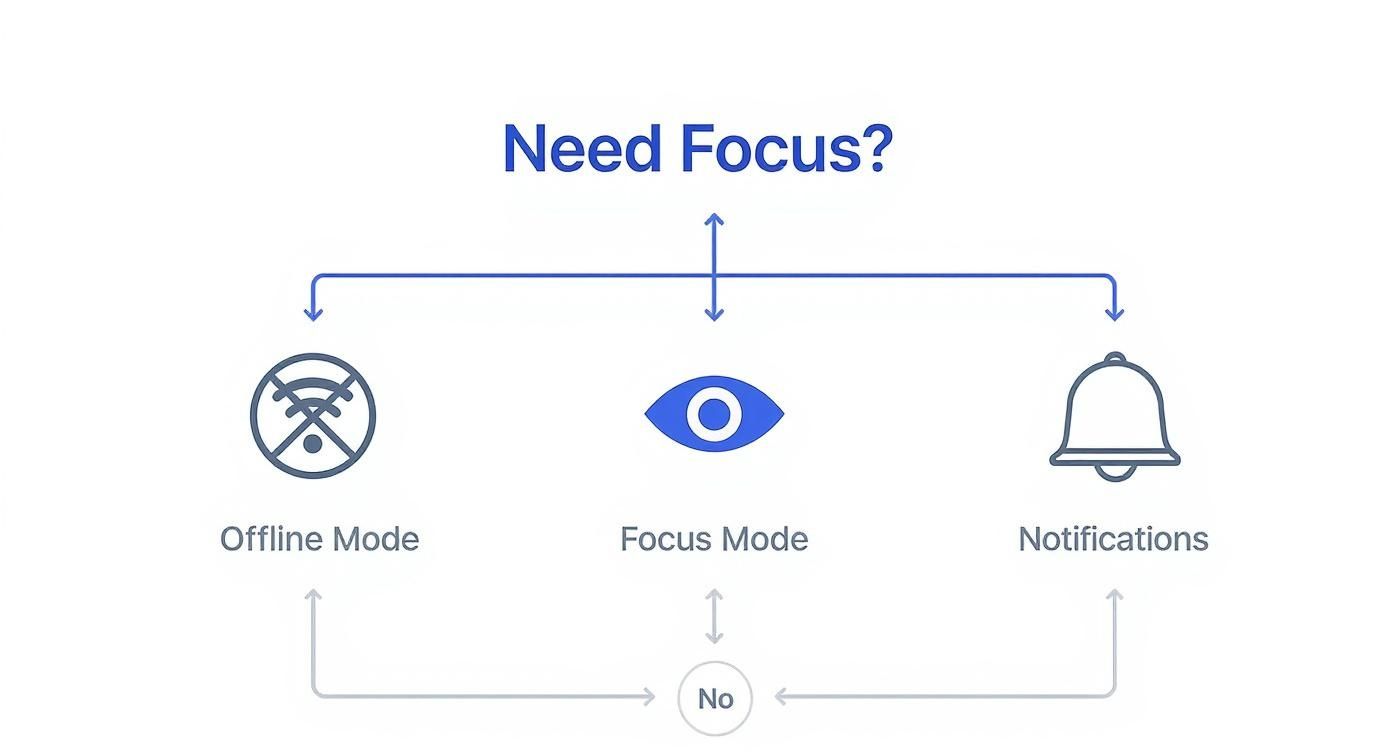
The key takeaway here is that features like Offline Mode and Focus Mode were purpose-built for users who need to protect their attention from digital noise. It’s a trend we’re seeing everywhere; many people find that dedicated desktop apps for other tools offer similar benefits. For instance, you can find more details in our guide to getting Google Tasks on your PC desktop.
By consciously choosing your platform, you turn Asana from a simple to-do list into a dynamic system that adapts to your needs. You're not just managing tasks; you're managing your attention and your energy.
Setting Up Your Desktop App for Success
Alright, let's get you up and running with the Asana desktop app. The whole point is to move you out of your browser and into a focused workspace, and thankfully, the installation is a breeze whether you're on a Windows PC or a Mac. You’ll be set up in just a few minutes.

This isn’t just a niche move; it’s becoming the standard for focused teams. Here in Germany, the Asana desktop app is a key tool for a growing number of businesses, from bustling tech startups to established retail chains. In fact, at least 769 companies in the region actively use Asana, and a lot of them lean on the desktop version to keep everyone on the same page. You can see more data on this over at TheirStack.com.
Your Quick Installation Guide
First thing's first: head to the official Asana website. This is the only place you should ever download the app from. It guarantees you’re getting the real, secure deal.
- Find the Download Page: Just go to Asana's official desktop app page. The site is smart enough to know if you're on Windows or macOS.
- Download the Installer: Hit the big download button. Your browser will grab the right file for your computer.
- Run the Installer: Once it's downloaded, find the file (it’s probably in your 'Downloads' folder) and give it a double-click. Just follow the on-screen instructions to get it installed.
- Log In: The app should pop up automatically. Sign in with your usual Asana details—email and password, or your Google/Microsoft account.
Once you’re in, it’s worth thinking about how to keep your workspace organised and safe. If you want to dive deeper into protecting your data, take a look at our guide on what makes a secure task manager.
First Steps for a Productive Workspace
Now that it's installed, a few quick customisations can make a world of difference to your daily flow. Spending a moment on this now will save you a ton of hassle later on.
A well-organised workspace isn't just about looking tidy; it's about reducing friction. Every second you save searching for a task or getting distracted by an irrelevant notification is a second you can invest in meaningful work.
Here are three simple things you can do right away:
- Pin the App: This is a no-brainer. Pin the Asana icon to your Taskbar (on Windows) or your Dock (on macOS). It’s a tiny action that makes the app a core part of your desktop, always just one click away.
- Customise "My Tasks": Think of "My Tasks" as your personal command centre. Spend five minutes setting up sort rules, maybe by due date or project, to turn it into a clear, actionable to-do list for your day.
- Tame Your Notifications: Jump into the settings and get your notifications under control. Decide what you need to know about right now and what can wait. This is absolutely crucial for staying focused.
Mastering Your Workflow with Pro Tips

There’s a world of difference between just using the Asana desktop app and truly making it your own. It’s about bending the tool to your will, not the other way around. These tips are all about cutting out the friction and turning the app into a command centre for your work.
The aim here is simple: fewer clicks, more doing. By weaving these habits into your day, you’ll find yourself with more time and mental space for the work that actually moves the needle.
Become Fluent in Keyboard Shortcuts
Honestly, one of the biggest leaps in productivity you can make is learning the keyboard shortcuts. Every time you reach for the mouse, you’re losing a tiny bit of momentum. Over a day, those tiny moments add up to a lot.
Instead of clicking around to create a task, just hit Tab+T. Need to hand it off to someone? Tab+A. It sounds small, but keeping your hands on the keyboard keeps you in the zone.
Here are a few of my go-tos to get you started:
- Create New Task:
Tab + T - Assign Task:
Tab + A - Set Due Date:
Tab + D - Open Search:
Tab + / - Jump to My Tasks:
Tab + M
Think of shortcuts as learning a new language. The more fluent you are, the faster you can communicate your intentions to the app. Tedious actions become instant commands.
Personalise Your My Tasks View
Your "My Tasks" page is your personal mission control. Don't just accept the default layout. A properly organised view gives you a clear roadmap for the day without feeling like you're drowning in to-dos.
Set up some sorting and filtering rules that match how your brain works. For example, creating sections like "Today," "This Week," and "Later" that automatically organise tasks by due date is a game-changer. It’s a simple setup that stops deadlines from sneaking up on you. A clean task view is as crucial for focus as a dedicated Google Calendar app for your desktop is for managing your time.
Integrate Your Essential Tools
This is where the Asana desktop app really starts to shine—when it becomes the central hub for everything you do. Hook it up to the other tools you live in, like Slack, Microsoft Teams, and Google Drive.
When your tools are connected, you can do things like turn a Slack message into an Asana task or attach a Google Doc to a project without ever leaving the Asana window. This kills context-switching, which is one of the biggest productivity killers out there. To get even more from this, using a comprehensive guide to a better daily standup agenda can help ensure your team meetings directly feed into clear, prioritised tasks in Asana.
Got Questions About the Asana App?
It's natural to have a few questions before you commit to changing up your workflow. You want to be sure you're picking the right tool for the job, not just adding another app to the pile. I’ve rounded up the most common queries I hear to give you some straight answers.
Think of this as the final check-in before you decide. My goal is to clear up any lingering doubts so you can feel confident about creating a more focused, organised workspace.
Is the Asana Desktop App Free to Use?
Yep, absolutely. The Asana desktop app itself costs nothing to download and install. There’s no sneaky extra fee for the application, no matter which Asana plan you’re on.
Your experience inside the app is tied directly to your subscription. If you’re on the free Basic plan, you’ll get the Basic features. If you’re a Business user, you’ll have all your Business features. The app is just a different—and in my opinion, better—window into the same account you use on the web.
Can the Asana Desktop App Work Offline?
This is where the desktop app really shines. Yes, it has a solid offline mode that lets you keep working even when your internet connection gives up. It’s a massive advantage over the browser version, which is useless without Wi-Fi.
You can still get a ton done offline:
- Create new tasks and subtasks
- Tick off completed tasks or update their status
- Add comments and fill out task descriptions
- Assign work to teammates and set due dates
As soon as you’re back online, the app automatically syncs all your changes. It's a lifesaver for anyone who works on the train, a plane, or just has spotty home Wi-Fi.
The desktop app’s offline mode means your productivity is never held hostage by a bad internet connection. You keep your momentum, and your workflow doesn't miss a beat.
How Does the Desktop App Actually Improve Focus?
It all comes down to one simple idea: separation. The app physically pulls your work out of the chaos of your web browser—away from the endless temptations of news feeds, social media, and that one online shopping tab you "forgot" to close.
By giving your work its own dedicated space, you kill the urge to context-switch. Plus, it uses your operating system’s native notifications (the ones built into macOS or Windows). These are way less jarring than browser pop-ups and play nicely with your computer’s own "Do Not Disturb" or "Focus" modes. You get far more control over interruptions.
Is the Asana Desktop App Secure?
Security is non-negotiable, and the desktop app is built with the same hardcore standards as Asana’s web platform. They use multiple layers of protection, like data encryption when your information is moving and when it's stored, to keep everything locked down.
Just make sure you download the app directly from the official Asana website. Do that, and you can trust you’re installing a secure, verified piece of software designed to keep your team's project data safe.
Ready to reclaim your focus and master your schedule? Calendar0 is an AI menubar calendar that eliminates calendar admin and helps you schedule meetings at the speed of thought. Try Calendar0 for free.

