How to Use Apple Calendar on Windows The Right Way
Unlock seamless scheduling with this guide on using Apple Calendar on Windows. Learn the best methods for syncing your iCloud calendar with your PC.

Calendar0 Team
October 27, 2025

Trying to use your Apple Calendar on a Windows PC can feel like you're trying to fit a square peg in a round hole. It's not always obvious how to make them talk to each other, but it's surprisingly doable. The best method really boils down to what you need—are you looking for a full-on integration with something like Outlook, or do you just need to glance at your schedule on your work computer?
Why Bother Syncing Your Calendars, Anyway?
If you're juggling an iPhone for your personal life and a Windows machine for work, you know the drill. You're constantly switching between devices, trying to mentally merge two different schedules. It's a recipe for disaster. Getting your calendars in one place isn't just a nice-to-have; for any busy professional or student, it's essential for staying sane.
Think about it. You're a project manager. Your dentist appointment is tucked away in your personal Apple Calendar, but that critical client meeting is sitting on your work PC. Without a single, unified view, it’s just a matter of time before you double-book yourself. It's not just embarrassing; it’s a genuine productivity killer.
The Big Disconnect in a Windows World
Here's the problem: Apple Calendar is built for the Apple ecosystem. There's no official, standalone Apple Calendar app for Windows, which creates a frustrating gap for millions of us who use both. This is a massive issue in places like Germany, where Windows still dominates the market, holding around 42.33% of the market share. For professionals there, getting Apple data onto their main work computer often means relying on cloud services to bridge the gap. You can dig into more of these OS market share trends over on Statcounter.
This all comes down to a few common frustrations:
- Avoiding Double-Bookings: The only real way to stop scheduling conflicts is to see everything in one place. Period.
- Being More Efficient: A single source of truth for your day means you stop wasting time flicking between apps and devices.
- Cutting Down on Mental Noise: Let's be honest, managing one calendar is far less stressful than trying to keep two separate ones straight in your head.
The whole point is to make your tech work for you, not the other way around. By closing the gap between your Apple and Windows devices, you get back control over your time and can actually focus on what matters.
Ultimately, getting your Apple Calendar onto your Windows PC is about creating a workflow that doesn't get in your way, no matter what screen you're looking at.
Choosing the Best Method to Sync Your Calendar
Let's be honest, getting your Apple Calendar to play nice with Windows isn't always straightforward. There’s no single "best" way to do it; the right approach really boils down to your own workflow and how you use your devices every day.
You’ve got four main paths you can take. The official iCloud for Windows app offers the tightest integration. For quick, no-fuss access, there's always the iCloud.com web portal. If you live and breathe Microsoft, syncing directly with Outlook is a game-changer. And for the tech-savvy crowd, a manual CalDAV setup gives you ultimate flexibility.
This decision tree nails why getting this right is so important, especially when you're juggling different operating systems.
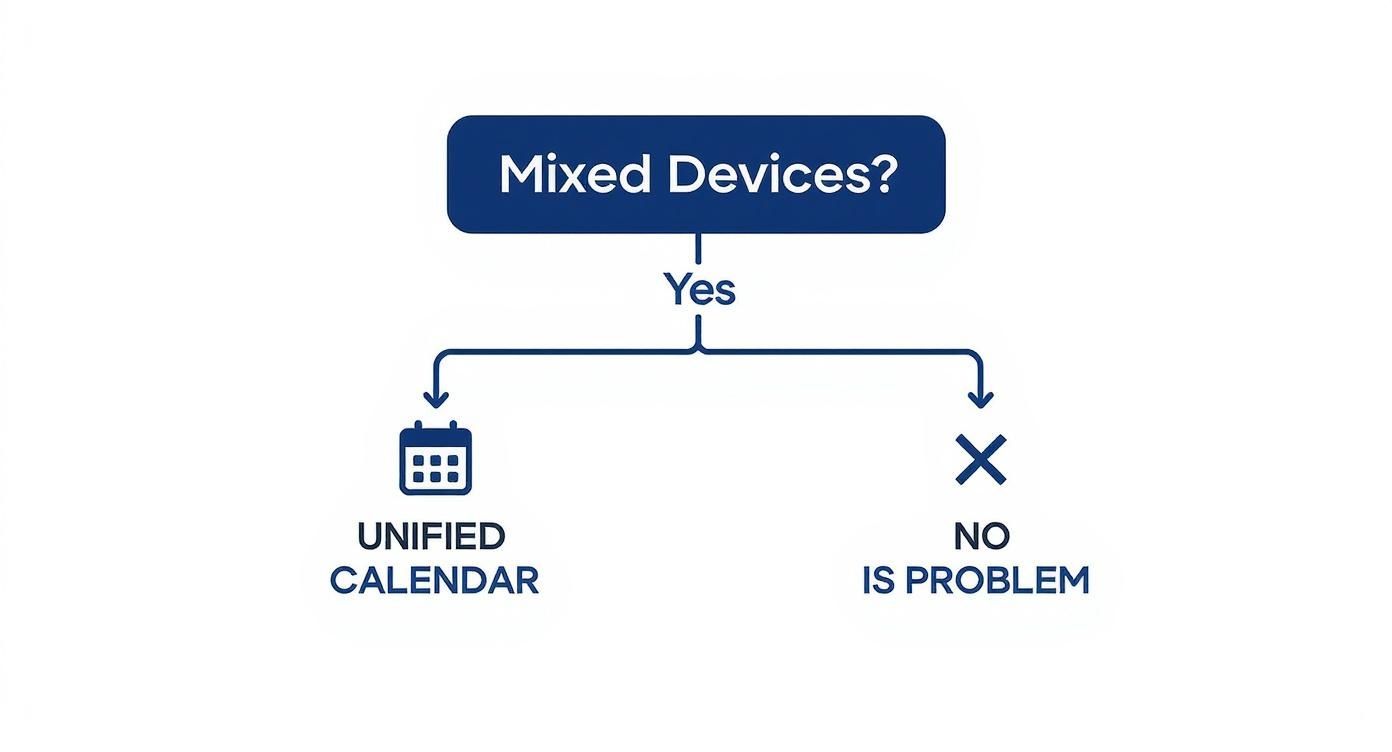
As the graphic shows, a unified calendar isn’t just a nice-to-have when you're switching between a Mac and a PC. It's essential for keeping your schedule organised and avoiding chaos.
Comparing Your Options
So, how do these methods stack up in the real world? Let’s break them down based on what actually matters: how hard they are to set up, how fast they sync, and whether you can access your schedule offline.
Comparing Methods for Apple Calendar Access on Windows
Deciding which route to take depends on balancing ease of use with the features you absolutely need. This table gives a quick overview to help you compare the main options at a glance.
| Method | Setup Complexity | Real-Time Sync | Offline Access | Best For |
|---|---|---|---|---|
| iCloud for Windows | Low | Yes | Yes (in Outlook) | Users who want seamless, automatic syncing with Microsoft Outlook. |
| iCloud.com | None | Yes | No | Quick, occasional access on any PC without installing software. |
| Outlook Sync | Low to Medium | Yes | Yes | Professionals who manage their entire schedule within Outlook. |
| CalDAV Setup | High | Varies | Varies | Tech-savvy users wanting to sync with non-Microsoft calendar apps. |
The need for this kind of cross-platform harmony is only growing. The global calendar applications market hit a valuation of USD 3.5 billion in 2023, and it's seeing huge growth in places like Germany, thanks to the rise of remote work. As more professionals rely on a Windows PC at their desk and an iPhone on the go, the ability to see an Apple calendar on Windows becomes non-negotiable for staying productive.
Making the Right Choice for Your Workflow
Still not sure which way to go? Think about your daily habits and find the scenario that sounds most like you.
-
For the "Set It and Forget It" User: If you spend your day in Microsoft Outlook and just want everything to work without constant tinkering, the iCloud for Windows app is your best bet. Once it’s set up, it quietly syncs your calendars, contacts, and even reminders directly into Outlook. No fuss.
-
For the Minimalist or Guest User: Maybe you're on a shared computer, or you just hate installing unnecessary software. In that case, just use iCloud.com. It gives you full access to your calendar from any modern web browser, anytime, anywhere.
Choosing your method is about matching the tool to your habits. A sales professional constantly in Outlook has different needs than a student who just needs to check their class schedule on a library computer.
- For the Advanced User: If you use a different calendar client like Thunderbird or you want total control over the syncing process, then the CalDAV method is for you. It's definitely more technical, but it offers the most flexibility to connect with almost any calendar app. If this sounds like you, you might find our guide on how to sync Outlook with CalDAV helpful for the nitty-gritty details.
If you're looking for a truly seamless, hands-off way to get your Apple Calendar on Windows, Apple's own iCloud for Windows app is the way to go. This is the closest you'll get to a native experience, as it directly pipes your iCloud data—including that all-important calendar—right into Microsoft Outlook.
The real beauty here is its "set it and forget it" nature. Once you've got it configured, everything just works. Add an appointment on your iPhone, and it pops up in your Windows Outlook calendar moments later. No manual syncing, no extra steps.
Getting It Set Up
First things first, you need to download the iCloud for Windows app. Don't just Google it—the only safe and official place to get it is directly from the Microsoft Store on your PC. This guarantees you’re installing the real deal from Apple, not some sketchy third-party version.
A quick heads-up before you start: you absolutely must have two-factor authentication (2FA) enabled on your Apple ID. This is a non-negotiable security step. If you don't have it on, the app will make you set it up before it lets you sync anything.
Once installed, fire it up and sign in with your Apple ID and password. This is where you'll tell the app what you want to bring over to your Windows machine.
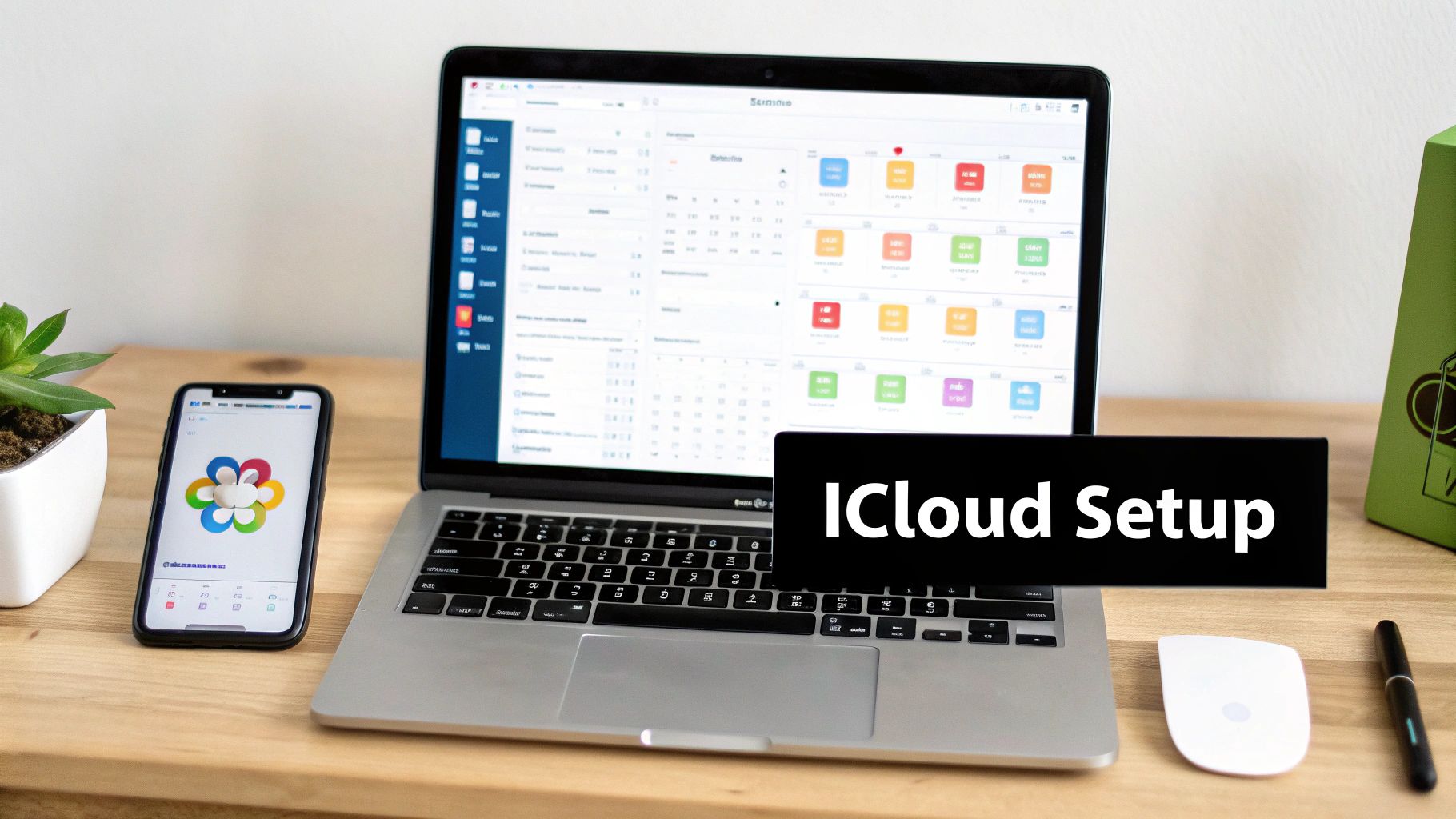
You'll see a few options on the main screen. The one you care about is "Mail, Contacts, and Calendars". Make sure that box is ticked to kick off the integration with Outlook.
Fine-Tuning Your Sync Settings
One of the best parts of using the iCloud for Windows app is the control it gives you. You aren't forced into an all-or-nothing sync. Once it's connected to Outlook, you can pick and choose exactly which of your Apple calendars show up.
This is incredibly practical. For instance:
- A project manager can sync their "Work" and "Shared Projects" calendars but hide their personal "Family" calendar to keep their work view clean and focused.
- A freelancer might only want their "Client Meetings" calendar on their work PC, keeping all their personal appointments private and viewable only on their iPhone.
This level of control keeps your professional life from getting cluttered with personal reminders. It also syncs Apple Reminders, which conveniently appear as a to-do list right inside Outlook, pulling more of your productivity tools into one place.
The real win with the iCloud for Windows app isn't just seeing your calendar—it's how it merges it into the native Windows environment. Your Apple events become searchable in Outlook, and you get desktop notifications just like any other meeting.
When you're juggling schedules across different platforms, having an AI-powered assistant can be a game-changer. Tools like Calendar0 are designed to cut through the noise and streamline scheduling, no matter what device you're on. To see how an intelligent calendar can make your life easier, you can download our advanced calendar app and take it for a spin.
Quick Calendar Access with the iCloud Website
Sometimes, the simplest fix is the best one. If you’re not a fan of installing more software on your Windows PC—or maybe you're just borrowing a colleague's machine for a few minutes—the iCloud website is a surprisingly solid way to manage your Apple calendar.

There’s absolutely nothing to install. Just grab a web browser, head over to iCloud.com, and sign in with your Apple ID. A quick click on the Calendar icon brings you to an interface that looks and feels almost identical to the native app on a Mac or iPad. It's instantly familiar.
Making the Web Feel Like an App
Let's be honest, opening a browser tab and logging in every time you need to check your schedule gets old fast. Luckily, there's a simple trick to make the web version feel more like a dedicated desktop app. You can create a shortcut that opens iCloud Calendar in its own clean window, ditching the browser address bar and tabs.
In a browser like Google Chrome or Microsoft Edge, it only takes a moment:
- First, navigate to your iCloud Calendar page.
- Then, find your browser’s menu (usually the three dots in the corner).
- Look for an option like "More tools" or "Apps".
- From there, select "Create shortcut" or "Install this site as an app".
This simple action drops an icon right onto your desktop or Start Menu. Clicking it launches your calendar in a focused, app-like window, making it much quicker to access. It’s a small tweak, but for anyone who glances at their schedule multiple times an hour, it makes a huge difference to the workflow.
This browser-based approach is the ultimate portable solution. It ensures you can access your schedule from anywhere—a hotel business centre, a library computer, or a colleague's PC—without leaving any software or personal data behind once you log out.
Sharing Your Calendar Publicly
One of the most overlooked features hiding in the iCloud web interface is its powerful sharing function. Imagine you need to give a client or a team of non-Apple users a general idea of your availability. The web version handles this beautifully.
Right from the calendar settings on iCloud.com, you can generate a public, view-only link for any of your calendars. Anyone with this link can see your events, but they can't touch a thing. It’s perfect for posting a work schedule on a team portal or sharing a family events calendar with relatives. You get to provide visibility without ever giving up control.
Troubleshooting Common Sync Problems
Even the most buttoned-up setup can hit a snag. One minute your Apple Calendar is perfectly in sync with Windows, the next, a crucial meeting is missing. It's enough to throw your whole day off track.
Don't panic. Most of these sync issues are surprisingly common and, thankfully, often easy to fix without a call to IT. The usual culprits are events not showing up on one device, annoying duplicate entries cluttering your schedule, or authentication errors that stop updates dead in their tracks. The trick is to start with the simplest solutions first.
This methodical approach saves time and helps you nail down what's actually broken. More often than not, what feels like a catastrophic failure is just a temporary glitch in the digital plumbing between your devices.
First-Line Fixes for Sync Glitches
Before you start messing with complex settings, run through these quick checks. I'm always surprised how often one of these simple steps gets things working again.
- Check Apple's System Status: Is it you, or is it them? Before you do anything else, pop over to Apple's official System Status page. If there's a problem with the iCloud Calendar servers, all you can do is wait it out.
- Force a Manual Refresh: In Outlook, hit the "Send / Receive All Folders" button. In the Windows Calendar app, look for the little sync icon. This tells the app to ping the iCloud server right now and pull down any new updates.
- The Classic "Turn It Off and On Again": The oldest trick in the IT book still works wonders. Sign out of the iCloud for Windows app completely, give your PC a restart, and then sign back in. This simple reset forces a fresh, secure connection and clears out a lot of stubborn authentication hangs.
This whole cross-platform challenge is a daily reality for professionals everywhere, especially in places like Germany. With the iPhone's market share hitting an estimated 38.95%, a huge number of people rely on Apple's ecosystem on the go. But they often head into offices dominated by Windows, making a flawless calendar sync non-negotiable. You can see more data about this on WorldPopulationReview.com.
Deeper Dives into Sync Solutions
If those quick fixes didn't do the trick, it's time to dig a little deeper. These issues are less common but require a more specific touch.
A classic problem is the sudden appearance of duplicate events. This usually happens after you've reconnected your account or restored from a backup. For a great walkthrough on tidying up your schedule, our guide on resolving Outlook and Google Calendar sync issues has some strategies that work just as well here.
Pro Tip: If you see a duplicate calendar in Outlook after setting up iCloud, resist the urge to delete it. Instead, right-click the extra one and choose "Close Calendar." This hides it from your view without risking the accidental deletion of your actual events from the server.
Another potential hiccup is app-specific passwords. If you're using an older version of Outlook or a third-party calendar that doesn't use modern authentication, your regular Apple ID password just won't work. You’ll need to go to your Apple ID account page online and generate an app-specific password. You then use this unique password to log in within that specific calendar app, giving it a secure way to access your data without ever exposing your main password.
Frequently Asked Questions
Jumping between Apple and Windows for your schedule can bring up a lot of questions. Getting your Apple Calendar to play nice with your Windows PC is a common headache, but it’s definitely solvable. Here are some of the most common things people ask when making this digital leap.
Can I Get Apple Calendar Notifications On My Windows PC?
Yes, but it really depends on which method you choose.
If you go the route of installing the iCloud for Windows app and syncing it with Microsoft Outlook, you’re in luck. You'll get the standard desktop notifications you’re used to from Outlook for all your Apple events. The same goes for the native Windows Calendar app – its own alerts will pop up as expected.
Where it gets tricky is if you’re just using iCloud.com in a web browser. This approach is simple, but you won't get any native desktop pop-ups. Your only real option is to enable notifications for that specific website within your browser's settings, which can be a bit hit-or-miss.
Will My Shared Apple Calendars Show Up On Windows?
Absolutely. This is honestly one of the best parts about setting up the sync properly. Whether you use the iCloud for Windows app or a direct CalDAV connection, every single calendar tied to your Apple ID will pop up on your PC.
This includes all the calendars other people have shared with you, plus any you’ve shared with them. Once they're synced, you can easily toggle the visibility for each one right inside your Windows app (like Outlook or Windows Calendar), giving you total control over what you see at any given moment.
The bottom line is that the sync respects all the sharing permissions you've already set up in the Apple ecosystem. That shared "Family" calendar on your iPhone will show up exactly as a shared "Family" calendar in Outlook. No fuss.
Is It Safe to Use My Apple ID On a Windows Computer?
It’s perfectly safe, as long as you take a couple of basic precautions.
The single most important thing you can do is enable two-factor authentication (2FA) on your Apple ID. This is non-negotiable. It adds a crucial security layer that requires a code from one of your trusted Apple devices before anyone can sign in from a new machine.
Also, make sure you download the iCloud for Windows software directly from the official Microsoft Store. This is the only way to guarantee you're getting the authentic app from Apple and not some sketchy knock-off designed to steal your login details.
Do I Need to Pay to Sync My Apple Calendar?
Nope, you don’t have to pay a thing. All the official methods for getting your Apple Calendar onto a Windows PC are completely free. Apple provides the iCloud for Windows app, the iCloud.com website, and CalDAV access at no cost.
These services are just part of your standard Apple ID account. The only time money might come into play is if you happen to blow past the free 5GB of iCloud storage. But honestly, calendar data takes up an incredibly tiny amount of space, so this is a non-issue for almost everyone.
Stop wasting time on calendar admin. Calendar0 uses AI to schedule meetings, find availability, and manage your entire day in seconds, giving you back control over your schedule. Try Calendar0 for free and see how much time you can save.

