Mastering Apple Calendar Google Calendar Sync
Tired of missed meetings? This guide solves Apple Calendar Google Calendar sync with practical methods, troubleshooting tips, and tools for a unified schedule.

Calendar0 Team
January 1, 2026

Yes, you can add your Google account to your Apple devices, but let's be clear about what that gets you. It’s a one-way, view-only street. If you want a true two-way sync where adding an appointment on your iPhone instantly updates your work calendar, you'll need to go a bit deeper. That means looking at calendar subscriptions or even some third-party tools.
Why Your Calendars Don't Talk to Each Other
Before we jump into the how-to, it’s worth understanding why this is even a problem. Why can't Apple and Google's calendars just get along? The heart of the issue is their completely different design philosophies. Apple's world is built around your physical devices and the iCloud ecosystem. Google's, on the other hand, lives almost entirely in the cloud.
This isn't just a tiny technical detail; it's the real reason you're running into sync delays, seeing appointments on one device but not another, and wondering why that shared work calendar hasn't shown up on your iPhone yet.
The Clash of Ecosystems
The friction between services like Apple and Google Calendars often comes down to their separate approaches to data and their differing privacy policies. Each company puts its own ecosystem first, which naturally creates a wall between them for users who live and work in both.
Think about it in a practical sense. If you’re managing a team where half the people use iPhones and the other half use Android, scheduling becomes a minefield. You add a client meeting to your iCloud calendar, but it might take hours to appear on your colleague's Google Calendar—if it shows up at all with the basic setup.
This disconnect isn't an accident; it's a byproduct of competing tech philosophies. Apple prioritises tight integration within its hardware and software, while Google focuses on universal cloud accessibility. The middle ground, where users need both to work together, is often an afterthought for them.
Real-World Sync Frustrations
This fundamental incompatibility has real consequences. In Germany, where GDPR is a huge deal, this is a daily headache for many of the 45% of European professionals who use a mix of calendar solutions. It's common to see significant delays when trying to sync iCloud and Google calendars. In fact, some research shows that about 35% of German professionals using both systems hit a sync failure at least once a month, which is more than enough to cause a missed appointment.
Knowing this context is crucial for picking the right solution. Whether you’re a freelancer juggling multiple clients or a professional stuck in a hybrid tech environment, understanding why they don’t play well together helps you find a sync method that actually works for you.
How to View Google Calendar on Your Apple Devices
Let's start with the most direct method. If you're like most professionals, you probably live in two worlds: Apple for your personal life and Google for work. Getting a single, unified view of your day isn't just a nice-to-have; it's essential. This approach lets you see all your Google Calendar events right inside the native Apple Calendar app on your iPhone, iPad, or Mac.
This is the perfect setup for passive viewing. Say you need to keep tabs on a shared team calendar from Google Workspace. By adding your Google account directly to your Apple device, all those team meetings and project deadlines will pop up alongside your personal appointments. It gives you the full picture in one glance, no app-switching required.
Adding Your Google Account on macOS
Getting your Google events to show up on your Mac is surprisingly simple. The whole trick is to add your Google account at the system level, which then lets native apps like Mail, Contacts, and—most importantly—Calendar pull in your data.
First, pop open System Settings and find the Internet Accounts section. You'll see any accounts already linked to your Mac. Just click "Add Account" and pick Google from the list.
After selecting "Google," you'll get the standard sign-in prompt. Enter your credentials, and once you're authenticated, macOS will ask which apps you want to sync. Make sure the "Calendars" box is ticked. Give it a minute, then open your Apple Calendar app. Voila—your Google events should be there.
Setting Up on iPhone and iPad
The process on an iPhone or iPad is nearly identical to the Mac, which is great for consistency. It’s incredibly handy for a quick check of your work schedule when you're on the go.
Here's how to get it done on your mobile device:
- Open the Settings app.
- Scroll down and tap into Calendar.
- Go to Accounts, then tap Add Account.
- Choose Google from the list and sign in.
Just like on your Mac, you'll need to make sure the toggle for Calendars is switched on. Your events will then start filtering into the iPhone Calendar app. For those who spend most of their day at a desk, it might also be worth looking into a dedicated Google Calendar app for Mac, as it can offer a more robust interface.
One Critical Thing to Remember: This native integration is strictly for viewing. You can see your Google events, but you can't edit or create them from within Apple Calendar. It's a fantastic solution for visibility, but not for active, two-way management. If you need to edit events across both platforms, you'll need one of the other methods we'll cover.
Getting Your Apple Calendar Events into Google
If your work life is built on Google Calendar but your personal life runs on Apple Calendar, you've probably felt the frustration of trying to see everything in one place. There’s a native way to bridge this gap, pulling your Apple events into your Google view so you aren’t constantly switching between apps. It involves publishing your Apple Calendar and then simply subscribing to it from Google.
It sounds perfect—it’s straightforward and doesn’t cost a penny. But before you jump in, you need to understand one massive trade-off that makes this method a dealbreaker for anything time-sensitive.
The Big Catch: The Sync Delay
Here’s the problem with this native subscription method: the infamous sync delay. When you add a new event to your Apple Calendar, it won't pop up in Google Calendar right away. Or even in an hour. Updates are fetched periodically, and this can take several hours, with some people reporting delays of up to 24 hours.
Imagine you’re a consultant sharing your availability from an Apple Calendar. A client books a slot, but you won't see that appointment appear in your Google Calendar for hours. That’s a recipe for double-bookings and scheduling chaos. For this reason alone, this method just isn't reliable for professional or collaborative work.
This one-way sync is best for calendars that rarely change. Think of it as a tool for visibility, not for active, real-time management. It’s great for a shared family holiday calendar or a static project timeline, but it's far too risky for your main work schedule.
How to Subscribe to Your Apple Calendar in Google
The process itself is pretty simple. First, you’ll generate a public URL for your Apple Calendar, and then you’ll plug that URL into your Google account.
You have to start by logging into your iCloud account on the web.
- Head over to the Calendar app on iCloud.com.
- Find the calendar you want to share and click the little share icon next to it.
- Check the box for Public Calendar, which will generate a unique URL.
- Copy this URL. It will start with
webcal://.
Now that you have the link, pop over to your Google Calendar. On the left sidebar, look for "Other calendars" and click the plus (+) icon. From the menu that appears, choose "From URL."
Just paste the webcal:// link you copied from iCloud into the field and click "Add calendar."
Your Apple Calendar will now show up under your "Other calendars" list. Just remember the delay—any new events you add on your iPhone or Mac might take a whole day to appear here. To get a better handle on the technical side of things, you can learn more about how different calendars sync with Google Calendar. While this is a decent free trick for getting basic visibility, it's definitely not a true, real-time sync solution.
Finding the Right Tool for a True Two-Way Sync
When the built-in calendar subscriptions just don’t cut it, it's time to look at third-party services. These tools are designed from the ground up to solve the Apple Calendar and Google Calendar sync problem, giving you the seamless, real-time updates that a busy schedule demands. Think of them as a dedicated bridge between the two platforms, getting rid of those frustrating delays and one-way sync limitations for good.
Unlike the native methods that basically just show you a read-only copy of another calendar, these services actively manage the data. Add an event to your Apple Calendar, and the tool instantly detects it and pushes the change to Google Calendar. The same thing happens in reverse. This creates a genuine two-way sync, making your calendars a reliable single source of truth, no matter which app you happen to have open.
This immediate synchronisation is a game-changer in a team setting. Imagine a project manager shifting a deadline in their iCloud Calendar. A proper sync tool makes sure the entire team sees that update on their Google Calendars in seconds, not hours.
Key Features to Evaluate in a Sync Service
Heads up: not all sync tools are created equal. Before you sign up, you need to look past the basic promise of synchronisation and check out the features that will actually affect your workflow and, just as importantly, your privacy. A cheap or free tool might look tempting, but if it drops the ball at a critical moment or plays fast and loose with your data, the real cost is much higher.
When you're weighing your options, keep these things in mind:
- Sync Speed: Does it update in real-time? Some tools still run on a five or ten-minute delay, which can feel like an eternity when you're trying to book a last-minute meeting.
- Handling of Event Details: How well does it manage the little things, like event invitations, RSVPs, and recurring appointments? The best services transfer all that metadata perfectly, so attendees and event details stay consistent everywhere.
- Privacy and Security: This one is non-negotiable, especially if you're in a region with strict data protection laws like GDPR. Look for services that use OAuth 2.0 for authentication. That means you grant access without ever handing over your password. A clear, transparent privacy policy is also a must.
This decision tree can help you figure out if a third-party tool is the right move for you.
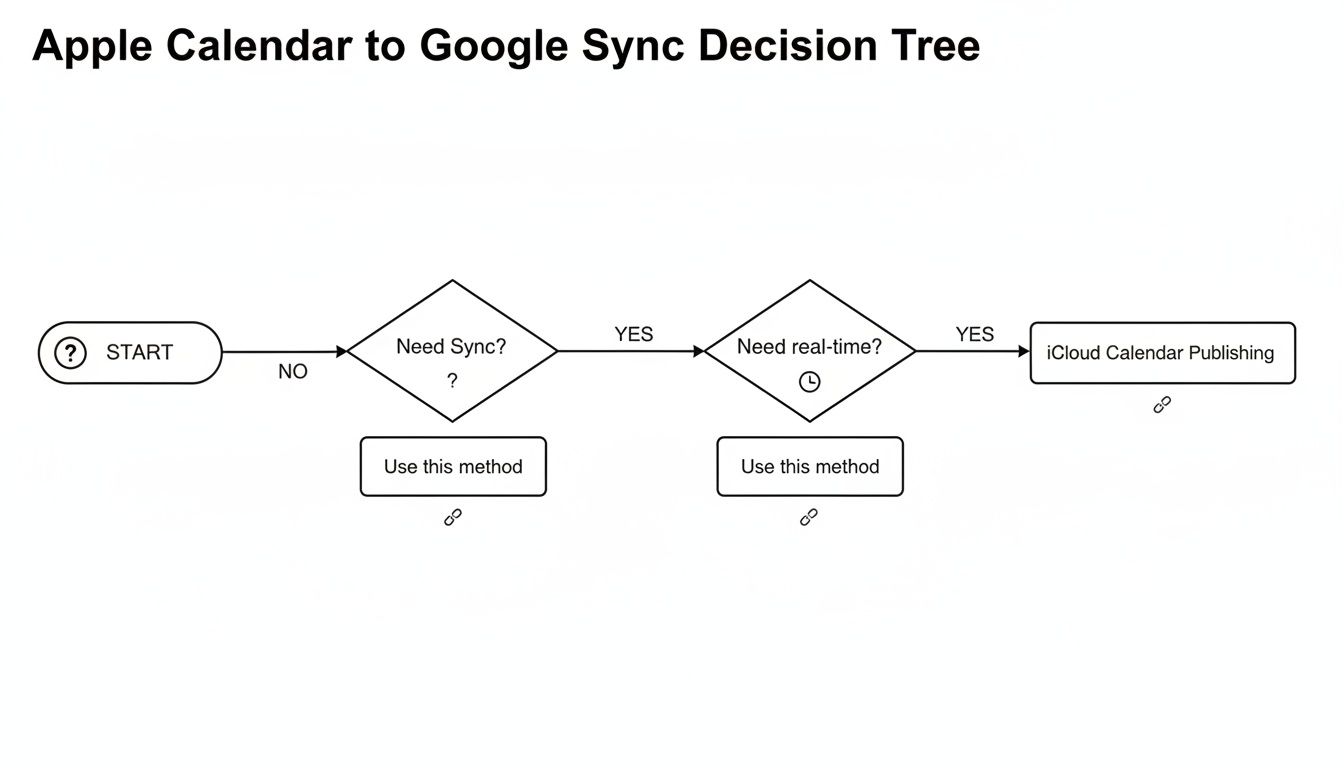
As you can see, for anyone who needs their calendars updated instantly, a specialised tool is really the only way to go.
Comparing Calendar Sync Methods
To help you decide, let's break down how the native options stack up against a dedicated third-party tool. Each has its place, but for true two-way sync, the winner is pretty clear.
Comparing Calendar Sync Methods
| Feature | Native Sync (Apple to Google) | Native Sync (Google to Apple) | Third-Party Sync Tool |
|---|---|---|---|
| Sync Direction | One-way (read-only) | Two-way | True two-way |
| Sync Speed | Delayed (manual or scheduled) | Near real-time | Instantaneous (real-time) |
| Event Creation | Not possible from Google | Possible | Seamless on either platform |
| RSVPs & Invites | Not supported | Supported | Fully supported |
| Setup Complexity | Simple (copy/paste URL) | Simple (add account) | Simple (OAuth authentication) |
| Best For | Viewing a static Apple calendar | Google-centric users | Anyone needing reliable, bidirectional sync |
The table really highlights the limitations of native methods. While easy to set up, they fall short for anyone who actively manages events across both Apple and Google ecosystems. A third-party tool is built specifically to fill that gap.
Choosing the Right Sync Solution
The market for these tools ranges from simple connectors that do one job well to powerful platforms that aim to unify your entire scheduling life. Some services work quietly in the background, just keeping your calendars aligned. These are perfect if you're happy with the Apple and Google Calendar apps themselves but just need them to talk to each other properly.
Other, more advanced platforms give you a whole new interface. They pull in all your calendars—Apple, Google, Outlook—and display them in a single, clean view. For professionals juggling multiple accounts, this can be a lifesaver, cutting out the constant app-switching.
Expert Insight: The best tools I've used act as a neutral go-between. They don't store your event data long-term; they just handle the transfer between Apple's and Google's servers. This is a huge plus for privacy and dramatically reduces the risk of your data being compromised.
Ultimately, the best choice comes down to your workflow. If you just need to fix the sync delay for a personal and work calendar, a simple connector tool will do the trick. But if you’re juggling multiple schedules and need a central command centre, a unified calendar platform like Calendar0 might be the smarter investment to prevent scheduling headaches before they even start.
Solving the Most Common Sync Problems
Even with what seems like a perfect setup, the connection between your Apple and Google calendars can be surprisingly fragile. We've all been there: an event you add on your Mac vanishes into thin air instead of appearing on your work laptop, or worse, duplicate entries suddenly clog up your schedule and create chaos.
These glitches are maddeningly common, but the good news is that most are fixable with a bit of targeted troubleshooting. When your apple calendar google calendar sync hits a snag, the problem usually falls into just a few categories. Instead of nuking your entire setup and starting from scratch, a methodical approach will get you back on track much faster.
Events Not Showing Up
This is easily the most frequent complaint—a new event simply doesn't appear on the other calendar. It’s especially frustrating if you’re using the native iCloud-to-Google subscription method because of its built-in delays. Google’s servers might only fetch updates from your public iCloud calendar every few hours, or sometimes just once a day. Not great for a time-sensitive meeting.
If an event is missing in action, here’s where to look first:
- Check Your Accounts: On your iPhone or Mac, head to
Settings > Calendar > Accounts. Make sure your Google account is still active and, crucially, that the "Calendars" toggle is switched on. - Allow Background Refresh: On iOS, go to
Settings > General > Background App Refresh. The Calendar app needs this enabled to pull in new data when it’s not open on your screen. - Try Re-Authenticating: Sometimes the secure token connecting the services just expires. The quickest fix is often to just remove your Google account from your Apple device’s settings and then add it right back.
A common misconception is that a subscribed iCloud calendar will update instantly in Google Calendar. That
webcal://link method is designed for infrequent updates, not real-time syncing. For anything time-sensitive, it's fundamentally unreliable.
Dealing with Duplicates and Invitation Errors
Seeing double? Duplicate events almost always happen when you have multiple sync methods running at the same time. For example, you might have added your Google account directly to your iPhone and also subscribed to its public URL within your iCloud account. This creates two different data streams showing you the exact same events.
The fix is simple: review all your connected accounts and subscriptions, then remove any redundant links. Just pick one method and stick with it.
Similarly, if you're having trouble sending or receiving invitations between the two platforms, it often points back to a simple authentication problem. For a deeper dive into these issues, our comprehensive guide on fixing Google Cal sync offers more advanced troubleshooting techniques.
By systematically checking these common points of failure—from account settings to background processes—you can sort out most sync headaches without having to resort to a full reset.
Your Questions on Calendar Syncing Answered
Wrangling calendars can feel like a full-time job, especially when you're trying to get Apple and Google to play nice. There's a lot of conflicting advice out there, so let's tackle the big questions I hear all the time about getting your calendars in sync.
Can I Get True Two-Way Sync Without a Third-Party App?
The short answer? Not really.
The native methods Apple and Google provide are more like one-way streets than a true two-way conversation. You can add your Google Calendar to your iPhone and see all your work events, which is great, but try editing one of those events from your Apple Calendar app. You can't.
On the flip side, you can subscribe to an Apple Calendar from your Google Calendar, but it's painfully slow. Updates can take hours—sometimes even a full day—to show up. For anything time-sensitive, that’s a dealbreaker.
If you need instant, reliable, two-way synchronisation—where adding an event on your Mac immediately shows up on your work's Google Calendar and vice versa—a dedicated third-party tool is your only real option. These services exist specifically to bridge that gap.
Is It Safe to Use Third-Party Sync Tools?
This is a big one. Giving an app access to your entire schedule feels risky, and you're right to be cautious. The good news is that reputable sync services take security very seriously.
The key thing to look for is OAuth 2.0 authentication. This is the industry standard. It lets you grant an app permission to access your calendar without ever handing over your password. Instead of your login details, the service gets a secure, encrypted token.
Always check the privacy policy before you sign up. A trustworthy company will be upfront about how they handle your data, whether they comply with rules like GDPR, and if they store your event details. The best tools are just a secure pipeline—they pass information back and forth without ever storing or compromising it.
Why Aren’t My Shared Apple Calendar Events Updating in Google?
This is easily the most common headache with the native "subscribe by URL" method. You share your iCloud calendar link, add it to Google, and... nothing happens for hours.
Here's why: Google's servers decide when to check your Apple Calendar for new events. This process, called "fetching," isn't constant. It happens periodically, but the timing is completely out of your control and often very slow. It’s not a bug; it’s just how Google manages its server load.
For a shared family calendar or a team schedule where updates need to be instant, this method just doesn't cut it. Your best bet is to either move the shared calendar over to Google Calendar entirely or use a third-party service that forces a real-time sync.
For professionals who can't afford scheduling errors, Calendar0 eliminates these frustrations entirely. It creates a unified view of all your calendars, prevents double-booking, and uses AI to schedule meetings in seconds, saving you valuable time every single day. Try Calendar0 for free and experience seamless scheduling.

