Master Your Schedule with App My Calendar
Discover how the App My Calendar unifies your schedule. This guide covers setup, advanced AI features, and time management strategies for ultimate productivity.

Calendar0 Team
November 25, 2025

If you’re anything like me, your life is split across multiple digital calendars. Google Calendar for personal stuff, Outlook for work, maybe another one for a side project. It's a recipe for chaos, and that constant tab-switching is more than just annoying—it's a genuine drain on your focus. This is where a unified calendar app stops being a 'nice-to-have' and becomes an absolute necessity, turning your schedule from a source of stress into your most powerful productivity tool.
Why a Jumbled Schedule Needs a Central Hub
Juggling different calendars creates a low-level anxiety that hums in the background of your day. Did I double-book myself? What about that dentist appointment I put on my personal calendar while I was staring at my work schedule? That mental load is exhausting, and it’s energy that could be spent on things that actually matter.
A dedicated app that pulls everything into one place gives you back that control. It’s not just about convenience; it’s about clarity.
When your entire schedule lives on a single screen, you can spot conflicts in a heartbeat. You see that a client call is about to clash with your kid’s football practice without having to frantically click between browser tabs. It lets you make smart, informed decisions about your time, instantly. We actually dive deep into the technical side of this in our guide on how to sync Outlook and Google calendars.
The Real Cost of a Fragmented Calendar
A disorganised schedule does more than just cause missed appointments. It introduces friction into every part of your day and piles on unnecessary stress. Getting that bird's-eye view of all your commitments transforms your calendar from a reactive mess into a proactive tool for building a better work-life balance.
And it's not just about calendars. A truly optimised day often means integrating your schedule with smart productivity hubs like shortgenius, which help simplify other complex tasks.
A centralised calendar gets rid of the guesswork. It creates a single source of truth for your entire day, week, and month, preventing costly mistakes and giving you back precious mental energy.
This isn't a niche problem. In Germany, for instance, the adoption of digital calendar apps is one of the highest in Europe, with over 70% of adults using them to stay organised. Professionals everywhere are realising that in a world this busy, a central hub for your time isn't a luxury—it's essential.
Key Benefits of Using a Unified Calendar App
To put it simply, centralising your calendars with a dedicated app brings a handful of major advantages that you'll feel almost immediately. Here’s a quick breakdown of what to expect.
| Benefit | Impact on Your Daily Routine |
|---|---|
| Single Source of Truth | No more second-guessing. You look in one place and see everything, eliminating the risk of double-booking or forgetting commitments. |
| Reduced Mental Load | Stop wasting brainpower trying to remember which calendar holds which appointment. This frees up mental space for more important, creative work. |
| Faster Decision-Making | See conflicts and availability instantly. This allows you to say yes or no to new meetings with confidence, right on the spot. |
| Improved Work-Life Balance | When work and personal events are visible side-by-side, you can better protect your personal time and prevent professional creep. |
| Increased Proactivity | A clear view of your week allows you to plan ahead, prepare for busy days, and block out focus time before your schedule fills up. |
Ultimately, the goal is to make your calendar work for you, not against you. By bringing everything together, you're not just getting organised; you're reclaiming control over your most valuable resource: your time.
Your First Ten Minutes with Calendar0
Getting a new tool to fit into your workflow shouldn't be a project in itself. The whole point is to save time, right? My goal here is to get you from the download page to a fully organised, single view of your entire schedule in less time than it takes to make a coffee.
Let's jump right in. First, grab the right version of the app for your machine – it works on both macOS and Windows. The installer is as simple as they come; just click through the usual prompts and you'll be set. Once it's installed and running, the real work begins: connecting your calendars.
Connecting Your Accounts Securely
Calendar0 plays nicely with both Google Calendar and Microsoft 365, which covers pretty much everyone I know in the professional world. When you go to add an account, you'll notice it kicks you over to a Google or Microsoft sign-in page. This is a good thing.
The app uses OAuth, which is the gold standard for this sort of thing. Instead of you giving your password to Calendar0, you're telling Google or Microsoft directly, "Hey, it's okay for this app to see my calendar events." Calendar0 never sees or stores your login details, which keeps your accounts locked down and secure.
The best part about OAuth is that you're always in charge. If you ever change your mind, you can just pop into your Google or Microsoft account settings and revoke access. No drama.
This is the foundational step. Once your accounts are linked, Calendar0 stops being just an app and starts being your actual scheduling command centre.
This is what we're aiming for – turning that jumbled mess of appointments and reminders into something you can actually make sense of at a glance.
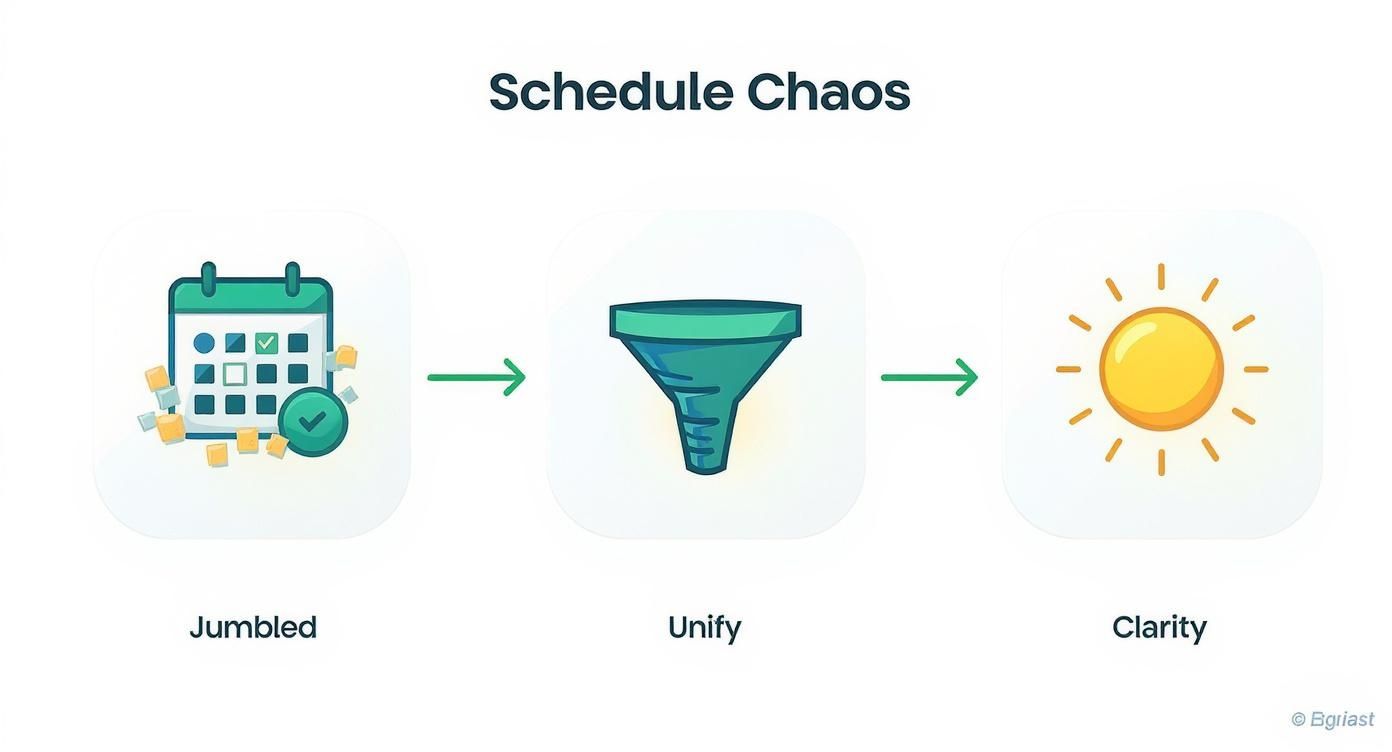
By funnelling everything into one place, you instantly cut through the noise.
Your First Sync and Unified View
After you’ve authorised your accounts, the app will do its first big sync. If you have a packed schedule stretching back years, give it a minute or two. You’ll quickly see events from your work Outlook and personal Google Calendar start to appear side-by-side in one clean view.
This is the "aha!" moment for most people. Suddenly, there's no more flicking between browser tabs or phone apps trying to spot a scheduling conflict. It’s all just there.
This move towards integrated productivity tools is happening everywhere. In Germany, for instance, the adoption of specialised calendar apps has been massive, with some seeing daily active user growth of over 15% simply by catering to local professional needs. If you’re curious, you can dig into some of the German app usage trends to see what makes a calendar tool stick.
Designing a Calendar View That Works for You
Right, so you've got your accounts connected. Now for the fun part: making the calendar actually yours. A generic, one-size-fits-all calendar is just organised chaos. The default view tends to dump work, personal life, and shared invites into one big, stressful mess. The whole point of a good calendar app is to design a view that tells you what you need to know in a single glance.
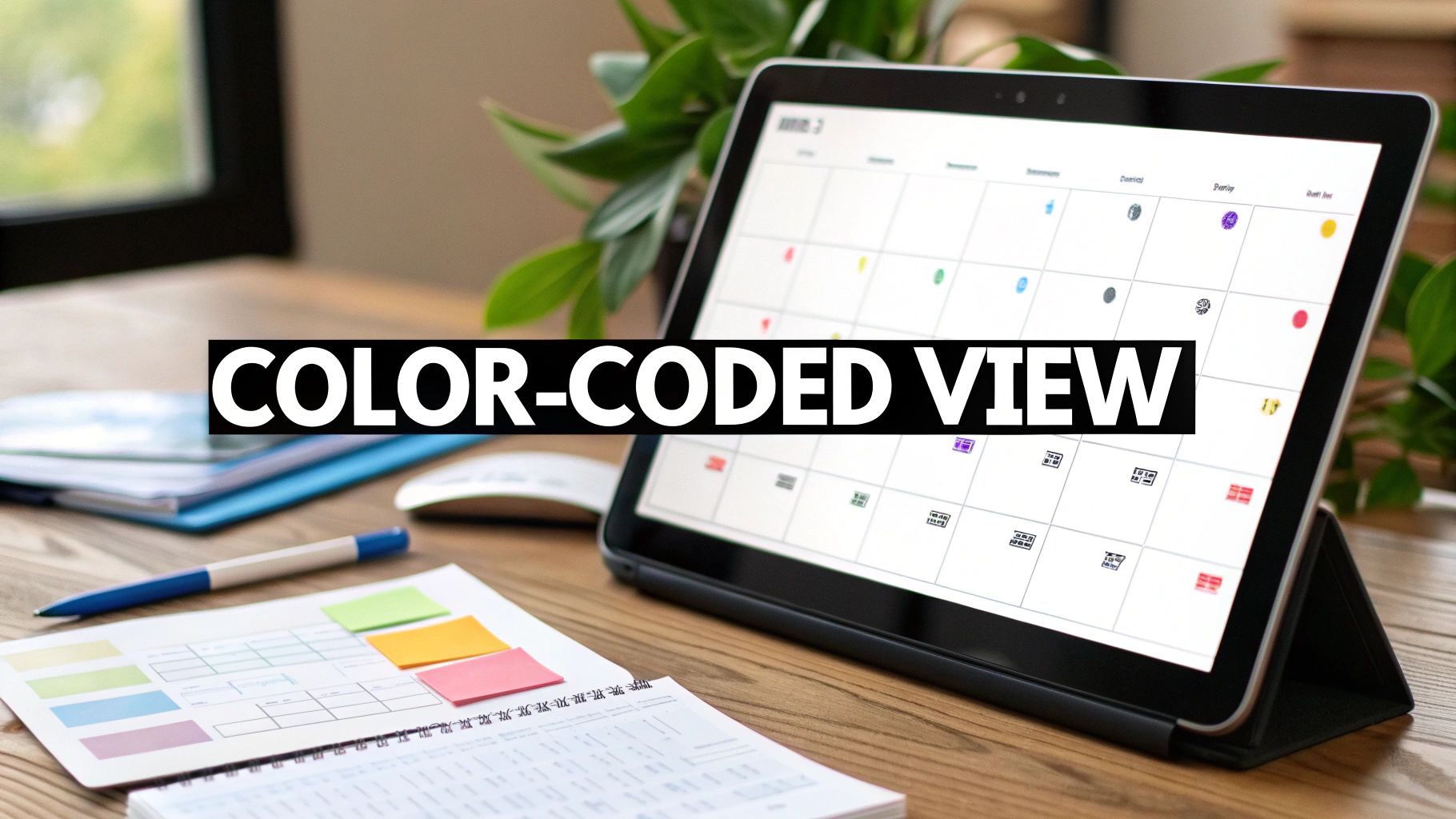
This is where colour-coding becomes your secret weapon. It sounds simple, but it’s a powerful psychological shortcut that transforms a wall of text into an intuitive map of your time. By giving different calendars their own distinct colours, you're creating visual cues that your brain can process instantly.
Creating Your Visual System with Colours
The trick is to assign colours based on the different areas of your life. This isn't just about making things look pretty; it's about building an instinctive system that you can interpret without even thinking.
Here’s a setup I’ve seen work wonders for busy professionals:
- Deep Blue for Work: This covers all your core job duties—meetings, deadlines, and focus blocks.
- Bright Green for Projects: Got a major side hustle or a specific client project? Give it a standout colour so it doesn't get lost in the day-to-day noise.
- Warm Red for Family: All the shared family stuff goes here. Think school runs, appointments, and events that involve the whole crew.
- Calm Grey for Personal: This is for you. Gym sessions, errands, appointments—anything that’s purely for your own time.
With a system like this, a quick look tells you if your afternoon is slammed with client work (a sea of green) or packed with family commitments (a block of red). You immediately get the "flavour" of your day.
Taming Shared Calendars and Permissions
Let's be honest, shared calendars are often the biggest source of digital clutter. Do you really need to see your colleague's out-of-office reminder front and centre? Probably not. Calendar0 makes it easy to toggle the visibility of specific calendars on and off, so you can hide what’s not relevant right now.
The most effective calendar isn’t one that shows you everything all at once. It’s one that shows you exactly what you need to see, right when you need to see it.
For example, when you're planning your week on a Monday morning, you might want the team's shared calendar visible to spot any potential scheduling conflicts. But when you sit down for a deep work session, you can just switch it off. That simple act of controlling visibility is a game-changer for staying focused.
If you’re interested in the deeper UX and design thinking that goes into these features, this article on how to build a habit tracker calendar offers some fascinating insights.
To help you decide what works best, here’s a quick breakdown of the different view options and where they shine.
Calendar View Configuration Options
This table compares different view settings to help you decide which configuration best suits your scheduling needs and preferences.
| View Type | Best For | Example Use Case |
|---|---|---|
| Daily View | Granular, hour-by-hour planning and time-blocking. | A project manager scheduling back-to-back client calls and deep work sessions. |
| Weekly View | Balancing workload and commitments over a 5-7 day period. | A consultant planning their client meetings and personal appointments for the week ahead. |
| Monthly View | High-level planning, spotting trends, and tracking deadlines. | A content creator mapping out their publishing schedule and key project milestones. |
| Agenda View | A straightforward, chronological list of upcoming events. | Quickly checking what’s next on your plate during a busy day. |
Ultimately, you’ll probably switch between these views depending on what you’re doing, but having a well-configured default is key.
Fine-Tuning Your Default Settings
Finally, spend a few minutes customising the little details that will save you heaps of time later. The first thing you should do is set your default working hours (e.g., 9 am to 5 pm, Monday to Friday). This shades out your non-working hours, sending a clear signal to both you and anyone else trying to book your time.
Also, set a default meeting duration. If 90% of your calls are 30 minutes long, make that your default. It’s a tiny adjustment, but it removes one extra click from almost every event you create. Over a week, those clicks really add up. These small optimisations are what turn a decent app into an essential part of your workflow.
Let AI Handle the Tedious Scheduling
Let’s be honest: manually creating calendar events is a drag. Clicking through date pickers, adding guests one by one, and setting reminders feels like a holdover from a bygone era. It's tedious, and it pulls you out of your workflow. This is exactly where a smart calendar app like Calendar0 steps in to do the heavy lifting for you.

The real magic here is natural language processing. Instead of filling out a stuffy form, you just type what you want, as if you were talking to an assistant. It's a small change that makes a huge difference in how quickly you can get things done.
Speak Your Schedule Into Existence
Think about setting up a meeting the old way—it’s probably at least six or seven clicks. With Calendar0, it’s just one sentence.
You can simply type things like:
- "Coffee with David at 9 am tomorrow at Central Perk"
- "Project sync with the marketing team for 45 minutes on Friday afternoon"
- "Block out 2 hours for deep work this Thursday morning"
The app immediately understands what you mean. It identifies the people, figures out the time and duration, and even adds the location. It’s the kind of intelligent design that just gets how humans talk, cutting the time you spend scheduling an event by up to 80%.
If you're curious about how this technology works beyond just calendars, our article on planning with artificial intelligence dives a lot deeper into how AI is changing the productivity game.
Reschedule in Seconds With Drag and Drop
Life happens. Clients need to shift calls around, and urgent tasks pop up unexpectedly. Rescheduling shouldn't kick off a ten-email chain. With a simple drag-and-drop interface, you can adapt your day visually and instantly.
See a conflict? Just grab the event and slide it over to an open slot. Calendar0 automatically updates the time and sends a notification to everyone involved. What used to be a multi-step chore is now a two-second fix.
The point is to make your calendar feel less like a rigid document and more like a flexible workspace. Quick changes should be effortless, not a source of frustration.
This kind of agility is critical for anyone with a busy schedule. When your tools can keep up with the fluid nature of your work, you stay in control, no matter how chaotic the day gets.
Master Your Calendar With Keyboard Shortcuts
For anyone who really values their time, keyboard shortcuts are a must. Constantly switching between your keyboard and mouse is a subtle but significant workflow killer. Those tiny delays really add up over a day.
Learning just a handful of shortcuts can genuinely cut the time you spend in your calendar in half. Here are a few essentials to get you going:
| Action | Shortcut (macOS) | Shortcut (Windows) |
|---|---|---|
| Create New Event | Cmd + N | Ctrl + N |
| Jump to Today | Cmd + T | Ctrl + T |
| Next Week/Month | Cmd + Right Arrow | Ctrl + Right Arrow |
| Search Events | Cmd + F | Ctrl + F |
My advice? Start with one or two. Once they feel like second nature, add a couple more. This gradual approach makes it easy to build these time-savers into your daily routine and turn you from a calendar user into a scheduling powerhouse.
Integrating Your Calendar into a Secure Workflow
A powerful scheduling tool is only half the battle. For it to be genuinely useful, it has to slot into your daily routine without you even thinking about it. Once you start running your day through an app, you need absolute confidence that your data is safe and the tool is making your life easier, not more complicated.
This all starts with a foundation of modern security. Calendar0 connects to your Google and Microsoft accounts using OAuth 2.0. In simple terms, this means you grant permission directly on Google or Microsoft's turf. The app never sees, let alone stores, your password. It’s the gold-standard method for secure access, and it leaves you in complete control.
Managing Privacy and Connected Services
Staying on top of your digital footprint is just good practice. It's smart to periodically review which apps have access to your core accounts, and OAuth makes this incredibly straightforward. You're always in the driver's seat.
You can check and manage these permissions directly inside your Google or Microsoft account settings whenever you like.
- For Google: Head to your Google Account security settings and find the section called "Third-party apps with account access."
- For Microsoft: Go to your Microsoft Account's privacy dashboard and look for "Apps and services that can access your data."
If you ever decide to move on from a service, you can revoke its access with a single click. This clean separation keeps your main accounts locked down. For a more detailed look at this mindset, our guide on building a secure task manager workflow shares some principles that are just as relevant here.
Troubleshooting Common Syncing Issues
Even the most reliable systems can hit a snag now and then. One of the most common issues with any calendar app is a sync delay—you add an event on your phone, but it doesn't show up on your desktop right away. It's annoying, but the fix is usually pretty simple.
When your calendar feels out of step, the first move is often the easiest: force a manual refresh. If that doesn’t do the trick, checking your internet connection and giving the app a quick restart will solve over 90% of sync problems.
Often, these little delays aren't caused by the app itself but by temporary server lags from Google or Microsoft. A few simple steps are usually all it takes to get your schedule back in line and ensure you’re looking at the latest version of your day.
Protecting Your Focus with Time Blocking
Beyond just security, a truly great workflow protects your most precious resource: your attention. A unified calendar is the perfect place to implement a time-blocking strategy. This is where you proactively schedule chunks of time for "deep work," treating them with the same importance as a meeting.
For instance, you might block out "9:00 AM - 11:00 AM Project Phoenix Deep Work" every Tuesday. This accomplishes two critical things:
- It sends a clear signal to colleagues checking your shared calendar that you are genuinely unavailable.
- It creates a mental commitment for yourself to honour that time and dive into focused work.
By weaving together these secure practices and proactive scheduling habits, your calendar becomes more than just a list of appointments. It evolves into a solid framework for a productive, focused, and protected workday.
A Few Common Questions About Calendar0
When you bring a new calendar app into the centre of your workflow, you're bound to have some questions. It's totally normal. Let's walk through a few of the most common ones I hear, looking at them from the perspective of how you'll actually use the tool day-to-day.
The aim here is to get you past the initial setup and make Calendar0 feel like a natural extension of how you work.
How Does Calendar0 Handle Different Time Zones?
Let's be honest, coordinating with teams across the globe can be a real headache. Trying to book a call that works for colleagues in Berlin, New York, and Tokyo usually involves some painful mental gymnastics.
Calendar0 gets rid of that completely. When you're setting up an event, you can assign a specific time zone to it. The app then automatically shows every single attendee the correct corresponding time based on their own local settings. It's right there in the event details, plain as day.
This simple feature is a lifesaver. No more accidentally booking a 9 a.m. call that ends up being 2 a.m. for a key person on your team. Calendar0 shows everyone the right time, preventing all that confusion and saving you from some potentially embarrassing mix-ups.
It’s a small detail, but it makes a massive difference in showing respect for everyone's schedule, no matter where they are. This is what smooth global collaboration looks like.
Can I Use It Offline? And How Does Syncing Work?
We've all been there—on a train or a flight with flaky Wi-Fi. Your work doesn't stop just because your internet connection does, and your calendar shouldn't either. Calendar0 was built to work perfectly offline.
You can create new events, accept or decline invitations, and even move things around on your schedule without being connected. The app just saves all those changes on your device.
The moment you're back online, it syncs everything up automatically in the background. It pushes out your updates and pulls in any new invites that came in while you were offline. Your calendar is always up to date, and you don't have to lift a finger.
What Are Some Best Practices for Managing Notifications?
Notifications can be a double-edged sword. Used well, they keep you on track. But if they're out of control, they become a constant stream of interruptions that shatter your focus. The trick is to make them work for you, not against you.
I always recommend spending a few minutes fine-tuning your notification settings to fit how you actually work. Here are a few tips that have helped a lot of busy people I know:
- Set smart reminders. I find a default reminder 10 minutes before a meeting is the sweet spot. It gives you just enough time to wrap up what you're doing and hop on the call without feeling rushed or stressed.
- Kill the noise. Do you really need an alert every time someone accepts your meeting invite? Probably not. Turn those off. You can trust the event is happening and check the attendee list later if you need to.
- Customise by calendar. This is a pro move. Set different notification rules for your different calendars. You might want instant alerts for your main work calendar, but maybe just a single daily summary for a personal project calendar.
By being a bit more intentional with these settings, you turn your notifications from distracting noise into valuable signals. It’s a small change that can seriously protect your deep work time and keep your attention right where it belongs.
Ready to stop juggling calendars and start owning your schedule? Calendar0 brings your entire day into one smart, fast, and clean view. Download it for free and see how much time you can get back.

