Sync with Google Calendar a How-To Guide
Learn how to sync with Google Calendar seamlessly. Our guide covers setup, multi-calendar views, pro tips, and troubleshooting common issues.

Calendar0 Team
November 22, 2025

When you truly sync with Google Calendar, you’re not just connecting accounts. You’re pulling your work life, your personal schedule, and any shared family or project calendars into one organised, central hub. It’s the only way to stop the constant tab-switching and finally get a single source of truth for your time.
So, Why Bother With a Unified Calendar?
We’ve all been there. You have a dozen different calendars floating around—one for work, one for personal stuff, maybe a shared one for family appointments or a side project.
It’s a recipe for disaster. I can't count the number of times I've seen someone agree to a 3 PM client meeting, only to realise later their personal calendar had a dentist appointment blocked off for that exact same time. The result? A frantic apology, a messy reschedule, and at least an hour of wasted time for everyone involved.
The mental gymnastics of constantly cross-referencing all these different schedules is just exhausting. It’s a huge, unnecessary tax on your brainpower that opens the door for costly mistakes.
Turning Calendar Chaos into Total Clarity
This is exactly why getting everything into a single, unified view is such a game-changer. When you sync with Google Calendar using a tool like Calendar0, you consolidate every single commitment into one clean interface. Suddenly, you have a complete picture of your availability.
What does this actually look like in practice?
- No more double-booking. Overlapping events are instantly obvious, making it almost impossible to schedule yourself for two places at once.
- Less mental clutter. You don’t have to remember which calendar holds which appointment. It’s all just there.
- Smarter scheduling. With a bird's-eye view of your day, you can protect your focus time and make better decisions on the fly.
A Single Calendar, in the Real World
This goes way beyond just avoiding meeting conflicts. For anyone working with teams across the globe, a unified view makes coordinating across time zones infinitely easier. If that’s a pain point for you, our guide on using a meeting planner for time zones dives deep into solving that specific headache.
Think of your calendar as your command centre. It shouldn't just tell you where you need to be—it should give you the clarity to decide how to spend your time. That's how you prevent burnout and get real work done.
It’s also incredibly useful in more specialised situations. For example, families often use dedicated co-parenting calendar apps to manage complex schedules. By integrating those into a primary calendar, everyone gets a powerful, shared system that accounts for every part of life, creating a truly organised and stress-free week.
Right, let's get your Google Calendar talking to Calendar0. This is the first, most important step to wrangling all your schedules into one sane, manageable place. It’s a straightforward and secure process, designed to give you total control while unlocking some seriously powerful scheduling tools.
The whole thing works using OAuth2. Think of it as a secure handshake between Calendar0 and Google. You’re giving Calendar0 a key to read your calendar, but you’re never actually handing over your Google password. It’s the industry standard for a reason—it keeps your account safe while letting your apps work together. This is how we build your new scheduling command centre.
This connection is what turns a bunch of separate, often conflicting, calendars into a single, coordinated schedule. The journey from chaos to clarity really is that simple.
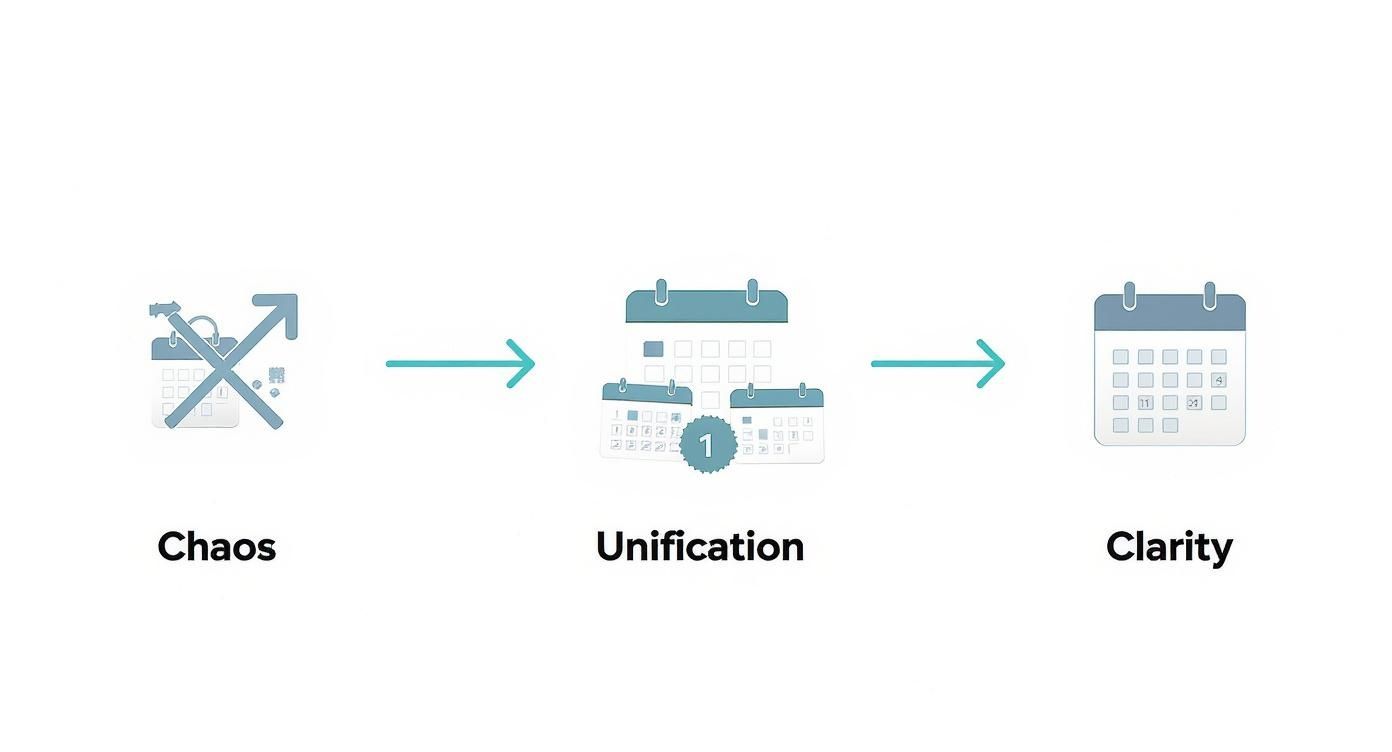
As you can see, the aim here is to stop the madness of flipping between tabs and second-guessing your availability. No more double-bookings or mental gymnastics.
Finding the Connection Settings
First things first, pop open the Calendar0 app and head to the settings or preferences panel. You're looking for a menu item called "Integrations," "Connected Accounts," or something similar. This is your hub for managing any calendar you want to pull in.
Once you’re in there, you'll spot a button like "Add Account" or "Connect Google Calendar." Give that a click. This will kick off the secure OAuth2 process, bouncing you over to a standard Google sign-in page. This is a good thing—it means your login details are handled directly and only by Google, keeping your account locked down.
Choosing Your Account and Granting Permissions
Google will then ask you to pick which account you want to connect. This is a key step if you’re juggling multiple Google accounts, like a personal one and a work one. Make sure you select the main account you want to sync.
After that, you'll see a permissions screen. It spells out exactly what Calendar0 needs access to. It’s important to know what you’re agreeing to, but it's all standard stuff for a calendar tool:
- View your calendars: This lets Calendar0 actually see and display your events.
- Edit events on your calendars: You need this to create, change, or delete events right from the Calendar0 interface.
- See your primary Google account email address: This is just to identify your account and link it correctly.
These permissions are the bare minimum needed for the sync to work properly. We built Calendar0 with privacy as a core principle, so your data is always handled securely and never shared.
You’re essentially giving Calendar0 the ability to be a better assistant for you—it’s not getting access to your emails or any other personal data outside of your calendar.
With over 500 million people using Google Calendar every month, getting this integration right is non-negotiable. In Germany alone, where around 80.6% of people use Google services, a smooth connection is vital for staying productive.
Finalising the Connection
Once you've looked over and approved the permissions, Google will send you right back to the Calendar0 app. And that’s it—your account is connected.
This seamless back-and-forth is powered by APIs (Application Programming Interfaces), which are like messengers that let different software talk to each other. If you're curious about the tech that makes this all possible, it’s worth taking a moment to understand API connections. And for more on managing your schedule from your computer, check out our guide on the best Google Calendar app for desktop.
How to Create a Personalised Calendar View
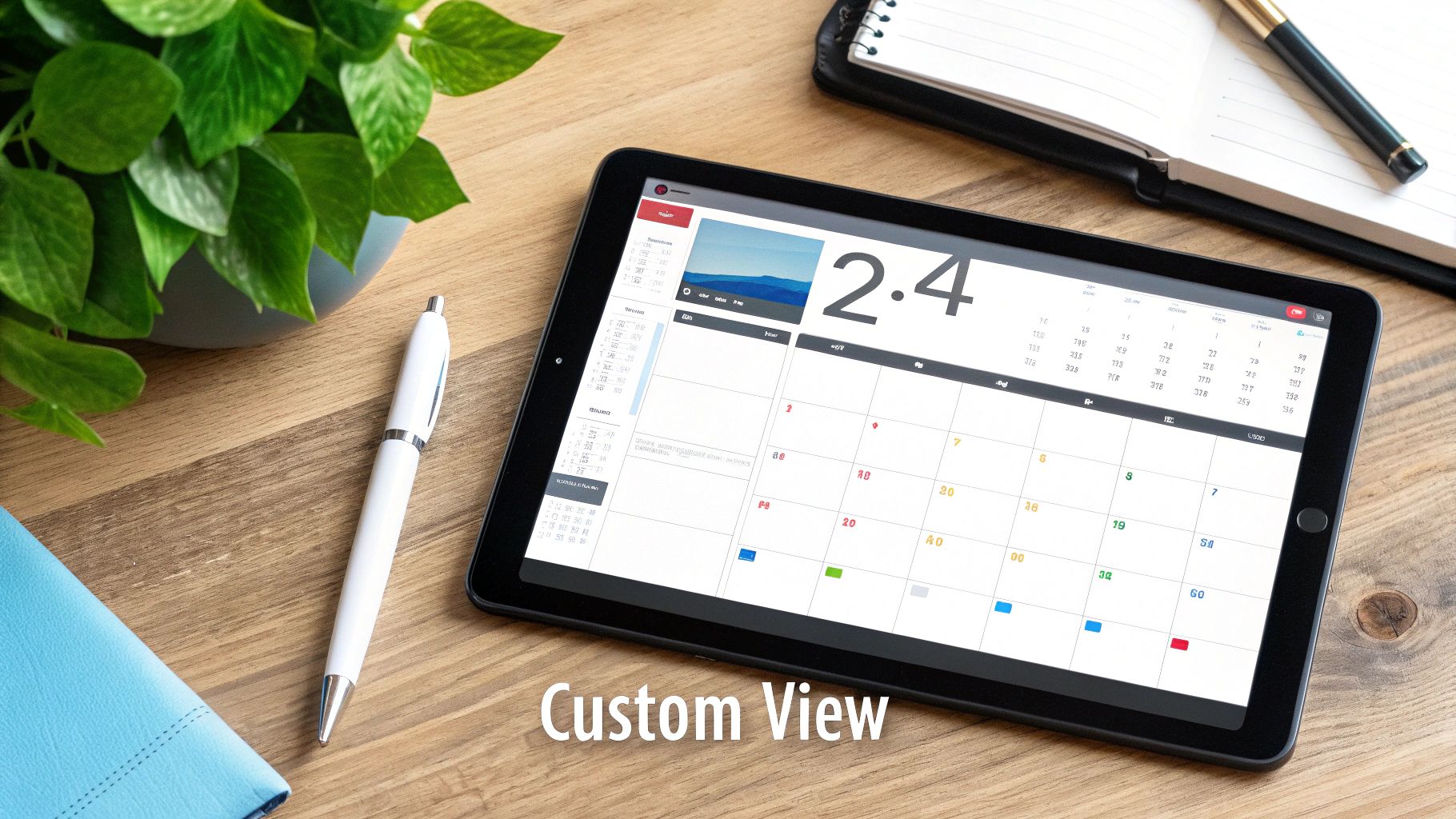
Getting your Google account connected is just the first step. The real magic happens when you turn that firehose of data into a command centre built just for you. The goal isn't just to see your schedule—it's to build a view where you see exactly what you need at a glance, and nothing you don't.
This is where you graduate from a basic sync with Google Calendar to a truly bespoke workflow. Forget a cluttered, overwhelming list of every event from every account. It's time to get selective.
Choosing Which Calendars to Display
Your first move is to decide which calendars actually matter for your day-to-day. Most of us are juggling several, and trying to watch all of them at once is a recipe for disaster.
Dive into Calendar0’s settings, and you'll find a complete list of every calendar tied to your connected Google account. This isn't just your primary work calendar; it includes any secondary ones you've made (like "Personal" or "Project X") and any that are shared with you, like a team holiday schedule or a family planner.
Now, just toggle on the essentials. A typical setup might look like this:
- Your main work calendar for all professional commitments.
- Your personal calendar for appointments and social plans.
- A shared project calendar to keep up with team deadlines.
By hiding the non-critical stuff—like that shared social club schedule you rarely check—you instantly cut through the noise and put the focus back where it belongs.
Using Colour-Coding for Instant Clarity
Once you’ve curated your calendar list, the next step is to make it instantly scannable. Assigning a unique colour to each calendar is one of the oldest tricks in the book for a reason: it works. The impact is massive.
For example, you could set up your system like this:
- Blue for anything work-related.
- Green for personal appointments like the gym or errands.
- Orange for shared family events.
With a system like this, one look tells you the entire story of your day. A wall of blue means you're deep in work mode, while a splash of green signals that personal time you need to protect.
Your calendar view should answer the question, "What kind of day am I having?" in under a second. Good colour-coding does exactly that, turning your schedule into a visual map of your time and priorities.
This level of organisation is especially crucial in digitally savvy regions. Take Germany, for instance, where the adoption of integrated productivity tools is incredibly high. As of January 2025, an estimated 83.4% of German adults—that's about 58.7 million people—were active on social media, platforms often used for event planning that integrates with calendars. This points to a population that's already comfortable managing their lives digitally, making a clean, personalised view an absolute necessity. You can find more data on Germany's digital habits over at DataReportal.
Go from Synced to Supercharged with These Pro Tips
Alright, you’ve got your calendars talking to each other and your unified view is looking clean. That’s the foundation. Now, let’s move past the basics and turn your calendar into a genuine productivity engine.
The real magic isn't just seeing everything in one place; it's about speed and efficiency. The goal is to spend less time managing your calendar and more time doing the actual work. This is where you can reclaim minutes, which quickly snowball into hours saved each week.
Use AI for Lightning-Fast Event Creation
This is a game-changer. Instead of clicking around to fill out event details—title, time, guests, location—you can just type what you want in plain English. Calendar0’s AI is smart enough to figure out the rest.
For example, just type:
- "Team sync tomorrow at 10 am with Priya"
- "Lunch with David next Tuesday at La Taverna"
- "Block 2-4 pm on Friday for deep work"
The AI instantly parses your command, pulls up the right contacts, cross-references everyone's availability from their synced calendars, and queues up a draft invitation. It’s the closest you can get to scheduling at the speed of thought, cutting out all that tedious admin that bogs down a busy professional’s day.
Tame Your Notifications and Protect Your Focus
A constant stream of pings and alerts is just as disruptive as a messy calendar. If you're not careful, your calendar will become a source of distraction instead of a tool for focus.
Be strategic here. Don't let every single event trigger a reminder. Instead, create custom alerts for the truly important stuff—a big client call, a project deadline, or a can't-miss appointment.
Your calendar’s job is to protect your focus, not shatter it. Smart notifications surface what’s important right when you need it, and keep the rest quiet. This small tweak helps you stay in the zone without ever worrying about dropping the ball.
It's no surprise that features like AI scheduling and smart reminders are driving massive growth in this space. The global calendar app market, valued at around $2 billion in 2025, is on a steep upward trajectory. This trend is all about giving users with complex schedules more intelligent, integrated tools. You can dig deeper into the growth of the calendar app market on DataInsightsMarket.com.
A Quick Word on Privacy and Security
Connecting your accounts is powerful, but it's natural to think about your data. It's important to know how your information is handled.
Calendar0 uses the industry-standard OAuth2 protocol for the connection. This is key because it means your Google password is never shared with the app. Instead, the connection is managed through secure, encrypted tokens that grant specific, limited permissions. You're always in control.
My advice? Always be conscious of the permissions you grant any app. By sticking with tools that put security first, you get all the benefits of an integrated schedule without putting your digital privacy on the line.
Troubleshooting Common Google Calendar Sync Issues

Even with the smoothest setup, technology has its moments. When your day hinges on a perfect sync with Google Calendar, any little hiccup can throw things off. The good news? Most of these problems are the kind you can fix in minutes, getting you right back on track.
The most common snag I see is a simple delay. You’ve just added an event in Google Calendar, but it’s nowhere to be found in Calendar0. This is usually just the sync cycle taking a moment to catch up. A quick manual refresh almost always does the trick.
Another classic issue is a permission error. This often pops up if you’ve recently changed your Google password or tightened your security settings. When that happens, the connection token Calendar0 uses can become invalid. It’s not a bug—it’s actually a security feature from Google designed to protect your account.
Quick Fixes for Sync Problems
Before you start digging into complex settings, let's cover the basics. These simple checks resolve the vast majority of sync problems and don't require you to be a tech wizard. Think of it as a quick reset for your calendar's connection.
- Force a manual refresh: Inside Calendar0's settings, look for a "Refresh" or "Sync Now" button. Clicking this tells the app to immediately fetch the latest data from Google's servers.
- Check your internet connection: I know, it sounds almost too obvious. But a spotty Wi-Fi connection is a frequent culprit behind failed syncs.
- Confirm you’re in the right account: Many of us juggle multiple Google accounts. It’s worth a quick check to make sure both Calendar0 and your browser are logged into the same one you're trying to sync.
A stable internet connection is the backbone of any reliable calendar sync. More often than not, the problem isn't with the apps themselves but with the digital bridge between them. Making sure that connection is solid is always the first—and most effective—troubleshooting step.
Re-Authenticating Your Account
If the simple fixes don't sort it out, re-establishing the connection is your next best move. This forces a fresh, secure handshake between Calendar0 and Google, which usually resolves any lingering issues with outdated permissions or expired security tokens.
Just head over to the "Connected Accounts" or "Integrations" section within Calendar0's settings. Find your Google account on the list, disconnect it, and then immediately run through the process of adding it again. This simple act renews the authorisation and clears up even the most stubborn errors.
While our focus here is on Google, the same principles apply to other platforms. For instance, if you're also working with Microsoft's ecosystem, you can learn more in our guide on the Outlook and Google Calendar sync.
Got a Few Lingering Questions?
Once you’re all set up, a few questions might still pop into your head. That's perfectly normal. Let's run through the most common things people ask when they first sync up with Google Calendar, so you can feel completely confident in your new, unified workflow.
The big one is always sync speed. How fast do new events actually show up? The connection is designed to be near-instantaneous. Add an event in Google Calendar, and it pops into Calendar0 right away. Delete something in Calendar0, and it vanishes from Google.
This isn’t a slow, hourly sync. It’s a real-time connection that means you never have to second-guess whether you’re looking at an up-to-date schedule. It just works, killing the risk of double-booking yourself because you were looking at an old version of your day.
Can I Really Sync Calendars from Multiple Google Accounts?
Absolutely, and this is where things get really powerful for busy professionals. You can easily connect calendars from several different Google accounts—say, your work account (you@company.com) and your personal Gmail (you@gmail.com).
Calendar0 pulls all the calendars you choose from each connected account into one clean, unified view. It’s the perfect way to get a holistic picture of your life, making sure a dentist appointment doesn’t suddenly clash with a client call. Just head to your settings and add each account one by one.
If I Change Something in Calendar0, Does It Actually Update My Google Calendar?
Yes, it’s a true two-way street. Any change you make inside the Calendar0 app is immediately pushed back to your native Google Calendar.
This bi-directional sync is what makes the whole thing feel so seamless. It doesn't matter which app you happen to be using at the moment; everything stays consistent.
- Create an event in Calendar0? It appears in Google Calendar instantly.
- Reschedule a meeting in Calendar0? The time updates everywhere else.
- Delete an appointment in Calendar0? It’s gone from Google Calendar, too.
Think of Calendar0 as a smarter, faster interface for the calendars you already depend on. It’s not trying to replace them—it’s enhancing them and creating a single source of truth across all your devices.
This is huge. It means you can still use the native Google Calendar app on your phone while you're out and about, completely confident that it perfectly mirrors the schedule you organised on your desktop with Calendar0. No more data silos or mismatches. Your colleagues will see your updated availability immediately, which makes collaboration feel effortless and reliable.
Ready to stop switching between calendars and save up to 20 minutes every day? Calendar0 unifies your schedule and uses AI to handle the admin, so you can focus on what matters. Try Calendar0 for free and experience scheduling at the speed of thought.

