Finding the Best Google Calendar Desktop Program
Escape the browser tab chaos. This guide explores the best Google Calendar desktop program options, from PWAs to AI-powered tools that unify your schedule.

Calendar0 Team
January 12, 2026

Let’s be honest, your schedule probably lives inside a Google Calendar tab. And while it gets the job done, it’s not exactly built for the chaos of modern work. For anyone serious about productivity, a dedicated Google Calendar desktop program isn't just a nice-to-have; it's a necessity. This isn't about replacing your calendar—it's about finally unlocking what it can do.
Why a Browser Tab Is Holding Your Schedule Hostage
You know the feeling. Your calendar is just one of a dozen open tabs, fighting for your attention alongside emails, Slack messages, and that half-finished report. This setup creates a constant, low-grade friction you probably don't even notice until it’s gone.
That constant context switching—clicking away from what you’re actually doing just to check your next meeting—shatters your focus. Notifications get swallowed up in the browser noise, leading to missed appointments or that frantic, last-minute scramble to find the meeting link. Trying to manage both a work and a personal account? That’s a clumsy dance of switching browser profiles, and we’ve all accidentally scheduled a dentist appointment on the company-wide calendar.
The Real Cost of Calendar Friction
Think about a project manager's typical day. They're juggling client calls, team syncs, and their own focus time. Every single day involves flicking between multiple calendars to check availability, find a slot that works for five different people, and then fire off the invites. Doing this from a browser tab means constantly pulling yourself away from the core of your work, whether that’s a project plan or a critical client email.
This isn't just inefficient; it's a roadblock to any kind of deep, focused work. A dedicated Google Calendar desktop program tears down that wall. It lives outside the browser, giving you instant access and a distraction-free space to actually manage your time.
This is especially true for professionals who spend their entire day on a desktop. In Germany, for instance, Chrome still commands a huge 54.41% of the desktop browser market. That’s a massive number of people accessing their calendar through a browser tab—a huge opportunity to cut out the friction with a proper desktop tool. You can dig into the specifics in this browser market share report for Germany.
For a busy professional, every click and context switch is a small tax on their productivity. Over a week, those small taxes add up to hours of lost focus and momentum. A desktop program turns calendar management from a reactive chore into a proactive workflow.
Here's the standard Google Calendar web interface we're all stuck with.
It’s clean, sure, but it’s still trapped. It’s confined by the browser's limitations and completely lacks the focus and smart integrations you get with a real, standalone application.
Option 1: Create a Basic Desktop App with a PWA
If you're looking for a quick, no-frills way to get Google Calendar out of your browser, a Progressive Web App (PWA) is your best bet. Think of it as taking the website you already use and giving it its own home on your desktop. It's an official, Google-supported method that gives your calendar a dedicated icon in your taskbar or Dock, pulling it free from the clutter of a dozen other tabs.
The immediate benefit is focus. Because it’s essentially just a self-contained browser window for your calendar, it syncs instantly and behaves exactly as you'd expect. There’s no complicated setup—just a cleaner, more organised way to see your schedule. You can create one in seconds using browsers like Google Chrome or Microsoft Edge.
Installing Your Calendar PWA
Getting this set up is incredibly straightforward.
First, navigate to Google Calendar in your Chrome or Edge browser. In the address bar, look for an icon that looks like a small computer screen with a downward-pointing arrow. That’s the "Install app" button.
Give it a click, and your browser will prompt you to install Google Calendar as a separate application. Once it’s done, you can pin it to your taskbar on Windows or drag it to your Dock on macOS for one-click access. Just like that, you have what feels like a native Google Calendar desktop program. You've effectively separated your schedule from the browser chaos, which is a massive first step towards a better workflow.
This flowchart can help you quickly spot if a PWA will solve your main calendar headaches, or if you need something more robust.
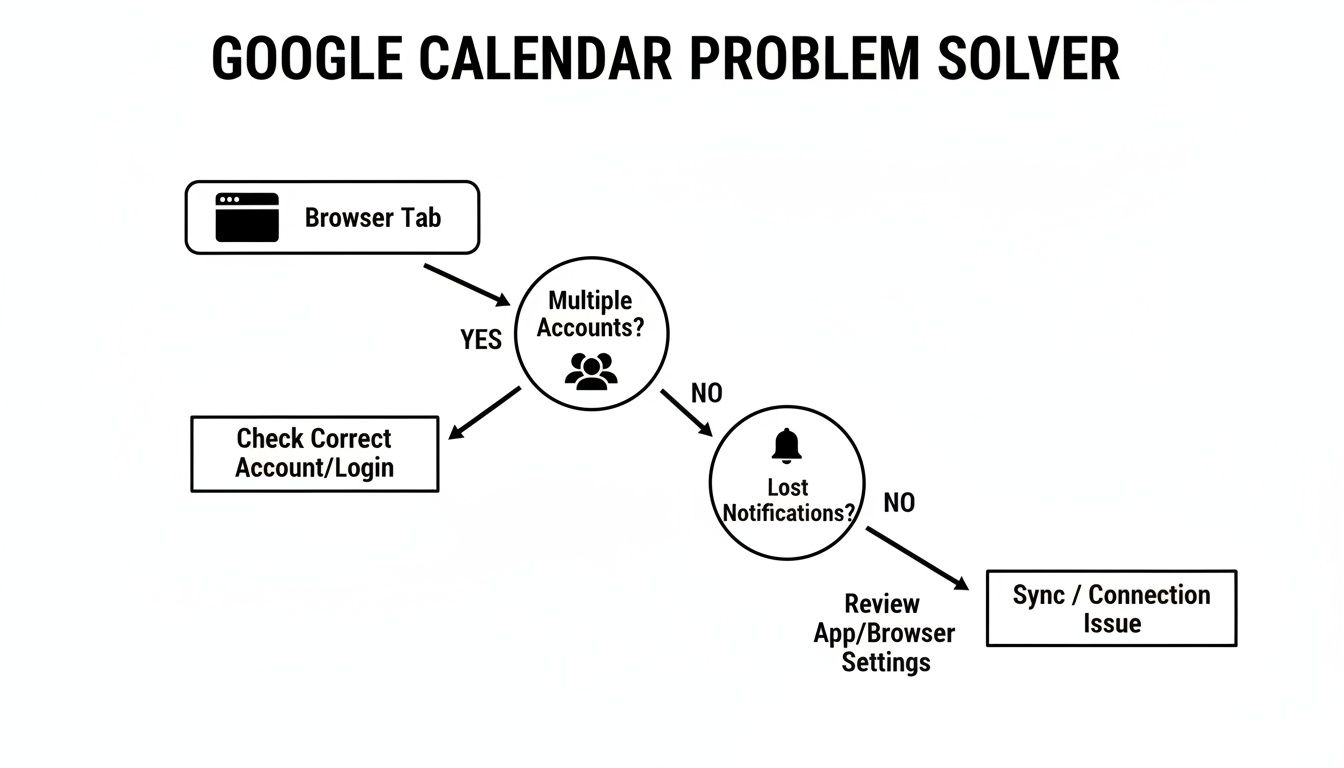
As the chart hints, a PWA is a great solo act. But its biggest limitation is that it can't bring other calendars into the mix—a dealbreaker for many of us.
Understanding the Trade-Offs
While a PWA is a solid starting point, it’s important to know its limits. It’s hard-wired to a single Google account, so forget about merging your work and personal calendars into one unified view. And if you need to manage a Microsoft 365 calendar for your day job, a PWA simply won’t cut it.
A PWA is the digital equivalent of giving your calendar its own quiet office instead of making it work from the noisy coffee shop that is your browser. It’s a huge improvement in focus, but it doesn't give it any new skills.
Ultimately, this method inherits all the strengths and weaknesses of the Google Calendar web version. It's free, reliable, and familiar, making it the perfect solution if all you want is to isolate a single calendar. For professionals juggling complex schedules across multiple platforms, though, it’s a temporary fix at best.
To see what else is out there, check out our complete guide on finding the best Google Calendar app for desktop. It’ll walk you through third-party clients that offer the deep integration a PWA can't provide.
Explore Powerful Third-Party Calendar Clients
When a Progressive Web App (PWA) just doesn't cut it, it's time to bring in the specialists: dedicated third-party calendar applications. These tools are built from the ground up to be the central hub for your entire schedule, offering a truly integrated experience that a web app in a wrapper can't touch. They don't just show you your Google Calendar; they aim to become your command centre for time management.
So many of these apps solve a massive headache for professionals today: they pull both your Google and Microsoft 365 calendars into a single, unified view. This is an absolute game-changer if you're navigating a hybrid work environment. No more toggling between accounts, desperately trying to spot a conflict and avoid double-booking yourself.
Finding the Right Fit
The market is flooded with options, from sleek, minimalist apps to feature-packed powerhouses. You have tools like Fantastical, long celebrated for its slick natural language input and polished look, especially on Apple devices. For a deeper dive into the Mac ecosystem, our guide on the best calendar app for Mac is a great place to start. Other apps focus on being available everywhere, ensuring you get the same experience whether you're on Windows, macOS, or Linux.
But this variety comes with trade-offs. You might fall in love with a beautiful design only to find it lacks the power-user features you actually need. Or you'll find a tool that does everything but feels clunky and unintuitive to use. The trick is to be honest about what you really need. Do you need deep integrations with your project management tools? Or is your main goal just to see everything in one place?
For some, the answer might even be to build their own. It's fascinating to see how to build a habit tracker calendar and realise how a tool can be tailored to a very specific workflow.
The Growing Demand for Desktop Tools
The search for a better google calendar desktop program isn't happening in a vacuum. It reflects a much bigger trend. In 2023, the global online calendar market was valued at around USD 1.5 billion, driven by professionals who know that complex scheduling and admin work is still done best on a proper computer. Desktops and laptops are where the real work happens, which solidifies the need for powerful, screen-first calendar tools.
Here's the fundamental problem: many third-party clients just add another layer of complexity. They might organise the chaos, but they don't do much to reduce the actual administrative work that fills your day.
This is exactly the gap where a new wave of AI-driven tools is making a real difference. Instead of just showing you your events, they actively help you schedule, reschedule, and protect your focus time. It's a shift from simple integration to intelligent automation—the next logical step for anyone trying to reclaim their time.
Upgrade Your Workflow with an AI Menubar Calendar
Okay, so traditional calendar apps are fine for seeing your schedule, but a new wave of intelligent tools is changing the game entirely. Instead of just showing you what's on, they actively help you manage it. Think of an AI-powered menubar calendar like Calendar0 as the next logical step—a google calendar desktop program built from the ground up to get out of your way and give you back your time.
These apps tuck themselves neatly into your menubar or taskbar, always ready with a single click or a quick keyboard shortcut. This is their superpower. No more hunting for the right browser tab or waiting for a clunky application to load. It’s your calendar, working at the speed you think.
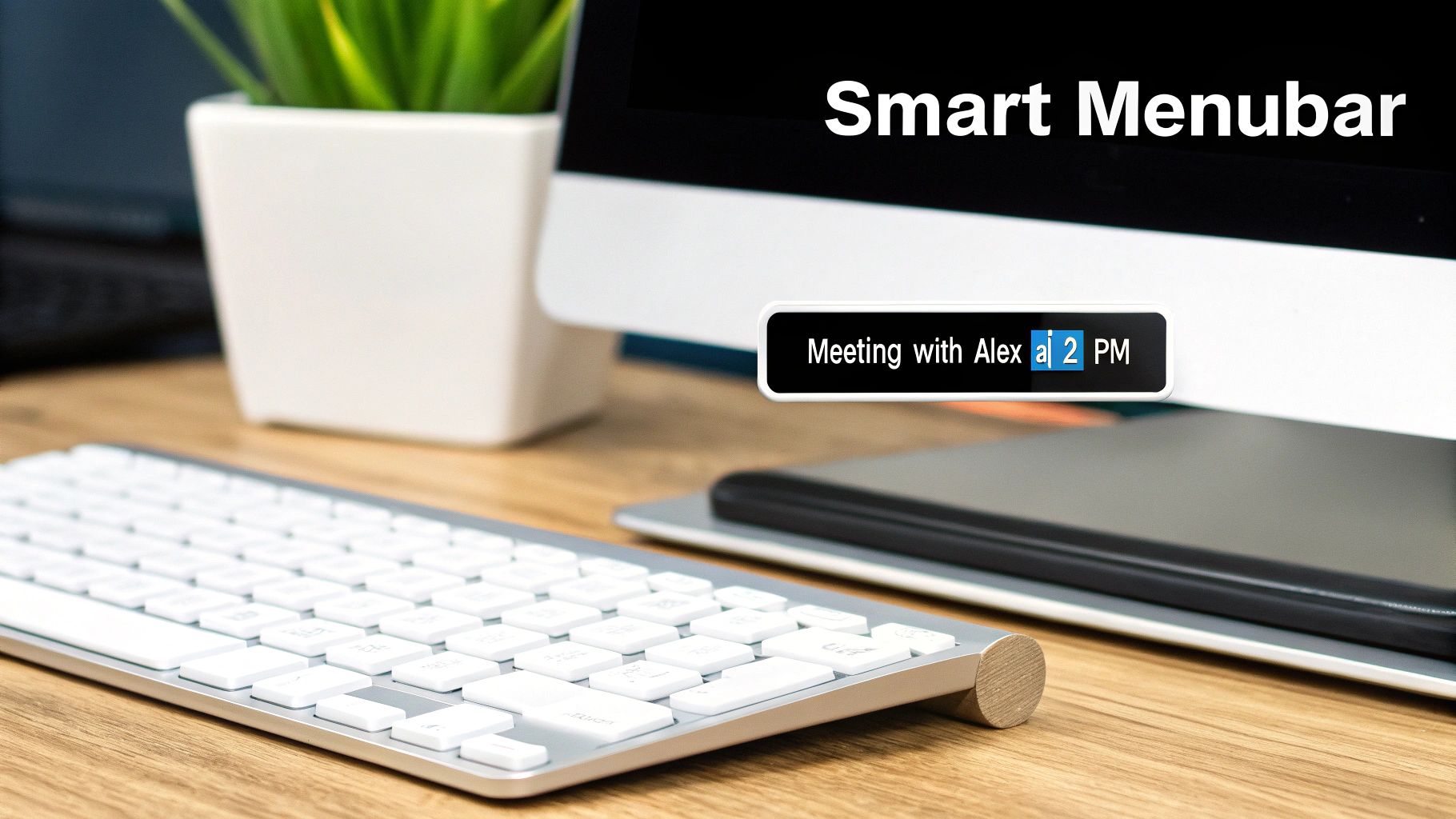
This is what I’m talking about. Your day is just… there. It becomes a natural part of your desktop, not some separate thing you constantly have to switch contexts to check.
Unify Your Entire Schedule Instantly
The first problem these tools solve is the most obvious one: calendar chaos. If you're like me, you’ve got a personal Google account and a work Microsoft 365 account. The fear of double-booking yourself is real. A menubar calendar pulls everything from both services into one clean, unified view.
But it’s not just about looking at your schedule. When you go to create a new event, the app instantly sees all your commitments across every single connected account. It stops you from creating a conflict before you even hit save. This feature alone has saved me from countless awkward "can we reschedule?" emails.
If you want to go deeper on why a dedicated app beats a browser tab every time, our guide on how to app my calendar breaks it down.
Schedule with Natural Language
Here’s where the "AI" magic really kicks in. Forget clicking through tiny date-pickers and dropdowns. You just type what you want, like you’re talking to an assistant.
- "Project sync with the design team Friday at 10 am"
- "Lunch with Sarah next Tuesday at 1 pm at The Corner Cafe"
- "Block out 2 hours for focus work tomorrow afternoon"
The app figures it all out. It parses your sentence, finds the right people in your contacts, slots it into the correct time, picks the right calendar (work or personal), and drafts the invite. What used to be a five-step, click-heavy chore becomes a single, quick command. It’s a massive reduction in the annoying admin that comes with a busy schedule.
The real win with an AI menubar calendar is how much it lowers your cognitive load. It handles the boring details—checking availability, finding contacts, sending invites—so you can stay focused on the reason for the meeting, not the logistics.
A Workflow Built for Speed and Focus
Beyond the smart scheduling, these tools are packed with little things that add up. Global keyboard shortcuts let you pull up your calendar or create an event without ever touching your mouse. Rescheduling is as simple as dragging and dropping.
You also get smart notifications that give you one-click links to join your video calls right before they start, so you're never scrambling at the last second. For the average professional in Germany who probably glances at their calendar dozens of times a day, shaving off a few seconds here and there really adds up. Some of the more advanced tools claim to save heavy schedulers around 20 minutes per day. That’s a huge productivity boost. By automating all the tiny tasks, an AI menubar calendar frees up your mental bandwidth for the work that actually moves the needle.
Master Your Schedule with Power User Tips
Having a slick google calendar desktop program is a great start, but the real magic happens when you turn it into your personal command centre. It's about moving beyond just booking meetings and adopting a few key habits. This is how your calendar stops being a simple list of appointments and becomes a strategic tool for wrangling your time and attention.
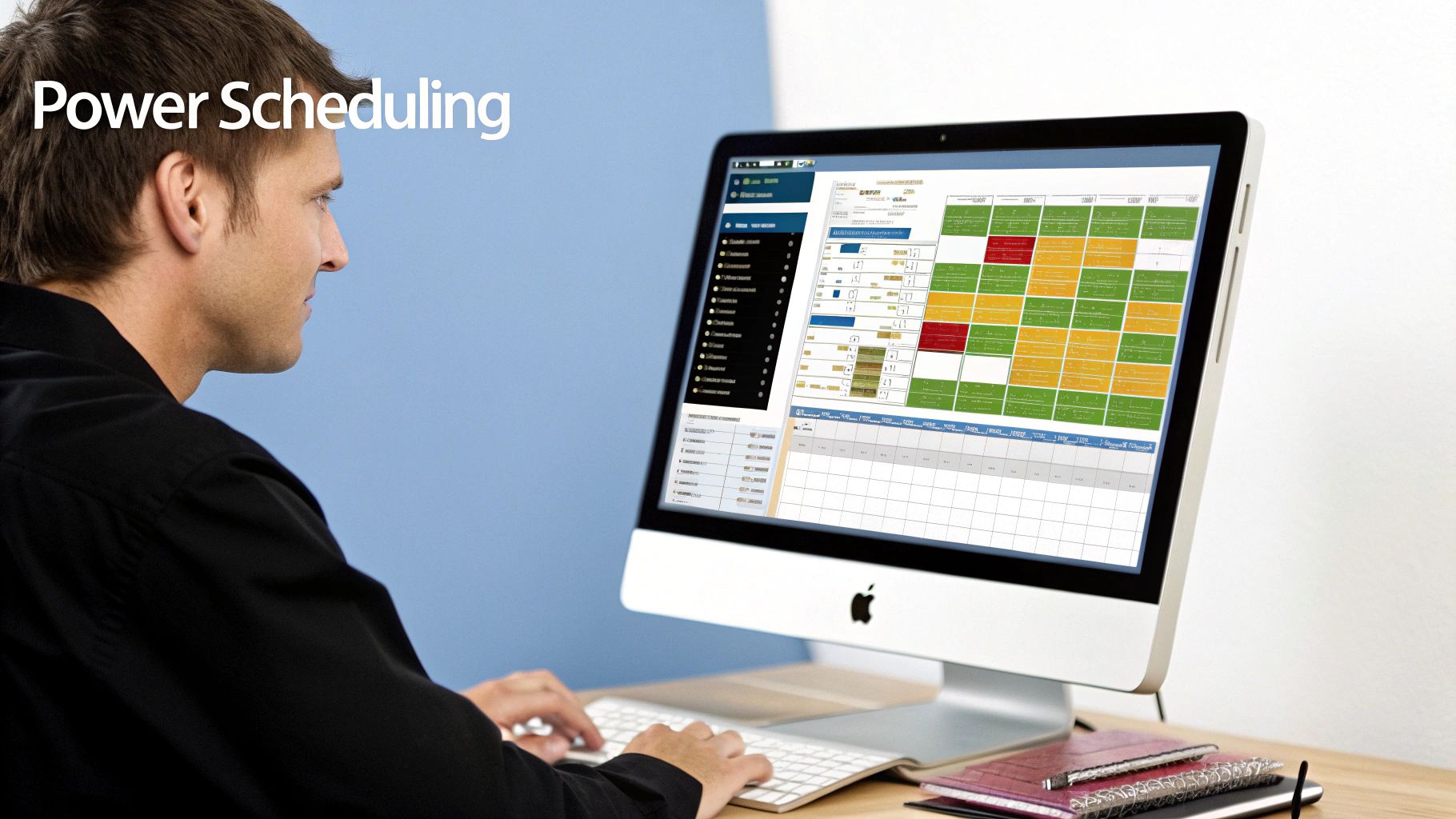
It’s all about using the features that boost not just your own productivity, but your team's transparency, too—something that's become non-negotiable in hybrid and remote teams. The goal is to make your calendar work for you, not the other way around.
Create Transparency with Shared Team Calendars
One of the biggest headaches for distributed teams is just knowing what everyone else is up to. A shared team calendar solves this almost instantly. Don't just use it for meetings; map out project timelines, flag major deadlines, and track team holidays or availability.
Imagine a marketing team with a shared "Campaigns" calendar. It could show key dates for product launches, content deadlines, and promotional events. Suddenly, anyone on the team can see the project's rhythm at a glance without having to ping someone on Slack for an update. It cuts down on the digital noise and gives everyone the context they need to do their best work.
A well-maintained shared calendar becomes the single source of truth for a team's time. It replaces countless "what's the status on..." messages and gets everyone aligned on shared milestones.
This one simple practice creates a ridiculously transparent workflow, making it way easier to plan ahead, allocate resources, and sidestep those frustrating scheduling conflicts.
Master Keyboard Shortcuts and Time Blocking
Think about where you lose the most time managing your calendar. It's not the big meetings; it's the dozens of tiny clicks and drags you do every single day. Shaving a few seconds off each of those actions easily adds up to hours saved every month. That's why mastering your desktop program's keyboard shortcuts is a game-changer.
Start by committing these common actions to muscle memory:
- Create a new event: Pop open the new event window instantly without ever reaching for your mouse.
- Jump to today's date: Quickly get your bearings when you're lost in a sea of future events.
- Switch between day, week, and month views: Get the right perspective for whatever you're planning.
Pair this muscle memory with aggressive time blocking. Don't just let meetings fill your schedule by default. You need to be proactive. Block out chunks of "Focus Work" or "Deep Work" right in your calendar. Now, when colleagues check your availability, they’ll see you're booked, which helps protect your most productive hours. To really get this down, you have to master creating Google Calendar events quickly and efficiently, as it’s the foundation for everything else.
Navigating Sync Issues and Time Zones
Even the best setups hit a snag now and then. Sync issues between your Google account and a desktop client are pretty common, often caused by a permissions hiccup or an app that needs updating. If an event you created on your desktop isn't showing up on your phone, the first thing to try is manually triggering a refresh in your desktop app.
If that doesn't do the trick, it's time to dive into your Google Account settings. Head over to the "Security" section and check the permissions you've granted to third-party apps. Sometimes, just re-authorising the connection is all it takes to get things talking again.
For remote teams scattered across the globe, getting time zones right is absolutely critical. Make sure your desktop program is set to display a secondary time zone. This simple tweak prevents that classic, painful mistake of scheduling a meeting for 9 AM your time... which turns out to be midnight for your colleague in another country.
Clearing Up Your Top Calendar Questions
Jumping into a new desktop calendar setup can feel like a big move, so it’s only natural to have a few questions. Let's cut through the confusion and get you some straight answers so you can pick the right tool for how you actually work.
Is There an Official Google Calendar Desktop Program?
The short answer is no. Google hasn't released a dedicated, native desktop app for Google Calendar like Microsoft has with Outlook.
The closest you can get to an "official" desktop experience is by creating a Progressive Web App (PWA) from the Google Calendar website. This basically puts the web version in its own window, which you can pin to your taskbar or Dock. It’s a decent way to pull your calendar out of the browser tab chaos, but that's where the benefits end. You don't get any extra features or the ability to add other accounts—it’s just the web version in a dedicated frame.
Can You Unify Google and Microsoft Calendars?
Absolutely, and for most busy professionals, this is the number one reason to switch to a third-party desktop client in the first place.
Apps like Calendar0 are built from the ground up to connect to both Google Workspace and Microsoft 365 accounts at the same time. They pull every event from every calendar into one unified view. This is a game-changer. You can instantly see all your commitments in one place, which kills the risk of double-booking yourself between your work and personal life. Your calendar stops being a collection of separate, disconnected schedules and becomes one single, reliable timeline.
What Are the Privacy Implications of Third-Party Apps?
This is a really important question. When you give an app access to your calendar, you're trusting it with a lot of sensitive information.
Reputable desktop programs put your privacy first. They use secure, industry-standard authentication methods like OAuth2.
With OAuth2, you’re not handing over your password. Instead, you log in directly with Google or Microsoft, and the app gets a secure token that grants it permission to sync your calendar data. The app itself never sees or stores your actual login details. My advice? Always stick with an app that’s transparent about its security practices.
How Can a Desktop App Help Hybrid Teams?
For teams split between the office and home, a solid desktop calendar isn't just a nice-to-have; it's essential for keeping everyone on the same page. The ability to quickly check shared team calendars, see a colleague's availability across different time zones, and schedule meetings without an endless email chain is huge.
Good desktop clients often include features like one-click links to join video calls, smart scheduling suggestions that respect everyone's focus time, and clear project timelines that the whole team can see. It becomes the central hub for the team's schedule, making sure everyone stays in sync, no matter where they're working from.
Still have a few questions? Here are some of the most common ones we hear.
Frequently Asked Questions
| Question | Answer |
|---|---|
| Is there an official Google Calendar desktop program from Google? | No, Google doesn't offer a native desktop app. The closest official option is to install the web version as a Progressive Web App (PWA), which offers limited functionality. |
| Can I unify multiple Google and Microsoft calendars in one desktop app? | Yes, this is a key feature of third-party clients like Calendar0. They are designed to connect to both ecosystems, pulling all your events into a single, cohesive view to prevent double-bookings. |
| What are the privacy implications of using a third-party calendar app? | It's crucial to choose a reputable app. Look for those that use the OAuth2 standard, which means they never see or store your password and only receive a secure token to access your calendar data. |
| How can a desktop calendar app help with managing a hybrid team's schedule? | A powerful desktop app acts as a central hub for team scheduling. It simplifies viewing shared calendars, finding availability across time zones, and using smart scheduling features, which reduces friction and keeps everyone aligned. |
Choosing the right tool ultimately comes down to solving your biggest scheduling headaches.
Ready to stop managing your calendar and start mastering your time? Calendar0 unifies your entire schedule with AI-powered speed and simplicity. Get started for free at https://www.calendar0.app.

