The Best Google Cal Mac App for Total Control
Tired of a clunky calendar? Discover the best google cal mac app to unify your schedule, sync flawlessly, and boost your productivity on macOS.

Calendar0 Team
November 15, 2025

Let's be honest, using Google Calendar through Apple's built-in app often feels like a compromise. You add an event on your Mac, and then... you wait. A few moments later, it finally pops up on your iPhone. It's a small friction, but for busy people, these little delays and clunky workarounds add up, putting a real drag on productivity.
So, Why Bother with a Dedicated Google Calendar App for Mac?
If you live in the Google ecosystem, you know the feeling. The native Mac Calendar app just doesn't speak Google's language fluently. It’s a translator, not a native speaker. This disconnect is precisely where a specialised Google Calendar Mac app steps in. It’s not just about a prettier interface; it's about building a bridge between two different worlds so your workflow feels seamless.
The whole point is to get a true native experience, one built from the ground up to feel at home on macOS while connecting directly and securely to your Google account.
Finally, a Fix for the Productivity Gap
A purpose-built app like Calendar0 acts as that perfect bridge. Instead of routing through Apple's systems, it talks directly to Google, killing sync lag for good. Real-time updates become the standard, not a hopeful wish. Your calendar transforms from a simple schedule viewer into an active part of your workflow.
What does that actually mean for you?
- Instant Syncing: Events you create on your Mac show up immediately on your phone, and vice versa. No more second-guessing if your booking went through.
- A Single, Clean View: Pull your work, personal, and shared Google calendars into one tidy interface, without the mess of multiple apps or confusing colour-coding.
- Features That Actually Help: You get access to smart tools like natural language event creation ("Coffee with Jan at Starbucks tomorrow at 2 pm") and advanced keyboard shortcuts that the default app just can't offer.
Here’s a quick look at how an app like Calendar0 can untangle your schedule, making it easy to see what’s on deck at a glance.
This kind of clarity is exactly what's missing from the standard Mac experience, where juggling multiple calendars often becomes a headache.
It's a Growing Need, Especially in Germany
This isn't just a niche problem. Google Calendar is the backbone of digital scheduling for countless Mac users, and its dominance is especially clear in places like Germany. Worldwide, it serves over 500 million people every month, making it a central part of both personal and professional life.
Drilling down, data shows that Central Europe, including Germany, has around 22,337 websites actively using Google Calendar integrations. This isn't just a casual trend; it shows how deeply embedded Google's tools are in the daily digital workflow. You can dig into more of this data in the BuiltWith report on Google Calendar usage statistics.
This widespread reliance makes one thing clear: a smooth, responsive google cal mac app isn't just a nice-to-have. For many, it's an absolute essential.
Creating Your Unified Calendar Hub on macOS
Making the switch to a dedicated google cal mac app should feel like a breath of fresh air, not another technical headache. Getting set up is surprisingly quick, especially with apps like Calendar0 that use the secure OAuth2 protocol. What this means is you never actually type your password into the app itself. Instead, you grant permission through Google’s own secure pop-up, so your credentials stay between you and Google.
The first thing you’ll do is connect your main Google account. Once you give it the green light, you’ll see your events, reminders, and shared calendars pop up almost instantly. This direct link is exactly what gets rid of those frustrating sync delays you’ve probably experienced with Apple's built-in Calendar app.
For many of us, moving away from a clunky default setup to a purpose-built app is a huge win for productivity.
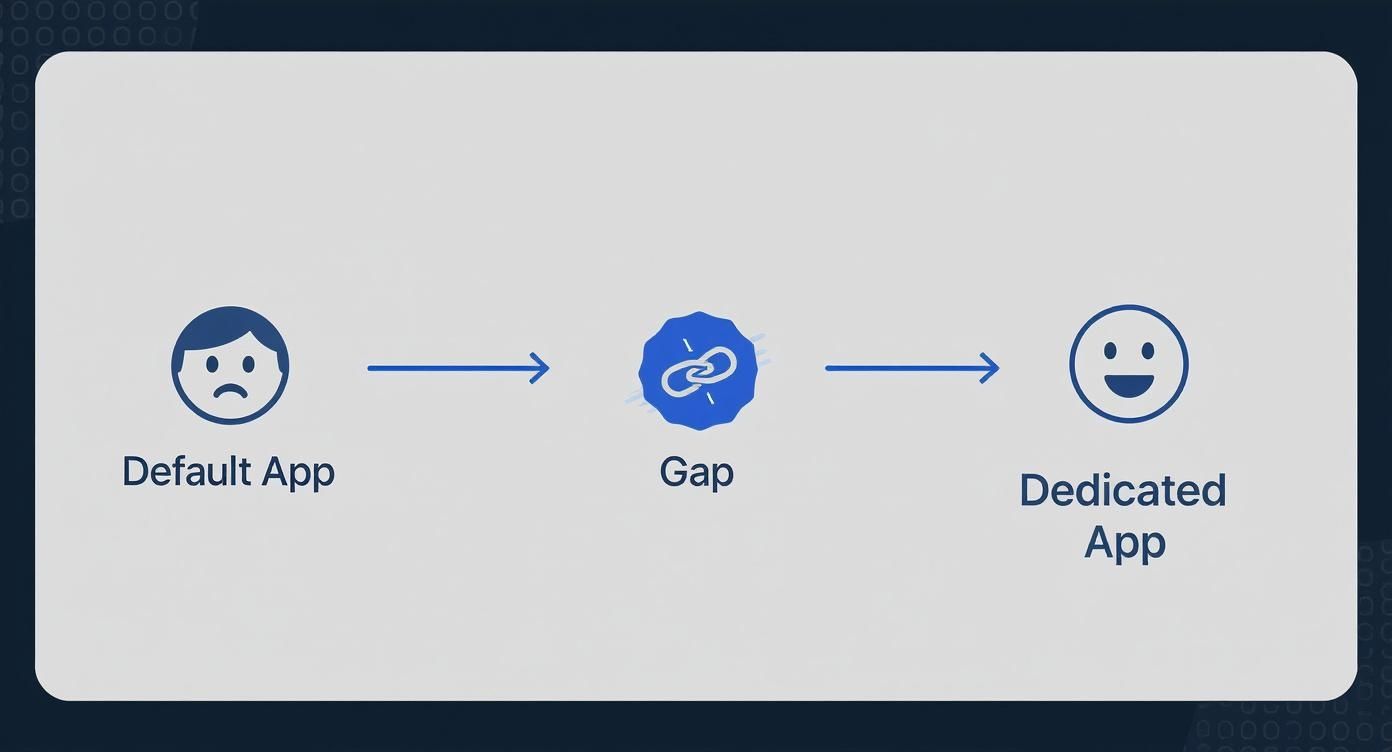
This little journey nails the common pain points and shows how a dedicated app is the simple, effective fix.
Building Your All-In-One View
The real magic happens when you start adding more than just one account. Let's be honest, most of us are juggling multiple schedules—a work calendar, a personal one, maybe a shared family calendar, and a side-project board. A good app lets you pull all of these into a single, clean view, so you can stop flipping between browser tabs.
Adding more accounts is just as simple and secure as the first one. You can start layering in:
- Multiple Google Accounts: Hook up your freelance, personal, and main work calendars. The app should automatically colour-code everything to keep it all straight.
- iCloud Calendar: Pull in your personal appointments from your Apple devices to get the full picture.
- Microsoft Exchange/Outlook: If you're in a corporate environment, connecting your work Exchange account is a must for seeing your entire day.
This is all about centralisation. It’s the key to finally stopping those accidental double-bookings and actually knowing your availability at a glance.
The goal here is to create a single source of truth for your time. When your work deadlines, personal appointments, and family commitments all live in one unified interface, you spend less mental energy trying to piece your day together and more time on what actually matters.
Organising Your New Calendar Hub
Okay, all your accounts are connected. The final piece is tailoring the view to fit how you actually work. Most solid calendar apps give you plenty of customisation options. For example, you might want to hide a noisy shared project calendar when you need to do deep work, or set a default calendar for new events so you don’t accidentally send a work meeting invite from your personal email.
If your app supports it, think about creating different "views" or "profiles." You could set up a view that only shows work-related calendars from Monday to Friday, and another that brings in personal and family stuff for weekend planning. For a deeper look at optimising your setup, check out our guide on the best Google Calendar app for desktop, where we cover more advanced tips.
Ultimately, you’re not just setting up a calendar—you’re building a command centre for your time. Taking a few minutes to connect and organise your accounts now will pay off every single day in clarity and efficiency.
Mastering Your Daily Scheduling Workflow
Alright, you've got your accounts synced and a unified calendar view. Now for the fun part. This is where you graduate from just looking at your schedule to actually commanding it. The whole point of a dedicated google cal mac app is to spend less time managing your calendar and more time on what's in it.
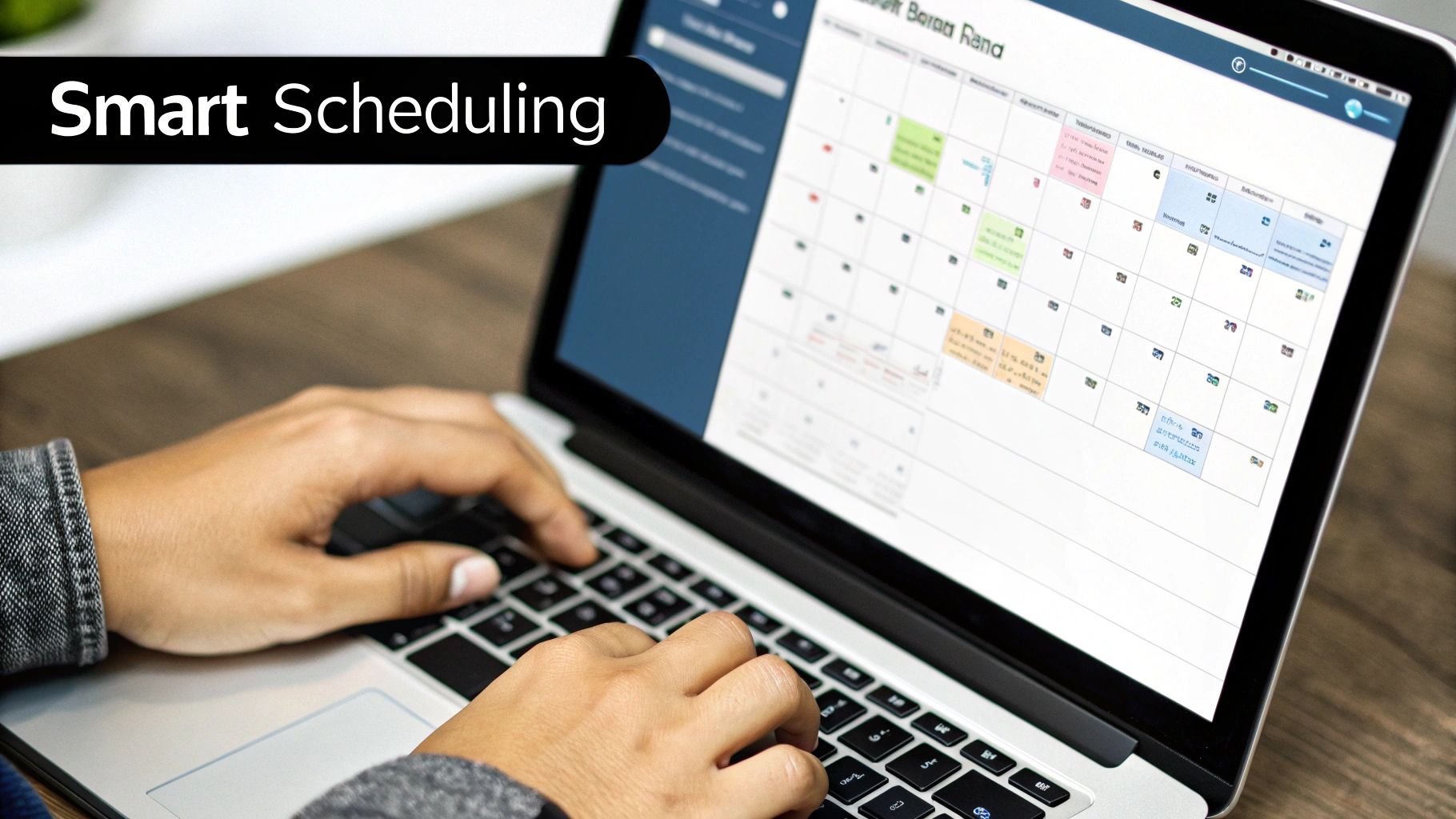
One of the first things you'll notice is the magic of natural language input. Instead of clicking through a dozen fields to set up a meeting—title, date, start time, end time, location, guests—you just type a sentence like you're talking to an assistant.
For example, you can just type: "Quarterly review with the marketing team on Friday at 2 pm in the main conference room." The app instantly understands every piece of that sentence and slots it into the right fields. It’s a small change that saves a shocking amount of mental friction over the course of a busy week.
Speed Up Everything With Keyboard Shortcuts
While natural language is fantastic for creating new events, keyboard shortcuts are your secret weapon for managing everything else without ever reaching for your mouse. Seriously, the moment you stop clicking and start using shortcuts is the moment you become a true power user.
Here are a few of the non-negotiables that will completely change how you handle scheduling:
- Quick Add Event: A global shortcut (think
⌘ + N) that lets you create a new event from literally anywhere on your Mac. You don't even need to have the calendar app open and in focus. - Jump to Today: Get instantly zapped back to the current day's view with a simple key combo, like
⌘ + T. No more endless scrolling. - Cycle Through Views: Effortlessly flip between day, week, and month views to get the right perspective on your schedule in a split second.
Learning a few key commands is one of the most effective time management tips out there. It’s about making the tool work for you, not the other way around.
To get you started, here's a quick cheat sheet of the shortcuts that will give you the biggest bang for your buck.
Essential Keyboard Shortcuts for Faster Scheduling
| Action | Keyboard Shortcut | Benefit |
|---|---|---|
| Create New Event | ⌘ + N | Instantly open the new event window from anywhere. |
| Jump to Today | ⌘ + T | Never get lost in your calendar; always return home. |
| Go to Next/Previous | → / ← | Quickly navigate between days, weeks, or months. |
| Switch to Day View | ⌘ + 1 | See a detailed, hour-by-hour view of today. |
| Switch to Week View | ⌘ + 2 | Get a bird's-eye view of your upcoming week. |
| Switch to Month View | ⌘ + 3 | Plan ahead by seeing your entire month at a glance. |
| Delete Selected Event | Delete | The fastest way to remove cancelled meetings. |
Committing just a few of these to muscle memory will make you feel like a scheduling wizard.
The Power of Drag-and-Drop Rescheduling
Let's be real: plans change constantly. Meetings get bumped, deadlines shift, and appointments get cancelled. A great calendar app needs to roll with the punches, and that's where drag-and-drop functionality is an absolute game-changer.
Imagine a client pings you to move a meeting from Tuesday to Thursday. The old way involves clicking the event, hitting "edit," fiddling with a date picker, and saving. The new way? You just click the event block and physically drag it over to the new day. That's it. The app updates everything in the background and can even send notifications to attendees.
This simple, intuitive action makes reorganising your week a visual, almost satisfying, process.
The real win with drag-and-drop isn't just about speed; it's about clarity. When you can see your schedule as a set of moveable blocks, it's so much easier to visualise your commitments and spot open slots than it is by just reading a list of appointments.
This kind of direct control makes your schedule feel less like something that happens to you and more like something you command. For anyone looking to push this even further, many of the best planning apps take these core workflow ideas and build on them with more advanced tools.
By really leaning into these three things—natural language input, keyboard shortcuts, and drag-and-drop—you transform your calendar from a static record into a dynamic partner for managing your most precious resource: your time.
Using Advanced Features for Teams and Power Users
Once you've sorted out your personal schedule, the real game-changer is mastering team collaboration. A solid google cal mac app isn't just a personal organiser; it becomes your command centre for coordinating with everyone, especially if your team is already running on Google Workspace.
The magic happens when you start managing shared calendars directly from the app. You can overlay a colleague's schedule on top of yours to instantly find a free slot for both of you. It completely cuts out that tedious email chain of "Does Tuesday at 2 work for you?"
Streamline Meeting and Resource Booking
One of the most practical features for any team is booking resources like meeting rooms or company equipment. Instead of crossing your fingers and hoping a room is free, you can just add it as an "attendee" to your event. The app will show you its schedule, just like a person's.
It’s a simple trick that prevents double-bookings and saves a surprising amount of time. Say you need the main conference room for a client presentation.
- You create the event on your calendar.
- Add the conference room's calendar as a guest.
- Instantly see if it's available and book it in one go.
This kind of seamless integration is a huge efficiency boost. With Google Workspace being so dominant in professional settings—especially in Germany, where remote and hybrid work models rely on it heavily—this feature is invaluable. Germany actually ranks third globally for websites using Google Workspace, with around 800,000 sites depending on its tools. You can find more details in this report on the German calendar app market.
Customise Notifications and Control Privacy
A constant flood of alerts defeats the whole purpose of being organised. A good Mac app lets you fine-tune your notifications so you only get pinged for what truly matters. You can set custom alerts for specific calendars—maybe a 30-minute heads-up for client meetings but just a 5-minute reminder for internal stand-ups.
That level of control helps you stay on top of things without being constantly pulled out of deep work. You can focus, knowing your calendar will give you a nudge at just the right moment.
The best calendar app doesn't just show you what's next; it respects your focus. By customising notifications, you transform your calendar from a noisy distraction into a silent, efficient assistant that only speaks when necessary.
Finally, let’s talk privacy. This is non-negotiable when you’re mixing work and personal events in one place. Advanced calendar apps give you granular control over who sees what. When you create an event on a shared calendar, you can mark it as Private. Your team will see you're busy, but the details—like "Doctor's Appointment"—remain completely confidential.
This feature is essential for maintaining a healthy work-life balance in a shared digital space. It lets you block out personal time on your work calendar without broadcasting your private life to the entire organisation. It's a simple but critical tool for modern professional life.
Taming Common Sync and Setup Glitches
Even the best Google Calendar app for your Mac can occasionally hit a snag. But before you get too frustrated, remember that most of these problems are usually down to a simple setting or a minor hiccup that's surprisingly easy to fix. Let's walk through some of the usual suspects and get your calendar back on track.
One of the most common complaints I hear is about delayed syncing. You add an appointment on your Mac, grab your phone, and... it’s not there. This is rarely a major error; it’s usually just a momentary connection issue. The first thing to do is make sure both your Mac and your phone have a stable internet connection.
If your connection is solid, a forced refresh is your next best friend. Nearly every dedicated calendar app has a "Refresh Calendars" or "Sync Now" button tucked away in a menu. Clicking this gives the app a nudge to fetch the latest data from Google's servers, which usually brings everything back into alignment.
Dealing With Authentication and Timezone Headaches
Another classic hurdle is the authentication error. You might get a pop-up saying "Could not connect to account" or find yourself being asked to re-enter your password over and over. This often crops up after you've recently changed your Google password or if Google, for its own security reasons, has decided to revoke the app's access token.
The simplest fix is to head into your app's account settings, remove the problematic Google account entirely, and then add it back. It sounds basic, but this forces a completely fresh and secure authentication handshake through Google's OAuth2 system, which solves the problem nine times out of ten.
Timezone mix-ups are another surprisingly frequent pain point. Picture this: you schedule a 10 am meeting while in Berlin, but after flying to New York, it suddenly shows up at 4 am. To avoid this chaos, dive into both your Google Calendar settings (on the web) and your Mac app's preferences to ensure "Time Zone Support" is enabled. This lets events display correctly in your current local time while keeping the original event time locked safely in UTC.
The most reliable troubleshooting trick is often the simplest one: re-authenticate. Just remove and re-add your Google account. You'll clear out old permissions and forge a fresh, secure connection, solving a massive percentage of sync and setup errors in less than a minute.
The seamless ability to handle these kinds of issues is a big reason why a solid Google Calendar Mac app is so popular in Germany, where users expect their tools to sync flawlessly across Macs, iPhones, and iPads. You can find more insights on German Mac user trends at Calendar0.app.
Quick Fixes for Tricky Scenarios
Sometimes, the problem is a bit more specific. Getting things right during the initial setup can save a lot of headaches down the line; if you're new to the ecosystem, you might find general guides on installing applications on macOS to be a useful starting point.
Here are a few specific situations and how to tackle them:
- A Shared Calendar Isn't Showing Up: If a colleague's calendar is missing, first double-check that you've actually accepted their sharing invitation in your email. If you have, head to the Google Calendar website, go to "Settings for my calendars," click the shared calendar, and make sure the "Show in calendar list" box is ticked.
- Recurring Events Go Haywire: Have you ever edited a single meeting in a series, only to have the entire series vanish? That's likely a sync conflict. The cleanest solution is to go to the Google Calendar web interface, delete the faulty recurring event series from there, and recreate it. Let the correct version sync down to your Mac app.
- Cross-Platform Sync Nightmares: Things can get really tangled when you’re trying to sync different ecosystems, like pulling an Outlook calendar into your Google-centric view. It's a common struggle, which is why we've put together a specific guide on how to fix Outlook and Google Calendar sync problems that can help you untangle those crossed wires.
Got Questions? We’ve Got Answers
Jumping into a new calendar app often brings up a few questions. I get it. You want to make sure it’s the right fit. Here are some of the most common things people ask when they're looking for a solid Google Calendar app for their Mac.
Can I Just Use Google Calendar Natively On My Mac?
Not really, no. Apple doesn't bundle a dedicated Google Calendar app with macOS. The closest you get is syncing your Google account with the built-in Apple Calendar, but frankly, it’s a clunky experience. Syncing can be slow, and you miss out on all the Google-specific features that make it so useful.
This is exactly the problem that apps like Calendar0 were built to solve. They’re designed from the ground up to feel like a native Mac app while talking directly to Google's services. This means you get instant updates and all the features you actually use.
Is It Safe To Use A Third-Party Google Calendar App?
Absolutely, as long as you pick a reputable one. The key thing to look for is whether the app uses Google's official OAuth2 protocol to connect your account. This is the gold standard for security.
OAuth2 means the app never actually sees or stores your password. You'll get a secure pop-up window from Google itself to grant permission. This lets the app sync your events without ever handling your login details. If an app asks for your Google password directly, that's a huge red flag.
Your security should always come first. A trustworthy
google cal mac appwill use official authentication methods like OAuth2. This ensures your calendar data is handled securely and your login credentials are never exposed to the app itself.
What's The Best Free Google Calendar App For A Mac?
If you're on a zero-dollar budget, your first stop is usually the default Apple Calendar. It'll get the basic job done—letting you see and add events. But it's pretty barebones. You won't find things like natural language input or smart keyboard shortcuts.
A much better route is to find a dedicated app that has a generous free tier. For instance, the free version of Calendar0 gives you the core experience, like a unified view for all your calendars and instant syncing. It's a massive step up from the default Mac app without costing you a thing.
How Can I Sync Multiple Google Calendars On My Mac At Once?
This is where a dedicated app truly shines. The best way to manage several Google Calendars is with an app built for that exact purpose. Once you connect your first Google account using OAuth2, a good app will let you easily add more accounts—whether they're from Google, iCloud, or Microsoft.
From there, the app will pull everything into one clean, colour-coded interface. This unified view is the secret to finally getting a clear picture of your entire life—work, personal, and shared commitments—without having to flip between a dozen browser tabs. It’s a total game-changer for avoiding double-bookings.
Ready to stop juggling calendars and start managing your time effortlessly? Calendar0 brings all your schedules into one smart, unified view right in your Mac's menubar. Try it today and see how much time you save. Get started with Calendar0 for free.

