The 12 Best Calendar Apps for Windows in 2026
Discover the top 12 calendar apps for Windows to boost your productivity. We review apps with AI, unified views, and scheduling for professionals.

Calendar0 Team
January 16, 2026

In a world of back-to-back meetings and competing deadlines, your calendar is your command centre. For many Windows users, the default app often falls short, leading to missed appointments, tedious scheduling emails, and a frustrating disconnect between work and personal life. The right application can change that, transforming your schedule from a source of stress into a powerful tool for productivity.
We've analysed the crowded market to create the definitive list of the best calendar apps for Windows, from sleek AI-powered schedulers to robust all-in-one organisers. This guide goes beyond simple feature lists, offering practical insights into which app is truly the best fit for professionals, engineers, executive assistants, and anyone looking to reclaim their time. We'll explore unified views that prevent double-booking, natural language processing that schedules meetings for you, and privacy-first designs that keep your data secure.
Each review is structured for clarity, complete with direct links and screenshots to help you visualise how it works. Let's find the perfect calendar to streamline your workflow and give you back control of your day.
1. Calendar0
Calendar0 earns its place as our top recommendation by fundamentally changing how you interact with your schedule. Instead of just displaying events, it acts as an intelligent assistant, streamlining every aspect of calendar management directly from your Windows menubar. It unifies all your Google and Microsoft calendars into a single, cohesive view, which is a crucial first step in eliminating the constant tab-switching and potential for double-booking that plagues busy professionals.
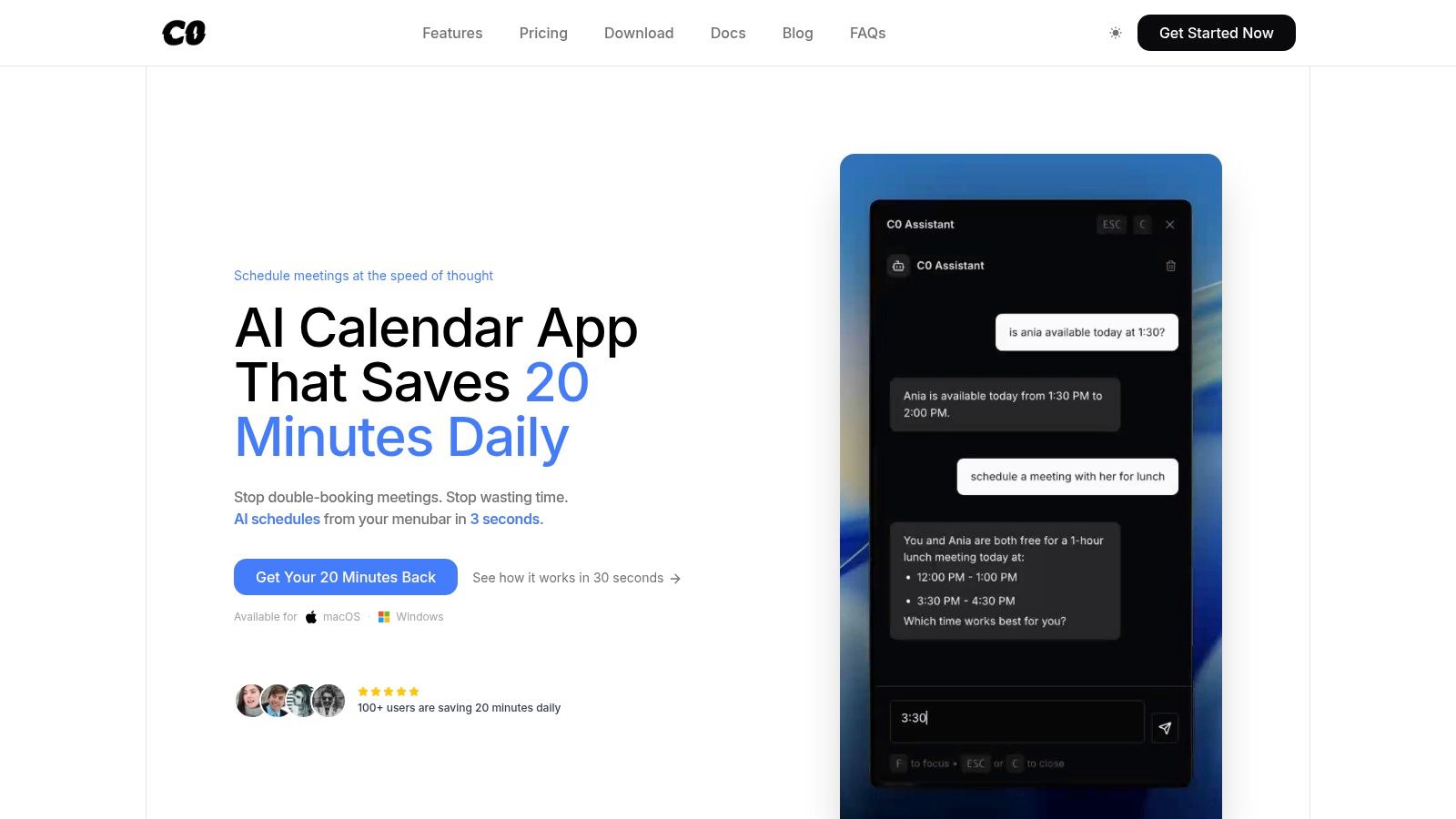
The standout feature is its natural language processing. Typing a simple command like “Schedule a project sync with Alex for Friday afternoon” initiates a series of automated actions. The AI finds the contact, checks for conflicts across every attendee's calendar, selects the appropriate work calendar, and dispatches the invitation. This keyboard-first workflow, combined with global shortcuts and drag-and-drop rescheduling, transforms calendar administration from a tedious chore into a task that takes mere seconds. Its privacy-first architecture, which uses local encryption and avoids storing your data on its servers, makes it one of the most secure calendar apps for Windows available.
Core Features & Analysis
- AI-Powered Scheduling: The ability to use natural language commands is a genuine time-saver, particularly for those in meeting-heavy roles like managers and executive assistants. It significantly reduces the back-and-forth typically required for coordination.
- Unified Calendar View: A critical feature for anyone juggling work, personal, and shared calendars (e.g., Google and Microsoft 365). It provides a single source of truth for your availability.
- Privacy-First Design: By processing data locally via OAuth2 and not storing calendar details on company servers, Calendar0 addresses a major concern for security-conscious users and organisations.
- Efficient Workflow: The menubar accessibility, keyboard shortcuts, and bulk operations are designed for speed, allowing you to reorganise entire days without ever leaving your current task.
Pricing & Availability
- Starter: Free (Includes core calendar features and 3 free AI chat commands).
- Lifetime: $49 (A one-time payment for unlimited AI commands and all future updates).
- Monthly: ~$4.99/month.
- All plans include a 14-day money-back guarantee.
Pros & Cons
| Pros | Cons |
|---|---|
| Exceptional Speed & Efficiency: Saves an average of 20 minutes per user daily by eliminating manual calendar tasks. | Desktop-Focused: The primary experience is via the menubar; no native mobile app for on-the-go scheduling. |
| Powerful AI Automation: Natural language input makes scheduling meetings feel effortless and intuitive. | Potential for AI Errors: As with any automation, invites should be reviewed, especially for critical meetings. |
| Strong Privacy Controls: Local data encryption and no server-side storage of calendar events offer peace of mind. | |
| Flexible & Fair Pricing: A robust free tier and a one-time lifetime license provide excellent long-term value. | |
| Unified Multi-Account View: Seamlessly integrates Google, Microsoft, and Apple calendars to prevent scheduling errors. |
Who is it Best For?
Calendar0 is an ideal choice for power users whose productivity is directly tied to their schedule. This includes founders, engineers, consultants, and managers who need to schedule meetings quickly without breaking their focus. Its ability to manage multiple complex calendars also makes it a powerful tool for executive assistants. For more insights into optimising your schedule, you can explore strategies for effective work-life planning on Calendar0.app.
Website: https://www.calendar0.app
2. Microsoft Store (Windows apps marketplace)
The Microsoft Store is the official and most integrated destination for finding and installing calendar apps for Windows 10 and 11. It's not a single app but a centralised marketplace, offering a secure and streamlined way to discover, purchase, and manage various scheduling tools, including Microsoft's own Outlook and third-party options like OneCalendar.
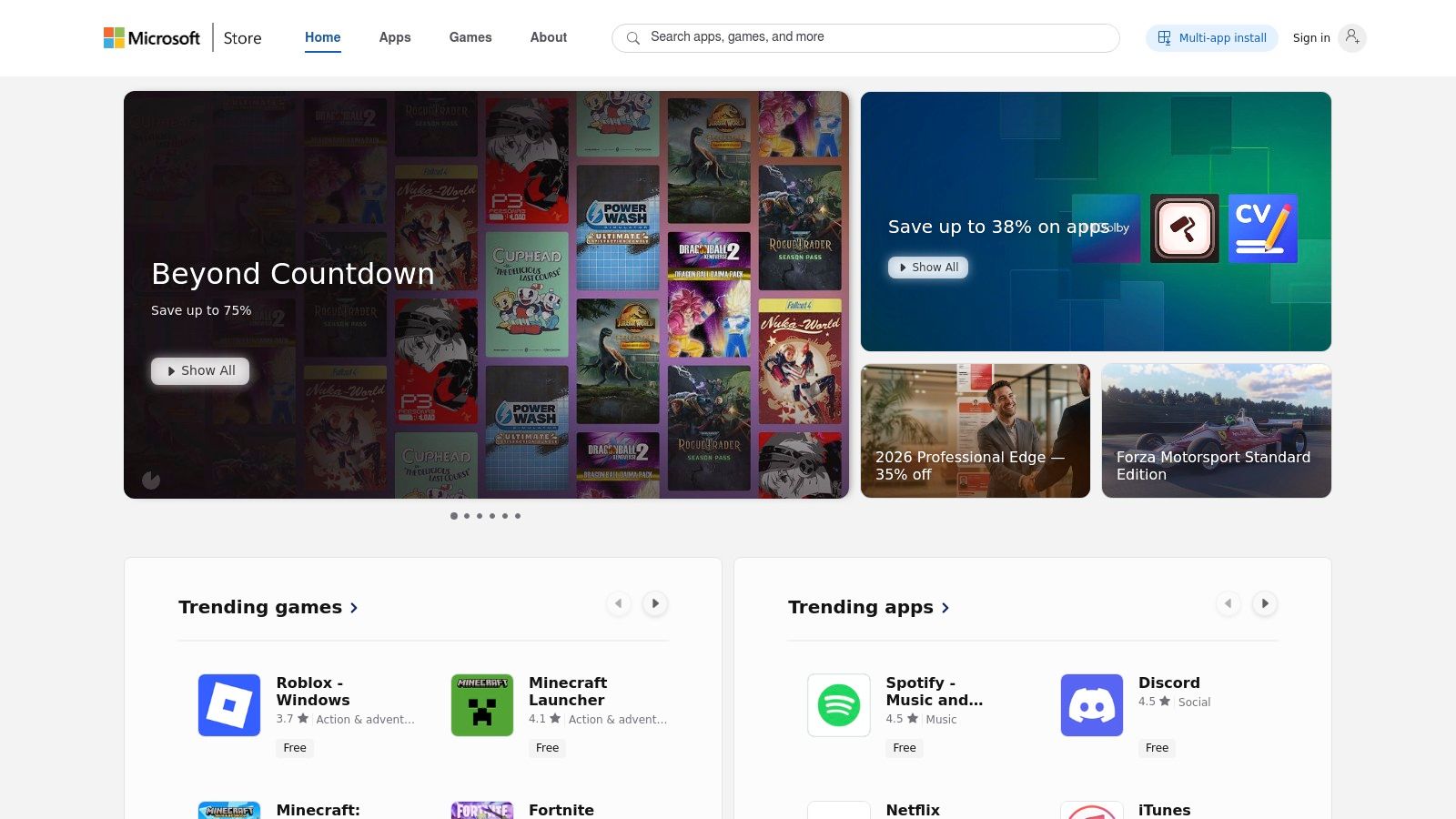
The primary advantage is its seamless integration with the Windows operating system. Apps install with a single click and updates are handled automatically in the background, ensuring you always have the latest version without manual effort. For users in Germany and across Europe, the Store offers localised content and regional pricing in Euros, which simplifies the purchasing process.
Key Features and User Experience
- One-Click Installation: Installing apps is incredibly simple, with no need to download files from third-party websites.
- Automatic Updates: The Store manages all app updates, ensuring security and feature enhancements are applied without user intervention.
- Curated Collections: Users can browse dedicated "Calendar" collections to discover new and popular scheduling applications.
- Trusted and Secure: All transactions are handled through your Microsoft account, providing a secure payment flow.
Pros & Cons
| Pros | Cons |
|---|---|
| Lowest friction to install, update, and uninstall apps | Developers may offer better pricing or plans directly on their own sites |
| Centralised discovery for multiple calendar apps | App listings can sometimes lack deep technical details |
| Localised pages and pricing for Germany/Europe (EUR) | Selection might not include every niche or open-source calendar tool |
| User reviews provide insights from other Windows users |
Website: https://apps.microsoft.com
3. Microsoft Outlook for Windows (official)
Microsoft's native Outlook app for Windows is the powerhouse scheduling and email client for professionals deeply embedded in the Microsoft 365 ecosystem. It combines a robust calendar with email, contacts, and tasks, offering unparalleled integration with services like Exchange and Teams. It is available for free with a Microsoft account, with more powerful features in paid Microsoft 365 plans.
The primary strength of Outlook is its deep integration with the Windows operating system and its role as the default client for corporate environments using Microsoft Exchange. This makes it one of the most reliable and feature-rich calendar apps for Windows users in professional settings. For those managing multiple accounts, learning how to sync different calendar services with Outlook can significantly streamline workflows.
Key Features and User Experience
- Unified Email and Calendar: Combines your inbox and schedule in a single, powerful application.
- Deep Windows Integration: Seamlessly works with Windows notifications, search, and other native features.
- Exchange and Teams Ready: The standard for corporate calendaring, with built-in support for meeting rooms, scheduling assistants, and Teams meetings.
- Advanced Features: Paid Microsoft 365 tiers add premium features like extra cloud storage and AI-powered Copilot assistance.
Pros & Cons
| Pros | Cons |
|---|---|
| A free tier is available with a Microsoft account | Some advanced features require a Microsoft 365 subscription |
| Reliable integration with the entire Microsoft Office ecosystem | The user interface is undergoing changes as it replaces older apps |
| Widely supported and maintained directly by Microsoft | Can feel overly complex for users with simple scheduling needs |
| Industry standard for corporate email and calendaring |
Website: https://www.microsoft.com/microsoft-365/outlook/outlook-for-windows
4. Google Calendar (web / PWA on Windows)
While not a native Windows application, Google Calendar is a dominant force in scheduling, accessible through any web browser and installable as a Progressive Web App (PWA). This setup offers a dedicated, app-like experience by running in its own window, providing a focused environment for managing events, tasks, and schedules that syncs instantly across all devices linked to your Google account.
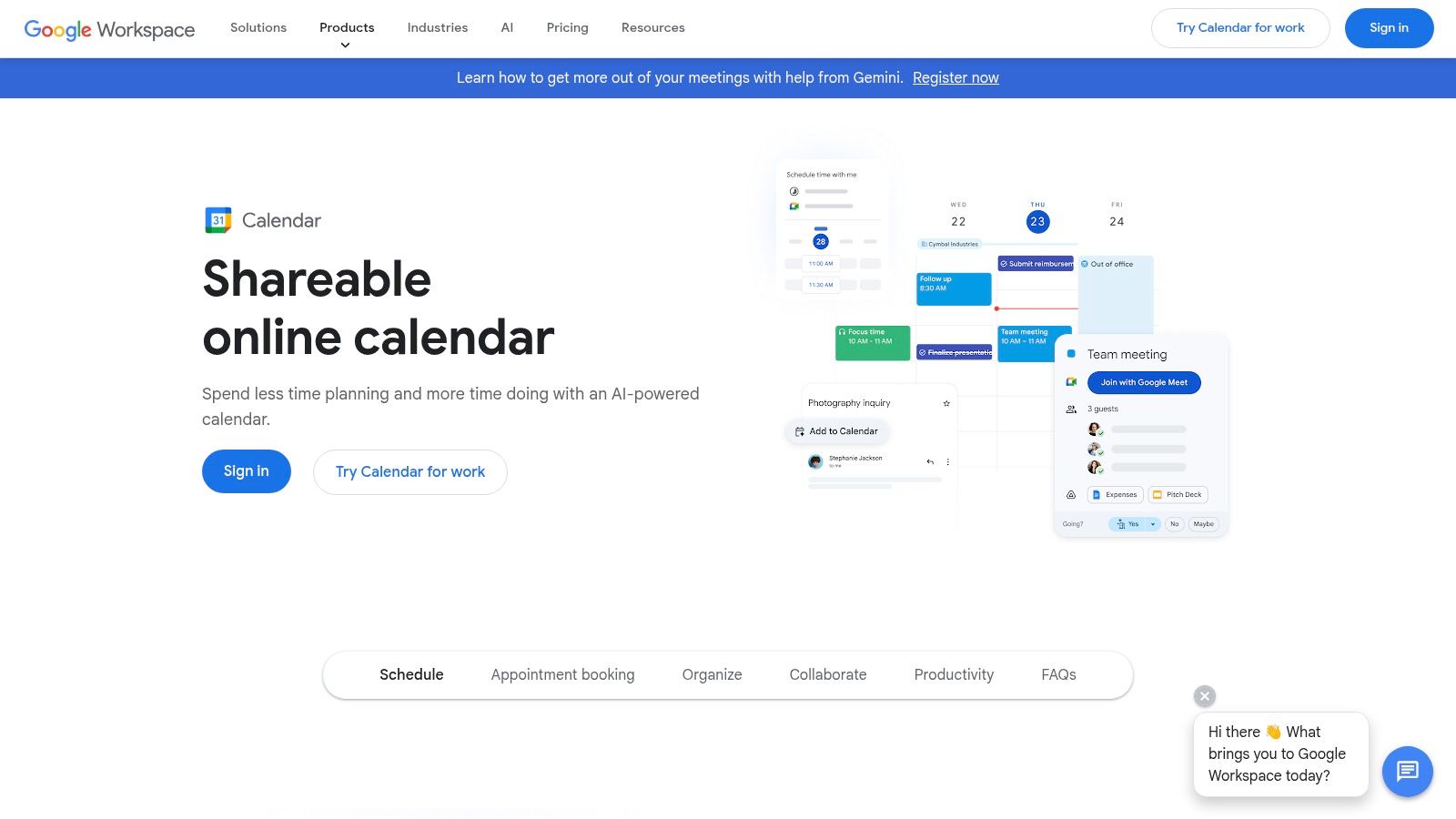
Its primary strength lies in its deep integration with the Google Workspace ecosystem and its powerful, user-friendly features available for free. The PWA installation is straightforward from browsers like Chrome or Edge, making it one of the most versatile and accessible calendar apps for Windows users who are heavily invested in Google's services. For those seeking a more integrated desktop feel, you can learn more about optimising the Google Calendar desktop experience.
Key Features and User Experience
- Installable PWA: Creates a stand-alone window on your desktop, which can be pinned to the taskbar for quick access.
- Natural Language Input: Quickly create events by typing phrases like "Team meeting tomorrow at 10 am at the main office".
- Cross-Device Sync: Seamlessly syncs events, tasks, and reminders across your desktop, phone, and tablet.
- Google Workspace Integration: Works perfectly with Gmail, Google Meet, and Google Tasks for a unified productivity workflow.
Pros & Cons
| Pros | Cons |
|---|---|
| Completely free and ubiquitous across all devices | Not a true native desktop app; relies on a browser container |
| PWA provides a focused, app-like experience on Windows | Multi-account management within the PWA can sometimes be finicky |
| Excellent integration with the entire Google ecosystem | Offline functionality is limited compared to dedicated desktop apps |
| Simple, clean interface with powerful sharing features |
Website: https://calendar.google.com
5. OneCalendar
OneCalendar is a dedicated Windows application designed to aggregate multiple calendar accounts into a single, unified interface. It connects seamlessly with popular services like Google Calendar, Outlook/Exchange, and iCloud, making it an excellent choice for users who manage schedules across different platforms but want a native Windows experience. It's available both on the Microsoft Store and as a direct download from its website.
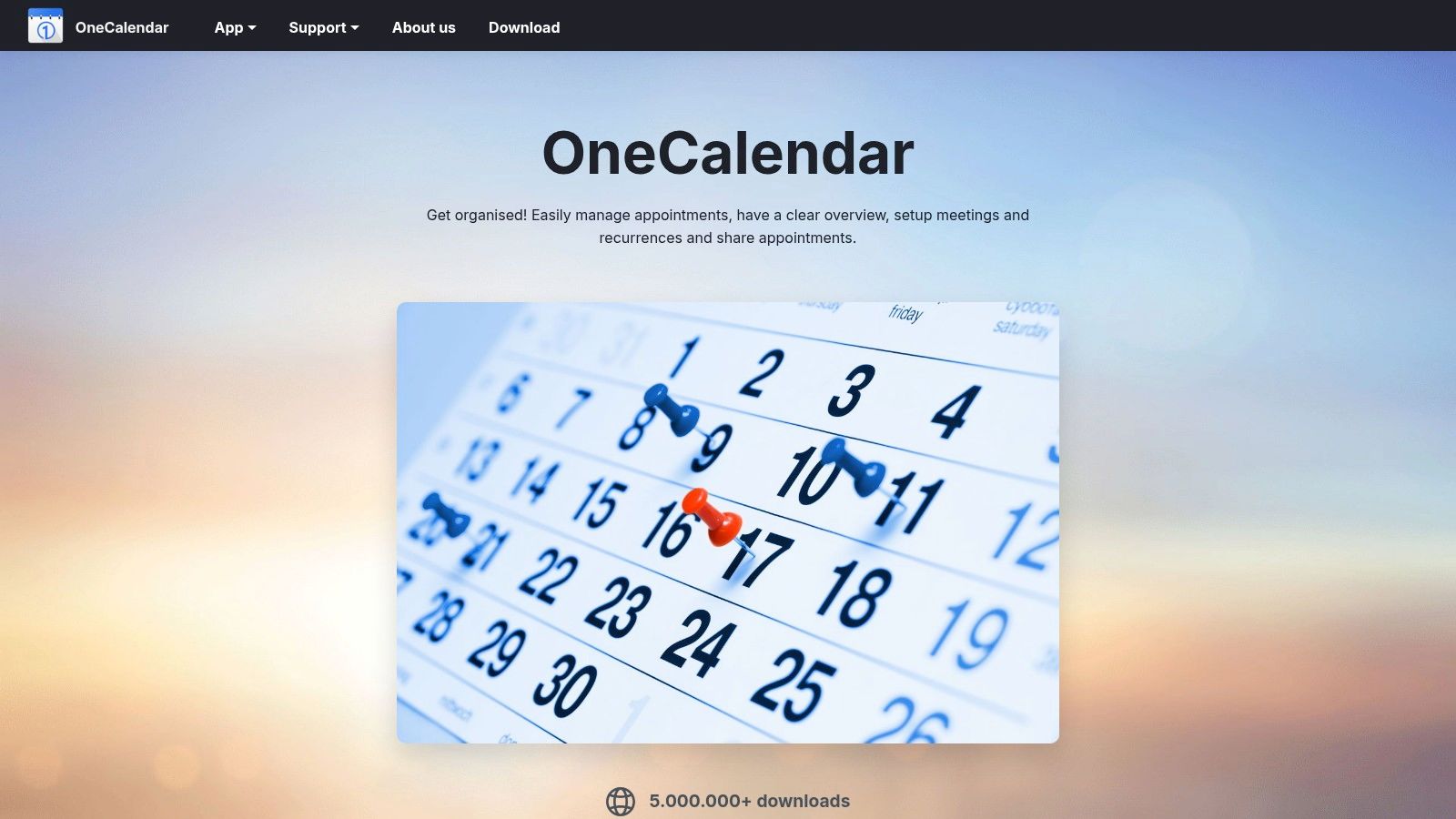
The app’s core strength lies in its simplicity and deep integration with Windows features like Live Tiles and widgets. It offers a clean, colour-coded view that helps you distinguish events from different accounts at a glance. While the base app is free, a one-time premium purchase unlocks powerful features like advanced search and instant synchronisation, offering a subscription-free model that appeals to many users.
Key Features and User Experience
- Multi-Provider Aggregation: Connect and view calendars from Outlook/Exchange, Google, iCloud, and other CalDAV providers in one place.
- Windows Integration: Utilises native Windows features, including Live Tiles and lock screen notifications.
- Colour-Coding and Themes: Easily customise the look and feel of your calendar to differentiate between work, personal, and other accounts.
- One-Time Premium: A single purchase unlocks premium features like search and faster syncing, avoiding recurring subscriptions.
Pros & Cons
| Pros | Cons |
|---|---|
| Lightweight and very Windows-friendly design | Premium licences don’t transfer across platforms (e.g., Windows vs. mobile) |
| One-time premium licence per platform (no subscription) | Support is FAQ/email based, not instantaneous |
| Unified views simplify management of multiple providers | Some users report billing quirks when purchasing through the Microsoft Store |
| Available on the Microsoft Store for easy installation |
Website: https://www.onecalendar.nl
6. Morgen
Morgen is a powerful, cross-platform calendar application designed for professionals who need to unify their scheduling, tasks, and meeting management in one place. It offers a dedicated Windows desktop app that integrates time-blocking, an AI-powered planner, and built-in booking links, making it a strong contender among modern calendar apps for Windows users.
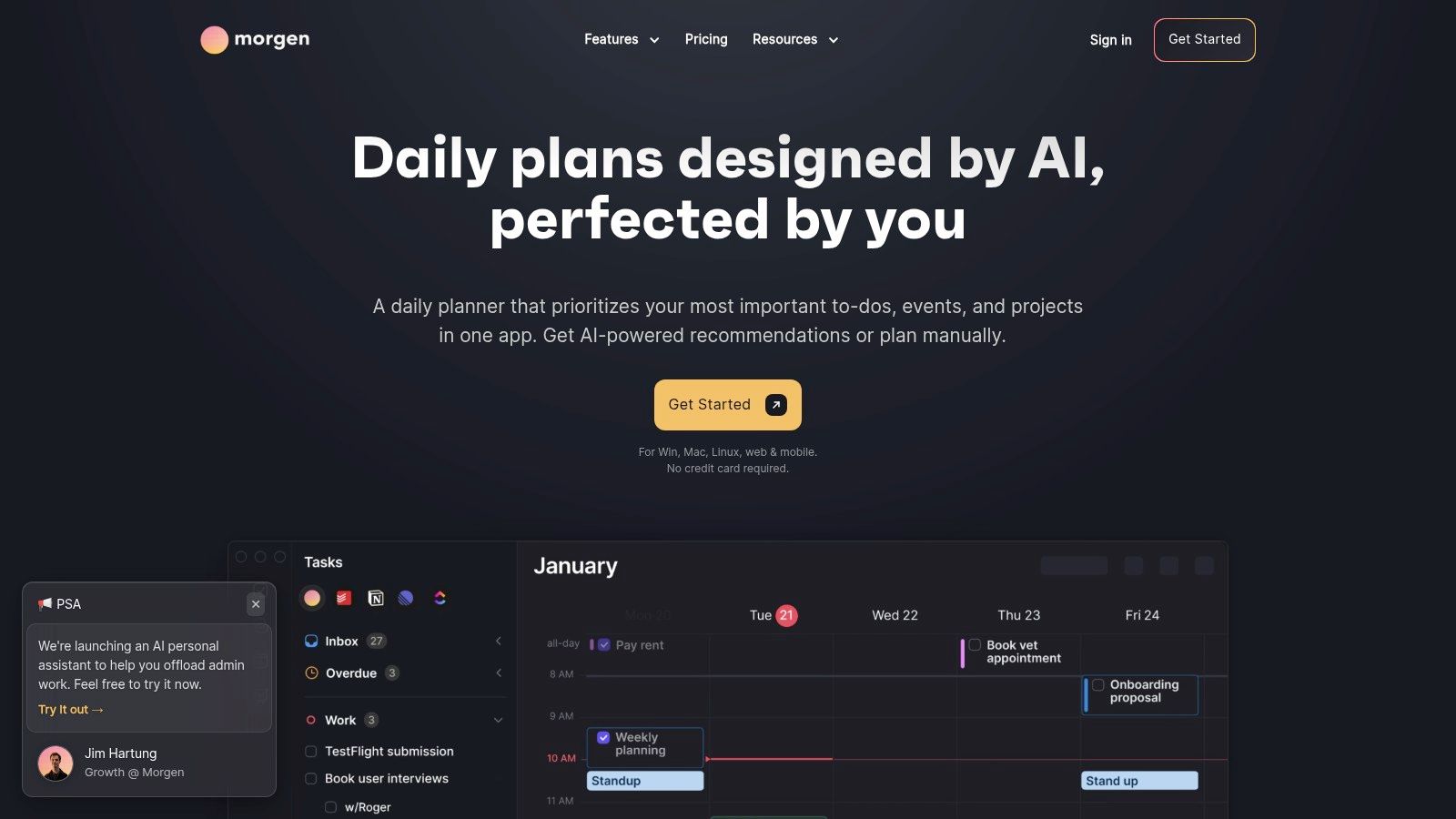
The platform stands out by combining task management directly with your calendar events, allowing you to drag tasks into time slots for effective planning. Its built-in scheduling links eliminate the need for separate booking tools like Calendly. For professionals in Germany and Europe, Morgen provides a clean, modern interface that supports complex workflows, from coordinating across multiple calendars to automating daily planning.
Key Features and User Experience
- AI Planner: Automatically organises tasks and suggests time blocks to help you build a productive daily schedule.
- Unlimited Integrations: Connects with unlimited calendar accounts (Google, Outlook) and task managers (Todoist, Asana).
- Built-in Booking Pages: Create and share customisable scheduling links directly from the app for client meetings.
- Cross-Platform Support: Native apps for Windows, macOS, and Linux ensure a consistent experience across all devices.
Pros & Cons
| Pros | Cons |
|---|---|
| Strong power-user feature set with a clean, modern UI | Pro and Team features require a paid subscription |
| Integrated scheduling and automation features reduce tool-switching | A smaller vendor compared to Microsoft/Google, so enterprise standardisation may lag |
| Windows native app plus excellent cross-platform support |
Website: https://www.morgen.so
7. eM Client
eM Client is a comprehensive personal information manager (PIM) for Windows that integrates email, a robust calendar, tasks, and contacts into a single, powerful application. It's designed for professionals who need more than a standalone calendar, offering deep integration with online meeting services like Zoom, Teams, and Google Meet, and full support for Exchange, Google Workspace, and CalDAV servers.
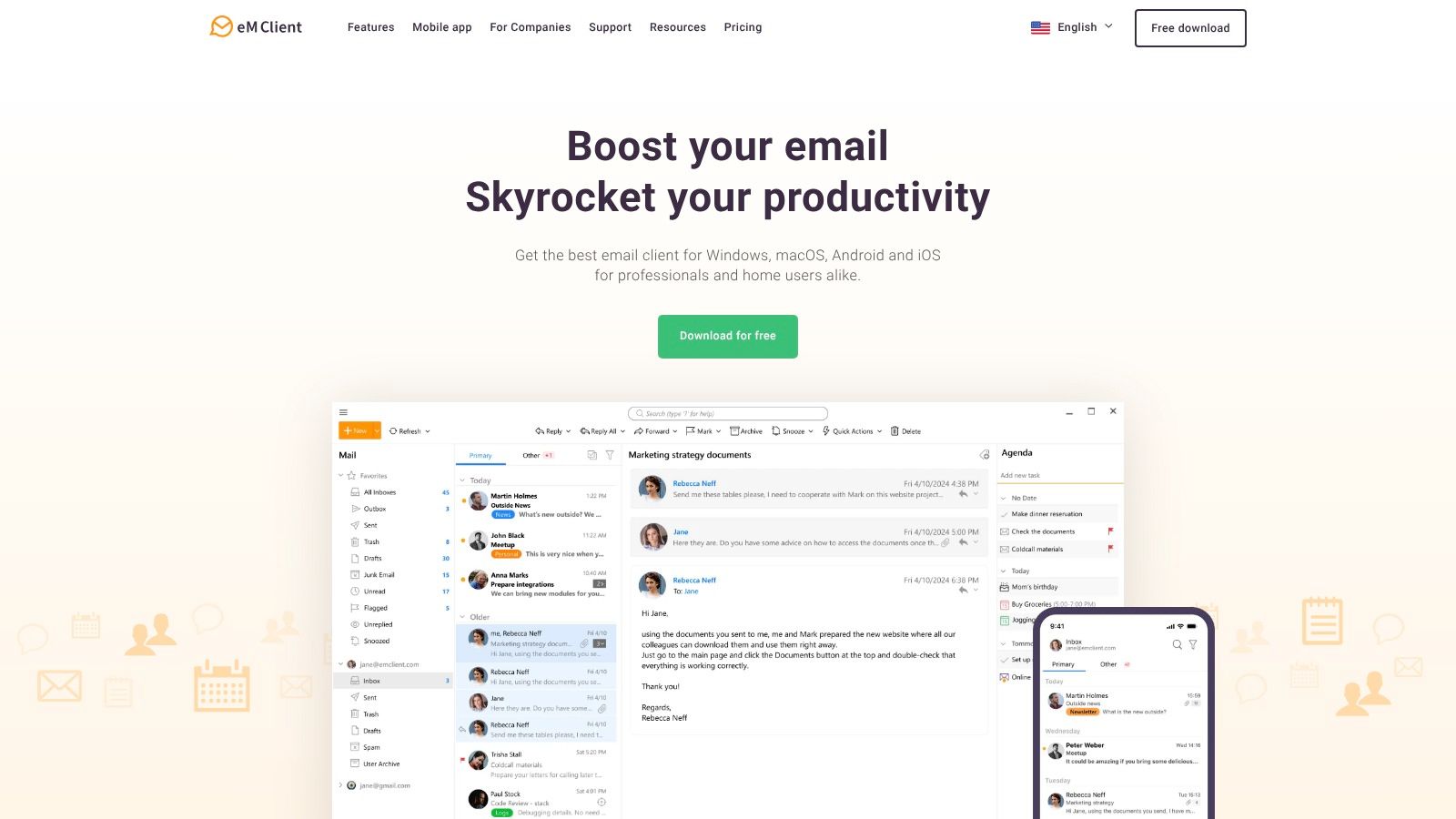
Its strength lies in its maturity and extensive feature set, bridging the gap between basic calendar apps and full-suite enterprise solutions. For users in Germany and across Europe, the software is fully localised. The flexible licensing model, which includes a one-time lifetime purchase option alongside subscriptions, makes it an attractive alternative to recurring software costs.
Key Features and User Experience
- All-in-One Interface: Manage emails, calendars, tasks, and contacts without switching between applications.
- One-Click Online Meetings: Directly create Zoom, Teams, or Meet events from the calendar interface.
- Broad Synchronisation: Supports two-way synchronisation with Exchange, Microsoft 365, Google Calendar, and other CalDAV/CardDAV services.
- Advanced Task Management: Features GTD-style (Getting Things Done) options and internet calendar support.
Pros & Cons
| Pros | Cons |
|---|---|
| Mature PIM with deep calendar features | Some sharing/delegation functions depend on server/provider limitations |
| Flexible licensing: subscription or lifetime one-time purchase | Advanced features are gated behind paid tiers |
| Advanced search, filters and scheduling integrations | The interface can feel dense for users seeking simplicity |
| Mobile apps for iOS/Android include calendar and tasks |
Website: https://www.emclient.com
8. VueMinder
VueMinder is a powerful, feature-rich desktop calendar built specifically for Windows, offering deep system integration and extensive customisation. It excels with its desktop overlay feature, which keeps your schedule visible, and provides advanced options for reminders, printing, and sharing calendars over a local area network (LAN), making it a strong choice for power users who need granular control.
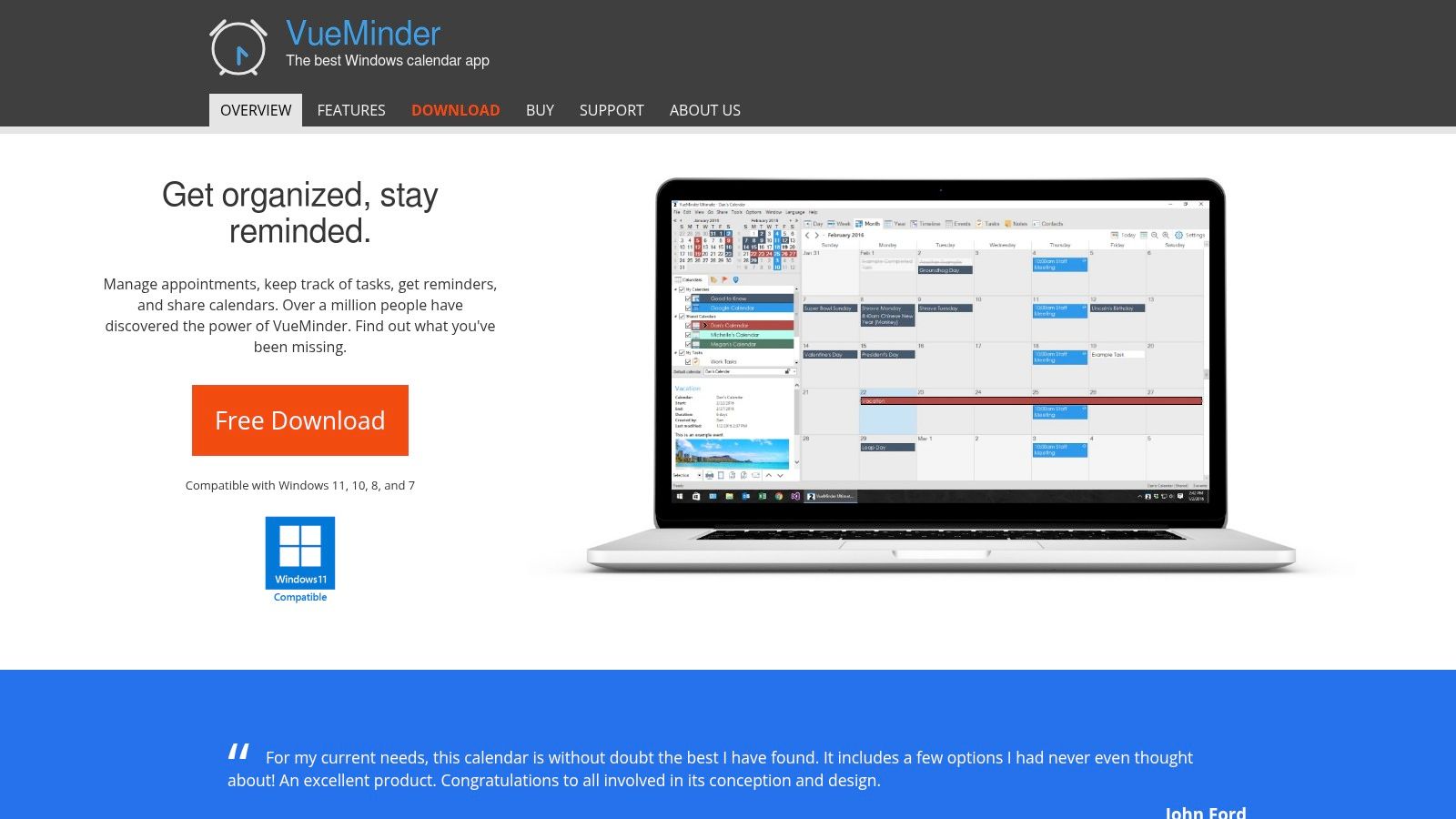
With a long history and active development, VueMinder stands out for its robust, native Windows performance and perpetual licence model. While a free Lite version is available, its Pro and Ultimate tiers unlock professional features like two-way Google Calendar and Microsoft Exchange synchronisation, custom data fields, and contact management, making it one of the most comprehensive calendar apps for Windows users who value offline capability and detailed configuration.
Key Features and User Experience
- Desktop Overlay: Displays a transparent, interactive calendar directly on your Windows desktop.
- Customisable Reminders: Set up reminders via pop-ups, email, SMS, or even voice alerts.
- Advanced Sharing and Sync: Pro/Ultimate versions support LAN sharing and two-way sync with Google Calendar and Exchange.
- Extensive Print Options: Offers a wide variety of print styles, layouts, and HTML export capabilities.
Pros & Cons
| Pros | Cons |
|---|---|
| Very deep Windows-native feature set and customisation | User interface is functional but less modern than newer cloud-based apps |
| Excellent print/export options for physical record-keeping | Key features like two-way sync require higher-tier paid licences |
| Lite (free) version available and paid editions with one-time fee | Primarily a desktop application, lacking a dedicated mobile app |
| Long history and active support for reliability |
Website: https://www.vueminder.com
9. Mailbird
Mailbird is a popular Windows email client that distinguishes itself by integrating a powerful calendar directly into the user interface. It’s designed for professionals who want to manage their email and schedule from a single, unified dashboard, supporting accounts from Google, Exchange, and other providers via ICS. This all-in-one approach aims to reduce context switching and centralise communication and planning.
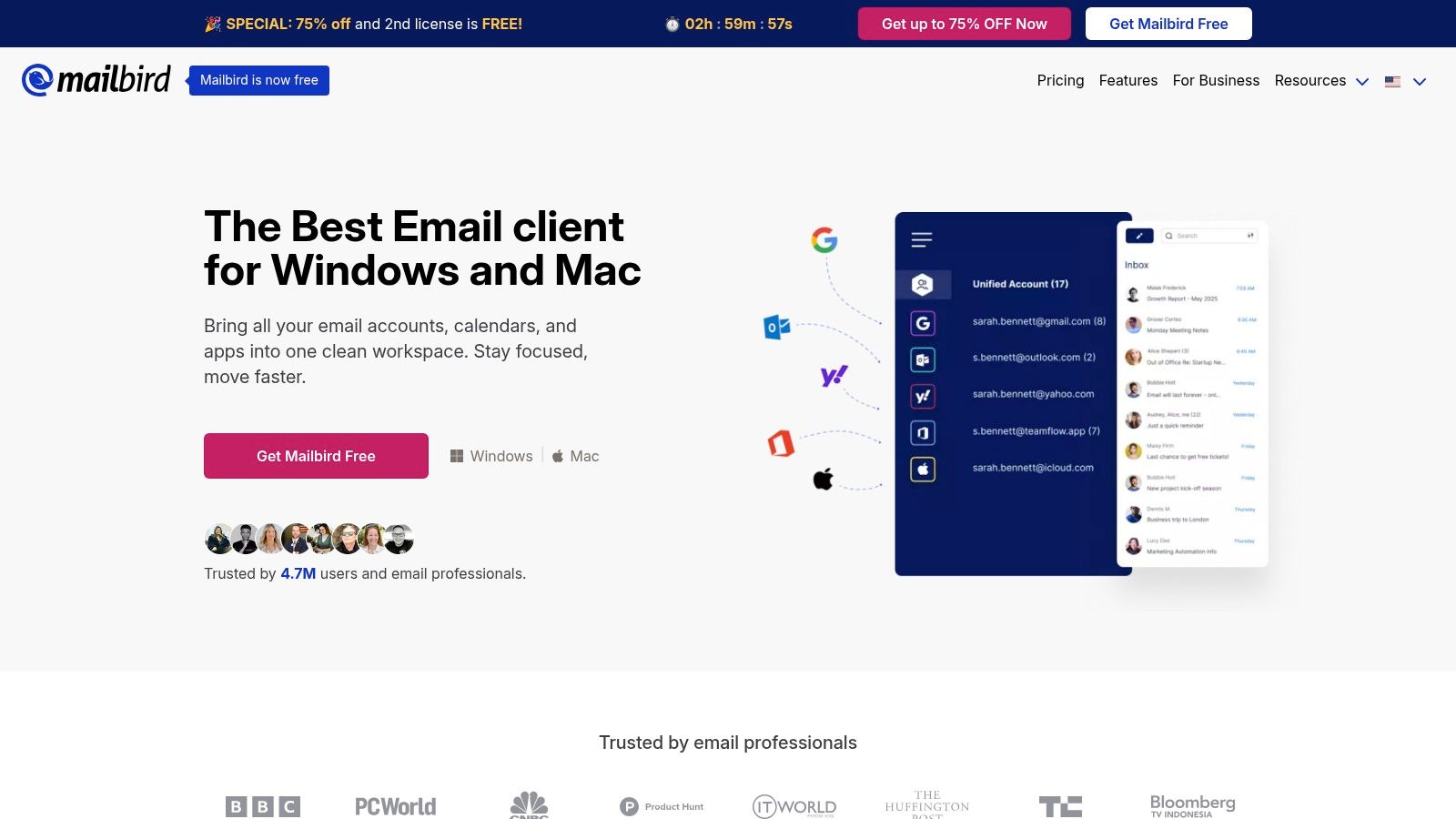
The primary appeal for users in Germany and across Europe is its focus on productivity within a familiar desktop client format. By combining a unified inbox with a native calendar pane and various app integrations like task managers and messaging services, Mailbird serves as a central command centre. This makes it one of the more versatile calendar apps for Windows for those looking to streamline their workflow.
Key Features and User Experience
- Native Calendar Pane: View and manage multiple calendars from different accounts directly alongside your inbox.
- App Integrations: Connects with popular productivity tools like Asana, Todoist, and WhatsApp to keep your workflow in one place.
- Unified Inbox: Consolidates all your email accounts into a single, organised stream for efficient management.
- Email Productivity: Premium versions offer advanced features like email tracking, templates, and snooze functionality.
Pros & Cons
| Pros | Cons |
|---|---|
| All‑in‑one email and calendar experience for Windows | Advanced calendar/email features are locked behind Premium tiers |
| Flexible licensing with a free version available | Occasional reports of confusing licensing or versioning changes |
| Integrations boost productivity within a single application | Primarily an email client with a calendar, not a dedicated scheduler |
| Clean, customisable user interface |
Website: https://www.getmailbird.com
10. Thunderbird
Thunderbird is a free, open-source email client that comes with a powerful integrated calendar, making it an excellent all-in-one solution for managing communications and schedules. Originally a separate add-on known as Lightning, the calendar is now a core feature, offering robust support for events, tasks, and recurring appointments directly within the application.
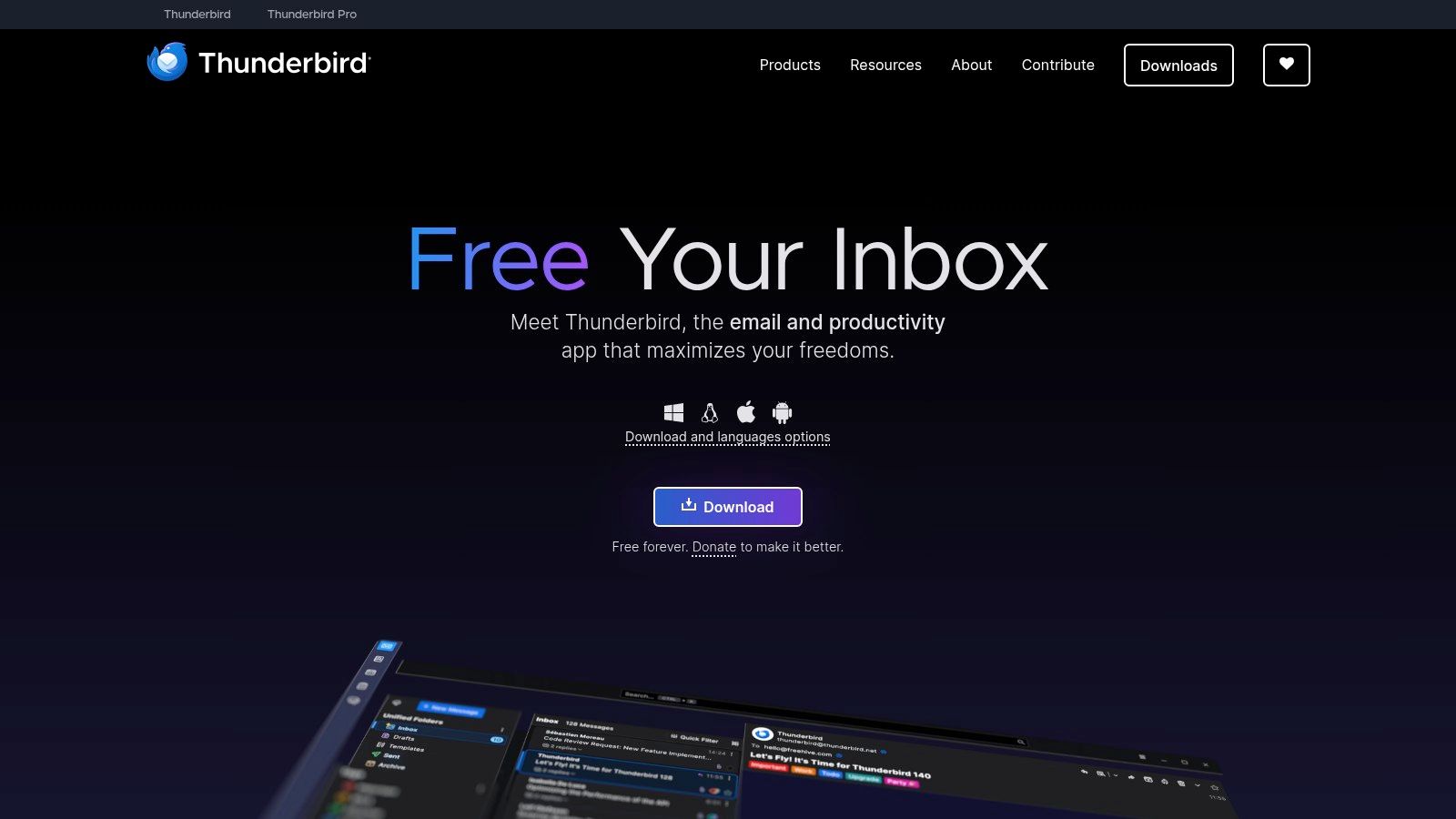
Its strength lies in its flexibility and privacy-focused design. Thunderbird supports open standards like CalDAV and ICS, allowing users to connect to a wide range of calendar services. For those needing integration with proprietary platforms, a vibrant community add-on ecosystem fills the gap, with popular extensions like "Provider for Google Calendar" enabling seamless syncing. This makes it a standout choice among calendar apps for Windows for users who prioritise open-source software.
Key Features and User Experience
- Integrated Calendar and Tasks: Manage your schedule and to-do lists alongside your email without switching applications.
- Open Standard Support: Natively supports CalDAV and ICS for compatibility with services like Nextcloud, Fastmail, and others.
- Extensible with Add-ons: The functionality can be significantly expanded with community-developed add-ons, for example to connect Google Calendar.
- Privacy-Oriented: As an open-source project from the makers of Firefox, it is developed with user privacy as a central principle.
Pros & Cons
| Pros | Cons |
|---|---|
| Completely free and open-source with a privacy-friendly design | Some calendar integrations depend on third-party add-ons |
| Highly flexible via add-ons, ideal for multi-account setups | Interface is less streamlined compared with some modern commercial apps |
| Active support documentation for calendar setup | Add-ons can sometimes be impacted by major application updates |
| Unified email and calendar experience |
Website: https://www.thunderbird.net
11. Fantastical (Flexibits)
Fantastical, long celebrated on Apple platforms, has brought its premium calendar experience to Windows. It stands out with its powerful natural-language input, allowing you to create complex events by simply typing a sentence. The app is designed for professionals who need advanced scheduling features and seamless synchronisation across iCloud, Google, Exchange, and Microsoft 365 accounts.
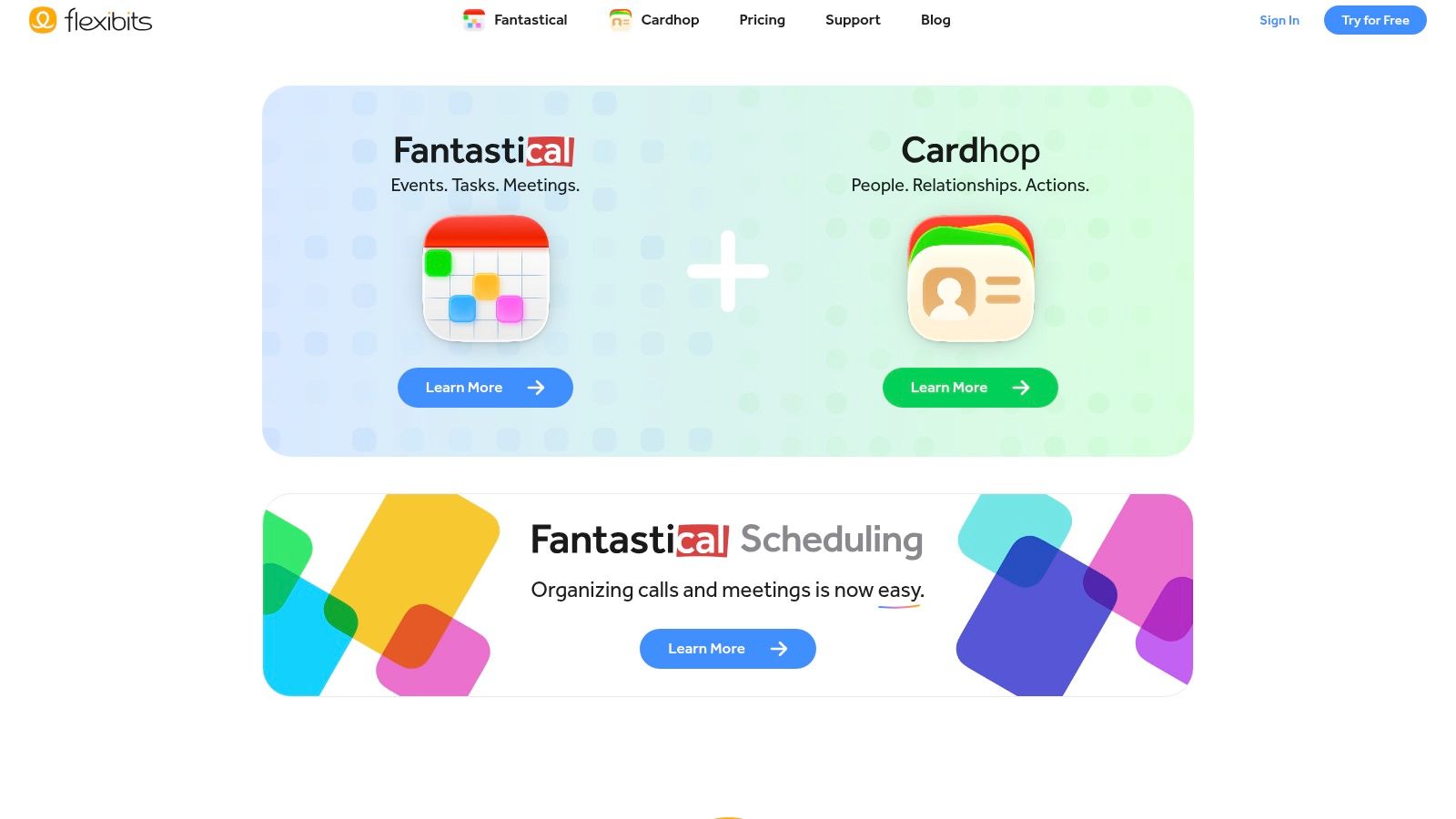
Its "Openings" feature lets users share booking links, similar to dedicated scheduling tools, streamlining appointment setting. This integration of core calendar functions with modern scheduling automation makes it a strong contender among calendar apps for Windows, especially for those who work across different devices and operating systems.
Key Features and User Experience
- Natural Language Input: Quickly create events and tasks by typing details like "Project meeting with the team next Tuesday at 3 pm".
- Scheduling Links (Openings): Share your availability with a link, allowing others to book meetings directly into your calendar.
- Broad Account Sync: Integrates with iCloud, Google, Microsoft 365, Exchange, and other CalDAV services in one unified view.
- One-Click Video Calls: Automatically adds and displays links for joining Zoom, Microsoft Teams, and Google Meet calls.
Pros & Cons
| Pros | Cons |
|---|---|
| Powerful features for heavy calendar users and cross-device users | Full feature set requires a premium subscription |
| Polished, modern UI with advanced scheduling tools | The Windows version is newer and may have some edge-case bugs |
| Single subscription covers all platforms (macOS, iOS, Windows) | Might be overly complex for users with basic needs |
| Free tier available to test core functionality |
Website: https://flexibits.com
12. Capterra (Germany) – Calendar software listings filtered for Windows
Capterra is a comprehensive software comparison marketplace, and its German-language site offers a dedicated, pre-filtered section for calendar tools compatible with Windows. Rather than being a single app, it’s a powerful research platform that allows users to discover, compare, and analyse a wide range of scheduling solutions from various vendors. It’s an ideal starting point for businesses and professionals in Germany looking to evaluate multiple options based on specific criteria.
The platform aggregates user reviews, pricing information, and feature lists, presenting them in a standardised format for easy side-by-side comparison. For users in the DACH region, the DE-localised interface and reviews from local peers provide relevant context that is often missing from global review sites, making it a valuable resource for finding calendar apps for Windows that fit regional business needs.
Key Features and User Experience
- DE-Localised Listings: All content, including filters and user reviews, is presented in German for the local market.
- Advanced Filtering: Users can narrow down options by deployment (Windows), pricing models, and specific feature categories.
- Side-by-Side Comparisons: Select multiple products to view a detailed feature-by-feature comparison table.
- Aggregated User Reviews: Access ratings and feedback from a large pool of verified software users to gauge real-world performance.
Pros & Cons
| Pros | Cons |
|---|---|
| Excellent starting point for market research in Germany | Sponsored placements can influence visibility, so it's wise to verify details on vendor sites |
| Surfaces niche or industry-specific tools you might otherwise miss | The "Calendar" category can include heavy appointment schedulers, not just simple personal calendars |
| Free to use, with vendor pricing and links provided where available | Feature lists can be high-level and may lack deep technical specifications |
| User reviews provide valuable real-world insights |
Website: https://www.capterra.com.de/directory/32297/calendar/deployment-options/windows/software
Top 12 Windows Calendar Apps — Feature Comparison
| Product | Core features ✨ | UX / Quality ★ | Unique / USP ✨ | Price / Value 💰 | Target 👥 |
|---|---|---|---|---|---|
| 🏆 Calendar0 | NL scheduling, multi‑account sync, drag‑drop, keyboard‑first | ★★★★★ Fast, privacy‑first | ✨ AI automates invites; local OAuth2 encrypted tokens | 💰 Free starter; Lifetime ~$49; ~$4.99/mo | 👥 Busy pros, founders, distributed teams |
| Microsoft Store (Windows apps) | App discovery, one‑click install, auto‑updates | ★★★★ Convenient storefront | ✨ Centralized discovery & regional pricing | 💰 Free to browse; app prices vary | 👥 Windows users, IT admins |
| Microsoft Outlook (Windows) | Email + calendar, Exchange/Teams deep integration | ★★★★ Reliable, enterprise‑grade | ✨ Native MS365/Copilot features | 💰 Free w/account; MS365 for full features | 👥 Enterprises, Office users |
| Google Calendar (web / PWA) | NL event creation, cross‑device sync, PWA | ★★★★ Ubiquitous, web‑based | ✨ Strong Workspace compatibility | 💰 Free | 👥 Google Workspace & personal users |
| OneCalendar | Aggregates providers, theming, widgets | ★★★ Lightweight, Windows‑friendly | ✨ One‑time premium license option | 💰 Free + one‑time premium | 👥 Windows users wanting unified view |
| Morgen | AI planner, time‑blocking, booking pages | ★★★★ Modern UI, cross‑platform | ✨ Built‑in booking + automations | 💰 Subscription (Pro/Team) | 👥 Power users, teams |
| eM Client | PIM: email, calendar, tasks, Exchange/CalDAV | ★★★★ Mature & feature‑rich | ✨ Lifetime license available | 💰 Free / subscription / lifetime | 👥 Professionals needing full PIM |
| VueMinder | Desktop overlays, LAN sharing, print/export | ★★★ Deep Windows feature set | ✨ Extensive print/export & LAN sharing | 💰 Free lite; paid perpetual tiers | 👥 Power desktop users |
| Mailbird | Email client with calendar pane & integrations | ★★★ Unified inbox, productivity tools | ✨ Integrations inside email client | 💰 Free + Premium | 👥 Users wanting email+calendar in one app |
| Thunderbird | Email + integrated calendar, add‑ons | ★★★ Open‑source, flexible | ✨ Free & extensible via add‑ons | 💰 Free | 👥 Privacy‑minded, technical users |
| Fantastical (Flexibits) | NL input, scheduling links, multi‑account sync | ★★★★ Polished, cross‑device | ✨ "Openings" scheduling & continuity | 💰 Free tier; Premium subscription | 👥 Power calendar users, cross‑device |
| Capterra (Germany) | Localized listings, side‑by‑side comparisons | ★★★ Helpful marketplace | ✨ DE‑focused filters & aggregated reviews | 💰 Free to use | 👥 Buyers researching Windows calendar software |
Choosing the Right Windows Calendar to Master Your Schedule
Selecting the perfect tool from the wide array of calendar apps for Windows is a deeply personal decision. Your ideal choice hinges on your unique workflow, the digital ecosystem you operate within, and your core priorities, whether that's raw speed, deep integrations, or robust privacy protections. The journey to mastering your schedule begins not with the app itself, but with a clear understanding of your own needs.
The landscape of modern scheduling tools offers a solution for every type of professional. For those looking to reclaim valuable time and eliminate administrative drag, an AI-powered scheduler like Calendar0 provides a significant leap in productivity. Its natural language processing and privacy-first design are built for users who want to schedule meetings at the speed of thought. Conversely, for individuals and organisations deeply embedded in the Microsoft 365 environment, the new Outlook for Windows remains the most tightly integrated and functionally reliable option. And for those prioritising accessibility and a powerful free solution, Google Calendar's PWA offers an unbeatable, platform-agnostic experience.
How to Make Your Final Decision
To truly find the right fit, you must first identify your biggest scheduling bottleneck. Ask yourself what frustrates you most about your current system:
- Is it the endless back-and-forth required to find a mutually available meeting time? An AI scheduler or a tool with powerful booking links might be your answer.
- Is it the mental overhead of managing multiple calendars from different accounts (e.g., a work Microsoft 365 and a personal Google account)? A unified calendar like OneCalendar or Morgen could be the solution.
- Is it the disconnect between your tasks and your time? Look for apps like eM Client or Morgen that integrate task management directly into your calendar view.
- Is it a lack of native integration with your primary email client? This is a crucial consideration, and to help in your decision-making process, explore a detailed comparison of Gmail vs. Outlook, two of the most popular platforms often considered for their integrated features.
By pinpointing your primary pain point, you can effectively narrow down the options on this list to the one best equipped to solve it. Don't hesitate to take advantage of the free versions or trial periods offered by our top recommendations. Real-world usage is the ultimate test; see which interface feels most intuitive and which feature set genuinely enhances your workflow. Ultimately, the best calendar app is the one that you stick with, the one that transforms your schedule from a source of stress into a tool for focus and accomplishment.
Ready to stop managing your calendar and start commanding your time? Calendar0 leverages AI to make scheduling effortless, secure, and intelligent. Reclaim your focus by trying the calendar app built for the future of work on Windows. Get started with Calendar0 today.

